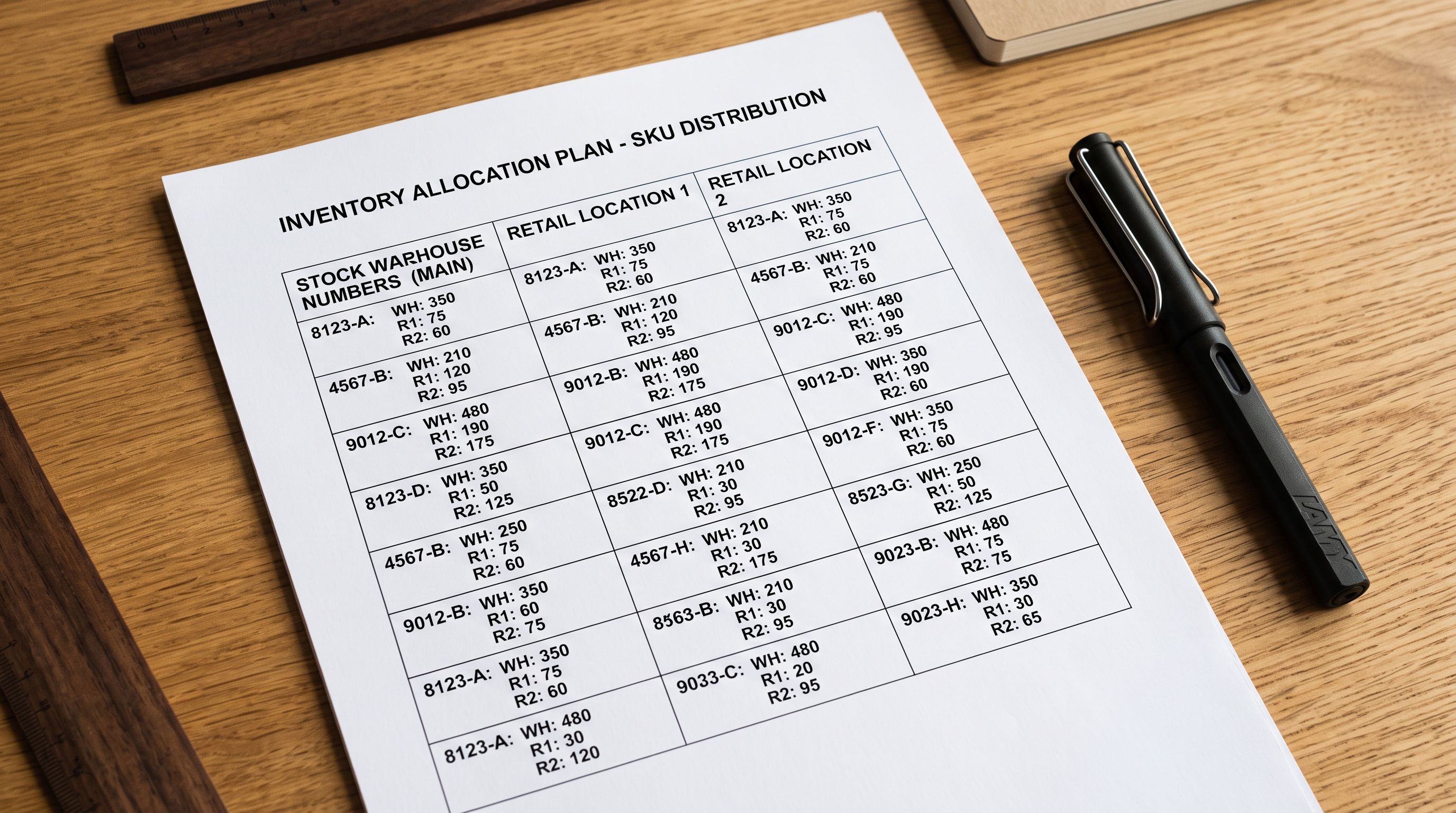
Shopify Multi-Currency Product Import: Pricing for International Markets
On this page
Shopify Multi-Currency Product Import: Pricing for International Markets
Expanding a Shopify store to international markets introduces a pricing problem that automatic currency conversion does not solve. Shopify Markets converts your store currency to the buyer's local currency at the time of checkout, applying a current exchange rate to your base price. What it does not do is account for the currency your supplier quoted you in, the margin you need to apply to reach a viable retail price, or the regional pricing differences that make sense commercially in different markets.
A merchant who sources products from a US-based supplier, invoiced in USD, and sells primarily in Australia needs to convert the supplier cost from USD to AUD, apply their margin, and set the AUD retail price in Shopify as the base. Shopify Markets then converts that AUD retail price to USD, EUR, GBP, and other supported currencies for international buyers. If the import file contains the raw USD supplier cost as the retail price, every international buyer sees a price that is wrong for a different reason.
How Shopify Markets Pricing Works
Shopify Markets is Shopify's built-in international selling feature. When a buyer visits your store from a country in a different currency zone, Shopify Markets displays prices in the buyer's local currency based on a conversion from your store's primary currency. The conversion uses a current published exchange rate with an optional rounding rule applied.
The key point is that Shopify Markets converts from your primary store currency, not from your supplier's invoice currency. If your store is set to AUD and a German buyer views a product, Shopify converts the AUD price to EUR. The AUD price must already be the correct retail price before that conversion happens. Shopify has no visibility into what your supplier charged you, what currency they charged in, or what margin you applied.
This is a complete retail pricing workflow: supplier cost → currency conversion → margin → retail price in store currency → Shopify Markets conversion to buyer currency. Shopify handles the last step. The steps before it belong to the import workflow.

Setting Up the Import for Multi-Currency Sourcing
When a supplier file arrives with prices in a currency that is not your Shopify store currency, the import workflow needs to handle three things before any product price reaches Shopify.
Step 1: Identify the source currency. The supplier file may include a currency column ("Price (USD)", "Cost EUR"), or the currency may be implied by context. Importier detects common currency-coded column names and prompts for confirmation. For files where the currency is not specified in the column name, a manual identification step in the column mapping interface confirms which currency the price values represent.
Step 2: Apply the conversion multiplier. Once the source currency is identified, a conversion multiplier brings the cost values into your store currency. For a USD-to-AUD conversion, the multiplier is the current AUD/USD exchange rate. For a EUR-to-GBP conversion, it is the current EUR/GBP rate. Importier's price multiplier field in the column mapping step applies the multiplier to every row in the import. The result is a cost value in your store currency.
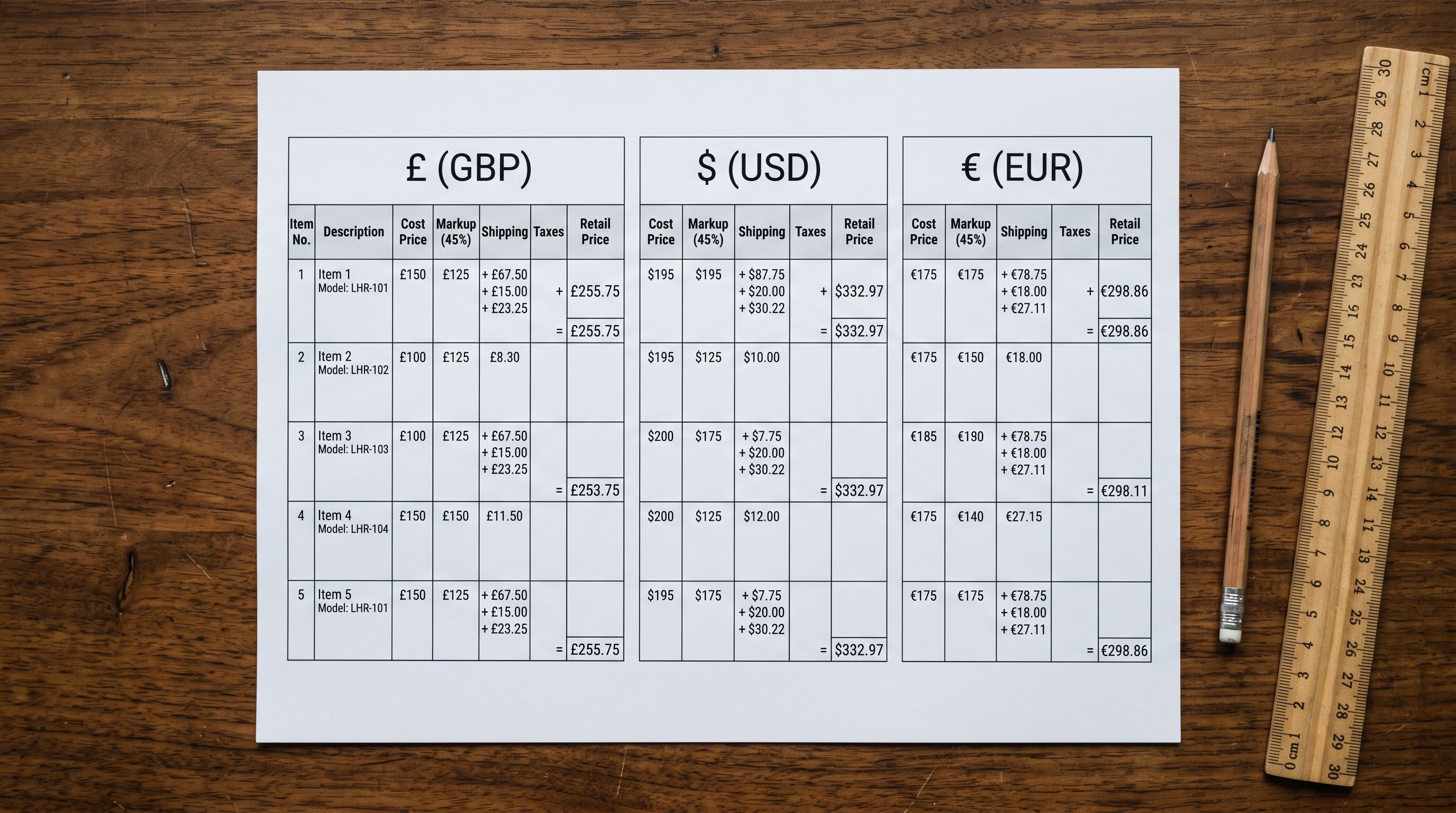
Step 3: Apply margin. The converted cost is not the retail price. A separate margin multiplier produces the retail price from the converted cost. A 2.5x markup applied to a $45 AUD converted cost produces a $112.50 AUD retail price. The margin multiplier can be combined with the currency conversion multiplier in a single pass: a conversion rate of 1.52 (USD to AUD) and a markup of 2.5 produces a single multiplier of 3.80, applied to the USD cost column to produce the AUD retail price directly.
For the full workflow on handling supplier invoices in foreign currencies, including how to manage cost-versus-retail price columns in supplier files, the foreign currency import guide covers the I3 workflow in detail.
- 01Before the import, note the source currency in the supplier file and look up a current exchange rate to your store's primary currency. You will apply this as a multiplier in the import configuration.
- 02Upload the supplier file to Importier. In the column mapping step, map the supplier's price column to Variant Price. Set the price multiplier field to the product of your conversion rate and your margin markup (for example, 1.52 USD-to-AUD × 2.5 markup = 3.80).
- 03If the supplier file contains a separate cost price column (what you pay), map that column to Variant Cost Price. Apply only the conversion rate as the multiplier for this field, not the full retail multiplier.
- 04Map any compare-at price column. This is typically the supplier's recommended retail price or RRP, which becomes the Variant Compare At Price in Shopify. Apply the conversion rate multiplier here as well.
- 05In the import preview, verify that the Variant Price column shows the correct AUD (or store currency) retail price, not the raw USD supplier cost. A product with a USD supplier cost of $28 should show approximately $106 AUD at a 1.52 conversion rate and 2.5 markup.
- 06Confirm the import. Shopify Markets will now convert the AUD retail prices to EUR, GBP, USD, and other supported currencies for international buyers automatically.
HS Codes for Cross-Border Products
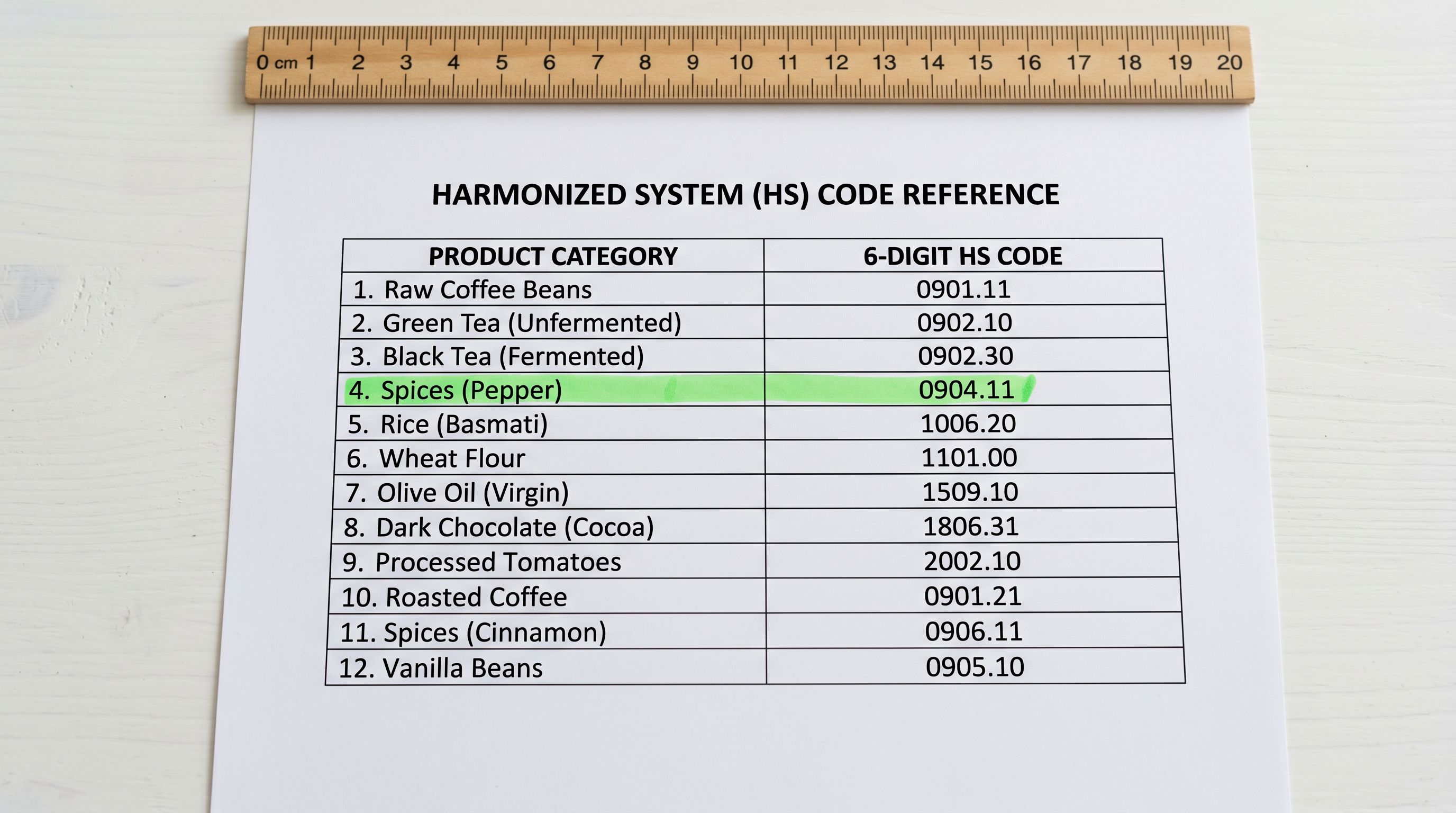
Products sold internationally through Shopify Markets or shipped across borders require Harmonised System (HS) codes assigned to each product. HS codes identify the product category for customs authorities and determine applicable import duties and taxes in the destination country.
Setting HS codes at import time rather than adding them manually after products are live is more efficient for large catalogues. When the supplier CSV includes an HS code column (common for wholesale and B2B supplier files in trade categories like electronics, textiles, and specialised goods), the column maps to the Harmonised System Code field in Importier's column mapping step.
For catalogues where the supplier does not provide HS codes, Importier's Industry Packs assign product taxonomy categories that correspond to HS code ranges. While the Industry Pack assignment does not set the HS code field directly, the correct product type and category assignment narrows the HS code lookup significantly. A product correctly categorised as Apparel > Women's Clothing > Tops needs a 6106.xx code; the category assignment identifies the starting point.
For the full process of auditing and adding HS codes to an existing Shopify catalogue, the Shopify HS codes guide covers the import workflow, how to find the correct code for each product category, and the interaction between HS codes and cross-border shipping carrier requirements.
- Raw USD supplier cost imported as the retail price
- Shopify Markets converts the supplier cost to buyer currency: wrong in every market
- No margin applied: products sell at cost or below
- HS codes must be added manually after products are live
- Compare-at price shows the same wrong currency conversion
- Conversion rate and margin multiplier applied in the column mapping step
- Shopify Markets converts the correct AUD retail price to buyer currency
- Margin built into the multiplier: every price is commercially viable
- HS codes mapped from supplier column or assigned via Industry Pack taxonomy
- Compare-at price converted at the rate multiplier for correct RRP display
Regional Pricing Adjustments in Shopify Markets
Shopify Markets supports market-specific price lists that override the automatic currency conversion for selected markets. A merchant who wants to sell at a fixed price in the UK (£29.99) regardless of what the AUD-to-GBP conversion rate produces can set a market-specific price for the UK market.
Market-specific price lists are managed in Shopify admin under Markets, not in the import workflow. The import sets the base AUD retail price; the market-specific price list in Shopify admin sets the fixed price for the markets where the automatic conversion is not appropriate.
The most common scenario for market-specific pricing is the US market. Merchants based in Australia often want clean USD pricing ($29, $49, $99) rather than the converted AUD price (which might produce $31.47 or $48.23). The market-specific price list for the US market overrides the automatic conversion and displays the fixed USD price instead.
Automatic currency conversion is the right starting point for most markets. Market-specific price lists are the right tool for markets where you want a clean, fixed price rather than a converted one. The import sets the base; the market price list overrides it selectively.
Tax Configuration for International Markets
International sales through Shopify Markets require correct tax configuration per market. The import sets the product's tax status (taxable or non-taxable) and, for some product categories, the product tax code that determines which tax rate applies in jurisdictions with category-based tax rates.
For products subject to VAT in the EU, IOSS (Import One-Stop Shop) registration determines whether Shopify calculates and collects VAT at checkout for EU buyers. The import does not handle IOSS registration or the VAT threshold per destination country, but products imported with incorrect tax status (non-taxable when they should be taxable) will undercharge buyers and create liability.
For a complete walkthrough of international tax settings including VAT, IOSS, and how to configure Shopify for cross-border compliance, the Shopify international tax compliance guide covers the full tax configuration workflow for international Shopify stores.
Shopify's documentation on Shopify Markets pricing covers the market-specific price list feature, currency rounding rules, and how Shopify calculates the conversion from the base price.

Data Quality for International Products
Product Data Completeness for International Buyers
International expansion surfaces product data gaps that domestic buyers may not notice. Buyers in different markets have different data expectations: German buyers expect precise weight and dimension data for shipping cost transparency, Australian buyers expect country of origin for some product categories, US buyers expect detailed care instructions for textile products.
The product data quality audit before an international launch should cover:
Weight and dimensions: required for accurate shipping rate calculation by international carriers. Products with blank weight data generate carrier API errors and fall back to flat-rate shipping, which is often uncompetitive for international buyers.
Country of origin: required by customs authorities for cross-border shipments in some categories. Incorrect or missing country of origin data can delay customs clearance.
Product descriptions in the buyer's language: Shopify Markets supports translated storefronts. Importing AI-generated descriptions in English is a starting point; publishing English descriptions to a German or French market without translation reduces conversion rates in those markets.
The Shopify product data quality guide covers the full catalogue audit workflow for identifying missing weight, barcodes, HS codes, and other data fields before an international launch.
Shopify's guide to international selling covers the full Shopify Markets setup including domain configuration, language localisation, currency rounding, and market-specific product availability.

Get the Pricing Right Before the Launch
The import is where international pricing is set correctly or incorrectly. Shopify Markets handles the presentation. The conversion rate, the margin, and the HS code assignment all belong in the import workflow, before the products reach Shopify. Fixing pricing errors across a large catalogue after launch requires a reimport with corrected price columns and a selective update pass: additional work that the upfront configuration avoids.
Try Importier free at importier.app
Set up your first import in under five minutes.
Importier brings products into Shopify with AI descriptions, category metafields, and data enrichment on every run.