Shopify Bulk Import Speed: Import 1,000 Products in an Afternoon
On this page
Shopify Bulk Import Speed: Import 1,000 Products in an Afternoon
The most common misconception about bulk product imports is that they take days. Merchants who have spent time manually entering products one by one, or who have attempted CSV imports and run into format errors, assume that loading 1,000 products is a week-long project. It is not.
With a prepared supplier file and Importier's import workflow, a 1,000-product catalogue moves from file upload to live Shopify products in an afternoon. The AI content generation runs in the background while you configure settings and review a sample. The category metafield assignment is automatic. The column mapping takes 10-15 minutes for a file you have imported before, longer for a new supplier format.
This article covers what the realistic timeline looks like, what happens at each stage, and what decisions you need to make versus what the import handles automatically.
The Realistic Timeline for 1,000 Products
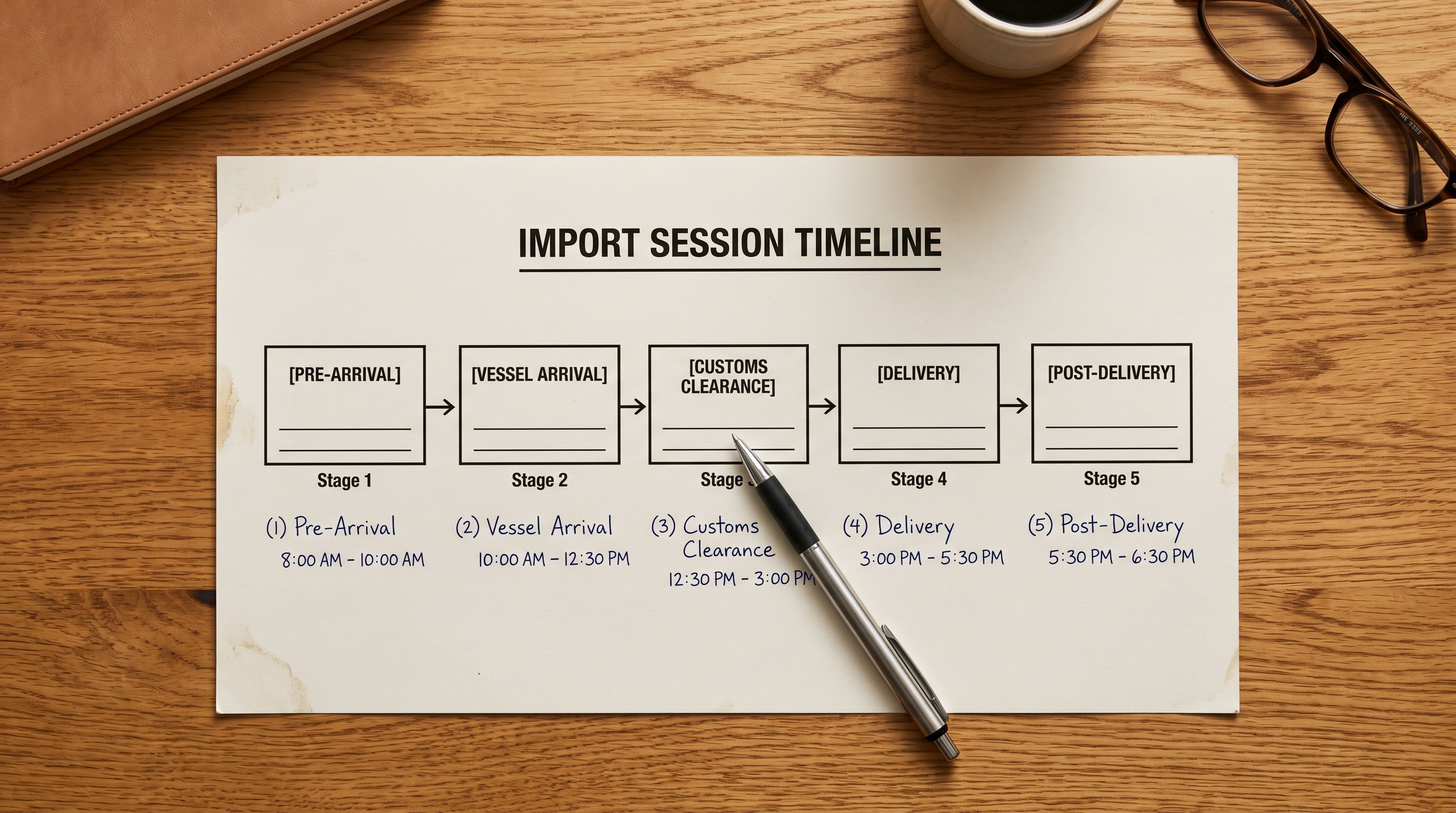
Here is a realistic timeline for importing 1,000 products from a prepared supplier CSV into Shopify with AI-generated descriptions, category metafields, and variant structure:
Stage 1: File preparation (15-30 minutes, done before upload)
Before uploading to Importier, the supplier file needs a quick review: confirm the column structure is readable, check that image URLs are publicly accessible, and verify that variant rows are formatted consistently. For a file you have received from this supplier before, this stage is minimal. For a new supplier format, it may include renaming columns or reformatting price values in a spreadsheet.
For a file that arrives in a format you have imported previously (same supplier, monthly stock update), Stage 1 is close to zero; save the file and upload.
Stage 2: Upload and column mapping (10-20 minutes)
Upload the supplier file to Importier. Importier reads the column structure and proposes a mapping from supplier columns to Shopify fields. For a recurring supplier, the saved mapping profile loads automatically and this stage collapses to a confirmation step. For a new supplier, the column mapping step requires explicit decisions on each field: which column is the title, which is the description, how prices are formatted, which columns carry variant data.
Ten minutes is realistic for a first-time mapping of a clean supplier file. Twenty minutes applies to files with unusual column names, inconsistent formatting, or complex variant structures.
Stage 3: Configuration (5-10 minutes, runs concurrently with Stage 2)
While mapping columns, you also set the AI configuration: the description style (Narrative, Lifestyle, Technical, or another), the expert persona for the product category, and the batch-level defaults for fields without a source column (vendor, product type, inventory tracking settings). These decisions are made once per import session and apply to every product in the batch.
For a standard single-category import (all products in one category), configuration takes 5 minutes. For a mixed-category catalogue, you may segment the import into two or three batches with different AI configurations, which adds time proportionally.
Stage 4: AI generation and processing (15-45 minutes, runs in background)
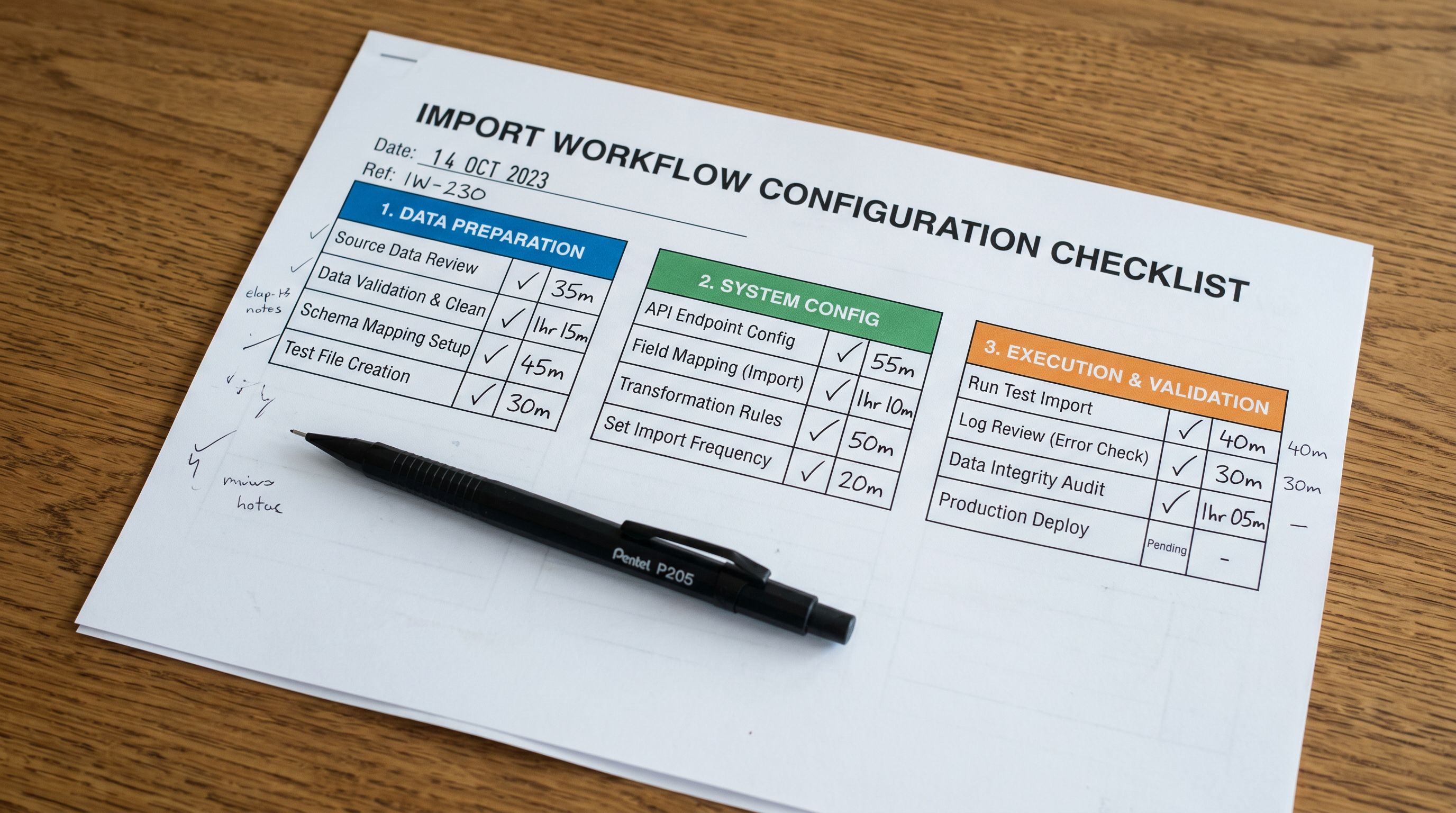
After column mapping and configuration are confirmed, Importier starts the AI generation pass in the background. For 1,000 products, the AI generates one description per product. Generation time varies by model tier: faster models (available on Starter and Growth plans) complete 1,000 descriptions in approximately 15-20 minutes; deeper models (Scale and Enterprise tiers) may take 30-45 minutes for the same batch at higher output quality.
The critical point: you do not wait for generation to complete before reviewing a sample. Importier's Review step shows generated descriptions as they complete, starting from the first products in the batch. While generation runs on products 200-1000, you are reviewing the outputs for products 1-50.
Stage 5: Sample review (15-30 minutes)
Before confirming the full import, review a sample of 20-50 generated descriptions spread across the product range. Look for:
- Whether the description style is consistent with the brand voice you want
- Whether the AI has produced accurate descriptions from the product data available (a product with sparse input data will produce a thinner description)
- Whether the persona you selected is producing the right vocabulary and framing for the audience
- Any products where the AI has made inaccurate claims that the input data does not support
If the sample review reveals a systematic issue (wrong style, wrong persona, vocabulary that does not match the brand), you can adjust the configuration and regenerate before confirming. This is the point at which catching a misaligned setting costs 15 minutes; catching it after 1,000 products are live costs significantly more.
Stage 6: Confirm and push (10-20 minutes)
Once the sample review passes, confirm the import. Importier pushes the 1,000 products (with generated descriptions, assigned category metafields, and structured variant data) to Shopify via the API. At 1,000 products, this typically takes 10-20 minutes depending on variant count per product and current API throughput.
After confirmation, the products are live in Shopify. No manual steps remain for the data that was configured in the import.
- 01Prepare the supplier file before uploading. Open it in a spreadsheet and confirm the column structure, check that image URLs are publicly accessible by pasting two or three into a browser, and verify that variant rows use consistent column values. A clean file at upload means fewer mapping decisions and a cleaner preview.
- 02Upload to Importier and open the column mapping step. If you have imported from this supplier before, load the saved mapping profile. For a new supplier, map each column to its Shopify equivalenttitle, body, price, images, vendor, and variant fields. This is the stage that rewards preparation: a consistent supplier file maps in 10 minutes.
- 03Set the AI configurationdescription style, expert persona, and batch-level defaults. For a mixed catalogue with multiple product categories, decide whether to run one session with a general persona or segment by category. Segmenting by category produces more accurate descriptions but requires running two or three sessions.
- 04Let the AI generation run while you complete the sample review. Open the Review step as soon as the first descriptions complete. Do not wait for all 1,000 to finish before reviewing; start with the first 20 and keep reviewing as more complete.
- 05In the sample review, check at least 20-50 products distributed across the product range. Verify the description style, vocabulary, and accuracy. If the first 10 reviews pass, the remaining 990 are almost certainly consistent, since the same configuration applies to every product in the batch.
- 06Confirm the import once the sample review passes. Importier pushes the products to Shopify. You will receive an Import History record showing the number of products created, the session timestamp, and the configuration applied.
What Runs Automatically
Several parts of a 1,000-product import require no manual steps once the initial configuration is set.
Category metafield assignment: Importier assigns each product to the correct Shopify Standard Product Taxonomy category based on the product type and category data in the source file. Products arrive in Shopify with metafields populated; no post-import taxonomy work required.
Variant structure: products with multiple size, colour, or other option variants are grouped automatically by their parent identifier. Each variant arrives in Shopify as a variant of the parent product, not as a separate product. A supplier file with 3,500 rows (1,000 products with an average of 3.5 variants each) produces 1,000 Shopify products, not 3,500.
Image assignment: image URLs in the source file are fetched and assigned to the correct product and variant. For products where images are provided per variant (different images for each colour), the variant-level image mapping assigns each image to the correct variant in Shopify.
Price formatting: currency symbols, comma-decimal notation, and other non-numeric price formats are normalised automatically. A supplier file with prices formatted as "€29,99" produces a Shopify price of 29.99 in the store currency without manual reformatting.
What You Decide
Manual decisions in the import workflow are front-loaded to the configuration stage. Once configuration is set, they do not recur within the batch.
Description style and persona: the most consequential decision in a batch import. The style determines the structure and tone of every AI-generated description in the batch; the persona adds category-specific vocabulary and audience framing. Getting this decision right at configuration time is more efficient than reviewing it mid-batch.
Column mapping: a one-time decision per supplier format. After the first import from a supplier, save the column mapping as a named profile. Every subsequent import from the same supplier loads the saved mapping automatically.
Price adjustments: if the imported prices need a multiplier applied (currency conversion, margin markup, or a D2C adjustment from a wholesale price list), the multiplier is set once in the column mapping step and applies to every price row in the batch.
Vendor and product type defaults: for a catalogue where all products share the same vendor and product type, set these as batch-level defaults rather than requiring a column in the source file. One decision applies to all 1,000 products.
- 1,000 products × 10 minutes each = 166 hours of manual data entry
- Descriptions written one at a time or copied from supplier
- Variant structure built manually per product
- Category metafields added after products are live
- No preview before data reaches Shopify
- Configuration decisions made once at the start of the session
- AI generates 1,000 descriptions while you review the first 50
- Variant structure derived automatically from the source file
- Category metafields assigned automatically during import
- Five-row preview before any products reach Shopify
What the Scale Plan Covers
The Scale plan (1,000 products per billing month) is built for exactly this import size. The per-product counting model counts each product once in a billing month regardless of how many times actions are taken on it. A 1,000-product import on the first day of the billing month uses the full Scale plan allocation for that month.
If your catalogue is larger than 1,000 products, or if you need to import 1,000 products and then run further AI-generation passes on existing products within the same billing month, the Enterprise plan (5,000 products per billing month) provides the headroom.
The import itself does not need to complete in one session. A 1,000-product catalogue can be split across multiple sessions within the billing month: 500 products one day, 500 the next. The per-product count accumulates across sessions within the billing month.
For a detailed breakdown of how the per-product counting model works across different import and generation workflows, the Shopify Plus product import guide covers high-volume import considerations including plan management for large catalogues.
A 1,000-product import is a single afternoon's work. The AI generation runs in the background. The decisions are front-loaded to the configuration stage. What takes the most time is reviewing the output, not waiting for it.
After the Import
Verifying 1,000 Products in Shopify
After a large import, a systematic verification pass catches any products that need attention before the store goes live or before advertising campaigns begin.
Shopify admin inventory view: filter by vendor or product type to verify that products are grouped in the expected collections and show the correct variant count. A product showing 1 variant when it should show 8 indicates a variant structure issue in that product's import rows.
Store Scanner: Importier's Store Scanner audits the live Shopify catalogue for products with thin descriptions, missing images, incorrect categories, or other data quality issues. Running the Store Scanner immediately after a large import identifies any products where the AI generation produced a lower-quality output due to sparse input data.
Collection membership: automated collections based on product type or metafield values should be populated automatically. Verify that the key collections for the new catalogue are showing the expected product counts.
For the full Store Scanner workflow and how to use it for post-import quality auditing, the Store Scanner guide covers the audit categories, how to filter by issue type, and how to address each category of gap.
For a complete reference to the CSV import workflow from file upload through to products live in Shopify, the Shopify CSV import guide covers the column mapping step, the preview, and the confirm flow in detail.
Shopify's documentation on importing products by CSV covers the native Shopify importer's format requirements and limitations, useful as a reference for understanding the column structure that Importier maps to.
Shopify's bulk editor documentation covers the post-import editing options available in Shopify admin for making targeted updates to a recently imported catalogue.
The Afternoon Is the Bottleneck
For a well-prepared supplier file, the actual constraint on a 1,000-product import is not technical; it is human. The column mapping, the AI configuration, and the sample review are the steps that take time. Those steps are also the steps that produce the quality of the final catalogue.
A 1,000-product import where the configuration decisions are made carefully produces a catalogue that requires minimal post-import editing. A fast import where those decisions are skipped or approximated produces a catalogue that requires significant cleanup. The afternoon investment in the front-end configuration is the difference.
Try Importier free at importier.app
Set up your first import in under five minutes.
Importier brings products into Shopify with AI descriptions, category metafields, and data enrichment on every run.