How to Import Shopify Product Bundles Without Manual Entry
On this page
How to Import Shopify Product Bundles Without Manual Entry
Merchants who sell product bundles (fashion outfits assembled from separates, electronics kits with accessories, food gift sets) often encounter the same configuration problem when they try to set up bundle products in Shopify: they reach for the variant system and find it does not do what they expected.
Variants are for product options (size, colour, material): variations of the same item. Bundles are a different data structure: they are their own product records that reference component SKUs. Setting up a bundle as a variant of one of its components produces a product that looks wrong in the Shopify admin, breaks the bundle logic that fulfilment apps expect, and generates incorrect inventory counts.
The correct setup treats each bundle as a first-class product with its own title, description, price, and images; plus metafields that reference the component SKU codes the fulfilment app uses to pick and pack the bundle. This article covers the import workflow for that structure: how to format the bundle CSV, how to generate descriptions that lead with the set saving rather than a list of component SKUs, and how to reference component products so bundle apps can read and fulfil the order correctly.
Bundles vs Variants: Why the Difference Matters at Import
The variant system in Shopify is designed for one product with multiple options: a shirt in three sizes and four colours produces twelve variants, all under the same product record. The product record holds the description, title, and images; the variants hold the size, colour, price, inventory, and barcode data.
A bundle is a different structure. A bundle product such as a "Gym Starter Kit" containing a water bottle, a towel, and a gym bag is its own product record. It has its own title ("Gym Starter Kit"), its own description (which should explain why the combination is worth buying as a set, not just list the three items), its own price (typically below the sum of the individual item prices), and its own images (showing the assembled bundle).
The components (the water bottle, the towel, the gym bag) remain as their own separate product records. They are not variants of the bundle. The bundle product references them via a metafield that the fulfilment app reads at order time to determine what to pick from inventory.

The consequence for import is clear: a catalogue with 50 bundle products needs 50 bundle product records, each with their own data, separate from the component product records. If the component products are already in Shopify, the bundle import adds 50 new records with metafield references pointing at the existing component SKUs. If the components are not yet in Shopify, both import sessions (components first, then bundles) need to run before the bundle apps can read the component references correctly.
Structuring the Bundle CSV
A bundle product CSV shares the same column format as a standard Shopify product CSV. The columns that differ from a non-bundle product import are:
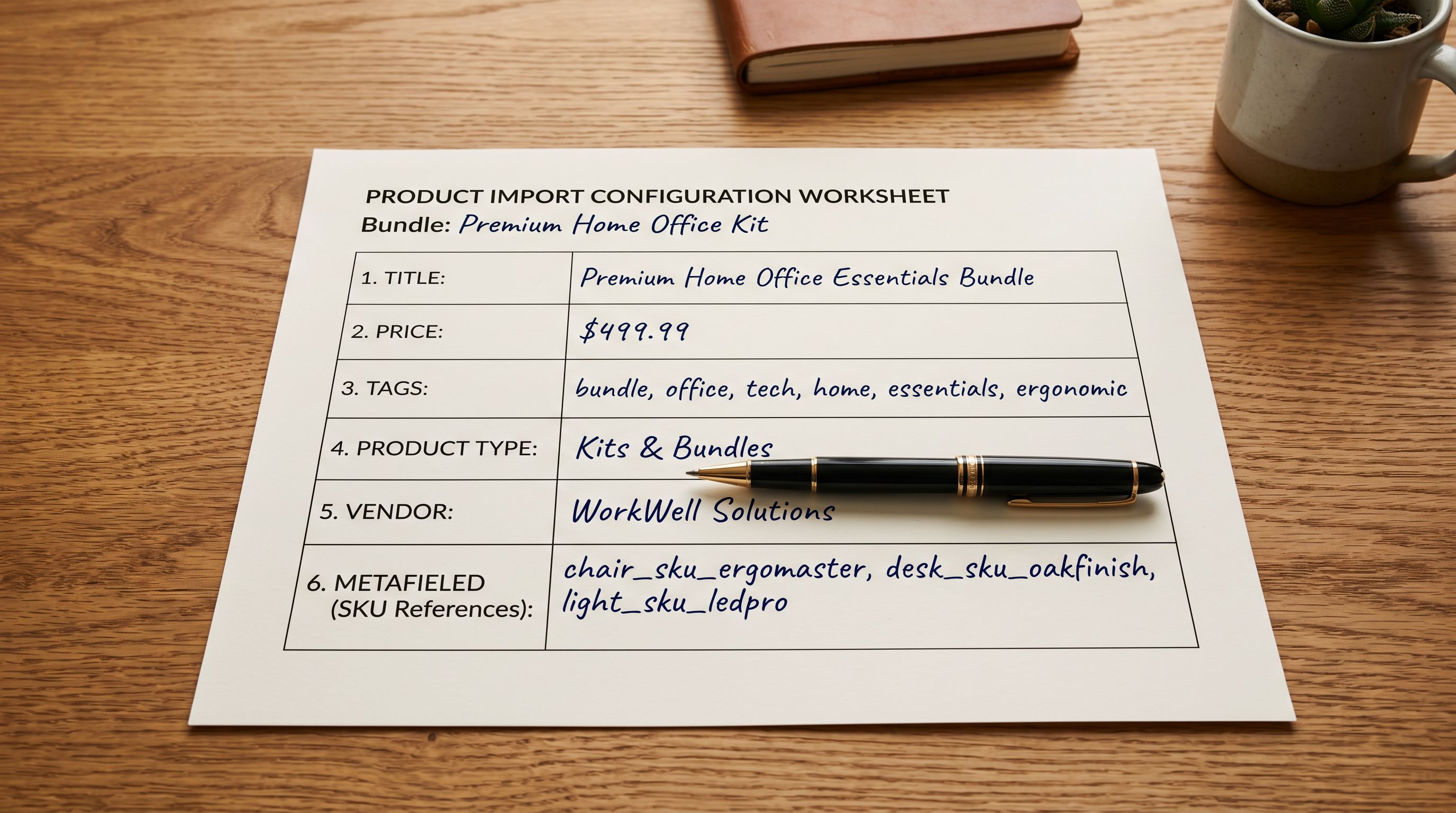
Title: the bundle name, not the name of any single component. "Gym Starter Kit" rather than "Water Bottle Bundle," which implies the bundle is an accessory to the water bottle rather than a standalone set with its own identity.
Vendor: the vendor of the assembled bundle. For own-brand bundles, this is the merchant's brand. For curated bundles assembled from third-party components, the vendor should reflect whoever assembled the bundle for consistent collection filtering.
Tags: include a bundle identification tag so Shopify automated collections and bundle apps can filter by bundle products. Common tags are bundle, bundle-product, and gift-set. Use the specific tag your bundle app expects. Bundler, Bold Bundles, and Shopify's native bundle functionality each look for different tags or product types to identify bundle records. Getting this tag right at import time is faster than tagging manually after the fact.
Product type: "Bundle" or "Gift Set," or whatever product type the merchant uses consistently for bundle products. Consistent product types make the bundle collection manageable and the bundle app configuration cleaner.
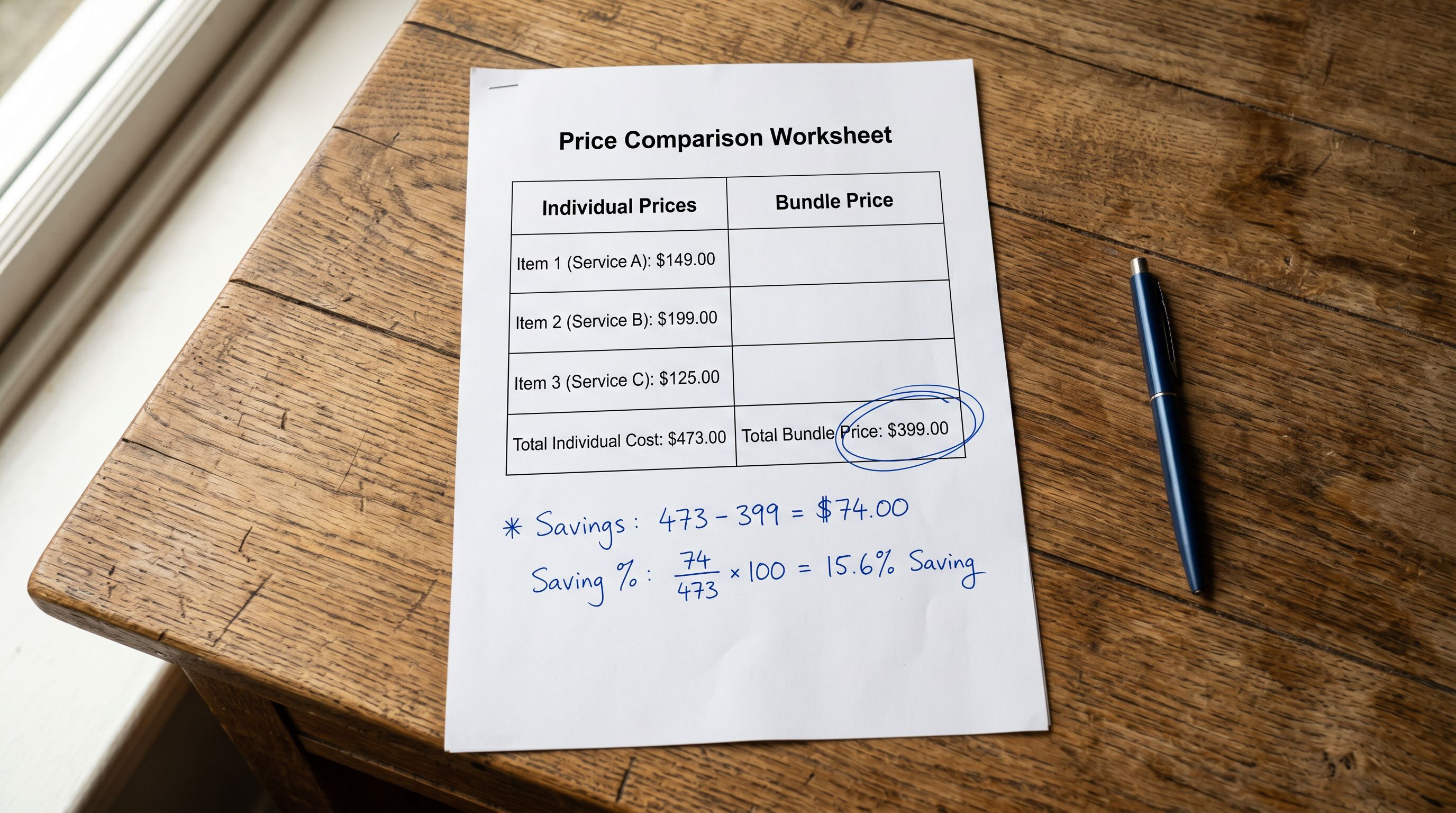
Price: the bundle price, not the sum of the components. Most merchants price bundles at 10-20% below the sum of the individual item prices to communicate the set saving. This discount is the primary reason a buyer chooses the bundle over individual purchases; it belongs in the price field and in the description.
Metafields for component references: include a metafield column in the format Metafield: custom.bundle_components [multi_line_text_field] or whichever namespace the bundle app expects. The value is a comma-separated list of component SKUs (or variant IDs, depending on the app). For a three-component bundle, the metafield value is: SKU-BOTTLE-001, SKU-TOWEL-002, SKU-BAG-003. Check the documentation for the specific bundle app in use; the exact metafield namespace and format varies by app, and a mismatch between the import data and what the app reads produces bundles that appear correctly in Shopify admin but fail to fulfil at order time.
For the complete column mapping workflow and how to handle metafield columns in the import, the Shopify CSV import guide covers the mapping interface and how to save mapping profiles for recurring import formats.
- 01Prepare the bundle CSV with the required columnsTitle (the bundle name), Price (the bundle price, not the sum of components), Tags (include the bundle identification tag your bundle app expects), Product Type (e.g. 'Bundle'), and the metafield column for component SKU references in the format your bundle app expects.
- 02Upload to Importier. In the column mapping step, map the standard columns as usual. For the component reference metafield column, map it to the corresponding Shopify metafield target using the namespace.key format (e.g. custom.bundle_components). Save this mapping as 'Bundle Products' so it loads automatically for future bundle imports from the same supplier or catalogue format.
- 03Configure AI description generation. Select Benefits-First as the description style. Set the AI persona to match the bundle's product categoryRetail Merchandise Manager or Category Specialist for general bundles, Home and Lifestyle Specialist for gift sets, Health and Wellness Advisor for supplement or wellness kits.
- 04Review the generated descriptions in the Review step. Each bundle description should lead with the set saving (the price advantage relative to buying components separately) and the combined-use argument (why this specific combination makes sense as a set). Descriptions that list the components without the value argument need a persona or style adjustment before confirming.
- 05Confirm the import. After bundle products are live in Shopify, open the bundle app and verify that the component references have loaded correctly for a sample of bundles. The app should surface the component SKUs against each bundle product. If the references are missing or incorrect, check the metafield namespace and key against the app's documentation before reimporting the metafield data.
AI Descriptions for Bundle Products
The description task for a bundle product is distinct from a standard product description in one specific way: the buyer already knows what the individual components are. What they do not yet know is why buying the bundle, rather than the components separately, is the better decision.
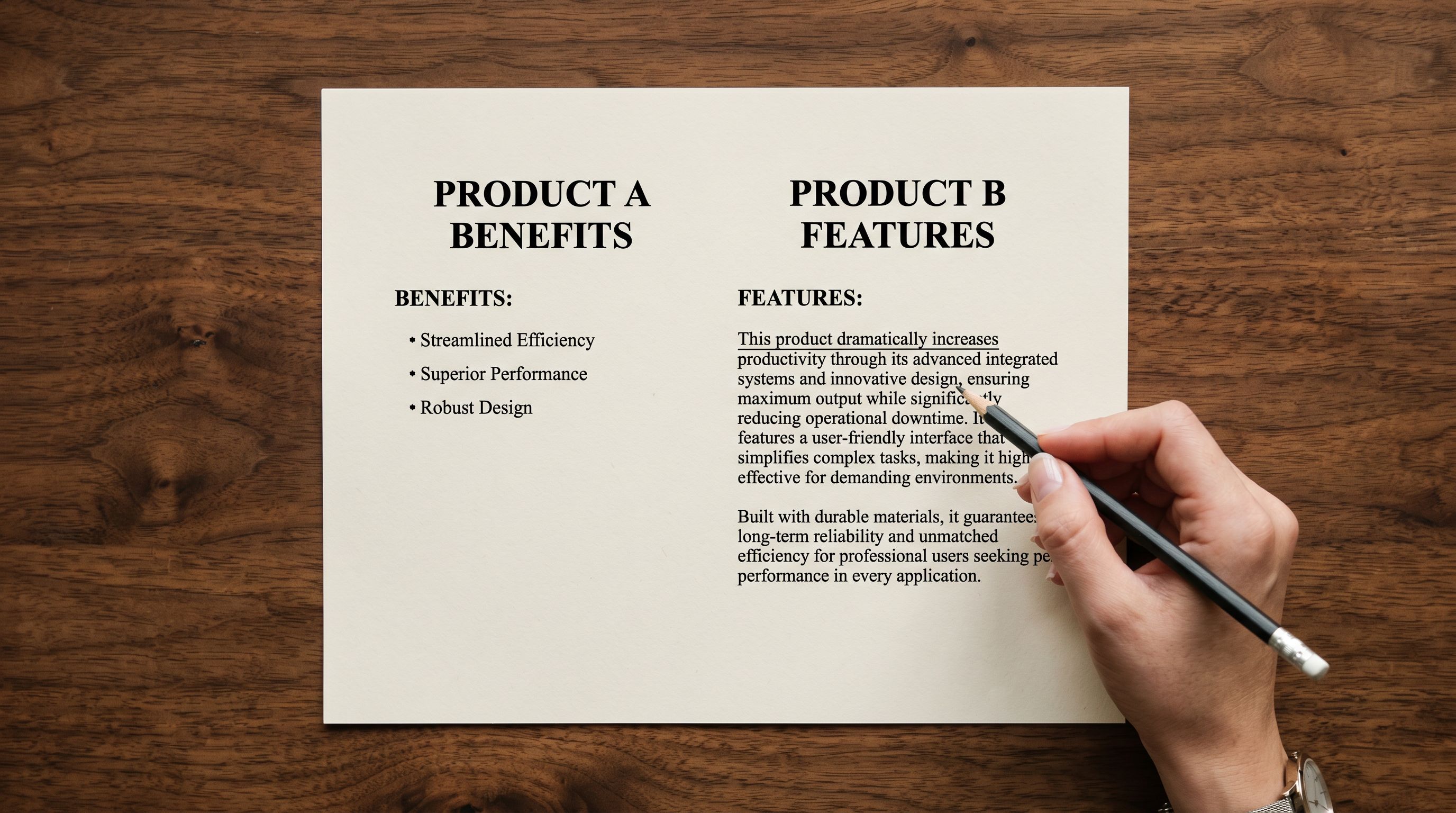
A bundle description that lists the components ("This set includes a water bottle, a towel, and a gym bag") describes the package contents but does not make the case for the bundle. A buyer who reads that description still needs to evaluate the price comparison, the convenience of a curated set, and the complementary fit of the specific components without any help from the description.
Benefits-First as the description style reorients the description around the outcomes the bundle enables: the saving relative to individual purchase, the coherence of the curated set (everything matches, everything fits the same activity), and the reduction in decision effort (the bundle replaces three separate buying decisions with one). This framing gives the buyer the case for the bundle, not just the contents.
- Leads with what is in the box
- Lists each component with basic specification
- No price saving argument stated
- No explanation of why these components belong together
- Buyer must evaluate the bundle case themselves from the component list
- Leads with the saving relative to buying components separately
- Explains why this specific combination makes sense as a set
- States the price saving explicitly and what it represents
- Articulates the curation benefit: one decision, coherent set, everything needed
- Buyer receives the case for the bundle alongside the contents
Importier generates Benefits-First descriptions in this style for the full bundle product batch. For a catalogue of 50 bundle products, the description pass runs across all 50 during the import, with no individual rewriting required.
For the complete description style selection workflow and how persona selection affects the vocabulary and framing of generated descriptions, the Importier AI product descriptions guide covers each style with examples across different product categories.
For bundle descriptions that need to match a specific brand voice (particularly relevant when bundle products sit alongside individual products in the same store), the Shopify product description template guide covers how to configure the description style to maintain voice consistency across a mixed product catalogue.
A bundle description that leads with the saving converts better than one that lists the components. The buyer already knows what is in the box; they need to know why the box is worth the price as a set.
Category and Collection Setup
Category Metafields for Bundle Products
Bundle products benefit from category metafield assignment for the same reasons standard products do: Google Shopping feed completeness, AI shopping surface retrieval, and automated collection membership.
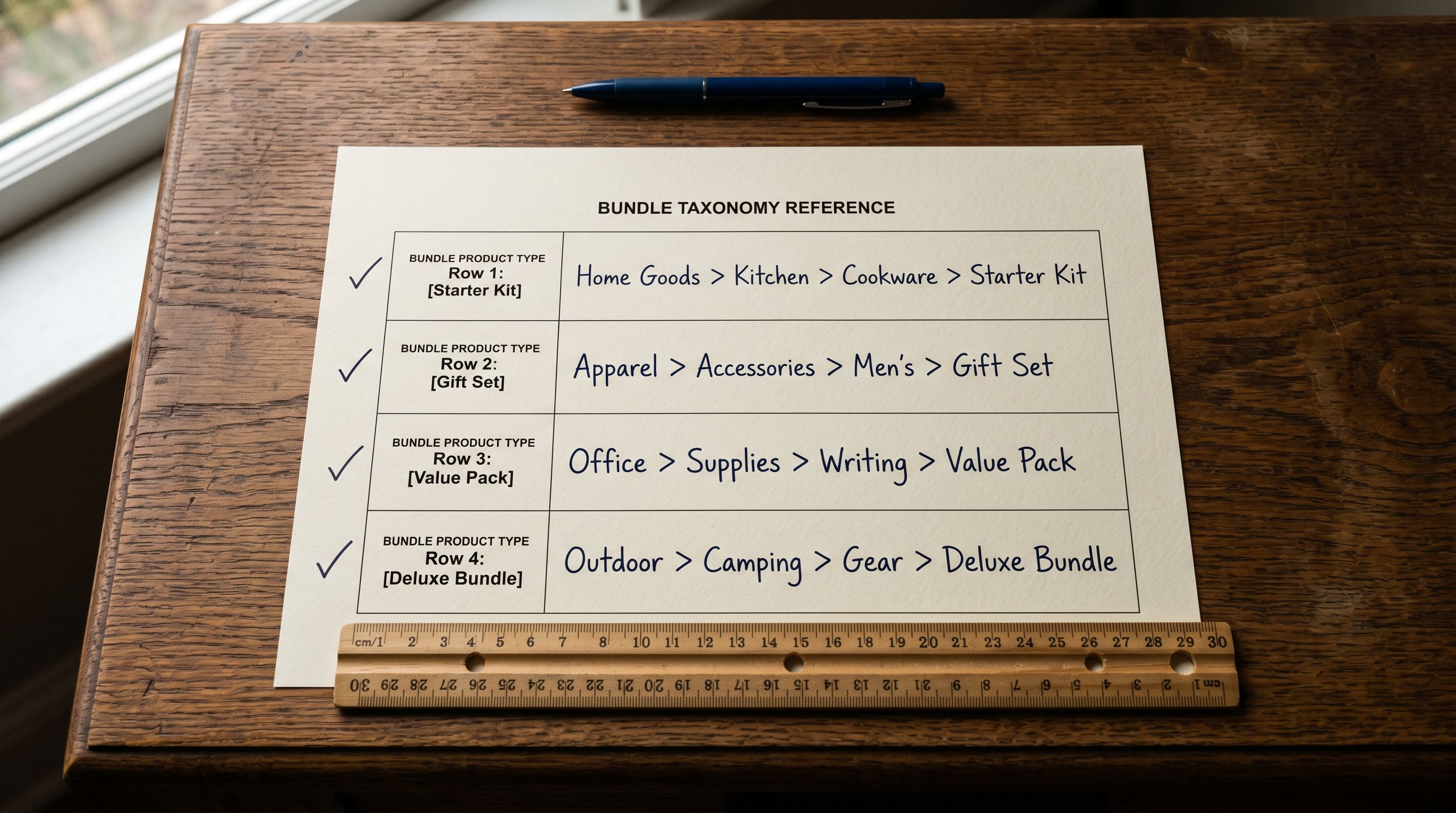
The category assignment for a bundle product should reflect the primary use case of the bundle, not a generic "bundle" or "kit" taxonomy node, as those nodes do not exist in Shopify's Standard Product Taxonomy. A gym starter kit belongs under Sporting Goods > Fitness or the equivalent node for its primary use case. A skincare gift set belongs under Health and Beauty > Skin Care. The taxonomy node is the one a buyer searching for the bundle's primary activity would look under, not a meta-category for the packaging concept.
Importier's 22 Industry Packs with 3,758 attributes include category assignments and attribute mappings for the most common bundle product categories across retail. Applying the relevant Industry Pack during the bundle import assigns the correct taxonomy node and populates the attribute fields (colour, material, target demographic) in the same import pass.
For the complete category metafield assignment workflow and how Industry Packs map to Shopify's taxonomy nodes, the Shopify category metafields guide covers the assignment process, the attribute fields populated for each category, and how those assignments flow through to Google Shopping and AI shopping surfaces.
Tags and Automated Collections for Bundles
The bundle identification tag in the Tags column serves two purposes: it marks the product as a bundle for the bundle app, and it populates an automated collection for bundle products in Shopify admin.
To set up an automated collection for bundle products, create a collection in Shopify admin with the condition "Product tag is equal to bundle" (or whichever tag you used at import). Every product imported with that tag becomes a member of the collection automatically, with no manual collection management required as the catalogue grows with new bundle products.
For merchants who run bundle promotions (seasonal gift sets, limited-edition curated kits), tagging bundles with a promotion-specific tag alongside the base bundle tag adds them to a campaign collection without altering the product record in any other way. A product tagged bundle AND summer-2026 populates both the permanent bundle collection and the seasonal campaign collection.
The same tag-based approach applies to bundle-specific discount codes. A discount code scoped to products in the bundle collection applies automatically to all bundle products without requiring individual product configuration. Getting the tag right at import is the enabler for all of this downstream logic.
Inventory Handling for Bundle Products
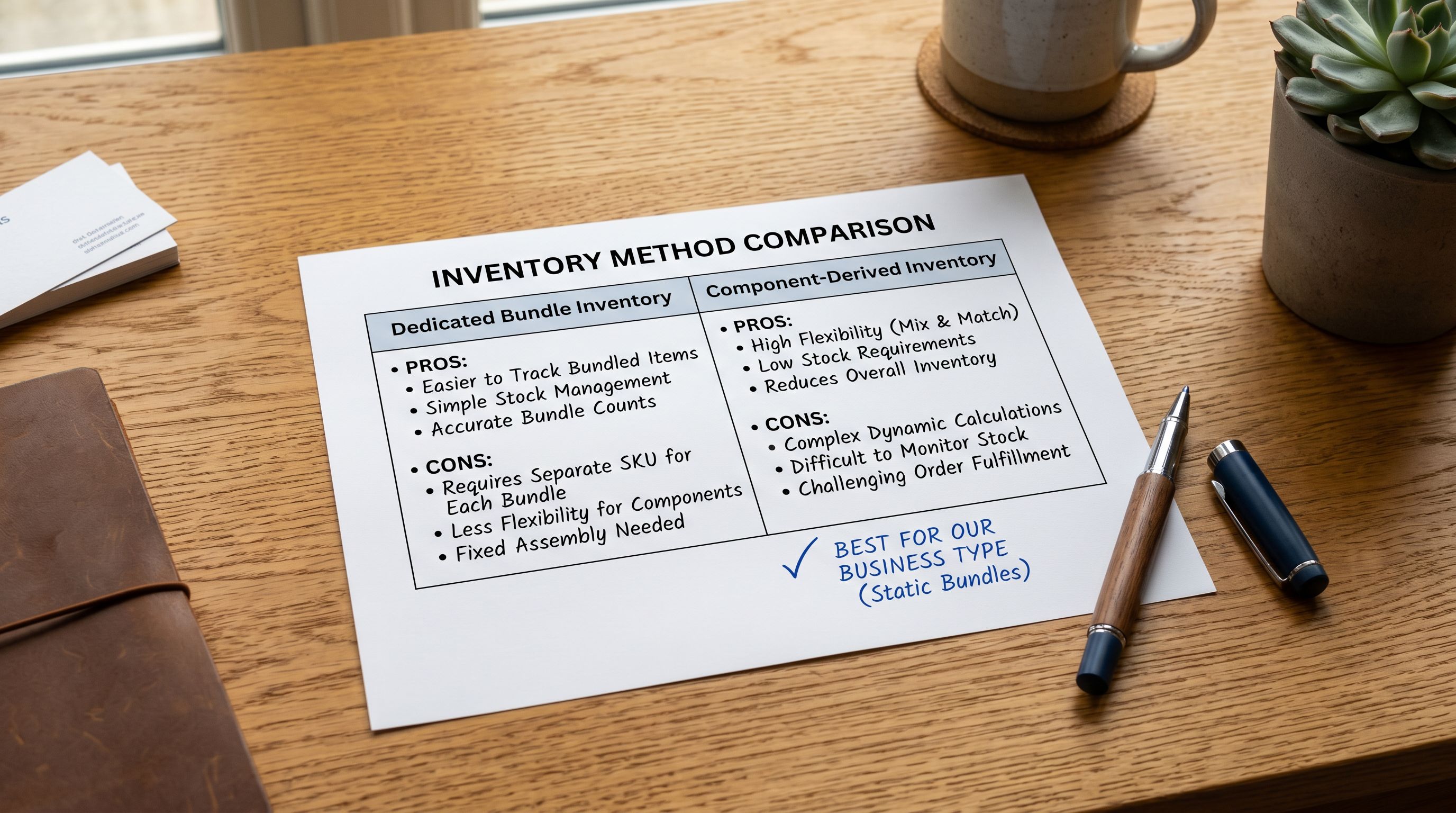
Bundle inventory requires a decision at import time that affects how the bundle app manages stock. There are two approaches.
Dedicated bundle inventory: the bundle product has its own inventory quantity in Shopify, managed independently from the component products. When a bundle is sold, the bundle's inventory decrements. The merchant manages restock of both the bundle and its components as separate inventory items. This approach is operationally clear but requires manual reconciliation when component stock changes affect bundle availability.
Component-derived inventory: the bundle app calculates the available bundle quantity from the minimum available inventory across the bundle's component SKUs. When a bundle is sold, the app decrements inventory from each component SKU. The bundle product's own inventory in Shopify is set to a large number or configured to "continue selling when out of stock"; the bundle app governs actual availability.
For the import, the implication is: if using dedicated bundle inventory, set the Inventory Quantity column to the specific bundle stock count. If using component-derived inventory, leave the quantity blank or set the variant policy to "continue selling"; the bundle app manages availability from that point forward.
Most bundle apps are explicit about which inventory model they support. Shopify's native bundles use component-derived inventory; while third-party bundle apps vary. Confirm the model before import to avoid importing inventory counts that the bundle app will immediately override.
Common Bundle Import Mistakes
Three mistakes appear consistently in first-time bundle imports.
Importing bundles as variants of a component. A "Starter Kit (includes water bottle, towel, gym bag)" added as a variant of the water bottle product is not a bundle; it is a product option that lists other products in its title. The bundle app cannot read component references from the variant system. Bundle products need their own product records.
Using the bundle app's tag without confirming the exact format. Most bundle apps have an exact tag format they recognise. A tag of bundle-product where the app expects bundle_product (underscore, not hyphen) produces bundle products the app does not recognise. Check the app documentation before the import and use the exact tag format, not a variation.
Leaving the metafield namespace empty. A bundle import that does not include the component SKU metafield column produces bundle products in Shopify that look correct in admin but cannot be fulfilled by the bundle app. The metafield reference is what connects the bundle record to its components. If the metafield is missing, the bundle app has no component data to work with. The fix is a selective reimport that adds the metafield column and populates the component SKU values.
Shopify's product bundles documentation covers the native bundle setup workflow in Shopify admin and the supported bundle types, useful context for understanding which approach applies to your store plan and fulfilment setup. Shopify's product variant documentation clarifies the distinction between variants and separate products, the authoritative reference for understanding when variants are correct and when a separate product record is the right structure.
Try Importier free at importier.app
Set up your first import in under five minutes.
Importier brings products into Shopify with AI descriptions, category metafields, and data enrichment on every run.