Shopify Import Deletes Metafield Values: Why It Happens
On this page
A furniture merchant spent two weeks filling in 150 products with custom metafields: primary material (solid oak, pine, or MDF), care instructions, assembly time in minutes, and a dimensions string used by their theme's specifications tab. A customer email asking why the specifications tab was empty prompted a check. Every metafield on every product in the catalogue was blank.
The Shopify import that deleted the metafield values was a routine inventory update from their 3PL's stock file. It completed without errors. There were no warnings about metafield changes.
What Actually Happened to the Metafield Values
Shopify's CSV import follows a declarative rule: if a column exists in the import file and is mapped to a Shopify field, Shopify writes the value in that column to the product, including blank values.
The 3PL's stock file included a column labelled "Notes." During the import setup several months earlier, the merchant had mapped this column to the custom.material metafield. The Notes column in the 3PL file was empty for every product. Shopify read the mapped column, found blank values, and wrote blank strings to the metafield for all 150 products. The previous values were gone.
This behaviour is not a bug. It is how Shopify's import system works: a mapped column with a blank value writes a blank value. The import does not distinguish between "this product had no metafield value before" and "this product had a value that you are now replacing with nothing."
Three Ways an Import Silently Blanks Metafields
Understanding the three most common causes helps identify which scenario applied to your catalogue.
A Supplier or 3PL File Mapped to the Wrong Column
Supplier and 3PL stock files often include columns that have no direct equivalent in Shopify: Notes, Remarks, Internal Code, Description, Spec. When a merchant sets up an import profile early in their Shopify setup, before metafields were added to the store, they may map one of these columns to a metafield key as a placeholder.
The import profile saves that mapping. Months later, the same profile is reused for a routine stock update. The supplier's Notes column is blank for every product. The saved mapping sends blank values to the metafield for every product in the update file.
Re-Importing a Shopify CSV Export
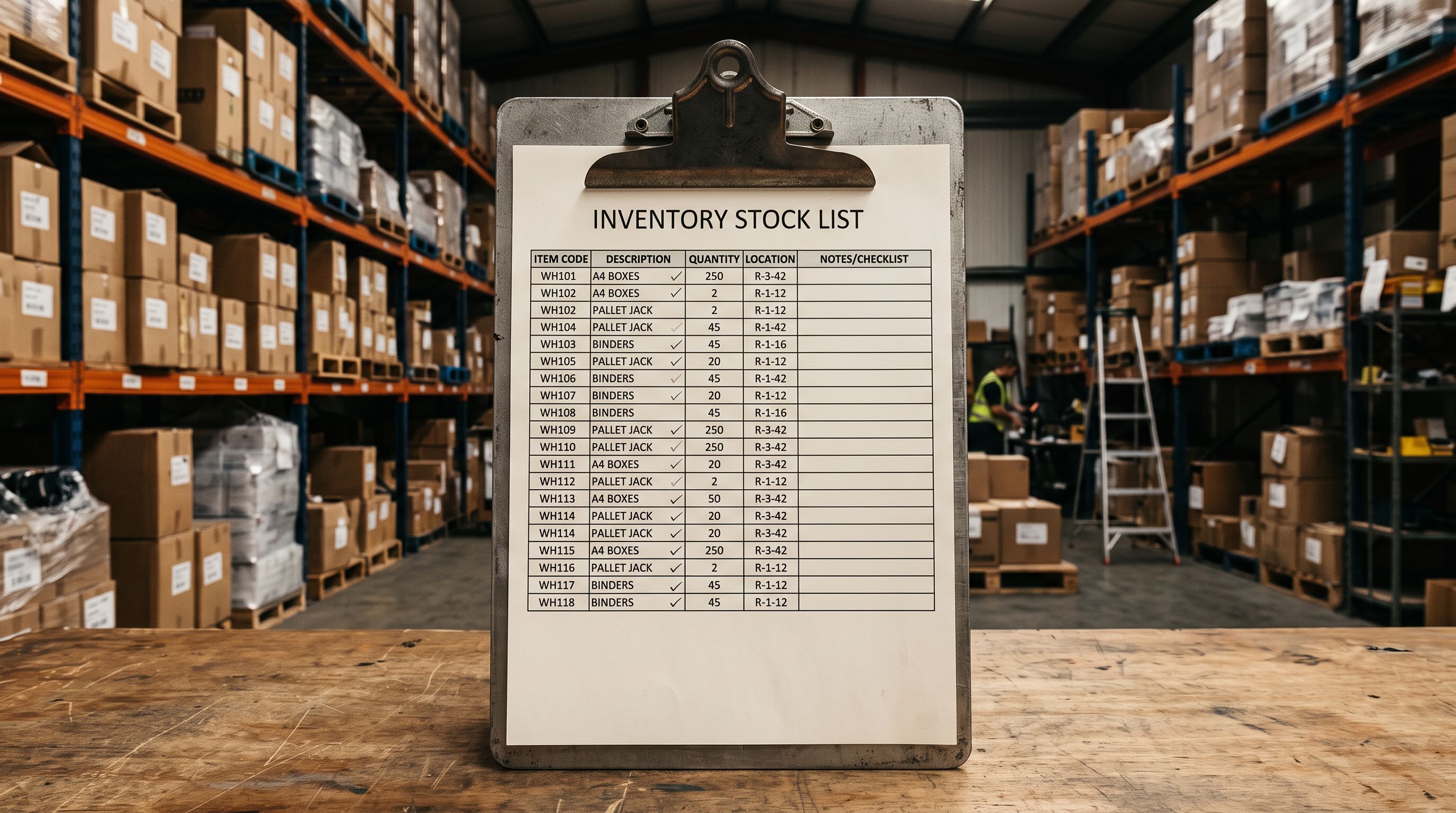
When Shopify admin exports a product CSV, it includes all metafield columns for every metafield definition in the store. If some products have metafield values and others do not, the export reflects that: filled values for the products that have them, blank cells for those that do not.
A merchant who exports 200 products, edits only the pricing columns, and imports the file back gets an unexpected result. The pricing changes take effect, and the metafield columns in the export, which included blank cells for any products that did not have values, overwrite the store's metafield data. Products that previously had values now have blank metafields if the import file contained a blank cell for that column.
This is one of the more common causes because the workflow feels safe. The merchant used Shopify's own export, which seems like a reliable starting point for a re-import.
An Outdated Import Profile After Metafield Definitions Changed
Shopify metafield definitions can be added, removed, or renamed. An import profile that was correct when it was created may map to a metafield key that no longer exists, or to a new key with a different namespace. When the import runs, Shopify may create a new metafield entry rather than updating the intended one, or write blank values to the wrong key.
The result is not always a blank value. It can be duplicate metafield entries, mismatched namespaces, or values appearing in the wrong specifications tab.
What an Import Does NOT Delete
Metafields that are not referenced in the import file at all are not affected.
If a price update import contains Handle, Price, and Compare At Price columns with no metafield columns, Shopify updates the price fields and leaves every metafield value exactly as it was. The import does not touch fields it does not see.
This is the distinction that matters: the problem is not that imports erase metafields by default. They do not. The problem is that imports erase whatever they are explicitly instructed to write, including when they are instructed to write a blank value.
An import does not erase metafields by default. It erases them when it is told to, usually via a mapped column that contains blank values.
How to Recover Lost Metafield Values
The recovery path depends on how recently the problem import ran.
Import Undo
Importier's Import History logs every import batch. For batches run recently, the Import Undo function reverts the batch entirely, restoring the products to their state before the import. If the inventory update that blanked the metafields ran within the last 20 import sessions, Import Undo will restore the metafield values.
The undo window is 20 batch snapshots, not 20 days. For a merchant running daily imports, the window closes quickly. Act as soon as the problem is identified.
Re-Import from a Backup
If the metafield values exist somewhere, in a spreadsheet used to populate them originally, in a supplier spec sheet, or in a Shopify export taken before the problem import, a targeted import that maps only the metafield columns will restore the values without affecting pricing or inventory.
An import that maps Handle and the relevant metafield keys, with correct values for every product, will fill the blanked fields without touching any other product data.
Re-Enter Manually
For a small catalogue, manual re-entry in Shopify admin is the last resort. For 150 products with four metafields each, that is 600 field entries. The merchant in the opening scenario spent three hours recovering their metafield data. The underlying import profile was the cause; correcting it took two minutes.
Preventing Metafield Loss During Imports
Prevention: three approaches
Do Not Map Metafield Columns in Price and Inventory Updates
The safest approach for any selective update is to map only the fields that need to change.
For a price update: Handle, Price, Compare At Price. Nothing else. For an inventory update: Handle, Location, Inventory Quantity. Nothing else.
If the supplier or 3PL file contains columns that look like they might correspond to product attributes (Notes, Spec, Description, Material), do not map them unless the purpose is explicitly to update those metafield values.
- 01Open Importier and start a new import with your inventory update file.
- 02In the column mapping step, map Handle (required for matching) and only the inventory fieldsLocation and Inventory Quantity, or Inventory Qty for single-location stores.
- 03Review every mapped field. If any mapped column points to a custom metafield namespace and key, unmap it unless you intend to update metafield values in this import.
- 04Check the import preview. The product records should show inventory changes and no metafield changes.
- 05Push the import. Only the mapped fields will be written to Shopify.
Audit Your Saved Import Profiles
If you use saved column mapping profiles in Importier, audit them after any change to your store's metafield definitions. A profile that was correct six months ago may reference a metafield key that was renamed, or still include mappings for columns that are now empty in the supplier file.
Review each saved profile after any Shopify admin change to metafield definitions.
Remove Metafield Columns from Shopify Exports Before Re-Importing
If you are editing a Shopify CSV export and re-importing it, delete the metafield columns from the spreadsheet before upload unless the metafield values are part of what you are updating.
Metafield columns in a Shopify export are identifiable by their header format: Metafield: [namespace].[key] [type]. Delete every column in this format before importing the file for a pricing or inventory update.
- Supplier stock file mapped as-is including all columns
- Notes column (blank in supplier file) mapped to custom.material metafield
- Shopify writes blank to custom.material for all 150 products
- Specifications tab empty across the entire catalogue
- Recovery requires 600 manual field entries or Import Undo within the history window
- Column mapping maps Handle, Location, and Inventory Quantity only
- Notes column and all other non-inventory columns left unmapped
- Shopify updates inventory across 150 products without touching any metafield
- Specifications tab unchanged across the entire catalogue
- No recovery step required
After Recovery: Protecting Metafield Data Going Forward
Once metafield values are restored, a few changes prevent the same problem recurring.
Rename the saved import profile. If the problem was caused by a saved profile mapping a supplier column to a metafield, rename the profile to make its purpose explicit. "Inventory Update: No Metafields" signals clearly that the profile was built without metafield mapping. A profile named after the supplier file does not communicate its scope.
Check for Shopify export metafield columns. When any team member runs an import from a Shopify CSV export, the export will contain metafield columns. The import setup should always include a check for these columns. If the update is for pricing or inventory only, they should be removed from the file or left unmapped.
Use Store Scanner to audit metafield completeness after any import. Importier's Store Scanner can filter products by metafield completeness. After any import that touches product data, a quick scan for products with empty metafields will surface any accidental wipes before customers encounter blank specifications tabs.
The same principle that protects metafields protects every other field: only map the columns you intend to update. This approach is the same one used to protect product images during price updates, covered in how Shopify import overwrites product images, and product descriptions during inventory updates, covered in when Shopify import overwrites product descriptions.
Shopify's documentation on metafields explains how metafield definitions are structured and how they relate to product data. For the specific CSV column format Shopify uses when exporting metafield values, Shopify's product import documentation covers the column header format that a re-import reads back.
Key Takeaways
Custom metafield values disappear after import when a mapped CSV column writes a blank value to the metafield, not because imports erase metafields by default, but because Shopify writes whatever the mapped column contains, including empty strings.
- Metafields are only affected if they appear as a mapped column in the import. An import that does not reference metafield columns leaves all existing metafield values untouched.
- Three common causes: a supplier file column mapped to a metafield (often set up early and forgotten), re-importing a Shopify export that contains blank metafield cells, and an outdated import profile referencing a renamed metafield key.
- Import Undo is the fastest recovery if the import was recent. Importier logs 20 batch snapshots; act before the window closes.
- Prevention: map only the fields you are updating. Price and inventory updates do not need metafield columns mapped. Remove or leave unmapped any column that does not represent data you intend to change.
- Audit saved import profiles after any metafield definition change. A profile that was correct when created may now reference incorrect or renamed keys.
- Use Store Scanner after any import to check for products with empty metafields before customers encounter blank specification tabs.
Start importing safely at importier.app.
Set up your first import in under five minutes.
Importier brings products into Shopify with AI descriptions, category metafields, and data enrichment on every run.