Shopify Import SKU Mismatch: Why Updates Duplicate Products
On this page
A homewares merchant has 600 products in their Shopify store, all imported from their main supplier six months ago. The supplier sends through a quarterly price update: a CSV with every SKU and its new RRP. The merchant uploads the file through Shopify's native CSV import tool. The import completes with no errors. The product count in the store jumps from 600 to 1,200.
The update did not update. It created 600 new products alongside the original 600. Every imported row was treated as a new product, not a match for an existing one.
This is the Shopify import SKU mismatch problem. It is one of the most common, most costly import errors in Shopify catalogue management, and it happens because Shopify's native CSV import and supplier export files use incompatible match keys by design.
How Shopify's native CSV import identifies existing products
Shopify's product import system needs to decide, for each row in an uploaded CSV, whether to create a new product or update an existing one. The mechanism it uses is the Handle column.
The Handle is Shopify's internal slug for each product: a lowercase, hyphenated string derived from the product title at creation time. A product titled "Ceramic Coffee Mug White 350ml" gets the Handle "ceramic-coffee-mug-white-350ml". A product titled "Blue Running Shoe Size 42" gets the Handle "blue-running-shoe-size-42". Once set, the Handle becomes the product's permanent URL identifier and the primary match key for CSV imports.
When Shopify processes a CSV row during import, it looks for a Handle in that row that matches an existing product's Handle. If a match is found, the row updates that product. If no match is found, or the Handle column is empty, Shopify creates a new product.
Shopify's product import documentation states this explicitly: the Handle field "identifies a unique product. You can use the handle to update an existing product." Without the correct Handle, there is no update.
Why supplier price update CSVs never contain the Shopify Handle
The Shopify Handle exists only in your store. It is generated by Shopify from the product title at the moment of creation. Your supplier does not know what your Shopify Handles are. Their CSV files use their own internal product identifiers: part numbers, SKU codes, item references, or EAN barcodes.
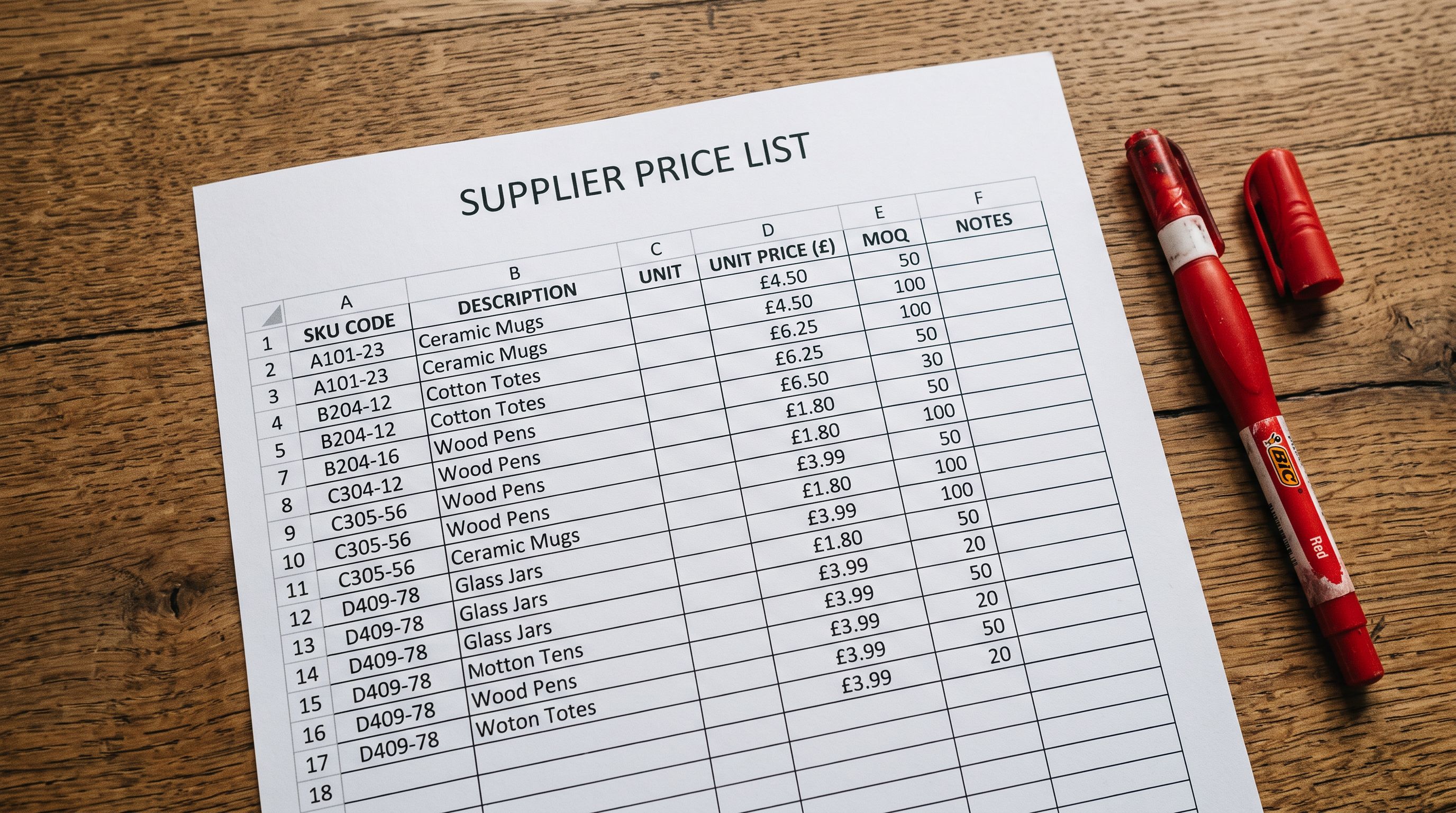
A supplier's price update file uses their own format:
| SKU | Product | New RRP |
|---|---|---|
| MUG-CER-WHT-350 | Ceramic Mug White 350ml | $14.95 |
| SHOE-RUN-BLU-42 | Running Shoe Blue Size 42 | $89.00 |
Your Shopify store has these products with Handles like "ceramic-coffee-mug-white-350ml" and "blue-running-shoe-size-42". There is no column in the supplier's file that matches those Handles. When you import this CSV, every row creates a new product.
The disconnect is structural: Shopify's match key is derived from your store's internal slug format; your supplier's match key is derived from their internal inventory system. These two formats are different by design and will never naturally align.
Shopify's guide to product handles notes that handles can only be set or changed through the admin or API. They are never user-specified in a supplier context.
How to confirm a SKU mismatch caused duplicate products
Two signals confirm that an import created duplicates instead of updates.
Product count jumps after import. Open Shopify admin and check the total product count before and after the import. A price update for 500 existing products should leave the product count unchanged. If it increases by 500, every row created a new product.
Duplicate products visible in admin. Go to Products in Shopify admin and search for any product title you know exists. If you see two entries: one from the original import and one from the update import, you have duplicates. The original has the correct Handle and all its data (images, collections, SEO). The duplicate has the supplier's SKU as a pseudo-Handle, no images, and none of the original product's collection assignments.
Check by date created. Export all products from Shopify admin and filter the CSV by the Created at column for today's date. Any product created today that should be an existing product is a duplicate from the failed update import.
A price update import that creates 600 duplicate products does not update prices. It produces 1,200 products: 600 originals with old prices still live, and 600 new versions with the new price but no images, no collections, and no SEO history.
How to clean up duplicate products after a SKU mismatch
The priority after discovering duplicates is to remove the newly created products without touching the originals.

Importier's import undo. If the duplicating import was done through Importier, the full batch can be reverted in one operation from Import History. Importier records every import as a snapshot: every product created by the batch, with its Shopify product ID. The import undo operation deletes every product in the snapshot in one step, with no manual selection required. The originals are untouched because they were created by a different import batch.
Shopify admin bulk delete. If the import was done through Shopify's native tool, there is no undo. The duplicates must be identified and deleted manually. Export all products to CSV, filter by the Created at date of the mistake import, identify which rows are duplicates, then use Shopify admin's bulk select to delete them. For 600 duplicates across a large catalogue, this process takes hours.
The difference between these two approaches matters most in the first hour after the mistake. Importier's import undo is a single operation available from the Import History panel. The Shopify native approach requires a CSV export, offline filtering, re-upload, and bulk action. All manual steps on a time-sensitive cleanup.
- 01Step 1Confirm the duplicate count. Export all products from Shopify admin and filter by today's creation date. Count the rows. This is the number of duplicate products that need to be removed.
- 02Step 2If the import was done via Importier, open Import History, find the relevant batch, and use import undo to revert. Every product in the batch is removed in one operation. Proceed to step 5.
- 03Step 3If using Shopify native, identify the duplicate Handle pattern. Shopify auto-generates Handles for products imported without a Handle column, usually by appending a number suffix (e.g., 'ceramic-coffee-mug-white-350ml-1'). These numbered-suffix Handles are your duplicates.
- 04Step 4In Shopify admin, use the Products bulk select to identify and delete the numbered-suffix duplicates. For catalogues larger than 100 products, use the exported CSV to identify which product IDs to target, then delete via bulk action.
- 05Step 5After cleanup, verify the product count has returned to the original count. Spot-check three or four products to confirm the originals retained their images, descriptions, collections, and SEO settings.
How Importier's update mode avoids the SKU mismatch entirely
Importier's update mode matches existing Shopify products by SKU or barcode. These are the same identifiers that exist in supplier CSV files naturally.
When a merchant runs a price update in Importier's update mode, the import wizard reads the SKU column (or GTIN/EAN barcode column) from the supplier's CSV. For each row, it queries the Shopify store for a product whose variant SKU matches that value. If a match is found, the row updates that product. If no match is found, the row is flagged as unmatched in the import preview. It does not silently create a new product.
The preview step shows three categories:
- Matched: rows where the SKU or barcode maps to an existing Shopify product. The proposed update (new price, new inventory, new description) is shown alongside the existing value for review before committing.
- Unmatched: rows where no Shopify product with that SKU or barcode exists. These are highlighted as candidates for new product creation, and the merchant can confirm or skip them.
- Ambiguous: rows where the SKU matches multiple Shopify variants (possible when SKUs were duplicated in a previous import). These are flagged for manual review.
- Matches on Handle column only. Handle is a Shopify-internal slug your supplier never has
- Missing or mismatched Handle silently creates a new product with no warning or preview
- 600-product price update creates 600 duplicate products with no images or collections
- Cleaning up requires manual CSV export, offline filtering, and bulk delete
- No visibility into which rows matched and which created new products until after the import
- Matches on SKU or barcode. These are the supplier's native product identifiers
- Unmatched rows flagged in preview before any product is written to the store
- Update preview shows existing value vs proposed value per field, per product
- Import undo reverts the entire batch if anything goes wrong, in one operation
- Matched vs unmatched vs ambiguous counts visible before the import commits
The one-time Handle merge workflow for Shopify native imports
For merchants who need to use Shopify's native CSV import for price updates, there is a manual workaround that makes the Handle match work. It requires two exports and a spreadsheet merge.
Step 1: Export all products from Shopify admin as a CSV. This file contains the Handle for every product alongside each product's variant SKU.
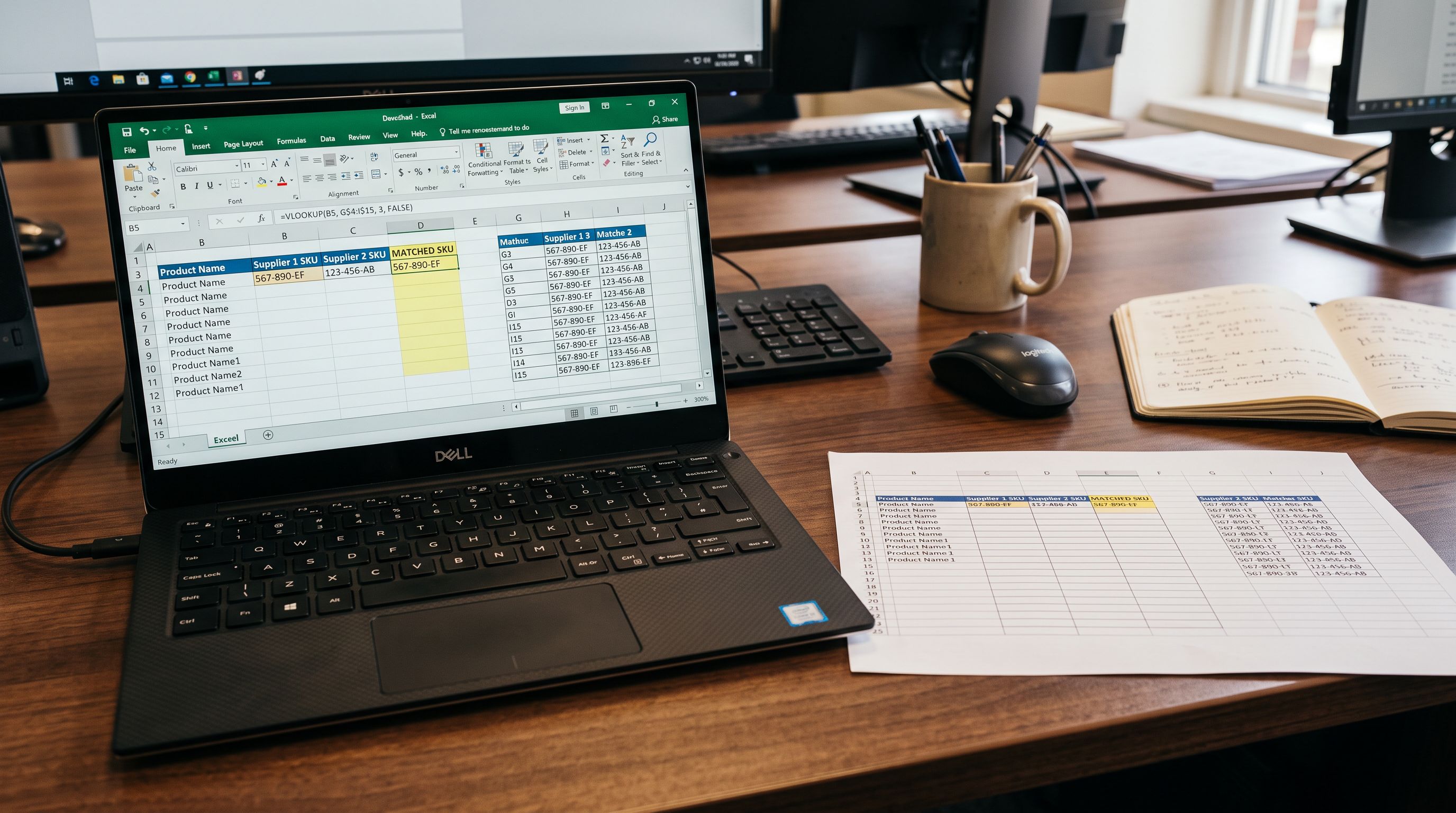
Step 2: In the exported Shopify CSV, the Handle column and the SKU column are now linked in each row. You have the Shopify Handle alongside the supplier's SKU for that product.
Step 3: In the supplier's update CSV, use a VLOOKUP (or equivalent) that looks up each supplier SKU in the Shopify export and pulls in the corresponding Handle. The supplier CSV now has a Handle column that matches Shopify's format.
Step 4: Import the merged CSV. Shopify matches on the Handle column and updates the existing products.
This workflow is accurate once, for a known set of SKU-to-Handle mappings. It breaks when the supplier changes their SKU codes, when Shopify Handles change after a title edit, or when new products are added to either side without being merged. For catalogues with regular price updates, a one-time Handle merge for every update file is significant recurring work.
For catalogues with ongoing supplier CSV imports, the underlying issue is that Shopify's native import was designed for one-time catalogue uploads, not for ongoing supplier data synchronisation. The Handle-as-match-key model does not accommodate the reality that supplier data uses supplier identifiers, not Shopify-generated slugs.
SKU is the natural match key. Handle is not.
Key takeaways
Shopify import SKU mismatch is a structural problem. The supplier's CSV and Shopify's match key are different by design.
- Shopify's native CSV import matches on Handle, not SKU. The Handle is generated by Shopify at product creation time. It does not exist in any supplier system, ERP, or external catalogue. Importing a supplier CSV without a Handle column creates new products every time, regardless of whether matching products already exist.
- Supplier CSVs use supplier identifiers. Part numbers, item codes, EANs, GTINs. These are the supplier's natural keys. They have nothing to do with Shopify's Handle format. The mismatch is not a user error; it is the gap between two different inventory systems.
- The symptom is a doubled product count. After a failed update import, the store has the original products with old data, correct images and collections, and a set of new duplicates with the new price but no images, no collections, and no SEO history.
- Importier's update mode matches by SKU or barcode. The supplier's natural key is the match key. The import preview shows matched, unmatched, and ambiguous rows before any product is written to the store.
- Import undo recovers the store cleanly. If a mismatch import reaches Shopify before the preview is reviewed, import undo reverts the entire batch in one step. The originals are untouched.
- The Handle merge workflow works once, not at scale. Exporting Shopify products, extracting Handles, and merging them into the supplier CSV is accurate for a single update cycle. It does not scale for catalogues with regular supplier data refreshes.
Fix Shopify import SKU mismatch at importier.app.
Set up your first import in under five minutes.
Importier brings products into Shopify with AI descriptions, category metafields, and data enrichment on every run.