WooCommerce to Shopify: Migrating Your Product Catalogue

On this page
A fashion accessories merchant built their store on WooCommerce five years ago. They have 380 products: standard products, variable products with size and colour options, and a catalogue of descriptions written by a copywriter and formatted with Visual Composer, a popular WordPress page builder. The merchant decides to migrate to Shopify.
Their first attempt: export WooCommerce products as a CSV and import the file into Shopify directly. The result is rejection. WooCommerce's export format uses column names Shopify does not recognise. Their second attempt, after manually renaming the columns, gets products into Shopify. Every description now shows raw shortcode text: [vc_row][vc_column][vc_column_text]This genuine leather tote is handcrafted from[/vc_column_text][/vc_column][/vc_row] instead of the intended description.
A woocommerce to shopify migration is not a straight CSV copy. The format gap and the shortcode problem both need to be resolved before product data reaches Shopify in a usable state.
Why the WooCommerce Export Does Not Import into Shopify Directly
WooCommerce's CSV exporter produces a file with WooCommerce's own column naming convention. The column names do not match what Shopify's native product importer expects.
The core mismatches:
| WooCommerce column | Shopify equivalent |
|---|---|
| Name | Title |
| Description | Body (HTML) |
| Regular price | Variant Price |
| Sale price | Variant Compare At Price |
| In stock | Variant Inventory Qty |
| Images | Image Src |
| Attribute 1 name | Option1 Name |
| Attribute 1 value(s) | Option1 Value |
Shopify's native importer uses column headers to identify what each field is. When it encounters "Name" instead of "Title", it does not guess. It treats the column as unknown data and skips it. A WooCommerce CSV imported without remapping produces products with no title, no description, and no variants.
The Shortcode Problem
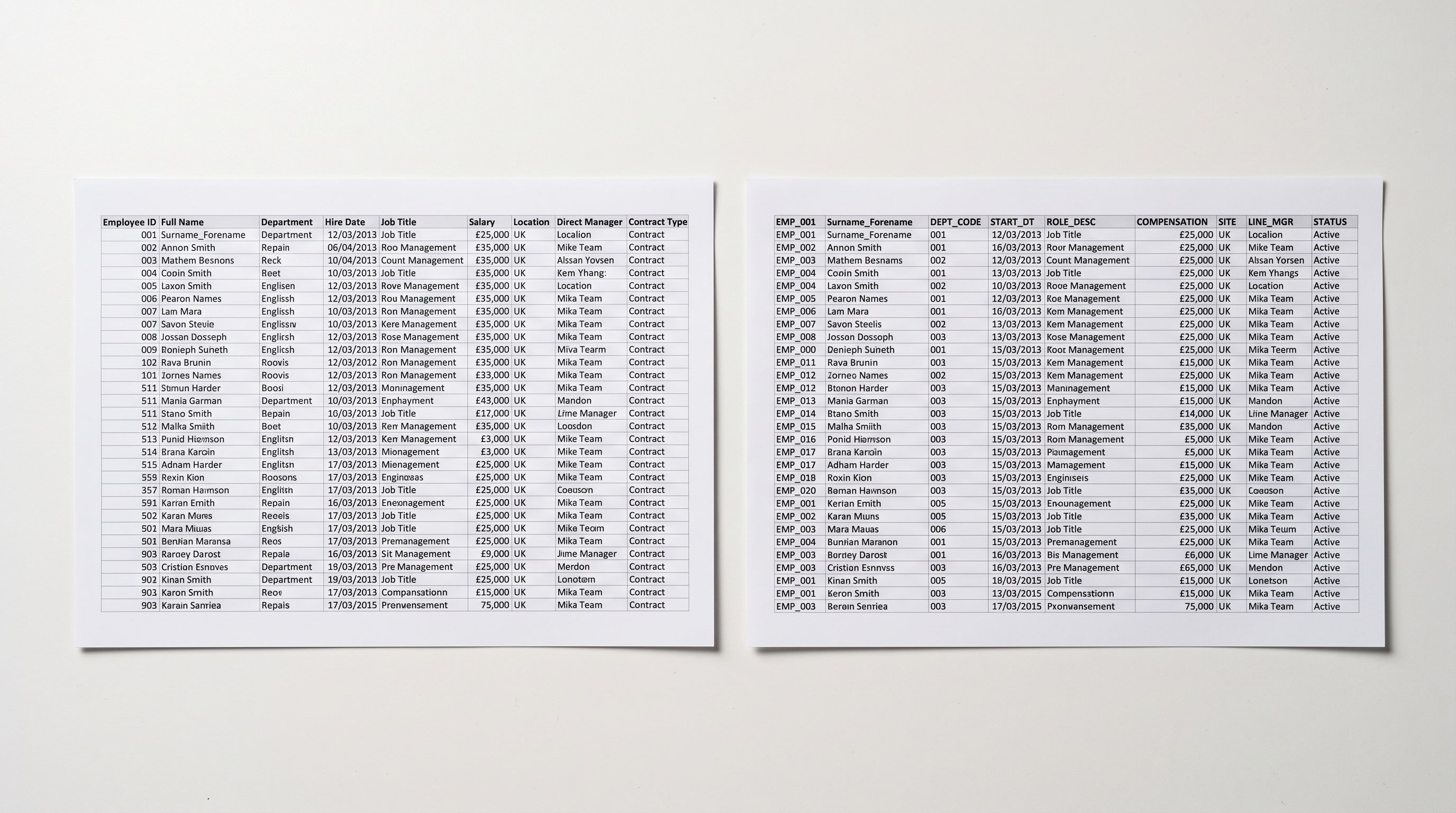
WordPress page builders (Visual Composer, Elementor, Divi, WPBakery) store formatted content as shortcode sequences embedded in the post body. A description built in one of these editors looks correct inside WordPress because WooCommerce's renderer processes the shortcodes and displays the formatted result. Outside WordPress, the shortcodes appear as literal text.
Merchants who used the default WordPress block editor or wrote plain HTML descriptions do not have this problem. WooCommerce stores that avoided page builders export descriptions that transfer cleanly to Shopify as Body (HTML) content.
For merchants whose catalogues include shortcode-formatted descriptions, stripping the shortcodes manually across 380 products is not a practical approach. Re-copying the visible text from WooCommerce is equally time-consuming. The practical fix is to regenerate descriptions from scratch using the product title and category as context, producing clean Shopify-compatible descriptions in a single pass.
Variable Products and the Structure Difference
WooCommerce's CSV export uses a parent-child structure for variable products. The parent row contains the product name, description, and shared attributes. Each variation (a specific size-colour combination with its own SKU and price) appears as a child row beneath the parent.

A WooCommerce store with 380 products may have 900 or more rows in the export CSV once variations are expanded: one parent row per variable product plus one row per variation. Shopify's import format also uses multiple rows for products with variants, but the row structure differs from WooCommerce's parent-child model.

The column name differences, the shortcode problem, and the variable product structure gap are all solvable. They just cannot be solved by renaming columns in Excel and re-uploading the same file.
For a woocommerce to shopify migration that includes variable products, each variable product's variants need to arrive in Shopify correctly grouped, with the right SKU, price, stock level, and attribute combination per variant. This is where a dedicated import tool handles what a manual column rename cannot.
Running the migration with Importier
The Migration Workflow in Importier
Importier handles the column translation, variable product structure, and description regeneration as a single import sequence rather than separate steps across multiple tools.
- 01Export your WooCommerce products as a CSV from your WooCommerce admin. Navigate to Products then All Products, and use the export tool. Export all product data including all columns. If your store uses product attributes (size, colour, material), make sure attribute columns are included. The default WooCommerce export includes all standard product fields.
- 02Upload the WooCommerce CSV to Importier's import wizard. In the column mapping step, Importier shows your WooCommerce column names and lets you map each to the corresponding Shopify field. Map Name to Title, Description to Body (HTML), Regular price to Variant Price, SKU to Variant SKU, and Images to Image Src. Importier saves column mappingsif you run multiple batches from the same WooCommerce export format, you do not need to remap each time.
- 03In the Import Review step, check which products have descriptions that contain shortcodes. Products with shortcode-formatted descriptions show the raw shortcode text in the description preview. Select these products and enable AI description generation for the batch. Importier uses the product title and category as context to generate a clean, Shopify-compatible description for each.
- 04Add context to the enrichment field for products where the shortcode obscured most of the original content. Your customer type and the product range's positioning give the AI enough context to write a useful description even when the original description is not recoverable from the export. For products with readable descriptions, add context only if you want to adjust tone or positioning for the Shopify audience.
- 05Push the migrated products to Shopify. After the push, check a representative sample of products in Shopify adminstandard products, variable products with multiple variants, and products that went through AI description regeneration. Confirm titles, variants, prices, images, and descriptions transferred correctly before decommissioning your WooCommerce store.
Product Images from WooCommerce
WooCommerce stores product images in the WordPress media library. The export CSV includes image URLs pointing to files on your WordPress server, typically at yourdomain.com/wp-content/uploads/.
These URLs remain valid as long as your WordPress site stays online. Shopify copies images to its own CDN during import: as long as your WooCommerce image URLs are reachable at the time you run the migration in Importier, the images transfer automatically via the mapped Image Src column.
The timing risk is decommissioning the WordPress site before the migration is complete. If you take down WooCommerce before pushing to Shopify, image URLs in the CSV become unreachable and images do not transfer. Plan the migration timeline so the WordPress site stays live until the Shopify import finishes and you have verified the images in Shopify admin.
Read more about what to do when importing products from a store you have acquired or are winding down, which covers the same image URL validity and timing challenges that arise in any migration where the source platform is going offline.

After the Migration: Description Quality for Shopify SEO
WooCommerce descriptions were written for a WordPress context, often structured around WooCommerce's own product page layout and WordPress's SEO plugin conventions. Shopify has a different content structure and a different SEO environment.
When Importier regenerates descriptions for shortcode-formatted products, the AI produces clean HTML descriptions suited to Shopify's content rendering. For products whose WooCommerce descriptions were plain HTML and transferred correctly, those descriptions may not need regeneration.
For stores with catalogue-wide description quality issues (common in stores built over five years with multiple contributors), the migration is a practical moment to standardise. Running AI description generation across the migrated catalogue with a consistent Brand Voice and description style setting produces uniform quality and tone across all products. Read more about how Importier's column mapping step works for the full picture of translating non-standard field names to Shopify's schema.
- Manually rename WooCommerce columns in Excel to match Shopify's schema
- Shortcode-formatted descriptions copy as raw shortcode text to Shopify
- Variable product structure requires manual reformatting row by row
- Image URLs must be individually verified before source site goes offline
- Original description quality and inconsistencies transfer unchanged
- Each batch repeats the full column-rename and structure-fix process
- Upload WooCommerce CSV and use column mapping step to translate field names in one step
- AI description generation replaces shortcode-laden descriptions with clean HTML content
- Variable products and their variants reviewed in Importier's Import Review step before pushing
- Image URLs from WooCommerce media library transferred to Shopify CDN at import time
- Option to standardise description quality across the full catalogue with Brand Voice settings
- Saved column mappings mean subsequent batches use the same translation without re-mapping
Key Takeaways
A woocommerce to shopify migration requires resolving three technical gaps that a direct CSV import cannot address: mismatched column names, page-builder shortcodes in descriptions, and the variable product structure difference between the two platforms.
- WooCommerce's export columns do not match Shopify's import schema: Name, Description, and Regular price need to map to Title, Body (HTML), and Variant Price. Shopify rejects files where column names do not match.
- Page builder shortcodes appear as raw text in Shopify: descriptions formatted with Visual Composer, Elementor, Divi, or WPBakery shortcodes must be replaced during migration. AI description generation in Importier handles this across a full catalogue in one pass.
- Keep your WooCommerce site live until the Shopify import is complete: product image URLs in the export CSV point to files on your WordPress server. If the WordPress site goes offline before the images transfer to Shopify's CDN, images do not migrate.
- Migration is an opportunity to standardise description quality: for stores with inconsistent descriptions built up over years, running AI description generation during migration produces a uniform catalogue tone and structure.
- Save your column mapping after the first batch: Importier stores the WooCommerce-to-Shopify column translation so subsequent batches from the same export format do not require remapping.
Migrate your WooCommerce products to Shopify at importier.app.
Set up your first import in under five minutes.
Importier brings products into Shopify with AI descriptions, category metafields, and data enrichment on every run.