How to Import a Supplier Catalogue into Shopify
On this page
How to Import a Supplier Catalogue into Shopify
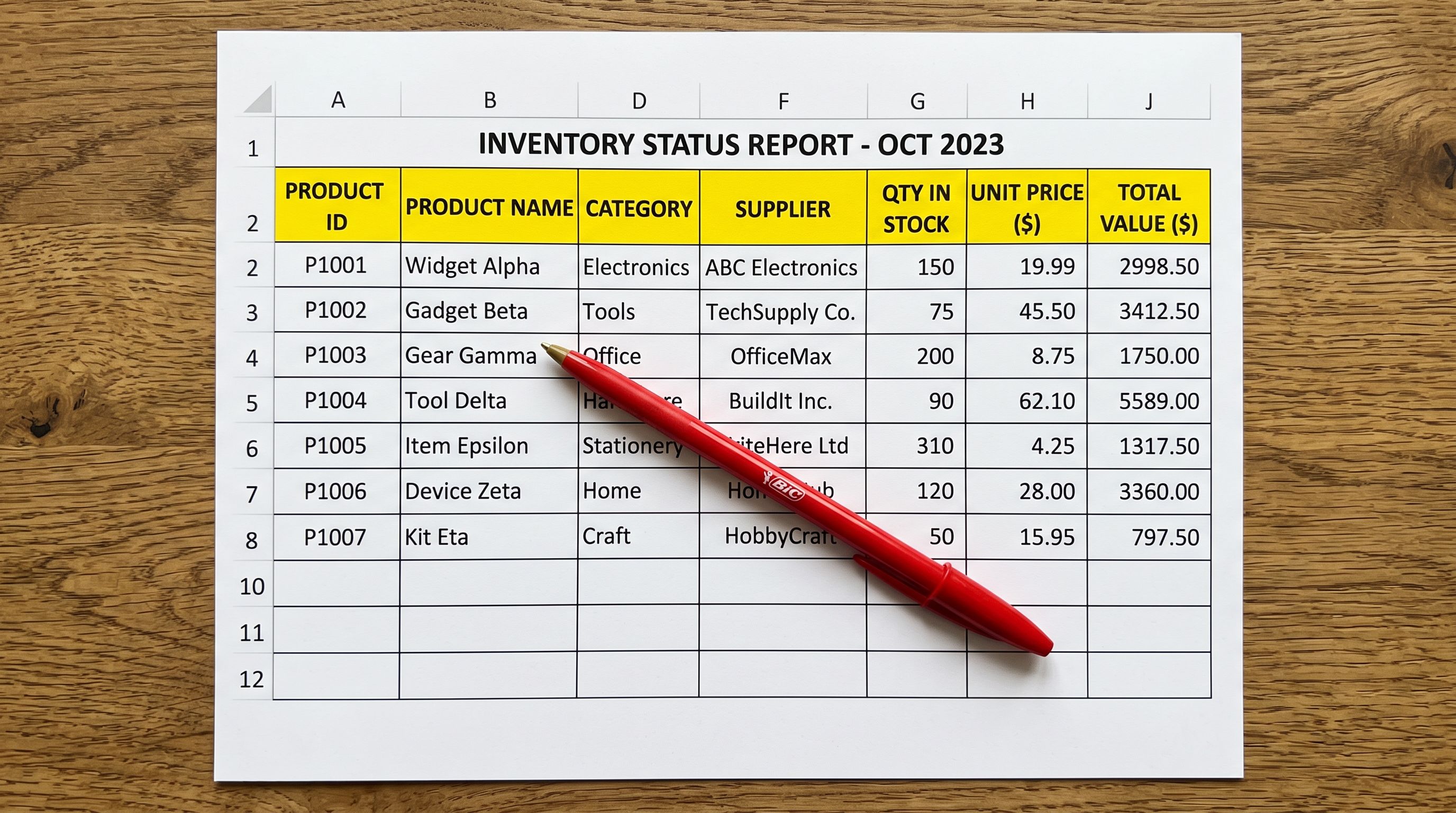
Your supplier just sent a 300-product catalogue as a CSV. You try to import the supplier catalogue into Shopify and nothing lines up. This is the first obstacle every new merchant hits, and it has nothing to do with your data quality.
The problem is a format mismatch between what suppliers export and what Shopify expects. This guide explains why it happens, how to work around it, and how to turn a raw supplier catalogue into a fully described, variant-grouped Shopify product range in under an hour.
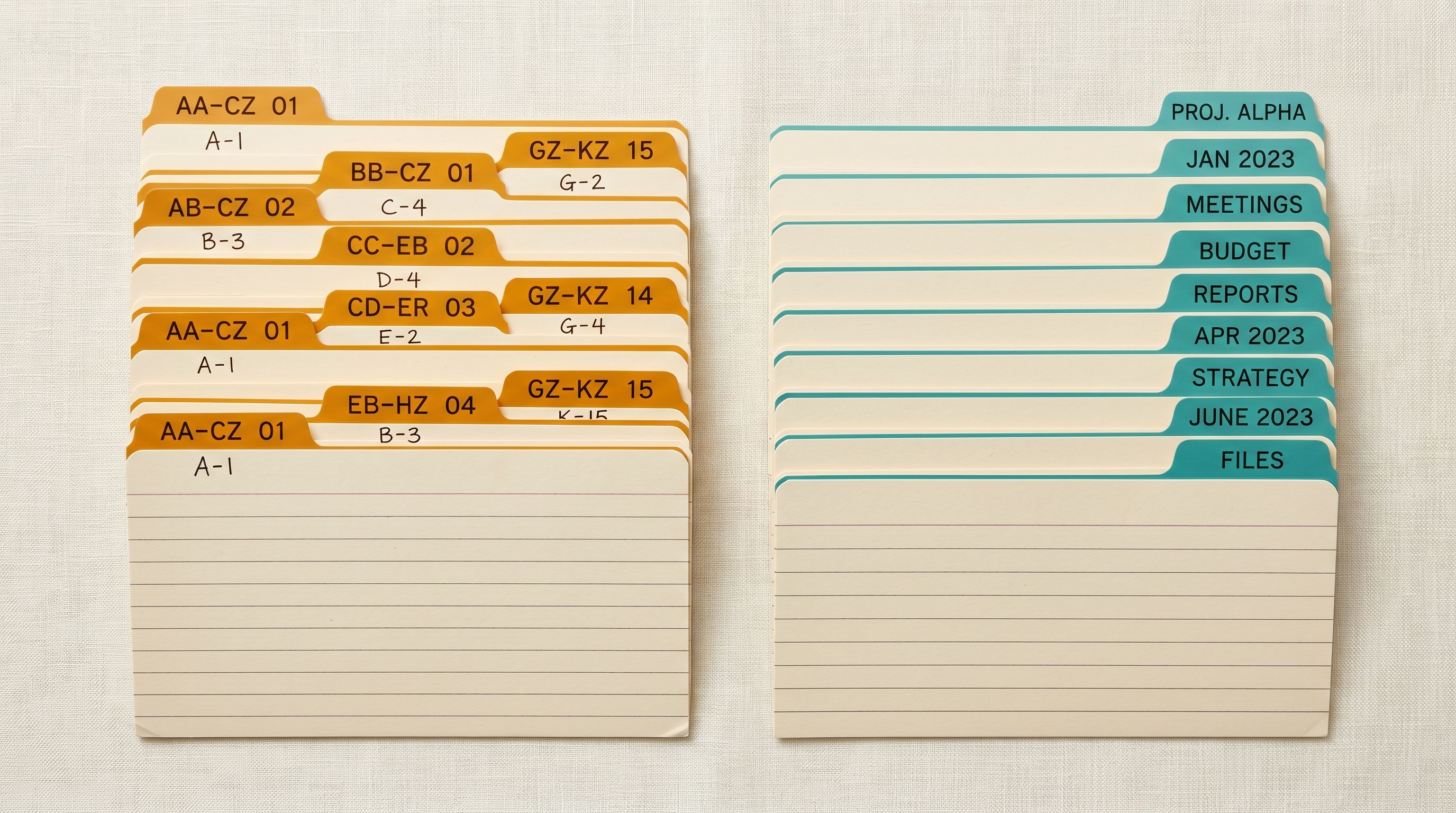
Why Supplier Catalogues Don't Import Directly into Shopify
Shopify's native CSV importer requires a precise column structure. Your file must have a Handle column for URL slugs, a Title column for product names, a Body (HTML) column for descriptions, Variant Price, Variant SKU, and so on. If a column is missing or named differently, the importer either rejects the file or silently drops that data.
Supplier catalogues are built for suppliers, not for Shopify. A typical wholesale catalogue has columns like "Item Code", "Product Description", "RRP", "Unit Weight", and "Colour Options". None of those match Shopify's expected names. Before you can use Shopify's native importer, you need to manually rename every column, restructure variant rows, and fill in any fields Shopify requires that your supplier didn't include.
For a 300-product catalogue with multiple variants per product, that reformatting work takes 2-4 hours. For a 1,000-product catalogue, you're looking at a full day.
Our Shopify CSV import guide covers the exact column format Shopify requires if you want to prepare the file yourself. But most merchants find it faster to let the import tool handle the mapping automatically.
The Two Approaches (and When to Use Each)
Shopify's native CSV import makes sense if your supplier already exports in Shopify format, which is rare but does happen with large distributors who have tech teams. If your file already has Handle, Title, and Body (HTML) columns in the correct structure, use Shopify's importer directly.
Importier's import wizard makes sense in every other situation: your file uses non-standard column names, it's an Excel spreadsheet rather than a CSV, it's a PDF catalogue or invoice, or you need AI descriptions generated during the import rather than after.
For most merchants starting out, the realistic choice is Importier. Supplier files are almost never in Shopify format.
Our Shopify bulk product import guide has a full decision framework for choosing between import methods based on your data source and how often you receive supplier updates.
- File must match Shopify's exact column format
- No AI descriptions included
- No variant detection or grouping
- No category metafields assigned
- Manual post-import work for every product
- Accepts any supplier CSV, Excel, or PDF
- AI descriptions generated during import
- Smart Variant Detection groups products automatically
- Category metafields assigned from 22 industry packs
- Products arrive store-ready
Importing Your Supplier Catalogue with Importier
Importier's 14-step import wizard is built for exactly this situation. You bring the supplier's file as-is. The wizard handles the reformatting.
Here is what the process looks like from start to finish.
Step 1: Upload your file. Drag and drop your supplier's CSV, Excel spreadsheet, or PDF into Importier. All three formats go through the same wizard. There's no conversion step needed.
Step 2: Select the header row. Some supplier files have marketing copy or company branding above the column names. The wizard lets you choose which row contains your actual column headers. You click the row that has "Product Name", "SKU", "Price", and so on.
Step 3: Map your supplier's columns to Shopify fields. Importier reads your column names and suggests matches. If your file has "Product Name", it maps to Shopify's Title. If it has "Item Description", it maps to Body (HTML). You review the suggestions, fix any that are wrong, and confirm. For a typical 15-column supplier file, this takes about two minutes.
Step 4: Review and configure. Before anything goes to Shopify, you see a preview of how your products will look. You set your AI model, description style, and persona. You choose whether to run variant detection, category metafield assignment, and data enrichment. You pick which products to push.
Step 5: Generate and push. Importier runs the AI pipeline on your products and pushes the finished listings to Shopify. A 500-product catalogue processes in under 3 minutes. Your products arrive in Shopify with descriptions, variant groups, and category attributes already assigned.
Importing Excel Supplier Catalogues
Importier accepts Excel files directly, with no conversion step needed. Many suppliers export from their own inventory systems as .xlsx or .xls files rather than CSV, and Shopify's native importer does not accept either format.
Without a third tool, you would need to open the file in Excel or Google Sheets, export it as CSV, then reformat the columns to match Shopify's requirements before importing. The same 14-step wizard handles .xlsx and .xls uploads as-is. You go from supplier spreadsheet to live Shopify products without touching the file format.
See our guide on importing Excel files to Shopify for more detail on what the Excel import flow looks like step by step.
Importing PDF Supplier Catalogues and Invoices
Importier's AI reads PDF supplier documents and extracts product data automatically, without any manual retyping. Some suppliers send product catalogues or invoices as PDFs rather than spreadsheets. A PDF looks like structured data but a standard CSV importer cannot read it.
The traditional approach is to retype every product manually, row by row. For a 50-product PDF invoice, that takes approximately 2 hours. You drop the PDF into the upload area, and the AI identifies products, prices, SKUs, descriptions, and specifications within 30 seconds. That extracted data then flows through the same 14-step wizard as any other file type.
This is particularly useful for wholesale merchants who receive invoices rather than catalogues. A supplier invoice is product data in a different format. Importier treats it as an import source.
A 50-product PDF supplier invoice that takes 2 hours to retype manually is extracted by Importier's AI in 30 seconds.
What Happens to Your Products During Import
Raw supplier data is rarely store-ready. Supplier catalogues contain trade descriptions written for buyers, not customers. They have SKU codes where variant names should be. They have weight in kilograms when your store uses pounds. They have no SEO titles, no meta descriptions, and no category assignments.
Importier runs an AI pipeline on every product during the import. Here is what that includes.
- 01AI descriptionsGenerate product descriptions across 7 styles using 25 AI models. Choose from 156 expert personas across 43 industries. A persona calibrated for your specific product category produces noticeably different copy than a generic default.
- 02Smart Variant DetectionImportier scans SKU patterns, option columns, and naming conventions against 150+ detection patterns across 15+ industries. Products that should be grouped as variants (different colours, sizes, or materials of the same base product) are grouped automatically.
- 03Category metafieldsImportier assigns category attributes from Shopify's Standard Product Taxonomy. With 22 industry packs and 3,758 attribute types, products arrive with the structured data Shopify's search and Google Shopping need.
- 04Data enrichmentMissing fields are filled automatically. If your supplier file has no weight, Importier estimates it. If it has no product type or country of origin, the AI fills those in. HS codes for cross-border shipping can be assigned in bulk.
All of this happens before any product goes to Shopify. You can review the results, adjust descriptions, and deselect individual products if needed.

After the Import
Keeping Descriptions Clean After Import
The initial import gets your catalogue into Shopify. What happens to product quality after that is a different problem.
Suppliers update their catalogues. Prices change. New products arrive. Old SKUs are discontinued. If you import new supplier data over existing products without managing descriptions carefully, you end up with some products freshly described and others with stale copy from two catalogue versions ago.
Importier's Import History records every import with date, file name, and product count. The Import Undo feature reverts any batch if something goes wrong. That gives you a safety net for catalogue updates where you're not sure how a new file will interact with existing products.
For merchants receiving regular supplier updates, Scheduled Imports (available on Scale and Enterprise plans) automate the process. You set the file source and frequency, and Importier runs the import pipeline automatically. The Scale plan supports two schedules; Enterprise supports ten. That suits most merchants who deal with two or three main suppliers.
For a deeper look at how to manage product quality across an active supplier catalogue over time, see our guide on ongoing catalogue management after import.
Common Problems and How to Handle Them
My supplier file has products and variants mixed in a single row. This is a common export format from older inventory systems. Each row has the base product details plus variant-specific columns like "Size 1 Price", "Size 2 Price", "Size 3 Price". Importier's column mapping step handles this format. Map the base product columns first, then map each variant column to its Shopify equivalent.
My supplier file uses a different character encoding and some characters display as symbols. This happens with supplier files from non-English markets. Importier handles UTF-8 and most common encodings automatically. If you see garbled characters in the preview, check whether your file is saved as UTF-8 and re-export if needed.
Some products have descriptions in the supplier file and some don't. You can choose at the review step which products get AI descriptions generated and which keep their existing supplier descriptions. The two modes are not mutually exclusive within a single import batch.
My supplier sends a new catalogue every month with updates to existing products. This is the scheduled import scenario. Rather than running a manual import each time you receive a new file, set up a schedule and let Importier run it automatically. Existing products update; new products are added. See the Scheduled Imports section above.
What to Do Before Your First Import
A few checks before you start save significant time.
Open your supplier file and note the column names. How many columns are there? Are variants listed as separate rows or as separate columns on the same row? Is there a header row at the top, or does the data start immediately? Is the file UTF-8 encoded?
Confirm whether your supplier file includes images or only image URLs. Importier imports image URLs; if your supplier file has relative file paths rather than full URLs, those images will not carry through.
Check whether your supplier file has a column that uniquely identifies each product (typically a SKU or barcode). That column becomes the Shopify Handle field and determines how Importier deduplicates products on subsequent imports.
Once you know the structure of your file, the import wizard itself is straightforward. The column mapping step is where you make the decisions; the rest is configuration.
Key Takeaways
- Supplier catalogues almost never match Shopify's required CSV format. Manual reformatting takes 2-4 hours for a 500-product file.
- Importier's 14-step wizard accepts any supplier CSV, Excel file, or PDF and handles column mapping automatically.
- A 500-product supplier catalogue processes through Importier in under 3 minutes, arriving in Shopify with AI descriptions, variant groups, and category attributes already assigned.
- PDF supplier invoices and catalogues are parsed by Importier's AI in 30 seconds rather than retyped manually.
- Scheduled Imports automate recurring supplier catalogue updates on Scale and Enterprise plans.
Try Importier free at importier.app and import your first products in under 5 minutes.
Related Articles
Set up your first import in under five minutes.
Importier brings products into Shopify with AI descriptions, category metafields, and data enrichment on every run.