How to Import Products from Excel to Shopify
On this page
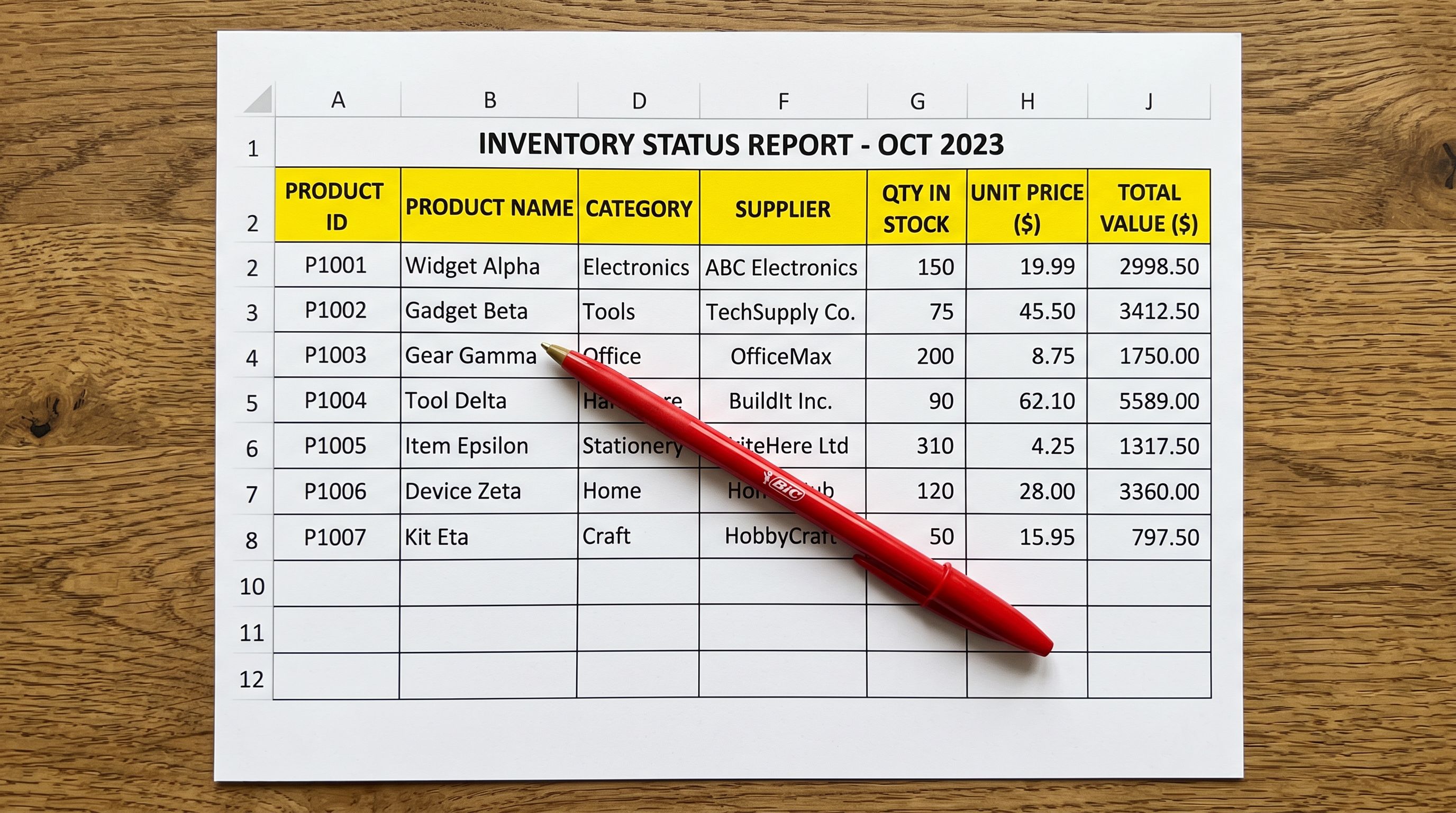
Most suppliers send product catalogues as Excel files. Your distributor's price list is probably an .xlsx. Your manufacturer's product data likely lives in a multi-sheet workbook with column headers that make sense to them but mean nothing to Shopify's CSV importer.
So how do you get a 500-product Excel catalogue into Shopify without spending most of a day reformatting it?
The Challenge
Why Shopify Does Not Accept Excel Files
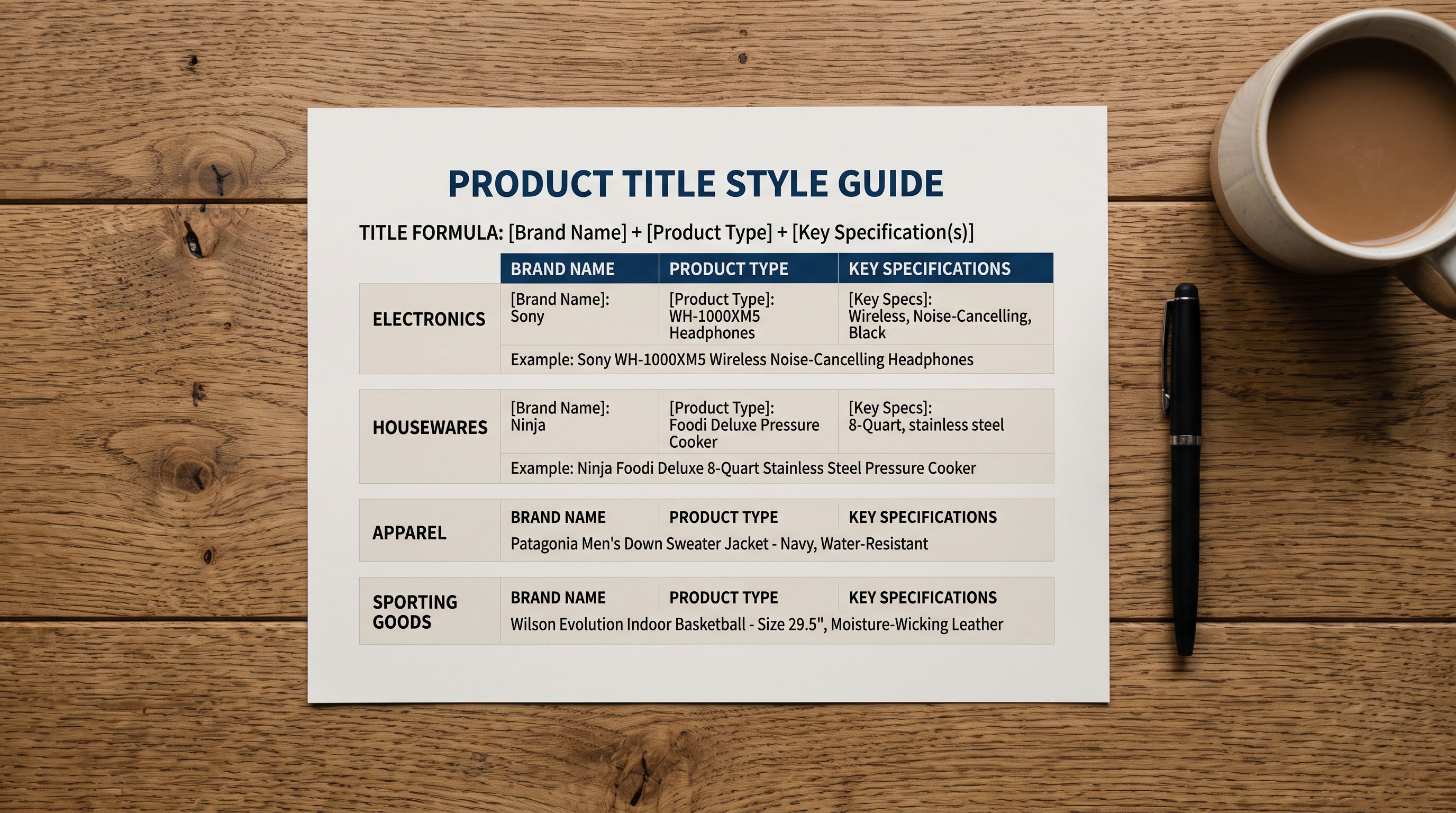
Shopify's product importer expects a CSV with specific column names: Title, Body (HTML), Vendor, Type, Tags, Published, Option1 Name, Option1 Value, and so on. The columns must be named exactly, the values must be formatted correctly, and product variants must follow a particular row structure.
Excel files do not work this way. They can have multiple sheets, merged cells, formula-driven pricing columns, and column names that match your supplier's internal system rather than Shopify's expected structure. "Product Description" is not the same as "Body (HTML)". "Unit Price (AUD)" is not "Price".
Shopify has not added Excel support to its native importer. The standard workaround is to export from Excel as a CSV, but that approach has several failure points.
The Save-As-CSV Problem
Opening your supplier's .xlsx file and selecting File > Save As > CSV sounds straightforward. In practice, a few things go wrong consistently.
Only the active sheet exports. If your supplier's workbook has separate sheets for different product categories or for size and colour variants, you get only the sheet you had open at the time. You need to export each sheet separately and merge the files manually before importing.
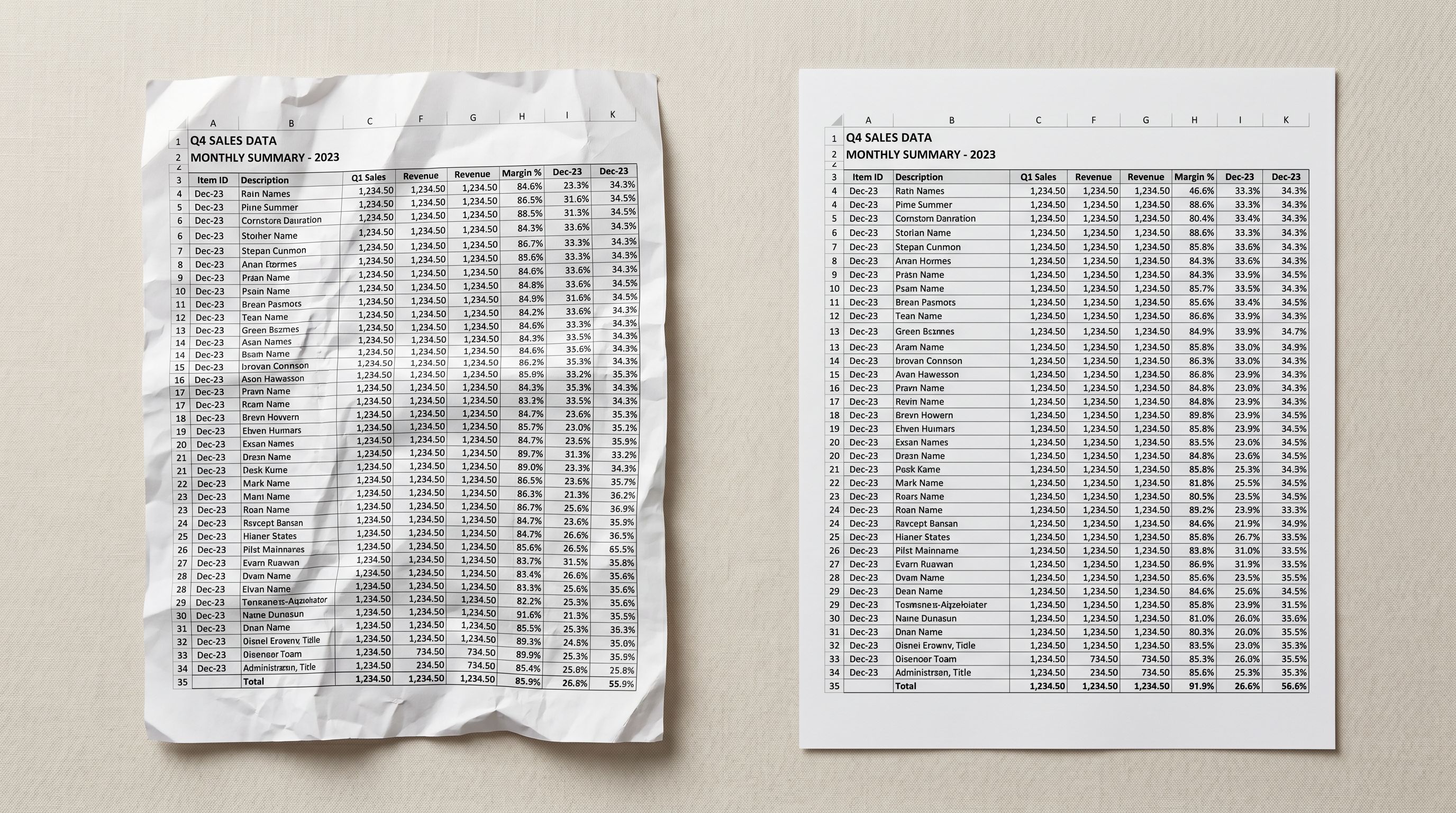
Formatting does not translate cleanly. Excel cells formatted as currencies, dates, or percentages export in unpredictable ways. A price formatted as "$49.99" in Excel may come through as "AUD49.99", "49.99", or with extra decimal places depending on your regional settings and the formatting applied to that column.
Column names still need renaming. After the CSV export, you still need to rename every column to match Shopify's expected structure. For a 200-product Excel catalogue with 25 columns, mapping "Product Name" to "Title", "Short Description" to "Body (HTML)", and "Wholesale Price" to "Compare at Price" takes 45 to 90 minutes before you even start the actual import.
For merchants who receive updated price lists weekly or monthly, this conversion overhead adds up to several hours a month of work that should not be necessary.
The Solution
Importing Excel Files Directly with Importier
Importier accepts .xlsx and .xls files directly, without any conversion step.
Upload your Excel file the same way you would upload a CSV. Importier reads the data, identifies the columns, and opens the 14-step import wizard. The wizard's auto-mapping logic reads your column headers and matches them to the correct Shopify product fields. "Product Name" maps to Title. "Description" maps to Body (HTML). "RRP" maps to Compare at Price. You review the suggestions and adjust any that need changing. For most standard supplier formats, the mapping step takes under two minutes.
Importier also handles the header row selection. If your supplier's file has extra rows above the actual column names (company logo rows, date headers, notes from the sales team), you specify which row contains your headers and Importier reads from there.
Handling Variant Data in Excel Files
Supplier Excel catalogues often store variant data differently from how Shopify expects it. A common format is one row per product with separate columns for each size or colour option:
| Product | Description | Small SKU | Medium SKU | Large SKU | Price | |---------|-------------|-----------|------------|-----------|-------| | Blue T-Shirt | Cotton jersey | SKU-S | SKU-M | SKU-L | 29.99 |
Shopify expects one row per variant, with a shared product handle grouping related variants together. Restructuring a 500-row catalogue from a column-based format to Shopify's row-based format is a 3 to 4 hour job done manually.
Importier's Smart Variant Detection handles this automatically. Using 150+ regex-based patterns across 15+ industries, it identifies when columns represent variant options rather than separate product fields, and restructures the data into Shopify's expected format during the import process. For ambiguous cases where column headers do not follow obvious naming conventions, AI-powered variant analysis steps in to verify the grouping before writing anything to your store.
The same detection logic applies to more standard Excel formats where each row represents a separate variant. Size, colour, storage capacity, volume, pack size, weight, flavour, and scent variants are all detected across more than 15 industry categories.

Filling Missing Fields with AI Data Enrichment
Most supplier Excel catalogues include titles, SKUs, prices, and basic descriptions. They typically leave out the fields Shopify needs for shipping, customs compliance, and Google Shopping eligibility:
- Weight: required for Shopify to calculate accurate shipping rates
- HS code: required for cross-border customs declarations
- Country of origin: needed for international shipments
- Product type and category: needed for Google Shopping feed eligibility
When these fields are absent from your Excel file, Importier's AI data enrichment fills them automatically during the import. The AI infers weight from product title and type, assigns country of origin from product data, and populates HS codes based on product category.
For barcodes, Importier queries registered product databases to match products to valid EAN-13 or UPC-A codes where available.
You can also add a brief enrichment hint in the import wizard, for example "all products are handmade ceramics from Portugal", to help the AI fill ambiguous fields accurately for niche or specialist catalogues.
AI-Powered Content
Generating Descriptions from Excel Product Data
Supplier Excel catalogues usually contain functional descriptions written for buyers, not shoppers. Phrases like "100% cotton, machine wash cold" or "fits models X300-X500" are useful spec information, but they do not convert on a product page.
After Importier maps the columns and groups the variants, it generates product descriptions using AI. You choose from seven description styles:
- Standard for general retail
- Technical Gadget for electronics and equipment
- Benefits-First for health and wellness products
- Sensory-Rich for food, fragrance, and beauty
- Emotional Storytelling for lifestyle and gift products
- Ingredient Spotlight for cosmetics and supplements
- Custom for your own format
A 200-product Excel catalogue generates descriptions in minutes, compared to 50 to 100 hours of work for a copywriter covering the same volume manually.
Each style runs across 25 AI models (including Claude, GPT, Gemini, and Llama) and 156 expert personas across 43 industry categories.
Importier also generates an SEO-optimised title and meta description for each product at the same time.
Category Metafields Assigned Automatically
Once products are imported, Importier assigns Shopify category metafields automatically. These are the structured product attributes defined by Shopify's Standard Product Taxonomy: materials, dimensions, certifications, compatibility, and other category-specific fields.
Importier matches each product against 22 industry packs covering 3,758 category attribute types. Matching runs in two phases: text-based matching for clear cases, then AI-powered matching for products that could belong to multiple categories.
Category metafields improve Google Shopping eligibility, power on-site product filters, and feed into Google Merchant Centre product quality signals. Getting them right during an Excel import avoids manual taxonomy work later. You can read more about how Shopify category metafields work and the discoverability impact they have on your store.
Step-by-Step
Step-by-Step: Import an Excel File with Importier
Here is the full process from upload to published products.
- 01Open ImportierOpen Importier from your Shopify admin and select New Import
- 02Upload your Excel fileDrag and drop your .xlsx or .xls file. No conversion step needed
- 03Select header rowSpecify which row contains your column names if the file has extra rows above them
- 04Review column mappingImportier auto-maps columns to Shopify fields. Adjust any that need changing: most formats map in under two minutes
- 05Configure variant detectionIf your file has variant data spread across columns, review the detected pattern and confirm the grouping
- 06Set AI enrichmentToggle on fields you want filled (weight, HS code, country of origin, barcode lookup) and add an enrichment hint if needed
- 07Configure descriptionsChoose a style, select a persona, and pick an AI model. Enable SEO title and meta generation
- 08Review the previewCheck a sample of products before committing. Verify titles, variant groupings, pricing, and descriptions
- 09Run the importImportier processes the full catalogue. A 200-product Excel file typically completes in under three minutes
- 10Check your catalogueProducts appear with AI-generated descriptions, grouped variants, enriched data fields, and category metafields assigned

Scheduling Recurring Excel Imports
If your supplier sends an updated price list on a regular schedule, you can automate the import rather than repeating the process manually each time.
Importier's Scheduled Imports feature (available on Scale and Enterprise plans) lets you upload a file once, configure a frequency, and have the import run automatically. Set the cadence (daily, weekly, or monthly), choose your timezone, and Importier processes the file on schedule. Each run applies the full AI pipeline: Smart Variant Detection, AI data enrichment, description generation, and category metafield assignment. Scale plan supports two active schedules; Enterprise supports ten.
Every scheduled import is logged in Import History with a timestamp, file name, and product count. You can review any run or undo it if something came through incorrectly.
Excel vs CSV
Excel Import vs CSV Import
Importier supports both Excel and CSV imports through the same 14-step wizard. The choice depends on what your supplier provides.
- Your supplier sends .xlsx or .xls files
- The file uses formula-driven pricing columns
- You want to skip the Save-As-CSV conversion step
- Your supplier provides a correctly formatted CSV
- You are working with a feed exported from WooCommerce or Magento
- The data is already in Shopify's expected column structure
If your supplier alternates between file formats, Importier handles both without any configuration changes between runs. You can read more about importing products from CSV if your supplier catalogue arrives in that format instead.
Conclusion
Shopify's native product importer does not accept Excel files. The standard Save-As-CSV workaround adds 45 to 90 minutes of column-renaming and formatting work per file, repeated every time your supplier sends an update.
Importier accepts .xlsx and .xls files directly. The 14-step import wizard maps your columns, groups your variants using AI-powered variant detection, fills missing data fields with AI data enrichment, and generates product descriptions across 7 styles and 156 personas. A 200-product Excel catalogue imports in under three minutes of active work.
Try Importier free at importier.app
Related Articles
Set up your first import in under five minutes.
Importier brings products into Shopify with AI descriptions, category metafields, and data enrichment on every run.