Shopify Product Weight: How to Fill Missing Data in Bulk

On this page
Shopify Product Weight: How to Fill Missing Data in Bulk
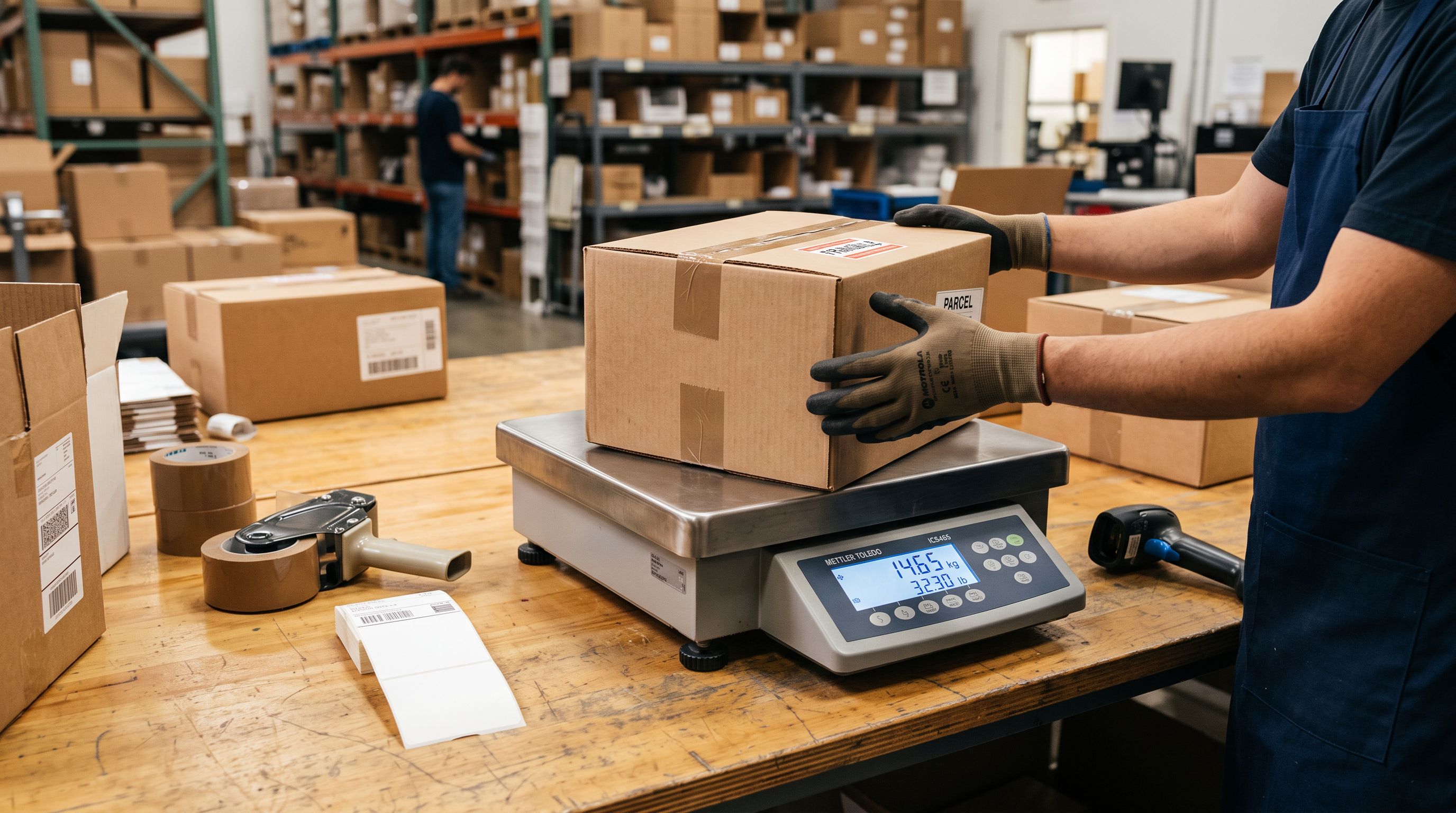
Shopify product weight is one of the quietest fields in a product record. It does not affect how the product looks on your storefront, and it does not show in any customer-facing display by default.
But the moment a customer tries to check out using carrier-calculated shipping, or when your Google Shopping feed gets flagged for missing shipping_weight, the absence of weight data becomes immediately visible.
Supplier CSVs regularly omit weight entirely. Marketplace imports extract titles, prices, and images but not physical dimensions. Platform migrations copy the fields that map cleanly and leave the rest. The result is a catalogue where a substantial percentage of products have no weight on record, and fixing that at scale is the challenge this article addresses.
Why Shopify Products End Up Without Weight Data
The majority of weight gaps come from three predictable sources.
The most common is the supplier CSV. Wholesale suppliers structure their files for inventory management, not Shopify compatibility. They include item codes, prices, and descriptions, but weight is often stored in a separate system (their ERP or warehouse management software) that never makes it into the export you receive. When you import that file, Shopify's weight field stays at zero.
Zero weight is not the same as blank. Shopify interprets a zero-weight product as having no physical dimensions, which affects shipping rate calculations.
Carrier-calculated rates for FedEx, DHL, and Australia Post require accurate weights to return a quote. A product with zero weight returns a zero-weight rate, which may be inaccurate or cause the shipping calculator to fail entirely at checkout.
The second source is marketplace import. When you pull products from Amazon, AliExpress, eBay, or a supplier website, the import captures the title, images, description, and price. Physical specifications (weight, dimensions) are frequently missing from the product listing data, either because the supplier never published them or because the extraction missed them.
The third is the platform migration. A store migrating from WooCommerce or BigCommerce commonly moves product content and pricing cleanly, but weights were often held in the shipping plugin's own database rather than in the core product record. Those weights do not travel with the standard product export.
What Missing Weight Actually Costs
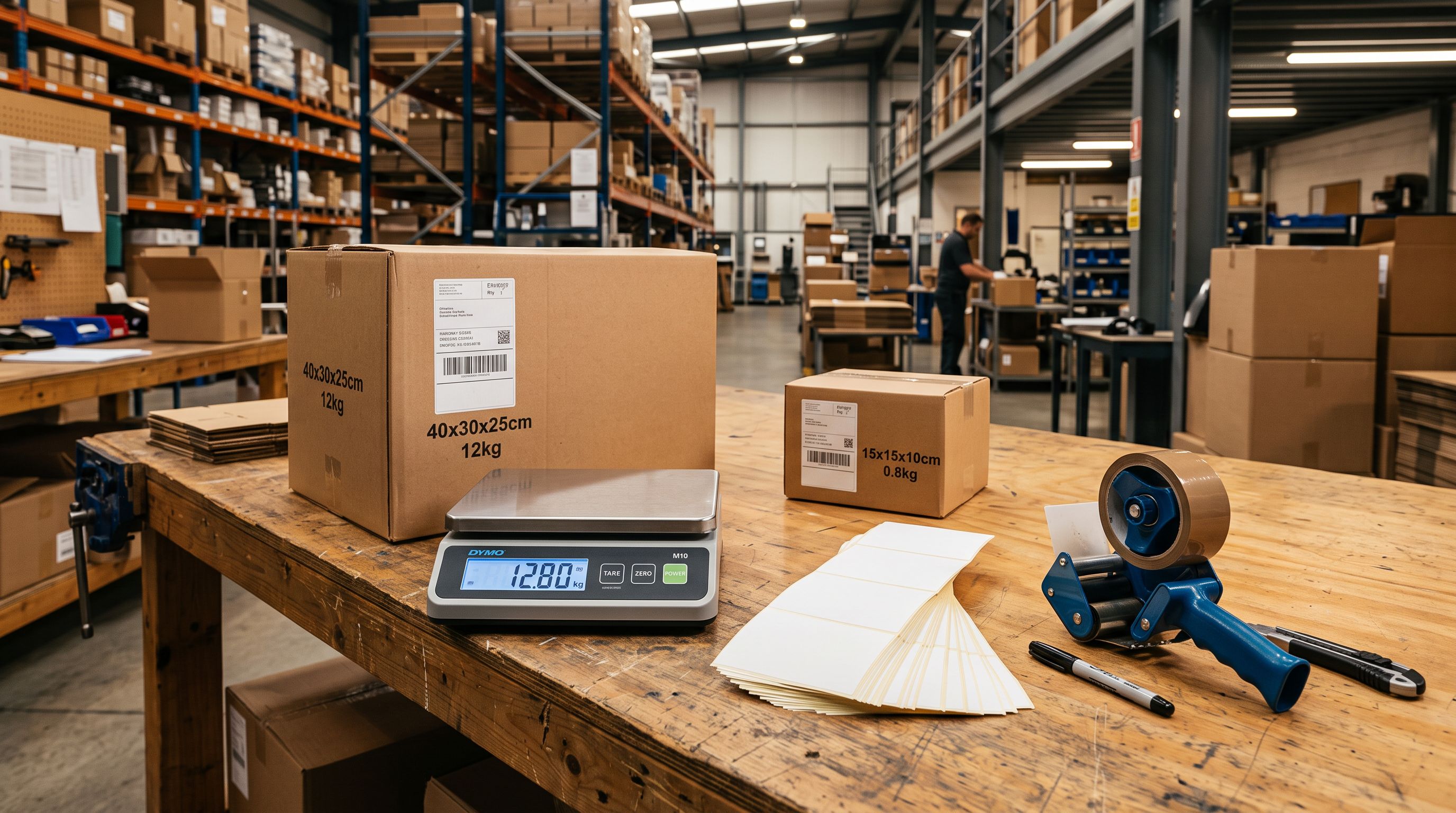
The first cost is at checkout. Shopify's carrier-calculated shipping calculates postage costs by querying the carrier API with the shipment weight. A product with zero or missing weight returns a rate based on zero kilograms, which can produce a quote that significantly undercharges the merchant. Some carrier integrations return an error and hide all shipping options entirely, forcing customers to abandon the cart.
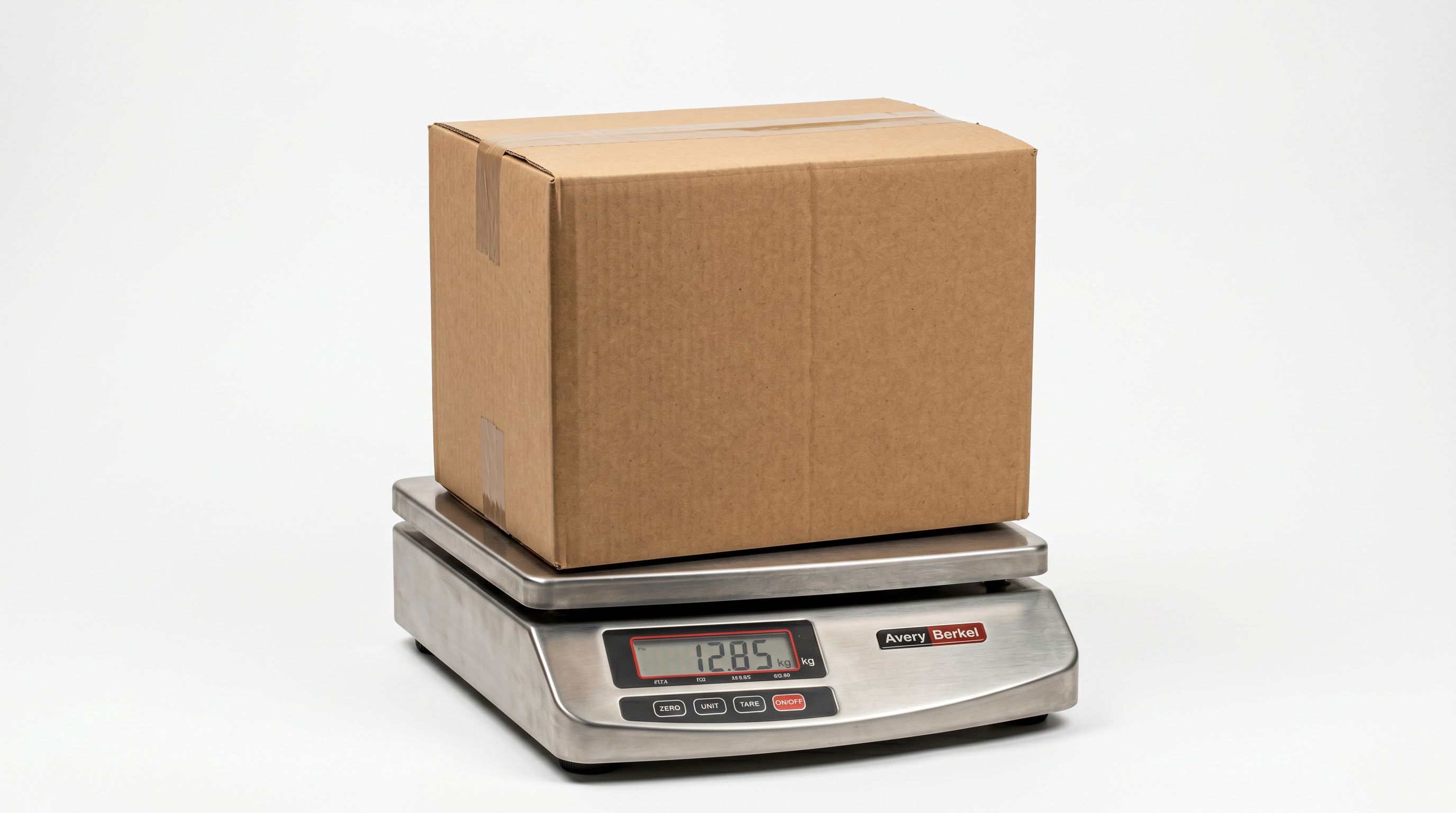
For a store with 500 products and 20% missing weight data, that is 100 products where checkout may behave incorrectly depending on how the shipping zone is configured. The problem is invisible in the product admin and only surfaces when a customer hits that specific product.
The second cost is Google Shopping. Google Merchant Centre requires a shipping_weight attribute for products in certain categories, particularly apparel and bulky goods. Products missing this attribute receive a "Missing value: shipping_weight" warning in feed diagnostics. In competitive Shopping categories, complete product data outperforms incomplete listings for ad placement. For a broader look at how missing product data affects your Shopping feed, Google Merchant Centre disapprovals covers the full range of data quality issues.
The third cost is operational. A fulfilment team packing orders from a Shopify packing slip that shows zero weight cannot pre-validate the carrier label before printing. This introduces manual checks that slow down dispatch for every affected product.
Why Manual Weight Entry Doesn't Scale
The manual process for filling product weights has two steps, and each creates friction.
First, you need to find the correct weight for each product. This means consulting the supplier's technical documentation, measuring the product physically, or looking up the manufacturer's specification sheet.
Each product is different. A strategy that works for one supplier's catalogue may not work for the next.
Second, you need to enter those weights into Shopify. The bulk editor allows weight editing and lets you work through products in a list view, but it has no filter for products with zero or missing weight.
You cannot ask Shopify to show only the products that need attention. You scroll through everything, identify the gaps manually, and edit row by row.
For 500 products at four minutes each, including lookup time, that is over 33 hours before you have complete weight data. That estimate assumes your supplier's technical specs are easy to find. For imported or marketplace-sourced products from dozens of different suppliers, the lookups are scattered across different websites, PDFs, and email threads.

How Importier Fills Product Weight During Import
Importier's data enrichment step fills the weight field automatically during import, before products reach Shopify.
During the 14-step import wizard, the enrichment step analyses each incoming product using its title, product type, and vendor information. For products where weight data is available through product lookup, Importier fills the weight field directly. For products where no data is found, the field is left empty rather than set to zero, which makes the gap visible and targetable in a follow-up pass.
This distinction matters. A weight of zero and a blank weight create different problems.
Zero produces incorrect shipping rates. Blank surfaces the product in a targeted Store Scanner pass. Importier's enrichment defaults to blank rather than zero when it cannot find a match.
Weight unit conversion runs in the same step. If your supplier's file uses kilograms but your Shopify store is configured for pounds, or vice versa, Importier converts during import. Supported units are grams (g), kilograms (kg), pounds (lb), and ounces (oz). You set the target unit once in the import wizard configuration, and every product in the batch converts to that unit consistently.
For wholesale CSV imports from suppliers who publish weight data inconsistently across product lines, the enrichment step handles the mixed-unit problem without manual preprocessing of the file.
The Enrichment Context Field
For product types where automated weight lookup returns limited results, the enrichment context field gives you a way to improve accuracy without doing every lookup manually.
The context field accepts a plain-text description that guides the enrichment. For a batch of heavy industrial tools, you might enter "These are cast iron hand tools, average weight 400–800 grams." For a batch of children's clothing, "Lightweight cotton garments, approximate weight 100–250 grams." The AI uses this context to calibrate weight estimates for products in the batch where a specific lookup does not return a match.
This is the most underused capability in the enrichment step. Merchants who import the same category of product repeatedly can develop a short context phrase that consistently improves enrichment accuracy for that product type. It is worth testing the context field on a small batch first to validate the output before running it across a full import.
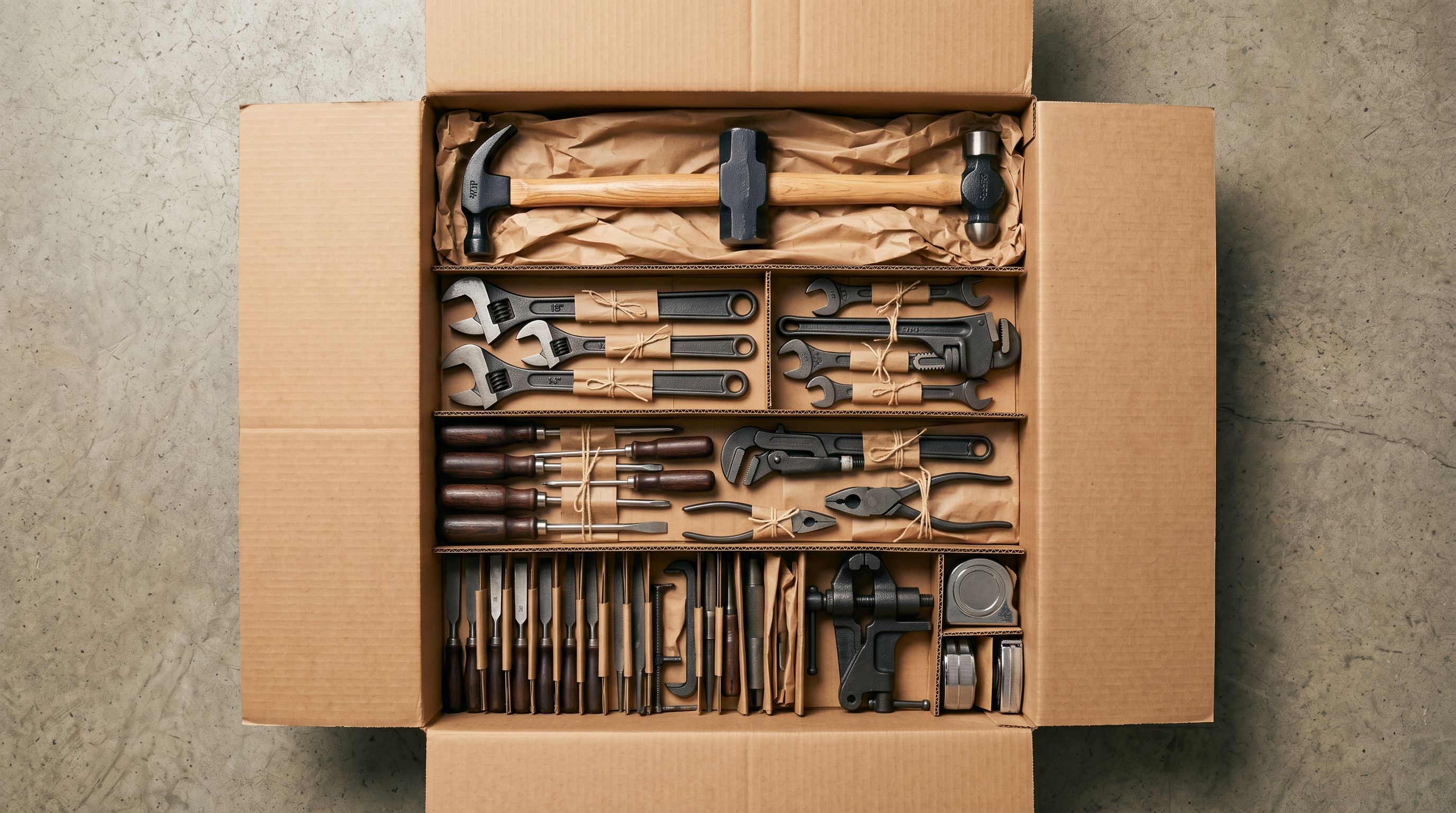
A single context phrase for your product category can lift enrichment accuracy across an entire import batch.
Filling Weight on Products Already in Your Store
For products already in Shopify without weight data, Store Scanner provides the targeting layer for a retroactive enrichment pass.
Store Scanner scans your existing catalogue and filters by specific field conditions. For weight, you can filter to products with zero weight or blank weight across the entire catalogue, or scope the scan to a specific collection, vendor, or SKU prefix. A merchant with 1,200 products and three suppliers can run one targeted pass per supplier, keeping each batch small enough to review and revert if needed.
- Find each product's weight from supplier specs or physical measurement
- No way to filter zero-weight products in Shopify admin: must export and sort
- 500 products takes 33+ hours of lookup and entry work
- Unit conversion done manually per product or per file
- Weight lookup runs automatically during import for each product
- Store Scanner filters zero-weight and blank-weight products for targeted retroactive passes
- Enrichment context field guides accuracy for specialised product categories
- Weight unit conversion (g, kg, lb, oz) applied consistently across the entire import batch
Import Undo covers every Store Scanner run. If a weight enrichment batch produces unexpected values (say, the enrichment overestimated weight for a lightweight accessory line), you revert the entire batch without affecting anything else in the catalogue.
This mirrors the same retroactive workflow available for missing barcode data: targeted campaigns on a specific catalogue slice, each reviewable before committing and reversible after.
Step-by-Step: Adding Weight to Shopify Products in Bulk
During a new import:
- 01Open the import wizard in ImportierFrom your Shopify admin, open Importier and upload your supplier CSV, Excel, or PDF file.
- 02Set your target weight unitIn the import configuration, select the weight unit your store uses (g, kg, lb, or oz). Importier converts all incoming weight values to this unit.
- 03Enable data enrichmentOn the enrichment step, toggle on Weight. Optionally add a context phrase describing the product category to improve accuracy for specialist goods.
- 04Review the import previewCheck that weight values look reasonable for the products in the batch. Adjust the context phrase and re-run enrichment if the values are consistently off.
- 05Import and verifyProducts appear in Shopify with weight data filled. Check a sample in the Shopify admin to confirm values are plausible before confirming the full import.
For products already in your store (retroactive):
- 01Open Store Scanner in ImportierNavigate to Store Scanner from the Importier sidebar.
- 02Filter by zero or missing weightUse the weight filter to target products with no weight data. Scope the scan to a specific collection or vendor to keep the batch manageable.
- 03Enable weight enrichment with contextAdd a context phrase describing the product type if the category is specialist or the product names alone are not descriptive enough.
- 04Review and confirmCheck the preview for reasonableness. Confirm the run. Import Undo remains available if results need to be reverted.
After the Fix: What Changes
Carrier-calculated shipping rates work correctly as soon as weight data is present in the product record. There is no delay. The next customer to add one of those products to their cart will see an accurate shipping quote from the carrier integration.
Google Merchant Centre picks up weight data on the next feed sync, which typically runs daily. Products that previously showed "Missing value: shipping_weight" should clear that warning within 24 to 48 hours.
For fulfilment, packing slip accuracy improves immediately. Carrier label generation for pre-printed labels also works correctly once weights are present.
Key Takeaways
- Product weights go missing through supplier CSVs without a weight column, marketplace imports that skip physical specs, and platform migrations where weights were stored in a shipping plugin rather than the core product record.
- Zero weight and blank weight are different problems. Zero produces incorrect carrier shipping rates at checkout. Blank surfaces the gap for targeted enrichment.
- Importier's data enrichment fills weight during import using product title, type, and vendor as inputs, with automatic unit conversion across grams, kilograms, pounds, and ounces.
- The enrichment context field improves accuracy for specialist product categories: a single descriptive phrase guides the AI for an entire import batch.
- Store Scanner filters zero-weight and blank-weight products for retroactive enrichment passes, keeping each campaign targetable and reversible via Import Undo.
Try Importier free at importier.app
Set up your first import in under five minutes.
Importier brings products into Shopify with AI descriptions, category metafields, and data enrichment on every run.