How to Fix Product Data Quality After a Shopify Migration

On this page
How to Fix Product Data Quality After a Shopify Migration
A successful platform migration means your products are now in Shopify. What it does not mean is that your product data is ready to drive sales.
Most migrations, whether from WooCommerce, BigCommerce, Squarespace, or a spreadsheet, transfer the data that exists in the source platform. What they transfer is rarely sufficient for a Shopify store that needs to perform on Google Shopping, pass a Google Merchant Centre audit, or be discoverable through AI Shopping agents. After the migration settles, merchants typically face a cluster of data quality problems that the migration tool had no way to fix.
This article covers the six most common post-migration data gaps and the prioritised cleanup workflow that resolves them without editing products one by one.
What Migrations Transfer and What They Do Not
Migration tools do one job well: they move the data that exists in the source platform to Shopify. The structural fields travel cleanly: titles, prices, inventory counts, images, SKUs, product status, tags, and whatever description HTML existed.
What most source platforms do not enforce, and therefore do not transfer, is everything that makes a Shopify catalogue commercially complete. A WooCommerce store might have descriptions and prices, but GTINs are optional on WooCommerce and often absent. Weights in WooCommerce default to grams; Shopify expects kilograms. Product categories in WooCommerce are free-form labels defined per merchant; Shopify's Standard Product Taxonomy is a structured hierarchy defined by Shopify and aligned to Google's product taxonomy. The two systems do not map cleanly to each other.
After a WooCommerce migration, the "product type" field in Shopify typically contains WooCommerce category names: "Outdoor / Camping / Tents" or "Electronics > Audio > Headphones". These names land in the product type field as strings, but they do not trigger Shopify category attribute assignment, because Shopify's taxonomy uses its own path structure, not WooCommerce labels.
A specific issue that catches merchants off guard: WooCommerce product descriptions often contain WordPress plugin shortcodes. A description that renders beautifully on WooCommerce as a tabbed specification panel (via a plugin like WooCommerce Product Tabs) arrives in Shopify as raw text: [specs_tab title="Specifications"]Weight: 2.3kg[/specs_tab]. The shortcode is meaningless in Shopify and renders as visible broken text on every product page.
Step 1: Identify the Gaps with Store Scanner and SEO Audit Export
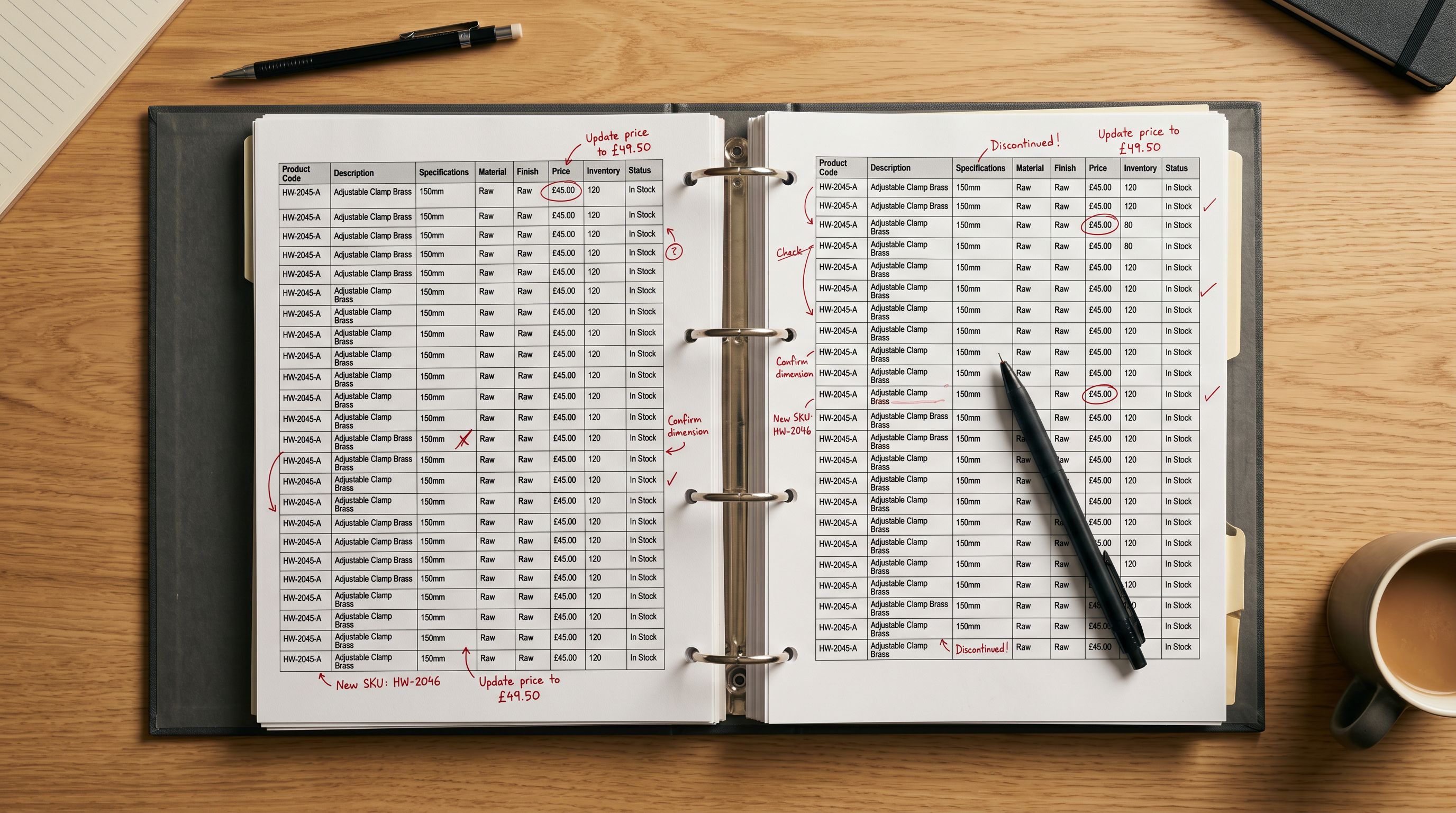
Before running any bulk operation, know what you are dealing with. Two tools give you a complete picture.
Store Scanner scans your Shopify catalogue and identifies products with missing or short descriptions, missing category attributes, and products that have not been through Importier's AI pipeline. You can filter by collection, product type, or SKU pattern to isolate the migration batch.
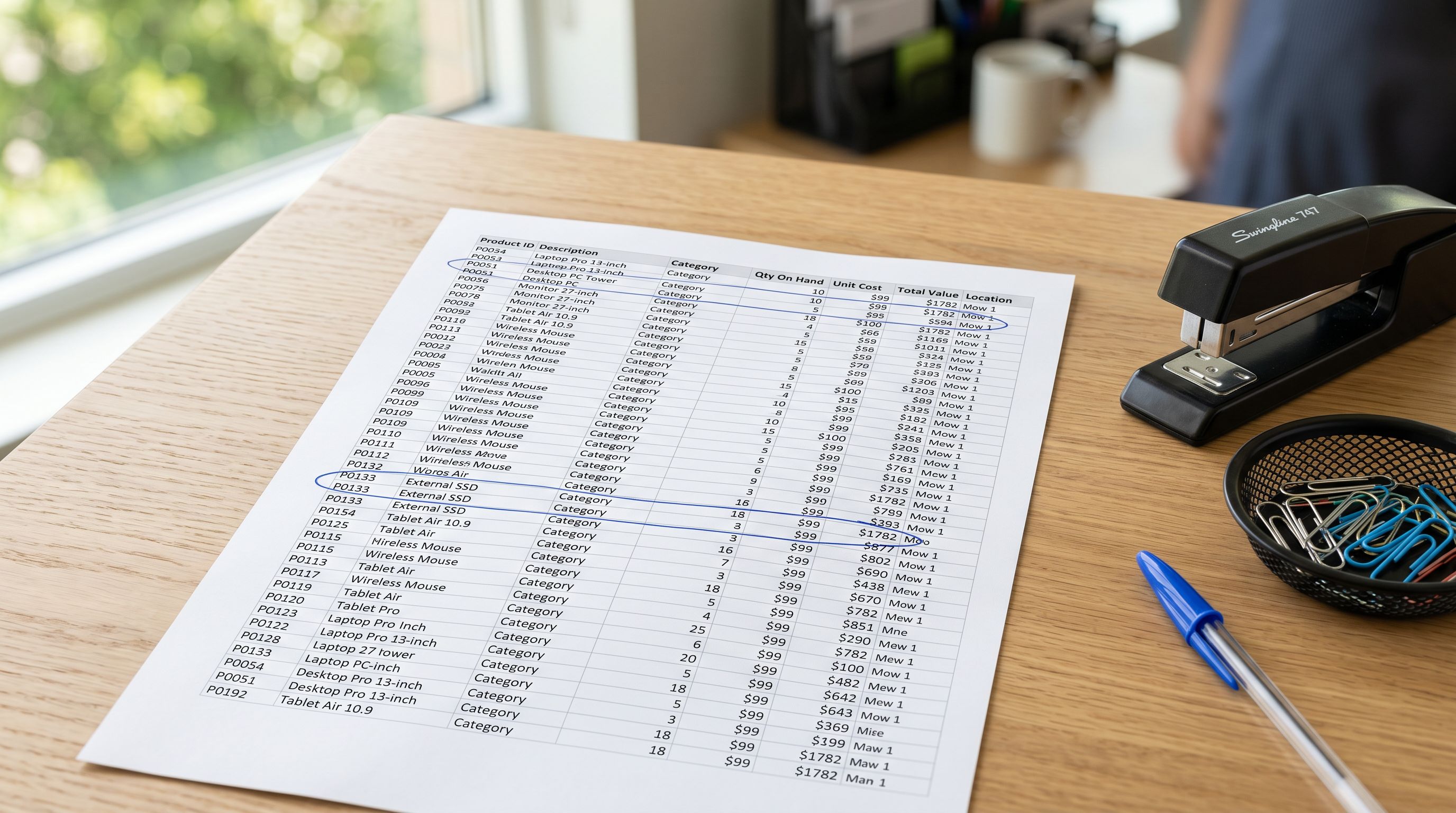
The SEO Audit export from Importier's Product Export section generates a CSV of every product's title, meta title, description, meta description, and product type in under two minutes. For 1,000 migrated products, this gives you one file that shows exactly how many products have no meta description, how many have descriptions under 100 words, and how many still have product types set to WooCommerce category strings.
Run the Store Scanner scan and the SEO Audit export before starting any corrections. This takes under five minutes and tells you which of the six fixes below apply to your store.
Step 2: Replace Broken Descriptions First
Descriptions come first because the AI uses the product title and category context when generating content. If product types are still set to WooCommerce category strings, the AI still generates better descriptions than what the migration left behind. Once you fix product types (Step 4), descriptions are already in place.
Store Scanner's Replace mode generates a new AI description for every product it identifies. You choose the AI model, the description style, and the persona. For a 500-product migration batch, this typically completes in under 40 minutes. The Replace mode overwrites the existing description entirely, which is correct here, because shortcodes, WooCommerce plugin HTML, and thin supplier copy should not be preserved.
- 01Open Store Scanner in ImportierNavigate to Store Scanner from the left sidebar.
- 02Filter to the migration batchFilter by the product type or tag used to mark migrated products, or scan the entire catalogue if the migration represents most of your inventory.
- 03Select a description style and personaFor general retail, the Standard or Benefits-First style with a relevant industry persona works well. For technical products, Technical Gadget with an engineering persona.
- 04Set mode to ReplaceReplace overwrites the existing description. Do not use Append if the existing descriptions contain shortcodes or broken HTML.
- 05Run the generationImportier generates descriptions for every matched product. Review a sample before pushing: spot-check five or six products across different categories to confirm the style is on-brand.
- 06Push to ShopifyConfirmed descriptions push to Shopify in bulk. Import History logs the session so you can undo if needed.
If the migration included variant products, consider enabling Variant Descriptions (available on Scale and Enterprise plans). Per-variant descriptions stored as Shopify metafields let each colour or size have its own description, which matters for clothing and accessories where buyers make decisions per variant.
Fix descriptions before fixing product types. The AI runs on whatever category data is available. You can always rerun descriptions after reassigning product types if the output needs refinement.
Step 3: Fill Missing Weights, Barcodes, and HS Codes
With descriptions in place, run data enrichment. Importier's data enrichment fills missing weight, HS code, and country of origin values using AI and barcode lookup. It only fills blank fields. It will not overwrite a weight value you have already corrected manually.
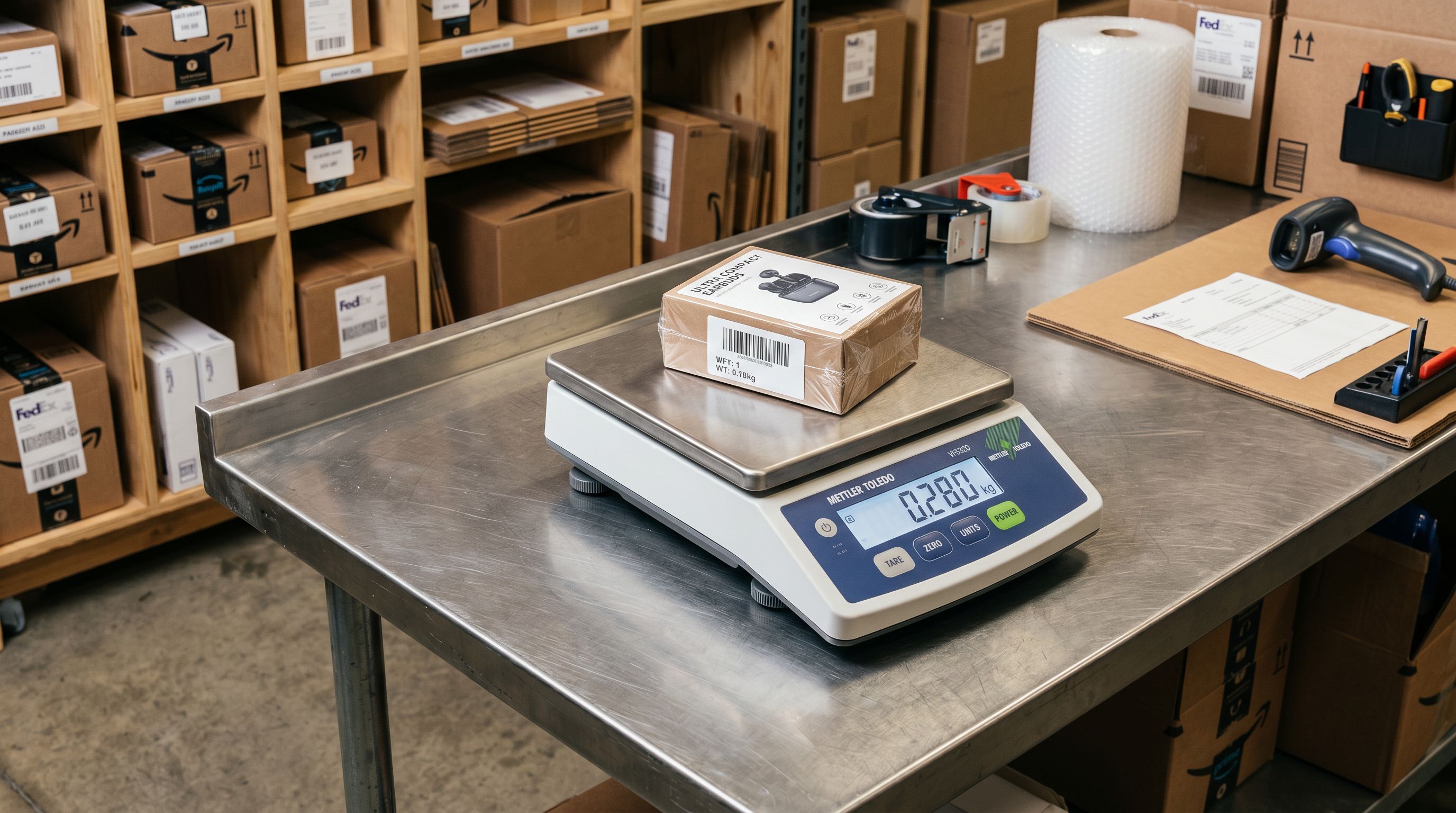
The WooCommerce weight unit problem is worth calling out specifically. WooCommerce stores weight in grams by default, with the unit label set per store in the WooCommerce settings. When the migration tool exports a 350g product, it writes "350" to the weight field. Shopify then reads that as 350 in the store's base weight unit, typically kilograms. A product that weighs 350 grams appears in Shopify as 350 kg.
This does not show up as an error. Shopify accepts the value. It only becomes apparent when shipping rates calculate as several hundred dollars on a product that should ship for under five dollars, or when a Google Merchant Centre feed submits the wrong weight and the product gets flagged.
Importier's enrichment AI reads the product title and description and infers the correct weight with the right unit. For products with a barcode already present, barcode lookup retrieves the weight from the product database and sets it with the correct unit. Run enrichment after descriptions so the AI has a complete description to read for weight and specification signals.
Category Attributes and Final Quality Checks
Step 4: Assign Shopify Category Attributes via Industry Packs
After descriptions and enrichment, run the category attribute pass. Importier's 22 Industry Packs fill Shopify's Standard Product Taxonomy attributes automatically: 3,758 attribute types across 22 industries, using the product title and the newly written description as input.
For migrated products with WooCommerce category strings still in the product type field, Importier's two-phase matching reads the title and description to identify the correct Industry Pack. A product titled "Waterproof Hiking Boots Women's Size 7 Brown" matches the Footwear industry pack from the title alone, regardless of what the product type field says.
Running the category attribute pass now (rather than immediately after migration) means the pack matching has the full description to work with, not just a sparse title. This produces more complete attribute fills for products where the title alone is ambiguous.
Products whose product types the migration set to correct Shopify taxonomy categories can skip this step, as their attributes may already be assigned. The Store Scanner scan from Step 1 will have identified which products are missing attributes.
Step 5: Add FAQs and Delivery Information
With descriptions, enrichment, and category attributes in place, the final content layer is FAQs and delivery information.
Importier's FAQ Generator adds 2-10 AI-generated FAQs per product in Append or Replace mode. For a migration cleanup, Append is usually correct. You keep the description and add FAQs below it. The FAQ Generator runs via Store Scanner and can be filtered to the same batch as the description pass.
Delivery and returns information is configured once in Importier's settings (Delivery and Returns section) and then appended to every description generated by Store Scanner. If you have already completed the description pass in Step 2, run a second targeted Store Scanner pass using Append mode to add the delivery section to existing descriptions, or configure delivery information before the description pass so it is included in the initial generation.

Step 6: Verify with the SEO Audit Export
After completing the five steps above, run a second SEO Audit export. Compare it to the first export from Step 1. For each product:
- Description: from 0 or thin to 200+ words
- Meta description: from blank to 140-155 characters
- Product type: from WooCommerce category strings to Shopify taxonomy categories (or blank if you have not reassigned them manually)
- Weight: from wrong unit or blank to correctly set value
Google's product data specification requires specific coverage: unique descriptions, accurate weights, correct taxonomy alignment, and GTIN presence for new products. The post-migration SEO Audit export is your verification that the cleanup addressed the gaps Google will flag.
For any products still showing gaps after the automated passes, the export CSV makes it straightforward to identify them by product title and fix them manually in Shopify admin or with a targeted Store Scanner run filtered to those specific SKUs.
- Open each product and rewrite the description manually (15-30 min each)
- Look up barcode and weight per product in external databases
- Research correct Shopify taxonomy category per product individually
- Write FAQs per product by hand
- Add delivery info to each description separately
- Export CSV, check each field, fix manually one by one
- Store Scanner generates all descriptions in one session (Replace mode, under 40 min for 500 products)
- Data enrichment fills weight, barcode, HS code, country of origin from title and barcode lookup
- Industry Packs assign category attributes using two-phase matching (title + AI)
- FAQ Generator adds 2-10 FAQs per product in bulk (Append mode)
- Delivery info configured once, appended to all descriptions
- SEO Audit export verifies every field across every product in one CSV
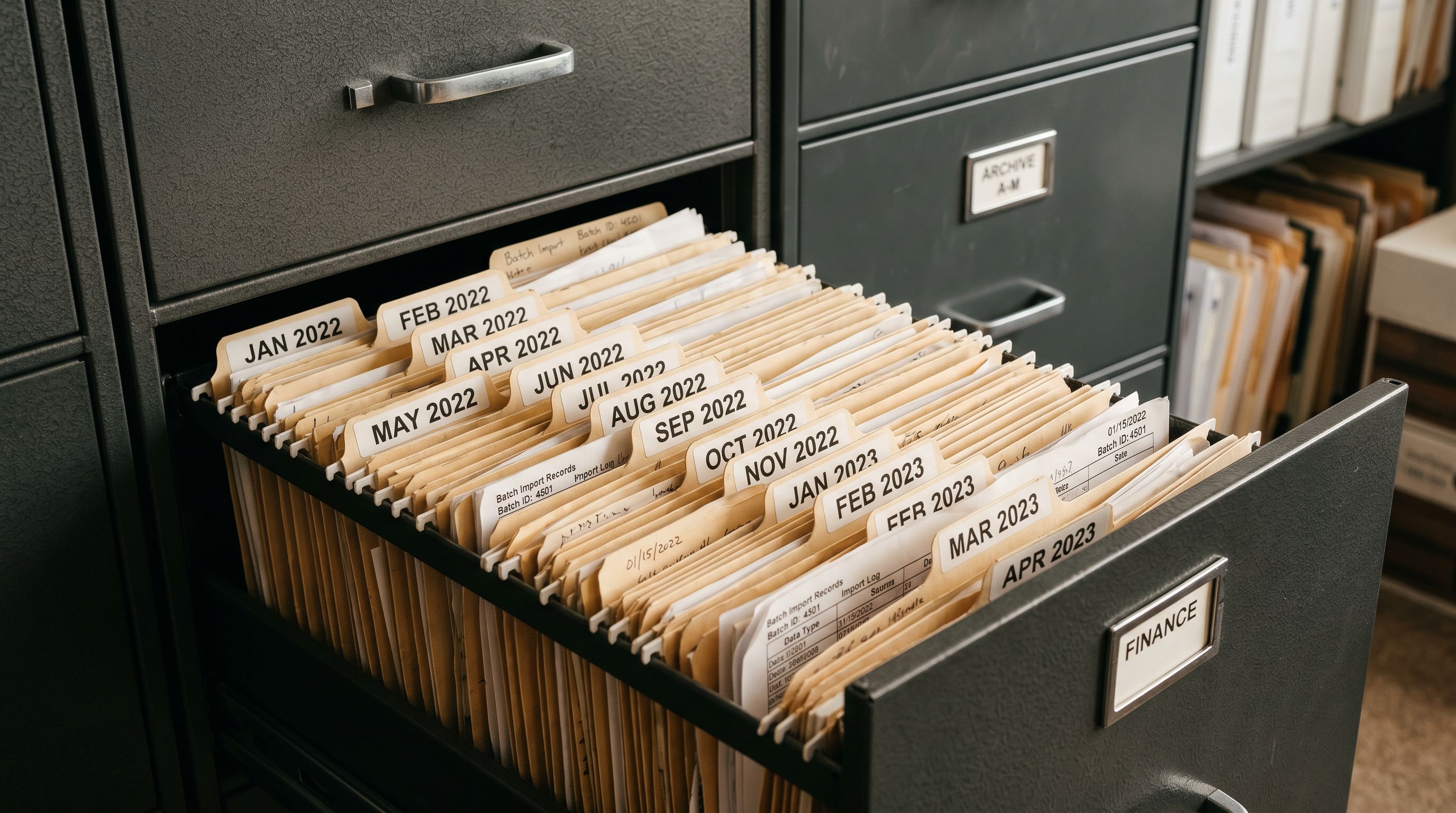
What to Do with the Import History After the Cleanup
Each Store Scanner pass (descriptions, enrichment, category attributes, FAQs) is logged in Import History with its date, time, and the count of products affected. If a pass produces unexpected results (a description style that is off-brand, or an enrichment fill that incorrectly set a weight), Import Undo reverts the entire pass in one step.
Importier retains up to 20 snapshots. For a typical migration cleanup running five or six passes, you have a complete rollback trail for every step of the process.
The 60-day CSV download link in Import History gives you a record of what the product data looked like before and after each pass. For teams, this serves as the audit trail that answers "what was changed, when, and by whom" without needing to check Shopify's activity log for individual product edits.
Five Takeaways on Post-Migration Product Data Cleanup
- The cleanup order matters: descriptions first, then enrichment, then category attributes. Each step benefits from the output of the step before it.
- WooCommerce migrations create two non-obvious data problems: weight units are wrong (grams vs kilograms) and product type fields contain WooCommerce category strings that do not map to Shopify's Standard Product Taxonomy.
- WordPress shortcodes in migrated descriptions must be replaced, not appended to. Store Scanner's Replace mode generates a clean AI description that removes all shortcode debris.
- The SEO Audit export before and after the cleanup shows exactly what changed: description word count, meta description status, weight fields, and product type assignment.
- Import Undo creates a rollback point after each pass. If any step produces unexpected output, you can reverse it without manually editing individual products.
Set up your first import in under five minutes.
Importier brings products into Shopify with AI descriptions, category metafields, and data enrichment on every run.