Shopify Product Launch Workflow: Stage, Preview, and Publish

On this page
A clothing retailer imported 80 products for their new season launch. The import completed without errors. Five minutes later, a customer placed an order for a jacket at $89 AUD. The supplier file had used EUR pricing. The actual retail price was $189 AUD. Another customer took a screenshot of a product description that read "Description coming soon" and shared it on social media. A third customer reported that two product images showed "broken image" icons; the files had been uploaded but not yet processed.
All three issues had the same cause: the products went live the moment the import completed. There was no staging window, no review step, and no preview before the catalogue was public.
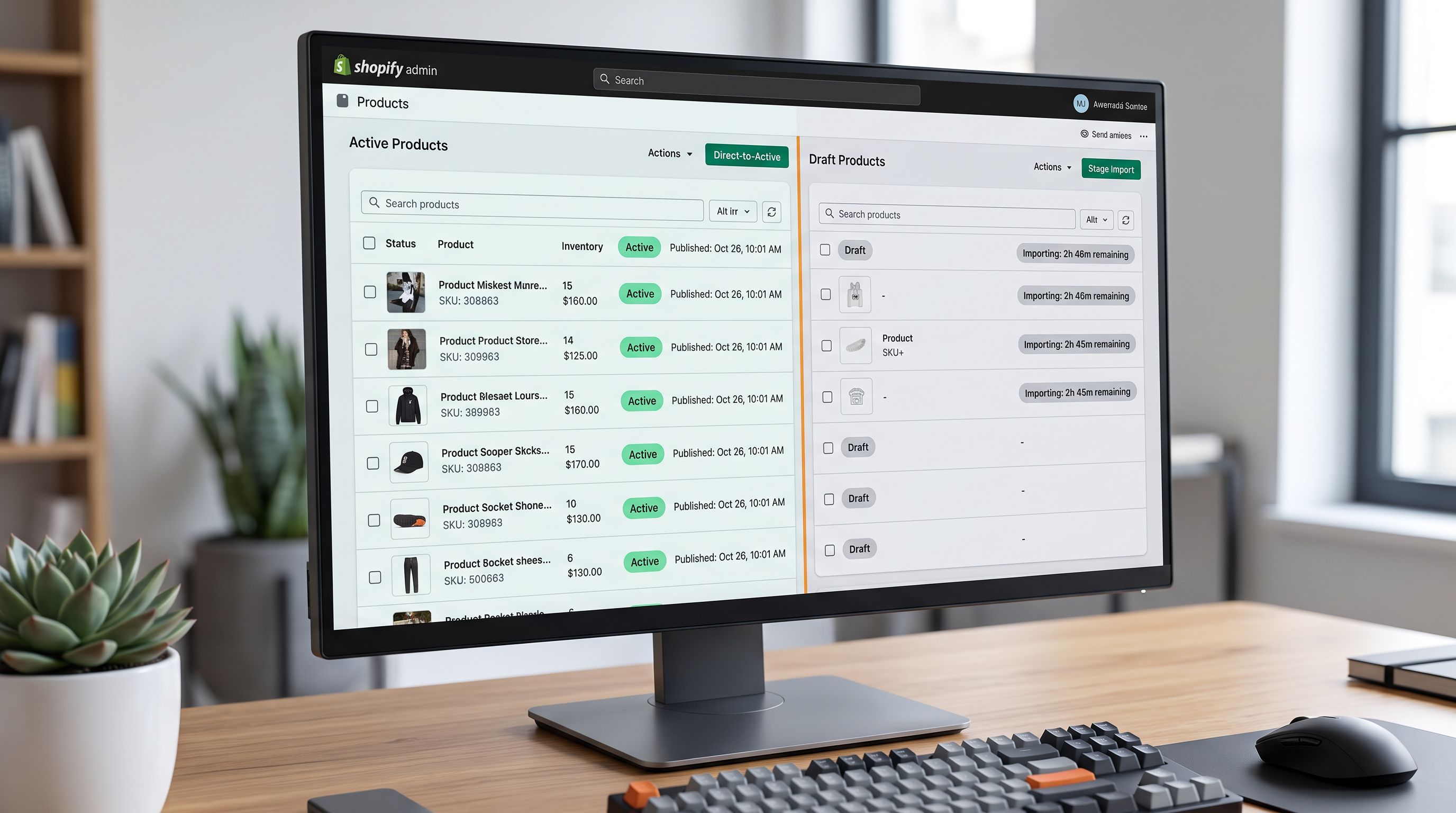
A staged launch workflow prevents this. Products import as drafts. The merchant reviews them in admin before any customer can see them. Images are confirmed. Prices are checked against the intended retail values. Descriptions are read. Only after the review does the merchant publish.
The workflow takes 30 minutes for a catalogue of 80 products. Correcting live errors while customer orders are arriving takes considerably longer.
Why Direct-to-Active Imports Create Launch Risk
An import that sets products to Active on completion publishes everything simultaneously. There is no intermediate state where the merchant can verify the catalogue before it reaches customers. Five failure modes recur consistently across catalogues imported as Active:
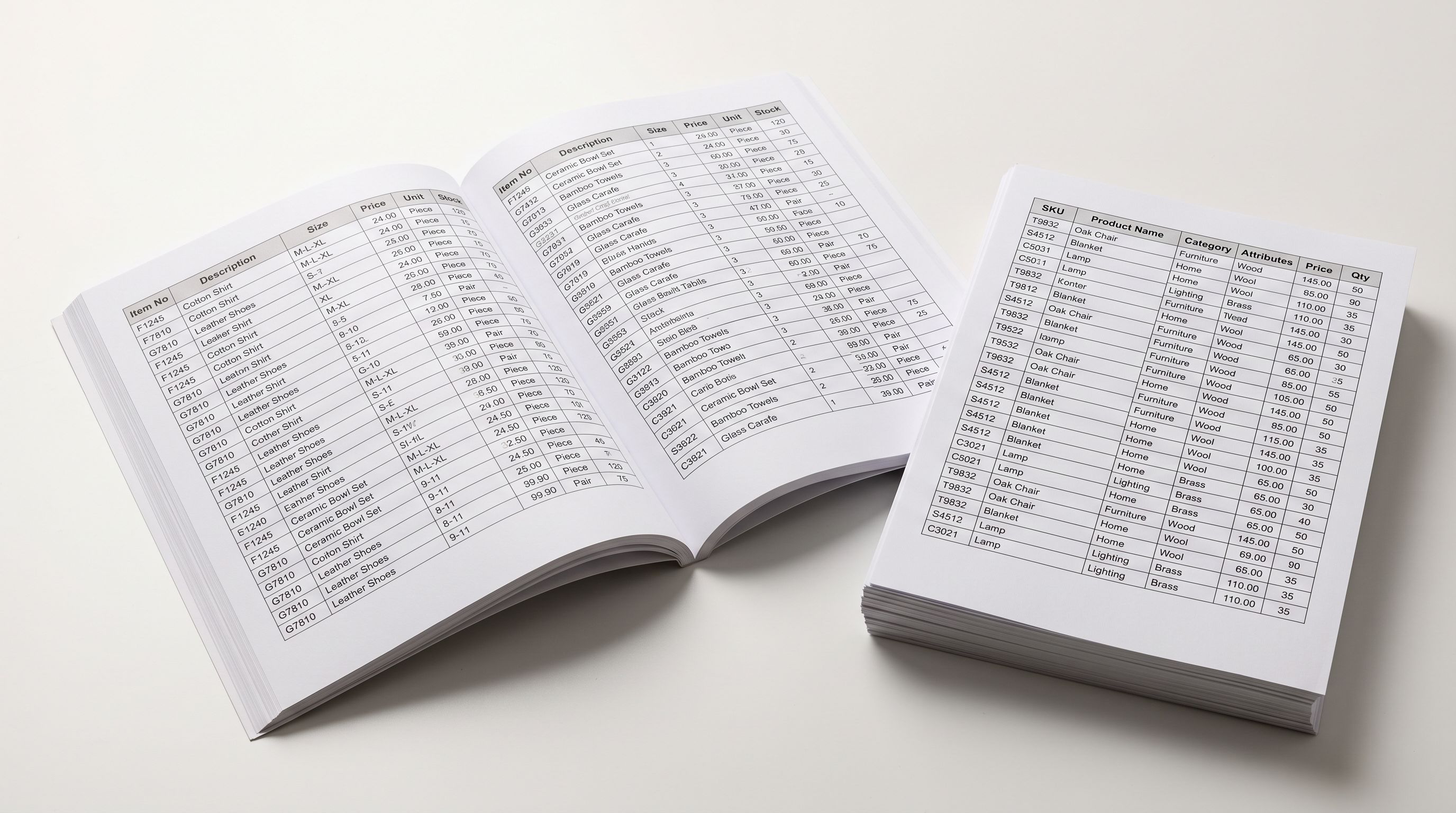
Currency mismatch in price fields. Supplier files commonly carry prices in the supplier's local currency. A UK supplier exporting GBP prices, a German distributor using EUR, a US brand quoting USD: when the import maps those values directly to the Shopify Price field without currency conversion, the product goes live at the supplier's foreign currency value. A $39 USD jacket becoming a "$39 AUD" product is a significant margin loss that is invisible until a customer places an order.
Placeholder descriptions. Not every product in a supplier file has a complete description. Suppliers mark incomplete records with placeholder text ("TBC", "Description to follow", "N/A") or leave the field blank. An Active import makes those placeholders live. The products missing descriptions problem shows up in the live store rather than in admin before launch.
Image processing delays. Shopify processes imported images asynchronously. An import that completes in two minutes does not guarantee that all images are processed and rendering. Products published immediately after import may show broken image icons for minutes or hours while Shopify's CDN finishes processing.
Variant and option errors. Supplier variant data frequently contains errors that become visible only when a buyer attempts to select an option: missing size combinations, duplicate variant records, weight or dimension values in wrong units. These are hard to spot in a spreadsheet and obvious in a product page rendered with a real variant picker.
SEO handle conflicts. If the import creates a product with a handle that already exists in the store, Shopify appends a numeric suffix (jacket-1, jacket-2). Products with suffixed handles break any pre-launch marketing links pointing at the intended clean handle.
Setting Up Draft Status in the Import
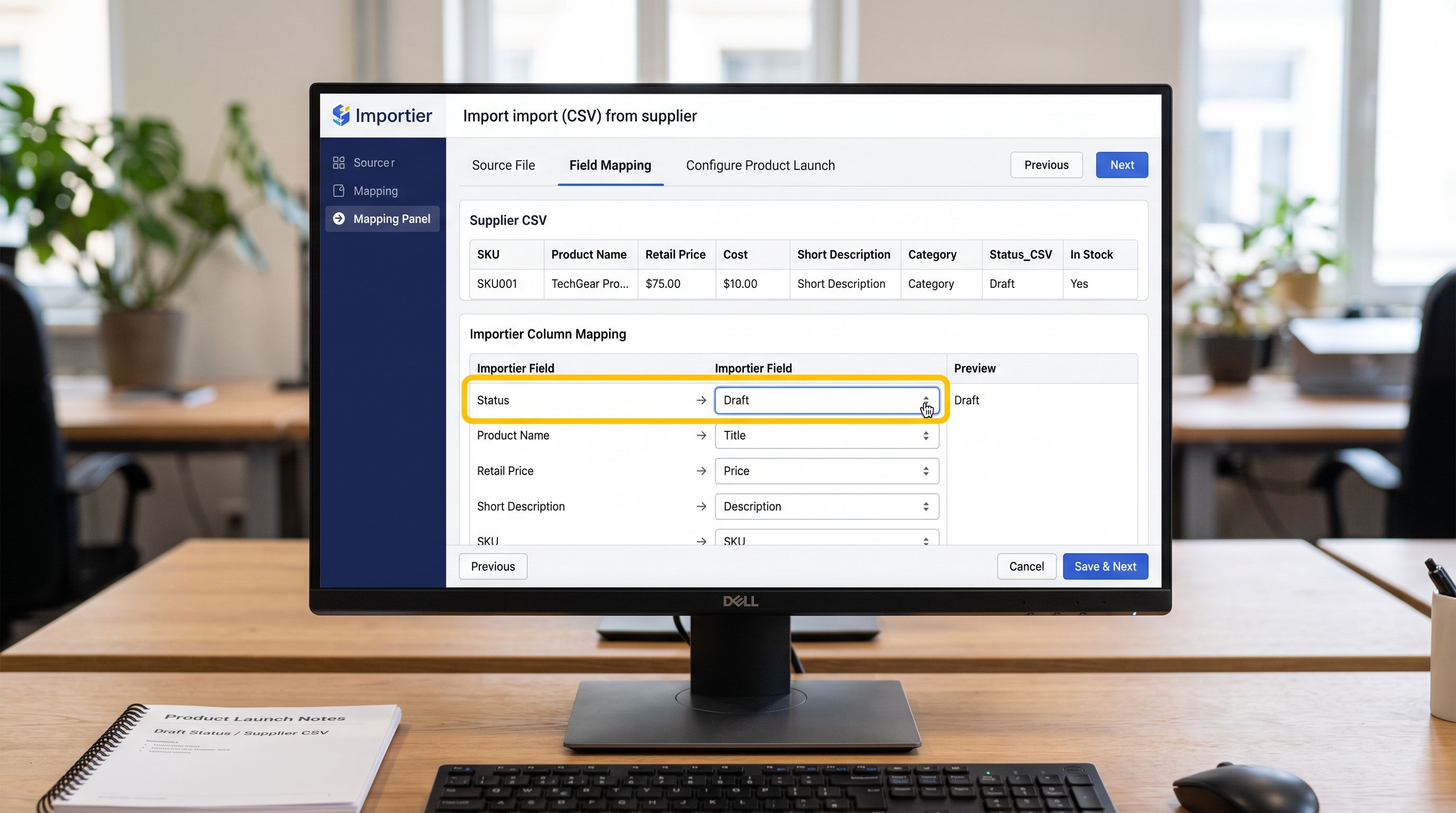
Importier's import wizard includes a Status field in the column mapping step. The Status field maps to Shopify's product publication status: Active (visible in the Online Store and all sales channels), Draft (hidden from all channels), or Archived.
For a staged launch, map the Status field to Draft before the import runs. Every product in the import file will arrive in Shopify as a Draft regardless of what the supplier file contains in any status column. The mapping applies at the import level, not the product level: it is not possible to import some products as Active and others as Draft in the same import pass. For mixed-status launches, run two imports: a Draft import for new products under review, and a separate Active import for straightforward restock items.
The Import History panel records the status applied at import time. After the launch, the Import History entry for the draft import shows the date, file, and status setting, providing an audit trail of when products were introduced to the catalogue and when they were made live.
The Review Checklist
Four-Stage Review Before Publishing
After a Draft import completes, the review has four stages. Each stage addresses a different failure mode:
Stage 1: Price and currency verification. Export the Pricing preset from Importier's export panel for the new products. The Pricing export produces a two-column file (price and compare_at_price per SKU) that is faster to scan than the Shopify admin product list. Check that all prices are in the store's currency and at the intended retail values. Flag any that appear to be in foreign currency units (suspiciously low prices for the product type are the common indicator).
Stage 2: Description completeness. Filter the Shopify admin products list by Draft status to see only the imported catalogue. Sort by description length or scan for products with the placeholder text your supplier uses. Any product with a blank description or placeholder text needs either a description from the supplier or AI enrichment before the launch. Running AI enrichment on draft products before publishing means the generated descriptions are part of the launch, not a retroactive fix. The bulk description quality workflow covers how to identify and enrich missing descriptions across a catalogue in a single pass.
Stage 3: Image rendering. Open 10-15 product pages (sample across product types) using Shopify's Admin product preview. Confirm images are rendering at full resolution, aspect ratios are consistent across the collection, and no broken image icons are present. If images are still processing, wait and re-check.
Stage 4: Variant and option accuracy. For products with variants, open the Variants section in admin for a sample of products and confirm that all expected combinations exist (all sizes across all colours, all configurations across all styles). Check that variant-level prices and inventory quantities are populated correctly.
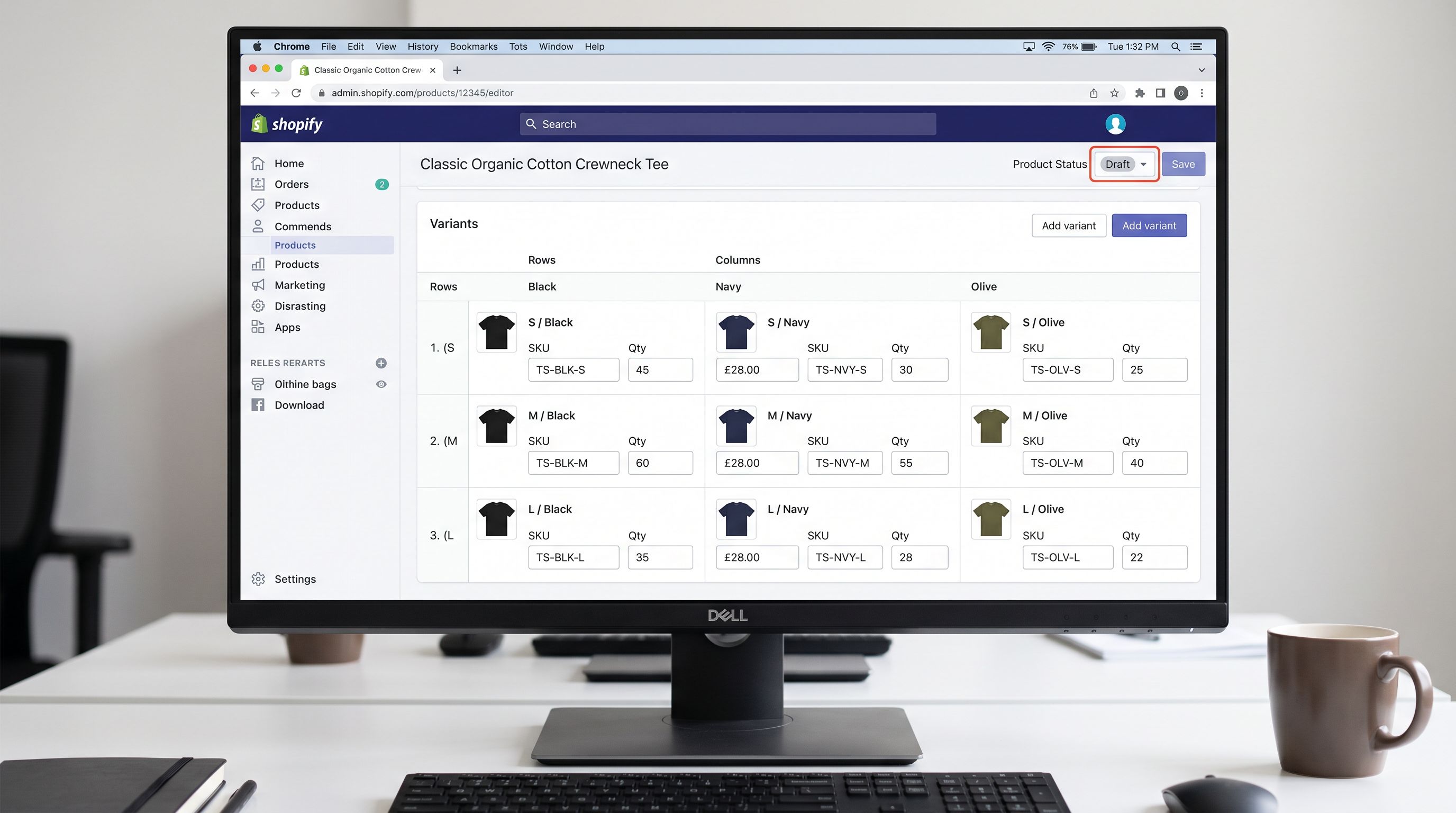
- 01Export the Pricing preset from Importier for the Draft product batchopen the export panel, filter by draft status or by the import date, run the Pricing export, and scan the output for prices that appear to be in foreign currency units or outside the expected retail range
- 02Filter Shopify admin products to Draft status onlyscan for placeholder descriptions (TBC, N/A, Description to follow), blank description fields, or descriptions under 50 characters; flag each for AI enrichment or manual revision before the launch
- 03Open product admin previews for a 10-15 product sample across product types and price rangesconfirm images are rendering, aspect ratios are consistent, no broken image icons, and the product page layout matches the store theme
- 04Check variant completeness for products with optionsopen the Variants section for 5-10 multi-variant products and confirm all expected size/colour/configuration combinations are present; verify variant-level prices and inventory quantities
- 05Review product handles for any that have received a numeric suffix (jacket-1, jacket-2) indicating a conflict with an existing product handle; update the handle on the draft product to the intended clean URL before publishing
Previewing Before Publishing
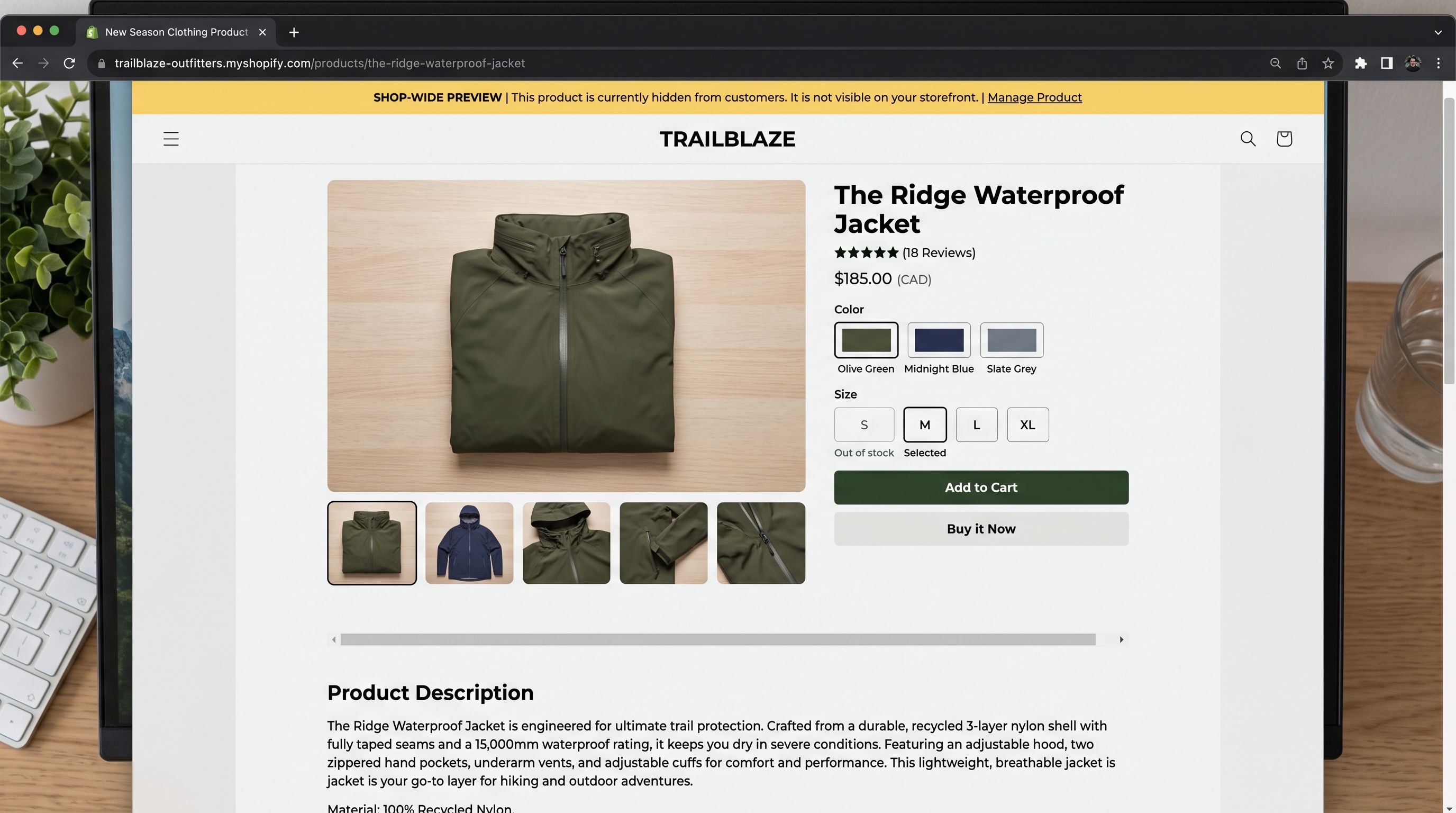
Shopify's Online Store theme editor includes a preview mode that renders a product page as it will appear to a customer. For draft products, the preview is accessible via the product admin page: the Preview link in the top bar renders the full product page in the live theme without making the product visible to customers.
The preview confirms:
- How the description renders with the live theme's typography and paragraph spacing
- Whether the variant picker displays all options correctly
- Whether images render at the expected crop and quality in the product gallery
- Whether any custom metafields are displaying correctly in the theme's metafield blocks
For collections launching simultaneously with the products, preview the collection page as well. A collection of Draft products is itself invisible, but the preview confirms that the collection layout, filter panels, and product grid will render correctly at launch.
Publishing: Individual, Batch, and Rolling
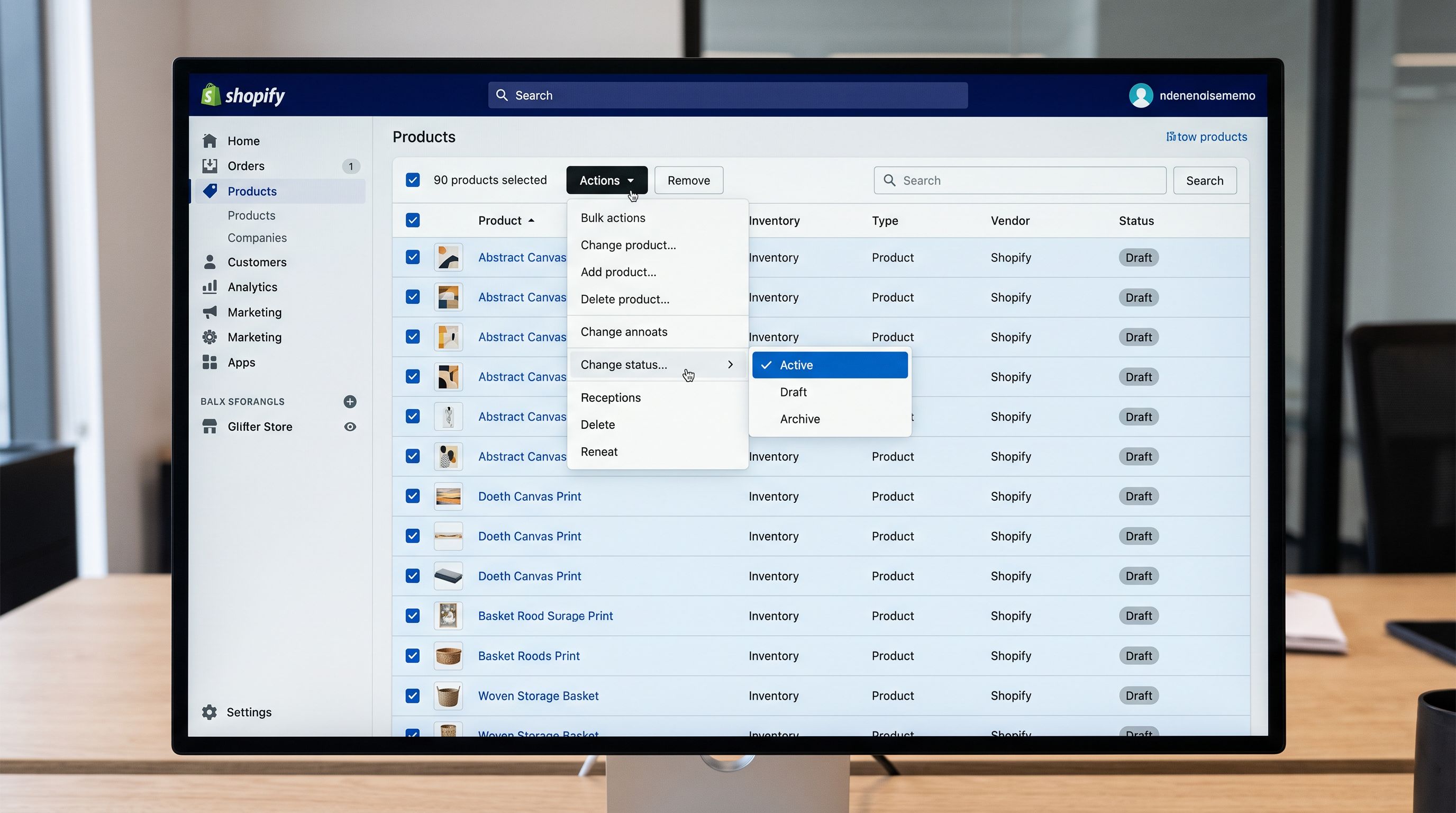
After the review passes, publishing can be individual (product by product), batch (select all drafts and change status to Active), or rolling (a phased release over time).
Individual publishing is appropriate for launches with fewer than 20 products. Open each product admin page, change the Status from Draft to Active, and save. The product becomes live immediately.
Batch publishing uses Shopify's bulk editor. Filter the product list to Draft status, select all products in the launch batch, and use the bulk action "Change status > Active". All selected products go live simultaneously. Shopify's bulk editor documentation covers the full range of fields that can be updated across multiple products in a single operation, including status, price, and inventory.
Rolling launch publishes products in priority order: hero products first (those with the most marketing support), supporting products in a second batch, and ancillary items in a third. A rolling launch allows marketing activity to focus on a smaller initial product set while the catalogue grows. For rolling launches, use Importier's import filter to tag products by launch tier at import time (launch-tier-1, launch-tier-2) so that the batch publishing step can filter by tier.
According to Shopify's documentation on product status, changing a product's status from Draft to Active makes it immediately visible across all sales channels where the product is set to publish. For Google Shopping and Meta catalogues, the newly active product enters the feed on the next sync cycle (typically within 24 hours). For email marketing platforms that read from the live catalogue, the product becomes segmentable immediately on activation.
- 80 products go live immediately on import completion; EUR pricing creates live price errors; customers place orders at incorrect prices before the merchant can intervene
- Placeholder descriptions live in the store; a customer screenshots Description coming soon and shares on social media; brand perception damaged before launch day
- Images processing during live sale; broken image icons visible to first customers; no buffer to confirm rendering before traffic arrives
- Variant errors visible to buyers attempting to select options; wrong size combinations, duplicate entries, or missing inventory cause add-to-cart failures at launch
- No record of when products were reviewed or who approved the launch; rollback requires manual status change on each of 80 products individually
- 80 products arrive as Drafts; all four failure modes identified and corrected in a 30-minute review; products publish at a chosen time with correct prices, complete descriptions, and confirmed image rendering
- Pricing export review flags three EUR-priced products in two minutes; corrections re-imported before launch; no incorrect orders possible during draft period
- Image rendering confirmed on a 15-product sample before any product is published; broken images resolved before the first customer session
- Variant review identifies two products with missing size combinations; supplier contacted and variants added during the draft staging period; all options correct at launch
- Import History records the draft import date and the publish date; complete audit trail of the launch window; batch status change via Shopify bulk editor activates all 80 products in under a minute
The clothing retailer rebuilt their launch workflow after the initial incident. Their next collection of 90 products imported as Draft. The 30-minute review identified four EUR-priced products, two products with placeholder descriptions (enriched with AI before launch), and one product with an image still processing. The launch window was 11am, confirmed to their email list. At 10:55am, everything had passed the review. At 11:00am, a batch status change activated all 90 products simultaneously.
No incorrect orders. No placeholder descriptions. No broken image icons.
Try Importier free at importier.app.
Set up your first import in under five minutes.
Importier brings products into Shopify with AI descriptions, category metafields, and data enrichment on every run.