Shopify Product Import Checklist for New Store Launches
On this page
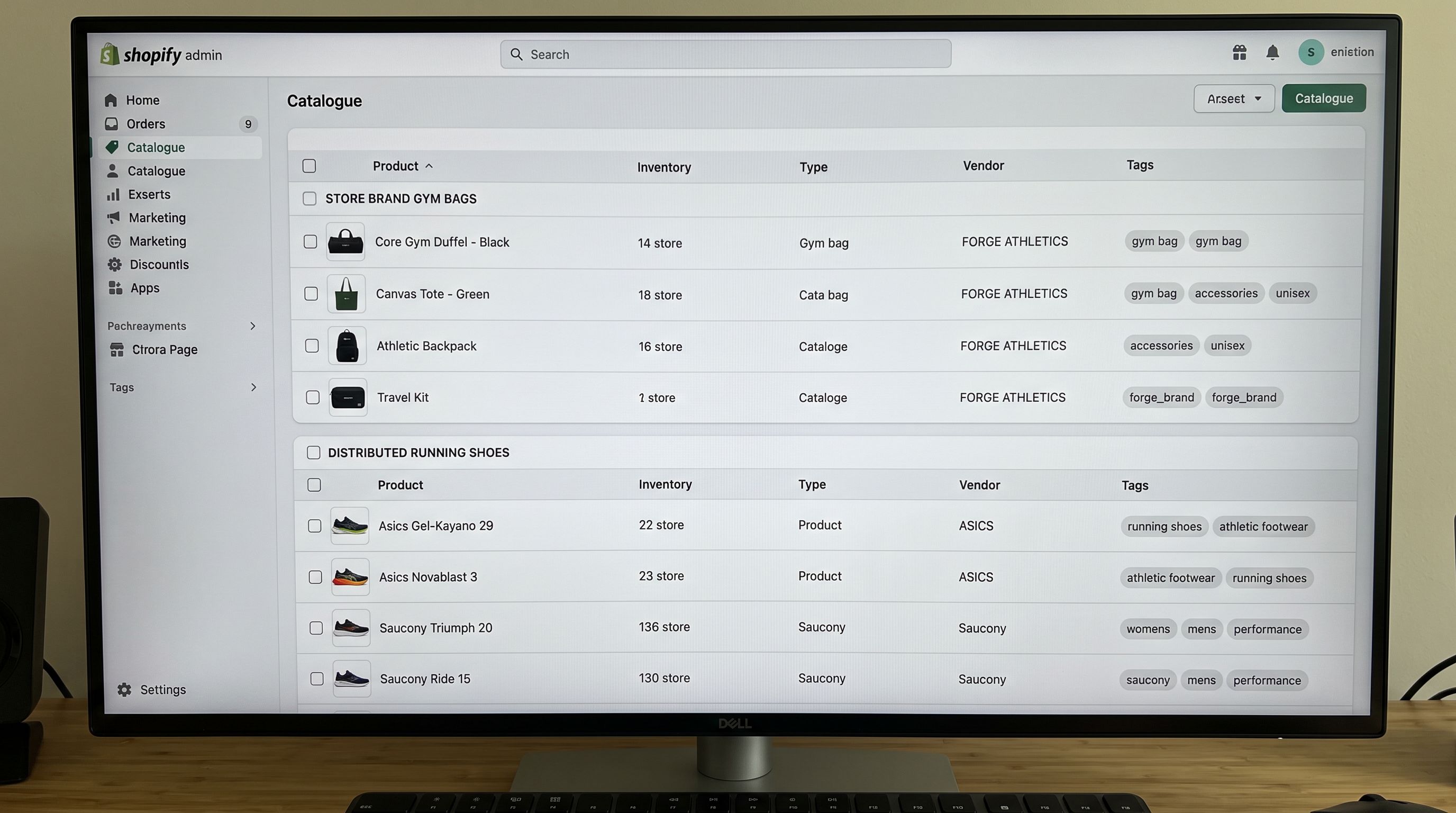
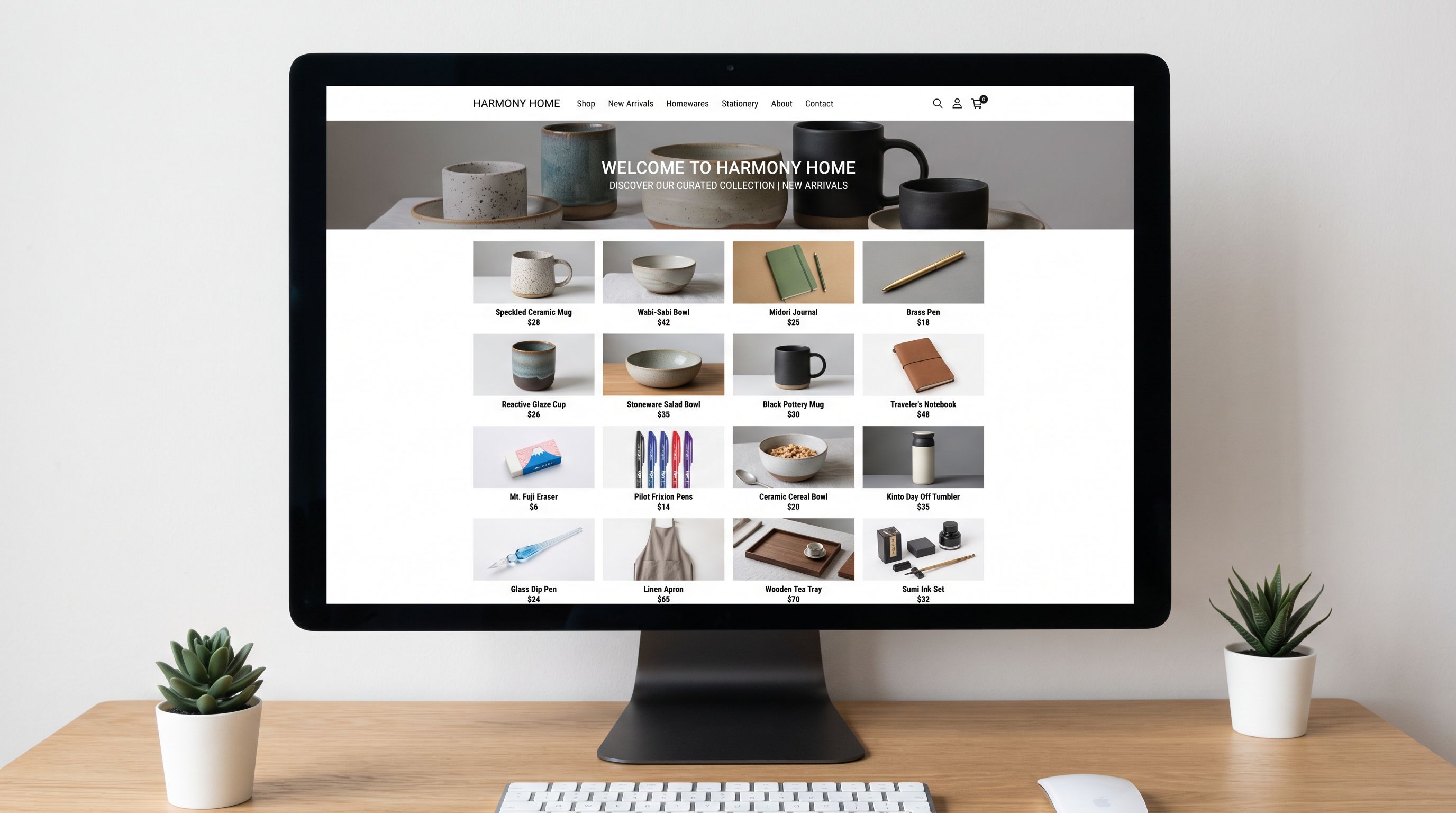
A Melbourne homewares retailer was launching their first Shopify store. Two suppliers: a local ceramics manufacturer they stocked exclusively, and a Japanese stationery brand they distributed. 180 SKUs in a spreadsheet, Shopify account ready. They ran the import directly as Active.
Day one: Google Merchant Centre rejected 43 products for missing GTIN data. Twelve product handles ended in -2 from title collisions during the import. The washi tape collection had been imported as 24 individual items but should have been six products with colour variant options. Descriptions for the Japanese stationery range attributed the ceramics brand's voice to a manufacturer they did not own.
All of these were fixable. None of them had to happen on the first day of a new store's life.
Why New Store Launches Are Different from Re-Imports
On an established store with existing traffic, a bad import creates rework. On a brand-new store, a bad import defines your starting point. The difference matters because the corrections have different costs.
A handle that ends in -2 because two products had the same title can be changed after launch, but it requires a redirect. A re-import. Possibly a sitemap crawl wait before Google drops the old URL. For a new store with no existing link equity, the cost is low. For a store with 180 products, doing it 12 times adds up.
A Google Shopping feed that launches with 43 disapprovals is not a catastrophe. But it means the merchant's Google Shopping channel is incomplete from day one, and Google's trust for the feed starts with disapproval signals rather than clean eligibility data.
Variant structure errors are the most expensive. Six washi tape products consolidated from 24 required a full re-import of the affected products, not a metadata fix, but a structural re-import. Importier handles this cleanly, but it is two imports instead of one.
The minimum viable product data set for a new store launch is defined by what you cannot fix cheaply after launch.
The Minimum Viable Product Data Set
Six fields determine whether a new Shopify store launches with clean product data or with a queue of retroactive corrections.
Title. The title drives the auto-generated handle, the Google Shopping title attribute, and how your product appears in Shopify search. For new stores importing from supplier files, the common failure is using the supplier's internal product name (which is written for their ERP, not for customers). A title like WP-38-NAT 350ML CERAMIC MUG NAt Glaze imports exactly as written. Clean the title column in your import file before running Importier, or configure a title generation pass in the AI step.
Vendor. The vendor field maps to Google Shopping's brand attribute. A blank vendor field produces a missing brand disapproval in Google Merchant Centre for branded product categories. For owned-brand products, use your brand name. For distributed products, use the manufacturer's brand name.
Handle. Shopify generates handles from titles. When two products produce the same slug, Shopify appends a numeric suffix. For a new store, you have one opportunity to set clean handles from the start: include an explicit Handle column in your import file. This overrides Shopify's auto-generation. Handle conflicts from import are far cheaper to prevent than to fix retroactively.
GTIN/barcode. For distributed (resold) products, the GTIN comes from the manufacturer. It must be in your supplier file and mapped to the Shopify barcode field in Importier's column mapping step. For owned-brand products you manufacture yourself, the GTIN comes from your GS1 barcode registry. A missing GTIN at import means a retroactive pass against the manufacturer file to populate the barcode field.
Tags. Automated collections in Shopify run on tags. If you plan to build collections by product type, season, or supplier, add those tags at import time: Importier's column mapping step lets you add a fixed tag to every product in a batch, and a dynamic tag from a column value. Tags added retroactively after automations have already run can leave products in incorrect collection states.
Description. The cheapest time to generate descriptions is at import. The retailer's washi tape range needed differentiated descriptions for each colour variant. Generated via Importier's Stationery persona before import, those descriptions would have taken 10 minutes. Retroactive generation via Store Scanner required re-mapping the supplier file to identify which SKUs belonged to which product families after the variant consolidation.
Importing as Drafts First
The staged draft import workflow is as useful for new stores as it is for existing ones. For new stores, it has one additional value: nothing is indexable until you choose to publish.
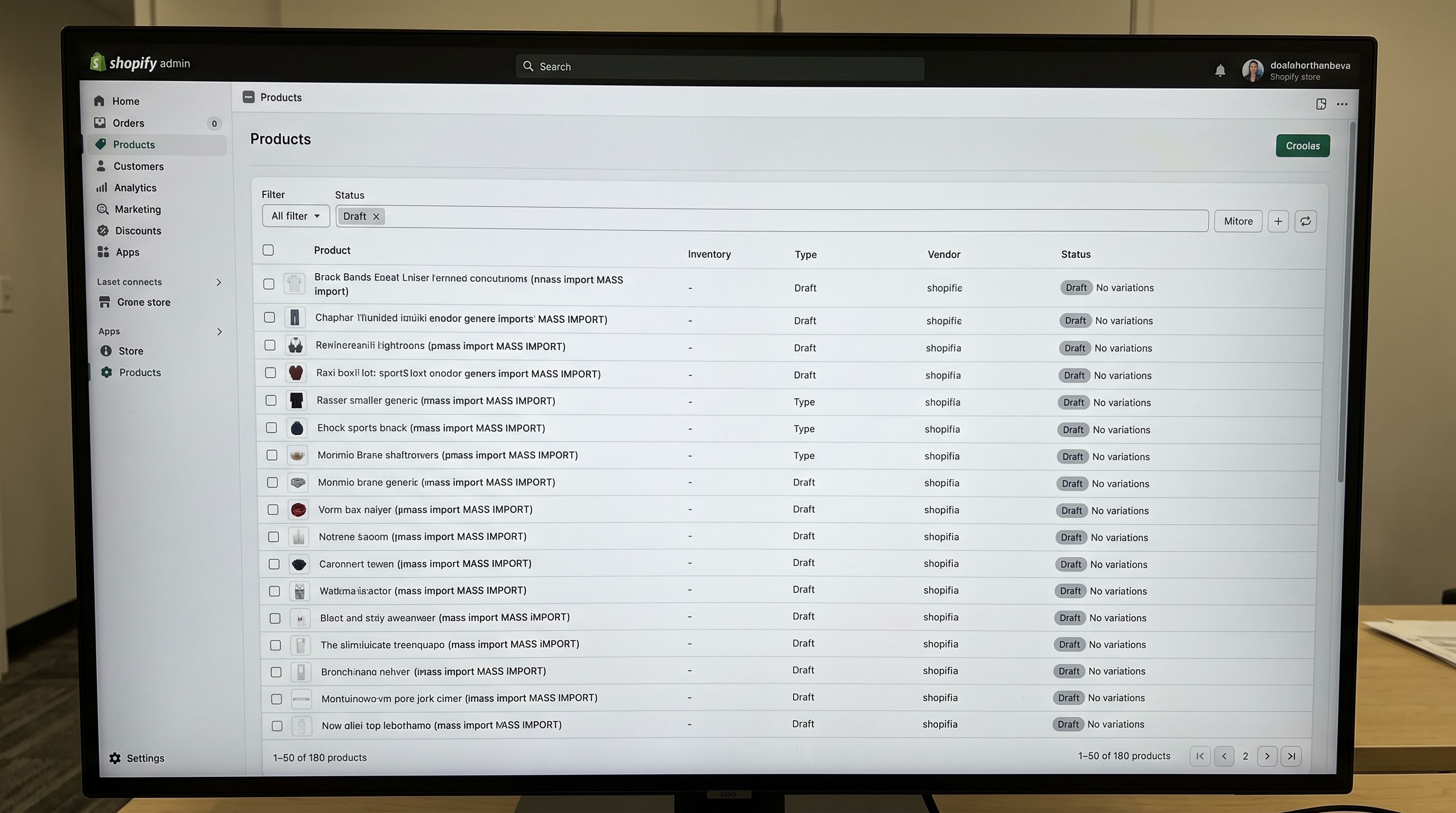
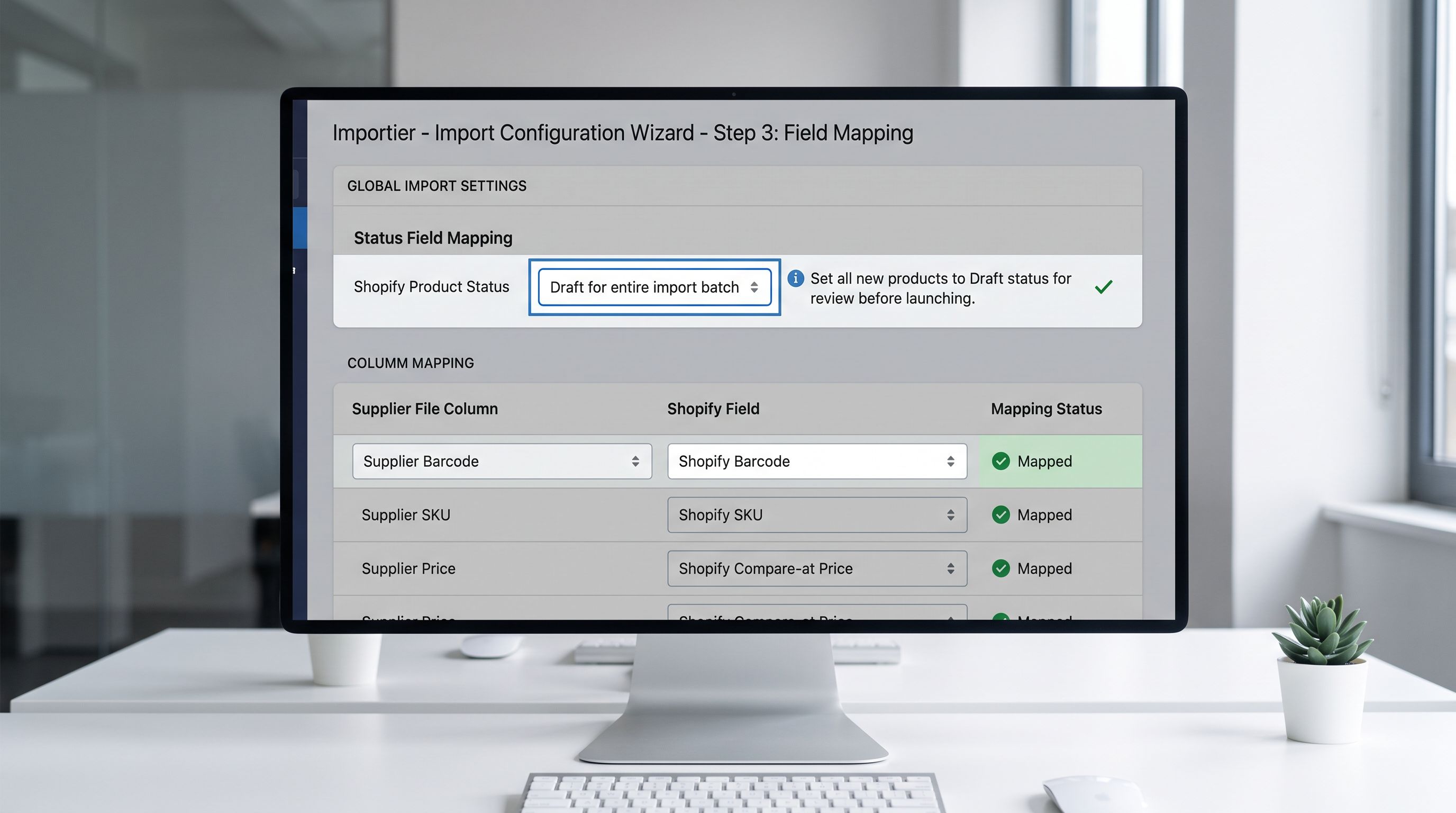
Set the Status field to Draft in Importier's import wizard before running. All 180 products import as Shopify products with full data, images, and variants, but they do not appear in the storefront, sitemap, or Google Shopping feed. You can preview each product in Shopify's preview mode and review the full catalogue at admin speed before any page is publicly accessible.
For a new store with 180 products, a 45-minute review in draft mode is a one-time investment before launch. The review should cover four areas: pricing (especially for products priced in a source currency that was converted), description completeness (filter for placeholder text), image processing (confirm images loaded across a 10-15 product sample), and variant structure (check that multi-variant products imported as one product with options, not as separate products per variant).
Google Shopping Eligibility
Google Shopping Feed Eligibility from Day One
This is the section new Shopify merchants most commonly skip, then spend weeks correcting. GTIN errors that block Google Shopping eligibility are the most frequent cause of feed disapprovals, and they are fixable at import time with the right column mapping.
Google Merchant Centre requires specific fields for product categories before it will surface products in Shopping results. For most product categories, the required fields at import time are:
GTIN (barcode field in Shopify). For branded products you distribute from a manufacturer, Google Merchant Centre's product data specification requires the GTIN for most categories. Map the barcode column in your supplier file to the Shopify barcode field in Importier's column mapping step. If your supplier file doesn't have a GTIN column, request one from the manufacturer before the import runs. Importier's Data Enrichment can fill known GTINs for common branded products during the import process.
Brand (vendor field in Shopify). The vendor field feeds directly into Google Shopping's brand attribute. A product with a blank vendor field will be submitted to GMC without a brand value, which triggers a missing required attribute disapproval for branded category products. Set the vendor at import.
Condition. Shopify defaults new products to a condition value that maps to "new" in Google Shopping. For second-hand or refurbished product catalogues, this must be set explicitly at import time via a condition column.
Category-specific attributes. Industry Pack attributes configured in Importier (material type, colour, dimensions, size range) map to Google Shopping attribute requirements for specific categories. A homewares store configuring Importier's Home & Living Industry Pack at import time sets material and colour attributes across every product in one pass. Configuring these retroactively requires a Store Scanner batch update pass per product category.
SEO Handle Strategy for New Stores
According to Shopify's product details documentation, the handle is auto-generated from the product title and cannot be changed without a redirect if the product has existing traffic. For a new store, the handle is set once at import with no redirect cost. This is the only time fixing it is free.
Common handle problems that occur without an explicit Handle column in the import file:
- Title collision appends
-2: two products named "Ceramic Bowl" produce handlesceramic-bowlandceramic-bowl-2 - Long titles produce handles over 50 characters that look unwieldy in URLs
- Supplier SKU codes appear in the handle when the title is pulled directly from the ERP column
- Punctuation in titles (slashes, apostrophes, brackets) produces unexpected handle characters
The fix is a Handle column in your import file. Set the handle to: lowercase, hyphenated, 3-5 keyword-relevant words, no brand names for distributed products, no promotional terms. A ceramic mug in matte black becomes ceramic-mug-matte-black: short, keyword-present, no collision risk.
For new stores with 100+ products, generating clean handles is faster as a column transformation in your spreadsheet before import than as a retroactive fix through Shopify's bulk editor after launch.
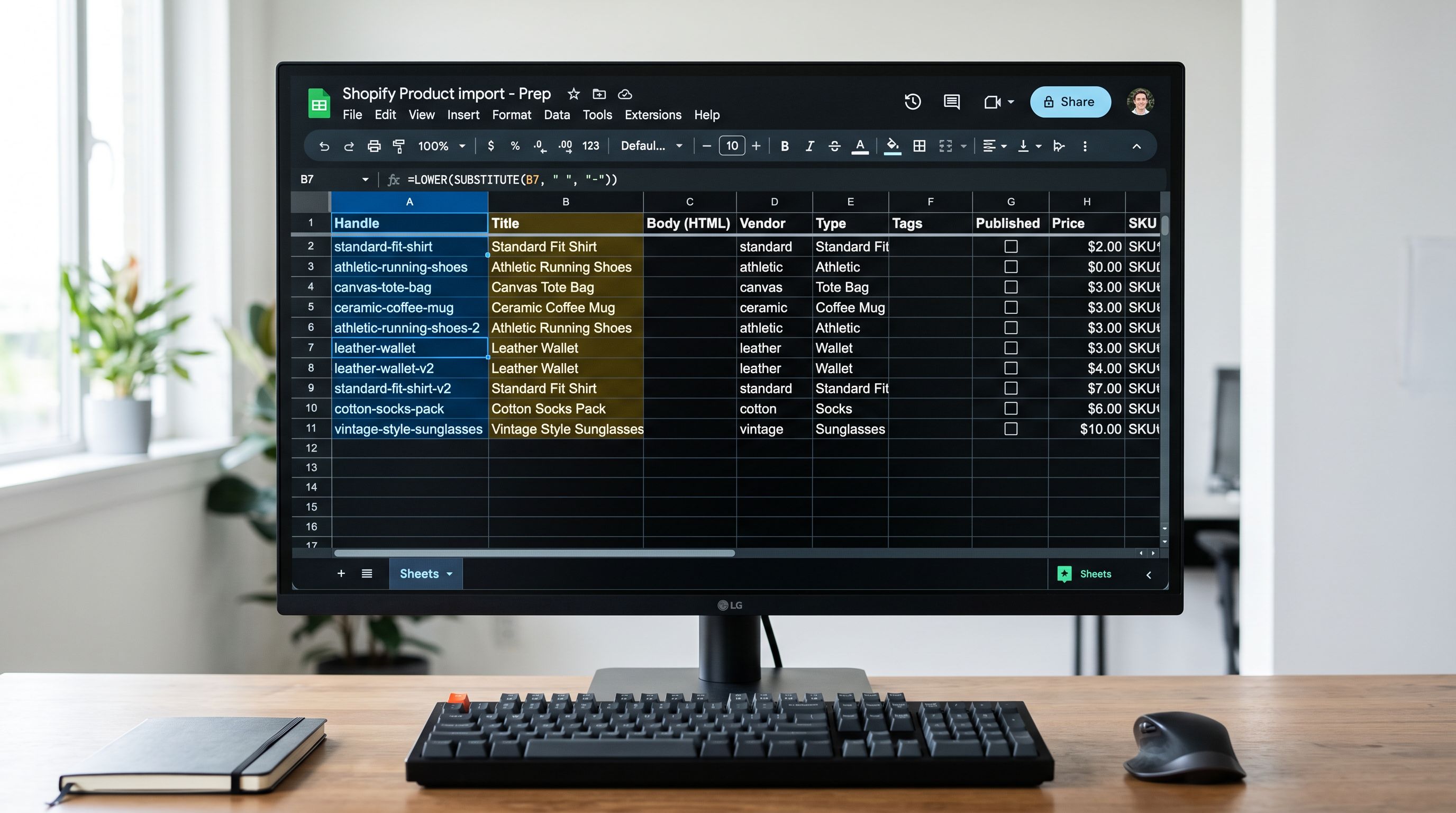
A new store has one chance to set clean product handles with no redirect cost. After launch, every handle change requires a redirect chain. Before launch, it requires editing a spreadsheet column.
- 01Audit the supplier file before any importcheck GTIN completeness, identify title collisions that will generate numeric handle suffixes, verify variant structure (products that share a base type with different options should import as one product with variant columns, not as separate rows)
- 02Add a Handle column to the import file with explicit clean handles for every product; add a Vendor column with the correct brand for each product; confirm the GTIN column maps to Shopify's barcode field
- 03Configure Importier presets before the import runsowned-brand products get Brand Voice, description style, and Industry Pack attributes; distributed products get the relevant industry persona with Brand Voice disabled
- 04Import the full catalogue as Draft statususe Importier's Status field mapping to set Draft at the import level, applying to the entire batch in one pass
- 05Review the draft catalogue across four areaspricing in the correct currency, description completeness for every product, image loading across a 10-15 product sample, and variant grid correctness for all multi-variant products
- 06Run the Google Shopping eligibility checkconfirm GTIN is populated for all branded products, vendor is set for all products, Industry Pack attributes are present for category-required fields
- 07Batch-publish using Shopify's bulk editorselect all reviewed draft products, use Actions > Change status > Active; verify the first products appear on the storefront and in the Google Merchant Centre feed within 24 hours
- All 180 products go live immediately on import; variant structure errors and missing GTINs are discovered by customers and Google Shopping bots, not during a review pass
- Shopify auto-generates handles from titles; two 'Ceramic Bowl' products produce 'ceramic-bowl' and 'ceramic-bowl-2'; fixing after launch requires a redirect for the affected product
- Vendor field left blank for many products; Google Merchant Centre submits 43 products with missing brand attribute; disapprovals from day one affect the feed's initial trust score
- Brand Voice applied to all products including distributed Japanese stationery; descriptions attribute the ceramics brand's voice to another manufacturer's products
- No GTIN mapping: 40+ distributed products lack barcode data; Google Shopping ineligible at launch; retroactive GTIN lookup requires re-sourcing manufacturer data
- All 180 products import as Draft; 45-minute review catches 4 variant structure errors, 12 products with missing GTINs, and 3 handle collisions before any page is publicly accessible
- Explicit Handle column in import file: all 180 handles set as 3-5 keyword words; zero numeric suffix collisions; zero redirect cost at launch
- Vendor column set at import: ceramics brand name for owned products, Japanese stationery manufacturer name for distributed products; Google Shopping receives brand data for all 180 products from day one
- Two Importier presets: ceramics with Brand Voice; stationery with Brand Voice disabled and Stationery Specialist persona; each product type receives the correct content configuration
- GTIN column mapped to Shopify barcode field; distributed products use manufacturer GTINs from supplier file; Google Shopping feed launches with 178 of 180 products eligible
The Melbourne homewares retailer re-ran as two imports: ceramics (owned-brand preset) and Japanese stationery (distributed preset). Both in Draft. The 45-minute review found the variant errors, GTIN gaps, and three handle collisions. Corrections made at that stage: four washi tape products consolidated into one with colour options, 12 GTINs sourced from the supplier and added to the import file, three handle values updated in the spreadsheet.
The re-import ran in under 20 minutes. Batch publish sent 180 products live. Google Merchant Centre feed launched with 178 of 180 products eligible. The two remaining products were new ceramics items without assigned GTINs, submitted with MPN-only data as permitted for owned-brand products.
Import day was also launch day, and launch day had no open issues.
Try Importier free at importier.app.
Set up your first import in under five minutes.
Importier brings products into Shopify with AI descriptions, category metafields, and data enrichment on every run.