Shopify Product Import Checklist: 12 Things to Verify Before You Confirm

On this page
Shopify Product Import Checklist: 12 Things to Verify Before You Confirm
A product import into Shopify is not reversible in the way a draft edit is. Once you confirm, the products are created in the store. If 300 products arrive with the wrong price, the description in the title field, or variant records duplicated instead of grouped, fixing the errors requires either a bulk edit across every affected product or a full delete and re-import.
The 12 checks below address the errors that appear most often in large imports: mapping mistakes, data format problems, variant structure failures, and missing fields that look fine until a customer finds them. Each check takes less than a minute in the import preview. Together they take under 15 minutes and prevent problems that take hours or days to resolve after the fact.
The 12-Point Checklist
1. Column mapping confirmed
Every required Shopify field has a source column mapped to it. The minimum set for a functional product import is: Title, Body (HTML) or description, Vendor, Variant Price, and at least one image field. Missing any of these means products arrive incomplete.
In Importier's column mapping step, unmapped required fields are flagged before the import proceeds. Review the mapping confirmation screen and verify that no required field shows "Unmapped" or "Skip".
2. Title field contains product names
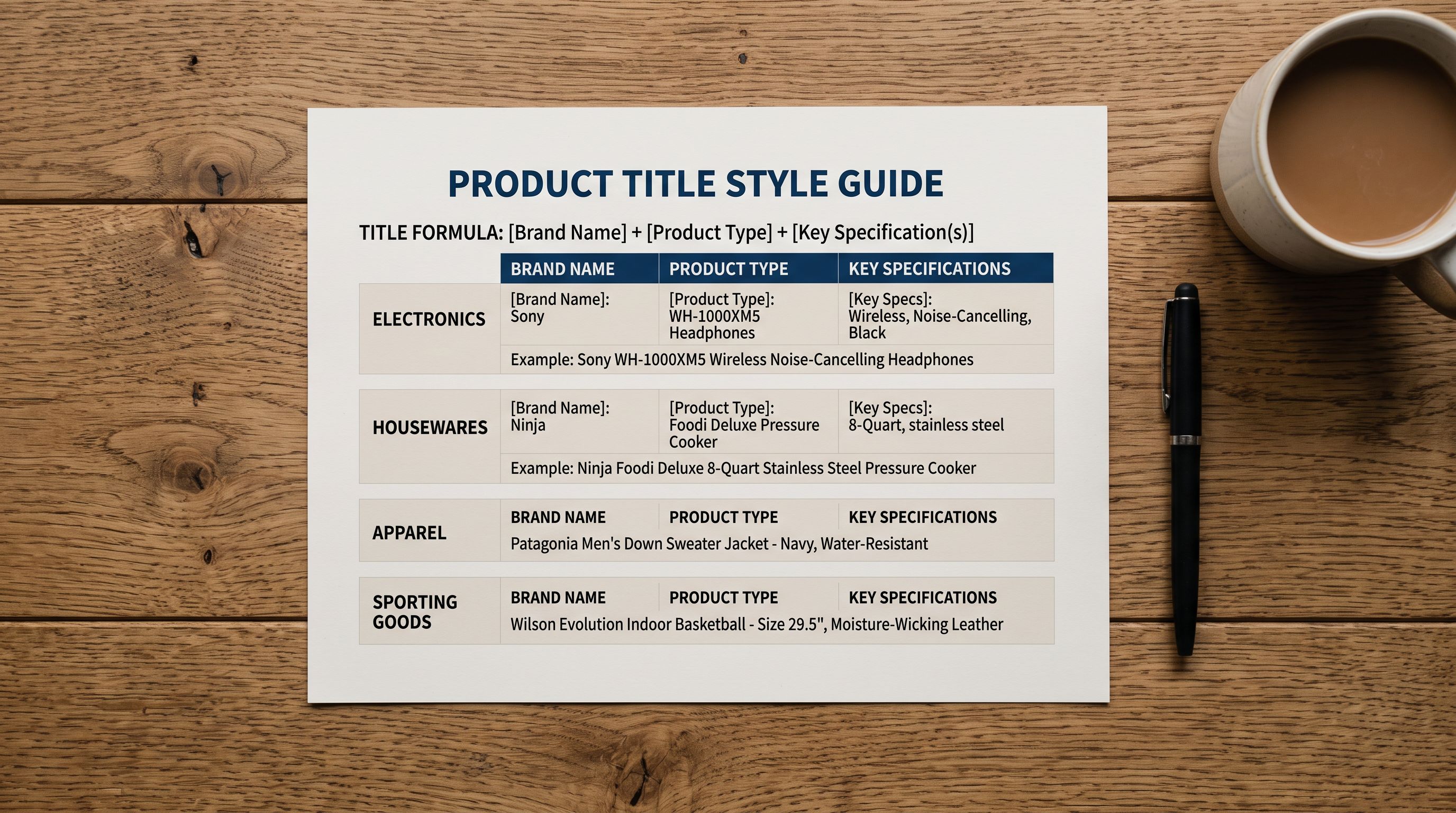
The mapped title column should contain short product names (typically 3-10 words), not full descriptions, SKU codes, or category labels. A title field populated with description text produces unusable product titles in Shopify and breaks collections that filter by title.
In the import preview, the Title column shows the first five product names. If those values are longer than a typical product name or contain sentences rather than noun phrases, the wrong column is mapped to Title.
3. Price field contains numeric values
The Variant Price field must contain numeric values without currency symbols, spaces, or non-numeric characters. A value of $29.99 or 29,99 (European decimal format) does not import as a valid price and leaves the variant price field blank or zero in Shopify.
In the import preview, check the Variant Price column. If values include currency symbols or use comma decimal notation, the source data needs cleaning before the import, or a price transformation rule needs to be applied in the mapping step.
4. Variant structure is correct
For products with size, colour, or other option variants, the preview must show the variant rows grouped correctly under each product. The most common variant errors are: all variants importing as separate single-variant products, or variant option values appearing in the wrong option columns (Option1 vs Option2 swapped).
In the preview, a product with three size variants should show three rows with the same Handle value and different Option1 values. If each row has a unique Handle, the variants are not grouped and will create separate products in Shopify.
5. Image URLs resolve
Image fields must contain complete, publicly accessible URLs. Relative paths (such as /assets/images/photo.jpg), local file paths, or URLs that require authentication will not load into Shopify's product images.
Paste two or three image URLs from the preview into a browser and confirm they load. If the images are hosted on a supplier's server, also confirm the URLs will remain stable after the import, since Shopify fetches the images at import time rather than storing a reference.
6. Description field contains body text, not HTML artifacts
Product descriptions from older ecommerce platforms often contain HTML formatting tags that were embedded in the original rich-text editor: nested tables, font colour tags, span elements with inline styles, and non-breaking space characters. This HTML imports into Shopify's Body (HTML) field and renders as broken or unstyled text on the product page.
In the preview, the description field should show readable prose, not tag sequences. If the preview shows HTML code rather than formatted text, the source descriptions need to be stripped of legacy formatting before the import.
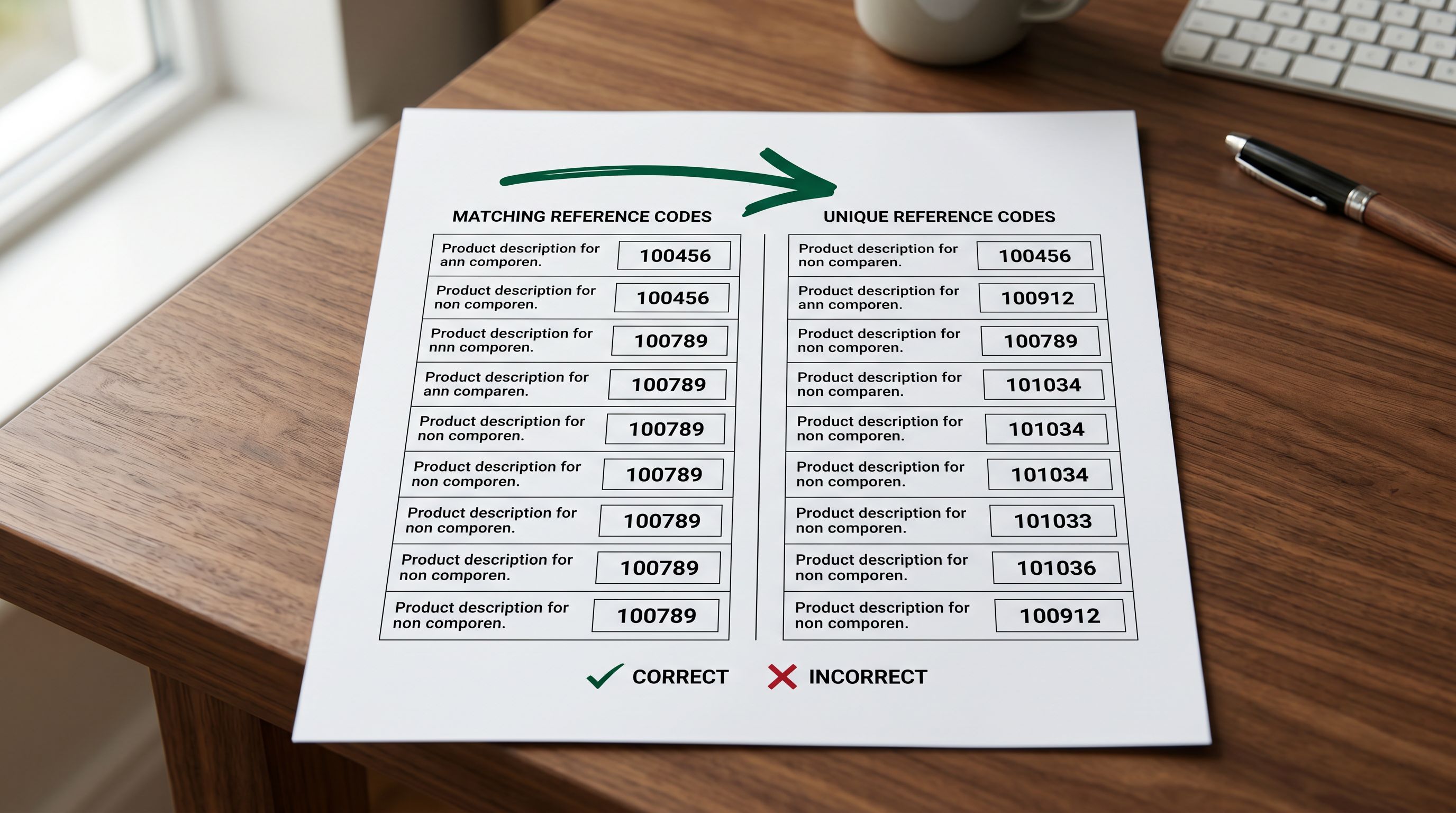
7. No duplicate SKUs in the batch
Shopify uses SKU values to identify variant records. Duplicate SKUs within a single import batch create ambiguous variant matching and can cause products to merge incorrectly or create duplicate records.
Before confirming, verify that the SKU column in the source file contains unique values across all rows. A quick sort on the SKU column in a spreadsheet application surfaces any duplicates. In Importier, the pre-import analysis flags duplicate SKUs and shows which rows share the same value.
8. Product type is populated
The Shopify "Type" field (also called product type) is used to organise products into automated collections and to provide a filter axis in the admin. Products imported with a blank product type cannot be added to automated collections that filter by type, and they appear without categorisation in admin searches.
If the source file has a product category column but under a different name (such as "Category", "ProdClass", or "Product Group"), confirm it is mapped to the Shopify "Type" field rather than marked as skip.
- 01Open the import preview in Importier after completing the column mapping step. The preview shows five representative product rows with all fields populated as they will appear in Shopify.
- 02Check the Title columnvalues should be short product names, not sentences or descriptions.
- 03Check the Variant Price columnvalues should be numeric with no currency symbols or comma-decimal notation.
- 04Check the Handle columnproducts with multiple variants should share the same Handle value across their variant rows. If each row has a unique Handle, the variant grouping is broken.
- 05Check the image URL columnpaste two or three URLs into a browser to confirm they load. If any fail, the image source needs to be fixed before confirming.
- 06Check the Type columnno product rows should have a blank Type value. If Type is blank across all rows, find the category column in the source file and map it.
- 07Check the description fieldthe preview should show readable prose, not HTML tag sequences. If tags are visible, the source data needs cleaning.
- 08Once all seven checks pass in the preview, proceed to the remaining five checks in the pre-confirm summary screen before hitting Confirm Import.
9. Vendor field is populated
Shopify's Vendor field identifies the brand or supplier for each product. It is used in vendor-based automated collections, in admin filtering, and in reports that break down sales by supplier. Products imported without a vendor value appear in Shopify with "Importier" or a blank vendor field depending on the import tool's default behaviour.
If the source file does not have a vendor column, the vendor value can be set as a batch-level default in the import configuration rather than requiring a column in the source file.
10. Tags are formatted correctly
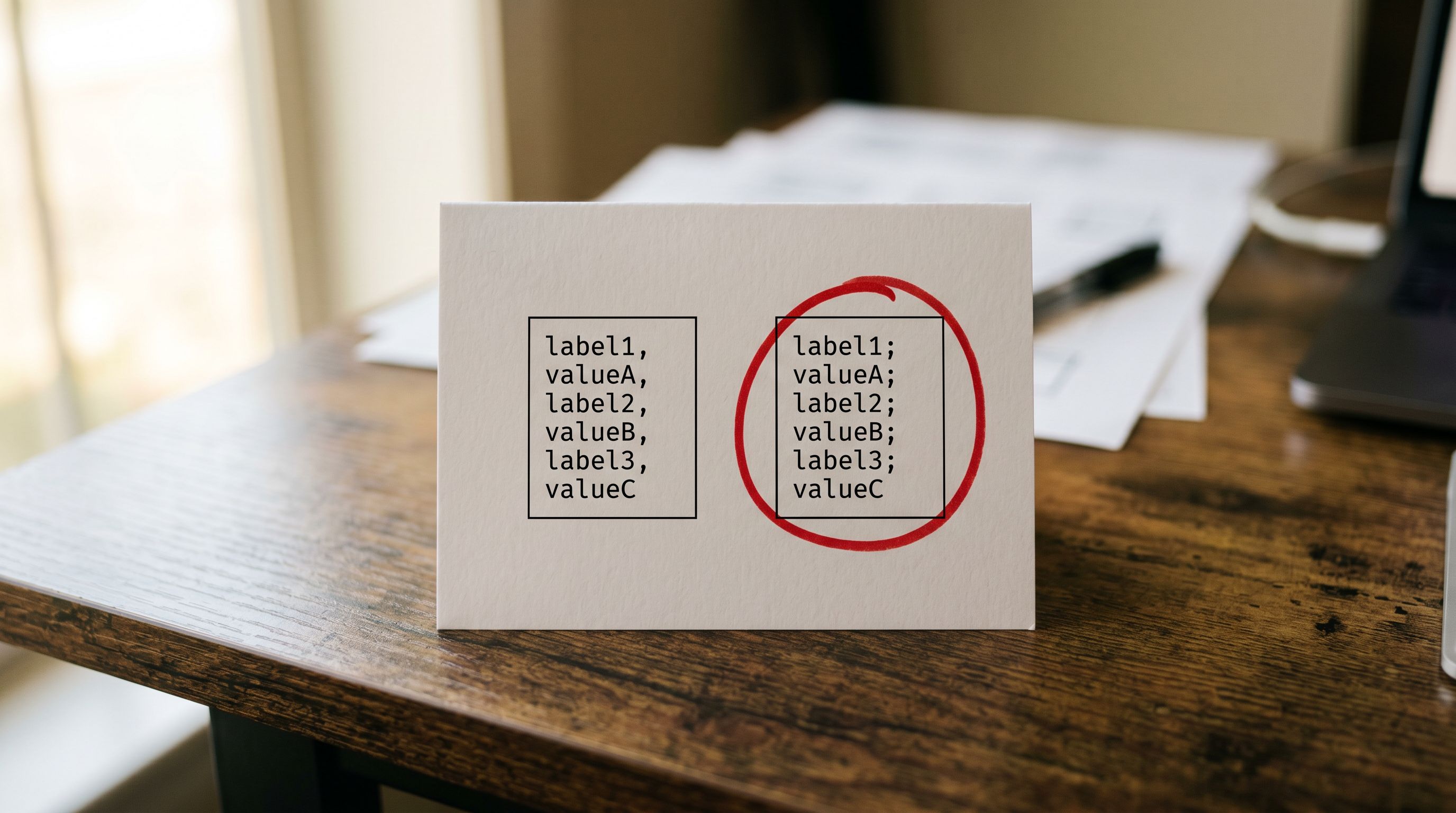
Shopify product tags must be comma-separated. A source file that uses semicolons, pipe characters, or newlines to separate tags will import those separator characters as part of the tag string, producing invalid tags like men's footwear; casual; summer as a single tag rather than three separate tags.
In the preview, the Tags column should show comma-separated values. If the separator character is not a comma, apply a tag format transformation before confirming.
11. Compliance fields set if required
For products in regulated categories (alcohol, adult content, certain supplements, products subject to country restrictions), compliance flags must be set before the products go live. A product that reaches Shopify without an age verification flag is immediately visible to all buyers, creating a compliance gap.
If any products in the import batch require age verification, warning text, or country restrictions, confirm that the compliance configuration is set in Importier's compliance step before confirming the import. For mixed catalogues where compliance varies by product, verify that the compliance column in the source file is mapped correctly and that the values are in the expected format.
12. Duplicate check for existing products
Confirming an import of products that already exist in Shopify creates duplicate product listings unless the import is explicitly configured for update matching via the Handle or SKU field. A reimport of a previously imported catalogue without update matching enabled will double the product count in the store.
In Importier's pre-confirm summary, the duplicate detection scan shows whether any products in the batch match existing Shopify products by Handle or SKU. If matches are detected, choose between "Update existing products" (which patches the existing records) and "Skip existing products" (which skips any row where a match is found). Choosing "Create new products" when matches exist will create duplicates.
- Column errors only visible after products are created
- Price formatting failures leave products with zero price
- Variant grouping errors create duplicate single-variant products
- Duplicate products created silently alongside existing records
- Compliance gaps visible to customers immediately on launch
- Column mapping errors caught before any data reaches Shopify
- Price values validated in preview before confirmation
- Variant structure confirmed in five-row preview
- Duplicate detection flags matches before confirmation
- Compliance step enforced as part of the import flow
The Importier review step exists because the cost of catching an error before confirmation is two minutes. The cost of catching the same error after 500 products are live is two hours of bulk editing or a full delete-and-reimport.
If Something Still Goes Wrong
Import Undo: The Safety Net
Even with all 12 checks completed, an import can produce an unexpected result. A supplier file with an encoding issue that does not surface in the preview, a variant combination that the import preview does not show in its five-row sample, a batch of compliance flags that applied to the wrong product rows.
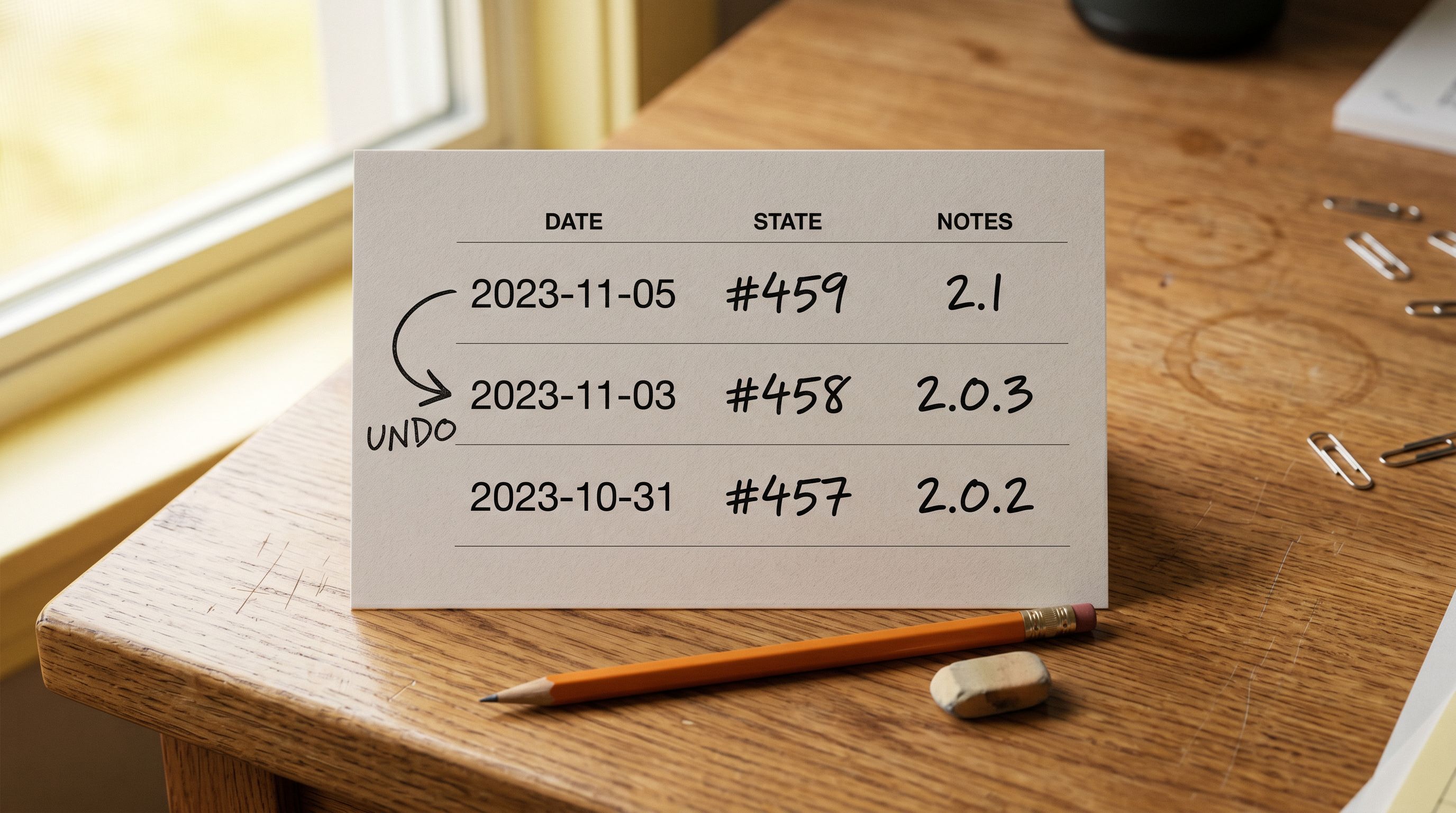
Importier's Import Undo captures a snapshot of the store's product state before each confirmed import. Up to 20 snapshots are stored, each with a 60-day CSV that records which products were created, updated, or deleted in that import session.
To reverse an import, open Import History, select the session to undo, and confirm. Importier removes the products created in that session and restores any products that were updated to their pre-import state. The undo covers the products in the session, not the full store, so reversing one import does not affect products from other sessions.
The 60-day CSV is also available for export, providing a record of every product that was imported in a session even after the undo window has passed.
For a full walkthrough of how Import Undo works and what it covers, the Shopify import undo guide explains the snapshot system, what gets reversed and what does not, and how to use Import History to identify which session to target.

Running the Checklist Efficiently
The 12 checks do not require reviewing every row in the import file. The import preview in Importier shows five representative product rows from the batch, which is enough to identify systemic issues: a column mapping problem affects every row, a price format error appears in every price cell, a vendor field that is blank in the preview is blank across the batch.
The checks that do require looking outside the preview are the image URL test (paste two or three URLs into a browser) and the duplicate SKU check (sort the SKU column in the source file before uploading). Both of these take under two minutes and catch errors that the preview does not surface.
For merchants importing regularly from the same supplier, saving the column mapping profile and the compliance configuration in Importier means the next import from the same source loads those settings automatically. The checklist then focuses on the data-level checks (price format, image URLs, tags) rather than the configuration-level checks (column mapping, compliance settings), which do not change between imports from the same supplier.
Shopify's product CSV format documentation lists the full set of required and optional fields in the Shopify product CSV format, which is the authoritative reference for what Shopify expects in each column. If an import produces unexpected results after confirmation, Shopify's import troubleshooting guide covers the most common CSV errors and how to resolve them.
For the complete CSV import workflow from file upload through to products live in Shopify, the Shopify CSV import guide covers every step including the column mapping interface, the preview step, and post-import verification.
For new importers running their first large batch, the common import mistakes guide covers the errors that appear most often in first imports and how to avoid them.
For merchants who want to verify that an import is safe before running it on the live store, the safe import guide covers the staging and test options available before confirming in production.

Verify Before Confirm
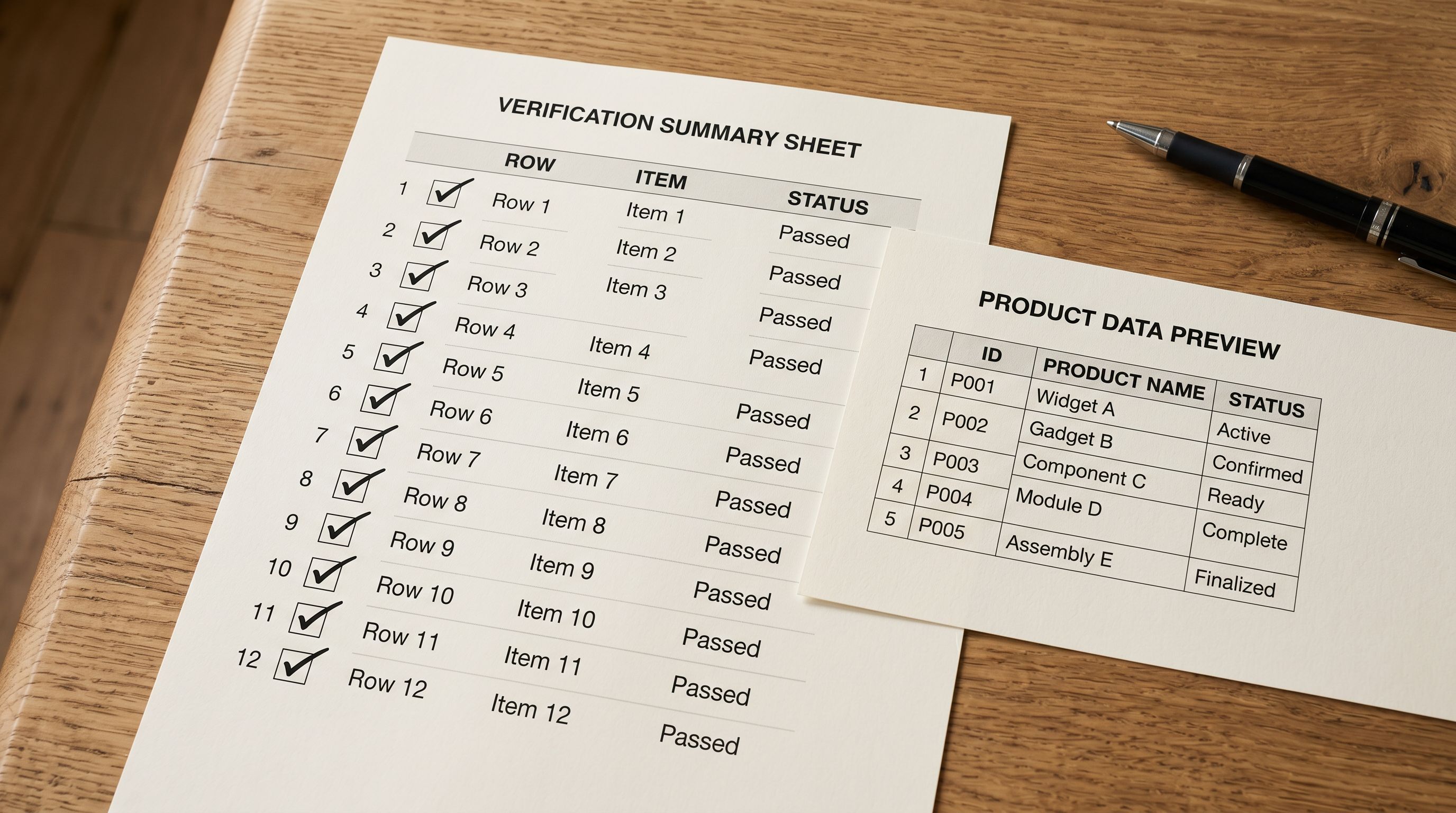
The confirm button in an import wizard is the point of no return. Everything before it is recoverable: you can remap columns, change the compliance configuration, fix the source file, and re-upload. Everything after it requires either fixing products in Shopify admin or running an Import Undo.
The 12-point checklist converts the confirm step from a trust-and-hope action into a deliberate one. Each check takes under a minute. Together they cover the mapping, data quality, variant structure, and compliance gaps that turn a clean import into a cleanup project.
Try Importier free at importier.app
Set up your first import in under five minutes.
Importier brings products into Shopify with AI descriptions, category metafields, and data enrichment on every run.