Shopify Multiple Stores: How to Import and Sync Products Across Stores

On this page
Shopify Multiple Stores: How to Import and Sync Products Across Stores
Running two or more Shopify stores from the same supplier catalogue creates a product management problem that gets worse as the catalogue grows. Import the same CSV file to both stores and both stores carry identical product copy. Identical copy across stores means no brand differentiation, duplicate content that search engines treat as a single indexed page, and no reason for a customer browsing both brands to prefer one over the other.
The same problem appears in different forms: a merchant running a general store and a niche store from overlapping supplier catalogues, an agency managing product imports across a client roster, a brand with regional stores that need the same product in different descriptions for different audiences.
The solution is not to maintain separate CSVs for each store. It is to import from a shared source and apply store-specific configuration at the import stage. Importier's Brand Voice settings, persona selection, and partial import filters mean the same supplier file produces store-specific output for each destination.
The Three Multi-Store Workflows
Merchants operating multiple Shopify stores encounter three distinct scenarios, each with a different import configuration.
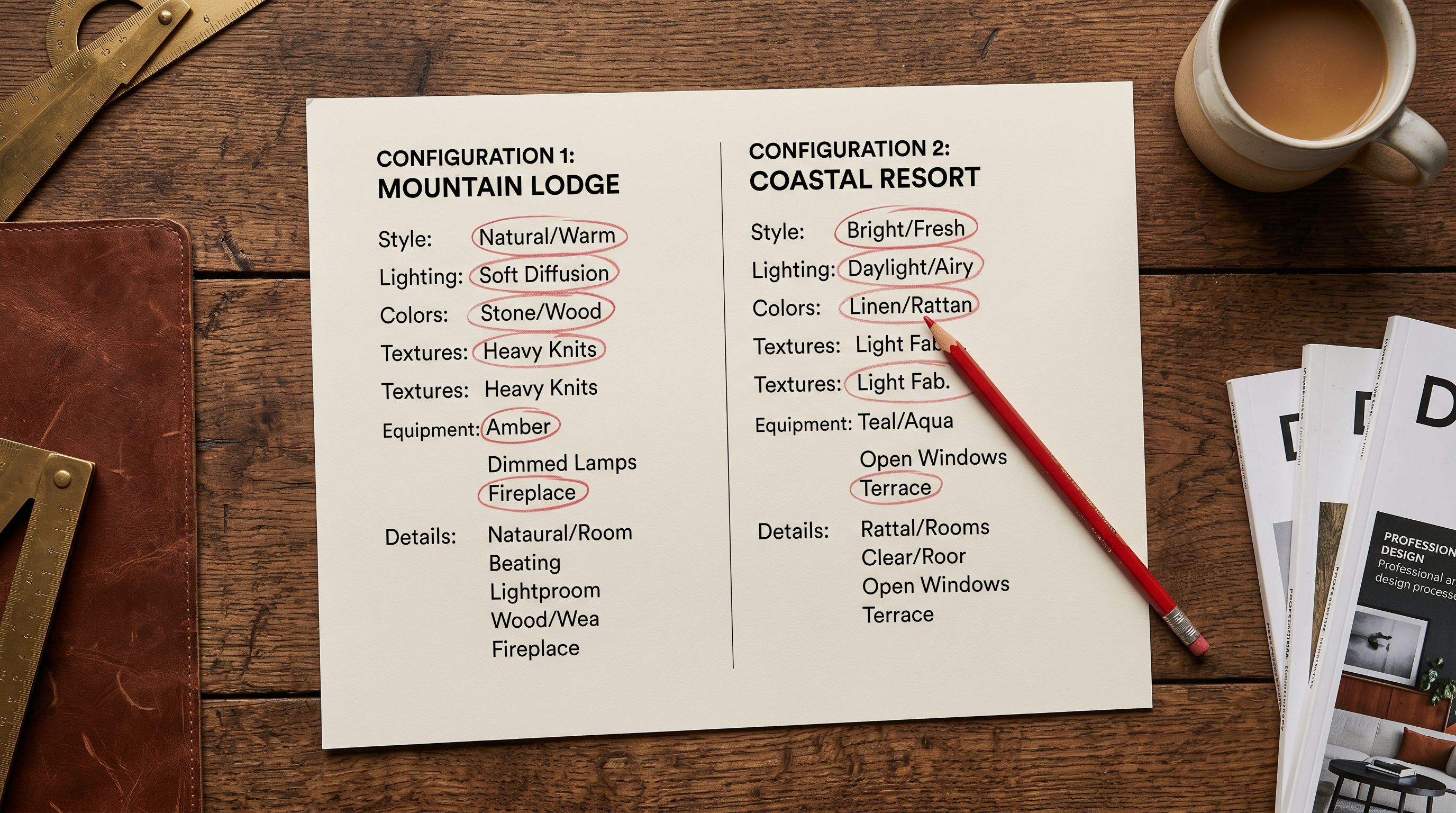
Workflow 1: Same catalogue, different brand voices. A merchant with a mainstream brand and a premium brand shares supplier inventory but needs each store's product copy to reflect a different voice, tone, and buyer positioning. The import runs twice from the same supplier CSV, with different AI persona and description style settings applied per store.
Workflow 2: Partial catalogue to a niche store. A general store carries 600 SKUs. A niche companion store targets activewear buyers and carries only the 80 activewear SKUs from the same catalogue. The import to the niche store uses a product type filter to import only the relevant subset rather than importing the full catalogue and deleting what is not needed.
Workflow 3: Sync after supplier updates. A supplier sends a quarterly catalogue update with new products and revised pricing. Both stores need the update, but each store's existing descriptions should remain unchanged. Import History identifies which products are new versus previously imported, so the update can be applied as an incremental import.
Workflow 1: Same Catalogue, Different Brand Voices
The core of this workflow is Importier's AI description step, which generates product copy rather than copying it from the supplier file. Because the copy is generated at import time using the configured persona and style, two import sessions from the same supplier file produce two different sets of descriptions.
For a mainstream general store, a Benefits-First style with a General Retail persona produces accessible, outcome-focused descriptions. For a premium brand from the same inventory, a Luxury Retail or High-End Fashion persona produces copy with a different vocabulary, sentence structure, and emphasis on quality cues.
The configuration difference is entirely in the AI description settings, not in the source file. The same supplier CSV file is uploaded to Importier twice, once for each store. The persona and style settings save per-session and can be named to make multi-store imports manageable.
- Maintain separate CSV files per store
- Manually rewrite descriptions per store
- No systematic tracking of which version went where
- Supplier updates require editing both files
- Import from one shared supplier file
- AI generates store-specific descriptions per session
- Import History tracks sessions per store
- Supplier updates import once, configured per destination
The Importier settings and setup guide covers how to configure Brand Voice and persona settings, including saving named configurations for reuse across import sessions.
Workflow 2: Partial Catalogue to a Niche Store
A niche store does not need the full supplier catalogue. Importing all 600 SKUs to a store that sells only activewear creates administrative overhead: the unwanted products need to be deleted in Shopify admin after the import, a step that grows time-consuming as the catalogue expands.
Importier's product type filter and collection filter let you import a subset of the supplier CSV in a single session. For a supplier file that includes a "Product Type" or "Category" column, you set the filter to include only the rows that match your niche. Only those rows proceed through the AI description step, image import, and variant grouping. The rest are excluded.
For a supplier file that does not have a usable category column, two approaches work: tag the relevant rows in a spreadsheet with a custom column before uploading (a "Niche Store" flag column, for example), or use Importier's SKU filter to provide a list of the specific SKUs you want for the niche store. Either approach produces a targeted import without requiring you to split the supplier CSV into per-store versions.
- 01Before the import, identify the product types or SKUs that belong in the niche store. If the supplier CSV has a product type or category column, note the exact values you want. If not, prepare a list of the target SKUs.
- 02Upload the supplier CSV to Importier and proceed to the filter step. Set the product type filter to include only the niche store categories, or use the SKU list filter.
- 03In the AI description step, configure the persona for the niche store audience. An activewear store targeting competitive runners uses a different persona than a general sports retailer.
- 04Run the import to the niche store's Shopify account. The import session record in Import History is labelled for the niche store.
- 05For the main store, run a separate import session from the same supplier CSV with no filter applied and the main store persona configured. Both sessions draw from the same source file.
Workflow 3: Syncing After Supplier Updates
Supplier catalogue updates introduce new products, revised pricing, and sometimes updated descriptions. For stores with existing products, a naive full-catalogue reimport either duplicates existing products (creating duplicate listings) or overwrites existing Shopify product data including any custom descriptions or tags already in place.
Importier's Import History shows every previous import session: which products were imported, when, and with which configuration. When a new supplier update arrives, comparing the new file against Import History identifies which products are net-new versus previously imported.
For net-new products, the import runs normally: descriptions generated, images imported, taxonomy assigned. For existing products where only the price has changed, the import can be configured to update the Variant Price column only, leaving descriptions and other fields untouched. Shopify's Handle-based matching updates existing product records rather than creating duplicates when the Handle value matches a product already in the store.
For the full multi-supplier import workflow including how to maintain separate Import History records per supplier, the multi-supplier import guide covers that pattern in detail.
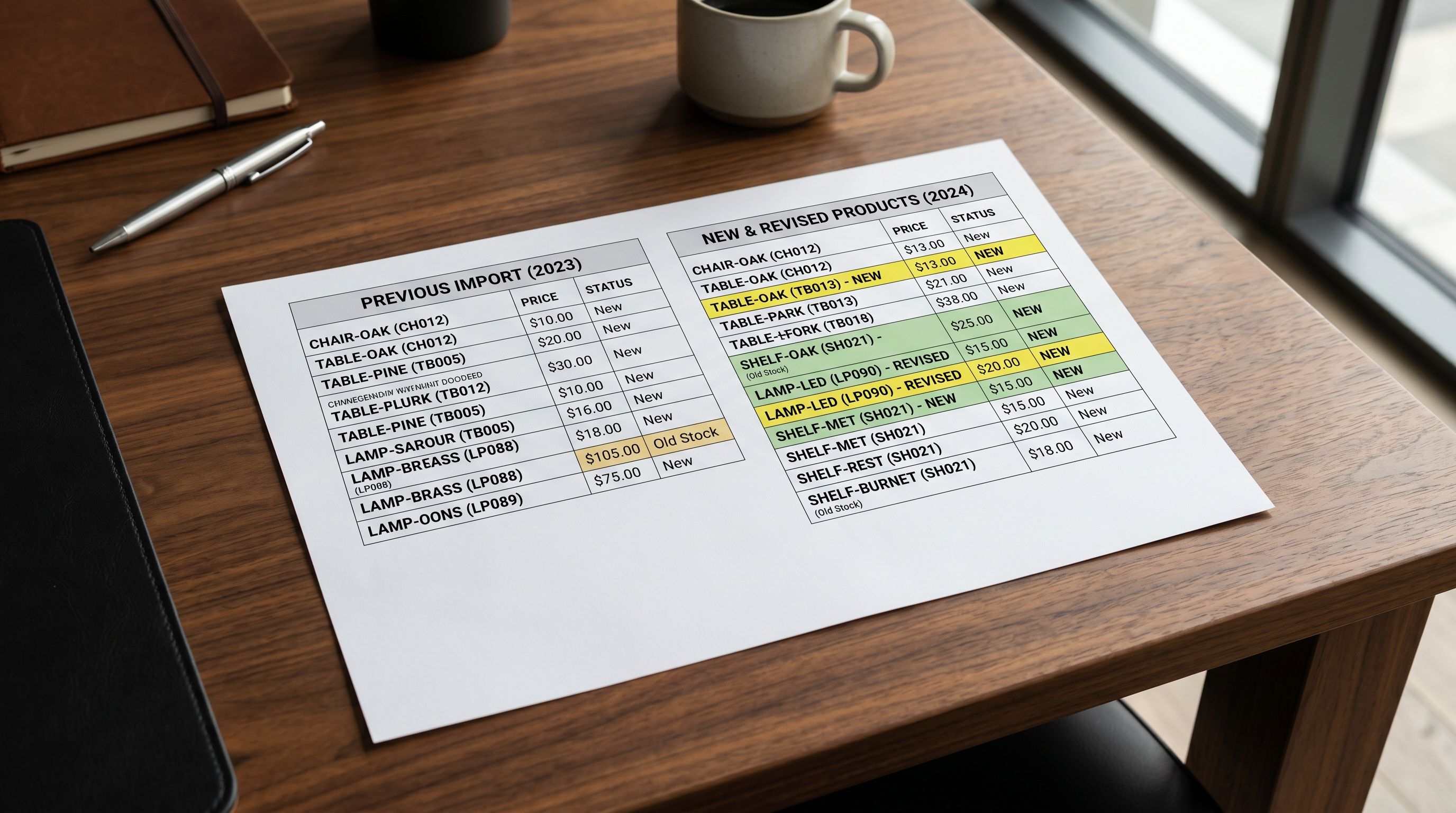
Import History is the difference between a supplier update that takes two hours to reconcile across three stores and one that takes twenty minutes. The session record tells you exactly what was imported where and when, so you know what needs updating without checking each store manually.
Agency Use: Managing Multiple Client Stores
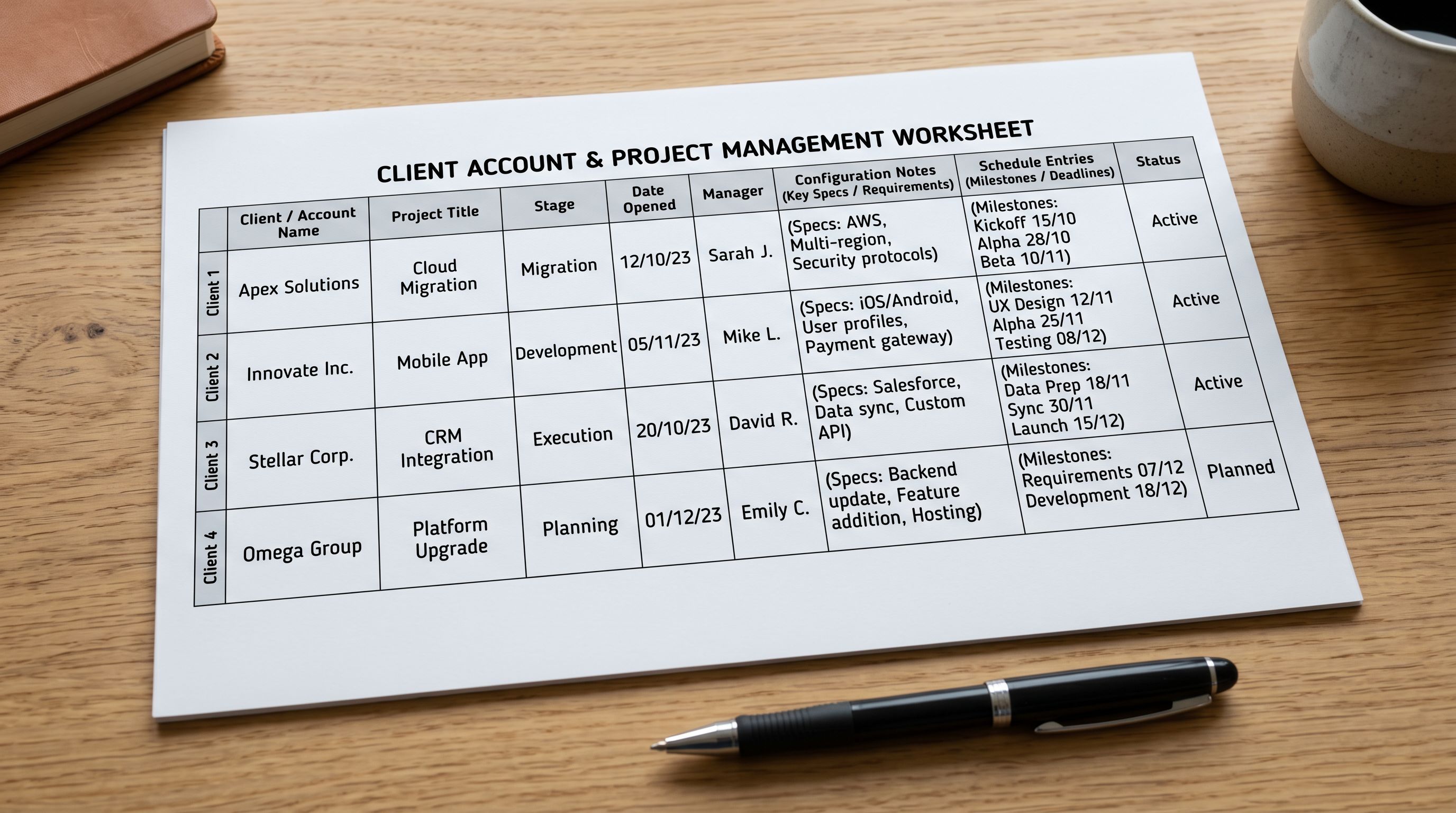
Importier's account structure supports multiple connected Shopify stores under one account. For agencies managing product imports across a client roster, this means a single Importier account can handle imports for different clients without maintaining separate accounts per client.
Each import session is connected to the target Shopify store. The agency selects the target store at the start of the import, applies the client-specific configuration (persona, style, compliance settings, column mapping profile), and runs the import. The Import History separates sessions by store, so the work for each client is independently trackable.
For agencies with clients in different product categories, the persona library allows client-specific presets: a furniture retailer uses a Home Décor persona, a fitness equipment client uses an Activewear persona, a food brand uses a Culinary persona. Each client's import produces descriptions that reflect their audience, not a generic retail voice.
Shopify's documentation on managing multiple stores covers the account structure for merchants operating more than one store, including the separate billing, admin, and login considerations for each store.
Keeping Stores in Sync
Scheduled Imports for Ongoing Sync
For merchants who receive supplier updates on a regular schedule (weekly new arrivals, monthly pricing updates, quarterly catalogue refreshes), a scheduled import workflow removes the manual trigger from the process.
Importier's scheduled imports run automatically at a configured interval, using a saved import configuration that includes the column mapping profile, AI description settings, and filter rules for the target store. When the schedule fires, the import runs from the saved source (a URL endpoint from the supplier, or a connected cloud folder) and applies the current configuration.
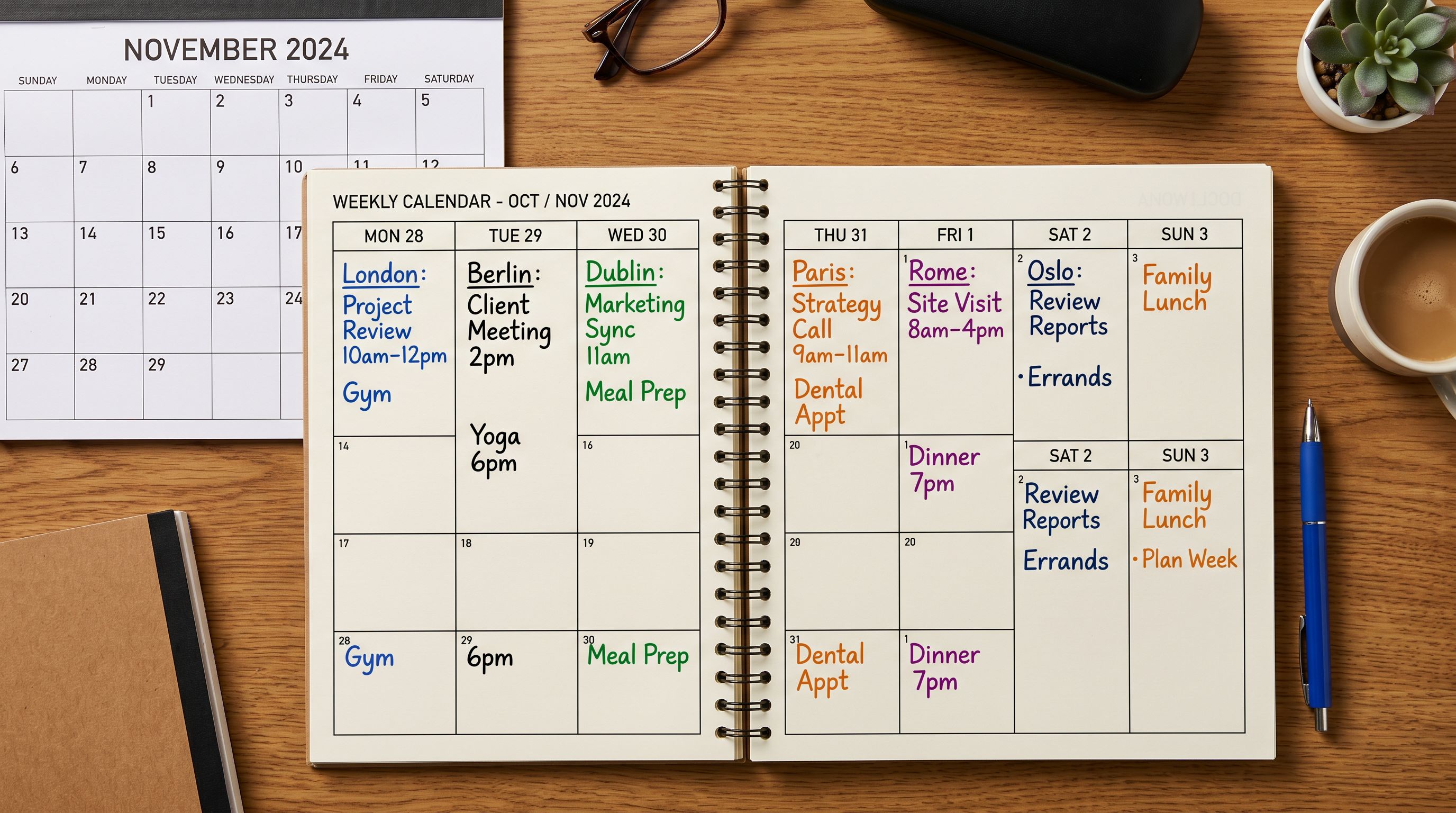
For multi-store setups, separate scheduled imports run for each store at the same or different intervals. The main store might run a weekly new arrivals import, while the niche store runs a monthly update that checks for new products matching its category filter.
For the full scheduled imports setup, including how to configure the source URL and the update frequency, the Shopify scheduled product imports guide covers the configuration and common scheduling patterns in detail.
One Source, Multiple Destinations
The key principle in all three workflows is treating the supplier catalogue as a single source and the per-store configuration as the variable. Maintaining separate CSV files per store, or manually editing descriptions to achieve differentiation, scales poorly. Every supplier update requires the same editing work multiplied by the number of stores.
Importier's configuration layer, from persona and style to filter rules and column mapping profiles, separates the source from the per-store output. The supplier file does not change. The import configuration determines what each store receives. When the supplier sends an update, the update flows to each store through its own configured import session, producing store-specific output automatically.
Try Importier free at importier.app
Set up your first import in under five minutes.
Importier brings products into Shopify with AI descriptions, category metafields, and data enrichment on every run.