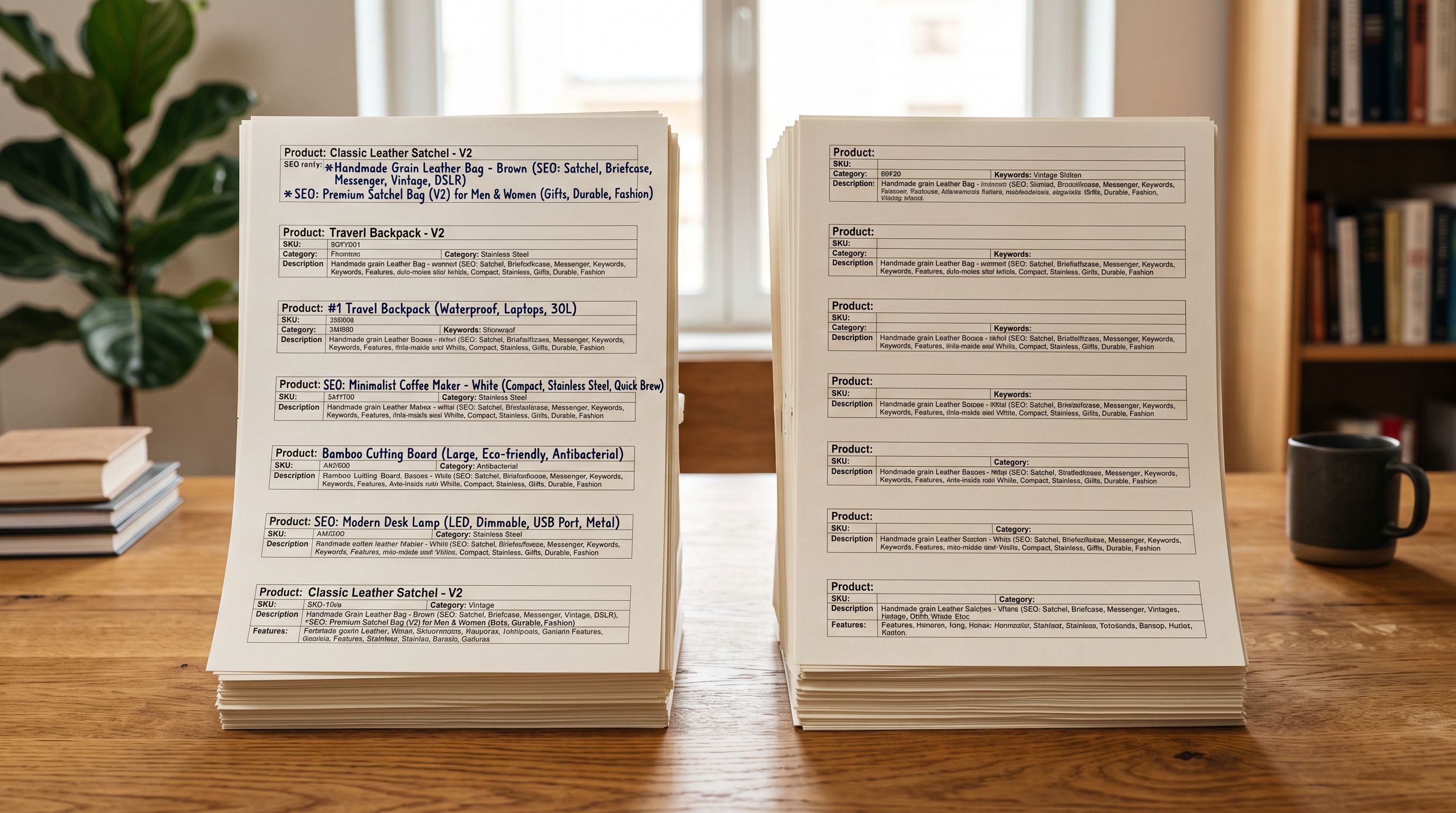
Stop Shopify Imports From Overwriting Product Images
On this page
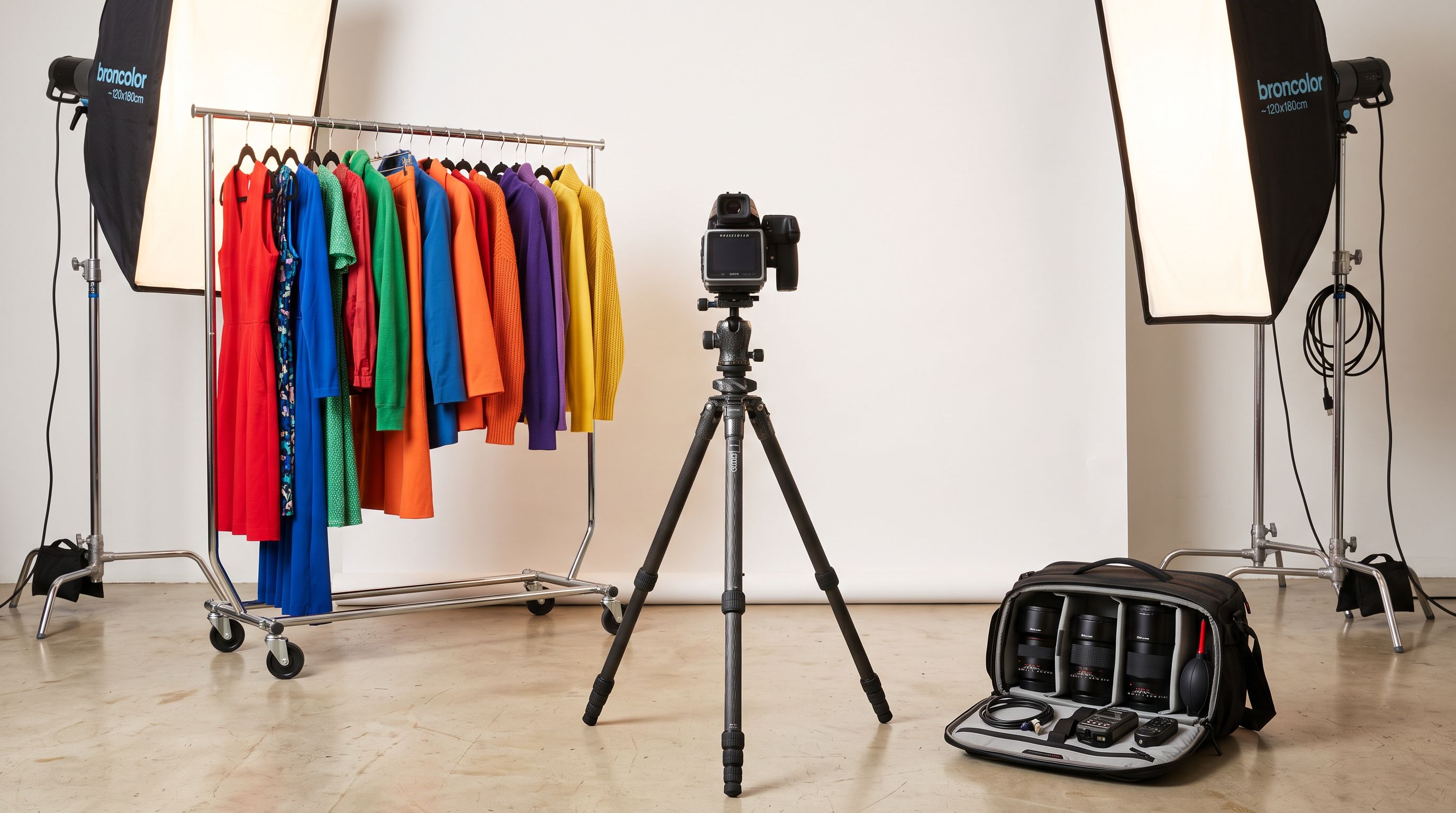
A women's fashion merchant had spent three months photographing 280 products. Each product had eight images: front, back, detail, flat lay, and three on-figure shots. The photography was the most expensive single investment the store had made since launch. A routine price update was about to overwrite every product image in the store.
A supplier sent an updated price file. The merchant updated the CSV, ran the import, and went to lunch.
When they returned, every product in the store showed a single image: the supplier's white-background stock photo. All 2,240 custom images were gone.
Shopify had not warned them. The import had completed without errors.
Why Shopify Import Overwrites Product Images
The mechanism is not a bug. It is how Shopify's import system works by design.
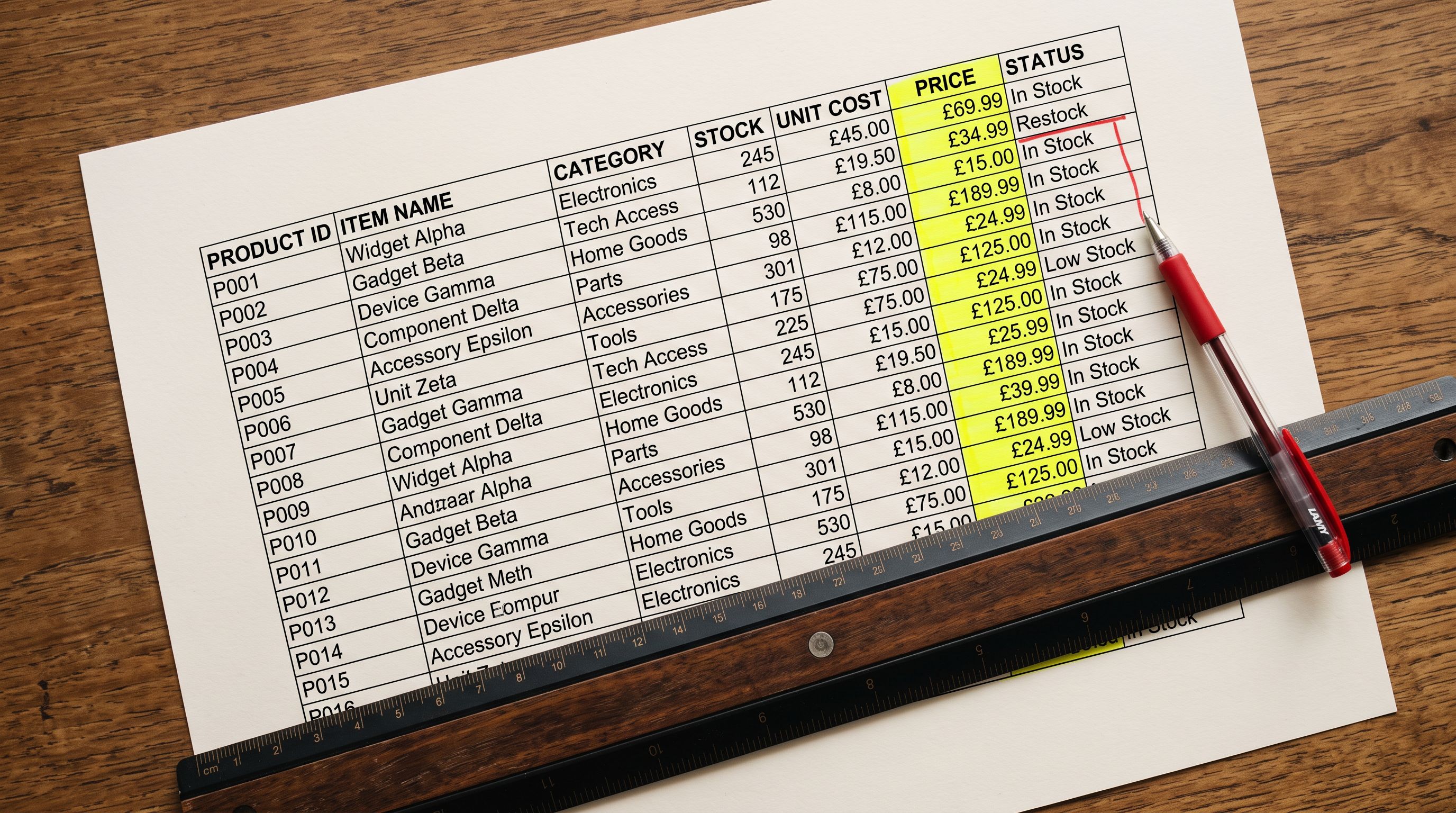
When a CSV import includes an Image Src column, Shopify treats that column as the authoritative list of images for every product it processes. It does not merge the new images with the existing ones. It replaces the gallery entirely with whatever URLs appear in the Image Src column.
For the fashion merchant, the supplier's price file included one image URL per product: the supplier's stock photo hosted on their CDN. Shopify read that column, saw one URL, and set each product's image gallery to that one image. The custom photography was removed automatically.
According to Shopify's guidance on the CSV import format, each row containing an Image Src value instructs Shopify to add that image to the product. What the documentation does not make obvious is that when a product already exists and the import includes an Image Src column, Shopify clears the existing gallery first for that product before writing the new images.
The result: any existing image not listed in the import CSV disappears.
The Hidden Destruction: It Is Not Just One Image
Most merchants who encounter this problem assume the import replaced their featured image. The damage is worse than that.
Shopify's image gallery stores images in a sequence. The first URL in the Image Src column becomes the featured image. Additional rows with the same Handle but different Image Src values add further images to the gallery in order.
When a supplier CSV includes only one Image Src value per product, Shopify reads that as: "this product has exactly one image." All other images are removed.
For a product that previously had eight images, the result after import is a single image. Not eight images with a different featured image. One image, with seven others gone.
The gallery position also affects more than the storefront. The first image in the Shopify gallery becomes:
- The featured image on the product page
- The thumbnail in collection pages
- The image Shopify submits to Google Merchant Centre as the product's primary image
- The image shared when the product URL is posted to social media (Open Graph)
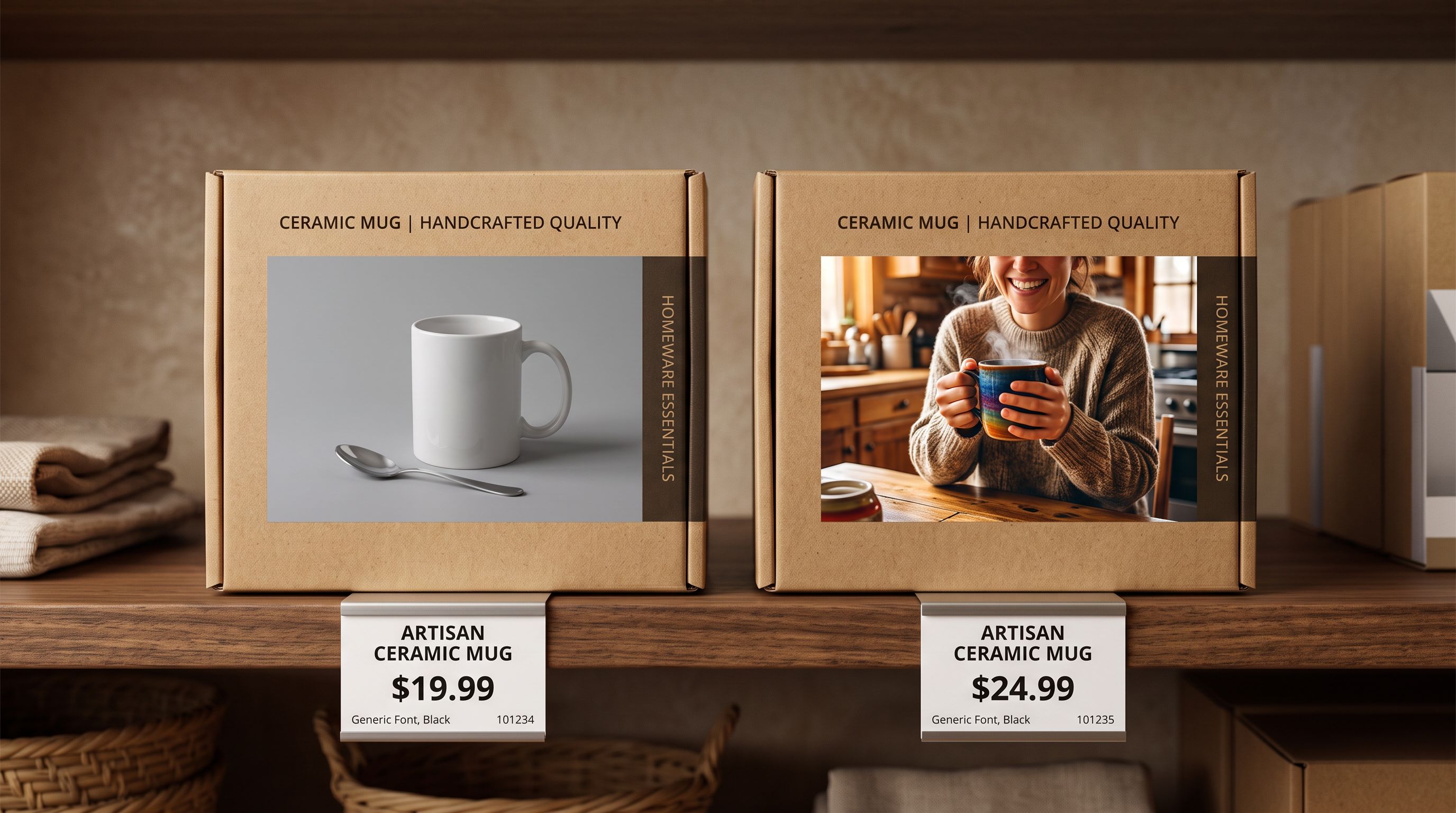
Replacing a curated, professionally lit product photo with a supplier's white-background stock image changes the store's appearance on every channel simultaneously, without any notification.
Three Scenarios Where This Happens
Understanding when this occurs helps prevent it. The problem is not limited to price update imports.
Price and inventory updates from supplier files. Suppliers who share regular price or inventory files often export from their own system, which naturally includes an image column. The merchant receives a file designed for the supplier's internal workflow, maps it for Shopify, and does not notice the Image Src column until after the import runs.
Store migrations with re-exported CSVs. When migrating from another platform, the export includes all current data including image URLs. If the merchant runs this file through Shopify's import twice (once to test, once to finalise), the second import may point to different image URLs than the first, particularly if the original platform's CDN URLs have been changed or if images were re-uploaded between runs.
Catalogue rebuilds that include partial product sets. A merchant updates 50 products in their catalogue and exports only those 50 from Shopify admin. They edit the prices, include the image column by default, and import back. The 50 products have their images replaced. The other 230 products in the store are untouched, but those 50 now show whatever images were in the export at the time, not necessarily the current gallery order.
How to Stop a Shopify Import From Overwriting Product Images
Prevention: three approaches
Approach 1: Do Not Map the Image Column
The most reliable protection is field isolation. When running a price update import in Importier, the column mapping step controls exactly which fields are written to Shopify.
If you do not map the Image Src column, Importier does not send image data to Shopify. The existing gallery stays untouched. The import updates only the fields you explicitly mapped: Price, Compare At Price, inventory quantity, or whatever the update covers.
- 01Open Importier and start a new import with your supplier's price file.
- 02In the column mapping step, map Handle (or the identifier your store uses for matching), Price, and Compare At Price.
- 03Do not map the Image Src column. If your supplier's file includes an image column, leave it unmapped or remove it from the file before upload.
- 04In the review step, check the product preview. You should see price fields updated and image fields showing no change.
- 05Push the import to Shopify. Only the mapped fields will be written.
This approach works for any selective update: prices, inventory, descriptions, weight, or tags. The fields you do not map are the fields Shopify does not touch.
Importier allows saving column mapping profiles. Once you build a price-update mapping that excludes images, you can reuse that profile for every future price update from the same supplier. The mapping profile becomes a documented decision: "this import never touches images."
The same principle applies to inventory and description protection, a pattern covered in more detail in how to update Shopify prices without overwriting inventory.
Approach 2: Export Current Image URLs Before Importing
If you must include the image column (for example, if you are adding new images alongside a price update), export your current product data from Shopify first. The export includes the current Image Src values for every product.
Use those exported image URLs as the image column in your update file. This ensures Shopify receives the same image URLs that are already in the gallery, so the "replacement" produces an identical result rather than a destructive one.
The limitation: if you have reordered images in the Shopify admin since the last export, the export may not reflect the current gallery order. The safest approach when image order matters is approach 1: exclude images from the import entirely and manage the gallery separately in Shopify admin or via a dedicated image import.
Approach 3: Use Import Undo Immediately After Discovering the Problem
If images have already been overwritten, the question is whether the damage is recoverable.
Importier's Import History logs every import batch. For imports that have been processed recently, the Import Undo function reverts the batch entirely, restoring the products to the state they were in before the import ran.
Import Undo works by reverting the Shopify data to the snapshot taken at import time. If the import overwrote your custom images 20 minutes ago, Import Undo will put them back.
Two limits apply: the undo window extends back 20 snapshots, and download links for the original import files are valid for 60 days. For a merchant who runs daily price updates, the window is 20 batches of history, not 20 days. If a re-import ran and was not noticed for several batches, undo may not reach back far enough.

For the fashion merchant in the opening scenario: if they had returned within a few hours and run Import Undo before pushing any further updates, all 2,240 images would have been recoverable. The recovery depends on acting quickly.
The Image Src column in a Shopify CSV is not additive. It is declarative. Whatever appears in that column becomes the complete image gallery. Whatever does not appear is removed.
When the Damage Is Not Recoverable
If Import Undo does not reach the batch where images were overwritten, recovery requires rebuilding the gallery manually or via a dedicated image re-import.
The options:
Re-upload original images from a local backup. If the merchant's original photography files are stored locally or in a cloud drive, they can re-import them using Importier's Google Drive image import or by building a new CSV that contains only Handle and Image Src columns, with no price, inventory, or description columns, so the re-import adds the images back without touching other fields.
Recover images from the supplier's export. This is not an option if the supplier's images are what caused the problem, but it is worth checking whether the correct images exist somewhere in a previous export or backup.
Rebuild from an image-only import. An import that maps only Handle and Image Src will restore images without overwriting other fields. This requires having the correct image URLs available. If images were hosted on Shopify's CDN, the original URLs may still be accessible via a previous Shopify admin export or the Shopify API.
The underlying lesson: the cheapest recovery is prevention. Running price updates through an image-free column mapping costs nothing extra. Rebuilding 2,240 product images does.
- Supplier CSV mapped as-is, including Image Src column
- Shopify replaces entire gallery with supplier stock photos on every product
- Custom photography removed without warning or error message
- Recovery requires manual re-upload or Import Undo if within history window
- Future price updates carry the same risk
- Column mapping excludes Image Src before pushing to Shopify
- Shopify updates only Price and Compare At Price fields
- Existing image gallery is untouched on every product
- No recovery step needed: the problem does not occur
- Mapping profile saved for reuse on future updates from the same supplier
What a Safe Re-Import Profile Looks Like
A price update mapping for a fashion store should include, at most, these columns:
- Handle: the matching identifier; tells Shopify which product to update
- Price: the new retail price
- Compare At Price: the original price shown as struck through, if applicable
- Inventory Qty: only if the price file also includes inventory changes
Every other column in the supplier's file, including Image Src, Body HTML, Vendor, Tags, and Type, should be excluded from the mapping.
This mirrors the problem documented in Shopify imports that overwrite descriptions: the same mechanism that overwrites images also overwrites descriptions, and the same solution (not mapping the column) prevents both.
Google's product image quality guidelines for Merchant Centre require that product images accurately represent the product and flag white-background stock photos as insufficient for certain product categories including apparel. A price update that replaces custom photography with supplier stock photos can trigger Merchant Centre disapprovals on affected products within 48-72 hours of the import.
Key Takeaways
Shopify's image import is destructive by default: any mapped Image Src column replaces the entire gallery for the products it processes. Custom photography is not preserved unless the merchant explicitly excludes the image column from the import mapping.
- The safest price update excludes the Image Src column entirely. Importier's column mapping step makes this explicit: if you do not map a column, Shopify does not receive it. Price updates, inventory updates, and description updates all work correctly without an image column.
- Supplier price files commonly include image columns by default. The column may be labelled Image Src, Image URL, Photo, or similar. Check the file before mapping and exclude it if images are not part of the intended update.
- Import Undo is available if damage has already occurred. Importier logs every import batch. If the overwrite was recent, Import Undo reverts the batch and restores the previous product state including images.
- Save an image-free mapping profile for recurring supplier updates. Once you have a mapping that excludes images, save it. Every future update from the same supplier uses the same safe configuration without having to remember to exclude the column manually.
- The same protection applies to descriptions and inventory. The pattern of mapping only the fields you intend to change is the standard approach for any selective update. Updating prices without overwriting inventory follows the same logic for a different field.
If products in your store have images missing after a recent import, check why Shopify product images are not importing for the diagnostic steps to identify what went wrong and what can be recovered.
Import your first products safely at importier.app.
Set up your first import in under five minutes.
Importier brings products into Shopify with AI descriptions, category metafields, and data enrichment on every run.