Shopify Product Images in Wrong Order After Import

On this page
A jewellery merchant imports 250 product SKUs from a supplier CSV. Each product has five images: a white-background hero shot, a lifestyle photo, a detail close-up, an angle view, and a dimensions chart. The import completes without errors. On the collection page, every product shows the dimensions chart as the lead photo. Customers clicking through to the product listing see the same thing: a measurement diagram, not the jewellery. None of the images are missing from the gallery. The order is wrong.
The merchant checks the supplier CSV. The image filenames are img1.jpg through img5.jpg. They look correct. But somewhere between the spreadsheet and Shopify, the shopify product images order changed.
Why Shopify Product Image Order Goes Wrong After Import
Shopify's product CSV uses an Image Src column to attach images to products. Each image URL occupies a separate row under the product's handle. The first Image Src row for a given handle becomes the product's featured image: the one displayed on collection pages and in search results. Every subsequent Image Src row adds to the gallery in the order it appears in the CSV.
The problem is that spreadsheet applications sort image filenames alphabetically by default when organising data. Alphabetical sort and numeric sort produce different results for numbered files.
Filenames img1.jpg through img9.jpg sort correctly because the numbers are single digits. Filenames img1.jpg through img12.jpg sort alphabetically as: img1.jpg, img10.jpg, img11.jpg, img12.jpg, img2.jpg, img3.jpg. The 10th image appears second in the gallery. If img10 is a dimensions diagram, that diagram becomes the second gallery image for every product, ahead of the lifestyle and detail shots.
For descriptively named files (hero.jpg, lifestyle.jpg, detail.jpg, angle.jpg, dimensions.jpg), alphabetical order is: angle.jpg, detail.jpg, dimensions.jpg, hero.jpg, lifestyle.jpg. The angle shot becomes the featured image. The hero shot appears fourth.
What the Lead Image Controls
The first image in a Shopify product gallery occupies three critical positions: the collection page thumbnail, the product page primary image shown above the fold, and the image used in Google Shopping ads.
Google Merchant Centre feeds the primary product image directly into Shopping ad creatives. A jewellery listing whose lead image is a centimetre ruler underperforms against competitors whose hero shots display the product clearly. Google Merchant Centre's image link specification requires images to show the product clearly and fully, which a specifications chart does not. Products submitted with non-hero lead images can receive lower image quality scores in the feed.
For Shopify's built-in filter navigation and collection display, the lead image is the only image visible until a customer clicks through. A collection grid showing 48 products with the wrong lead image shows 48 wrong thumbnails simultaneously.
The first Image Src entry for each product handle in the import CSV becomes the featured image across collection pages, product pages, and Google Shopping ad creatives.
The Three Image Order Problems
Alphabetical Sort of Numbered Files
This is the most common cause. Supplier image files use numeric sequences that alphabetical sort reorders. The supplier sends files in the correct display sequence. The merchant's spreadsheet application sorts them alphabetically before the CSV is saved for import. The misorder is invisible in the spreadsheet because the filenames look correct in the column; they are just in the wrong sequence.
The pattern affects any product with 10 or more numbered images. For a catalogue of 300 products each with 10 images, the misorder affects every product simultaneously.
Descriptive Filename Sort
Some suppliers name images by content rather than number: hero.jpg, lifestyle.jpg, close-up.jpg, angle.jpg, swatch.jpg. Alphabetical sort produces: angle.jpg, close-up.jpg, hero.jpg, lifestyle.jpg, swatch.jpg. The angle shot leads. This is less immediately obvious than the numbered-filename problem because the alphabetical sequence looks plausible on a quick inspection of the CSV column, until a merchant notices that "angle" appears before "hero" in every row for every product.
Wrong Primary Image Column Mapping
Supplier CSVs sometimes include multiple image columns: Image 1, Image 2, Main Photo, Thumbnail, Gallery 1. When these columns are auto-mapped or manually mapped without specifying which column should produce the lead gallery image, the alphabetically or sequentially first column becomes the lead. If the supplier placed their thumbnail image in "Image 1" and their hero shot in "Main Photo", the thumbnail column imports as the featured image.
Fixing the sort before import
How to Fix Image Order Before Import
Zero-Pad Numbered Filenames
Adding a leading zero to single-digit numbers makes alphabetical and numeric sort produce the same result: img01.jpg, img02.jpg, img03.jpg, img10.jpg, img11.jpg. Alphabetically: img01, img02, img03, img10, img11. The correct sequence.
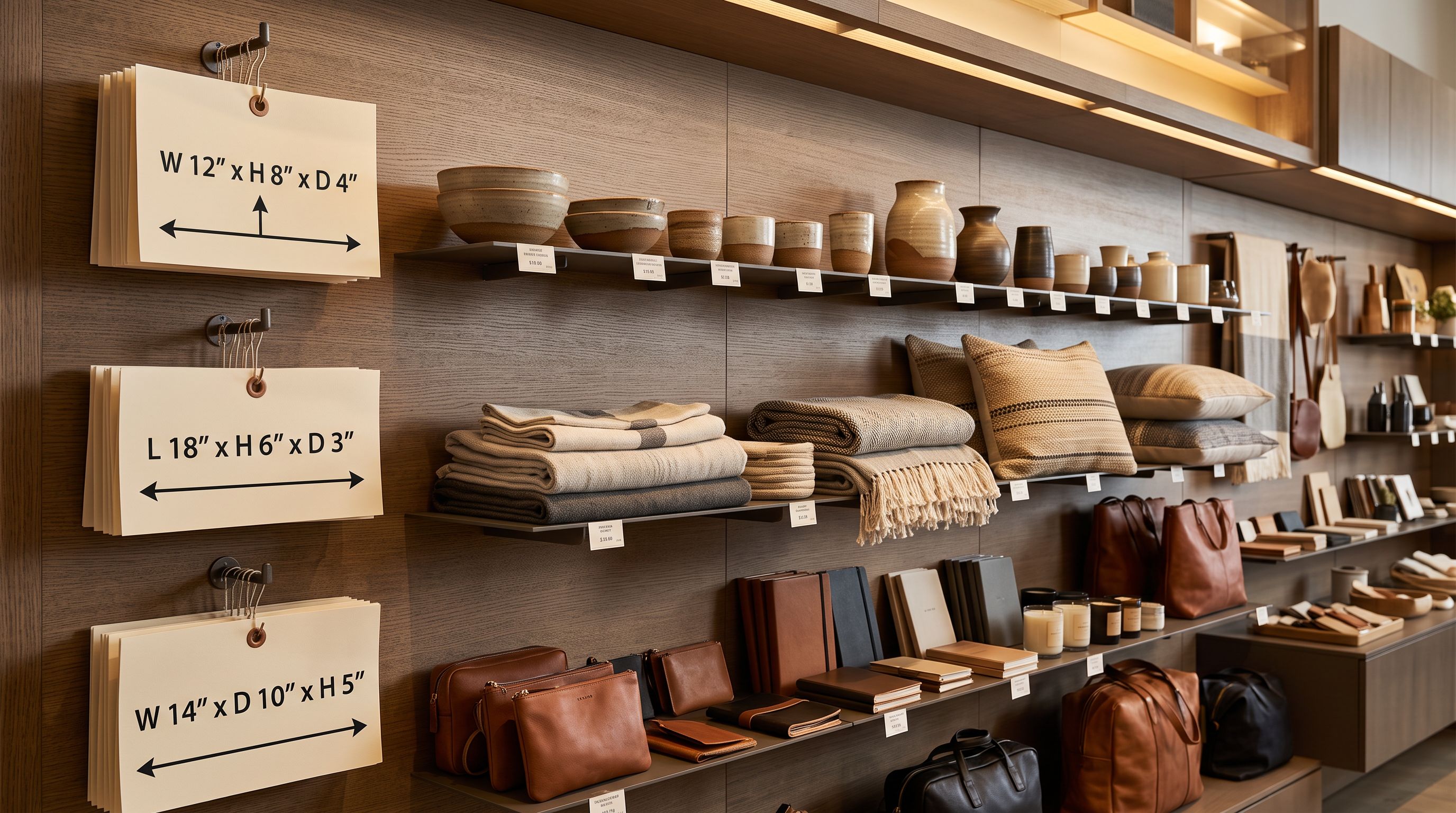
Zero-padding requires renaming the filenames in the Image Src column of the CSV before importing. The actual image files at the URLs do not need renaming; only the values in the spreadsheet column that controls sort order need to change. For a supplier sending raw numbered files, asking them to provide zero-padded URLs in future deliveries is the permanent fix.
Reorder Image Src Rows Manually
In the CSV, reorder the Image Src rows so the hero shot URL appears first for every product handle. For a 30-product catalogue, this means 30 edits. For a 500-product catalogue, manual reordering is not a realistic approach.
Use Natural Sort at Import
Natural sort compares the numeric portion of filenames as a whole integer rather than character by character. img1, img2, img10 under natural sort: 1, 2, 10. No reordering, no zero-padding required.
Importier applies natural numeric sort to image filenames during import. A supplier file with img1.jpg through img12.jpg imports in 1, 2, 3, 4, 5, 6, 7, 8, 9, 10, 11, 12 order regardless of how the spreadsheet sorted the rows. The first filename in the natural sort sequence becomes the featured image.
- 01Load the supplier CSV in Importier's import wizard and proceed to the column mapping step.
- 02Map the hero shot image column as the primary image column. If the supplier file uses numbered image columns, map the column containing img1 (or the lowest-numbered image) as the first image mapping. Importier's preview shows a thumbnail for the first mapped image; confirm it shows the hero shot, not a diagram or lifestyle shot.
- 03If the supplier file has descriptively named image columns, map the hero shot column first and the remaining image columns in display order.
- 04Confirm natural sort is applied. For filenames like img1 through img12, the import wizard previews images in numeric order, not alphabetical. Check that img2 appears before img10 in the preview sequence.
- 05Run the import. Products arrive in Shopify with galleries ordered by natural sort, hero shot first, without any manual spreadsheet manipulation.
Fixing Wrong Image Order After Import
For products already in Shopify with incorrect gallery order, the recovery depends on scale.
For a batch imported through Importier, Import Undo reverts the entire import to its pre-import state. The batch can then be re-imported with corrected column mapping or with zero-padded filenames in the Image Src column.
For large catalogues where only some products are affected, a targeted re-import is faster than a full undo. Prepare a CSV with two columns: Handle and Image Src, with the image URLs in the correct order for each handle. Import that file with only the Handle and Image Src columns mapped. Shopify replaces each product's image set with the newly ordered URLs without touching any other product field. The same principle that governs why Shopify imports overwrite field values applies here: every mapped column writes to the product, so an Image Src-only import cleanly replaces the gallery without risk to prices, descriptions, or inventory.
For a small number of affected products, the Shopify admin media editor allows drag-and-drop image reordering product by product. Beyond 20 affected products, this becomes too slow to be practical.
- Alphabetical sort reorders img10 before img2 across all products
- Dimensions diagrams and angle shots appear as lead images
- Collection page thumbnails show the wrong image for every product
- Google Shopping ad creative uses a non-hero image
- Re-import required to fix every affected product
- Natural numeric sort preserves img1, img2, img10 in correct sequence
- Hero shot column mapped as primary image, placed first in every gallery
- Collection page thumbnails show the hero shot consistently
- Google Shopping feed receives the correct lead product image
- Image order verified in the mapping preview before any data is written to Shopify
For products stored in cloud folders, importing images from a Dropbox folder applies natural numeric ordering automatically at the folder level. Numbered image files in a per-product Dropbox subfolder import in 1, 2, 10, 11 order without any CSV manipulation or zero-padding. For suppliers who deliver images as numbered files in per-product folders, this method eliminates the sort problem at the source.
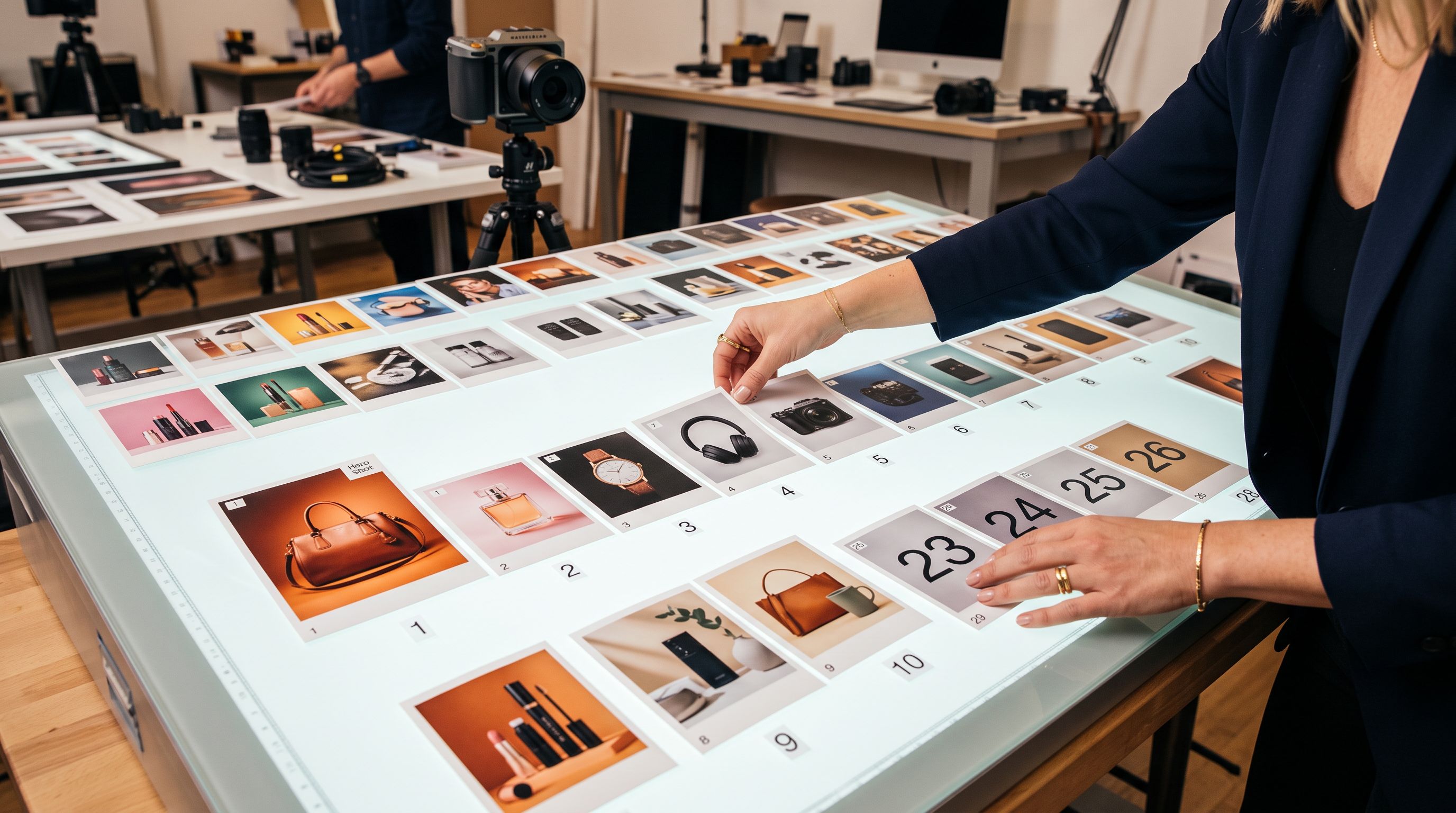
For images that imported correctly but need alt text applied across the catalogue, bulk product image alt text covers adding descriptive alt text to existing product galleries without re-importing the images themselves.
Shopify's product CSV import documentation covers the Image Src column format and explains how multiple images attach to a single product through repeated handle rows with separate image URLs.
Key Takeaways
Shopify product image gallery order is determined by the sequence of Image Src rows in the import CSV. Spreadsheet applications sort filenames alphabetically, which reorders numbered sequences and descriptive names in ways that place the wrong image first across every product in the batch.
- The alphabetical sort problem: img10 sorts before img2 because "1" precedes "2" in character comparison. Zero-padding filenames (img01, img02, img10) resolves this without changing the actual image files.
- The lead image: the first Image Src entry for each product handle becomes the featured image shown on collection pages, in Google Shopping, and in social sharing previews. Map the hero shot column first.
- Natural sort at import: Importier applies natural numeric sort (img1, img2, img10 in correct order) without requiring zero-padding or manual CSV reordering in a spreadsheet.
- Fixing existing products: Import Undo reverts a full batch. A two-column re-import (Handle and Image Src in correct order) fixes the gallery without affecting other product fields.
- Descriptive filenames: suppliers using named files (hero.jpg, lifestyle.jpg, angle.jpg) produce alphabetical gallery order. Map the hero column explicitly in the import wizard rather than relying on column order.
Set correct image order at import time at importier.app.
Set up your first import in under five minutes.
Importier brings products into Shopify with AI descriptions, category metafields, and data enrichment on every run.