Shopify Import Profiles for Repeat Supplier Imports

On this page
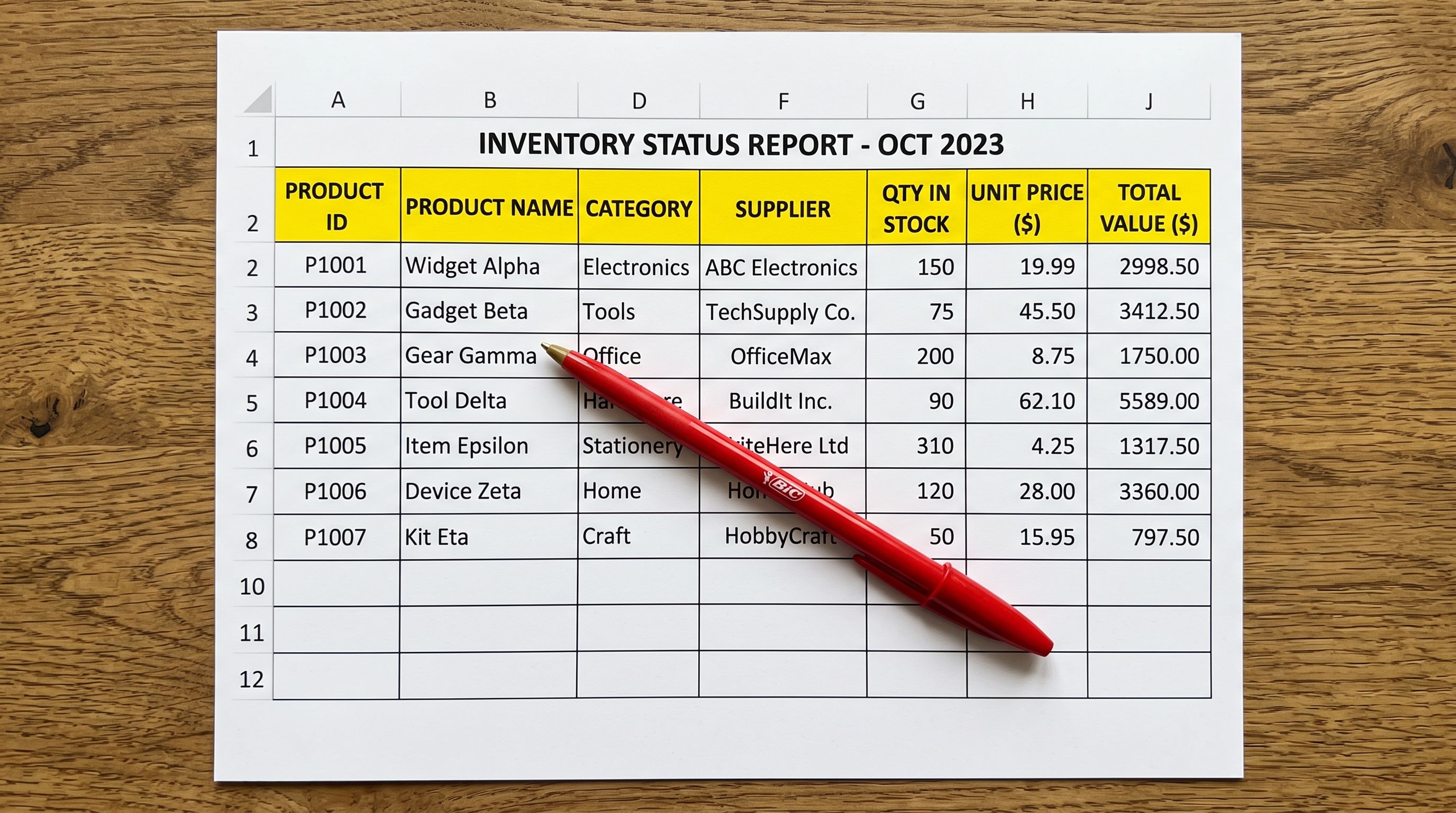
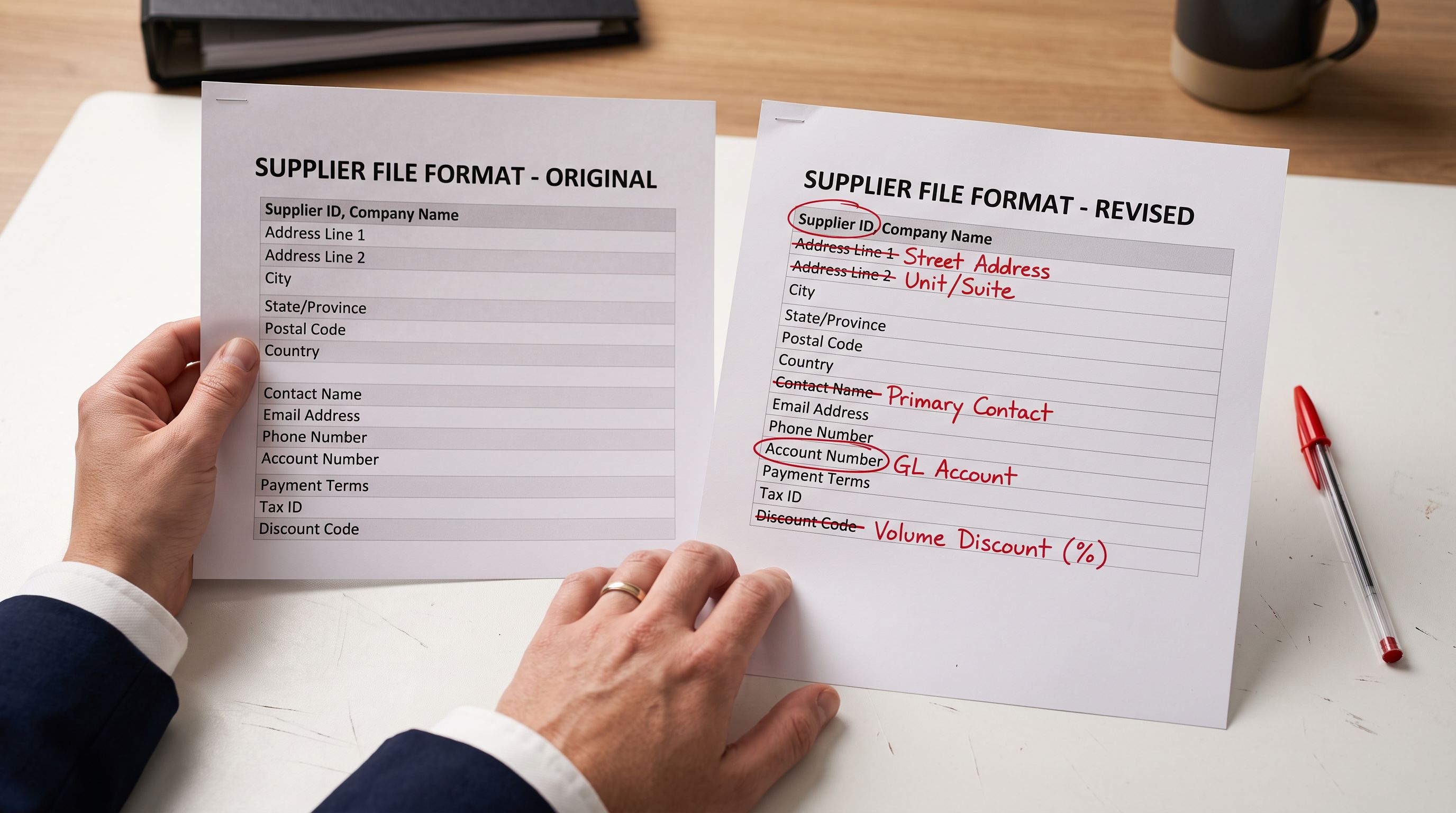
A fashion boutique owner imports new season stock from four suppliers every week. Each supplier sends a CSV in their own format: different column names, different field order, different data conventions. Supplier A labels their price field "RRP", Supplier B uses "Wholesale Price", Supplier C sends two price columns and expects the merchant to choose, Supplier D sends an Excel file with a header row on row three. Every week, the merchant spends 20 to 30 minutes remapping each file before they can start the actual import. They have done this mapping dozens of times. They know exactly how each file maps to Shopify fields. The work is pure repetition. Shopify import profiles solve this by saving the complete mapping and settings for each supplier's file format, so every subsequent import from that supplier runs without touching the configuration.
What Shopify Import Profiles Save
An import profile in Importier captures the full configuration state for a specific file format. When a merchant maps columns for the first time, every setting they configure during that session can be saved as a named profile.
A saved shopify import profile stores:
Column-to-field mappings: which column in the supplier's file maps to which Shopify field. The profile records the exact mapping so the merchant never selects it again. If Supplier A's file always has "Wholesale Price" mapping to the Shopify Price field and "Barcode" mapping to the Shopify Barcode field, the profile applies that mapping automatically when the merchant loads Supplier A's next file.
Enrichment settings: which data enrichment steps run during the import. Some imports need weight filling from product data; others come with complete weight data and only need country of origin. The profile records which enrichment steps are active and which are skipped, so the same enrichment logic applies consistently across every import from that supplier.
AI description settings: model tier, description style, persona, and tone selections. A profile for a technical electronics supplier might save Scale-tier model, Technical Gadget style, Electronics Engineer persona, and Technical tone. A profile for a homewares supplier might save Growth-tier model, Sensory-Rich style, Interior Design persona, and Professional tone. Each profile applies the appropriate AI settings for that supplier's product category automatically.
Publication status and channel settings: whether products are published as Active or Draft on import, and which sales channels they are assigned to. A profile for a drop-ship supplier might default to Draft so new products are reviewed before going live. A profile for an established wholesale supplier might default to Active on the Online Store and POS.

Setting Up Shopify Import Profiles for Multiple Suppliers
The most useful pattern is one profile per supplier. Each supplier has their own file format, their own product categories, and their own data conventions. A profile captures all of those specifics and applies them as a bundle.
- 01Run the first import from a supplier using Importier's import wizard. Map every column as you normally would, configure enrichment, select the AI description settings appropriate for that supplier's products, and set the publication status.
- 02Before pushing, save the configuration as a named profile. Name it clearly for the supplier'Supplier A: Electronics', 'Supplier B: Homewares'.
- 03On the next import from that supplier, load the saved profile at the start of the wizard. Importier applies every mapping and setting from the profile. The merchant reviews the configuration, confirms it still matches the incoming file, and proceeds directly to preview.
- 04If the supplier changes their file format (different column names, additional fields, a new header row), update the profile once to reflect the change. All subsequent imports from that supplier use the updated configuration.
The review step at the start of each import matters. Loading a profile does not skip the configuration review; it pre-fills it. The merchant still sees the mapping and can verify that the supplier's file columns are being read correctly. This verification takes seconds when the file format has not changed, compared to 20 minutes of manual mapping from scratch.
Profiles across different import types
Using Different Profiles for the Same Supplier
A single supplier often sends different file types for different purposes: a new product file at the start of each season, a price update file each month, and an inventory update file weekly.
These three imports have different column requirements. The new product import maps 20 or more fields including descriptions, images, and specifications. The price update maps only Handle and pricing columns. The inventory update maps only Handle and inventory quantities.
Using the same profile for all three import types risks applying the wrong mappings to the wrong import. A new product profile applied to a price update file may map columns that should not be written during a price update, including any fields that appear in the new product file but should be left unchanged during a price update.
The cleanest setup is three named profiles for the same supplier:
- Supplier A, New Products: full column mapping, all enrichment active, AI descriptions enabled
- Supplier A, Price Update: Handle, Price, Compare At Price only; all other columns unmapped
- Supplier A, Inventory: Handle, inventory location, inventory quantity only
Each profile is selected at the start of the corresponding import type. The merchant never has to think about which columns to include or exclude; the profile has already defined it.
One profile per import type per supplier eliminates the most common source of accidental field overwrites: mapping columns that should not be updated during a routine price or inventory import.

For a detailed account of what happens when the wrong columns are mapped during a price update, Shopify import removes product tags covers how a stale mapping in a saved profile cleared a merchant's tag taxonomy on every subsequent supplier import.
Auditing Profiles After Supplier File Changes
Supplier files change. A new ERP system changes column names. A merchandising team adds columns that did not exist last season. A warehouse system changes how inventory quantities are formatted.
When a supplier changes their file format, the saved profile needs to be updated to match. Importing against a stale profile does not fail loudly; Importier will flag columns that the profile expects but cannot find in the new file, but columns in the new file that are not in the profile are silently ignored.
The audit process for each profile is straightforward: at the start of a new season or after any supplier communication about format changes, load the profile and compare the expected column layout against the incoming file. Update any mappings that have shifted. Save the updated profile.
For merchants with many suppliers, scheduling a quarterly profile audit as a standing task prevents configuration drift accumulating over time.
Three things to check when auditing a profile: whether the supplier's column names still match what the profile expects; whether any new columns in the supplier's file should be mapped or explicitly excluded; and whether the AI description settings still suit the products in that supplier's range. A supplier who has added a new product category since the profile was set up may benefit from a different persona or model tier than the original configuration used.
- 20-30 minutes remapping columns for each supplier import
- Different team members apply different mapping conventions
- Occasional mapping errors cause wrong fields to be written
- Four weekly supplier imports take 1-2 hours of setup
- No institutional memory if the person who knows the mappings is away
- Profile applied in seconds at the start of each import
- Consistent mapping applied by any team member who runs the import
- Profile review step catches file format changes before they cause errors
- Four weekly imports take under 10 minutes of setup total
- Mapping knowledge is stored in the profile, not in one person's memory
What Profiles Do Not Save
Import profiles save the configuration for processing incoming supplier data. They do not save the supplier's actual file or schedule the import to run automatically. For merchants who need imports to run on a schedule without manual intervention, Shopify's scheduled imports feature handles automated recurring imports; profiles and scheduled imports work together, with the profile providing the configuration the scheduled import uses.
Profiles also do not save the content of generated descriptions. Each import generates new descriptions based on the incoming product data and the AI settings stored in the profile. Two imports from the same supplier using the same profile will produce descriptions informed by the specific product data in each file, not copies of previously generated descriptions. The profile specifies which AI model tier, style, and persona to use; the descriptions themselves are generated fresh from the products in each batch.
Shopify's product CSV import documentation covers the full set of Shopify product fields and their expected column formats, which is useful context when setting up a profile for a supplier whose file format does not match Shopify's standard column names. For a complete reference on Shopify's product fields and what each stores, Shopify's product details documentation explains each field and what merchants can store in it.
Key Takeaways
Importier's saved import profiles capture the complete configuration for a supplier's file format and apply it automatically on every subsequent import. For merchants running repeat imports from multiple suppliers, profiles replace repeated manual configuration with a single setup step.
- What a profile saves: column-to-field mappings, enrichment settings, AI description settings (model tier, style, persona, tone), publication status, and channel assignments.
- One profile per import type per supplier. A new products profile, a price update profile, and an inventory update profile each map only the columns appropriate for that import type.
- Profiles prevent mapping errors. The most common source of accidental field overwrites is mapping columns that do not belong in a given import type. A dedicated price update profile maps only price columns, protecting descriptions, tags, SEO fields, and all other data from being written.
- Review profiles after supplier file changes. When a supplier updates their file format, update the profile once. Stale profiles quietly ignore new columns or fail to find renamed ones.
- Profiles store configuration, not schedules. For fully automated recurring imports, use scheduled imports in combination with a saved profile.
Start building your first import profiles at importier.app.
Set up your first import in under five minutes.
Importier brings products into Shopify with AI descriptions, category metafields, and data enrichment on every run.