Shopify Product Images Not Importing: Why It Happens

On this page
An outdoor equipment merchant imports 280 products from their supplier's Excel file. Product titles, descriptions, prices, and variant data appear correctly in Shopify admin. Every product page shows a blank image placeholder. The import completed without errors. The image URLs were in the file. The images exist on the supplier's website. Three hours later, every product is still imageless.
The import log shows zero errors. Shopify does not report image fetch failures as import failures. The products were created successfully. The images simply never loaded. This is one of the more disorienting product import problems because the evidence points in two directions at once: the import worked, and the images are missing.
Understanding why image imports fail requires understanding how Shopify handles image URLs at import time, which is different from how it handles every other product field.
How Shopify handles image URLs at import
When you import a product CSV or Excel file into Shopify, the import wizard processes all product data fields (title, description, price, variants, SKU) synchronously. The import is not complete until all those fields are written to your Shopify store.
Image URLs are different. Shopify does not download image files at import time. Instead, it reads the image URL from your file, schedules an external fetch request, and marks the import as complete before that fetch happens. The actual image download runs asynchronously in the background, after the import confirmation message appears.
For a batch of 280 products with 2-3 images each, that is 560-840 individual fetch requests running in the background. Shopify processes these in batches on its own schedule. A merchant who checks their product pages ten minutes after seeing "Import Complete" may find every product imageless. Not because the images failed, but because the fetches haven't run yet.
The distinction between "images are still being fetched" and "images failed to fetch" matters. Acting too quickly, such as re-importing or manually uploading, can create duplicate images for products where the background fetch eventually succeeds.
Five reasons product images fail to import permanently
If images are still blank after 30-40 minutes, the fetch requests have almost certainly failed. These are the five most common causes.

Google Drive and Dropbox sharing links. Supplier image libraries shared via Google Drive or Dropbox use URLs that require an authenticated browser session to access. A URL that looks like https://drive.google.com/file/d/1BxiMV... works in your browser because you are logged into Google. Shopify's background fetch service is not authenticated. It gets a login redirect page instead of the image file. The fetch fails silently, the product is created without an image, and no error appears anywhere in Shopify admin.
The same problem applies to Dropbox shared folder links (dropbox.com/sh/...). These return an HTML preview page when accessed without a browser session.
Fix: download the images from Google Drive or Dropbox to a local folder. Re-upload them to a hosting service that supports direct file URLs (Shopify's own media storage, a CDN, or a standard web server). Use the direct image file URL in the import, not the sharing link.
Expired CDN authentication tokens. Some supplier CDNs generate image URLs with time-limited authentication tokens embedded in the URL. The URL includes a parameter like ?X-Amz-Expires=3600 or ?token=abc123&expires=1722000000. The URL works when you generate the export file, but expires an hour or a day later. If you import the file on the same day you export it, the images may load. If you store the file and import it days later, every image fetch fails because every token has expired.
Fix: re-export the supplier file immediately before importing. Or check whether the supplier CDN offers permanent, unauthenticated image URLs separate from their authenticated distribution URLs.
HTTP instead of HTTPS. According to Shopify's product import and export documentation, all external image URLs must use HTTPS. An image URL starting with http:// will be fetched but may be silently rejected as a mixed-content resource, depending on how Shopify's servers handle the response. In practice, HTTP image URLs fail more frequently than they succeed in Shopify imports.
Fix: check every image URL in your import file starts with https://. If the supplier's image server supports HTTPS (most do), simply replacing http:// with https:// in the URL column resolves the problem.
Local file paths instead of URLs. A supplier CSV that was generated by exporting from a desktop application (ERP software, inventory management tools, legacy catalogue databases) sometimes writes local file paths in the image column rather than web URLs. A path like C:\SupplierImages\Product001.jpg or /home/warehouse/exports/images/product001.jpg is not accessible to Shopify's servers. These will always fail.
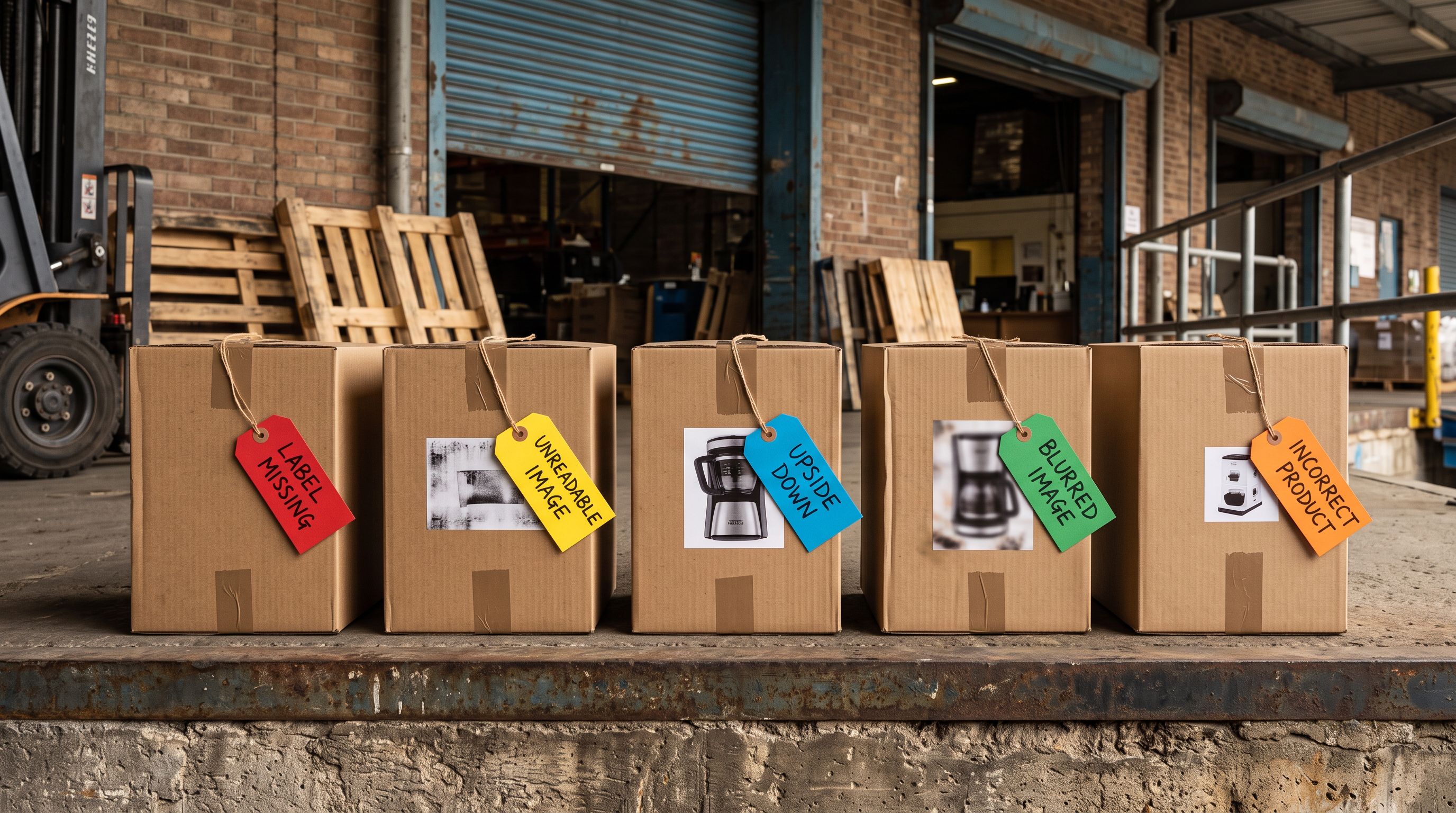
Fix: the supplier needs to export images to a web-accessible location and provide URLs in the file, or provide a ZIP archive of images alongside the CSV. Some import tools, including Importier, accept ZIP archives with images referenced by filename rather than URL.
IP-blocked or rate-limited CDN servers. Supplier CDNs designed for consumer browsers sometimes block or rate-limit requests that look like automated fetches. Shopify's image fetching service uses identifiable server IP ranges and makes many requests in parallel for a single import batch. A CDN configured to allow one request per IP per minute will drop most of those requests.
This failure mode is the hardest to diagnose because it is not visible in the URLs. The image URLs are valid, accessible in a browser, and correctly formatted. They simply fail when Shopify's servers request them at scale.
Fix: download the images manually and re-host them somewhere that does not rate-limit bulk fetches, then re-import with the new URLs.
How to check which images actually failed
Shopify admin does not show an image failure report after a CSV import. To find out which products are missing images:
- 01Step 1Go to Products in Shopify admin. Sort by 'Updated at' descending to bring your recently imported products to the top. Scan for the blank grey image placeholder, which appears in the product thumbnail column for any product without images.
- 02Step 2Click a product with a missing image. Open the Media section. If the section is empty, the image fetch failed or has not run yet. If the section shows an image with a red warning icon, Shopify attempted the fetch and encountered an error.
- 03Step 3For imports via Importier, open Import History for the relevant batch. The batch detail view shows an image failure count alongside the product count. A batch of 280 products with 196 image failures tells you exactly how many images need to be fixed, without checking products individually.
- 04Step 4Export your product catalogue from Shopify admin. Open the CSV and filter the Image Src column for blank cells. Those rows represent products with no image. Re-import with fixed URLs for just those rows rather than the whole catalogue.
Shopify creates the product with no image and no error. The silence is not confirmation that images imported. It is the absence of a failure message.

How to fix products with missing images after import
Once you know which products have failed images, there are three recovery approaches.
Re-import with corrected image URLs. Export your product catalogue from Shopify admin. In the export CSV, find the products with blank Image Src fields. Update the image URL column with correctly formatted HTTPS URLs that do not require authentication. Re-import using Importier with Handle as the match key and only the Image Src column mapped. All other columns should be set to "Do not import" to avoid accidental overwrites. This is the same principle that prevents overwriting inventory during price updates, covered in Shopify import without overwriting inventory.
Upload images directly in Shopify admin. For small batches (under 20 products), open each product in Shopify admin and drag the image files directly into the Media section. Shopify uploads them to its own CDN and assigns them to the product. This is impractical for hundreds of products but works well as a targeted fix for a handful of problem images.
Convert Google Drive and Dropbox links to direct URLs. For Google Drive, the sharing link https://drive.google.com/file/d/FILE_ID/view can sometimes be converted to a direct download URL: https://drive.google.com/uc?export=download&id=FILE_ID. This bypasses the login redirect for publicly shared files. It is not reliable for all Google Drive configurations, but it is worth testing on one image before re-building a full import file.
- Image URLs from supplier CDN may be authenticated or rate-limited
- Shopify fetches images asynchronously after import completes
- No error appears when an image fetch fails, products are created imageless
- Google Drive and Dropbox sharing links fail silently on Shopify's servers
- Diagnosing missing images requires checking each product individually
- Recovery requires a second import run with corrected URLs
- Importier downloads images from the supplier URL during the import process
- Images are re-hosted in the merchant's Shopify media storage before products are created
- If an image URL fails, Importier reports the specific product and URL that failed
- Google Drive and Dropbox sharing links that require authentication are flagged before the import proceeds
- Import History shows an exact image failure count for the batch
- Re-import with fixed URLs uses Handle matching to update only the affected products
Google Merchant Centre and missing product images
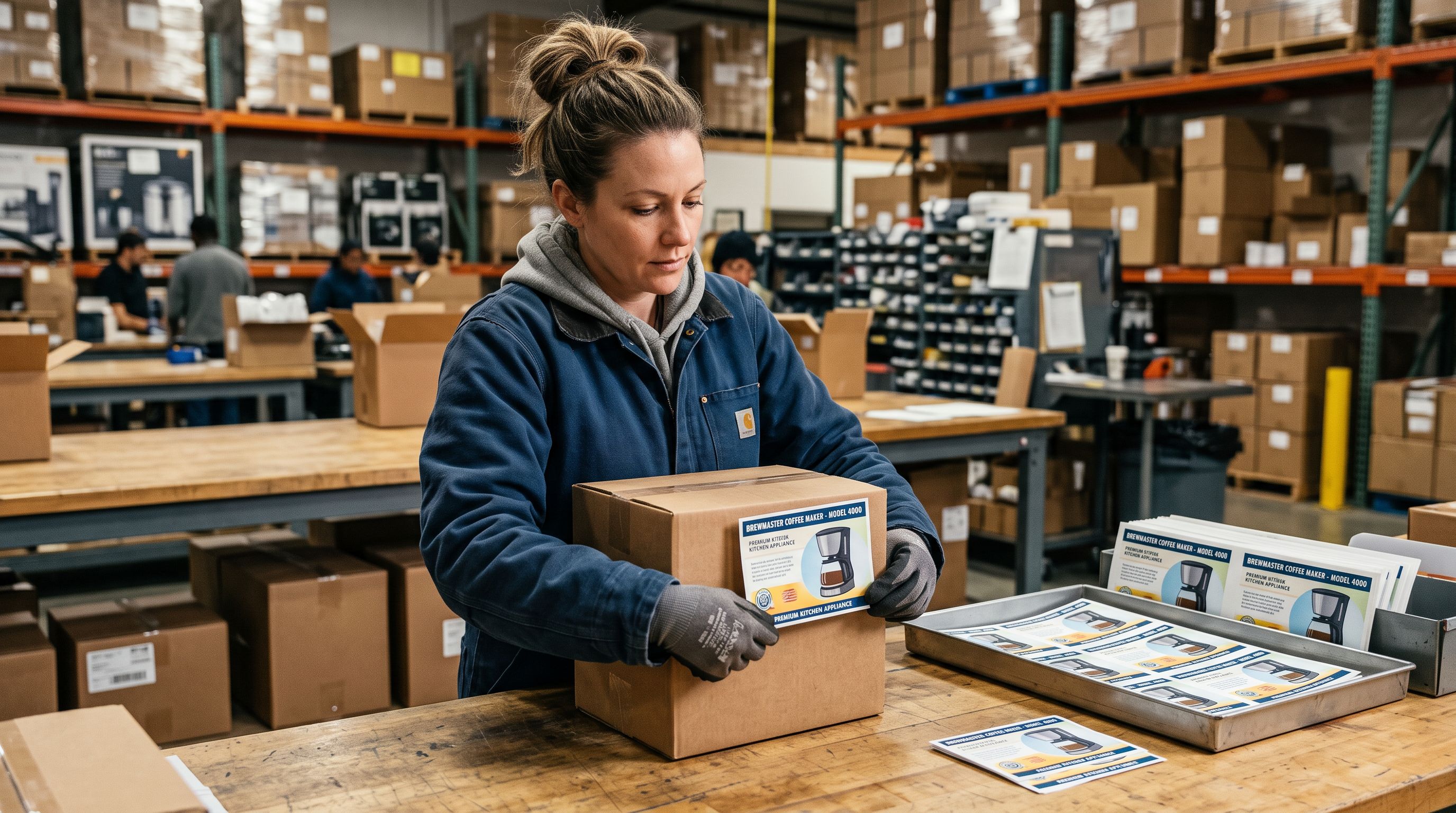
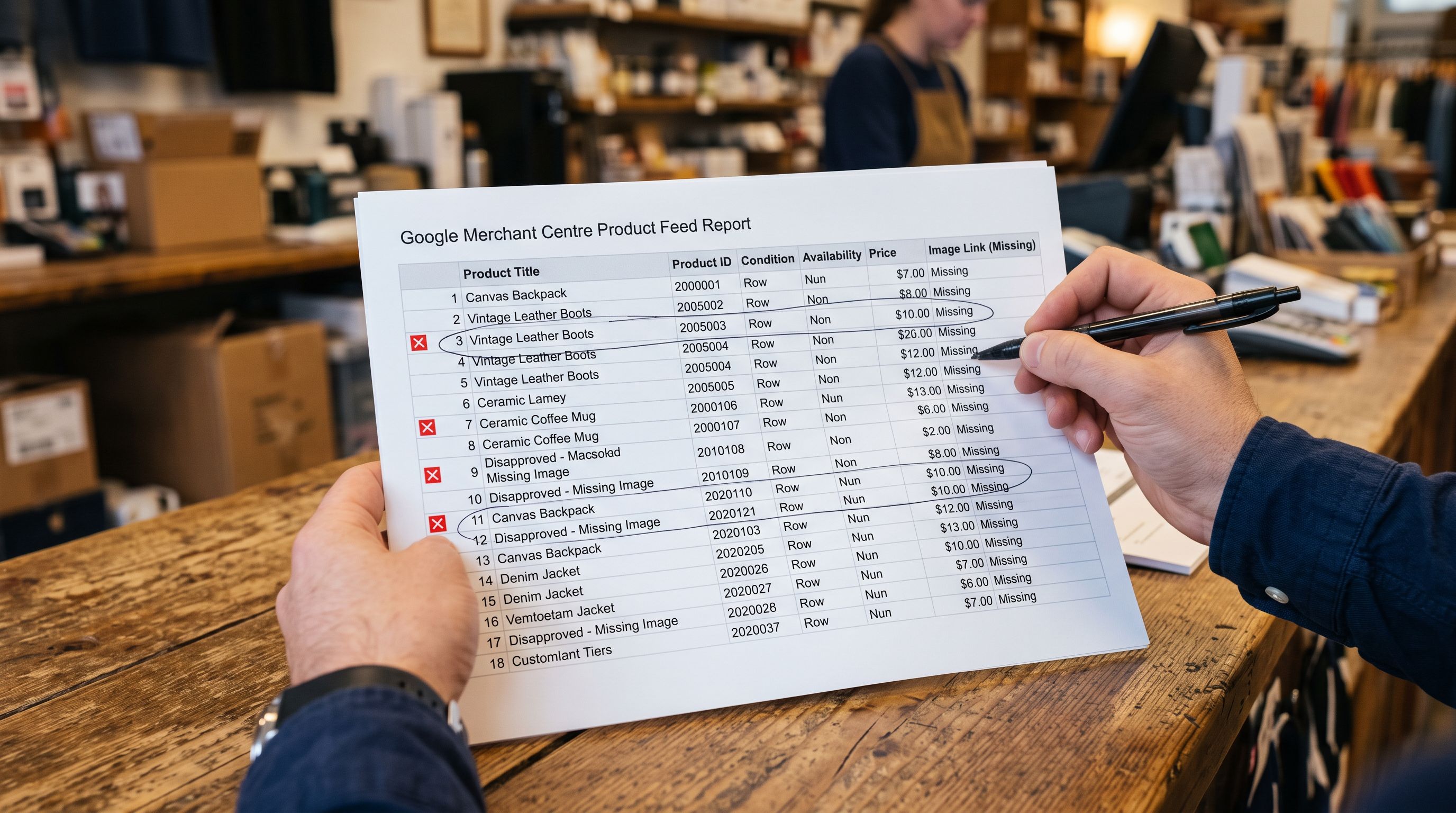
Missing images after import create a secondary problem beyond the storefront: Google Merchant Centre disapproves products without images. According to Google's product image requirements for Shopping, every product submitted to Merchant Centre must include at least one image that meets minimum resolution requirements (250×250 pixels for non-apparel, 64×64 pixels minimum for all products, with no image placeholders or promotional overlays allowed).
If your Shopify-to-Google feed connector runs after an import where images failed to load, it submits products with no Image Link attribute. Merchant Centre then disapproves those products with "Missing required attribute: image_link." The feed can be resubmitted once images are correctly assigned, but Merchant Centre processes resubmissions over 3-5 business days, not immediately.
For merchants who run Google Shopping, fixing image import failures promptly reduces the time those products spend disapproved and out of Shopping inventory.
Preventing image import failures at the source
The most reliable way to avoid image fetch failures is to not rely on external URLs at import time. Three approaches prevent the problem rather than recovering from it.
Use Shopify-hosted image URLs from a previous export. If you already have products in Shopify with images correctly uploaded, export those products. The Image Src column in the Shopify export contains CDN URLs from Shopify's own media storage (cdn.shopify.com/...). These never require authentication and never expire. For re-import scenarios where you are updating existing products, use the existing Shopify image URLs rather than the supplier's original URLs.
Download and re-host supplier images before importing. For new products with supplier image URLs, download the images from the supplier and upload them to a reliable hosting location before importing. This adds preparation time to the import workflow but eliminates the async-fetch problem entirely.
Use an import tool that downloads images during import. Importier downloads images from the supplier URL at the time you run the import, before the import is submitted to Shopify. The image is stored in your Shopify media library as part of the import batch. Shopify never needs to fetch from an external URL. If the image URL is inaccessible at import time, Importier reports the failure immediately in the import wizard, not as a silent post-import problem.
Images are part of the import, not an afterthought
Key takeaways
Product images are imported differently from every other product field. Shopify fetches image URLs asynchronously after the import completes, which means blank images right after an import may be temporary. But when image fetches fail permanently, there is no error message. The product is simply created without an image.
- Wait 30-40 minutes before diagnosing image failures. Shopify's background fetching takes time for large batches. Blank images immediately after "Import Complete" are not necessarily permanent.
- Google Drive and Dropbox sharing links fail silently. They return a login redirect instead of the image file. Use direct, unauthenticated HTTPS URLs or download and re-host images before importing.
- Check Image Src in a Shopify export to find missing images at scale. Filter the export CSV for blank Image Src values rather than checking individual product pages.
- HTTP image URLs fail in Shopify imports. All image URLs must use HTTPS.
- Fix image failures with a targeted Handle-based re-import. Export your catalogue, update Image Src for blank rows, re-import with only the image column mapped.
- Google Merchant Centre disapproves products without images. Missing images from import failures create feed disapprovals that take 3-5 business days to resolve after images are corrected.
Fix product image imports at the source with Importier's 14-step guided wizard at importier.app.
Set up your first import in under five minutes.
Importier brings products into Shopify with AI descriptions, category metafields, and data enrichment on every run.