Shopify Variant Price Wrong After Import: Fix in Bulk
On this page
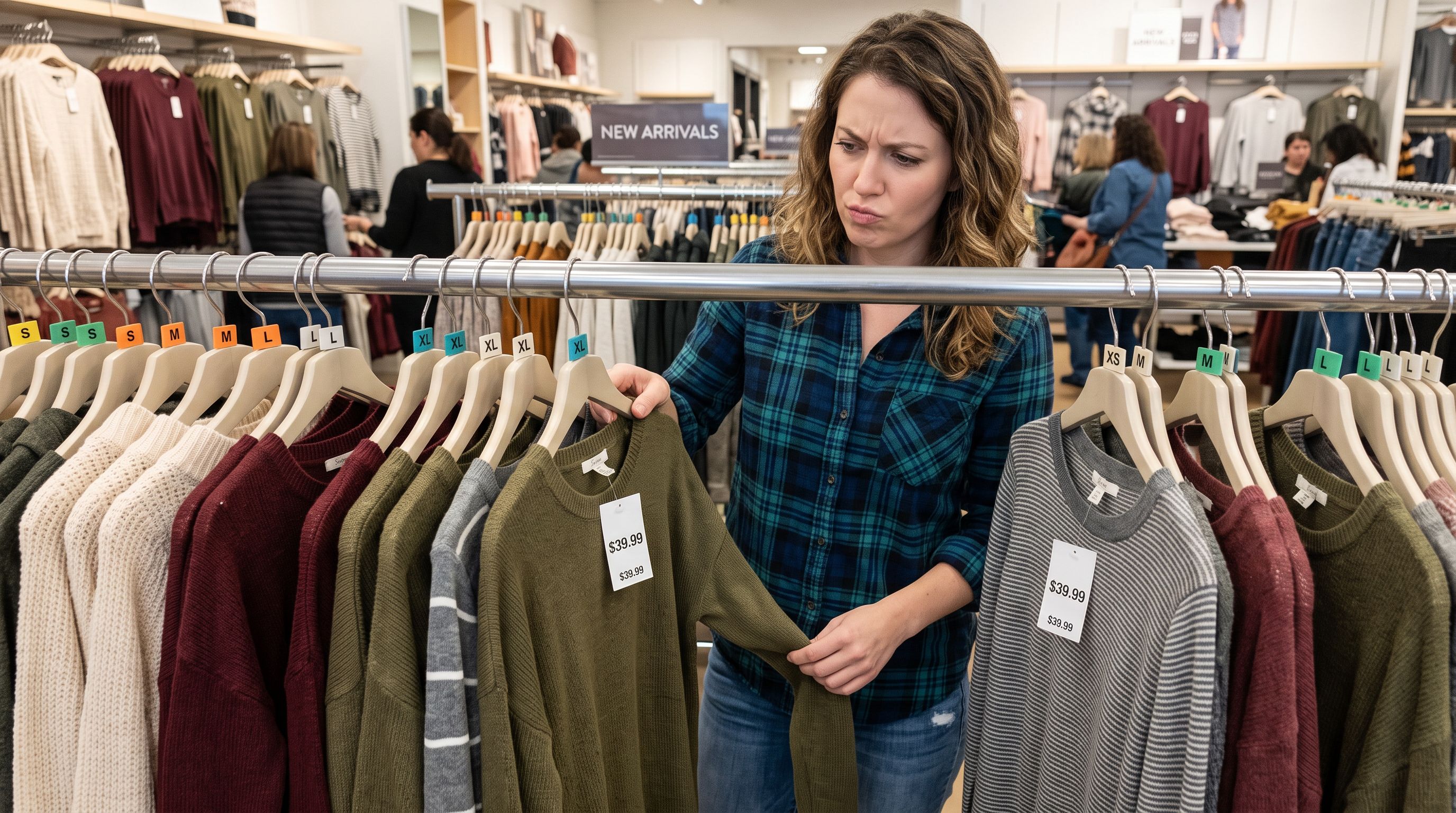
A sporting goods merchant imports 180 products from their supplier's Excel file. Each product has four size variants, each with its own price tier. The import completes without errors. A team member checking the storefront notices that every size of every product shows the same price: the price for the smallest size. The XL variant that should be $129.00 shows $79.00. The large that should be $109.00 shows $79.00. All 720 variants display the entry-level price.
The import log shows zero errors. Every product was created. The prices in the supplier file were correct. The column mapping was wrong.
Shopify variant price wrong after import problems are common precisely because they produce no error message. The import completes, products are created, and wrong prices sit on live product pages until a customer or team member notices. Finding every affected variant and correcting prices across 720 rows is not a task for manual editing.
Why shopify variant price wrong after import happens silently
Shopify stores prices at the variant level, not the product level. A product with four size variants has four separate price records. When you view a product in Shopify admin and edit the price field at the top of the page, you are editing the price of the first variant only, or all variants simultaneously depending on the context.
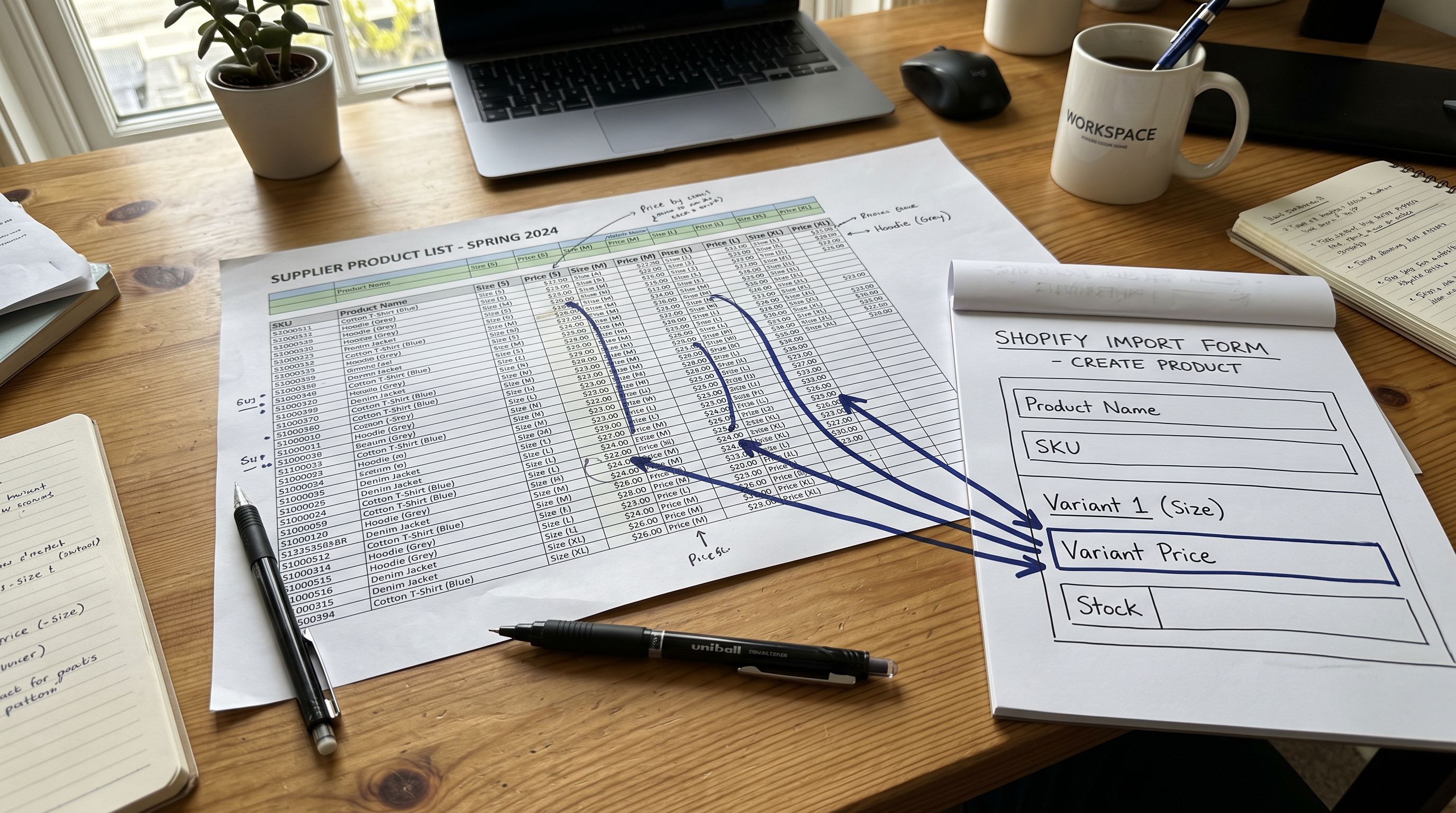
In a CSV import, the Variant Price column sets the price for each variant row. A product with four sizes requires four rows, each with its own Variant Price value. If the import file uses a different price column structure, such as a single product-level price column or separate columns per size, the mapping determines which price value gets written to Shopify.
The most common causes of wrong variant prices after import are:
A single price column mapped to the wrong field. Supplier files sometimes include a "Price" column that represents the base or default price, with separate columns for each variant's price tier (S Price, M Price, L Price, XL Price). An import wizard that auto-maps "Price" to Variant Price writes the base price to every variant row, ignoring the size-specific columns entirely. The import succeeds, all 720 variants are created, and every variant shows the base price.
Price in a format the parser did not recognise. Some supplier files use thousand separators or currency symbols in price cells: "$1,234.00", "1.234,56" (European format), or "USD 79.00". A parser that does not handle the formatting reads "1" from "$1,234.00" and creates a variant priced at $1.00. No error is returned. The import produces products with plausible-looking but incorrect prices.
Compare-at price mapped instead of price. Files that include both a regular price and a compare-at price (for strikethrough display) are sometimes mapped in reverse. The Variant Compare At Price column gets the actual selling price, and Variant Price gets the higher original price. Products appear with compare-at prices lower than their selling price, which means no strikethrough displays and the selling price appears inflated.
Decimal and currency handling in multi-currency files. When a supplier provides prices in multiple currencies across separate columns, and the wrong currency column is mapped to Variant Price, every variant is priced in the wrong currency denomination. A product priced at 79 EUR mapped to a USD store shows $79.00 when the correct price might be $86.00 or $92.00 after conversion.
How to find every variant with a wrong price
For 720 variants across 180 products, manual checking is not feasible. There are three approaches to identifying the full scope of the problem.
Export and inspect. Export your product catalogue from Shopify admin using the standard Products export. Open the CSV and filter the Variant Price column. Sort by price ascending. If every variant shows the same low value (or a narrow price band when you expected a wide range), the scope is clear: all variants in the affected batch have the wrong price.
Exportier's SEO Audit or Pricing export preset. Importier's Pricing export preset produces a file with product title, handle, SKU, variant options, current Shopify price, and compare-at price for every variant. For a post-import price audit, this file shows which variants are priced identically when they should be differentiated, and which have compare-at prices that appear lower than the selling price. The export runs against your full live catalogue, so it reflects exactly what Shopify is showing customers right now.
Import History batch review. If you ran the import through Importier, the Import History entry for the batch shows the product count and the file that was imported. Knowing the batch boundaries narrows the price audit to exactly the products that batch touched, rather than requiring a full catalogue review.

- 01Step 1Export your Shopify catalogue (Products > Export). Open the CSV and sort Variant Price ascending. Note the lowest price value and how many rows share it. If all variants from the batch show the same price, that value is the incorrectly mapped base price.
- 02Step 2Open the original supplier file. Locate the column that should have been the source for each variant's price. Confirm the correct price for each variant by matching the variant's SKU or option values against the supplier's size-price table.
- 03Step 3In the Shopify export CSV, update the Variant Price column for each affected row with the correct price from the supplier file. Delete all columns except Handle, Variant SKU, Variant Price, and Variant Compare At Price (if applicable). This produces a price-correction file with only the data that needs to change.
- 04Step 4Import the corrected file using Importier with Handle as the match key and only Variant Price mapped. Set all other columns to 'Do not import'. The import updates only the price field for each matching variant without touching descriptions, images, or inventory.
Correcting prices without a second full import
The safest way to fix wrong variant prices is a targeted import that updates only the price field. This is the same selective field update approach used to correct inventory without touching descriptions, covered in Shopify import without overwriting inventory.
For a price-only correction:
The correction file needs three columns: Handle (to match the existing Shopify product), Variant SKU or variant option columns (to match the specific variant row), and Variant Price (the correct price). No other columns should be included or mapped.
When Importier runs this import with Handle as the match key, it matches each row in the correction file to an existing Shopify product and updates only the Variant Price field for that variant. Descriptions, images, inventory, and all other fields remain unchanged.
The Review step shows the proposed Variant Price values for every row before the import commits. For a 720-row correction, spot-checking 20 rows across different products and size groups confirms the mapping is working correctly before any price is overwritten. This is the same review table that catches mapping errors at the source, as covered in Shopify import preview and confirm. Seeing "$129.00" in the review row for an XL variant and "$79.00" for the S variant confirms the size-based pricing is now correctly mapped.
A price correction import that updates 720 variants takes the same steps as any import: build the file, map the columns, review the proposed values, confirm. The only difference is that the file contains one column of data instead of twenty.
Using Import History to confirm the fix
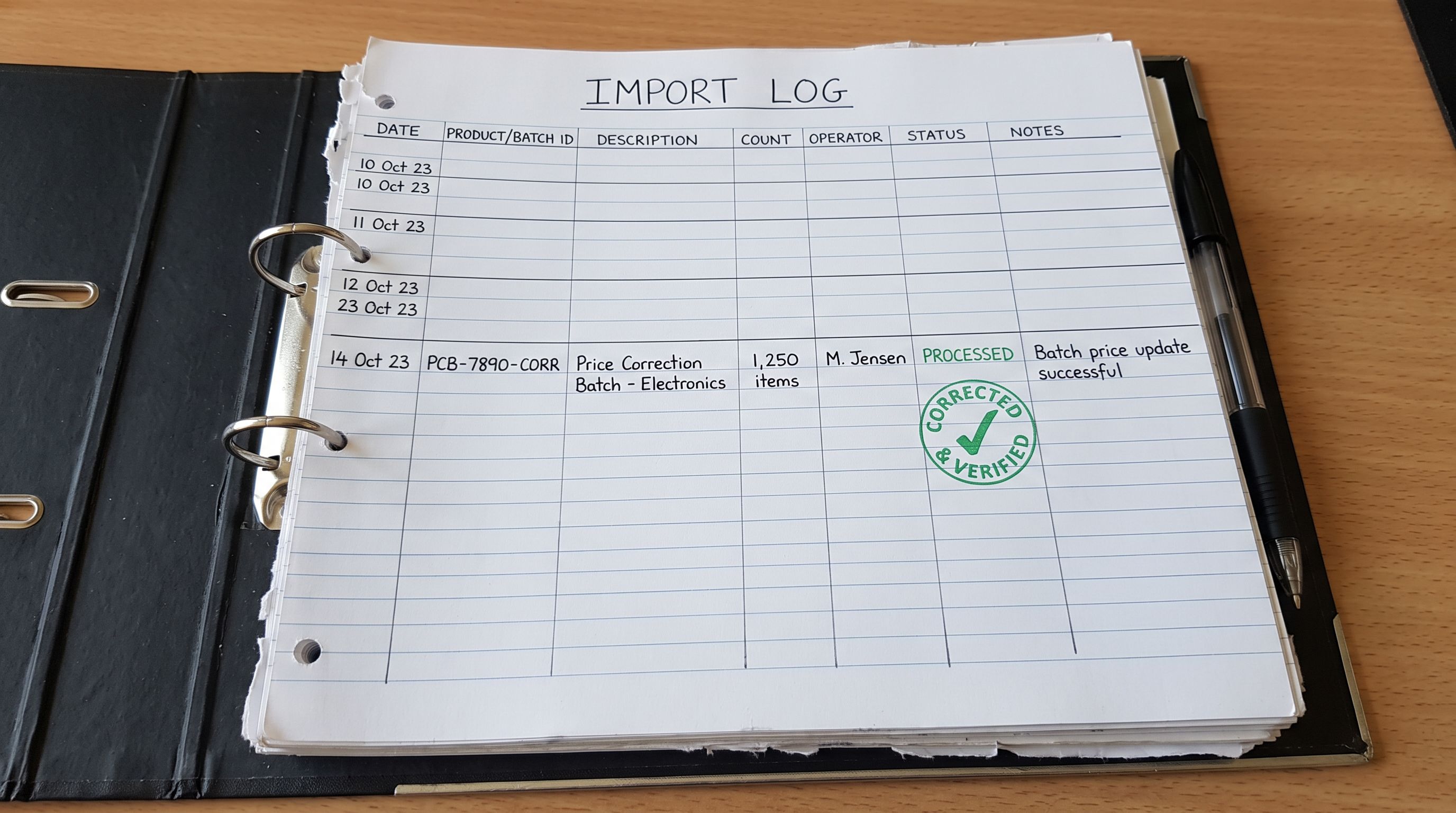
After running the price correction import, Import History logs the batch with the date, time, and product count. For the sporting goods merchant, the correction batch shows 180 products updated.
The confirmation step is a second export. Run the Pricing export preset again after the correction import. If every variant now shows its correct size-based price tier, the fix is complete. If some variants still show the base price, those rows may have had SKU mismatches that prevented them from matching in the correction import. The Pricing export identifies the remaining exceptions so they can be corrected individually or in a follow-up batch.
Import undo is available if the correction import produces wrong results. If the corrected prices are still incorrect (for example, the wrong column was used as the source in the correction file), Import History's undo function reverts all 180 products to their pre-correction state. For price changes on live products, this is the recovery option that avoids manually resetting 720 variant prices.
- Wrong variant prices only surface when a customer or team member manually checks a product page
- Finding all affected variants requires opening products individually or exporting and inspecting a large CSV
- Shopify's bulk editor allows manual price changes but requires locating each variant in the interface
- No confirmation that all variants have been corrected without checking each product page after editing
- If corrections introduce new errors, each one requires another manual fix
- The Pricing export preset produces a complete variant-by-variant price list from the live catalogue in one file
- Sort Variant Price ascending to identify the scope of the problem immediately
- The correction import updates only the Variant Price field for each matched variant using Handle and SKU matching
- The Review step shows proposed prices for every variant row before any price is overwritten
- Import undo reverts all corrections if the correction file itself has an error
Fix first, then prevent
Preventing wrong variant prices at import time
The Review step is the primary prevention. Before an import commits any data to Shopify, the review table shows every mapped field's proposed value for every row. For a variant-heavy import, the review table shows each variant row with its Variant Price value.
Checking five rows for each product type (the smallest size price, the largest size price, one mid-size) takes under five minutes for a 180-product import. If every XL row shows $79.00 when it should show $129.00, the mapping error is visible before any product is created. Return to the column mapping step, assign the size-specific price columns to the correct variant rows, and re-run the review.
According to Shopify's product import and export documentation, Variant Price is a per-row field that sets the price for the specific variant on that row. Shopify's guide to editing and managing variants explains how variant-level pricing differs from product-level defaults, an important distinction when building import files for tiered pricing. A file with one price column and four variant rows for each product must have four different Variant Price values in that column for a product with tiered pricing. If all four rows show the same value, the source column is a product-level price, not a variant-level price.
The second prevention is checking the supplier file structure before mapping. If the supplier's file has separate price columns per variant option (Price S, Price M, Price L, Price XL), those must be restructured into a single Variant Price column before importing. Each variant gets its own row, and the Variant Price value on that row is the price for that specific size. Importier's column mapping and Smart Variant Detection handle the variant row grouping. The price column must be correctly mapped to the Variant Price field, not to a product-level field that will apply the same value to all variants.
Key takeaways
Wrong variant prices after a Shopify import are a silent failure. The import produces no error, all products are created, and incorrect prices sit on live product pages until someone notices.
- Wrong variant prices come from column mapping errors, not file errors. The supplier's price data is usually correct. The problem is that the import mapped the wrong column (a product-level base price) to the Variant Price field, writing the same value to every variant row.
- Find the full scope with a Pricing export. Sort the exported CSV by Variant Price ascending to see how many variants share the incorrect price. The answer tells you whether you have a handful of exceptions or 720 affected rows.
- Fix with a selective Handle-based import. Build a correction file with Handle, Variant SKU, and Variant Price only. Map only the price column. The import updates the Variant Price field for each matched variant without touching descriptions, images, or inventory.
- The Review step shows proposed prices before they commit. A spot-check of five rows per product type takes minutes and confirms whether size-based pricing is mapping correctly before the import runs.
- Import undo is available if the correction itself is wrong. If the correction file contains a source error, Import undo reverts all changed products to their pre-correction state in one action.

Fix wrong variant prices across your full catalogue with Importier's guided import wizard at importier.app.
Set up your first import in under five minutes.
Importier brings products into Shopify with AI descriptions, category metafields, and data enrichment on every run.