Shopify Product Data Deduplication: Before and After Import
On this page
A duplicate product in Shopify costs more than catalogue clutter. It splits inventory across two records, dilutes SEO equity between two URLs, creates order fulfilment confusion when staff pick the wrong listing, and counts twice toward the monthly product allowance if both records were created through an import or AI content session. For a 300-product catalogue with 50 silent duplicates, that is a 17% allowance leak every billing month.
Shopify product data deduplication is not a one-step fix. Duplicates enter catalogues at three distinct stages, and each stage has its own detection and resolution method. This article covers the full cycle: identifying duplicates in the source file before importing, reviewing the product list in the import wizard before committing, and auditing the live catalogue post-import to catch anything that slipped through.
Why Duplicate Products Enter Shopify Catalogues
Most duplicate problems trace back to one of three causes:
Multi-supplier overlap. A lighting fixture merchant sourcing from two Australian distributors will find the same products in both price lists. Each distributor assigns a different part number to the same product, so the two rows look distinct in a CSV. Imported separately, they create two Shopify products with different titles but identical barcodes.
Reimport after editing. When a merchant exports their Shopify catalogue, edits product data in a spreadsheet, and reimports the modified file, the result depends entirely on whether the Handle column is preserved. Shopify's CSV format uses Handle as the match key: a row with a Handle that already exists in the store updates the existing product, while a row without a Handle or with a modified Handle creates a new one. Editing a Handle (or omitting it entirely) turns an update into a duplicate.
Legacy platform migration. Merchants migrating from WooCommerce, BigCommerce, or a custom system import existing products from their old platform's export. If the old platform used a different identifier format (numeric IDs, product codes with slashes, or compound SKU-colour keys), those identifiers do not map cleanly to Shopify Handles. Without explicit Handle column mapping, every migrated product creates a new Shopify record even when the product already exists in a partial previous migration.
Before the import
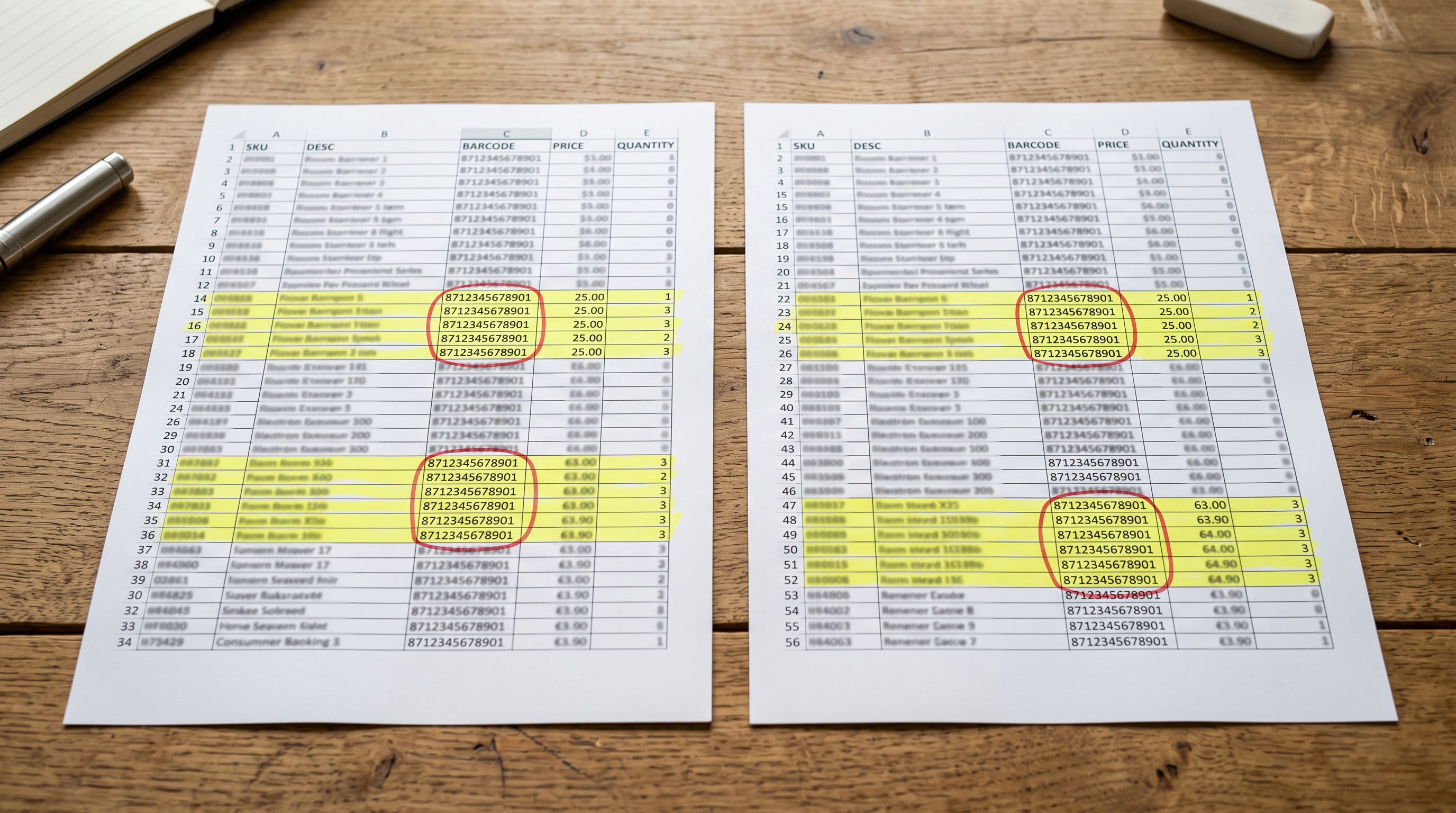
Deduplicating the Source File Before Import
Cleaning duplicates from the supplier CSV before it enters Shopify is the most effective stage. Catching a duplicate in a spreadsheet takes 30 seconds. Catching it after import, once it has been AI-enriched, categorised, and potentially had orders placed against it, can take hours.
- 01Normalise the identifier columnsSupplier SKUs often have formatting inconsistencies: 'SKU-1234', 'sku1234', and 'SKU 1234' may all refer to the same product. Add a helper column that strips hyphens, spaces, and converts to uppercase. TRIM and UPPER functions in Excel or Google Sheets handle most cases
- 02Sort by barcode and scan for duplicatesIf the supplier CSV includes barcodes (EAN or UPC), sort the file by that column. Identical barcodes in adjacent rows are duplicates. Use COUNTIF to count how many times each barcode appears; any barcode with a count greater than 1 flags a duplicate row
- 03Sort by normalised SKU and check for overlapApply the same COUNTIF approach to the normalised SKU column. This catches duplicates where two rows have the same product but different title formats
- 04For multi-supplier files, use VLOOKUP across sheetsWhen combining two supplier exports into one file for import, create a third column in Supplier A's sheet that runs VLOOKUP against Supplier B's SKU or barcode column. Any match is a cross-supplier duplicate candidate: verify by title and remove or merge the lower-priority row
- 05Remove or flag before importDelete confirmed duplicates from the file. For products that exist in both suppliers with legitimately different pricing (a valid reason to keep both), consider a column that notes the reason; this prevents them being re-flagged in future imports
One specific scenario worth calling out: when importing from a supplier whose CSV has a unique product code but no barcode, the duplicate cannot be detected by barcode matching alone. In this case, Importier's barcode lookup step can fill in the missing barcode fields: it retrieves product barcodes from the product's title and specifications during import. If two rows resolve to the same barcode during enrichment, they are likely duplicates. This is easier to detect after a test import of a small batch than in the raw supplier file.

During the import
Reviewing the Product List Before Committing
Importier's import wizard walks through each stage of the import before any products are pushed to Shopify. By the time the merchant reaches the product list review stage, the wizard has already applied column mapping, variant detection, and AI enrichment to every row. The resulting product list is a full preview of what will be created in Shopify.
At this stage, duplicate candidates are visible in two ways:
Title duplicates appear in the product list. Two rows from different sections of a supplier CSV that resolved to the same AI-generated title signal a possible source-level duplicate. If both rows have the same title and similar specifications, return to the source file and merge them before committing.
Handle mapping controls update vs create behaviour. During the column mapping step, the merchant assigns which column in the supplier CSV maps to Shopify's Handle field. For first-time imports, the Handle column is typically left blank (the Handle is generated from the product title during import). For reimports and updates, mapping an existing identifier column (such as the internal SKU or the previous Shopify Handle from an export) to the Handle field tells Importier to update existing products rather than create new ones. This is the single most effective deduplication control in the wizard.
Mapping an existing identifier to the Handle field during reimport is the difference between updating 300 products and creating 300 duplicates.
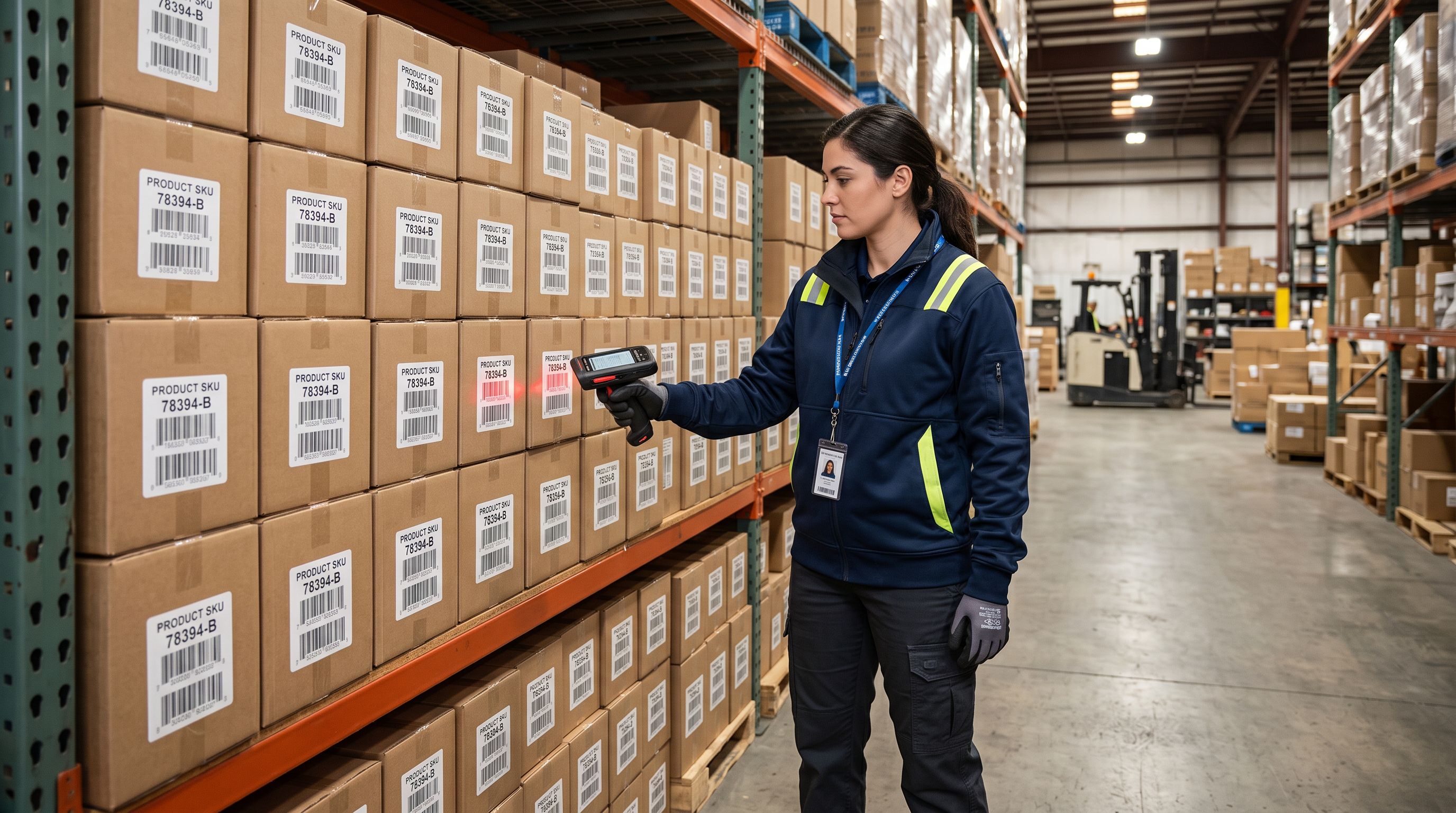
If a merchant is not certain whether a supplier file contains products already in their Shopify store, the safest workflow is a 10-product test import. The wizard allows selecting a row range from the source file. Import 10 rows, check whether the products appear as new listings or updates to existing ones, then proceed with the full batch if the Handle mapping is correct.
Post-Import Duplicate Audit
Duplicates that survive pre-import screening and the wizard review will appear as separate products in Shopify admin. Finding them requires a systematic audit:
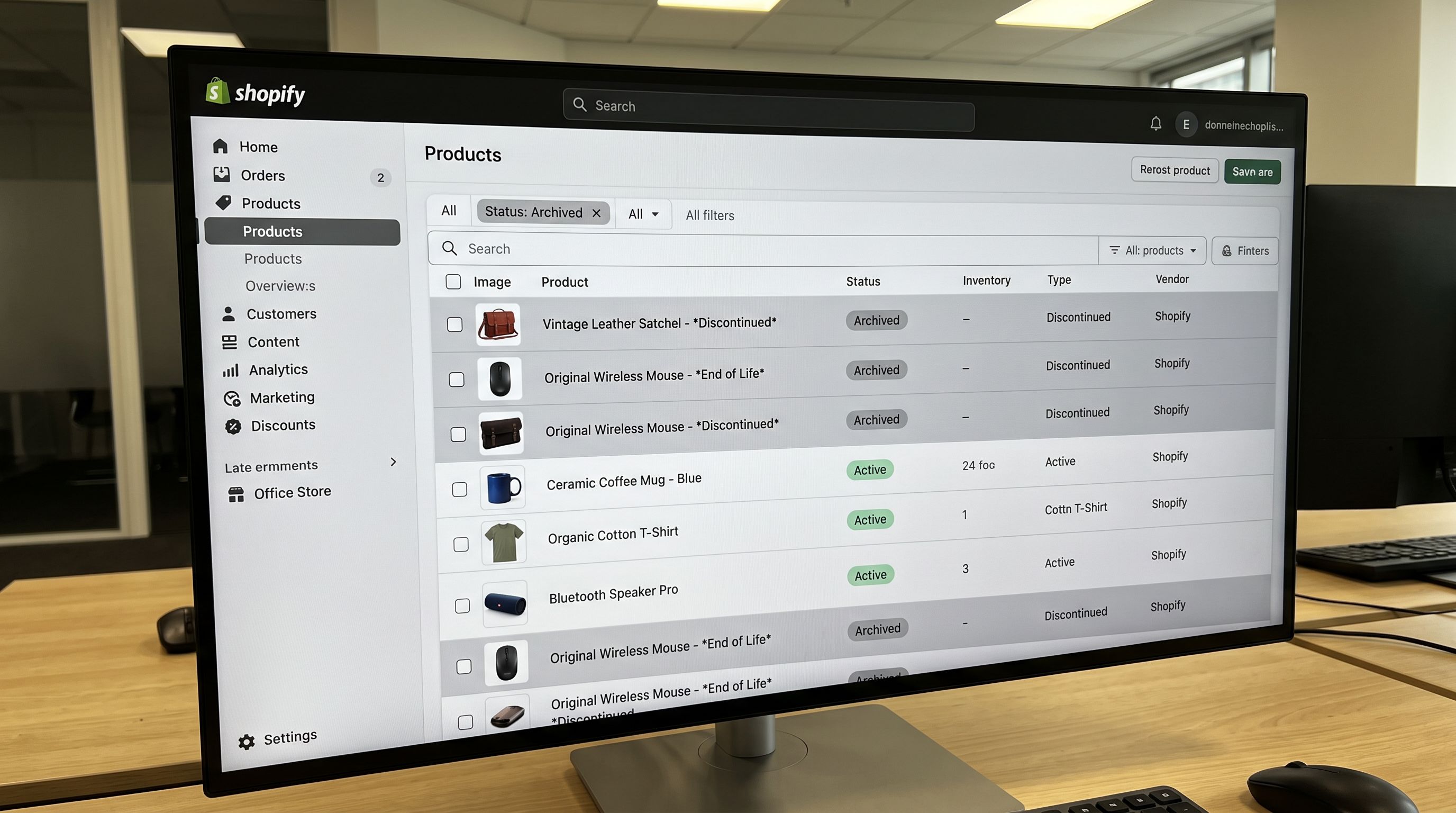
Sort by title in Shopify admin. From Products in the Shopify admin, sort the product list alphabetically by title. Near-identical titles appear in adjacent rows. This is the fastest method for a catalogue under 500 products.
Export and sort by barcode. For larger catalogues, export the full product list from Shopify (Products → Export → All Products), open in a spreadsheet, and sort by the Barcode column. Identical barcodes in multiple rows confirm duplicates. Any product with a blank barcode is a candidate for barcode enrichment before the next deduplication audit.
Use Importier's Import History as a reference. The Import History section records every import session with date, time, and product count. If a session shows an unexpected product count (for example, 300 products created when the expectation was 50 updates), the downloaded CSV for that session shows exactly which rows were processed. Cross-referencing the imported Handle values against the existing catalogue pinpoints which rows created new products when updates were expected.
Check for duplicate URLs from previous imports. Each Shopify product has a unique URL based on its Handle. If two products share the same title and similar content, both rank for the same search terms and compete with each other in Google. The post-import duplicate cleanup process covers how to bulk-delete the lower-priority product and consolidate its traffic.
- Multi-supplier duplicates create double the product count
- Reimport without Handle mapping adds 300 new products instead of updating existing ones
- Post-import duplicate audit required: 2-4 hours for a 500-product catalogue
- Duplicate products split SEO equity and inventory count
- Monthly allowance consumed by duplicates that should not exist
- Barcode and SKU normalisation catches cross-supplier duplicates before import
- Handle column mapping controls update vs create behaviour precisely
- Product list review in the import wizard catches title-level duplicates before committing
- Clean catalogue with no inventory splits or SEO dilution
- Monthly allowance accurately reflects unique product count

Merging Duplicate Product History Without Breaking Orders or URLs
Once duplicates are identified, deletion is not always the right step. Two situations require extra care:
Active orders against the duplicate. Shopify orders reference internal product IDs, not Handles or URLs. A fulfilled order against a duplicate product will not break if the product is later deleted.
An open or in-progress order needs to be fulfilled or cancelled before the product record is deleted. The order itself is not affected; the product detail page linked from the order confirmation will return a 404 once the product no longer exists, but the order data remains intact.
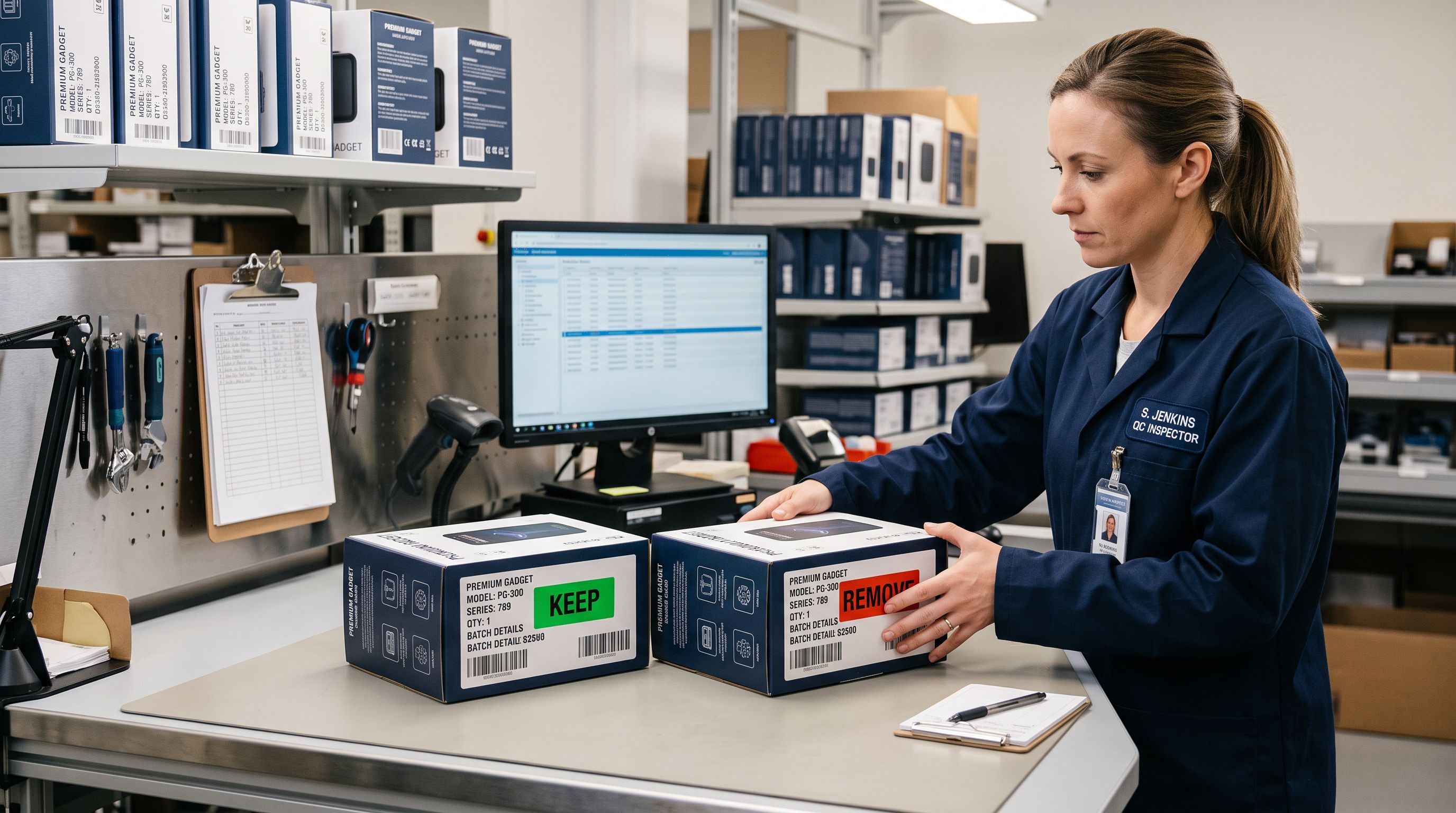
Indexed URLs. If the duplicate product has been live long enough to be indexed by Google, its URL carries some organic value. Deleting it without a redirect sends that traffic to a 404. Shopify's URL redirect feature allows setting a 301 redirect from the old product URL to the canonical product's URL. For products with meaningful incoming links or search impressions, adding the redirect before deleting the duplicate preserves the SEO equity.
For products imported using the Import Undo feature, duplicates from a specific session can be reverted cleanly without touching other products in the catalogue. The undo covers all products from that session.
Key Takeaways
- Shopify uses the Handle column as the deduplication key for CSV imports: a row with an existing Handle updates the product, a row without one creates a new product
- Pre-import deduplication catches multi-supplier overlap using barcode and normalised SKU matching before the import runs
- During the import wizard, mapping an existing identifier (SKU, old Handle) to the Handle field controls whether rows update existing products or create new ones
- Post-import audits use title sorting in Shopify admin and barcode column sorting in an exported CSV to surface surviving duplicates
- Deleting a duplicate product that has been indexed requires a 301 redirect from its URL to the canonical product URL to preserve SEO equity
- Importier's Import History records every session and allows downloading the imported file for cross-reference against the existing catalogue
See the full import workflow at importier.app. The import wizard walks through Handle mapping, column assignment, and the product list review before anything is pushed to Shopify.
Related Articles
Set up your first import in under five minutes.
Importier brings products into Shopify with AI descriptions, category metafields, and data enrichment on every run.
Free for your first 10 products. No credit card needed.