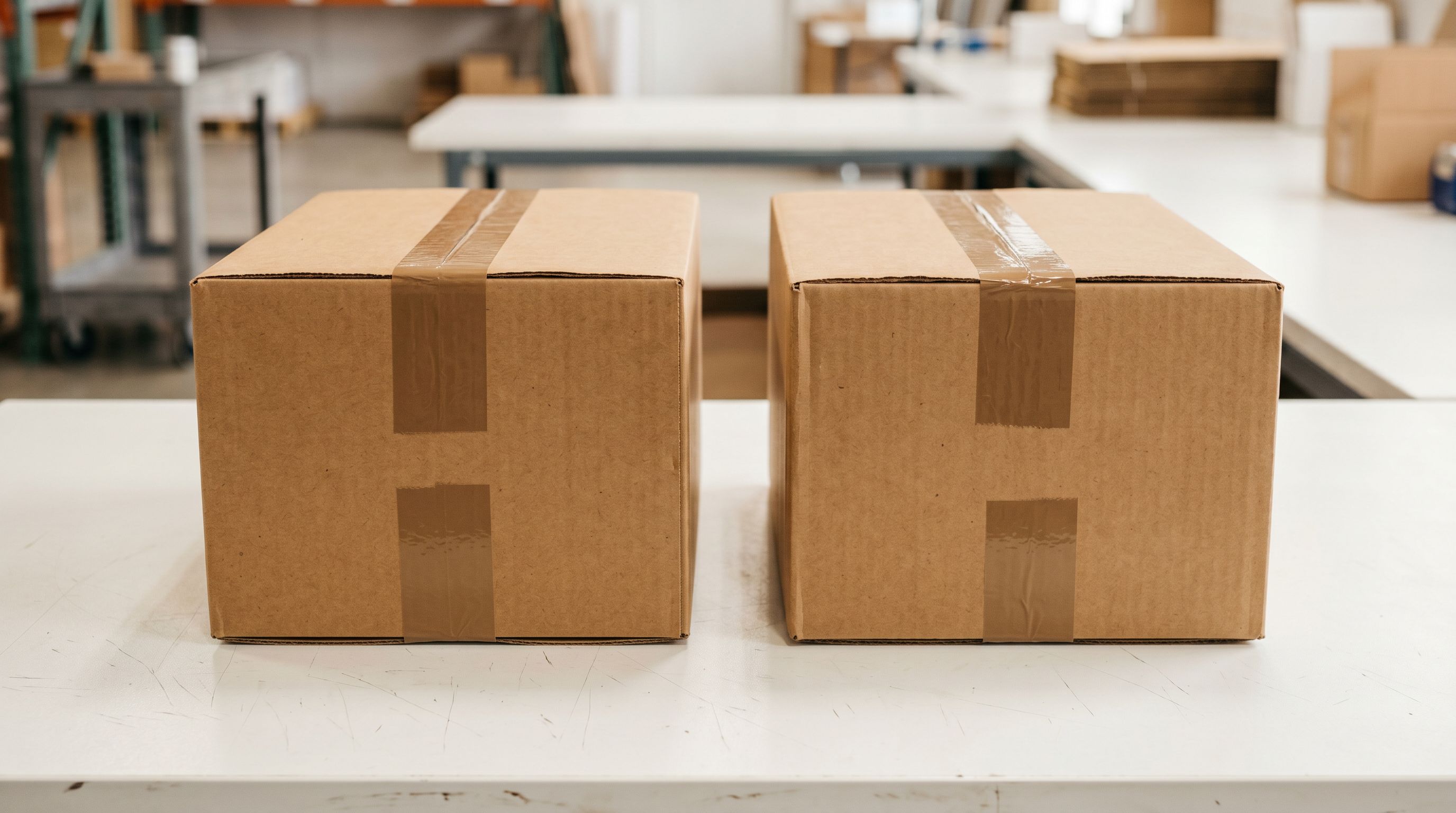
How to Fix Duplicate Products in Shopify After an Import
On this page
You imported a supplier catalogue, went to check the product list, and found every product has appeared twice. Or you ran what you thought was an update and created 400 new listings on top of the 400 that were already there. Duplicate products after a Shopify import are one of the most common and most frustrating outcomes merchants deal with. They are almost always caused by the same underlying issue.
This guide explains exactly why Shopify creates duplicates during an import, how to find every affected product in your admin, and the fastest route to removing them without disrupting any live orders.
Why Shopify Import Creates Duplicate Products
Shopify uses the Handle column as its deduplication key during every product import. The Handle is the unique URL-safe identifier for each product: a lowercase hyphenated string derived from the product title. When you import a CSV, Shopify checks whether a Handle already exists in your store. If it does, Shopify updates that product. If it does not, Shopify creates a new one.
This system works correctly when the Handles in your import file match the Handles already in your store. It breaks down the moment they do not match, even when the product titles are identical. Three scenarios account for the vast majority of duplicate imports.
Supplier CSV with no Handle column. Shopify generates Handles from the product title. Re-import the same file and Shopify regenerates the same Handles, updating existing products correctly. But if the supplier has updated their CSV (adjusted a title, changed capitalisation, removed a trailing SKU), the generated Handle changes. Shopify creates a new product instead of updating the old one.
Re-importing the same file after an apparent failure. A merchant uploads a file, waits, and sees the product count unchanged. Assuming the import failed, they upload again. In many cases the first import ran correctly, and the second run creates duplicates because Shopify now has two competing Handle records for the same products.
Importing a new supplier CSV over an existing catalogue. If your current products were created by one file and you now import an updated file from the same supplier, any Handle mismatches between the two, however minor, produce duplicates. Shopify does not match products by title or SKU. It matches by Handle only.
The Handle-Level View vs the Title-Level View
Here is the insight that explains why duplicate imports often feel invisible until significant damage has occurred. Merchants navigate their product admin by title. You search for "Merino Wool Beanie" and see one result. Shopify tracks products by Handle. Two products with identical titles but different Handles are two completely separate products: both live, appearing on the storefront, and indexed by search engines.
A product titled "Merino Wool Beanie Navy Medium" with Handle merino-wool-beanie-navy-medium and a second product with the same title and Handle merino-wool-beanie-navy-medium-1 are both active. Shopify auto-increments Handles when a collision occurs at creation time. The merchant sees one title in search. Shopify has two products in the database. Both appear in collections. Both get indexed by Google as separate pages with near-identical content.
This is why duplicate imports often surface weeks later when someone checks the live storefront, or when Google Search Console shows a sudden spike in indexed pages with thin content. By then, the import that caused the problem may be long past the immediate memory of anyone on the team.
Shopify's own documentation covers the Handle column in detail, including how Shopify generates it from product titles and why stable Handles are important for import workflows. Shopify's CSV column reference is the authoritative source on what each column does.
How to Find All Duplicate Products
Three detection methods cover different catalogue sizes.
Sort by title in Shopify admin. Open Products, set the sort order to Title A to Z. Genuine duplicates appear adjacent to each other in the list. For catalogues under a few hundred products, a visual scan is enough to identify every affected product.
Export the full catalogue and sort by Handle. Use Shopify's native export or Importier's Full Shopify CSV export preset to download every product as a spreadsheet. Sort the CSV by Handle. Products with matching titles but different Handles appear in adjacent rows. The Handle column shows what Shopify actually sees, not the title-level view, and makes every duplicate visible regardless of catalogue size.
Shopify's product export guide explains how to export your full product list, including the Handle column, for analysis in a spreadsheet.
Check Importier's Import History. If the duplicates appeared after a specific Importier import run, Import History shows you exactly which batch created which products. Navigate to the Import History tab, find the batch by date, and review the product count. Cross-referencing the batch date with when duplicates appeared in your admin confirms whether that run is the source.
The Fastest Fix: Import Undo
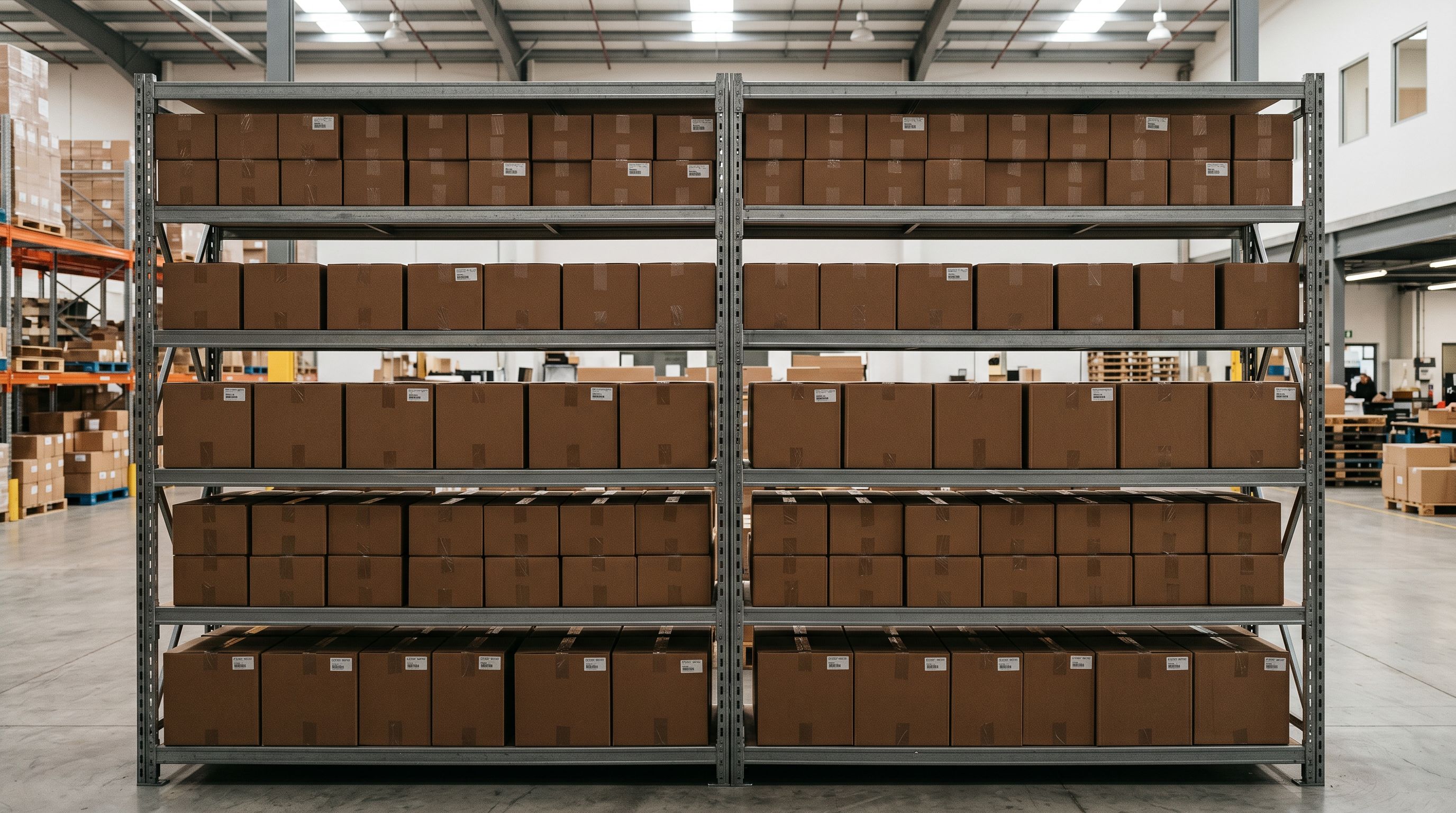
If the duplicates appeared in a recent Importier import (within 60 days, within the 20-snapshot limit per store), Import Undo is by far the fastest fix available.
Import Undo removes every product from a specific batch in a single step. It does not touch products from other import batches. It does not affect orders that have been placed against those products. An order for a product in the batch stays intact in Shopify. The product listing is removed from the storefront.
Navigate to Importier, open Import History, find the batch that created the duplicates, and click Undo. For a batch that created 300 duplicate products, the entire cleanup runs in under a minute. Importier processes the removal and logs the undo action in the activity log.
One boundary to be aware of: Import Undo removes only the products that Importier created in that specific batch. If the batch updated some existing products (Handle matches) and created others (new Handles), the undo removes the newly created ones and reverts the updated ones to their state before the batch ran. Products from earlier batches or from the native Shopify importer are unaffected.
For a full walkthrough of how Import Undo works and what it covers, see the guide to undoing a Shopify product import.
Manual cleanup
How to Delete Duplicates Without Import Undo
For duplicates outside an Importier batch (from older imports, from the native Shopify CSV importer, or from stores with more than 20 accumulated snapshots), manual deletion is the direct approach.
In Shopify admin, filter the product list by the property that links the duplicates: a collection, a vendor name, or a product type. Select the duplicate products using the checkboxes and use the bulk action to delete them. For a large catalogue, working in filtered batches is faster than scrolling through an unfiltered list.
If you are working from a spreadsheet export, identify the Handles of every product you want to remove. You can build a deletion list from that export and use it to verify you have captured every affected product before deleting in Shopify admin.
Preventing Duplicate Products on Future Imports
Prevention comes down to two practices: checking the import preview before committing, and using a Handle source that does not change between supplier updates.
Importier's 14-step import wizard shows the create vs update split before any product reaches Shopify. If you expect to update 50 existing products but the preview shows 30 creates and 20 updates, that discrepancy is your signal that 30 products are about to become duplicates. Stop there, investigate the Handle mapping, and fix it before confirming.
- Import commits to Shopify immediately
- No visibility into creates vs updates before products go live
- Duplicates appear in the admin before you can catch them
- Cleanup required after the fact
- Create vs update split shown before any product is created
- Catch Handle mismatches while the import is still staged
- Investigate and fix column mapping before confirming
- No duplicates, no cleanup
The second practice is using a stable identifier as the Handle source. Product titles change. Suppliers rename products, add variant suffixes, and reformat descriptions between catalogue updates. SKUs and barcodes should not change. In Importier's wizard, map the Handle source to the SKU column if your supplier provides one. The Handle stays consistent across catalogue cycles even when titles shift.
- 01Export your current product Handles from Shopify before importing from the same supplier again
- 02Open the Importier import wizard, upload the supplier file, and check the preview pane for the create vs update split
- 03Investigate any unexpected createsthese are potential duplicates before they happen
- 04Run a test batch of 20 to 30 products first to validate Handle mapping before committing the full import
For the complete safe import procedure, including how to compare Handles before and after a batch, see Shopify Product Import: Avoiding Duplicates and Overwrites.
Getting Handle Mapping Right in Importier
The first time you import from a given supplier, the column mapping you set in Importier's wizard determines the Handle source for every subsequent import from that supplier. If you map Handle to the product title, the Handle changes whenever the title changes. If you map Handle to SKU, the Handle stays fixed.
To check your current Handle mapping, open the import wizard, upload the supplier file, and advance to the column mapping step. Find the Handle row in the mapping table and confirm it is pointing at a column that does not change, not the title column.
Once the mapping is correct, Importier saves the configuration as part of your import settings. Every re-import from that supplier uses the same column mapping automatically.
The Shopify CSV import guide covers the Handle column structure in detail, including how to prepare a supplier CSV that uses stable Handle values before it reaches the import wizard.
After the Cleanup: A Quick Content Check
Once duplicates are removed and the Handle mapping is stable, a brief follow-up pass on product content is worth running. Products that were duplicated sometimes have their variant configuration split across both versions, with some variants assigned to one product and others to the duplicate. After removing the duplicate, check that each remaining product has its correct variant set.
Importier's Store Scanner can then run a targeted pass on any products that came through without AI-generated descriptions. Filter by the collection affected, set the push mode to Append to add content below existing descriptions, and run the batch. The scanner works on existing Shopify products without requiring a re-import.
Key takeaways:
- Shopify deduplicates by Handle, not by product title. Two products with identical titles but different Handles are both published and both indexed.
- The fastest cleanup for a recent Importier import is Import Undo: removes the entire batch in one step without touching other products or live orders.
- Checking the import preview (create vs update split) before confirming an import catches Handle mismatches before any duplicates go live.
- Map your Handle source to SKU rather than product title. Titles change between supplier updates; SKUs should not.
- For recurring supplier imports, Importier saves your column mapping so the same Handle logic applies automatically on every subsequent run.
Try Importier free at importier.app
Set up your first import in under five minutes.
Importier brings products into Shopify with AI descriptions, category metafields, and data enrichment on every run.