Shopify Product Video and 3D Model Metafields at Import

On this page
Shopify Product Video and 3D Model Metafields at Import
There are two ways to put video on a Shopify product page. The first is to embed a YouTube or Vimeo player in the product description (fast, widely supported, works in every theme). The second is to store the video URL as a Shopify metafield, referenced by an Online Store 2.0 (OS2) theme component that renders the video in a structured media slot separate from the description.
The difference matters at scale. A 500-product catalogue where every product has a demo video, a 3D model URL, and an accessibility caption cannot be managed by manually pasting values into Shopify admin. The metafield approach is the one that imports cleanly from a supplier CSV, but it requires the right column mapping and an understanding of which metafield namespace and key the theme component reads.
This article covers the full workflow: how supplier CSV data maps to Shopify video and 3D model metafields, what namespace and key naming conventions OS2 themes use, how to import caption and alt-text metafields for accessible video content, and where the approach differs from bulk video embedding in product descriptions.
Why Metafields Rather Than Body HTML for Video
When a supplier provides video URLs in a CSV, the first instinct is to map the video column to Shopify's Body HTML field and embed an iframe. That works. It is also the most supported approach for older themes.
Metafield-based video storage is the structured alternative, used by OS2 themes that render product media independently of the description text. These themes expose dedicated blocks for video, 3D models, and other non-image media that sit alongside the product gallery rather than inside the description copy.
The practical advantages at import time:
Video stays separate from description copy. When you regenerate or update product descriptions with AI, the video metafield is not touched. With iframe embeds in body_html, regenerating the description overwrites the embed code. With metafields, the video reference and the product copy are independent fields.
3D model files need metafields, not embeds. Shopify supports .glb (GLB) and .usdz (USDZ) format 3D models for AR try-on experiences. These are not embeddable as iframes; they are stored as hosted media or as external URL metafields. There is no alternative to metafields for this media type.
Structured data enables downstream use. A video URL stored in a metafield can be queried via the Storefront API, used in Google Merchant Centre structured data, or pulled into a headless frontend. A video URL buried in a body_html iframe is not structured data.
The import workflow

Column Mapping: From Supplier CSV to Shopify Metafields
Supplier CSVs that include video or 3D model data typically have one or more of these column patterns:
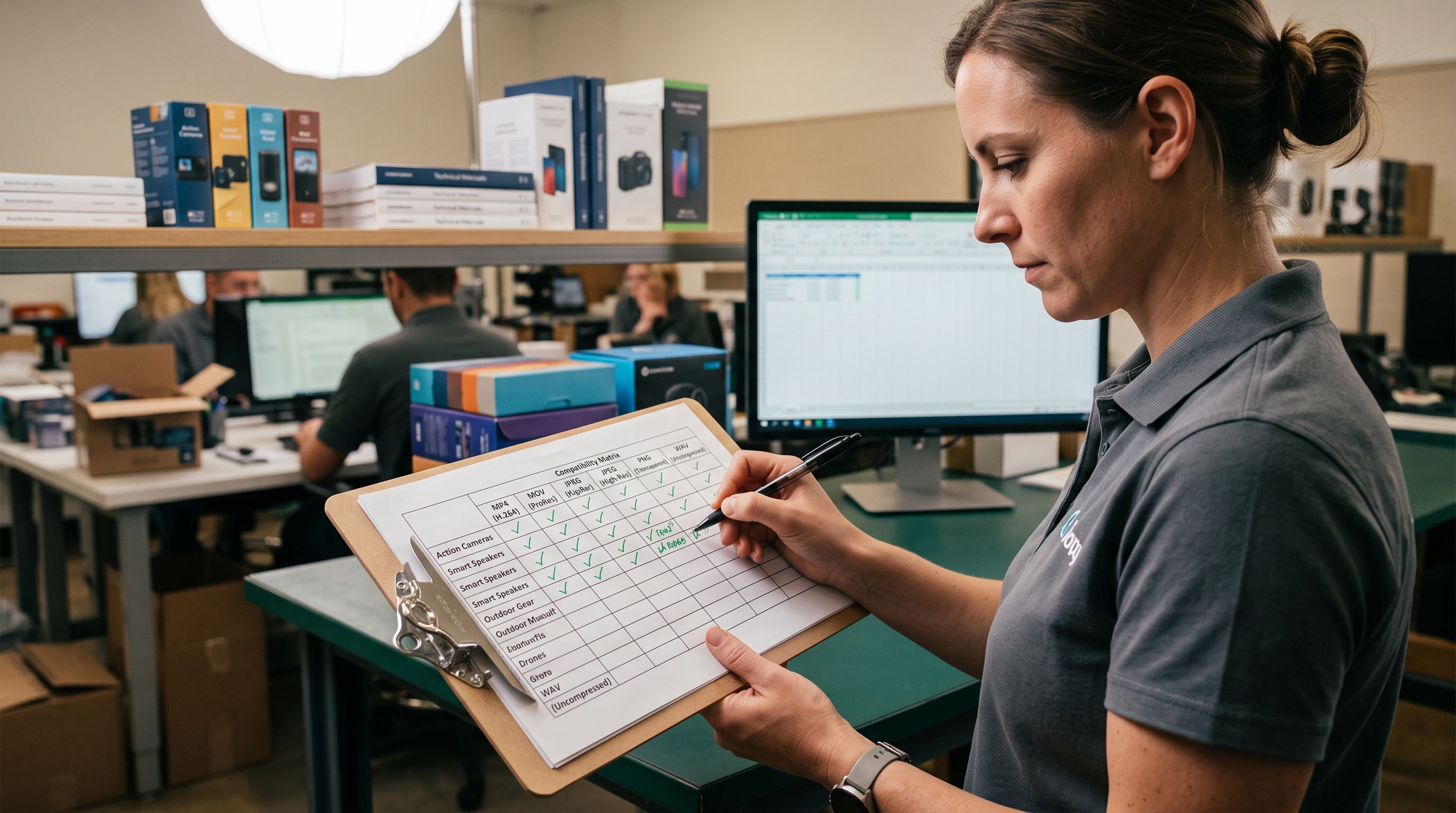
video_url: a YouTube, Vimeo, or direct MP4/MOV URLvideo_id: a YouTube video ID (thev=parameter value) without the full URLmodel_3d_url: a GLB or USDZ file URL hosted on a CDNar_url: a USDZ file URL specifically for iOS AR Quick Lookvideo_caption: accessibility caption text for the videovideo_alt: accessibility alt text describing video content
During the Importier import session, the column mapping step exposes a metafield mapping interface. For each supplier column you want to store as a metafield, you define:
- The namespace: a grouping identifier, usually the theme's registered namespace
- The key: the specific field name within that namespace
- The type: single_line_text_field for URLs and IDs, file_reference for hosted media references
For a typical OS2 theme media component, the namespace is custom (or the theme's own namespace) and the key matches the variable name the theme block reads. Common conventions:
custom.video_url: full YouTube/Vimeo URL for a video blockcustom.video_id: YouTube video ID only (the theme constructs the full embed URL)custom.model_3d: GLB file URL for 3D viewercustom.ar_model: USDZ file URL for iOS ARcustom.video_caption: accessibility captioncustom.video_alt_text: alternative text for the video
Check your theme's metafield documentation (usually in the theme's setup guide or the Schema section of the theme editor) to confirm the exact namespace and key names it uses. The naming convention is theme-specific.
3D Model Metafields for AR Try-On
According to Shopify's theme media documentation, OS2 themes can render .glb files for Android AR via the model-viewer component and .usdz files for iOS AR Quick Look. These file formats are uploaded to Shopify's media library and referenced by the product record; they can also be stored as external URL metafields when the files are hosted on a third-party CDN.
- 01Confirm the file formatGLB files work on Android AR via model-viewer; USDZ files work on iOS AR Quick Look. Suppliers providing 3D data typically give one or both. If only GLB is provided, iOS AR Quick Look will not trigger
- 02Map the URL columns in Importierassign the GLB URL column to the custom.model_3d metafield key and the USDZ column to custom.ar_model (or whichever keys your theme uses)
- 03Set the metafield type correctly3D model URLs stored as metafields use single_line_text_field (a URL string); file_reference is for Shopify-hosted media IDs
- 04Verify on a test product after importthe theme's 3D viewer block should detect the GLB metafield and render the model-viewer component. AR Quick Look activates from the USDZ metafield on iOS Safari
- 05Check OS2 compatibilitynot all OS2 themes include a 3D model block by default; if the block is absent, add it via the theme editor using the metafield key the import populated
The fashion and footwear categories have the highest adoption of 3D models because try-on reduces returns. Electronics and furniture use 3D for assembly preview. For high-volume catalogues in these categories, importing 3D model URLs from the supplier's asset sheet at the same time as the product data prevents the alternative: opening each product individually in Shopify admin and uploading the files manually.
For fashion and footwear catalogues with 3D model data, mapping GLB and USDZ URL columns at import time is the only approach that scales. Opening 300 product records to upload 3D files one by one takes more time than the initial import itself.

Caption and Alt-Text Metafields for Accessible Video Content
Accessibility requirements for video content on product pages go beyond providing the video itself. The Web Content Accessibility Guidelines (WCAG) recommend captions or transcripts for pre-recorded video content. Criteria 1.2.2 (Captions, Pre-recorded) requires captions for all pre-recorded video with audio on web pages.
Shopify's native product media library does not have a caption field. Themes that implement accessible video display read captions and alt text from metafields. If the supplier provides this data in the CSV (many do for products already sold on platforms with accessibility requirements), it imports cleanly alongside the video URL.
The metafield keys for accessibility data follow the same namespace pattern:
custom.video_caption: a brief description of what the video shows, displayed below the video player for screen reader compatibilitycustom.video_alt_text: alt text for the video thumbnail image
For products that do not have caption data in the supplier CSV, Importier's AI description generator can produce caption text from the product title and specifications as part of the import session. The generated text is mapped to the caption metafield rather than to body_html; it does not appear in the product description, only in the accessible caption slot.
The comparison
- Open each product in Shopify admin; paste video URL into metafield field
- No standard for namespace and key naming across the team
- AI description regeneration overwrites video embeds in body_html
- 300 products with video, 3D model, and caption data takes 10+ hours to populate manually
- No connection between supplier CSV column names and Shopify metafield keys
- Map supplier CSV columns to metafield namespace and key in the Importier wizard
- Consistent namespace and key naming enforced by the column mapping configuration
- AI descriptions and video metafields are independent fields; regenerating copy never touches the video reference
- 300 products import in one session with all metafields populated
- Column mapping documented in Import History for reproducibility
What Stays in Body HTML
The metafield approach is not a replacement for all video in product descriptions. Some cases still belong in body_html:
Legacy theme compatibility. If the store runs an older theme without metafield blocks, the description embed is the only option that renders for customers. Metafields in this scenario are stored but invisible.
Short product descriptions with embedded context. For products where the video is explained by surrounding copy ("Watch how to apply:" followed by the embed), keeping the video inside the description maintains the reading flow. Separating it into a metafield loses the narrative context.
Supplier-provided HTML descriptions. When a supplier provides product descriptions as HTML strings that already contain video embeds, mapping the entire HTML column to body_html preserves the supplier's intended layout. Parsing out the video URL and re-mapping it to a metafield is extra work with no benefit if the theme does not use the metafield block.
For importing full product data from supplier websites where the source page has embedded video, Importier extracts the video URL from the page structure and can map it either to body_html or to a metafield column depending on the destination theme.
Verifying Metafield Import Results
After the import completes, two checks confirm the rich media metafields populated correctly:
Check the product metafields in Shopify admin. Open a product that should have video and 3D model metafields. Scroll to the Metafields section at the bottom of the product edit page. The namespace and key pairs should appear with the imported values. If a metafield is absent, the column mapping for that field did not trigger; usually because the source column was blank for that row or the namespace/key combination was entered incorrectly.
Check the theme block renders. In the theme editor (Customise), navigate to a product page template for a product with video metafields. If the theme includes a video block that reads from the metafield, it should preview the video. If the block is present but the video does not appear, the metafield key the block expects does not match the key that was imported.
Import History records the full session including the metafield column mappings. If the import needs to be re-run with corrected namespace or key names, the downloadable session CSV shows exactly which values were written to which fields, useful for diagnosing namespace mismatches without opening individual products.

Key Takeaways
- Product video and 3D model data stored as Shopify metafields is independent from product descriptions; AI description regeneration never overwrites metafield values
- 3D model metafields use single_line_text_field type with a GLB URL for Android AR and a USDZ URL for iOS AR Quick Look; both can be mapped from supplier CSV columns at import
- The namespace and key naming convention for video metafields is theme-specific; check the theme's block documentation before mapping columns in Importier
- Accessibility caption and alt-text data maps to metafield keys in the same import session as the video URL; no separate pass needed
- Import History records the metafield column mappings for the session, making configuration reproducible for future catalogue refreshes
For the full workflow, start at importier.app. The column mapping step exposes the metafield namespace, key, and type fields for each column in the supplier CSV.
Related Articles
Set up your first import in under five minutes.
Importier brings products into Shopify with AI descriptions, category metafields, and data enrichment on every run.
Free for your first 10 products. No credit card needed.