Shopify Product Data Deprecation: Bulk Clean Up Discontinued Products
On this page
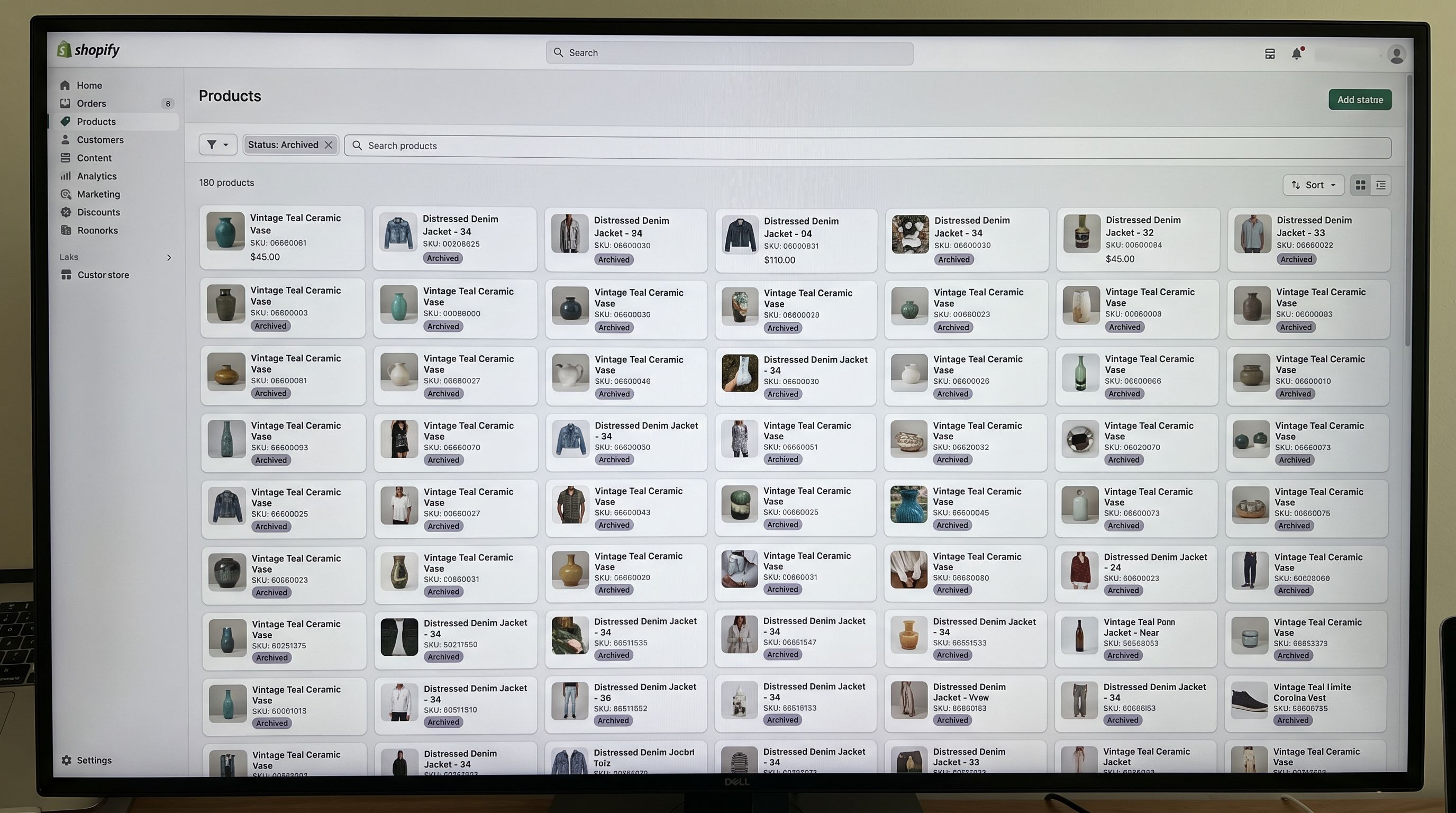
A Melbourne sporting goods distributor had 950 products in their Shopify store after three years of trading. Roughly 180 of those products were discontinued: removed from their supplier's current catalogue, no longer available to order, yet still showing as Active in Shopify.
Customers landing on discontinued product pages from Google had two experiences: either they added a product to cart and discovered at checkout it could not be fulfilled, or they found the page had been manually deleted at some point, returning a 404. The 404 pages were the more visible problem. The Active-but-unfulfillable pages were the quieter one.
Additionally, 340 products carried orphaned tags from a collection restructure 18 months earlier. The old tags no longer mapped to any collection. They were not visible to customers but cluttered every product export, made tag-based automation unreliable, and added noise to every import template pulled from the store.
Cleaning this up manually, product by product, through the Shopify admin would have taken three days. Running it as a batch update import via Importier took two hours.
Why Discontinued Products Need Process, Not Deletion
The instinct when a product is discontinued is to delete it. Deletion is permanent and creates immediate problems.
A deleted product page returns a 404. If that page had organic traffic, backlinks from other sites, or was indexed in Google Shopping, the deletion destroys that equity immediately. According to Shopify's URL redirect guidance, the correct response is a 301 redirect to the nearest equivalent page, but a 301 only helps if it is in place before the product is deleted.
A deleted product also loses its connection to historical orders. Order records in Shopify continue to reference the original product and variant. A deleted product ID becomes an orphaned reference in those records, which complicates any order history export or analytics work downstream.
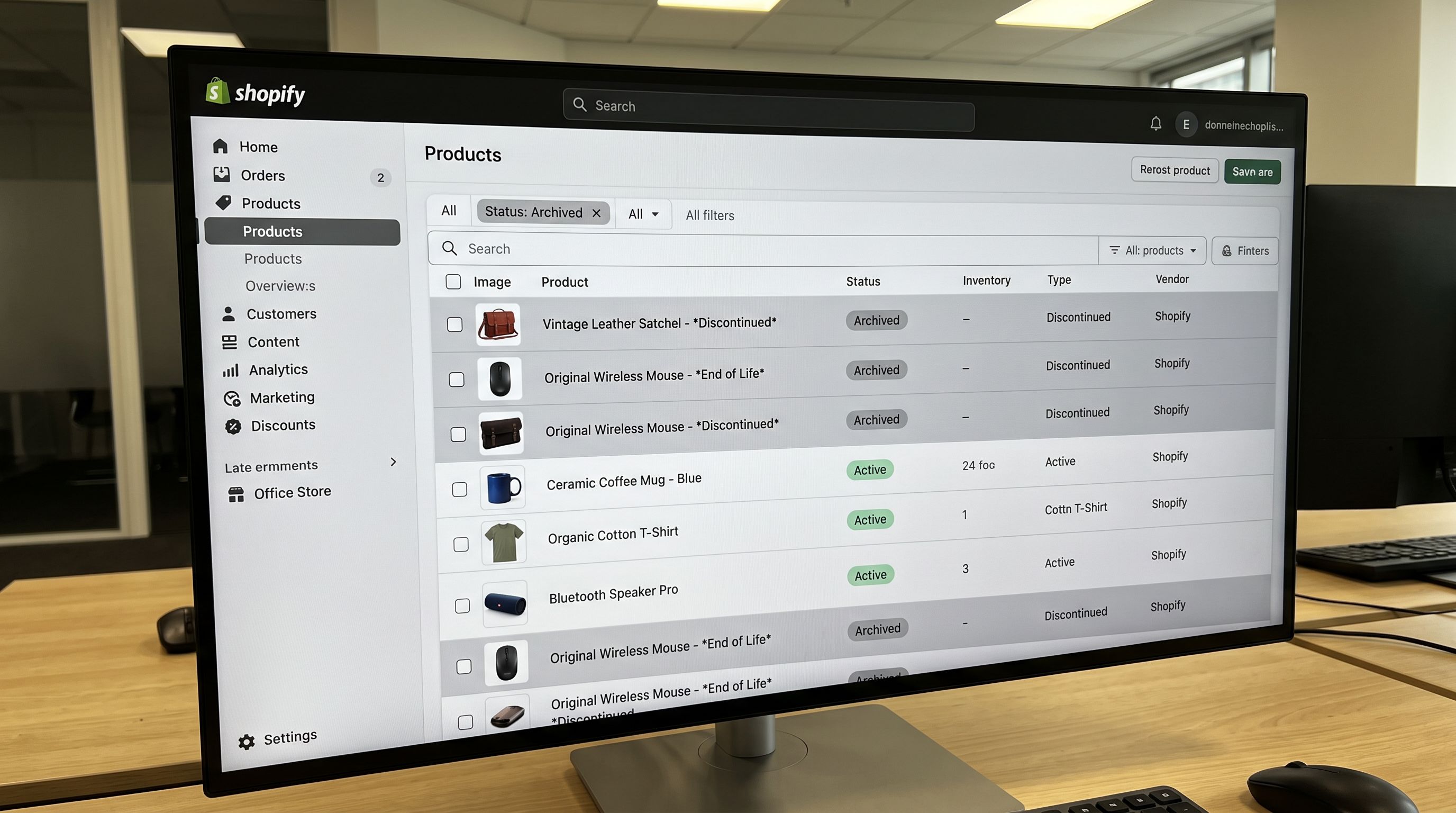
The disciplined approach treats discontinuation as a status transition, not a deletion event. A product moves through statuses over its lifecycle: Active, then Draft (temporarily unavailable or under review), then Archived (permanently out of assortment but URL preserved), and only then deleted (if at all, and only for products with no SEO value and no order history).
The Three Types of Unavailable Products
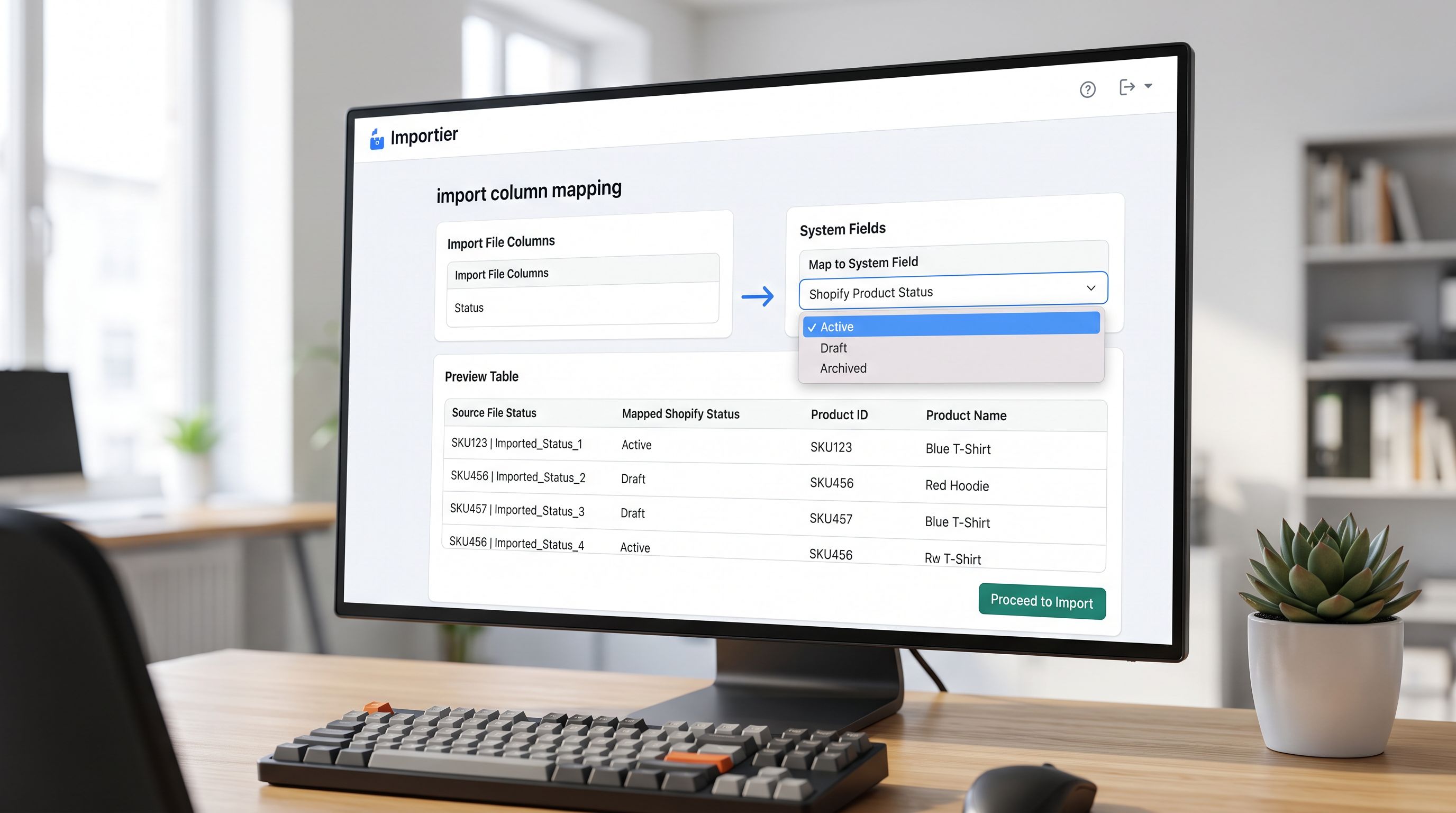
Not every unavailable product is discontinued. Importier's import wizard handles all three types, but the correct Status field mapping is different for each.
Temporarily out of stock. The product is in the supplier's active catalogue and will be restocked. The correct Shopify treatment is Active status with zero inventory and the Inventory Policy set to "deny" (prevents purchase). The product stays visible on the storefront with an out-of-stock indicator. When stock arrives on the next import, inventory quantity updates and the product becomes purchasable.
Pre-order or back-order. The product is available to purchase but not yet in warehouse. Active status with "continue" inventory policy allows purchases beyond zero inventory. Some merchants also use a dedicated "pre-order" tag for collection routing.
Permanently discontinued. The supplier has removed the product from their catalogue. It will not be restocked. The correct treatment is a status change to Draft or Archived, followed by a URL redirect decision. Continuing to show these products as Active creates the fulfilment problem the Melbourne distributor encountered.
The import file treatment is the same for all three: a Status column set to the correct value for each product, mapped to Shopify's product status field in Importier's column mapping step.
The Deprecation Workflow
How to Identify Discontinued Products at Scale
The Melbourne distributor's problem is a common one: the Shopify store drifts out of sync with the supplier's active catalogue over time. Products are added via import. Discontinued products are never actively removed. After three years, the delta between "what the supplier offers" and "what Shopify shows" is significant.
The identification process has two inputs:
Input 1: Current active SKU list from the supplier. This is the supplier's current product export: every SKU they actively sell. It is the source of truth for what is available.
Input 2: Current active product list from Shopify. This is a Shopify admin export of all Active products, filtered to products sourced from this supplier. The Handle and Barcode columns are the keys.
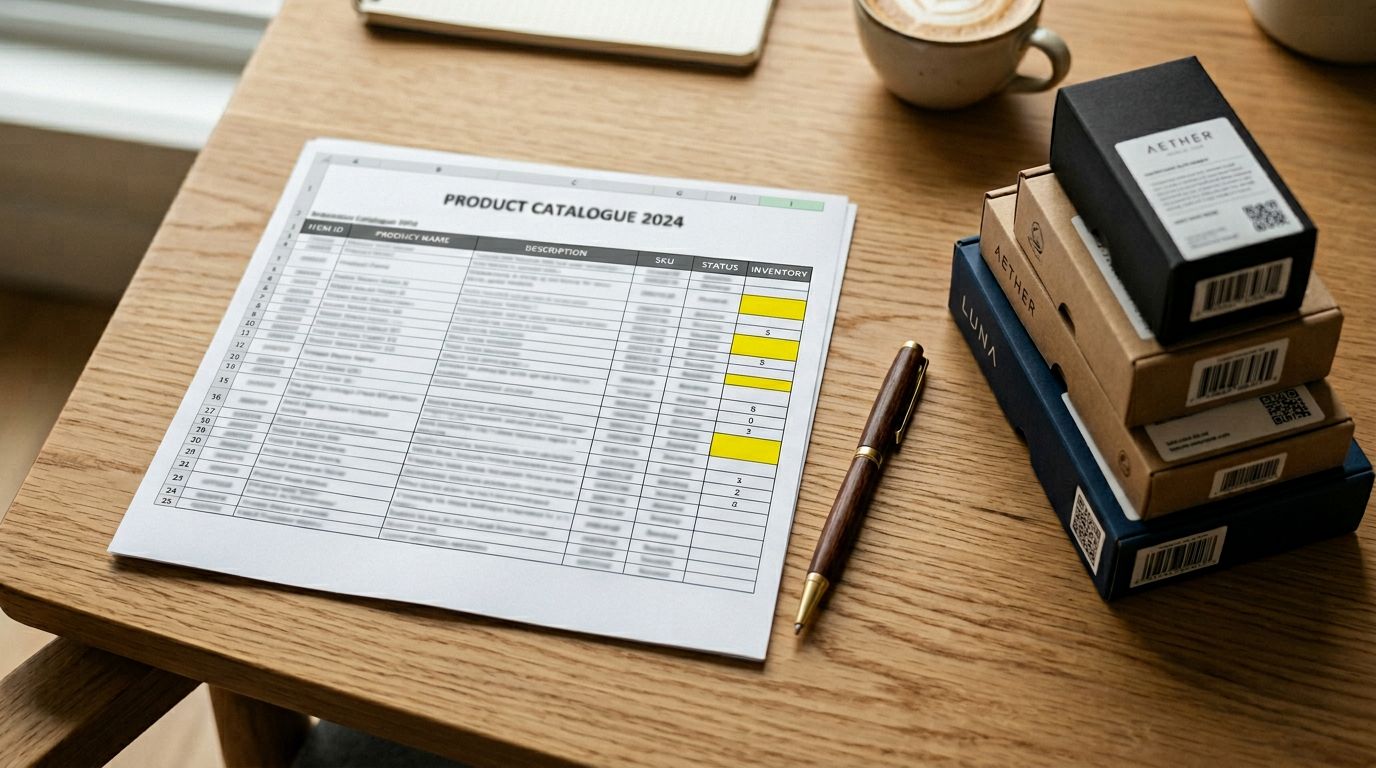
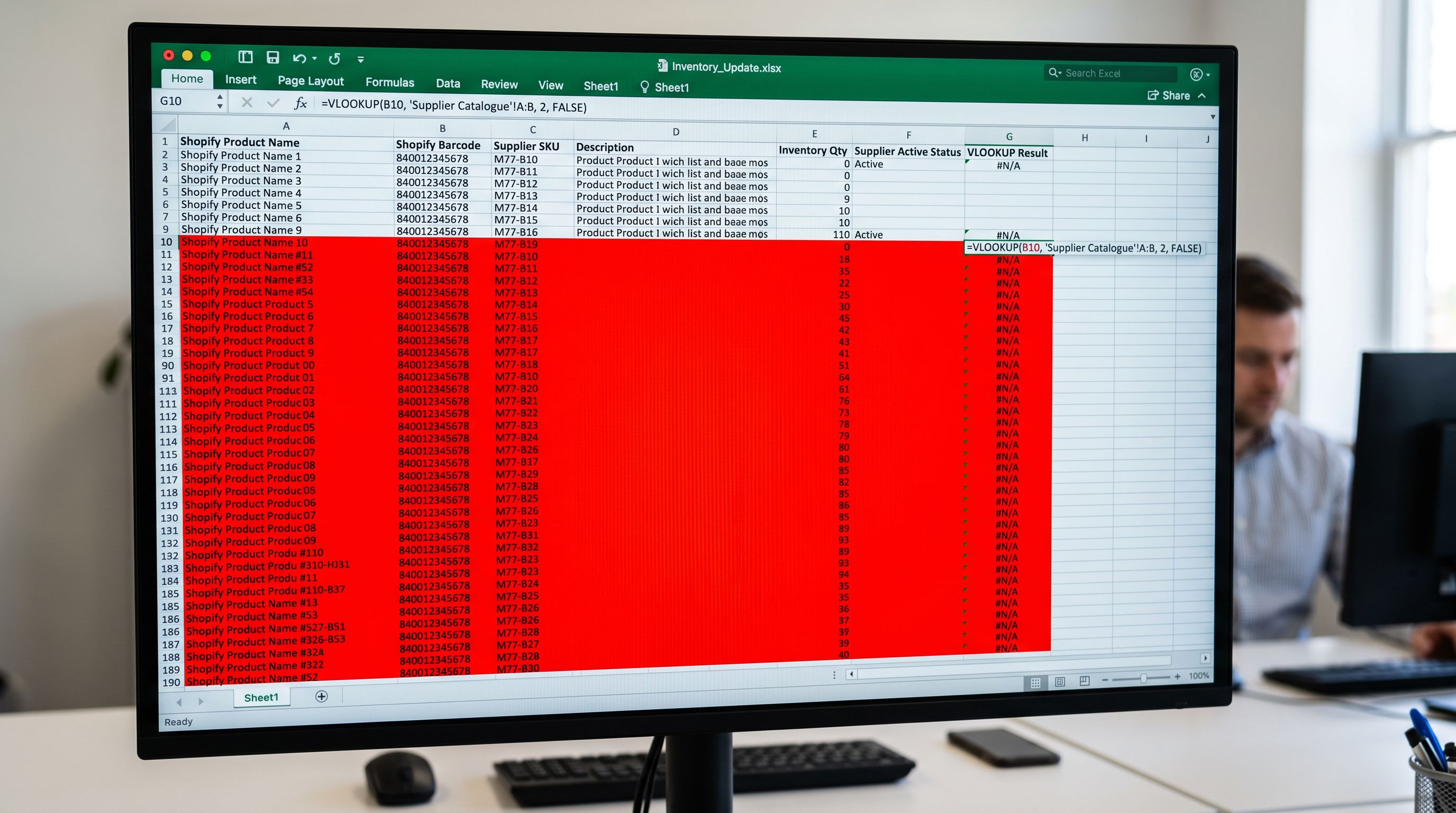
Cross-reference the two lists. Products in the Shopify export that are not in the supplier's current active SKU list are candidates for discontinuation. A VLOOKUP or COUNTIF across the barcode/SKU column produces the match list in a spreadsheet in under ten minutes for a 950-product catalogue.
For the Melbourne distributor, this produced 180 products: present in Shopify as Active, absent from the supplier's current catalogue.
Bulk-Updating Product Status via Import
Once the discontinued product list is identified, the status update runs as an import rather than a manual edit pass.
The import file for a status update contains two columns:
Handle: the existing Shopify product handle, used as the match key to identify which product to updateStatus: the target status (Draft for temporarily unavailable, Archived for permanently discontinued)
Importier matches on the Handle column during an update import. Any product in Shopify with a Handle that matches a row in the import file receives the update specified in that row. No other fields are changed.
For 180 discontinued products, the import file has 180 rows. The import run takes under five minutes. Every product status updates in one pass rather than 180 individual admin edits.
The choice between Draft and Archived for permanently discontinued products comes down to one question: does the product's URL have SEO value?
- Draft: the product URL still resolves. A customer who finds it via Google Search sees a page (not a 404) but cannot purchase. Maintains the URL's crawl history and any residual ranking.
- Archived: Shopify archives the product, removes it from all sales channels, and preserves the record for order history. The URL still resolves as a product page.
For most discontinued products, Archived is the correct status. Draft is appropriate for products under review or temporarily unavailable where the merchant wants to maintain admin visibility without full archiving.
A 180-product status update that would take three days of manual admin edits runs as a 180-row import file in under five minutes. The import file is also a record of exactly which products were deprecated and when.
Cleaning Orphaned Tags and Metafields
The Melbourne distributor's second problem was 340 products with orphaned tags from the old collection structure. This requires a separate cleanup pass.
Orphaned tags are tags that were added during a previous catalogue organisation and never removed when the collection structure changed. They do not affect storefront display but they:
- Appear in every product export, making tag-based filtering unreliable
- Trigger collection membership for any automated collection that uses those tags, creating ghost membership
- Add noise to import templates pulled from the store and to any analytics that groups products by tag
The cleanup is another import pass. The import file contains:
Handle: the affected product handleTags: the corrected tag set (with orphaned tags removed)
Importier overwrites the Tags field with the import value. For 340 products, the import run replaces each product's tag set in one pass.
The same approach applies to orphaned metafield values from deprecated Industry Pack configurations. If the store was previously using an Industry Pack that has since been reconfigured, products may carry metafield values for attributes that are no longer part of the active pack definition. A re-import with the relevant metafield columns set to empty values clears them in bulk.
- 01Export the current active SKU list from your supplier and the current Active product list from Shopify admin (Products → Export → Active products)
- 02Cross-reference using a VLOOKUP or COUNTIF on the barcode or SKU column to identify products present in Shopify but absent from the supplier's current catalogue; these are your discontinuation candidates
- 03For each candidate, decide the target statusArchived for permanently discontinued products with any order history or organic traffic, Draft for products temporarily unavailable or under review
- 04Build the import file with two columnsHandle (the existing product handle) and Status (the target value); confirm handle values match exactly by copying from the Shopify export
- 05Run the update import in Importier; the Handle column matches against existing products and updates only the Status field; all other product data remains unchanged
- 06After the status update, run a second import pass for orphaned tagsexport affected products, correct the Tags column in the spreadsheet to remove obsolete tags, re-import; verify one product in Shopify admin after the run
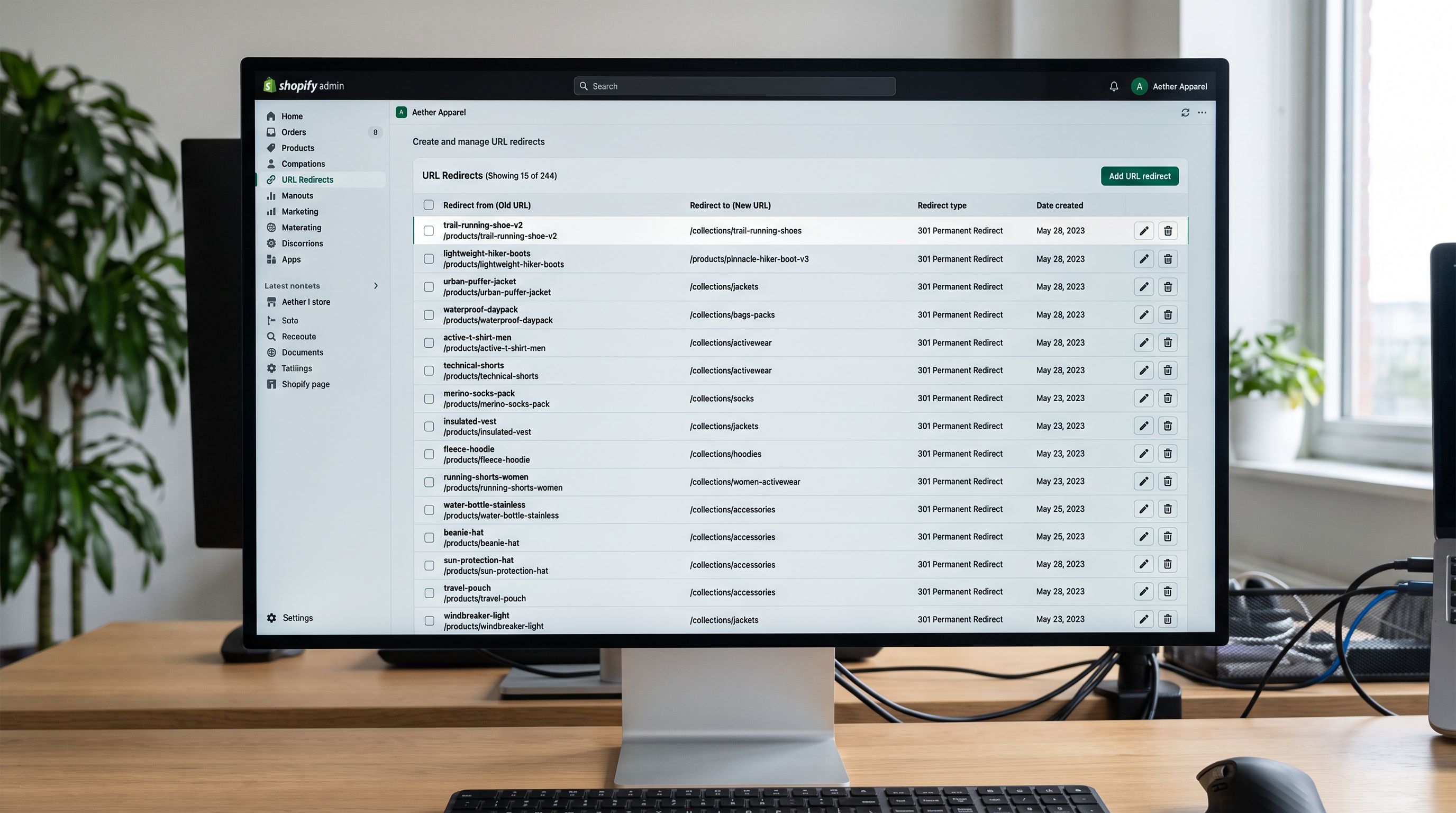
- 07Set up 301 redirects for any products you decide to permanently delete from Shopify admin (Online Store → Navigation → URL redirects); redirect to the nearest equivalent category page or replacement product
URL Redirect Strategy for Deleted Products
Archived and Draft products keep their URLs. The redirect question only arises for products that are permanently deleted from Shopify.
Delete decisions should be rare and deliberate. The cases where deletion is appropriate:
- Products with no organic traffic, no backlinks, and no order history: no equity to preserve
- Duplicate product records created by import errors: delete only the duplicate copy, never the original
- Test products created during store setup that were never published
For any product with order history, keep it Archived. The performance cost of orphaned product records in the database is negligible, and the operational cost of order records referencing deleted product IDs is not.
For products being permanently deleted, Shopify's URL redirect manager handles the redirect before deletion. The redirect maps the old product handle URL to a target URL (typically the parent collection page). Set the redirect first, then delete the product record.
- 180 products requiring status change = 180 individual admin edits; at 2 minutes per product that is 6 hours of admin work minimum
- No audit trail beyond Shopify's activity log, which does not record bulk status changes in a queryable format
- Orphaned tag cleanup requires finding each affected product and editing the Tags field; 340 products at 90 seconds each is 8.5 hours of work
- Risk of inconsistency: manual edits done across multiple sessions may miss some products; the 'finished' state is not verifiable without another full audit
- No exportable record of which products were deprecated, when, and by whom
- 180-row import file built in 20 minutes from the cross-reference spreadsheet; import run completes in under 5 minutes; total active effort is under 30 minutes
- Import file is a permanent, exportable record of exactly which products were deprecated, the target status, and the date of the import run
- Orphaned tag cleanup runs as a second 340-row import in the same session; entire tag correction takes under 10 minutes
- Import preview shows the match results before committing; any Handle mismatches (products the import could not find) surface before the update runs
- Consistent result: every product in the import file receives the update; no products missed; verified via filtered admin view post-import
The catalogue governance policy defines the standard for when a product transitions from Active to Archived to Deleted. The import workflow above is the operational execution of that policy at scale.
The import audit log records each batch update, including the status changes and the source file. This gives the merchant a timeline of which products were deprecated and in which import run, without relying on manual documentation.
For a 950-product store with 180 discontinued products and 340 with orphaned tags, two import passes clean up a three-year data drift in under two hours. The same approach scales to a 50,000-product catalogue: the import file grows, the import run takes longer, but the active effort remains bounded by the time it takes to build and review the source spreadsheet.
Try Importier free at importier.app.
Set up your first import in under five minutes.
Importier brings products into Shopify with AI descriptions, category metafields, and data enrichment on every run.
Free for your first 10 products. No credit card needed.