Shopify Product Collections: Auto-Organise at Import
On this page
Shopify Product Collections: Auto-Organise Imported Products
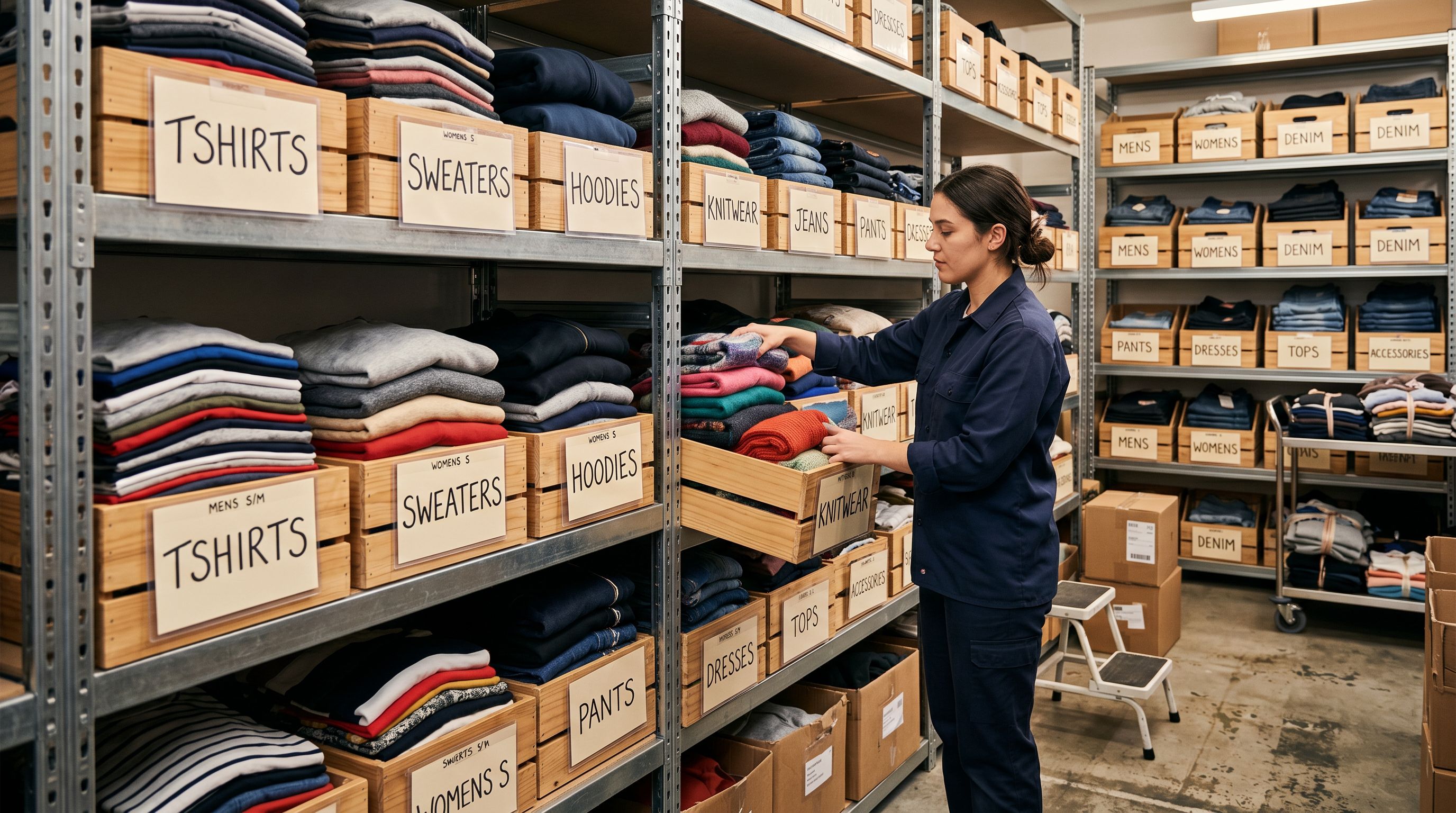
After a bulk import, your products exist in Shopify but your storefront collection pages are still empty. The products are active, the inventory is correct, and the descriptions look fine. But customers browsing your store cannot find them because they have not been assigned to any collection. This is one of the most common post-import gaps, and it catches merchants off guard every time.
The reason it happens is structural. Shopify does not automatically organise products into collections just because they were added to the store. Collection membership is either assigned manually or earned automatically via rules. When you import 300 products without the right data fields populated, none of those products qualify for rule-based collection membership, and manual assignment at that scale is impractical.
The fix is not to manually drag products into collections after import. The fix is to set the right fields during import so Shopify's automated collection system handles the organisation for you.
How Shopify Collections Actually Work
Shopify has two types of collections, and they behave very differently.
Manual collections require you to add each product explicitly. You open the collection, click "Add products," and select them one by one or via search. For stores with dozens of products and infrequent imports, this is manageable. For stores with hundreds or thousands of products imported regularly from supplier files, it is not a realistic workflow. Every import batch requires another round of manual assignment.
Automated collections (also called Smart Collections) work on rules. You define a condition, and Shopify automatically adds any product that meets it. Rules can be based on product tags, Product Type, Vendor, price, inventory level, or title keywords. A product that matches all rules (or any rule, depending on your configuration) joins the collection the moment it is created or updated; no manual step required.
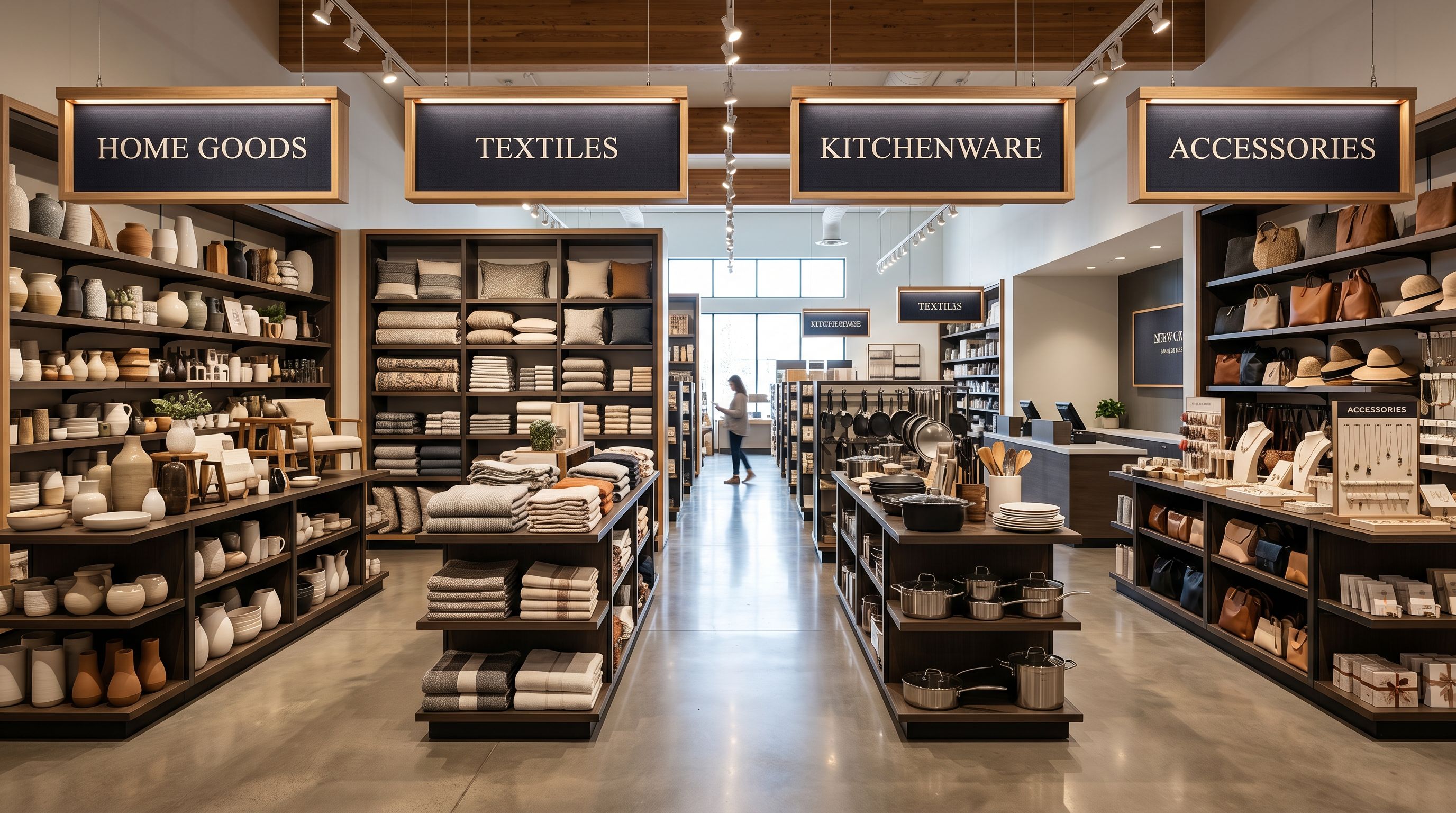
The difference matters enormously for import-driven stores. If you have 20 Automated Collections representing your product categories, and every imported product arrives with the correct Product Type and tags, those products land in the right collections the moment they enter Shopify. If your imported products are missing those fields, every product sits in collection limbo until someone intervenes.
The Two Fields That Drive Automated Collection Membership
Of the available rule conditions, Product Type and tags are the most useful for organising import-driven catalogues. They deserve separate treatment because they behave differently and serve different purposes.
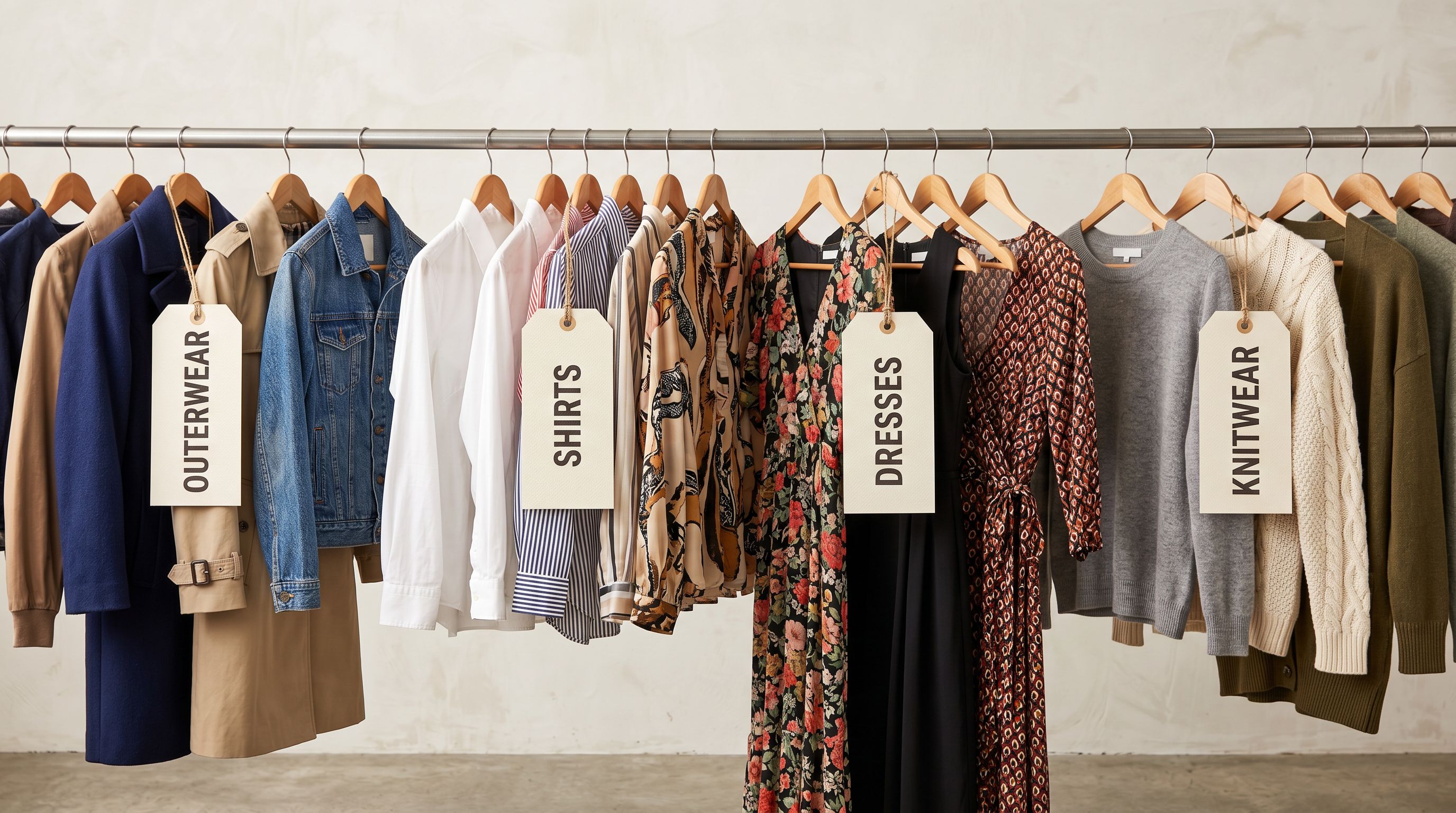
Product Type is a single-value field on every Shopify product. It represents the product's category: "T-Shirt", "Running Shoe", "Supplement", "Power Tool". Because it is a single field with a controlled value, it is ideal for creating one Automated Collection per product type. A clothing merchant can have collections for Dresses, Tops, Pants, Outerwear, and Activewear, each powered by a single Product Type rule. The moment a product arrives with Product Type: Tops, it joins the Tops collection.
Tags are multi-value. A single product can have dozens of tags, so it can belong to dozens of Automated Collections simultaneously. This makes tags the right tool for cross-cutting collections: sale items, bestsellers, seasonal campaigns, material-based collections (Linen, Cotton, Recycled), occasion-based collections (Wedding, Workwear, Casual), and so on. A product tagged material:cotton, occasion:casual, and style:relaxed-fit could belong to four different Automated Collections at once, without a single manual assignment.
Vendor is useful for wholesale and multi-supplier stores where each supplier has its own collection. If you import from three suppliers and want a collection per vendor, the Vendor field in Shopify drives that automatically.
The practical implication: if you set Product Type and tags correctly at import time, your Automated Collections run themselves.
Why Import Batches Miss Collection Data
Supplier files are built for internal cataloguing, not for Shopify's collection system. A supplier CSV might have a "Category" column with values like "SKU-CAT-004" or "APPAREL_OUTER": internal codes that mean nothing to Shopify's collection rules. The file almost certainly has no "Tags" column at all.
When you import from a supplier file without addressing this gap, every product lands in Shopify with no Product Type and no tags. None of your Automated Collections pick them up. You are left with a catalogue of uncollected products that are visible in the admin but effectively invisible to customers browsing the storefront by category.
The standard workaround is to post-process: after importing, manually edit products or run a bulk edit to add Product Type and tags. For 50 products, this is tedious. For 500 products across multiple supplier files, it is a separate part-time job.
The better approach is to handle collection data at import time, before the products ever hit Shopify.
The question is not how to organise products after they arrive. The question is how to ensure they arrive already organised.
How Importier Handles Collection Data at Import
Importier addresses collection membership at the import configuration stage, not as a post-import cleanup.
Product Type column mapping lets you map a column from your supplier file directly to Shopify's Product Type field. If your supplier uses a "Category" column with values like "Dresses", "Tops", or "Jackets", you map that column to Product Type and the correct Shopify value arrives on every product. If your supplier's category values do not match your Shopify Product Type names, Importier's column mapping lets you transform them: map "APPAREL_OUTER" to "Outerwear", "APPAREL_SHIRT" to "Tops", and so on.
For imports where every product in the batch belongs to a single product type (a dedicated supplier file for footwear, for instance), you can set a batch-level Product Type default: every product in that import gets the same value without needing a column at all.
AI tag generation addresses the tags gap. Importier's AI reads each product's title, description, and available attributes and generates a set of relevant tags: material, occasion, style, size range, target demographic, and other product-specific attributes depending on the Industry Pack you have installed. For a clothing import, the AI might generate tags like material:denim, fit:slim, occasion:casual, style:jeans, all of which can drive Automated Collection membership.
You can also map an existing column from your supplier file to the Shopify Tags field, or combine column-mapped tags with AI-generated tags so the import produces a complete tag set.
Category metafields go one step further. Importier's 22 Industry Packs contain 3,758 attributes mapped to Shopify's product taxonomy. When you run an import with an Industry Pack, the category metafield is populated for each product with the correct Shopify taxonomy path. This drives Shopify's own category system, which in turn affects Smart Collection eligibility, Google Merchant feed classification, and AI Shopping product matching. The category metafield and Smart Collection rules work together: the taxonomy path and the Product Type field often carry the same information through different Shopify systems simultaneously.
The Shopify category metafields guide covers how the taxonomy path is set during import and how it interacts with Shopify's product organisation system.
- Products arrive with no Product Type, sit outside all Automated Collections
- Tags must be added manually post-import for each product or batch
- Storefront category pages remain empty until post-import work is done
- Supplier category codes do not translate to Shopify Product Type automatically
- Each new import batch creates a new round of post-import collection assignment
- Product Type column mapped or set as batch default at import configuration
- AI generates tags for material, occasion, style, and product-specific attributes per product
- Automated Collections fire the moment products arrive; no post-import step
- Supplier category values transformed to correct Shopify Product Type names via mapping
- Recurring imports from the same supplier reuse the saved mapping profile, no reconfiguration
A Practical Example
Clothing Merchant: 20 Smart Collections, Zero Manual Assignment
A clothing merchant imports from four suppliers, each with a different file format. Their Shopify store has 20 Automated Collections: one per Product Type (Dresses, Tops, Pants, Outerwear, Activewear, Swimwear, and so on), plus cross-cutting collections for Sale Items, New Arrivals, Linen Range, and Occasion Wear.
Without import prep, every import batch requires a post-import session to set Product Type on each product and add the relevant tags. With 300-500 products per weekly import across four suppliers, this is 4-6 hours of post-import data entry per week.
With Importier:
- Each supplier has a saved mapping profile that transforms their internal category codes to the correct Shopify Product Type.
- The Apparel Industry Pack generates tags for material, occasion, fit, and style automatically from each product's data.
- The "Sale Items" collection uses a price-range rule (Shopify compares-at price set higher than current price). The import mapping sets the compare-at price column, so sale items qualify automatically.
- The "New Arrivals" collection uses a tag rule: products tagged
new-arrival. Importier adds this tag to every product in the import batch via batch-level tag defaults.
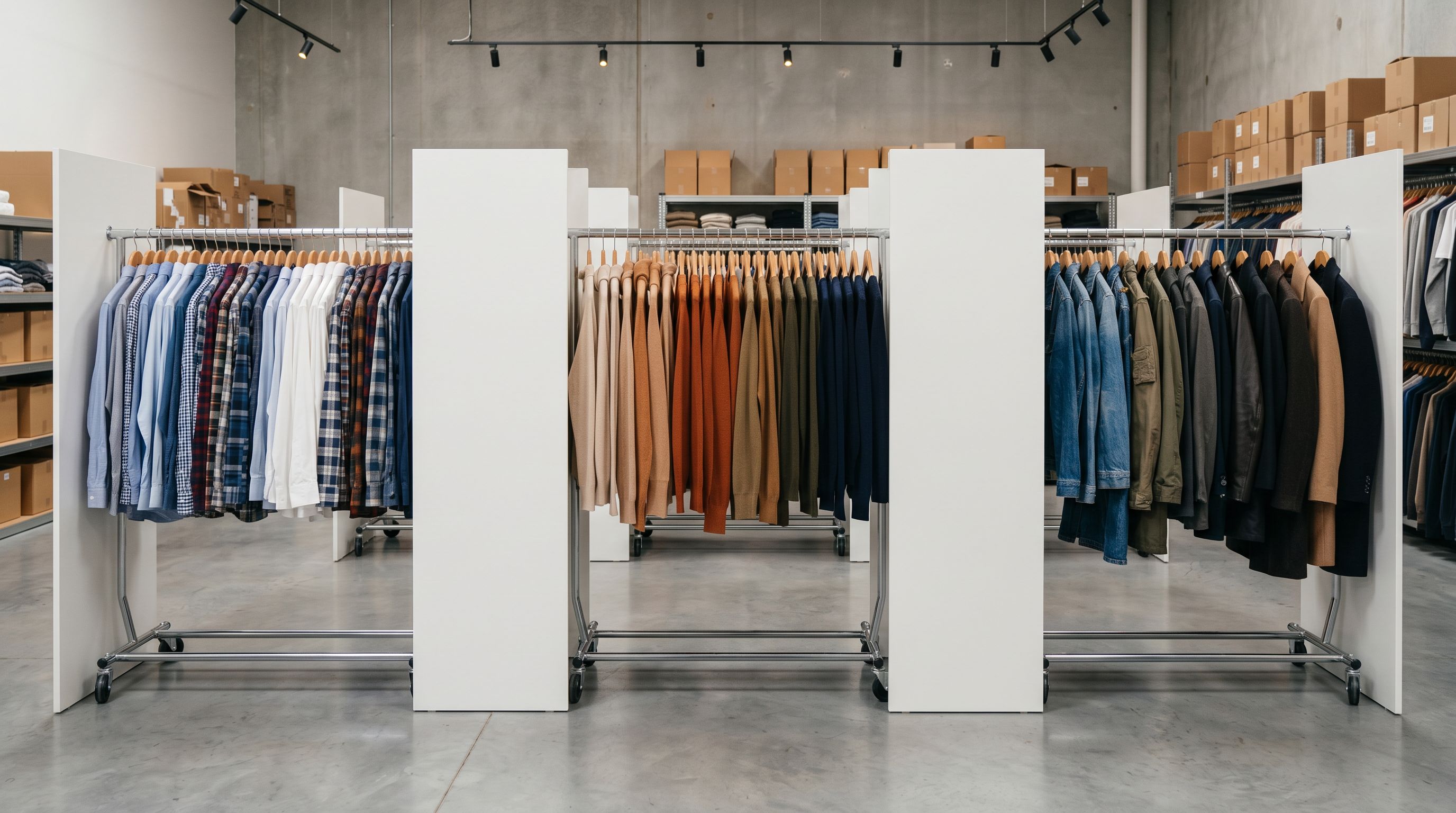
The result: 300 products imported on Monday morning are visible in the correct collections by Monday morning, without any post-import assignment work. The merchant's time goes to reviewing AI-generated descriptions and checking image quality, not to collection administration.
- 01Set up your Automated Collections in Shopify before the import. Define the rulesProduct Type conditions for category collections, tag conditions for cross-cutting collections like material or occasion. Collections with rules will self-populate as products arrive.
- 02In Importier, open your import configuration and map the supplier's category or product type column to Shopify's Product Type field. If your supplier's values differ from your Shopify Product Type names, add value transformations in the mapping profile.
- 03Enable AI tag generation in the import configuration. Select the relevant Industry Pack for your product category. The AI will generate tags for each product based on its data, covering material, occasion, style, and product-specific attributes.
- 04Add any batch-level default tags you need'new-arrival' for new stock, a supplier-specific tag for vendor-based collections, or a seasonal campaign tag if the batch is part of a promotion. These apply to every product in the import.
- 05Run the import and verify collection membership in Shopify admin immediately after. Check two or three products to confirm they have the correct Product Type, the expected tags, and that they appear in the right Automated Collections. Save the mapping profile for recurring imports from the same supplier.
Handling Imports Where Supplier Data Is Too Sparse
Some supplier files contain minimal product data: a SKU, a title, a price, and an image URL. There is no category column and no description to derive tags from.
For these cases, the batch-level defaults are the primary tool. Set Product Type at the batch level (since every product in a footwear-only supplier file is footwear), and add batch-level tags that apply across the whole import. Use a separate Importier import configuration for each supplier so the batch defaults are correct without touching them each time.
The Shopify CSV import guide covers how to configure import profiles for different supplier file formats, including minimal-data files where batch defaults carry most of the collection-prep work.
For the tags side specifically, the Shopify product tags bulk guide covers how to add tags to existing products in bulk if you have an existing catalogue that was imported without them. The retroactive nature of Smart Collections means fixing the tags on existing products immediately resolves their collection membership.
Variants and Collection Membership
A note on variants: Shopify collection membership is per product, not per variant. A product with 12 size-and-colour variants is either in a collection or not; the membership decision is made at the product level based on Product Type and tags. You do not need to manage collection membership per variant.
This means the import prep approach scales cleanly regardless of how many variants each product has. The Shopify import product variants guide covers how Importier handles variant structure at import time, including how it groups variants from supplier files that list each variant as a separate row.
Shopify's documentation on creating automated collections covers the full range of rule conditions available, including how "all conditions" vs "any condition" logic affects collection membership. Shopify's product type documentation explains how Product Type interacts with automated collections and Shopify's native filtering.
Try Importier free at importier.app
Set up your first import in under five minutes.
Importier brings products into Shopify with AI descriptions, category metafields, and data enrichment on every run.