Shopify Product Changelog: Track Every Change Made to Your Catalogue
On this page
Shopify Product Changelog: Track Every Change Made to Your Catalogue
Shopify does not have a native product changelog. If something changed in your catalogue (a price updated, a description overwritten, a product removed), there is no built-in record of what changed, when, or as part of which action. The admin shows you the current state. It does not show you the history.
For merchants running solo stores with occasional manual edits, this is manageable. For merchants importing from supplier files on a regular schedule, for agencies managing product catalogues for clients, and for any store with more than one person touching product data, the lack of an audit trail is a genuine operational gap.
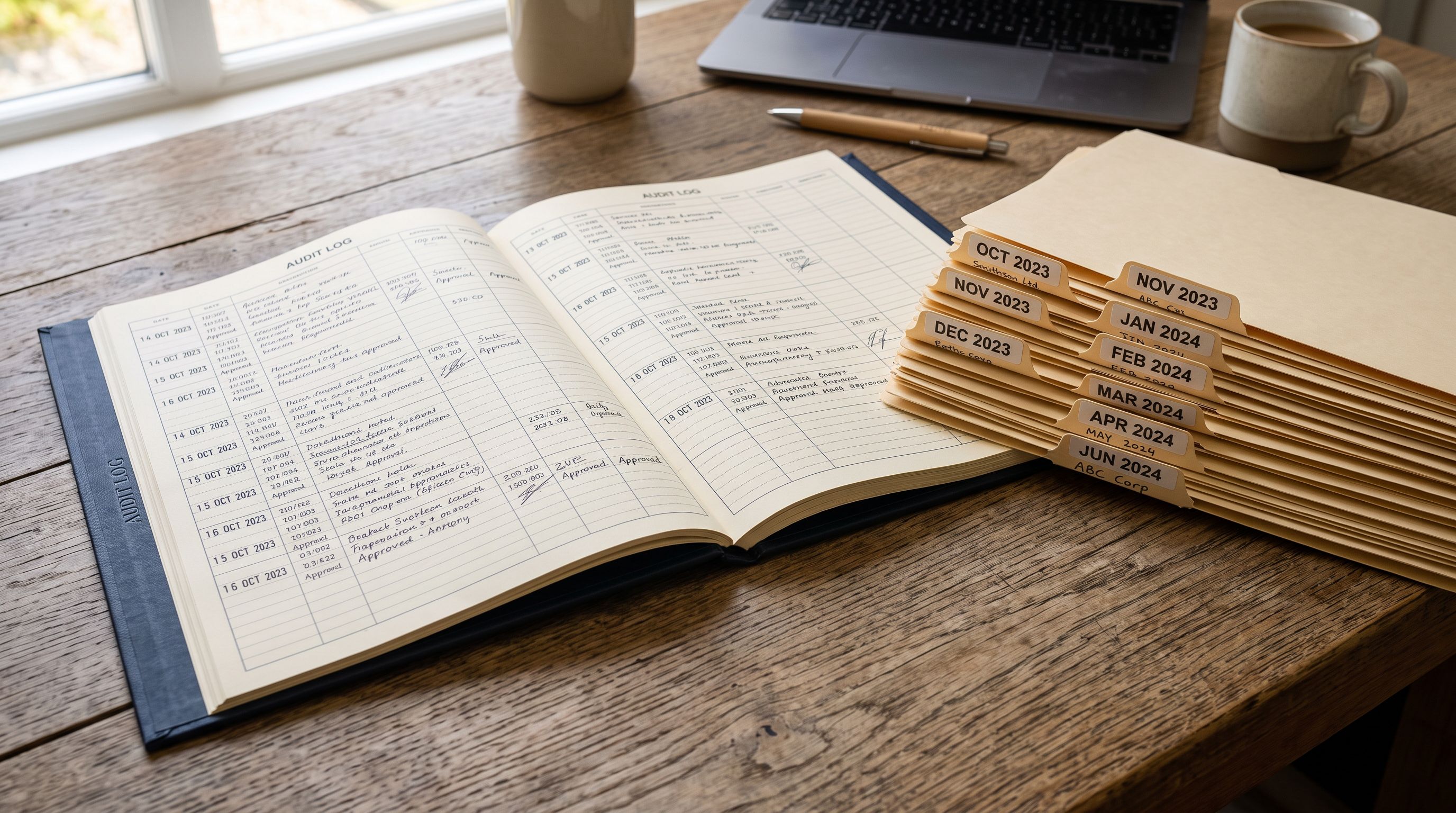
Importier's Import History fills that gap. Every import run through Importier is logged automatically: date, time, file name, and product count. Each log entry is a snapshot of what entered the catalogue and when. Up to 20 snapshots are retained, and every snapshot has a 60-day CSV download link that gives you the point-in-time catalogue state.
Why Shopify Has No Product Change History
Shopify's product admin is designed around a current-state model. The product detail page shows the current values. The activity log in Shopify's general settings records store-level events (new orders, plan changes, staff logins) but not per-product edits at the field level.
Third-party apps that attempt to track product edits work by monitoring state changes after the fact. If a field was changed and then changed back before the monitoring app ran, the intermediate state is lost. The coverage depends on how frequently the monitoring app polls, and the log is only as complete as what the app happened to catch.
Importier's approach is different. Because every import runs through Importier, the import itself is the record. The file that was imported, the timestamp it ran, and the products it affected are logged at the time of the import, not reconstructed later.
What Import History Records
Each entry in Importier's Import History includes:
- Date and time the import ran
- File name of the source file (supplier CSV, Excel workbook, or PDF)
- Product count: how many products were affected by that import
- Import type: new products added, existing products updated, or both
- 60-day CSV download link: the point-in-time export of what was imported
The 20 most recent imports are retained. For merchants importing weekly, this covers five months of history. For merchants importing daily, this covers three weeks. In both cases, the 60-day download window means you can retrieve the source data for any import that ran within the past two months.
Scenario: Agency Accountability
An agency managing a client's Shopify catalogue needs to demonstrate what was done and when. The client calls to say a product price is wrong. The agency needs to answer two questions: did this price come from the supplier file, or was it a misconfiguration in the import mapping? And when did this import run?
Import History answers both. The agency opens the history, finds the import that ran closest to when the issue appeared, downloads the CSV for that import, and checks the price field in the source data. If the price is wrong in the CSV, the error came from the supplier. If the price in the CSV is correct but the Shopify product has the wrong value, the mapping profile is the issue.
The timestamp and file name give the agency a defensible audit trail: not a verbal account of what probably happened, but a logged record of exactly which file ran at exactly which time.
For agencies managing multiple clients' catalogues, the Shopify agency catalogue management guide covers how to structure import profiles per client so Import History stays legible across accounts.
The 60-day CSV download is not a backup. It is the record of what the catalogue contained at a specific point in time, not what it contains now.
Scenario: Diagnosing a Pricing Error
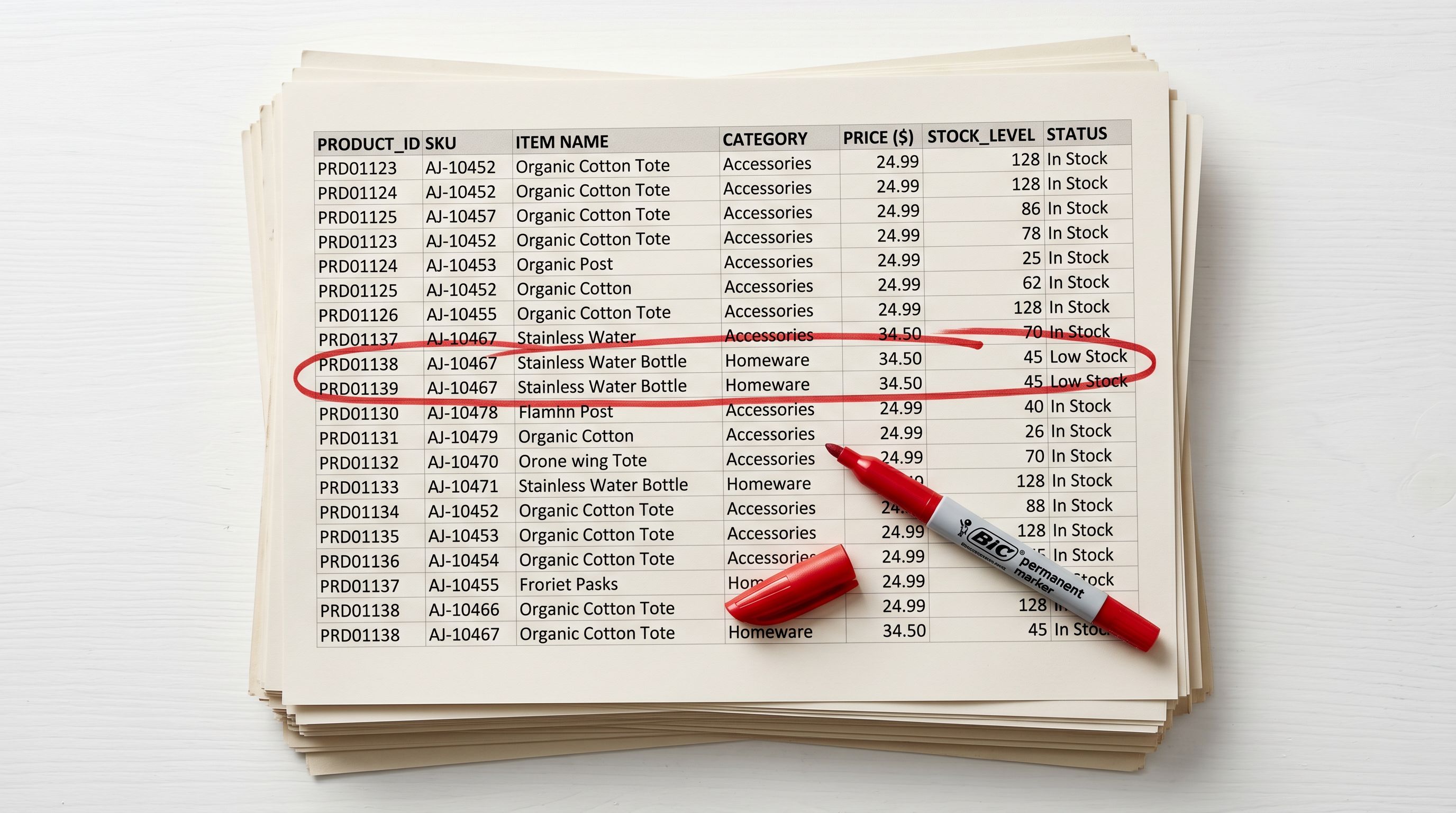
A merchant notices that 15 products in a specific category have the wrong price. Cost rather than retail. The question is not whether to fix it. That is obvious. The question is when it was introduced, because the scope of the problem depends on how long it has been live.
If the pricing error has been live for three days, the damage is limited. If it has been live for three weeks and the products were active in a Google Shopping campaign, the scope is significant.
With no changelog, the merchant has to manually cross-reference order history to find when the first order at the wrong price occurred. With Import History, they open the history, find the import where those products were last updated, and download that CSV. The CSV shows whether the wrong price was in the supplier file (a supplier error) or whether the mapping profile was applying an incorrect currency conversion or percentage calculation (a configuration error).

The Shopify import column mapping guide covers how mapping profiles handle price fields and currency conversions, which are the most common source of systematic pricing errors that appear consistently across an entire product category.
Scenario: Multi-Staff Stores
Stores with multiple staff members (operations, buying, merchandising) often have multiple people running imports. When something goes wrong, the question of which import caused the issue becomes immediately relevant.
Import History timestamps tell you exactly when each import ran. If the merchandise manager imported Monday morning and the buying team imported Monday afternoon, and a pricing issue appeared Monday afternoon, the history narrows the scope without any guesswork. The CSV for the Monday afternoon import shows what that import changed.
- No record of which import introduced a pricing error
- No timestamp for when the change occurred
- No way to see what the catalogue contained two weeks ago
- Error diagnosis requires cross-referencing orders manually
- Agencies must rely on verbal accounts of what changed
- Every import logged with date, time, and file name
- Timestamp shows exactly when the change was introduced
- 60-day CSV shows the point-in-time catalogue state
- Error diagnosis narrows to the specific import and mapping profile
- Agencies can produce the exact log entry for any catalogue update
Rolling Back with Import Undo
How Import Undo Works
Import History does more than display logs. Each of the 20 retained snapshots can be used as a rollback point via Import Undo.
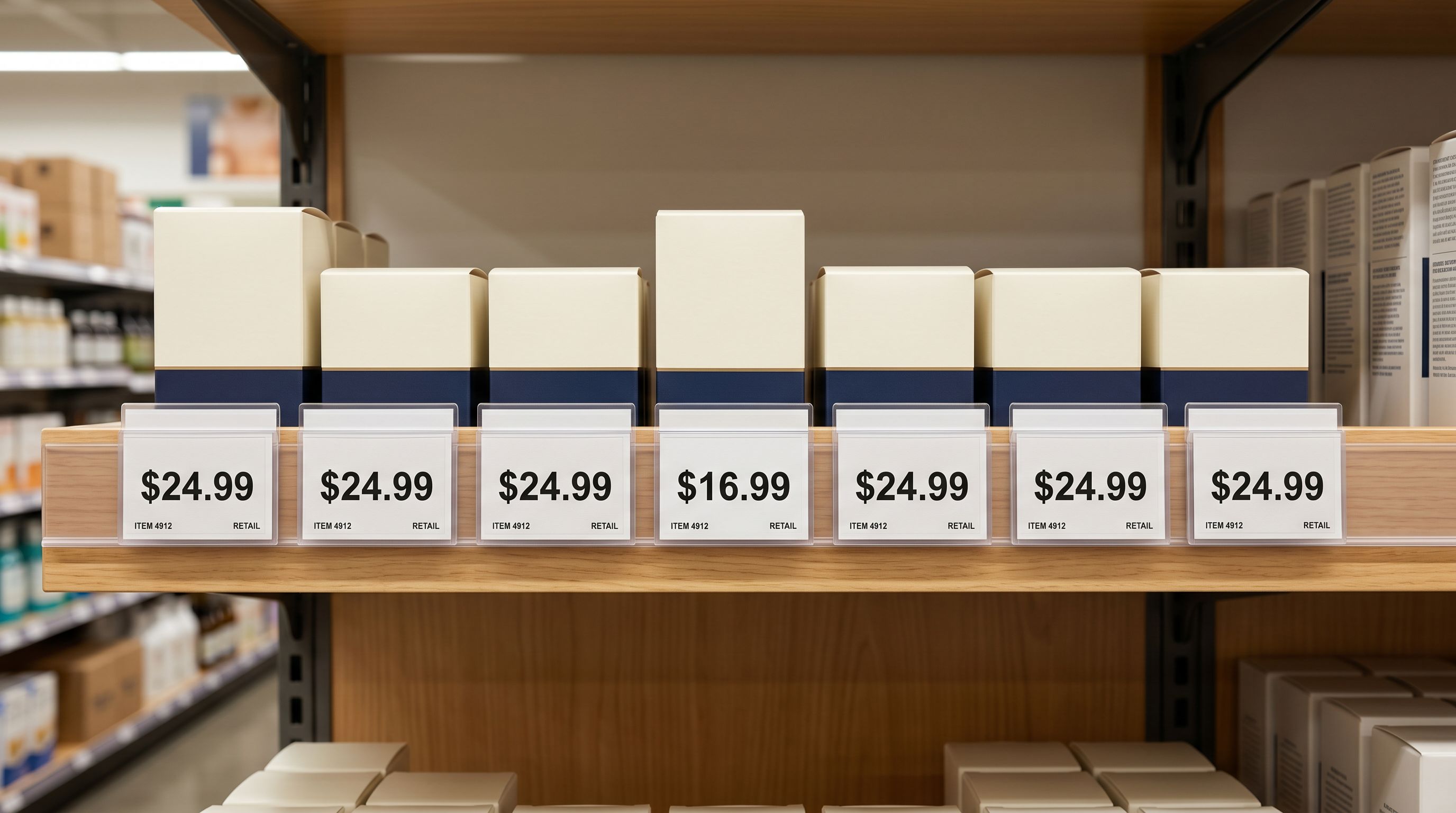
If an import introduced an error (wrong prices, incorrect descriptions, products imported into the wrong collection), Import Undo reverts all products from that batch to their pre-import state. The rollback is applied across all products in the affected batch simultaneously, not product by product.
The practical limit is that Import Undo works on the 20 most recent imports. For merchants importing frequently, this covers weeks of activity. For merchants importing weekly, it covers several months. The constraint rarely matters in practice; errors from an import are typically caught within days, well within the rollback window.
For a full walkthrough of the Import Undo flow, including what the undo reverts, what it does not affect (post-import manual edits, metafields added after import, product reviews), and how to select the rollback target, the Shopify import undo guide covers the full procedure.
- 01Open Import History from the Importier dashboard. The history shows up to 20 recent imports in reverse chronological order, with date, time, file name, and product count for each entry.
- 02Identify the import you need to investigate. Compare timestamps against when the issue first appeared in the store. The relevant import is typically the most recent one that ran before the issue became visible.
- 03Download the 60-day CSV for that import. The CSV contains the product data as it was in the source file at import time, not the current product values. Use this to determine whether the error came from the supplier file or from the import mapping profile.
- 04If the error came from the import and needs to be reversed, use Import Undo on that entry. Undo reverts all products in the batch to their state before that import ran. If only specific products need correcting, use the CSV as the reference for the correct values and edit those products individually.
- 05For recurring imports, update the mapping profile after diagnosing the error. If a field was mapped incorrectly or a price conversion was mis-configured, fix the profile before the next scheduled import runs to prevent the same error from recurring.
The 60-Day Download Window
The 60-day CSV download link is time-limited. After 60 days, the link expires and the historical file is no longer accessible. The snapshot metadata (date, time, file name, product count) remains in the history display; only the downloadable CSV file expires.
For merchants who need permanent records, the practice is to download the CSV after each import and store it externally. This works well alongside scheduled imports, where the cadence of Import History entries is predictable. Importier's scheduled imports guide covers how to configure automated import schedules (daily, weekly, or per-supplier), which makes the Import History timeline easier to read and archive systematically.
Shopify's activity log documentation covers what Shopify's native log tracks: primarily store-level events, not product field changes. Linnworks' overview of Shopify product management covers the broader operational context for why product-level change tracking is a recurring gap for growing Shopify stores.
Try Importier free at importier.app
Set up your first import in under five minutes.
Importier brings products into Shopify with AI descriptions, category metafields, and data enrichment on every run.