Shopify Product Filters Not Working After Import

On this page
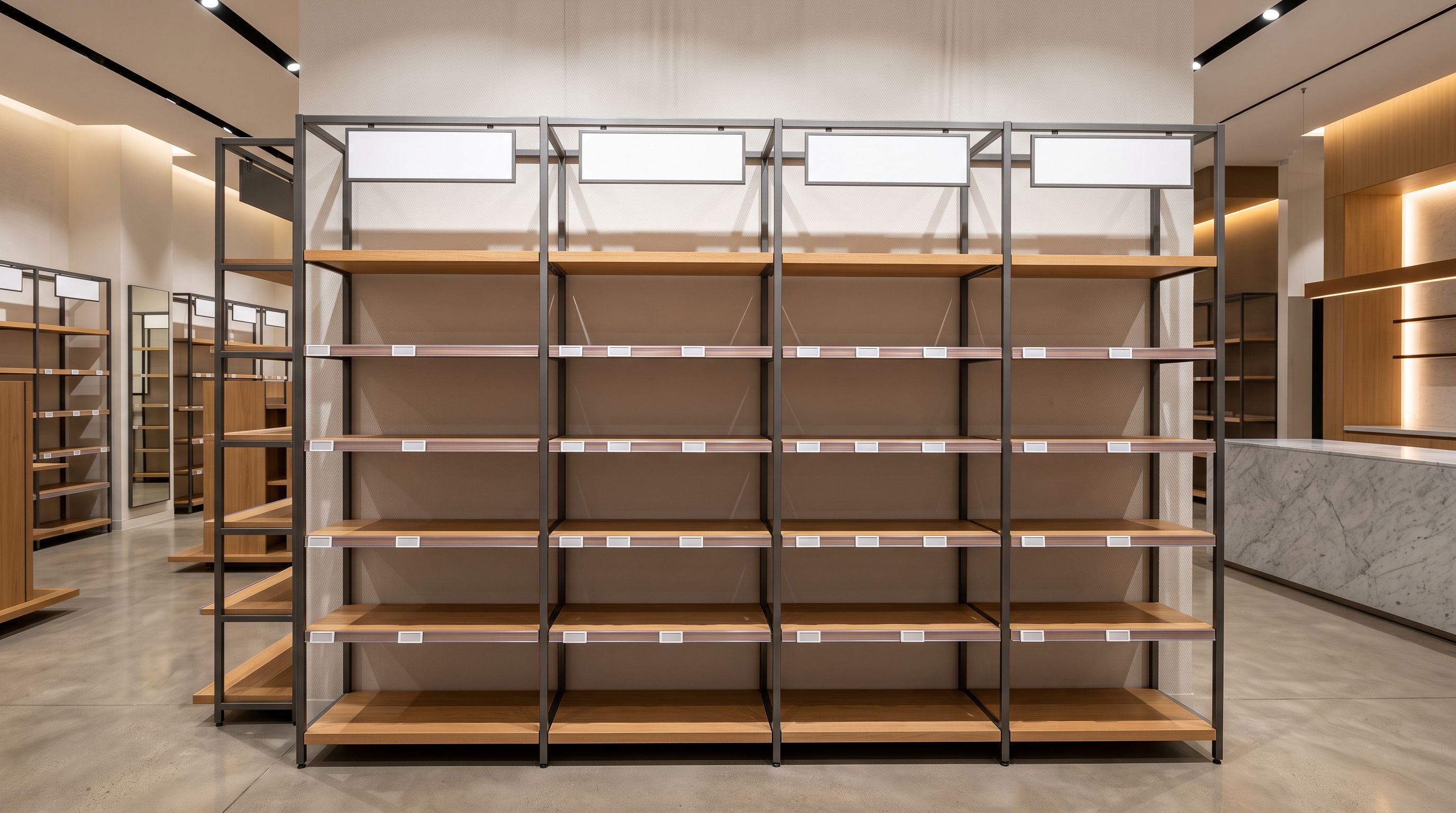
A merchant running a home goods store sets up collection filtering in their theme. They configure filter options for Material, Colour, and Room Type. The filter panel appears correctly in the collection sidebar. They then import 800 products from a supplier catalogue and check the live store. The filters are visible but every option reads "0 products." Customers can see the filter panel but cannot use it to narrow their results.
The theme is not broken. The filter configuration is correct. The issue is that every product imported from the supplier catalogue has empty values for the metafields the filter widget reads. Shopify's collection filtering reads product attribute data from a specific layer of the product record that a standard CSV import does not populate.
This article explains the three data layers Shopify uses for collection filtering, why supplier catalogue imports leave the most important layer empty, which attributes each product category needs for working filters, and how to configure Importier to populate those attributes at import time.
How Shopify collection filtering works
Shopify's Online Store 2.0 themes (Dawn, Sense, Refresh, Context, Craft, and others) support collection filtering through three distinct data layers. Understanding which layer a filter widget reads tells you why the filter returns no results after an import.
Layer 1: Product type. The product_type field on each product record. Basic theme filter sidebars often include a "Category" or "Type" filter that reads this field. When product_type is empty or inconsistent across products (one product reads "Chair", another reads "Chairs", another reads "Furniture > Chairs"), the filter options appear inconsistently or miss products entirely.
Layer 2: Product tags. The tags array on each product record. Some themes and filter apps (particularly older ones) use tag-based filtering: a product tagged "material:oak" appears when a user filters by Material: Oak. Tag-based filtering requires a consistent naming convention across every product in the catalogue.
Layer 3: Taxonomy metafields. Shopify's standard product taxonomy defines a set of attributes for each product category, stored in the shopify.products.* metafield namespace. Material uses the key shopify.products.material. Colour uses shopify.products.color. Size uses shopify.products.size. These are the fields that Shopify's native filter widget reads by default in all current-generation themes.
Most merchants who set up filters in a modern Shopify theme are using Layer 3 without knowing it. The theme documentation says "add a Material filter" and the theme settings provide a toggle. What the documentation does not explain is that the Material filter reads the shopify.products.material metafield, and standard CSV imports do not write to metafields at all.
Why supplier CSV imports leave metafields empty
Shopify's native product import (the CSV importer in the Products section of the admin) can import a defined set of fields: title, body_html, vendor, product_type, tags, handle, images, variant data (SKU, price, inventory, weight, barcode), and a small number of fixed columns. It does not have a mechanism to write to metafields. There is no metafield column in the standard Shopify import template.
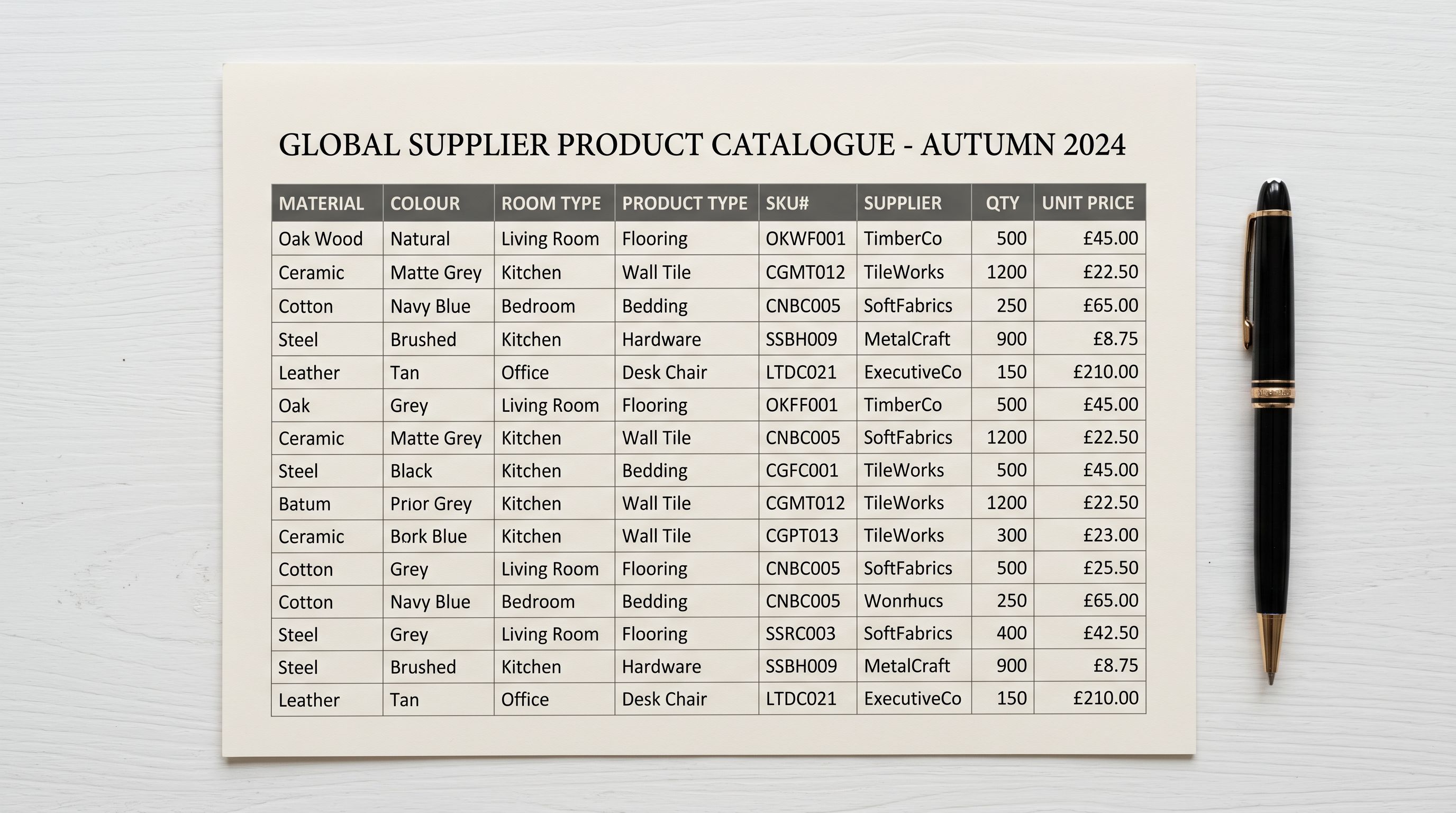
This means that every product imported via Shopify's native CSV arrives with empty taxonomy metafields regardless of what information the supplier file contains. A supplier file may have a "Material" column with values like "Solid Oak", "Recycled Teak", and "Powder-Coated Steel." After a native CSV import, that information appears in the product's body_html (if it was mapped to the description column) or is discarded entirely. The shopify.products.material metafield remains empty on every product.
Third-party import tools that support metafields require the supplier file to use a specific column naming format to identify metafield targets. The column header must typically include the metafield namespace and key in a format like metafields.shopify.products.material. Supplier files do not use this format. They use whatever column header their export system produces: "Material", "Mat", "material_type", or "spec_material". The import tool cannot map "Mat" to shopify.products.material without explicit configuration.
The result is predictable. A merchant imports 400 products from a home goods supplier. The supplier file has columns for Material, Colour, Room, and Style. After the import, 400 products have:
product_type: empty (the supplier's "Category" column was not mapped)tags: empty (the supplier file has no tag column)shopify.products.material: emptyshopify.products.color: emptyshopify.products.room: empty
The filter panel is configured. The filter options are listed. The widget reads the metafields and finds nothing. Every filter shows "0 products."
- 400 products imported with empty Material, Colour, and Room metafields
- Filter widget reads metafields and returns zero options
- Merchant manually edits each product in the Shopify admin to add attribute values
- 400 products at 4 attributes each = 1,600 individual edits
- Filters work only after all manual edits are complete
- Supplier file's Material, Colour, Room columns mapped to taxonomy metafield targets at import
- Importier Industry Pack activates the correct attribute fields for the product category
- All 400 products arrive with populated metafields
- Collection filters show correct options immediately after the import completes
- No manual editing required
Which attributes each product category needs
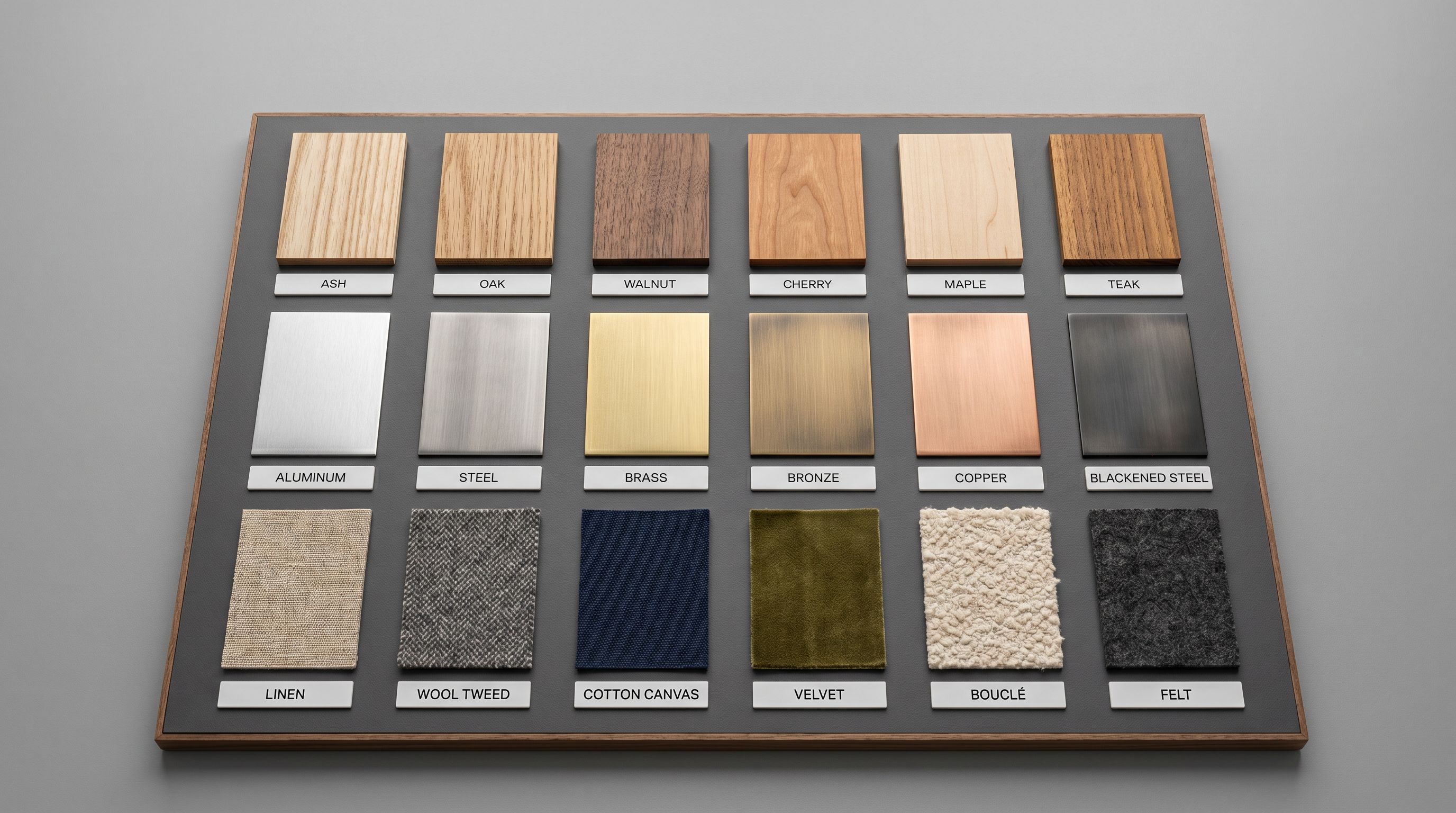
Different product categories use different taxonomy attributes for filtering. The attributes that matter depend on how buyers navigate and filter in that category.
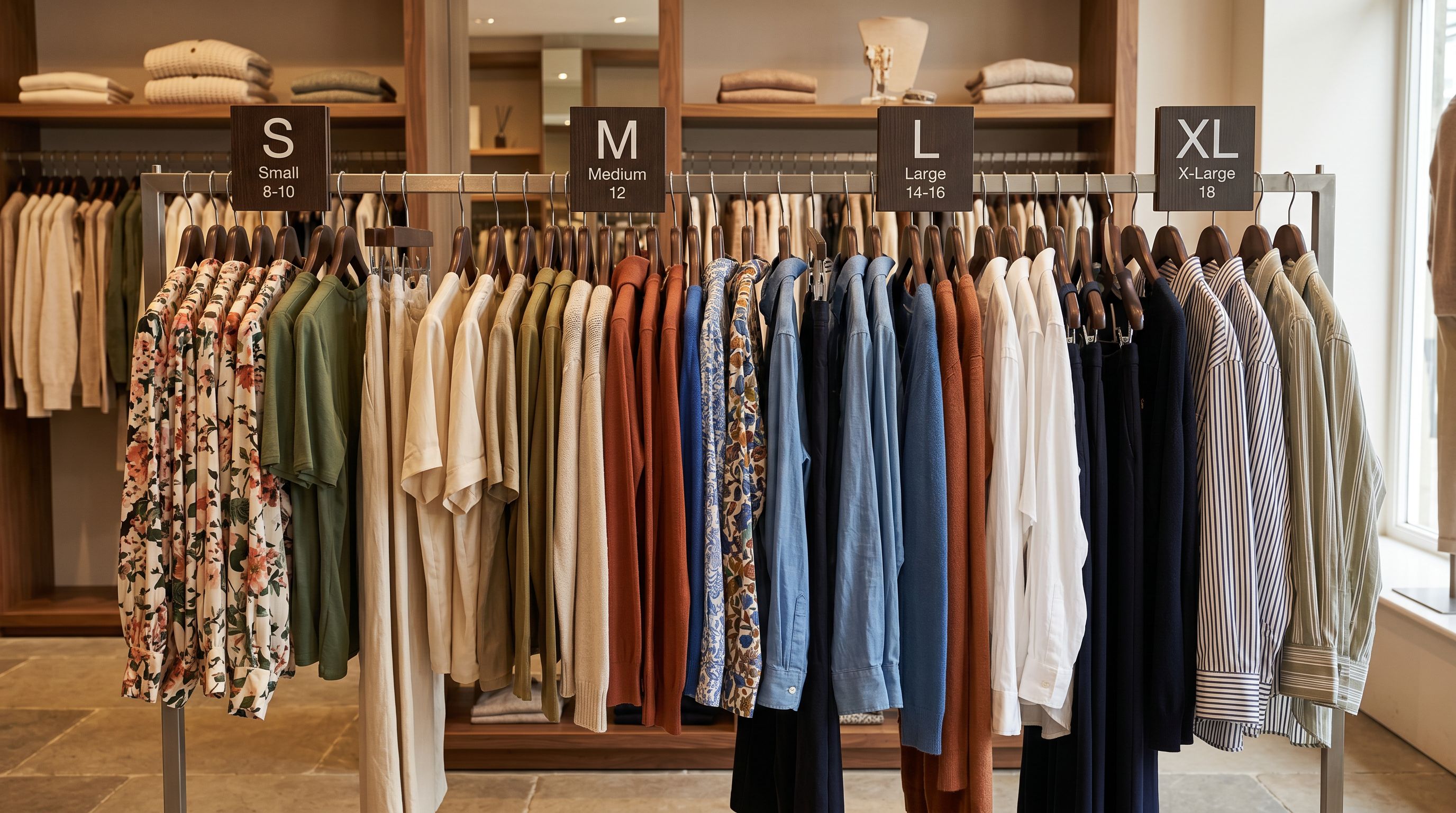
Apparel and Accessories: Colour (shopify.products.color), Size (shopify.products.size), Material (shopify.products.material), Age Group, and Pattern. A clothing store without a working Size filter forces buyers to open every product page to check sizing, a significant friction point for mobile buyers.
Home and Garden: Material (shopify.products.material), Colour (shopify.products.color), and Room Type. Furniture and decor buyers filter by material (timber, metal, upholstered) and by room before they consider style. An empty Material filter on a furniture collection leaves buyers with no way to narrow from 300 products to the 40 that match their room's material palette.
Sporting Goods and Fitness Equipment: Sport, Age Group, Material, and Size. Buyers looking for youth cricket equipment, adult running shoes, or a specific weightlifting accessory filter by age group and sport before browsing by brand or price.
Electronics and Accessories: Connectivity (Bluetooth, USB-C, Wi-Fi), Compatibility (iPhone, Android, Windows), and Colour. Electronics buyers use compatibility as a first filter. A phone case collection with an empty Compatibility filter provides no way to narrow from 200 cases to the 30 compatible with the buyer's device.
Jewellery: Metal (shopify.products.material), Gemstone, Ring Size, and Finish. Jewellery buyers filter by metal type and gemstone type before evaluating design. An empty Metal filter on a 500-piece jewellery collection presents every product regardless of whether the buyer wants silver or gold.
Read more about how Industry Packs activate the correct attribute fields for each product category.
The attributes that make filters useful are specific to the product category. A Material filter matters for furniture. A Connectivity filter matters for electronics. Populating the wrong attributes for a category fills in data the filter widget does not use.
Fixing broken imports with the Store Scanner
For merchants who have already imported products without metafield values, the Store Scanner identifies which products have empty attribute fields and runs an enrichment pass to populate them from existing product data.
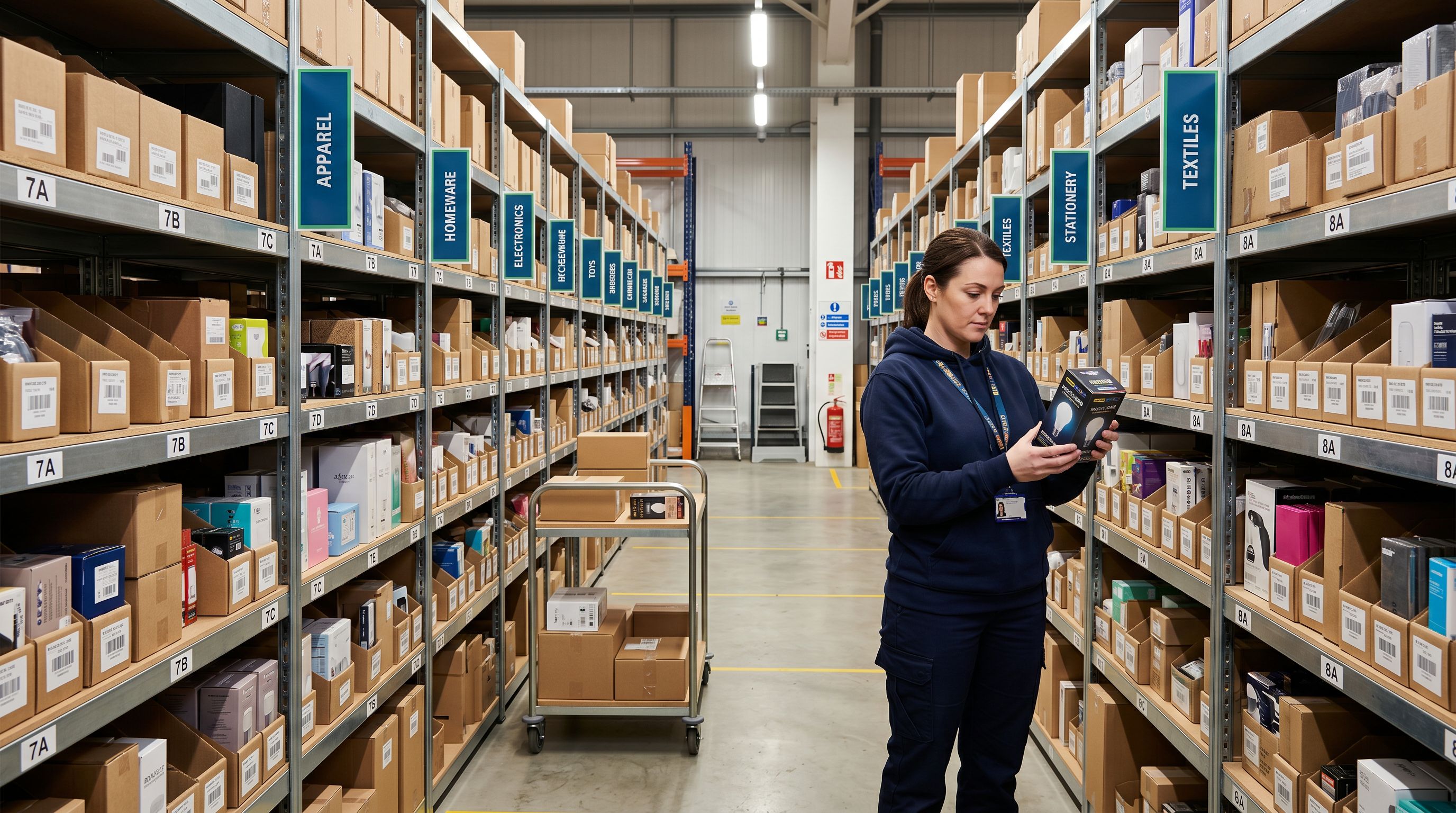
The enrichment pass reads the product title, description, tags, and any data present in the existing record. For a timber dining chair with "Solid Oak" in the description and "oak" in a tag, the enrichment can populate shopify.products.material with "Wood" (Shopify's taxonomy term for natural timber materials) and update the product record. For products with too little existing data to determine the correct attribute value, the Store Scanner flags them for manual review rather than guessing.
The Store Scanner approach is slower than configuring the import correctly from the start, because it runs as a second pass over products that were already imported. For catalogues under 200 products, it is a practical fix for existing inventory. For catalogues over 500 products, it is worth running a second import session with corrected column mapping rather than running the enrichment pass across every product.
Read more about how the Store Scanner audits existing product data and identifies attribute gaps.
Configuring Importier for filter-ready imports
Getting filters to work immediately after an import requires two things: correct column mapping from the supplier file to the taxonomy metafield targets, and the right Industry Pack activated for the product category.
- 01Step 1In the import wizard, select the product category that matches your supplier catalogue. For a mixed catalogue (furniture and lighting and decorative accessories), run separate import sessions per category rather than mapping all products to a single generic category
- 02Step 2Enable the Industry Pack for the category. The Industry Pack activates the specific attribute fields for that category (Material, Colour, Room Type for home goods; Size, Colour, Material for apparel) and sets them as available targets in the column mapping step
- 03Step 3Map your supplier file's attribute columns to the corresponding taxonomy metafield targets. The column mapping panel shows the available attribute fields for the activated Industry Pack. Match 'Material' in the supplier file to 'Material' in the attribute panel, 'Colour' to 'Colour', and so on
- 04Step 4Review the attribute value preview. The preview panel shows a sample of the mapped values before the import runs. Confirm that the attribute values in the preview match what the filter widget should display (Shopify uses specific taxonomy terms: 'Wood' not 'Timber', 'Cotton' not 'cotton blend')
- 05Step 5Complete the import and check the collection filter immediately on the live store. A correctly mapped import populates metafields on every product, and the filter options appear in full on the first page load after the import completes
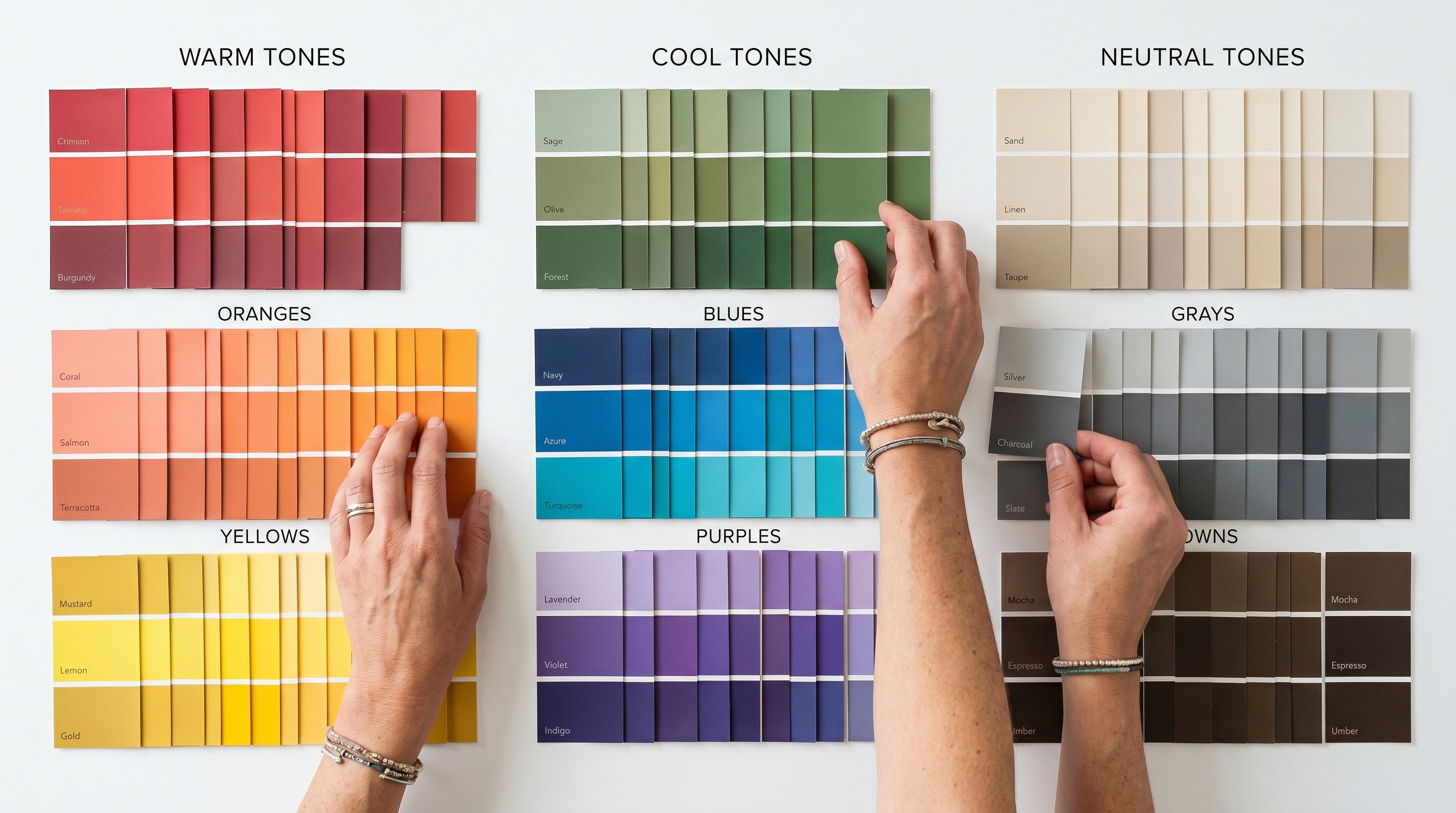
The attribute value preview step is important because Shopify's taxonomy uses standardised terms, not whatever value the supplier file contains. A supplier file may list "Oak", "Solid Oak", "Oak Wood", and "Natural Oak" for the same material. Importier maps these to Shopify's taxonomy term "Wood" so the filter consolidates all four variations into one consistent filter option. Without this normalisation, the filter would show four separate options ("Oak", "Solid Oak", "Oak Wood", "Natural Oak") for what buyers experience as the same material.
Setting the product_type field
The product_type field is separate from taxonomy metafields but equally important for collection assignment and some filter configurations. When product_type is empty or inconsistent, smart collection rules based on product type fail to capture the right products, and any theme filter that reads product type shows incomplete results.
Supplier files rarely include a column that maps cleanly to Shopify's product_type conventions. They typically use department, category, or product group columns that follow the supplier's own naming system. Importier's import wizard maps the supplier's category or department column to the product_type field and normalises the values to consistent terms across the import batch.
For a 400-product home goods catalogue where the supplier file uses "Tables", "Dining Tables", "Coffee Tables", and "Occasional Tables" across different rows, mapping the category column to product_type and normalising to "Tables" produces a consistent filter option. Setting product_type correctly at import time also ensures that smart collections using "Product type is Tables" capture the full product range rather than missing products tagged with supplier-specific variations.
Checklist: filter-ready import configuration
Import configuration checklist for working collection filters
Before running a supplier catalogue import, confirm the following are in place:
- The product category is selected and the Industry Pack for that category is activated
- The supplier file's attribute columns (Material, Colour, Size, or category-specific equivalents) are mapped to the taxonomy metafield targets in the column mapping step
- The attribute value preview shows normalised Shopify taxonomy terms, not raw supplier values
- The supplier's category or department column is mapped to the
product_typefield - If the supplier file includes a tags column, it is mapped to the tags field; if not, tags are generated from the product data during the enrichment step
Shopify's documentation on collection filtering explains which filter types are available and which product data each filter type reads. The native filter widget uses taxonomy metafields; tag-based filters use the tags field. Knowing which filter type your theme uses determines which data layer to prioritise at import.
Shopify's standard product taxonomy defines the attribute fields available for each product category, including the specific value options Shopify recognises for terms like Material, Colour, and Size. Supplier values that fall outside Shopify's taxonomy terms need to be mapped during the import column configuration so the filter consolidates them correctly.
A collection of 400 products with empty attribute metafields and inconsistent product_type values is an unfilterable collection. Buyers presented with a filter panel that returns zero results for every option leave and do not return. Populating taxonomy metafields and product_type at import time converts a flat, undifferentiated product list into a navigable catalogue without any post-import manual editing.
Set up your first import in under five minutes.
Importier brings products into Shopify with AI descriptions, category metafields, and data enrichment on every run.