Shopify Product Data Backup: Export Before You Import
On this page
A Shopify merchant runs a bulk description update on 600 products. The new supplier's content is pasted in across the catalogue, the import confirms, and the products update. Two days later the merchant realises the descriptions are wrong for half the product range. They want to restore what they had.
They pull out the CSV they exported before making the change. It has titles, prices, SKUs, and old descriptions. It has no metafields. The category attributes assigned across 22 Industry Pack categories are not in the file. The variant descriptions stored as metafields are not there either. The "backup" covers a fraction of the actual product data.
A shopify product data backup that misses metafields is not a backup for merchants who use category attributes, variant descriptions, or any custom metafield data. It is a partial save of the easy-to-reconstruct fields, with nothing for the fields that took the longest to set up.
What Shopify's Native Product Export Includes and What It Misses
Shopify's built-in export function saves the standard product fields defined in Shopify's product CSV specification: title, body (description), vendor, product type, tags, handle, published status, variant SKU, price, compare-at price, weight, barcode, and image URLs. For most merchants, this covers the visible storefront data.
It does not save metafields. Shopify metafields are custom data fields that extend the standard product record: they include category attributes from Shopify's Standard Product Taxonomy, per-variant descriptions, custom specification fields, and any other structured data stored outside the core product schema. Metafields are stored separately from product fields and require a separate export mechanism.
For a merchant who has not used any metafields, this distinction does not matter. A Shopify product export covers everything they have.
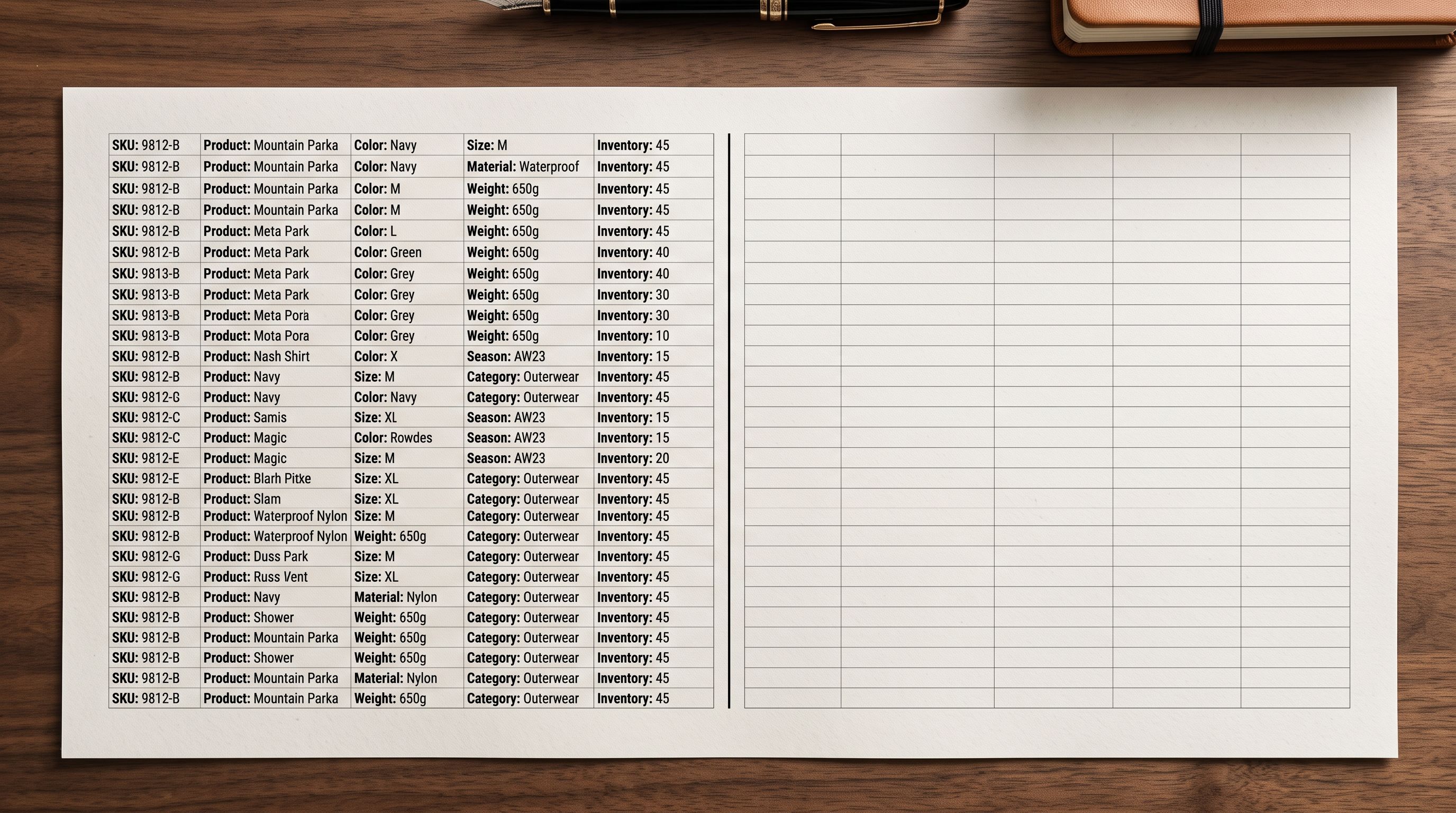
For a merchant who has used Importier's Industry Packs to assign category attributes, generated variant descriptions, or added custom metafields for compliance data or product specifications, the Shopify export misses a significant amount of work. An export before a major import that skips metafields will leave you with no restoration path for that data if the import causes problems.
A Complete Shopify Product Data Backup Requires Two Exports
Importier's export presets divide product data into targeted files rather than producing one massive general-purpose export. A complete shopify product data backup before a major catalogue change uses two of these presets:
Full Shopify CSV: the standard product fields export. Covers title, description, vendor, product type, tags, variants, pricing, weight, SKUs, barcodes, and image URLs in Shopify's native CSV format. This is the file you would re-import to restore standard product content.
Metafields: the structured data export. Captures all metafield values for every product in the catalogue, including category attributes from Industry Packs, variant descriptions stored as metafields, and any custom metafield data. This is the file you would use to restore structured data that Shopify's standard export does not reach.
Running both exports before a bulk change gives you a restoration path for the complete product record. Running only one leaves a gap.

When to run the backup
Trigger Events That Require a Pre-Change Backup
Not every Shopify operation needs a pre-change backup. A single product description edit can be undone manually. An import of new products that does not touch existing records carries no rollback risk for existing data.
The events that warrant a complete two-preset export before proceeding:
Bulk imports that update existing products. Any import where you are replacing descriptions, updating pricing, or refreshing product data across an existing catalogue. If the import updates fields that took significant time to configure, the export captures the starting state before the update runs.
Store Scanner description generation runs. When running Importier's Store Scanner to generate or replace descriptions across a collection or the full catalogue, the operation replaces existing content. Import History undo does not cover Store Scanner runs; only import operations are recorded. A pre-run export of the Descriptions Only preset captures what you are about to overwrite.
Supplier transitions. Switching from one supplier to another typically means replacing titles, descriptions, images, and data fields across a product range. The previous supplier's data has value during the transition period while you verify the new data is correct. An export before the switch gives you the original supplier's data set as a reference.
Platform or plan migrations. Moving to a new Shopify plan, migrating to a second store, or preparing data for a Matrixify-format import all benefit from a complete pre-migration export. Importier's Full Shopify CSV preset produces Matrixify-compatible output on Growth and above plans.
- 01Open Importier and go to Product Export. Select the Full Shopify CSV preset. Apply the collection and status filters if you only need to back up a specific subset of products (for example, products in a specific vendor or collection). Download the file and name it with today's date and a description of what you are about to change (for example2026-08-18-full-csv-before-supplier-update.csv).
- 02Return to Product Export and select the Metafields preset. Apply the same collection and status filters used in the previous step. Download the file using the same date and description naming pattern (for example2026-08-18-metafields-before-supplier-update.csv).
- 03Store both files in a location you can reliably find thema folder named for the project, a shared drive accessible to your team, or a structured archive folder. Do not save them only to your downloads folder.
- 04Proceed with the import, Store Scanner run, or catalogue change.
- 05After the change is complete and verified, you do not need to delete the backup files. Keep them for the duration of the change review period. If no issues emerge within 30 days, you can archive or delete them.
Import History as the First-Line Undo
Importier records every import operation in Import History. For imports that update existing products, Import History provides an undo function that reverts every product in that batch to its state before the import ran. The undo window is 60 days.
Import History undo is the fastest way to reverse an import that had unexpected results: one click, no manual restoration. It covers everything the import touched, including descriptions, prices, variants, and standard fields.
Import History undo has two limits:
It covers import operations only. Store Scanner description generation, Title Optimizer runs, and FAQ generation are not recorded as Import History events and cannot be undone from that screen.
It restores the state before the import, which is not always what you want. If you are replacing an outdated supplier's data with a new supplier's data and the new import causes problems, undoing the import restores the old supplier's data. If the old supplier's data was also wrong, the undo creates a different problem. A pre-change export preserves the old supplier's data as a reference point you can consult separately, rather than automatically restoring it.
Import History undo is the right tool for immediate reversal. A pre-change export is the right tool for audit, selective restoration, and cases where reverting the full import is not the right answer.

- Standard fields saved: title, description, price, SKUs, images, tags
- No metafields: category attributes from Industry Packs are missing
- No variant descriptions: per-variant metafield content is missing
- Cannot restore structured data from this file
- Import History undo available but covers imports only, not Scanner runs
- Full Shopify CSV preset: all standard fields including variants and images
- Metafields preset: all category attributes, variant descriptions, custom metafields
- Complete restoration path for the full product record
- Store Scanner run covered by pre-run Descriptions Only export
- Pre-change and post-change snapshots available for comparison
Restoring From a Shopify Product Data Backup
If you need to restore product data from a backup, the process mirrors the original export in reverse: re-import the Full Shopify CSV to restore standard fields, then re-import the Metafields file to restore structured data.
Before restoring, confirm:
The product handles match. Shopify's import system uses the product handle as the unique identifier for matching import rows to existing products. If handles changed during the bulk import you are reversing, the restoration import will create new products rather than updating existing ones.
Images in the backup still resolve. The Full Shopify CSV backup stores image URLs, not image binaries. If the images referenced in the backup were hosted on a service that has since removed them, the restoration import will not recover those images.
Variant SKUs are consistent. Variant data rows in the CSV are matched to Shopify variants by SKU. If SKUs changed during the bulk import, the restoration import needs those same SKU values to update the correct variant records.
Read more about how Importier's Import History audit log works for tracing which products changed in each batch and confirming which import operation to undo.
Read more about the 8 Importier export presets and their use cases for exporting targeted subsets of your catalogue data: SEO Audit, Inventory, and Descriptions Only presets each cover a specific field set without downloading the full product record.
Key Takeaways
A shopify product data backup before a major import is a two-step operation: Full Shopify CSV export for standard fields and Metafields export for structured data. Running only one produces an incomplete backup.
- Native Shopify export misses metafields: category attributes, variant descriptions, and custom metafield data do not appear in Shopify's built-in product export. If your catalogue uses these fields, the native export is not a complete backup.
- Two Importier export presets cover the full product record: Full Shopify CSV for standard fields, Metafields for structured data. Run both before any bulk change that touches existing products.
- Import History undo covers import operations, not Store Scanner or Title Optimizer runs: use a pre-run export of the Descriptions Only preset before any Store Scanner batch that replaces existing descriptions.
- Name backup files with date and context: a file named 2026-08-18-metafields-before-supplier-update.csv is findable when you need it. A file named export.csv is not.
- Keep backups for the review period: major catalogue changes reveal problems over days or weeks, not minutes. Keep the backup files until the change is confirmed stable.
Take a snapshot before you change anything at importier.app.
Set up your first import in under five minutes.
Importier brings products into Shopify with AI descriptions, category metafields, and data enrichment on every run.