Shopify Import History: Audit and Reverse Product Batches
On this page
A wholesale merchant pushes 300 products on a Tuesday. A week later the supplier sends a correction: 40 of those products had the wrong pricing tier. The merchant opens Shopify admin and tries to work out which products came from that batch. There is no native shopify import history to consult. Shopify does not log imports. The products are in the catalogue now, indistinguishable from every other product, and the only way to isolate them is to export the full catalogue and cross-reference it with the original CSV.
Importier's shopify import history solves this problem at the source. Every import batch is logged with the date, time, file name, and product count at the moment it is pushed to Shopify. The log becomes the audit trail: a timestamped record of what entered the catalogue, when, and from where.
What Import History Records
Every import pushed through Importier generates a log entry. The entry captures:
- Date and time: the exact moment the batch was pushed to Shopify, down to the minute
- File name: the original name of the CSV, Excel, or PDF file that was imported, or the URL for URL-based imports
- Product count: how many products were in the batch
- Batch status: whether the push completed successfully, partially completed, or encountered errors
For merchants managing multiple suppliers, the file name is the practical identifier. A supplier who sends SS2026_catalogue_v3.csv every season generates an entry named exactly that. Searching the log by file name pattern finds every product pushed from that supplier across every season.
The log is append-only: entries are added but never modified. This makes it reliable as an audit trail. If a merchant needs to know whether a specific product was part of a given batch, the answer is in the CSV download for that entry.
Using the log for catalogue management
Finding Products by Batch
The most common use case for Import History is not undo. It is identification: "which products came from this supplier?" or "what did we import in the March reorder?"
Importier's Import History answers these questions without requiring any Shopify admin filtering. The workflow:
- Open Import History and locate the batch by date or file name
- Download the CSV for that batch (available for 60 days)
- The downloaded CSV contains the original import data including SKUs, titles, barcodes, and variant details for every product in that batch
The downloaded CSV becomes the source list for any follow-up action. If 40 products from a batch need price corrections, the CSV gives the exact SKU list. That list feeds directly into Store Scanner's SKU filter for a targeted bulk update rather than a full-catalogue operation.
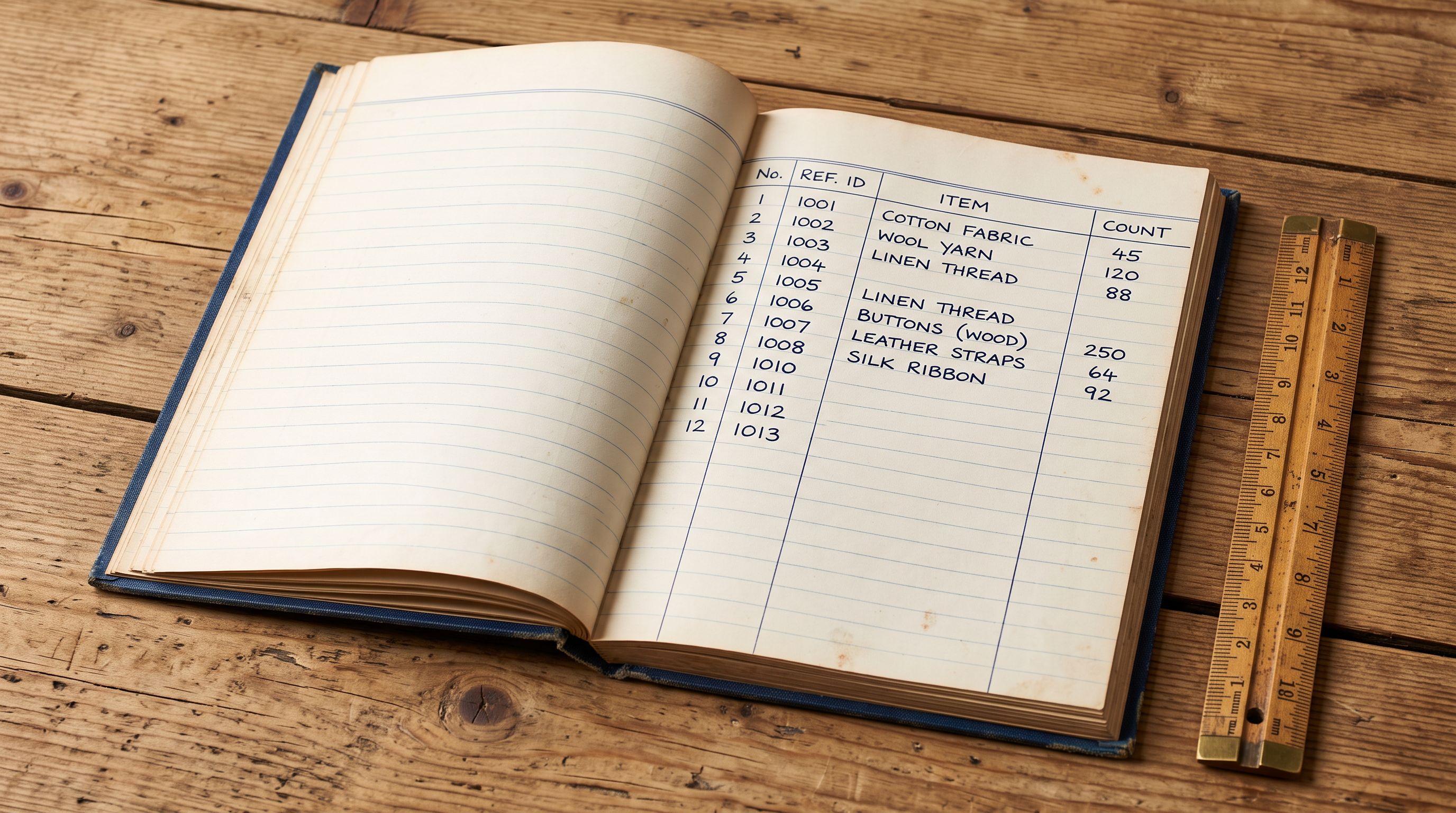
- 01Step 1Locate the batch in Import History. Every batch is listed with date, time, file name, and product count. For a Tuesday import of 300 products from a supplier named 'Collins Wholesale', the entry shows 'collins-wholesale-june-2026.csv: 300 products, pushed 2026-06-17 14:32'.
- 02Step 2Download the batch CSV. The download link is active for 60 days from the import date. The CSV contains every row from the original import: SKUs, titles, prices, barcodes, variant data.
- 03Step 3Use the SKU list in Store Scanner. Open Store Scanner and filter by SKU pattern matching the batch's products. If the Collins Wholesale SKUs all begin with 'CW-', filter by 'CW-' prefix to isolate exactly those products for a description update, price correction, or tag addition.
- 04Step 4Apply the batch update. Store Scanner applies the change to the filtered product set. Import History records the Store Scanner operation as a separate log entry, giving a complete before-and-after picture in the audit trail.
Import Undo: Reverting a Batch
Import History is also the entry point for Import Undo. Each batch entry includes a revert option. Triggering it removes all products from that batch from the Shopify catalogue, restoring the store to the state it was in before the import.
Revert operations are non-destructive to existing products: only products that entered Shopify as part of that specific batch are removed. Products that were already in the catalogue before the import, or products that came in through a different batch, are unaffected.
The revert use cases are specific but high-stakes:
- A supplier sends the wrong version of a catalogue and 500 products need to be removed without manual deletion
- A test import was accidentally pushed to the live store instead of the dev store
- A seasonal import went to the wrong collection assignment and a redo is faster than a batch correction
For a detailed walkthrough of the revert workflow and how to re-import after a revert, see the Shopify import undo guide.

- No record of which batch a product came from
- Cannot filter Shopify admin by import date
- Price correction requires manual product-by-product search
- Removing a bad import means finding and deleting products individually
- No download of original import data
- Every batch logged with date, file name, and product count
- Batch CSV downloadable for 60 days from import
- SKU list from batch feeds Store Scanner for targeted bulk updates
- Import Undo removes entire batch in one operation
- Audit trail shows every import in chronological order
Agency Use: Import History as a Client Accountability Trail
For agencies managing Shopify stores on behalf of clients, Import History provides a timestamped record of every change pushed to the client's catalogue. When a client asks "what changed in the catalogue last week?", the Import History log is the answer: exact dates, file names, and product counts for every batch.
The 60-day CSV download means an agency can produce a complete record of any import within the last two months. For handovers (when an agency transitions a store to another team), the Import History log documents the catalogue build-out: which batches were pushed, when, and from which source files.
The import log is not a safety net. It is a catalogue management tool: one that makes every batch traceable, reversible, and auditable without digging through Shopify admin.
According to Shopify's product management documentation, Shopify does not retain records of how or when a product was added to a store. Import History fills this gap for merchants using Importier, providing the metadata that Shopify's native admin does not capture.
For agencies specifically, import accountability matters at the point of onboarding a new client. If the store has existing products with no clear origin (common when taking over a store from another agency or when the merchant self-managed imports), Shopify's own bulk CSV import guide explains how to export existing products for audit, and the resulting export can be brought back into Importier for description enrichment or metafield population, with the batch appearing in Import History from that point forward.
Scheduled Imports and Import History
Merchants running Scheduled Imports on Scale or Enterprise plans see every automated run appear in Import History. Each scheduled execution generates its own log entry: the date, the source file, and the product count for that cycle.
This makes Import History the monitoring dashboard for automated catalogue management. Rather than checking whether a scheduled import ran, the merchant checks Import History: if the entry for the expected date and time is present, the run completed. If it is missing, the import did not execute. That is a signal to check the schedule configuration or the source file availability.
The scheduled import log entries also include CSV downloads. For merchants using automated pricing updates (a weekly supplier price file imported on a schedule), the 60-day download window gives a rolling archive of the last 20 pricing snapshots.
Using Store Scanner After Import History
The combination of Import History and Store Scanner handles the most common post-import correction workflow: update descriptions, tags, or prices for the products in a specific batch.
The workflow is Import History first, Store Scanner second:
- Import History identifies the batch and provides the CSV with the SKU list
- Store Scanner accepts a SKU pattern filter: if the batch's products have a common SKU prefix or barcode pattern, the filter isolates them
- Store Scanner applies the update (description regeneration, tag addition, price adjustment) to exactly those products
- The Store Scanner operation is logged in Import History as its own entry, completing the audit trail
For a detailed guide on using Store Scanner for targeted product updates, see the Shopify Store Scanner guide.
Shopify Import History: Key Takeaways
Import History turns every product import from a one-way operation into a traceable, reversible event.
- Every batch pushed through Importier is logged with date, time, file name, and product count. The log is append-only and reliable as an audit trail.
- Each batch entry includes a CSV download (active for 60 days) containing the original import data. The CSV provides the SKU list for follow-up Store Scanner operations.
- Importier retains up to 20 snapshots. Merchants running frequent imports should download CSVs for important batches within the 60-day window.
- Import Undo reverts an entire batch from the Shopify catalogue in one operation without affecting products from other imports.
- For agencies, Import History documents every catalogue change made on a client's behalf, with exact timestamps and source file names.
- Scheduled Import runs appear in Import History automatically, making it the monitoring view for automated catalogue management.
Start managing your product catalogue with a complete audit trail at importier.app. Import History is available on all plans; Import Undo and Scheduled Imports are available on Growth and above.
Set up your first import in under five minutes.
Importier brings products into Shopify with AI descriptions, category metafields, and data enrichment on every run.