Shopify Internal Linking: Set Collection Anchors at Import
On this page
A home goods merchant imports 340 products from a supplier catalogue. The import completes cleanly: titles, descriptions, prices, and images all land correctly in Shopify. Three months later, the store has no meaningful organic traffic despite a clean build and fast load times. An SEO audit reveals the shopify internal linking product import problem: every product sits directly under /collections/all. There are no collection pages building topical authority, no product type clusters signalling category relevance, and no internal links flowing between related products. The import wizard asked about collections. The merchant clicked past it.
The shopify internal linking product import decision is not a setting to change after launch. Collection assignment at import determines the URL structure of every product page, which determines the internal link graph, which determines how Google reads topical authority across the catalogue.
Why Internal Linking Matters Before Products Go Live
Internal links do two things simultaneously. They tell search engines which pages are related, and they distribute ranking equity from pages that have authority to pages that need it. On a well-structured Shopify store, collection pages accumulate authority from backlinks and content, then pass it to product pages via the /collections/[handle]/products/[slug] URL structure.
Google's crawling and indexing documentation is explicit that links within a site are evaluated for their relevance signals. A product page accessible via /collections/running-shoes/products/air-trainer-pro signals topical membership in the running shoes category. The same product accessible only via /collections/all/products/air-trainer-pro signals nothing except that it exists.
The structural difference is set at import. A product assigned to a specific collection at import gets the collection-scoped URL. A product not assigned to any custom collection defaults to /collections/all. That default is not a neutral choice; it is a topical classification decision that affects every piece of organic search performance the product ever generates.
How Shopify's URL Structure Creates Link Architecture
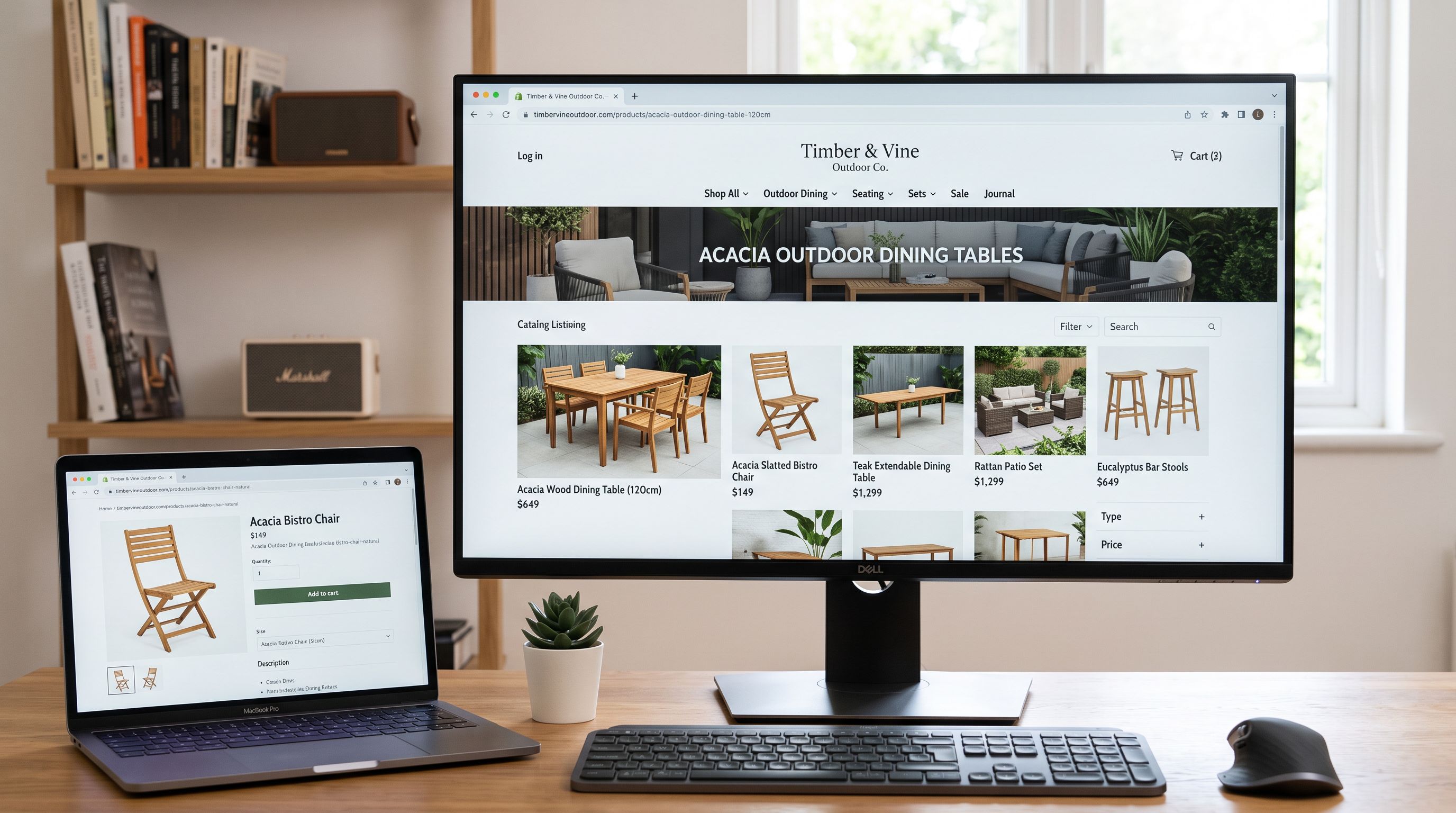
Shopify generates two canonical URL patterns for product pages. The first is the bare product URL: /products/[slug]. The second is the collection-scoped URL: /collections/[collection-handle]/products/[slug]. Shopify treats both as valid, but the collection-scoped URL carries additional context.
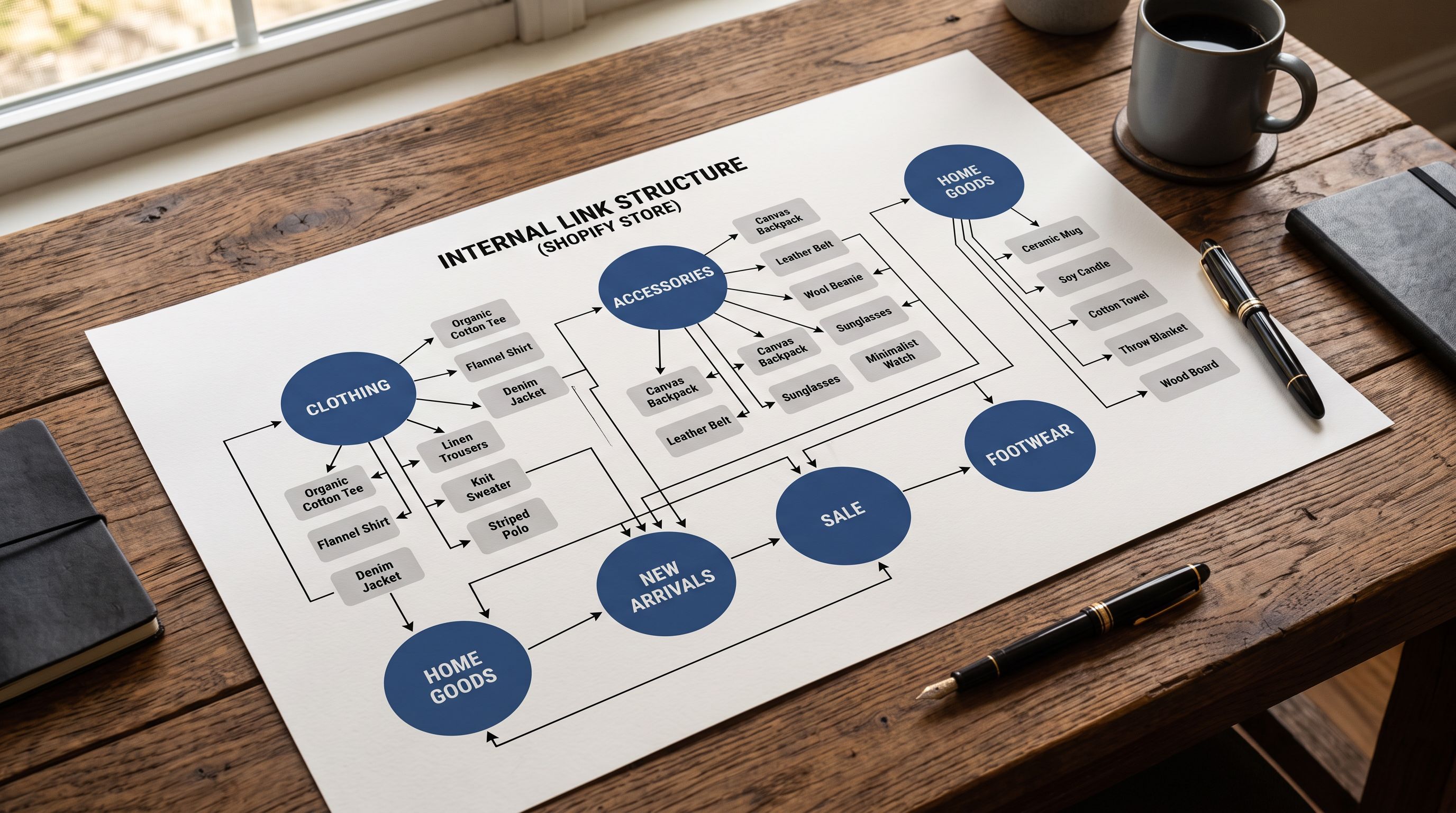
When a customer reaches a product page via a collection URL, Shopify renders the breadcrumb as: Home → [Collection Name] → [Product Name]. That breadcrumb is a series of internal links. Each product in the collection contributes to the collection page's internal link graph, and the collection page's authority flows back to each product. This is the topical cluster that Google reads as a signal of expertise across a category.
A merchant who imports 80 running shoes and assigns them all to the Running Shoes collection creates a cluster of 80 products feeding authority into one collection page, and that collection page distributing authority to all 80 products. A merchant who imports the same 80 products without collection assignment creates 80 isolated product pages under /collections/all, with no shared authority and no topical clustering.
The difference in outcome is measurable in organic search rankings over time. Category-clustered products tend to rank for category-level queries ("trail running shoes", "lightweight running trainers") that isolated products cannot rank for because there is no topical signal connecting them.
Product Type Field and Smart Collection Rules
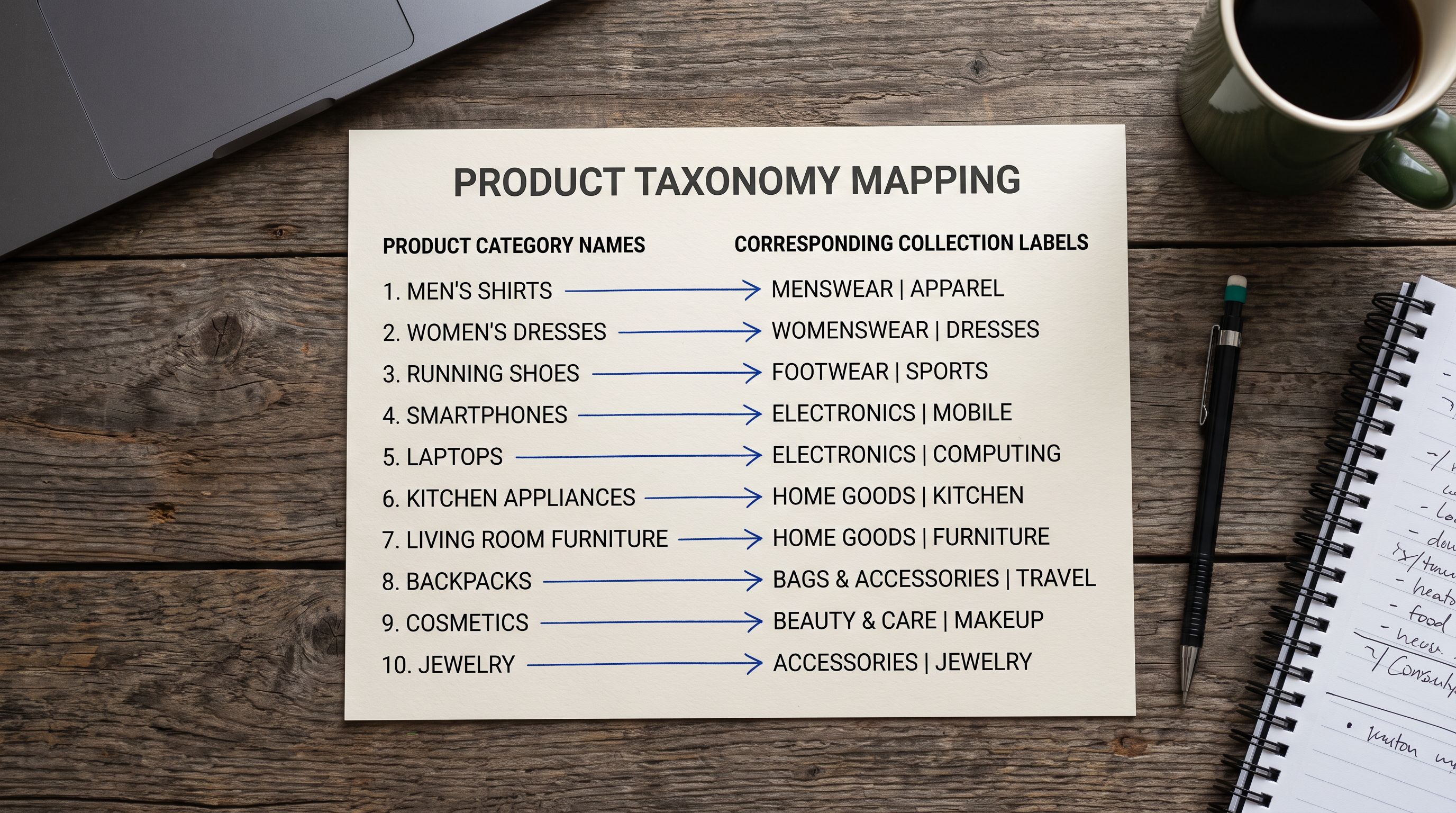
Shopify's collection system has two modes: manual collections (products added one by one) and smart collections (products added automatically when they match a condition). Smart collection conditions can match on product type, vendor, tag, price, and other fields. The product type field is the most reliable trigger because it is set once at import and does not change unless explicitly updated.
When Importier processes a product import, the column mapping step includes a product type field assignment. If the supplier file contains a category column, Importier maps it to the Shopify product type field. If no category column exists, Importier's AI enrichment assigns a product type based on the product title, description, and any available specification data.
Shopify's collection template documentation explains how collection pages render the breadcrumb and product grid that form the structural internal links in a Shopify theme. A smart collection set to include all products where product type equals "Running Shoes" will automatically capture every product assigned that type at import. No manual collection management is needed. As new products arrive via future imports with the same product type assignment, the smart collection expands to include them. The internal link architecture updates itself.
The product type field set at import is the single data point that determines smart collection membership. A correctly mapped product type creates the internal link cluster automatically; an unmapped or wrong product type leaves the product in /collections/all indefinitely.
Setting Collection Hierarchy at Import with Importier
Importier's 14-step import wizard includes an explicit collection assignment step. At this step, the merchant chooses which Shopify collection each product should belong to, or sets conditions for smart collection matching. The options are:
Assign all products in this import to an existing collection (fastest for single-category imports). Create a new collection scoped to this import's product type. Leave assignment to smart collection rules based on the product type field being set in the same import.
The third option is the most scalable. It requires that smart collections be configured in Shopify before the import runs, with conditions that match the product type values being assigned. Importier's import wizard surfaces the current smart collection rules so the merchant can verify the mapping before pushing.
Practical Setup
- 01Step 1Before running the import, audit your Shopify smart collections. Check which product type values each collection is configured to match. If you have a Running Shoes smart collection set to match product_type equals 'Running Shoes', every product assigned that type at import will land in the correct collection automatically.
- 02Step 2In Importier's column mapping step, assign your supplier's category or product type column to Shopify's product type field. If no such column exists, use Importier's AI enrichment to infer the product type from title, description, and specification data. Check the enriched values on a sample of products before running the full import.
- 03Step 3For stores with a multi-tier category hierarchy (e.g., Footwear > Running > Trail), use a tag-based secondary assignment in addition to product type. Importier's tag column mapping supports multiple tags per product: assign a category tag and a subcategory tag simultaneously. Smart collections can then match on both product type and tag to create subcategory clusters.
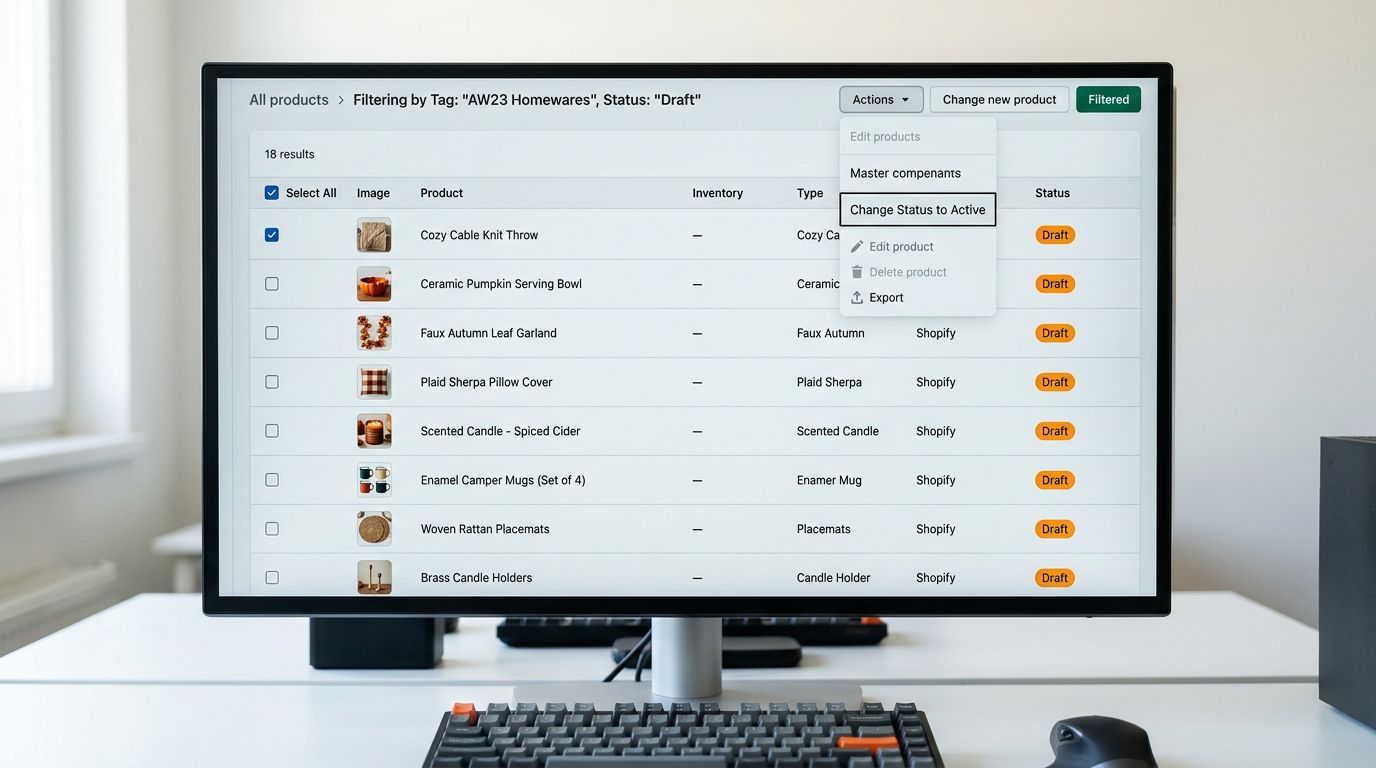
- 04Step 4After the import completes, verify collection membership by filtering the Shopify admin product list by collection. Every product should appear in at least one custom collection. Any product showing only in All Products or /collections/all has a missing product type assignment and needs to be fixed before the store goes live.
- 05Step 5For existing products that were imported without collection assignment, use Importier's Store Scanner with a collection filter. Filter for products in /collections/all that match your known product types, then run a batch product type assignment to trigger the smart collection rules.

Cross-Category Linking and Related Products
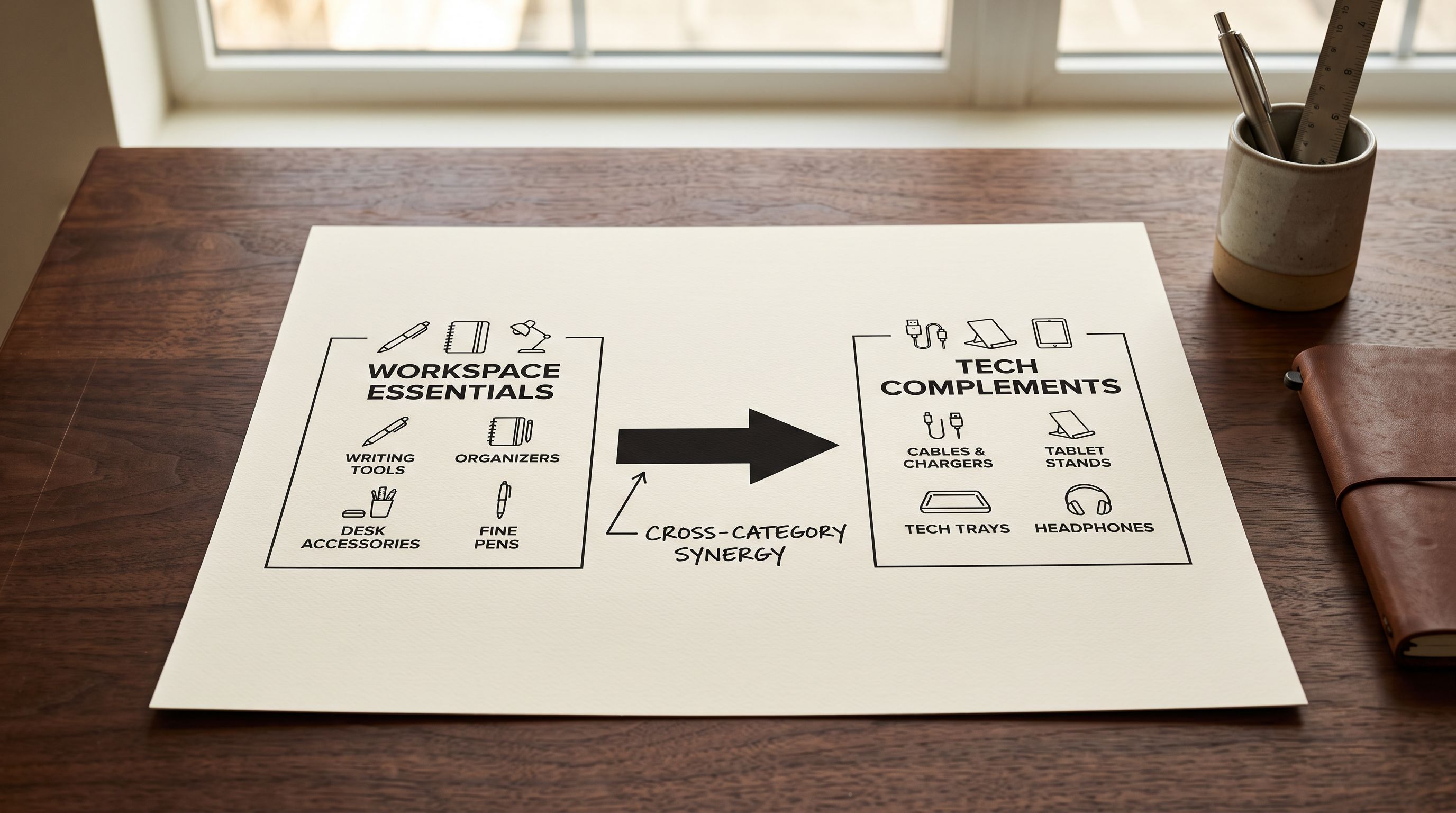
Collection membership creates the primary internal link cluster: the breadcrumb path, the collection page listing, and the related products section that Shopify renders when all products share a collection. But a complete internal linking strategy also includes explicit cross-category links: connections between products that belong to different collections but are frequently purchased together.
A running shoes store that also sells running socks benefits from a cross-link between the shoe product page and the socks collection page. These are different product types, different collections, and different URL clusters. The link between them is not structural; it has to be deliberate. Importier's custom sections feature in the AI description generator allows a cross-link field to be included in the generated description: a line at the end of the description that links to a complementary collection. Set once as a custom section template, it applies to every product in the import batch.
The anchor text matters for the link to carry topical signal. "Complete your kit with our running socks" is a better anchor than "see related products," because it tells both the reader and the search engine what the destination contains. Importier's custom section editor accepts free text that the AI uses to generate contextual cross-links for each product, varying the anchor text based on the product's description context.
Importier's product collections guide covers how to set up collection structures before a bulk import. For stores where smart collection rules are not triggering correctly after import, Importier's smart collections troubleshooting guide covers the common configuration gaps.
- Products accessible only via /collections/all
- No breadcrumb beyond Home > Product
- No topical cluster for category-level queries
- Smart collection rules never trigger
- Internal link equity stays flat across all product pages
- Products accessible via /collections/[category]/products/[slug]
- Breadcrumb: Home > Collection > Product (three linked pages)
- Topical cluster for category and subcategory queries
- Smart collections auto-populate from product type field
- Link equity flows from collection pages to product pages and back
Retrofitting vs Getting It Right at Import
Retrofitting collection assignment after a store has been live for months is possible but disruptive. Changing a product's collection membership changes its URL if the canonical was previously set to the collection-scoped path. URL changes require redirects to preserve any link equity already accumulated. For a 300-product store, this is 300 redirects and a re-crawl period during which rankings are temporarily volatile.
Getting collection assignment right at import costs nothing extra. The import wizard asks for it. The smart collection rules are a one-time setup. The product type field mapping takes under a minute if the supplier file has a category column.
For stores that have already launched with poor collection assignment, Importier's category metafields guide covers how to add structured taxonomy attributes to existing products without changing their URLs. Category metafields don't fix the URL structure, but they do provide structured data signals that complement an internal linking fix.
Shopify Internal Linking: Key Takeaways
Getting shopify internal linking product import right means treating collection assignment as a structural decision at import time, not a housekeeping task to do later.
- Products not assigned to a custom collection at import default to
/collections/all. This flat catch-all carries no topical signal and creates no internal link cluster. Every product that lands there is invisible to category-level organic search. - Shopify's collection-scoped URLs (
/collections/[handle]/products/[slug]) generate the breadcrumb, the collection page listing, and the related products block. All three are internal links. They are created automatically when collection membership is set correctly. - The product type field is the trigger for smart collection membership. Map your supplier's category column to the Shopify product type field at import, and smart collections with matching conditions populate automatically.
- Importier's 14-step import wizard includes an explicit collection assignment step. Product type field mapping in the same step sets the smart collection trigger. Both happen before any product is pushed to Shopify.
- Cross-category links (between complementary product types) require deliberate anchor text in the product description. Importier's custom sections feature adds a consistent cross-link template to every product description in a batch.
- Retrofitting collection assignment post-launch requires 301 redirects for every affected product URL. Getting it right at import costs nothing and avoids a re-crawl period.
Set collection anchors before your products go live at importier.app. The import wizard's collection assignment step determines the internal link architecture that search engines read for the lifetime of the store.
Set up your first import in under five minutes.
Importier brings products into Shopify with AI descriptions, category metafields, and data enrichment on every run.