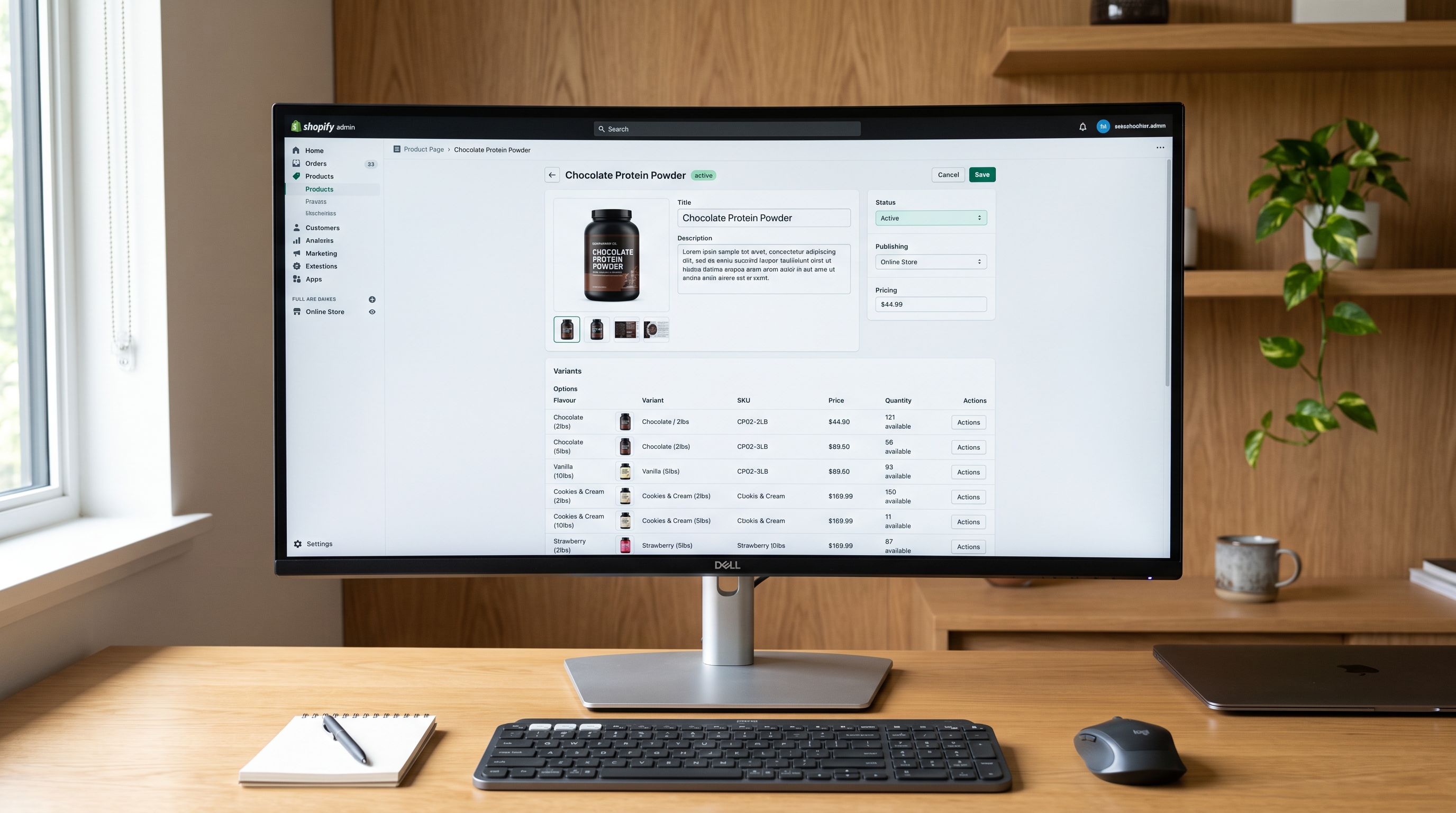
Shopify Draft Product Import: Stage Before You Publish
On this page
A Gold Coast homewares retailer imported a seasonal collection of 380 new products and pushed them directly to Active. Three days followed: customers landing on incomplete product pages, 47 products with placeholder AI descriptions that had not been reviewed, 12 products with images that had not finished processing, and 8 products assigned to the wrong collection. Customer-facing problems, fixed after the fact.
The next season's import ran the same 380 products through Draft status first. Every product was created in Shopify, invisible to the storefront, while the team ran through a review checklist. Issues found: 9 products with incorrect variant structures, 31 descriptions flagged for tone, 4 incorrect collection assignments. Fixed before a single product went live. The batch-publish took thirty seconds.
The difference between these two experiences was one field in the import configuration.
What Draft Status Does in an Import
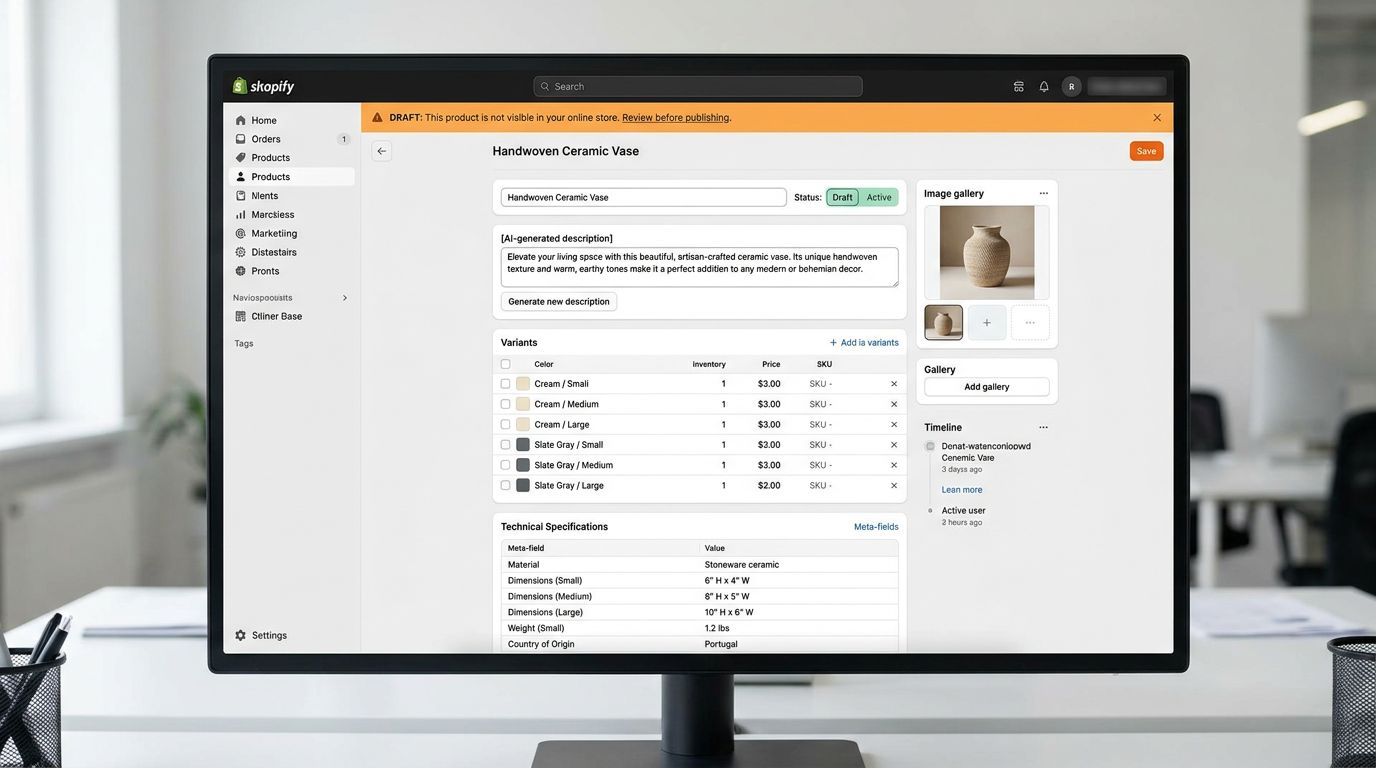
When products are imported with Status set to Draft, they are created in full in Shopify (with titles, descriptions, variants, metafields, images, and all other fields) but are invisible to the storefront and all sales channels. They do not appear in collections, search, or any public-facing view. They exist in the Shopify admin product list, accessible for editing, reviewing, and approving.
Shopify's product status documentation defines three statuses: Active (visible on storefront), Draft (not visible), and Archived (deprecated). An import that sets Status to Draft on every product creates a complete staging environment: everything that would be live under Active, held back until the merchant explicitly approves it.
Draft status is not a bug or a mistake. It is the correct default for any import where the products have not been reviewed before landing in Shopify. Pushing to Active is the final gate, not the import.
When Draft Import Is the Right Approach
Not every import needs a Draft staging pass. A scheduled import of existing products where only price or inventory is changing (products already live, already reviewed) can push changes to Active. The source data is known, the products are established.
Draft staging is the right approach when:
Products are new to the catalogue. Products the merchant has not seen before, sourced from a new supplier or a new season's range. These need at least a sample review before going live.
AI descriptions have not been reviewed. AI description generation produces consistent, structured output, but merchant review catches tone mismatches, incorrect technical claims, and descriptions that do not match the brand's voice for a specific product line. For a 380-product seasonal collection, reviewing all 380 is not practical, but reviewing a 10% sample in Draft before publishing protects against systematic problems.
The import includes structural decisions that carry risk. New Industry Pack configurations, new variant grouping patterns, new metafield mappings: any import where the configuration is being applied for the first time. Running a new configuration on Draft products means a structural problem discovered at review affects only invisible products. Running it directly to Active means fixing a visible problem.
The catalogue is live. An established store with active sales should not accept import risk directly into Active. The import may be correct. It may also have a mapping error that overwrites a field on thousands of live products. Draft staging quarantines that risk.
The import is from a new supplier with an unfamiliar file format. The first import from a new supplier is an experiment in column mapping. How the supplier names their size column, whether they use SKU or barcode as the unique identifier, how they represent variants: none of this is confirmed until the first import runs. Running that first import to Draft rather than Active means the mapping experiment lands in a safe environment. Review the first 20 products, confirm the mapping is correct, then re-run to Active (or simply publish the Draft products if everything looks right).
The Two-Pass Import Workflow
The Two-Pass Import: Separating Product Creation From Description Generation
The most effective implementation of Draft staging is a two-pass import workflow.
Pass 1: Import the product records as Draft, without descriptions.
The first import creates all products in Shopify with titles, variants, images, pricing, and category metafields, but without AI-generated descriptions. Running without descriptions keeps the first import fast and keeps review focused on structure rather than content.
In Shopify admin, the Draft product list shows all imported products. A review of the first 20-30 gives a rapid signal: are variant groups correct? Are images loading? Are products in the right collections based on tags? Are metafield values populated correctly from the Industry Pack? Structure problems discovered here are fixed by updating the import file and re-importing, which overwrites the existing Draft records.
Pass 2: Generate AI descriptions after structural QA passes.
Once structure is confirmed, AI description generation runs on the approved Draft products. This can be done in the same Importier import wizard by importing again with descriptions enabled, or via the Store Scanner on the Draft product set (filtering by the "seasonal-collection" tag applied in the first import).
Generating descriptions after structural confirmation means descriptions are generated for the correct product structure. A description generated before variant grouping is confirmed may describe a variant arrangement that changed in QA. Descriptions generated after QA describe exactly what went live.
Running description generation after structural QA is not slower. It is faster: one QA pass on structure, one generation pass on confirmed products, one batch-publish. Compared to fixing structural and content problems on live Active products, the two-pass workflow compresses the total correction time by a significant amount.
Running QA on Draft Products in Shopify Admin
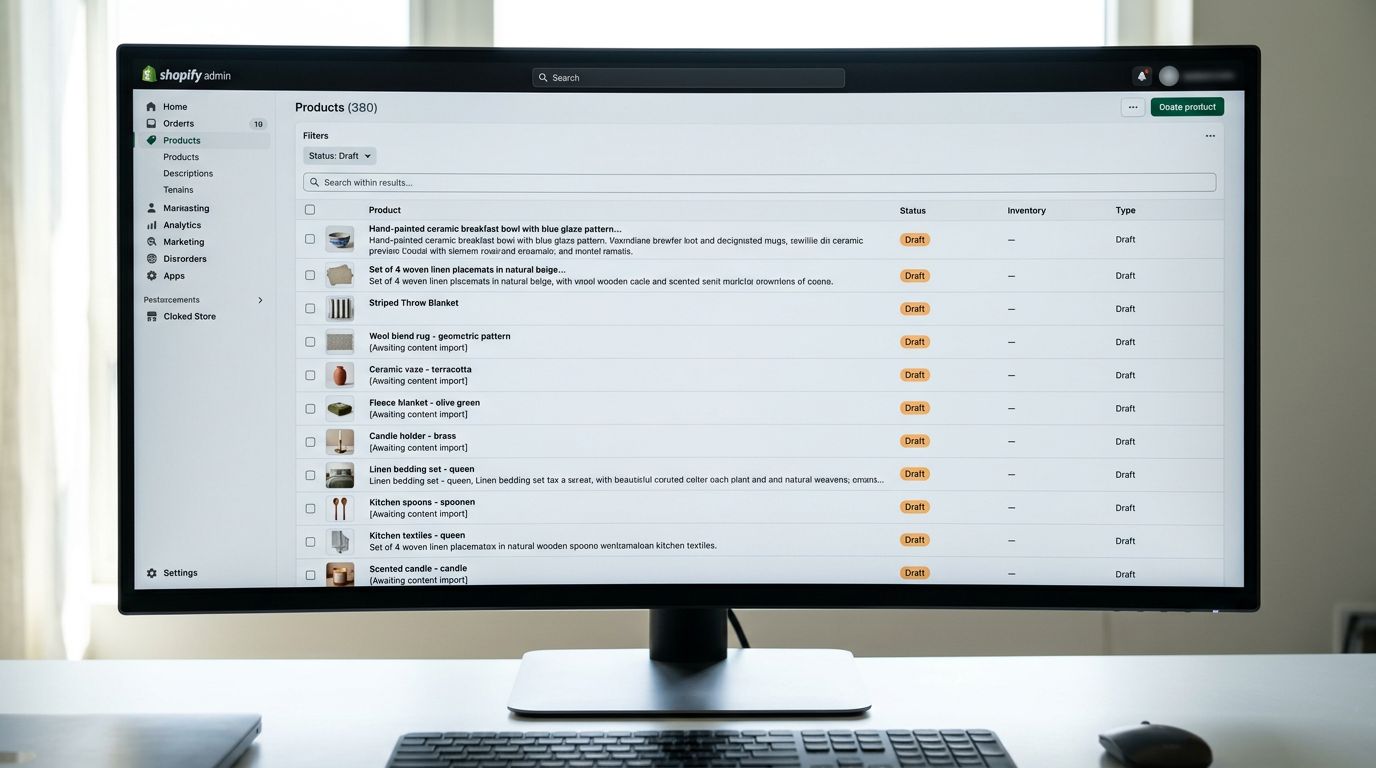
The Draft product list in Shopify admin is a working review environment. Every product in Draft can be opened, edited, and viewed without affecting the live storefront.
The review pass for a 380-product seasonal import does not require reviewing all 380 products individually. A structured sample review covers the main risk categories:
Variant structure (10-15 products per supplier). Open one product from each variant family type: a product with Size options, one with Colour options, one with both. Confirm that variants are grouped correctly and that option names are clean (not "S / Red" as a single string instead of two separate options).
Image loading (check the first 20 products in the list). Images that failed to fetch during import show as broken in the admin thumbnail view. A scan of the first 20 thumbnails catches systemic image problems without reviewing every product.
Collection assignment (filter by collection). For each target collection, filter the Draft list to that collection and verify the product count matches expectations. Wrong collection assignments from tag errors surface here immediately.
AI description sample (10% random sample). For a 380-product import, review 38 descriptions. Check one from each product category for technical accuracy, one for tone, one for length. If more than 3 in the sample have a common problem (all descriptions start the same way, all use the wrong tone setting), adjust the Brand Voice configuration and regenerate before publishing.
Batch Publishing
Batch-Publishing Draft Products
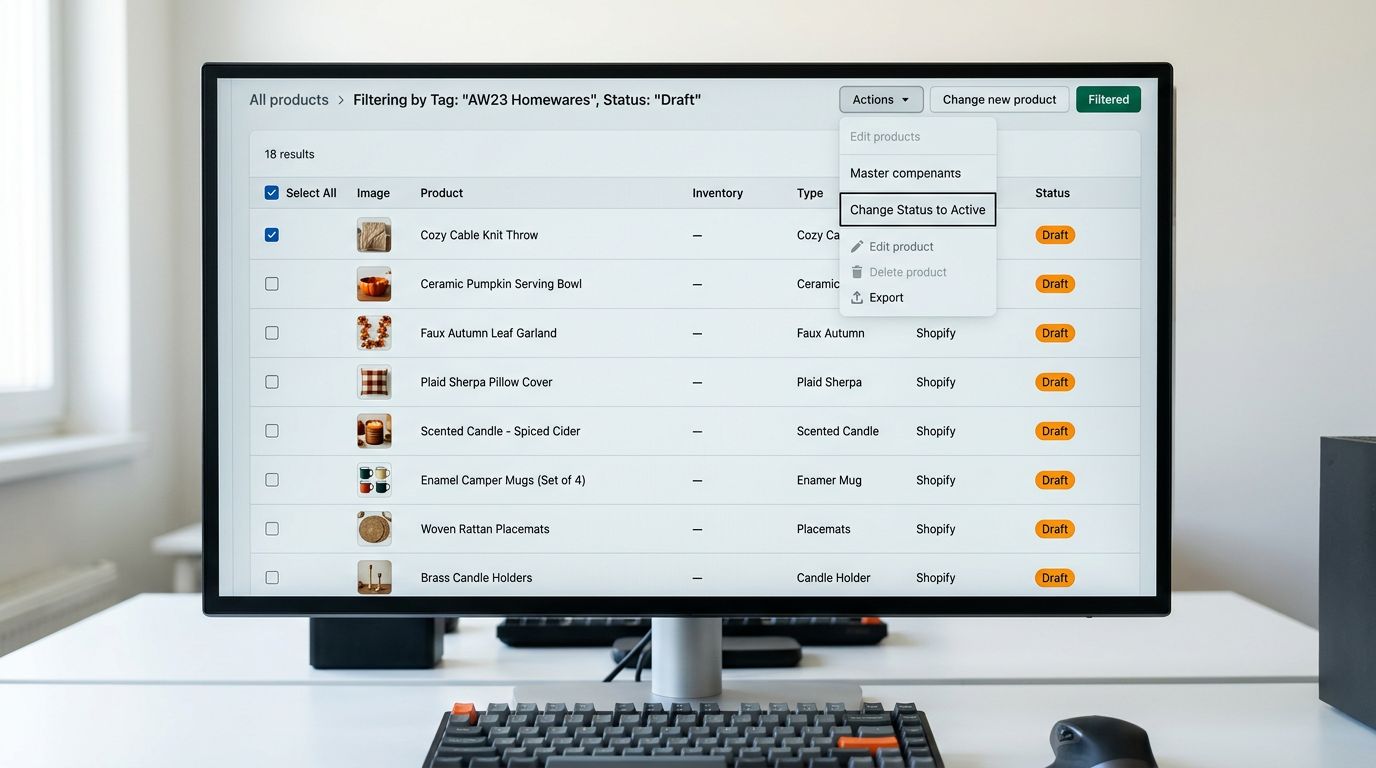
Once QA passes, Draft products publish in bulk. Shopify's bulk editor handles this: in the product list, filter to Draft status, select all, and use the bulk action "Change status" to set Active.
For large imports across multiple categories, a selective batch-publish works better than publishing everything at once. Filter by collection or tag, publish one category, confirm it looks correct on the storefront, then publish the next category. This gives the merchant a final visual check at the storefront level before the full catalogue is live.
If a problem is found at the batch-publish stage (a miscategorised product, a broken image), only that product needs to stay in Draft while the others publish. Draft products do not block each other from going live.
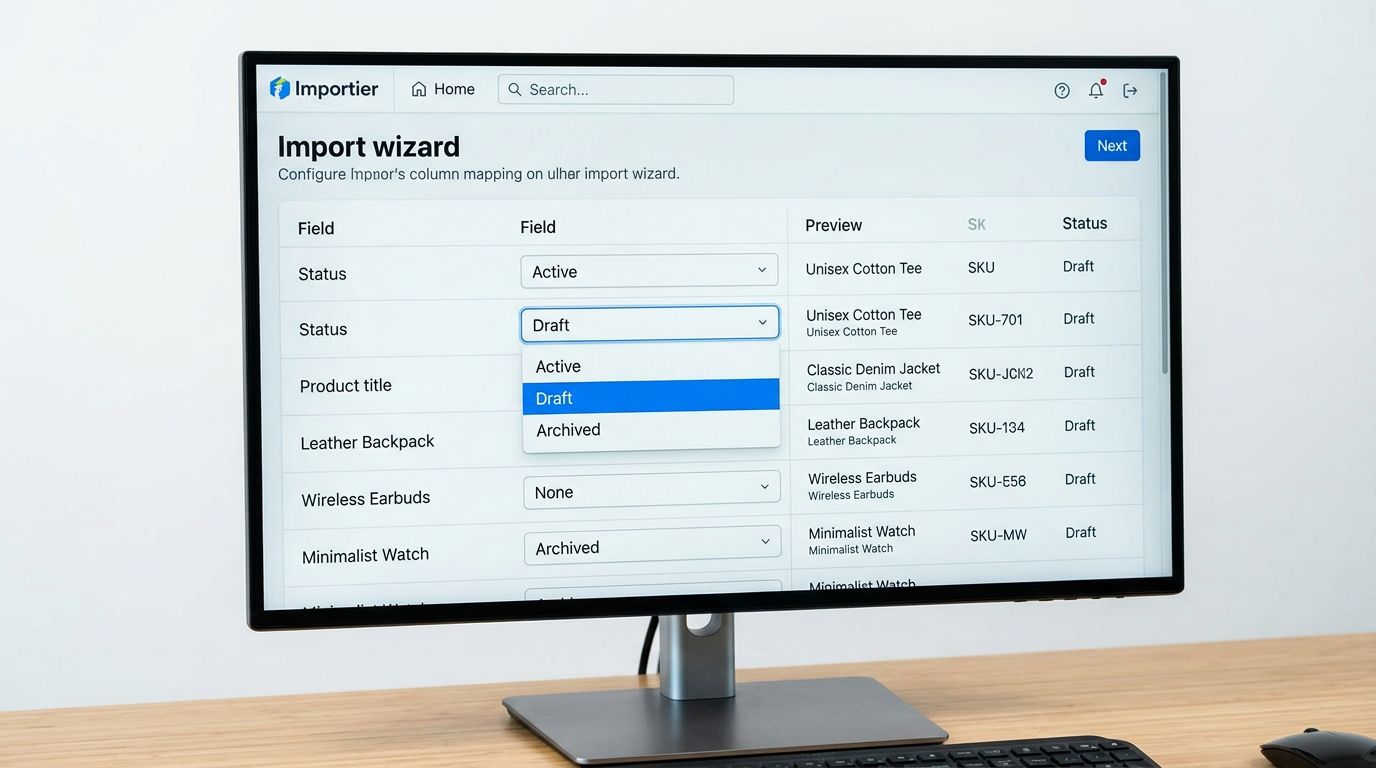
- 01Configure the import with Status set to Draftin the Importier column mapping step, map the Status field to Draft or add a Status column to the source file set to Draft for all rows
- 02Run Pass 1 import without descriptionsimport the product records only (title, variants, images, pricing, metafields) and let the import complete
- 03Review the Draft product list in Shopify admincheck variant structure on 10-15 products per supplier, scan thumbnails for broken images, verify collection assignments, and confirm metafield values populated from the Industry Pack
- 04Fix any structural issues foundupdate the source file and re-import; Importier matches on Handle and overwrites the Draft record without creating duplicates
- 05Run Pass 2 description generationimport again with AI descriptions enabled, or use Store Scanner filtered to the staging tag; descriptions generate for the confirmed product structure
- 06Review a 10% sample of descriptions for tone and accuracy, adjust Brand Voice settings and regenerate if needed
- 07Filter Draft products by collection and batch-publish each category; confirm the storefront display looks correct before publishing the next category
- Products go live immediately on import; structural errors are visible to customers during the hours it takes to identify and fix them
- Description problems discovered after publish affect live product pages; fixing requires re-importing or manual editing of live records
- Image loading failures on live products show as broken images to customers; identifying which products are affected requires a full catalogue audit
- A mapping error that overwrites a field on hundreds of live products causes a visible, immediate problem with revenue impact
- No safe way to do a final visual review before the catalogue goes live
- Products are created in full but invisible to customers; structural errors are found and fixed before any customer sees them
- Description problems found in Draft review are corrected before publish; no live product pages are affected
- Broken thumbnail images in the Draft list are caught in the review pass; only products with confirmed working images go live
- Import errors overwrite Draft records, not live products; re-importing to fix a mapping error has no customer-facing impact
- Batch-publish gives a final visual check of live storefront display before the full catalogue is active
If your products arrive in Shopify as Draft when you expected them to come in as Active, the cause is usually a Status column in the source file set to Draft, or a Shopify channel publish setting that defaults new products to Draft. The products imported as drafts troubleshooting guide covers the common causes and fixes.
The pre-launch testing protocol extends the Draft staging concept to a structured QA checklist for new store launches, where the review requirements are more rigorous than a single-season product addition.
For large migrations where data quality is the primary risk, the store migration timeline guide covers how to build a QA phase into the project plan rather than treating it as an afterthought.
Try Importier free at importier.app.
Set up your first import in under five minutes.
Importier brings products into Shopify with AI descriptions, category metafields, and data enrichment on every run.