Shopify Import Stuck at 0 Percent: Causes and Safe Recovery
On this page
A furniture merchant has 600 products from a new supplier. The CSV is ready. They click import, the progress bar appears, and then nothing happens. The bar sits at 0%. One minute passes, then three, then five. The merchant clicks the browser back button and tries again. The second import starts. When they check Shopify admin later, 400 products have been imported twice.
The shopify import stuck at 0 percent problem is one of the most disruptive import failures because the response is rarely the right one. A frozen progress bar does not mean nothing is happening. It often means the import is still processing the file in the background but the progress indicator has not updated. Clicking away, refreshing, or retrying immediately are the actions that cause data damage, not the freeze itself.
What a 0% Freeze Actually Means
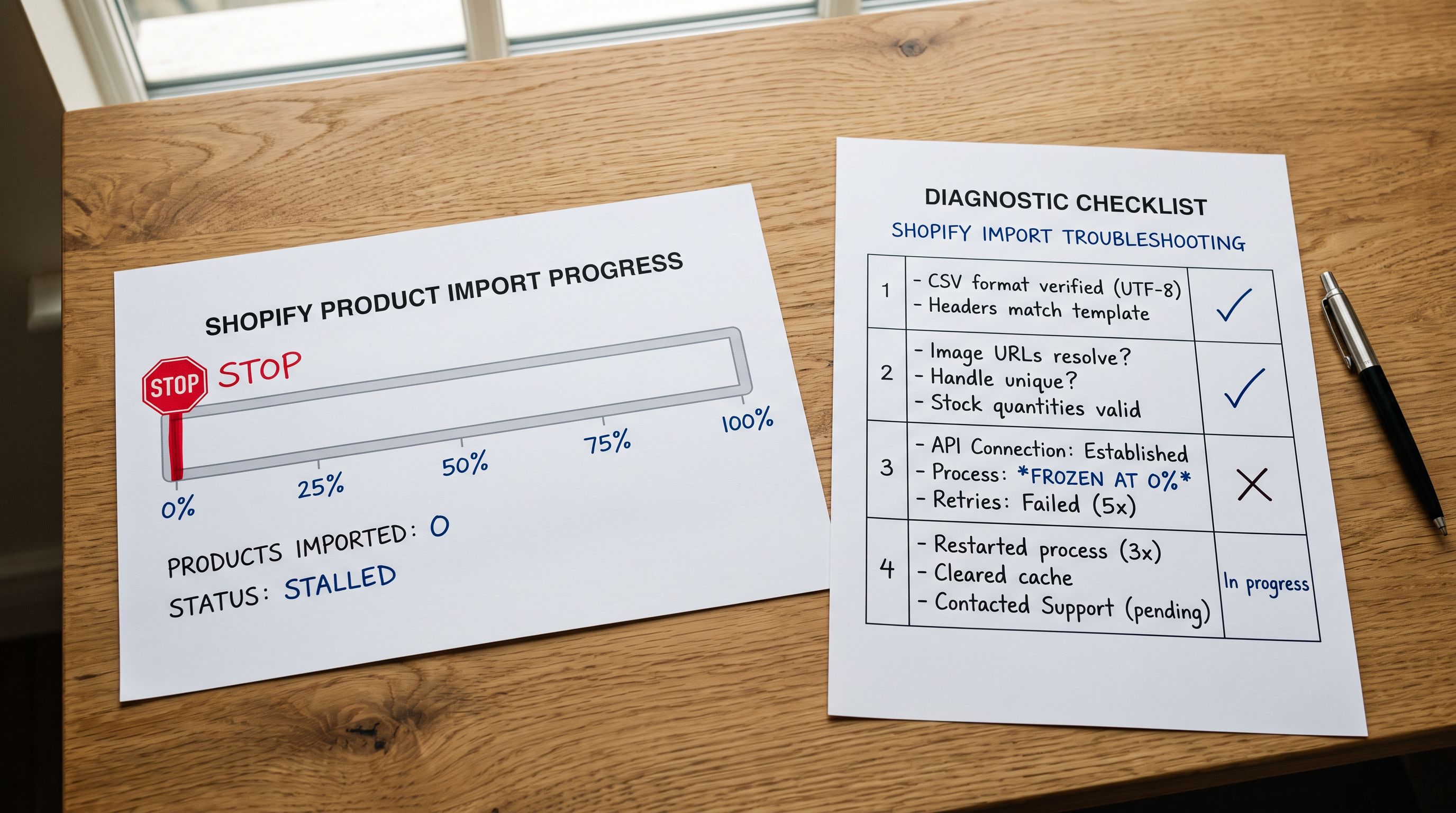
A shopify import stuck at 0 percent sits at one of two very different stages of the import pipeline.
The first stage is pre-write: the import tool is processing the file (parsing columns, validating headers, checking for encoding issues, resolving handles) but has not yet written any records to Shopify. At this stage, 0% means 0 records written. If the import fails here, the store is unchanged. This is the safe zone.
The second stage is early-write: the first records are being written but the progress indicator has not yet updated. Some import tools batch their API calls and only update the progress bar after completing a block of records. An indicator still showing 0% may actually represent 50 or 100 records already written to the store.
The distinction is not visible on the progress bar. It is visible in Import History.

The Five Most Common Causes of a 0% Import Freeze
File size exceeding browser memory
Large CSV files loaded entirely into browser memory before processing can cause the import to stall while the browser parses the file. A CSV with 5,000 products and 20 columns at average field lengths can exceed 50MB. Modern browsers allocate a memory ceiling per tab. When a file approaches that ceiling, the browser may pause execution, throttle the processing, or freeze the progress indicator while it works through the parse.
The symptom is a progress bar that stays at 0% for several minutes before either resuming or timing out. The file is not corrupt. The import may complete successfully if left alone long enough.
CSV encoding issues
Per Shopify's product import documentation, Shopify CSV files must be encoded as UTF-8. Supplier CSVs exported from Windows software often arrive as Windows-1252 or UTF-16 with a byte-order mark (BOM). When the import tool encounters an unexpected encoding, the header row parsing fails before any records can be written.
The symptom is a freeze at 0% that never recovers. The fix is re-saving the file as UTF-8 (Excel: Save As → CSV UTF-8 (with BOM) → remove the BOM before importing) or using a text editor to confirm and convert the encoding.
Browser tab background throttling
Modern browsers throttle JavaScript execution and timer intervals for inactive background tabs to reduce battery and CPU usage. An import running in a tab the merchant has minimised or switched away from may appear to freeze because the progress polling mechanism is slowed to a fraction of its normal speed.
As documented in Chrome's page lifecycle API guide, browsers may throttle background timers to fire as infrequently as once per minute in some cases. An import progress bar that polls for updates every 2 seconds in an active tab may effectively stop updating when the tab is in the background.
The symptom is a progress bar that shows 0% and appears completely frozen, but resumes normal progress when the merchant switches back to the tab. The fix is keeping the browser tab active and visible for the duration of the import.
Connection timeout during file upload
Uploading a large CSV to the import tool requires a sustained connection for the duration of the upload. A connection that drops mid-upload leaves the import in an indeterminate state: the file was not fully received, so processing never started, but the progress bar may show as if it is waiting. This is common on unstable Wi-Fi connections, VPNs with short timeout settings, or corporate networks with large-file inspection policies.
The symptom is a freeze at 0% with no sign of progress even after five or more minutes. The fix is switching to a wired connection, disabling VPN for the import, or using a smaller batch file.
Malformed header row or missing required columns
If the CSV header row contains unexpected characters (invisible Unicode characters pasted from a PDF, non-breaking spaces around column names, merged cells exported from Excel), the import tool may fail during header parsing before displaying an error message. Some tools silently freeze rather than immediately reporting the parse error.
The symptom is a near-instant freeze at 0% with no error shown. The fix is opening the CSV in a text editor (not Excel, which may re-introduce formatting) and verifying the header row contains only plain ASCII column names.
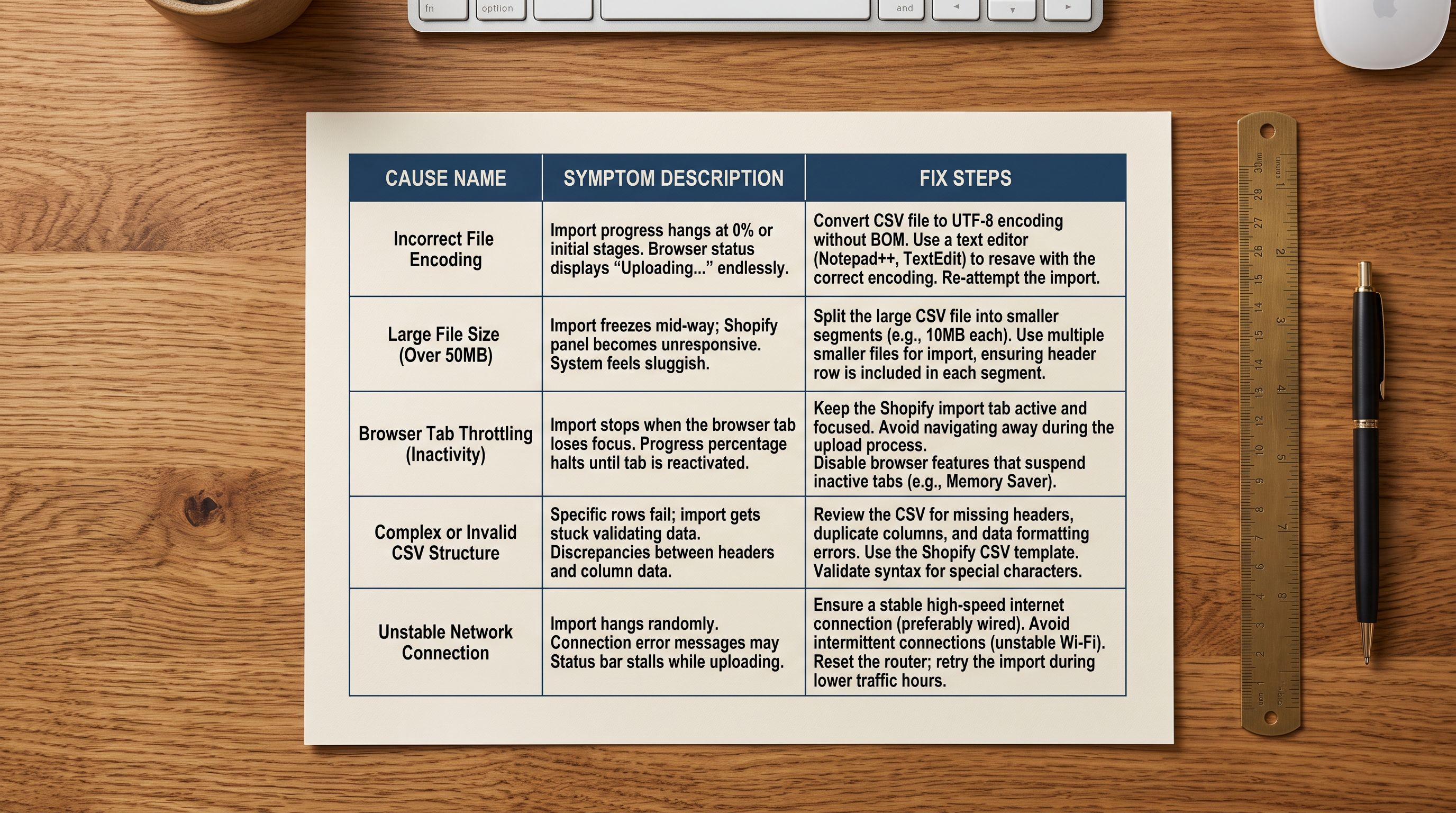
A frozen progress bar is not a failed import. It is an import whose current state is unknown. The safe response is to wait, check Import History, and then decide. Not to click refresh and retry immediately.
How to Confirm Whether Any Data Was Written
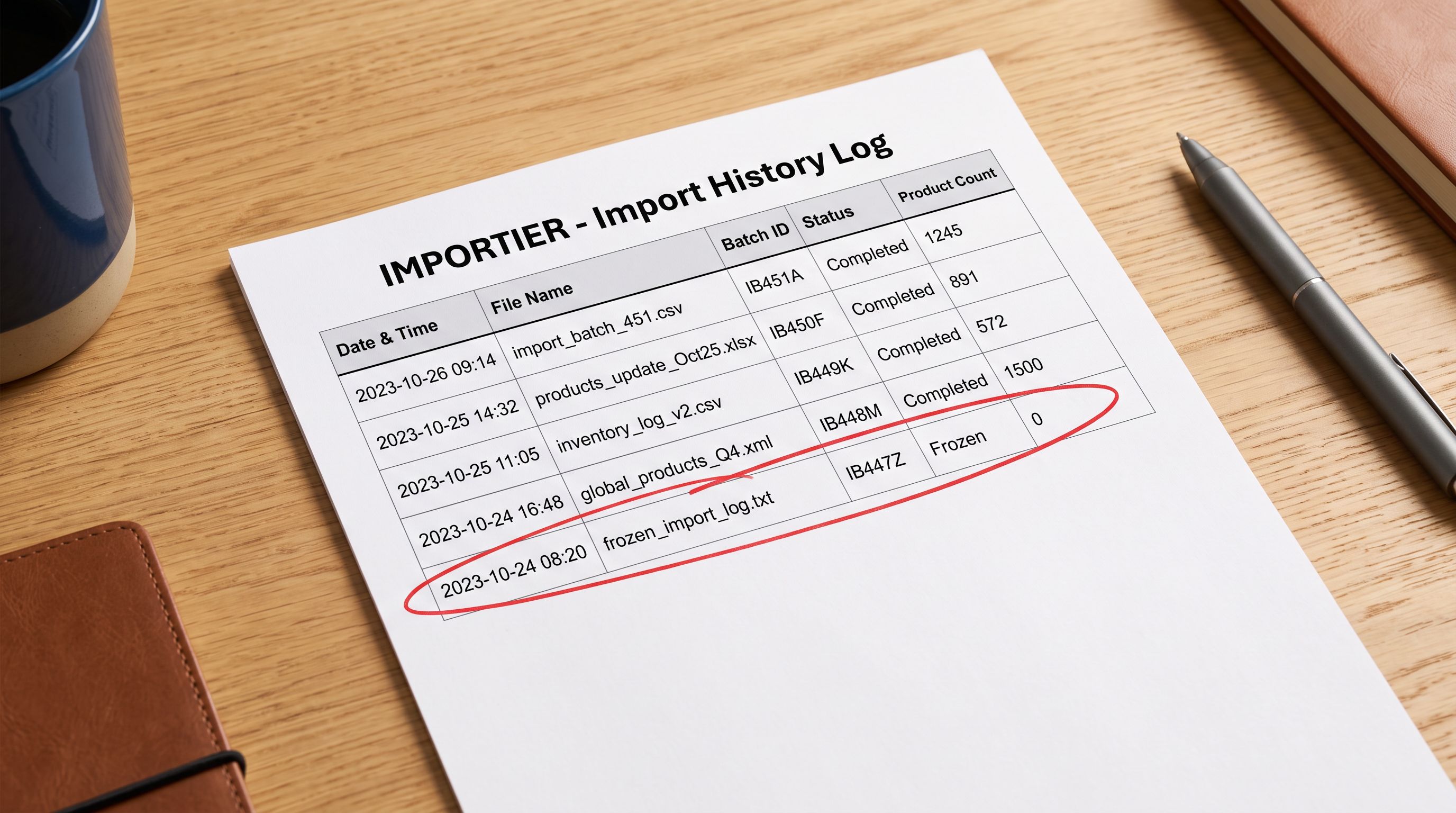
Before retrying a frozen import, open Import History in Importier and locate the batch entry for the frozen run. Every import attempt is logged regardless of whether it completed, including the product count at the point the run stopped.
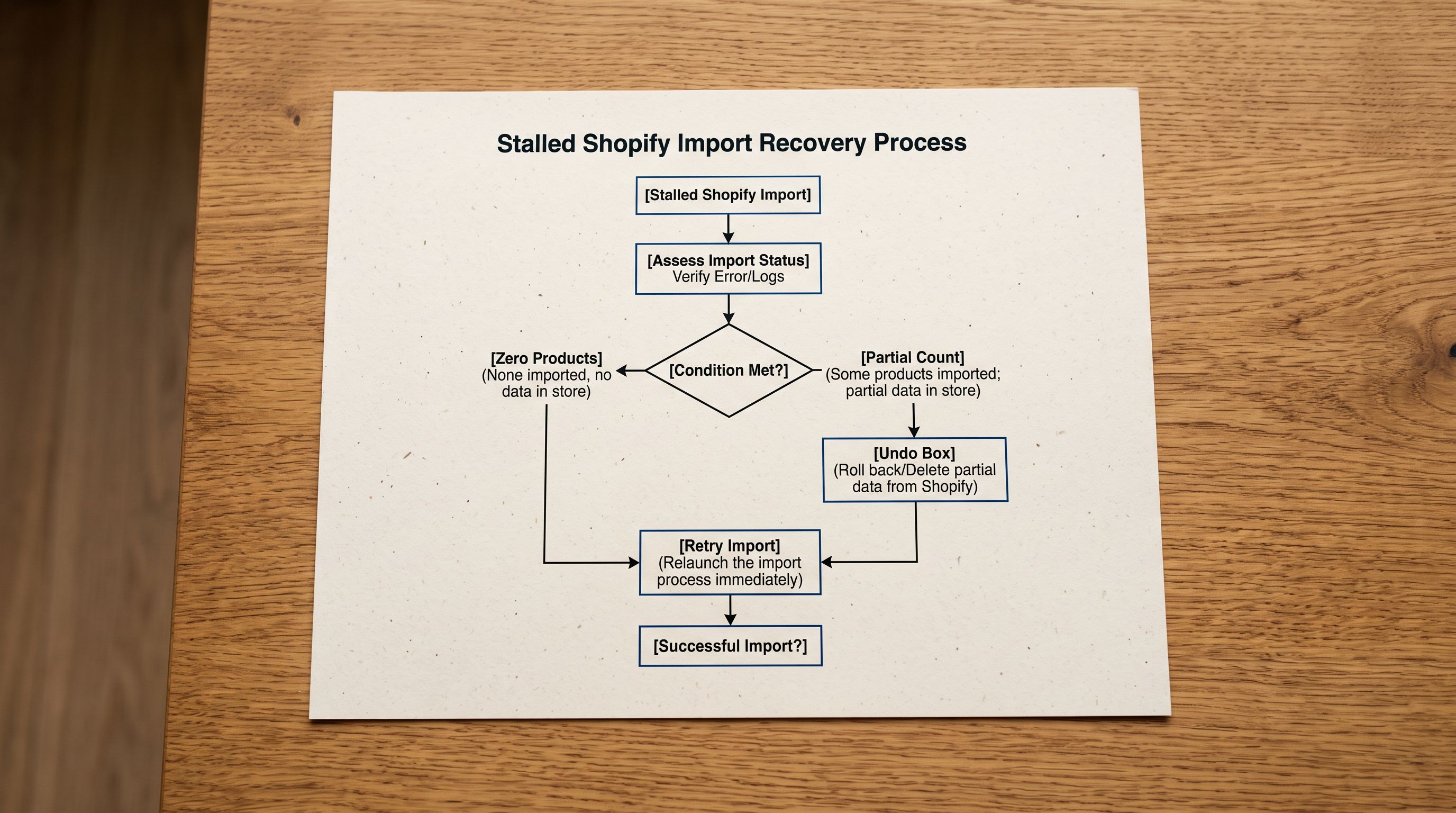
A batch entry showing 0 products processed confirms the freeze happened in the pre-write stage. No records exist in Shopify from this run. The import can be retried safely without risk of duplicates.
A batch entry showing a non-zero product count (even a small number like 12 or 50) means the import wrote partial data before freezing. Retrying the full import will create duplicate records for the products already written.
Importier's Import History log records the exact product count per batch run, not just a success or failure status. This is the information that makes safe recovery possible. An import tool that only shows "failed" or "error" without a count leaves merchants guessing whether a partial write occurred.
Recovery: what to do next
How to Recover Without Creating Duplicates
If Import History shows 0 products written
The freeze occurred before any records reached Shopify. The store is unchanged. Identify the cause from the list above (encoding, file size, background tab, connection), address it, and retry the import. No cleanup is needed.
If Import History shows a partial write
Some products were created in Shopify before the freeze. Retrying the full import will create duplicate records for those products. The correct sequence is:
- Use Import Undo in Importier to revert all products from the frozen batch. Import Undo removes the entire batch based on its run identifier. It does not leave partial data behind.
- Confirm in Shopify admin that the products from the batch no longer appear.
- Address the root cause of the freeze.
- Re-run the full import as a fresh batch.
Importier's Import Undo guide covers the undo process in detail, including how to identify the correct batch and what happens when products from the batch have been manually edited since the import.
- 01Step 1Wait at least 5 minutes after the progress bar freezes before taking any action. Many freezes are temporary. Clicking away or refreshing immediately is the action that causes duplicate data, not the freeze.
- 02Step 2Open Importier's Import History and locate the batch entry for the frozen run. Note the product count recorded for that run : 0 means no data was written, any non-zero number means a partial write occurred.
- 03Step 3If the count is 0, address the root cause (check encoding, reduce file size, confirm your connection, keep the tab active) and retry the import.
- 04Step 4If the count is non-zero, run Import Undo on the frozen batch first to remove the partial write. Confirm the products are removed from Shopify admin. Then address the root cause and retry.
- 05Step 5For future large imports, test with a small batch first. A 10-20 row test file confirms the column mapping, encoding, and connection are working before committing to the full catalogue.
Preventing 0% Freezes: Batch Size and Environment
The most reliable way to prevent a shopify import stuck at 0 percent is to reduce file size and control the browser environment.
Start with a test batch
Running a 10-20 row sample of the import file before the full catalogue confirms that the column mapping works, the encoding is correct, and the connection can sustain the upload. A failed test on 20 rows causes no data damage and reveals the problem before it affects a 600-product import. Importier's guide to testing a Shopify import with a small batch covers how to structure a representative sample that will catch the most common issues.
Keep batches under 500 products per run
Large single-file imports concentrate all the risk in one operation. Splitting a 1,000-product supplier catalogue into two 500-product batches means a freeze affects half the catalogue at most, and each batch is small enough that a partial write is easier to undo. The practical ceiling varies by file complexity (many variant columns and metafield columns increase parse time), but 500 products per batch is a reliable upper bound for most supplier CSV formats.
Keep the browser tab active
Do not switch to another application or minimise the browser while an import is running. Keep the import tab in the foreground. If you need to do other work during a long import, open a separate browser window rather than switching the active tab.
Use a wired connection for large files
If your network is unstable or if your organisation uses a VPN, switch to a wired Ethernet connection before running a large import. The file upload phase requires a sustained connection. A wired connection eliminates the main cause of mid-upload timeouts.

- Click browser back or refresh immediately when the bar freezes
- Retry the full import without knowing if partial data exists
- Discover 300 duplicate products in Shopify admin the next day
- Spend several hours manually deleting duplicate records
- No reliable way to confirm cleanup is complete
- Repeat the same mistake on the next large import
- Wait 5 minutes, then open Import History and check the product count
- Confirm the freeze was a pre-write freeze (0 products logged) before retrying
- Retry safely with no duplicate risk because the store is confirmed unchanged
- If a partial write occurred, use Import Undo to clean up cleanly with one action
- Confirm the cleanup is complete by verifying the batch count is back to zero
- Reduce batch size and run a test file before the next large import
Key Takeaways
A shopify import stuck at 0 percent is a frustrating but recoverable situation when handled correctly. The panic response of clicking back, refreshing, and retrying immediately turns a recoverable freeze into a duplicate-data problem.
- A progress bar frozen at 0% has two very different possible states: pre-write (no records in Shopify yet, safe to retry) or early-write (some records exist, retry will duplicate them). The progress bar alone cannot tell you which.
- Import History shows the exact product count for every batch run, including frozen or failed runs. A count of 0 means the store is unchanged. A non-zero count means a partial write occurred and Import Undo must run before a safe retry.
- The five most common causes of a 0% freeze are: file too large for browser memory, CSV encoding mismatch (Windows-1252 or UTF-16 instead of UTF-8), browser tab background throttling, connection timeout during upload, and malformed header rows with hidden characters.
- The correct response to a freeze is: wait five minutes, open Import History, read the product count, then decide. Not: refresh and retry immediately.
- Preventing 0% freezes is easier than recovering from them: run a 10-20 row test batch first, keep batches under 500 products, keep the browser tab active and visible, and use a wired connection for large files.
Check your Import History after any interrupted import at importier.app before retrying. The product count in that log is the only reliable signal for what your store contains.
Set up your first import in under five minutes.
Importier brings products into Shopify with AI descriptions, category metafields, and data enrichment on every run.