Shopify Import Overwrites Descriptions: How to Prevent It

On this page
Shopify Import Overwrites Descriptions: How to Prevent It at Re-Import Time
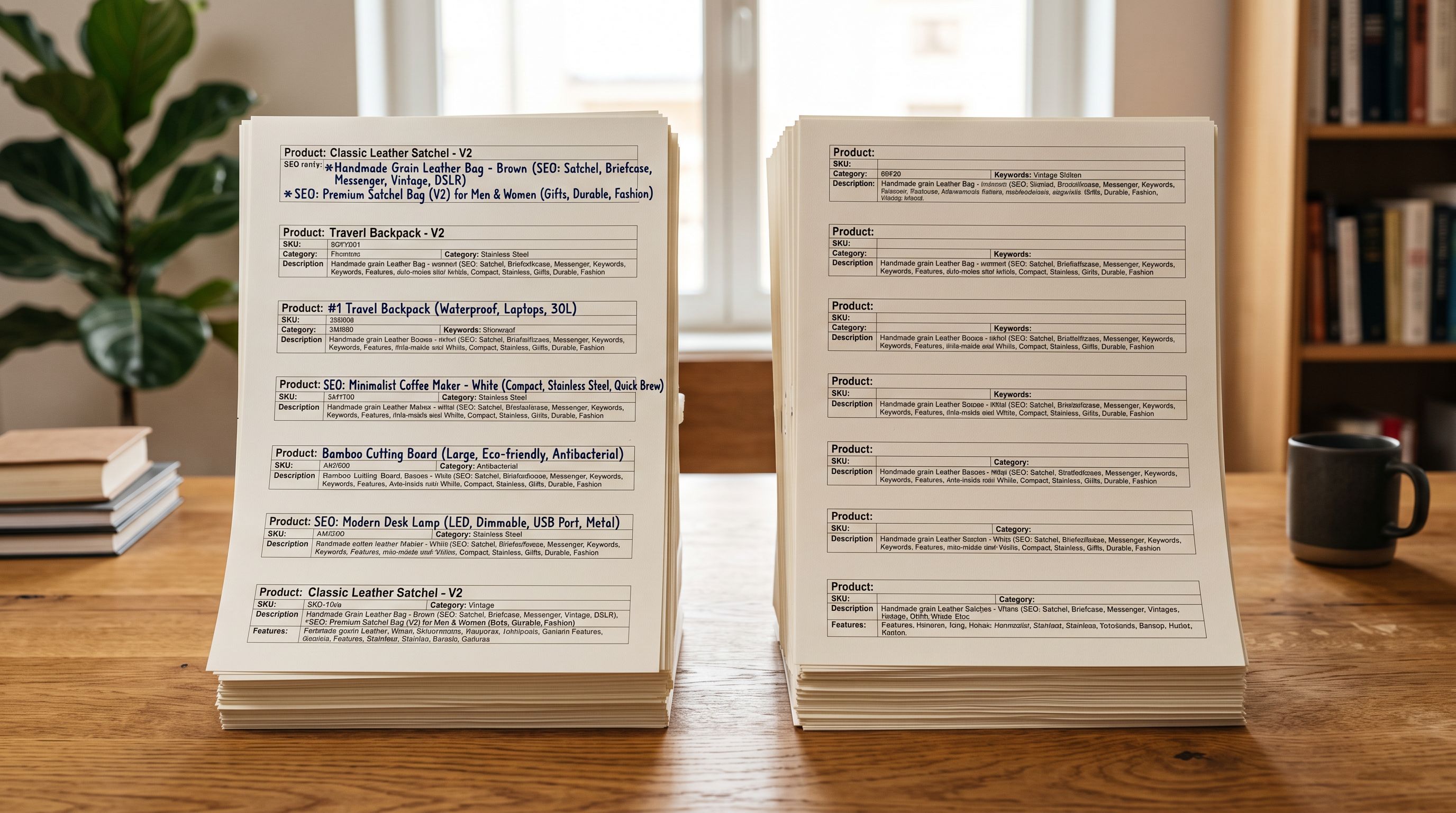
A merchant spends two weeks generating and refining descriptions for 500 products. Each one is tailored to the brand voice, includes the key search terms, and passes the content score threshold. The supplier then sends a new price list CSV. The merchant imports it, the prices update, and every description is replaced with the two-sentence blurb from the supplier's wholesale catalogue.
This is not an edge case. Any Shopify import that includes a description column and maps it to the Shopify description field will overwrite whatever description the product already has. The import does not know or care whether the existing description was better. It replaces.
The solution is not to avoid re-importing. Suppliers update prices, inventory levels, and product information regularly, and re-importing is how those changes reach Shopify efficiently. The solution is configuring the import so that only the columns that changed are written, and the description column is left alone.
Why the Overwrite Happens
Shopify's import system and most CSV import apps, including Importier, operate on a field-replacement basis. When a product already exists in Shopify and a new import row matches it (by SKU, handle, or barcode), the import writes the value from the CSV to each mapped field. If the description column is mapped and the CSV has a description value, that value replaces whatever description is currently in Shopify.
There is no merge or diff logic. The import does not compare the incoming description to the existing one. It does not check whether the existing description is longer, more detailed, or has a higher content score. It replaces.
The problem compounds when merchants are not the ones who produced the current descriptions. A merchant may have paid a copywriter, generated descriptions through Importier's AI, or built up a library of well-performing product pages over months. A single re-import that includes the description column resets all of that to the supplier's generic copy.
The SEO impact is significant. Supplier descriptions are often shared across every retailer stocking the same product. When multiple Shopify stores import from the same supplier catalogue and take the description column as-is, they end up with identical descriptions for the same product. Search engines treat this as duplicate content, which reduces the ranking potential of every store involved.
The Cases Where Overwriting Happens
Scheduled price updates: a supplier sends a new price list every month. The merchant imports it to update pricing. If the supplier's file includes a description column and that column is mapped, the descriptions are overwritten on every monthly import cycle.
Inventory updates: the supplier sends a weekly stock file. The file includes the same descriptions as the original import. If the merchant imports the full file rather than just the inventory columns, descriptions are overwritten weekly.
New product additions with existing products included: a supplier sends a file of new products, but the file also includes all existing products with updated data. The full import replaces descriptions on the existing products even though only the new products needed the description written.
Migrating stores with existing content: a merchant migrating from one Shopify store to another exports their catalogue, edits some data in Excel, and re-imports. If the Excel editing accidentally overwrites description cells or if the export format changes the description encoding, the re-import replaces good descriptions with bad ones.
Solution 1: Map Only the Columns That Changed
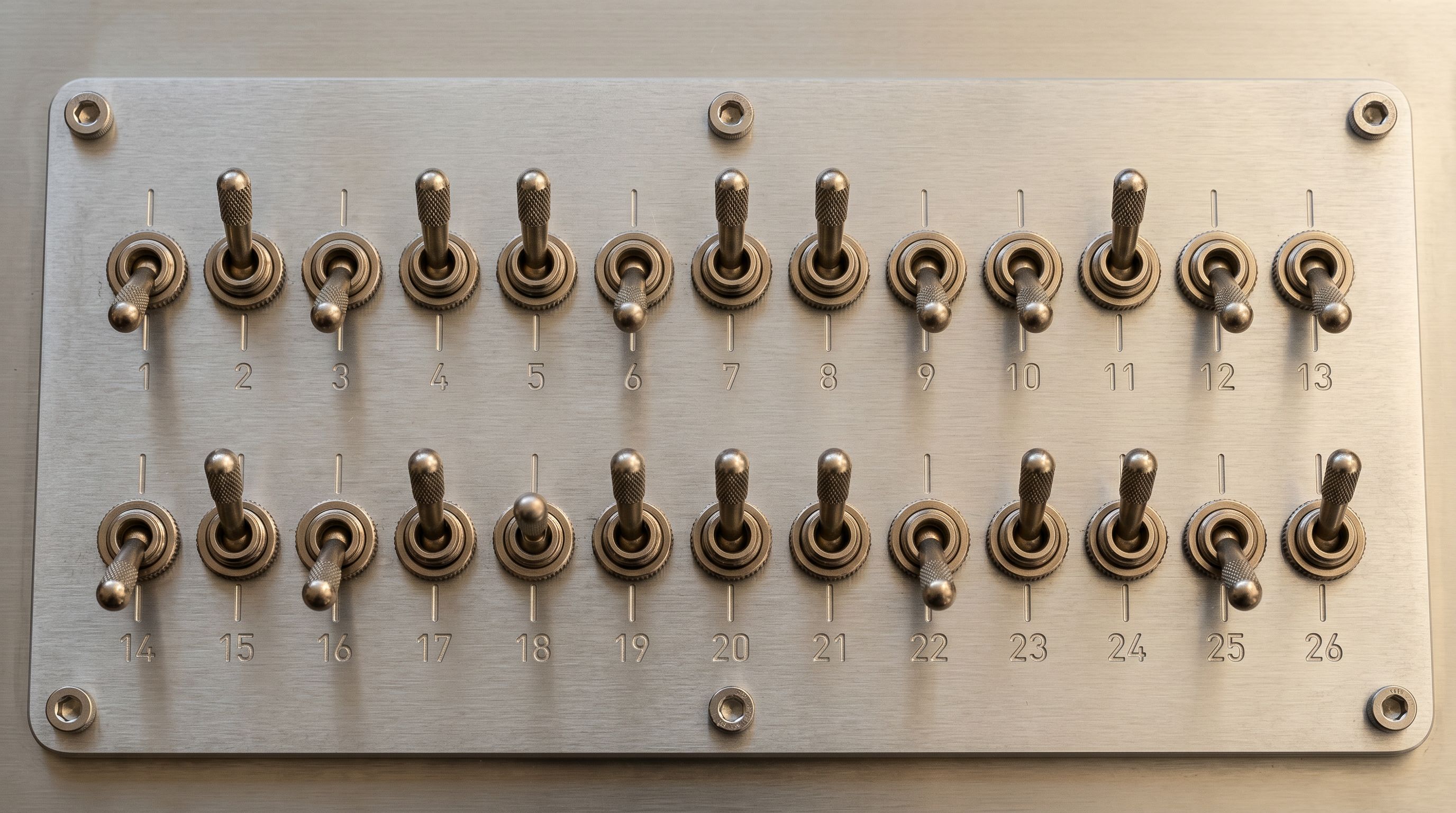
The most reliable prevention is column mapping configuration. In Importier's column mapping step, the merchant selects which columns from the supplier file map to which Shopify fields. Any column that is not mapped is ignored.
For a price update import, the correct mapping is:
- Shopify Handle or SKU: maps to the Shopify identifier so existing products are matched, not duplicated
- Price: maps to the Shopify price field
- Compare At Price: maps to the Shopify compare-at price field, if the supplier's file includes it
- Inventory Quantity: maps to inventory, if this is also an inventory update
The description column from the supplier file should be left unmapped. It exists in the file, but without a mapping destination it is ignored. The existing Shopify description is untouched.
This configuration can be saved as a named mapping profile in Importier. A merchant who receives monthly price list updates from the same supplier saves a "Monthly Price Update" profile that includes the identifier, price, and compare-at price mapping with no description column. Each subsequent import loads that profile, and the description is never at risk.

A named mapping profile that includes the identifier and price columns but excludes the description column is the safest way to run recurring price updates. The profile takes seconds to load and the risk of accidental overwrite is eliminated.
Solution 2: Export Descriptions Before Re-importing
When a description overwrite has already happened, or when the merchant wants a backup before a large re-import, Importier's "Descriptions Only" export preset produces a CSV containing the product handle and the current description for every product in the catalogue.
This export can be used as a restoration file. If a re-import accidentally overwrites descriptions, the merchant imports the descriptions-only export, mapping the handle column to Shopify handle and the description column to the Shopify description field, to restore all descriptions to their pre-overwrite state.
The export also serves as a periodic backup practice. Before any major re-import, run the descriptions-only export and save it. If anything goes wrong, the descriptions are recoverable in a single import.
Solution 3: Regenerate Overwritten Descriptions
When descriptions have been overwritten with supplier copy and a backup was not saved, Importier's Store Scanner (Add Missing Descriptions) can identify products with short or generic descriptions and regenerate them. The scanner filters by description length threshold (for example, any product with a description under 150 words) is flagged for regeneration.
This is not a rollback; it generates new descriptions rather than restoring the original ones. But for catalogues where the original descriptions were AI-generated in the first place, regenerating with the same description style, tone, and persona settings produces output at a comparable quality level.
The regeneration runs in Replace mode, which overwrites the current (now supplier-copy) description with the newly generated one. Append mode is also available for products where the goal is to add AI-generated content after an existing description rather than replace it.
- All columns in the supplier file are mapped and written
- Description column overwrites custom descriptions with supplier copy
- No indication which products were affected
- Monthly re-imports cycle through the overwrite repeatedly
- Reversal requires re-writing all affected descriptions manually
- Only selected columns are mapped; description column is excluded
- Custom descriptions remain untouched across all re-imports
- Named mapping profile saves the safe configuration for future use
- Descriptions-only export provides a backup before any large import
- Store Scanner can regenerate descriptions if overwrite has already occurred
A Worked Example: Monthly Price Update for 200-Product Catalogue
A homewares merchant receives a monthly price list CSV from their supplier. The file has 200 rows covering their full product range. Columns include: SKU, Product Name, RRP, Cost Price, and a short one-line description from the supplier's catalogue.
When the merchant first imported from this supplier 18 months ago, they mapped all columns including the description. Since then, they have generated AI descriptions for every product using Importier's Ingredient Spotlight style, had a copywriter review and refine the top 50 products, and built up a content library that performs well in search.
On the last monthly import, the merchant forgot to unmap the description column. All 200 products now have the supplier's one-line descriptions.
Resolution:
- The merchant exports the catalogue using the Descriptions Only preset. This recovers the current state (the overwritten descriptions).
- They recognise the overwrite has already happened. The export shows the supplier copy, not their own content.
- They check their previous Importier export (run the month before as a backup habit) and find the original descriptions there.
- They import the backup descriptions-only file, mapping handle to handle and description to body HTML. All 200 descriptions are restored in one import.
Prevention going forward:
The merchant creates a "Monthly Price Update" mapping profile that maps SKU (identifier), RRP (price), and Cost Price (cost price). Description column is excluded. Each month's import loads this profile and runs without touching descriptions.
The Shopify import column mapping guide covers how to create and save named mapping profiles for recurring import workflows. The shopify bulk update product descriptions guide covers using the Store Scanner to regenerate descriptions across a catalogue when descriptions need to be refreshed or recovered after an overwrite.
- 01Before any re-import, export your current descriptions using Importier's Descriptions Only preset. Save the file with a date stamp as a backup. This takes two minutes and provides a recovery point for any accidental overwrite.
- 02In Importier's column mapping step, map only the columns that contain changed datathe product identifier (SKU or handle), price columns, and inventory columns. Do not map the description column unless you specifically intend to update descriptions in this import.
- 03Save the import configuration as a named mapping profile. Give it a descriptive name ('Monthly Price Update' or 'Inventory Sync') so any team member running the import in future loads the same safe configuration rather than remapping from scratch.
- 04After a large import, spot-check five to ten products in Shopify to verify that descriptions match your expected content, not the supplier's text. If they have been overwritten, import the descriptions-only backup file immediately to restore them before any Vercel build or Google crawl picks up the changes.
- 05If descriptions have been overwritten and no backup exists, use Importier's Store Scanner to filter products by description length and regenerate any that are shorter than your minimum threshold. Regenerating with the same style, persona, and tone settings used in the original import produces consistent output across the catalogue.

Shopify's guide to writing effective product descriptions covers what distinguishes high-converting descriptions from supplier copy and why unique content matters for both buyer experience and search visibility. Moz's overview of duplicate content explains how identical descriptions across multiple stores affect search ranking and what Google's treatment of duplicated product content means for organic performance.
Try Importier free at importier.app
Set up your first import in under five minutes.
Importier brings products into Shopify with AI descriptions, category metafields, and data enrichment on every run.