How to Import Digital Products into Shopify the Right Way
On this page
How to Import Digital Products into Shopify the Right Way
Selling digital goods on Shopify is straightforward. Importing them in bulk while getting the product data right is where merchants hit trouble.
A font family with 12 weights, 40 Canva templates for small businesses, 200 stock photo bundles, a course curriculum with 8 modules: these are all digital products that need to live in Shopify with accurate titles, well-written descriptions, correct product types, and category attributes. The fact that they never ship does not reduce the data requirements. It changes them.
Most digital product import guides focus on the delivery mechanism: which app handles the download link, how the customer receives the file, how to restrict download access. This article covers the part those guides skip: what the Shopify product record for a digital good needs to contain, and how to populate it correctly in bulk.
What Makes a Digital Product Record Different in Shopify
When you add a physical product to Shopify, several fields are required or strongly expected: weight (for shipping calculation), dimensions, country of origin (for customs), and sometimes HS code (for cross-border shipping). Shopify's storefront, Google Merchant Centre feed, and shipping carriers all read these fields.
For a digital product, these fields are irrelevant. No weight. No dimensions. No country of origin. No shipping. But removing those fields does not reduce the number of fields you need to fill. It just changes which fields matter.
What a digital product record needs:
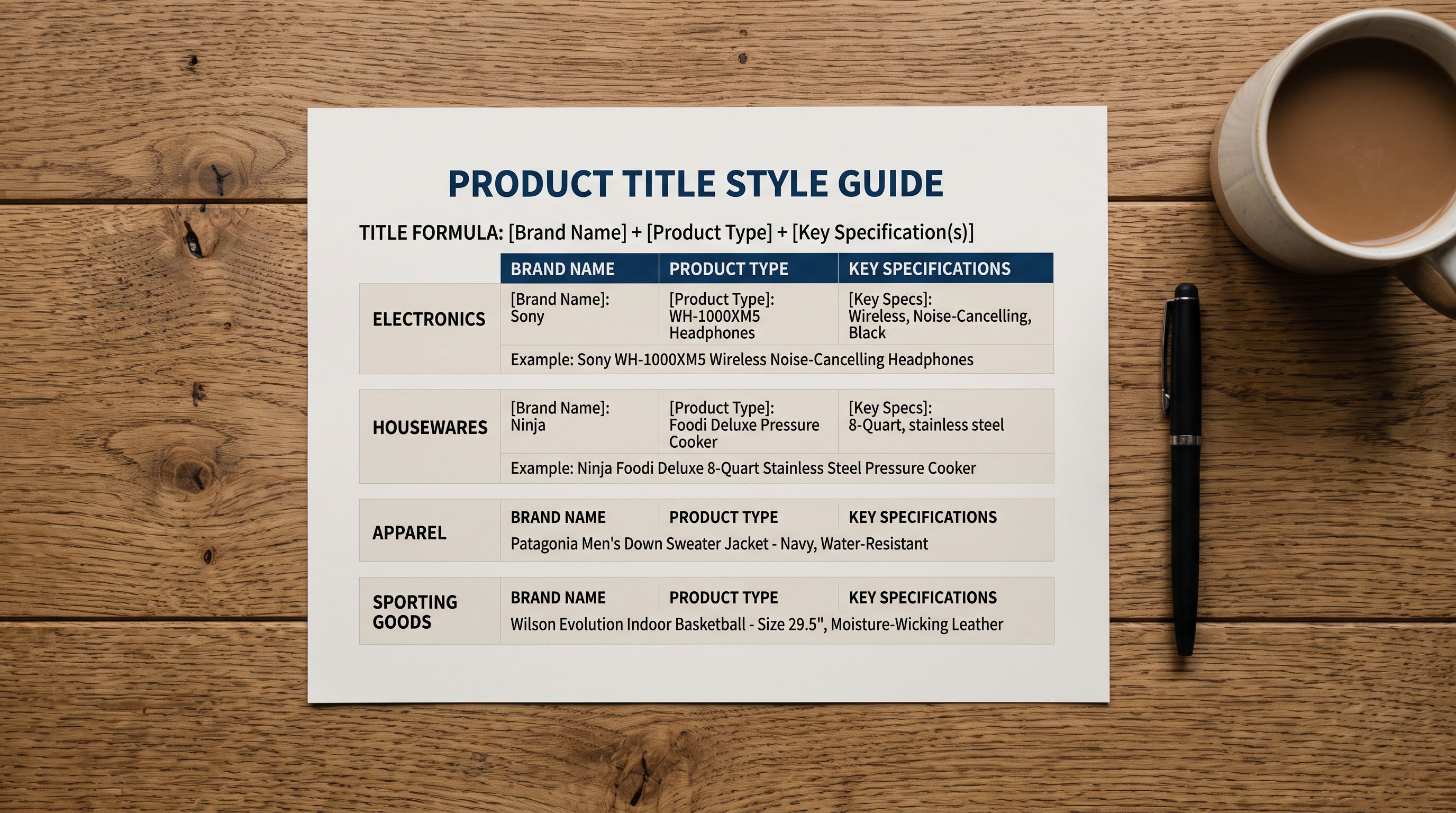
- An accurate and descriptive title (same rules as physical products for Google Shopping)
- A full description that communicates the contents, format, included files, licence terms, and use cases
- A product type that maps to Shopify's Standard Product Taxonomy (digital goods have their own taxonomy categories)
- Tags for filtering, collections, and storefront search
- A cover image or preview image (digital products have no physical form, so the image is the product)
- The correct variant structure if the product comes in multiple formats (PDF + EPUB, 3 licence tiers, bundle vs single)
The fields merchants most commonly leave blank on digital products: product type, description depth, and metafield attributes. The result is a digital product catalogue that performs poorly in Google Shopping, returns thin results in Shopify storefront search, and gives AI Shopping agents nothing to work with when merchants are browsed through natural language queries.

Setting Up Your Digital Product CSV for Import
A digital product CSV for Importier follows the same column structure as a physical product CSV, with two columns handled differently.
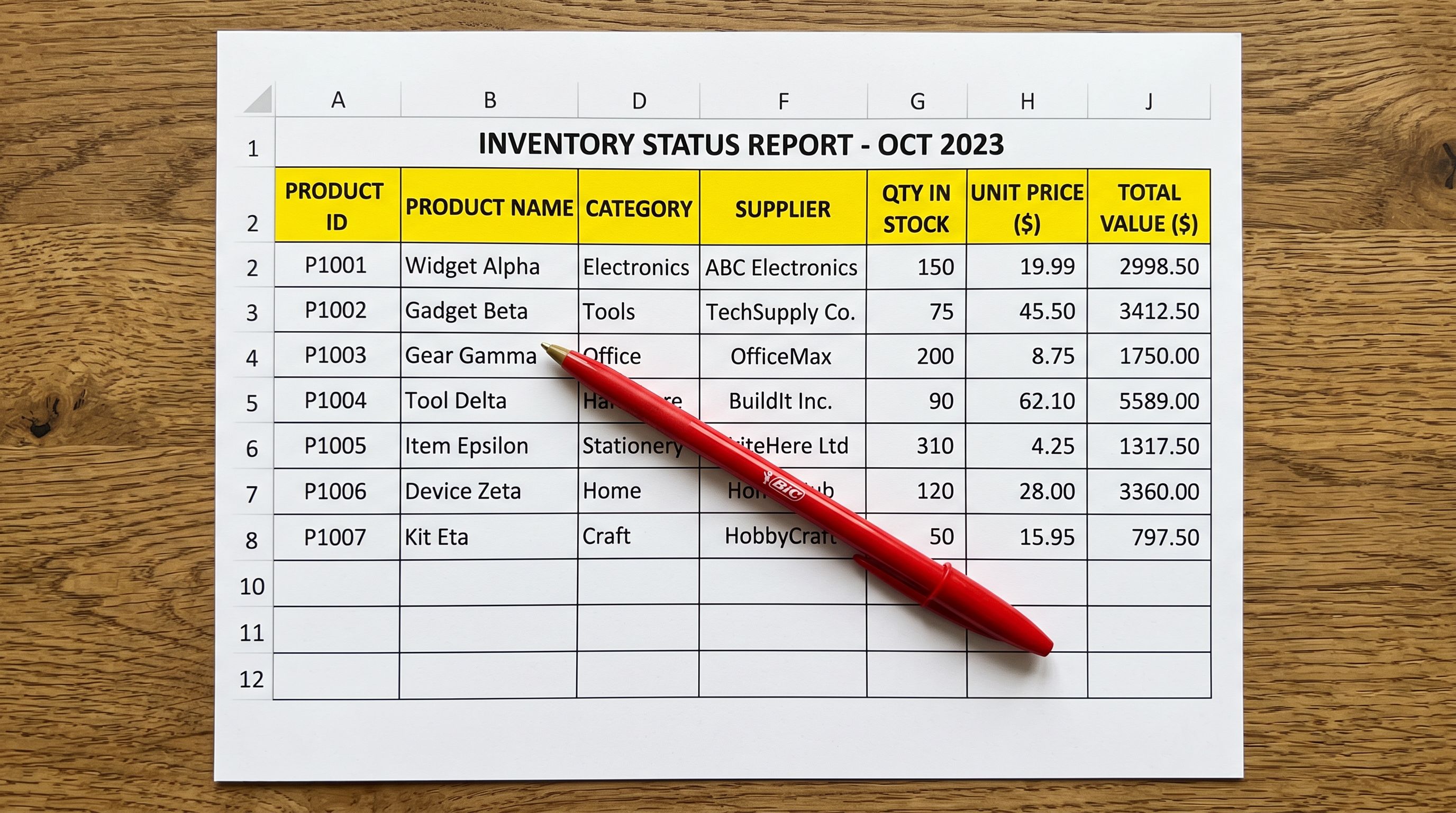
Weight column: set to 0. For digital products, weight is zero. If your supplier CSV or your product spreadsheet has no weight column, Importier will not fill one. Shopify will default to the store's base weight (which can cause unexpected shipping rate calculations for digital products if your store also sells physical goods). Include a weight column and set every digital product row to 0.
Requires Shipping column: set to FALSE. This tells Shopify not to calculate shipping for this product at checkout. In the Importier column mapper, map this to the "Requires Shipping" Shopify field. If your CSV does not include this column, add it. A digital product with requires_shipping set to TRUE (the default) will prompt checkout to calculate a shipping cost, confusing customers.
Everything else in the CSV (title, body HTML, product type, vendor, tags, images) follows the same structure as a physical product import. Importier's 14-step import wizard maps these columns in the same way.
For digital products that come in multiple variants (a template pack available in three licence tiers, or a font available as a desktop licence and a web licence), the variant structure in the CSV follows Shopify's standard variant columns. Each variant row inherits the parent product's zero weight and false requires_shipping setting.
- 01Prepare your digital product CSVInclude columns for Title, Body HTML, Product Type, Tags, Image Src, Weight (set to 0), Requires Shipping (set to FALSE), and any variant columns. One row per product (or per variant for multi-option products).
- 02Open the Import Wizard in ImportierNavigate to Import and drag the CSV into the upload area.
- 03Map the key columnsIn the column mapping step, map Weight to Variant Weight, Requires Shipping to Variant Requires Shipping, and all standard product columns.
- 04Run AI description generationIn the AI step, select a description style suited to information products. Benefits-First and Technical Gadget both work well for digital goods. Choose a persona that matches your product category.
- 05Review and push to ShopifyThe Review table shows all mapped fields. Confirm requires_shipping is FALSE and weight is 0 for every digital product row. Push to Shopify.
- 06Connect your download delivery appAfter products are in Shopify, use your chosen digital delivery app (Sky Pilot, SendOwl, Fileflare, or similar) to attach download links to each product. Importier handles the product data; the delivery app handles the download.
Digital products need data enrichment just as much as physical ones. A template PDF with no category, thin description, and no structured attributes is as invisible in search as a physical product with the same gaps.
AI Descriptions for Digital Products
The description problem for digital products is specific. Most merchants either copy the description from their own website (where it was written for a different audience and context) or leave the Shopify description thin because "it is just a download."
Neither approach serves the product. Shopify's storefront search ranks products partly by description content. Google Shopping uses the description to understand what the product is. AI Shopping agents parsing natural language queries ("I need a template for a freelance invoice") read the description to determine if the product matches.
A good digital product description covers:
- What the product is (format, file type, included files)
- Who it is for (specific use cases, industries, skill levels)
- What the buyer gets (file count, licence terms, compatibility requirements)
- What problem it solves (the outcome the buyer achieves)
Importier's AI description generation works the same way for digital products as for physical ones. The Benefits-First style is particularly suited to information products: it leads with what the product does for the buyer before describing what it is. For technical digital products (software tools, development assets, data templates), the Technical Gadget style covers compatibility, specifications, and integration requirements clearly.
For digital product catalogues, the 156 expert personas include relevant options: digital marketing specialist, UX designer, graphic designer, financial analyst, and educator personas each produce descriptions tuned to their product category's language and buyer expectations.

Category Metafields and Discoverability for Digital Goods
Category Metafields for Digital Products
Shopify's Standard Product Taxonomy includes digital product categories. A font product belongs to the "Digital goods > Fonts" taxonomy category. An ebook belongs to "Digital goods > E-books." Software falls under "Digital goods > Computer software."
These categories matter for two reasons:
First, Google Merchant Centre uses Shopify's product type to categorise your products in Shopping. A digital product correctly categorised as "Digital goods > Fonts" appears in the right Shopping category. One with product type set to "Fonts" (a free-form string) may or may not be interpreted correctly.
Second, Shopify's Standard Product Taxonomy triggers metafield attributes. Once a product is correctly categorised, Importier's Industry Packs can fill the structured attributes for that category. For digital goods, relevant attributes include: file format, file size, licence type (personal, commercial, extended), compatible software versions, and language.
These attributes appear in the Shopify storefront as structured data and are included in the Google Shopping feed. A font product with "Compatible software: Adobe Illustrator, Figma, Sketch" and "Licence type: Commercial" in its structured attributes gives both buyers and Shopping algorithms more to work with than a product page with only a description paragraph.
To run the category metafield pass in Importier:
- After pushing products to Shopify, open the category metafield tool
- Select the relevant industry pack for your digital product type
- Run the two-phase matching (text matching followed by AI matching for ambiguous products)
- Review the filled attributes and push to Shopify
For a mixed catalogue (physical and digital products), you can filter the category metafield pass to only the digital product collection or to specific product types, so the digital enrichment runs separately from the physical product enrichment.
Handling Variants for Multi-Format Digital Products
Many digital products come in multiple formats or licence tiers. A font family with desktop, web, and app licences. A template pack available as PowerPoint, Keynote, and Google Slides. A course available with and without coaching access.
These are Shopify variants. Each option is a separate row in the import CSV with its own price, SKU, and (in some cases) its own download link through the delivery app.
In the import CSV, the variant structure for a three-licence font family looks like:
- Row 1: Parent product data + Variant 1 (Desktop Licence) + price + SKU
- Row 2: Same title, Variant 2 (Web Licence) + different price + different SKU
- Row 3: Same title, Variant 3 (App Licence) + highest price + different SKU
All three rows have weight 0 and requires_shipping FALSE. The variant option column (e.g., "Licence Type") is mapped to a Shopify option column in Importier's column mapper.
Importier's variant detection handles digital product variant patterns. The 150+ variant detection patterns include licence tier patterns (Personal / Commercial / Extended) and format patterns (PDF / EPUB / MOBI for ebooks, MP4 / MOV / AVI for video products). These patterns identify which column in the supplier CSV maps to a Shopify variant option, reducing the manual column mapping step.

Preview Images for Digital Products
A physical product has a photograph. A digital product has a preview. The image field in Shopify serves the same purpose for both: it shows the buyer what they are getting.
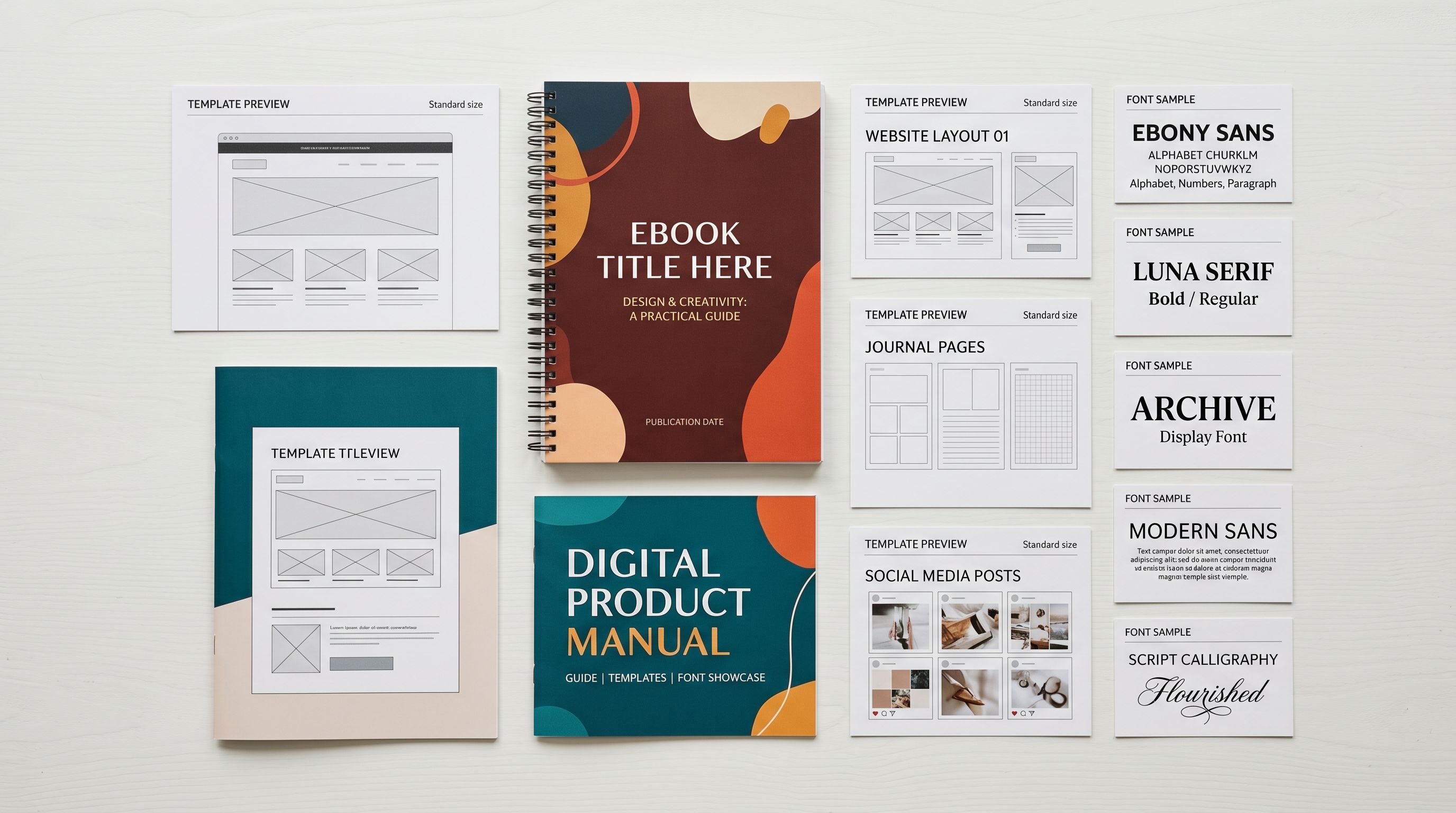
For digital products, the image is typically a mockup (an ebook cover rendered on a tablet, a template shown filled with sample content, a font displayed in different weights on a poster background). These images matter as much as physical product photography for conversion rate.
The image import in Importier works the same way as for physical products. If your CSV includes an Image Src column pointing to hosted image URLs (your website, a Google Drive public link, a Dropbox shared link), Importier pulls the images during the import and attaches them to the Shopify product.
Importier's Google Drive image import is useful for digital product catalogues where preview images are stored in a shared Drive folder. The folder URL is resolved to individual files during the import step.

Five Takeaways on Shopify Digital Product Imports
- Digital products in Shopify need two specific field values: weight set to 0 and requires_shipping set to FALSE. Add these columns to your import CSV and map them in Importier's column mapper. Without them, Shopify applies physical product defaults (shipping weight and checkout shipping calculation) to your digital goods.
- Digital products need the same quality of description as physical products. The description is what Google Shopping, Shopify storefront search, and AI Shopping agents use to match your product to buyer queries. Use the Benefits-First or Technical Gadget style in Importier's AI generation step, with a persona that matches your product category.
- Shopify's Standard Product Taxonomy includes digital product categories. Correct product type assignment triggers category metafield attributes (file format, licence type, compatibility), which appear as structured data in the storefront and Google Shopping feed.
- Multi-format and multi-licence digital products are handled as Shopify variants. Each licence tier or file format is a separate variant row in the import CSV. Importier's 150+ variant detection patterns include licence tier and file format patterns for digital goods.
- The delivery mechanism (which app sends the download link) is separate from the product data. Importier handles the product record. The digital delivery app (Sky Pilot, SendOwl, Fileflare) connects after the products are in Shopify.
Set up your first import in under five minutes.
Importier brings products into Shopify with AI descriptions, category metafields, and data enrichment on every run.