Shopify Compare-At Price: Add Sale Prices in Bulk
On this page
Shopify Compare-At Price: Add Sale Prices in Bulk
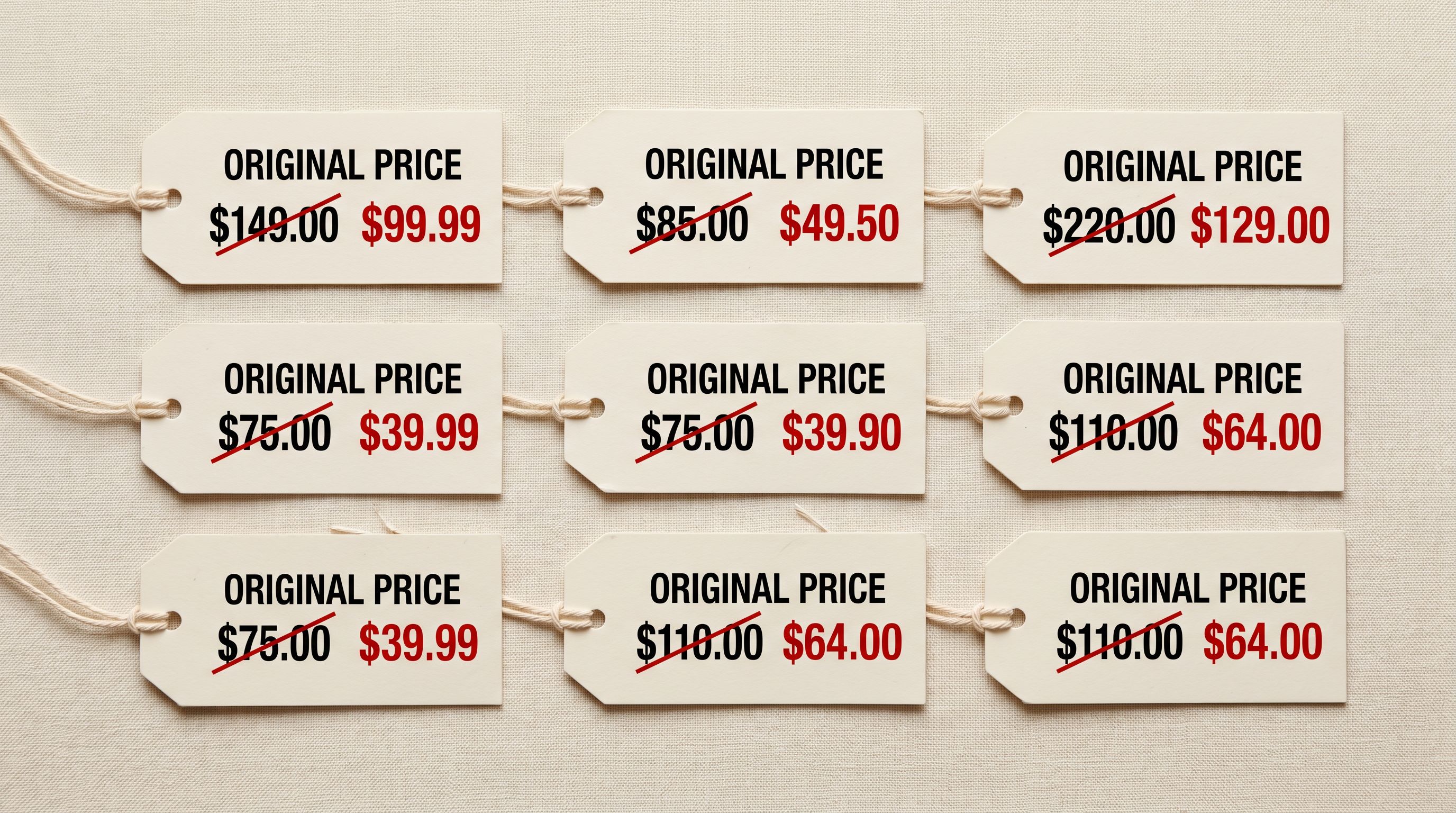
A crossed-out price next to the sale price is one of the clearest signals a merchant can send: this product was more expensive, and right now it is not. Shopify calls this the compare-at price. It is the value that appears as the strikethrough on the product page, alongside the current lower retail price.
Setting it on one product takes thirty seconds. Setting it on three hundred products for a weekend sale takes the rest of the afternoon. An import workflow does it in one pass.
This article covers what the compare-at price field is, how Shopify displays it, how to include it in a CSV file and map it in Importier, how the automatic price markup workflow sets it without a spreadsheet calculation, and how to clear it in bulk when the sale ends.
What the Compare-At Price Field Does in Shopify
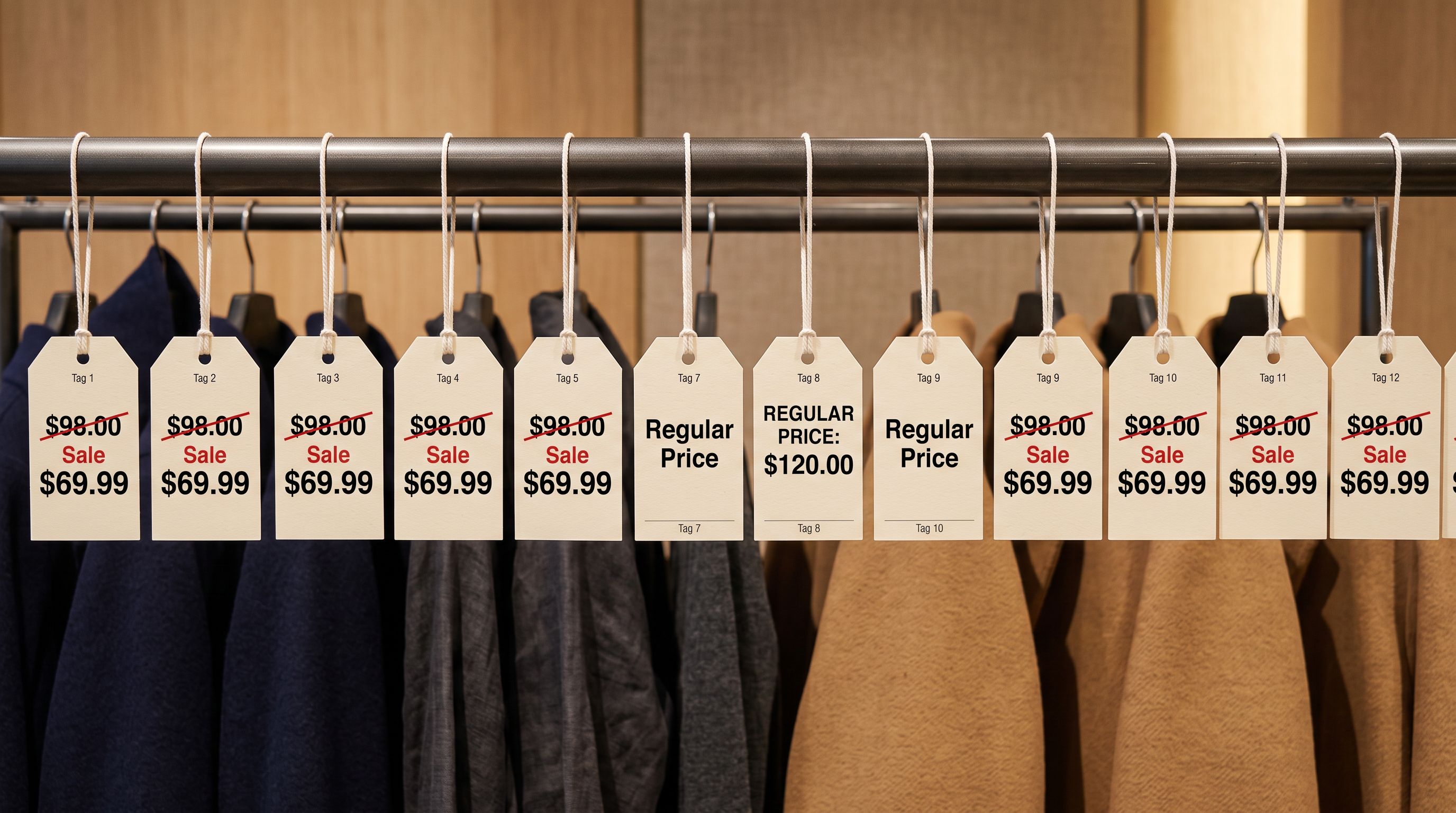
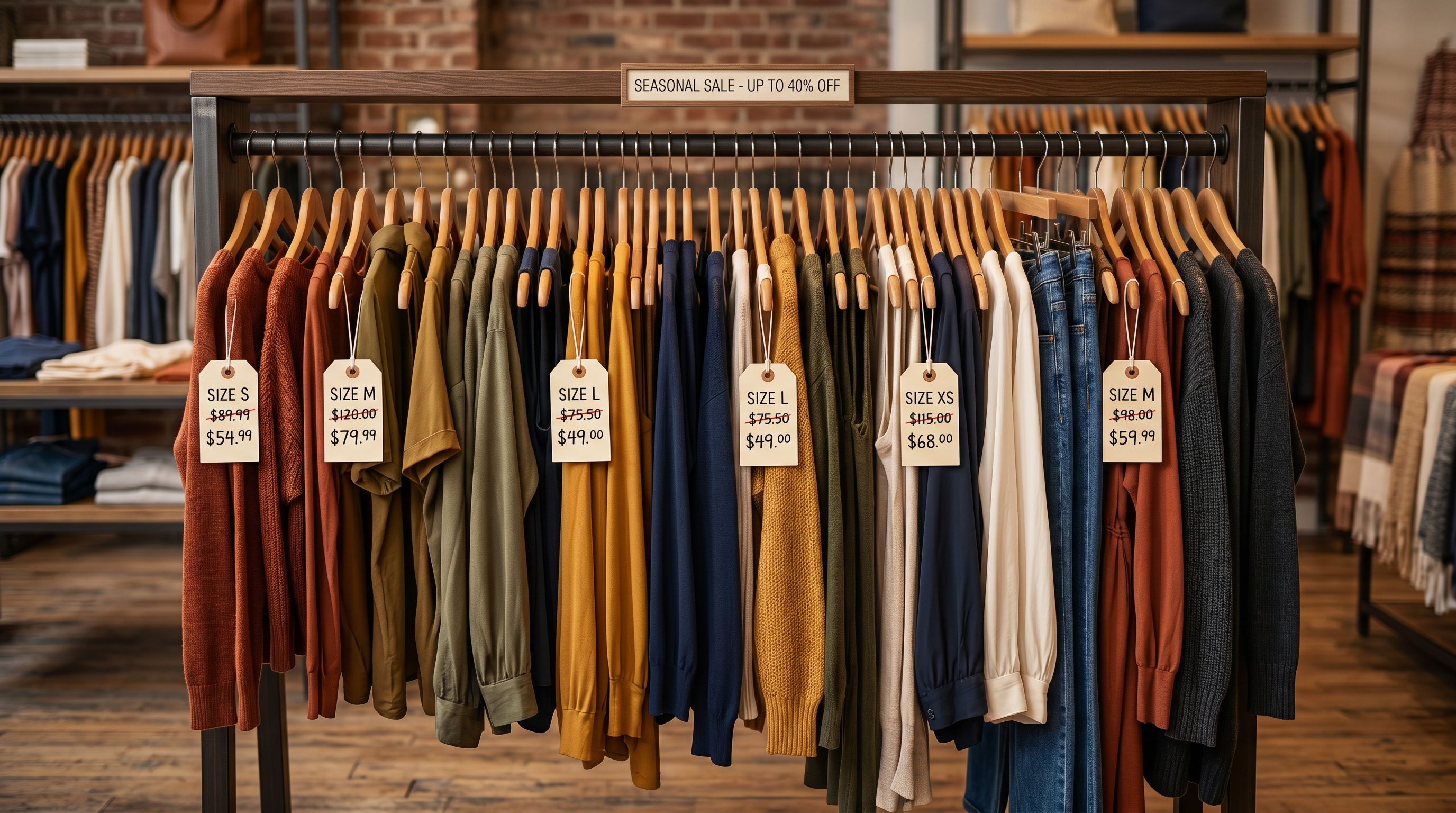
Shopify stores two price values per variant: the retail price (what the customer pays) and the compare-at price (the reference "was" price). When compare-at is higher than the retail price, Shopify automatically:
- Displays the retail price as the active price
- Displays the compare-at price with a strikethrough beside it
- Shows a sale badge on collection pages where the product appears
- Flags the product as "on sale" in the Shopify product status
When compare-at is blank (or lower than or equal to retail price), no strikethrough appears. The product is treated as full price.
The compare-at field is variant-level in Shopify. A product with five sizes can have each size at a different retail price while sharing the same compare-at value, or have different compare-at values per size if the original prices varied.
Google Shopping reads both fields. If you set compare-at to a price that was never the real previous price (an inflated reference price rather than the actual previous retail price), this can trigger Google's price accuracy policy and result in product disapproval in your Google Merchant Centre account.
How to Add Compare-At Price via CSV Import
The most direct route for existing products is to prepare a CSV with three columns and import it through Importier.
The minimum columns needed:
- A matching column (SKU or barcode, to find the product in Shopify)
- The retail price column (the sale price you want customers to pay)
- The compare-at price column (the crossed-out "was" price)
In Importier's column mapper, set:
- SKU → Variant SKU
- Price → Variant Price
- Compare-at Price → Variant Compare At Price
- All other columns: unmapped
This is a targeted update, not a full reimport. Unmapped columns are not written. Only the three mapped fields are updated in Shopify. Your AI-generated descriptions, images, category attributes, and all other product data remain exactly as they are.
For a 300-product sale, you export the current product data from Shopify (or from Importier's Product Export), add a compare-at column with the original prices, set your sale prices in the retail price column, and import. Importier matches each row by SKU, updates the two price fields, and leaves everything else untouched.
- 01Prepare your sale CSVStart with a spreadsheet that has SKU, your new sale price (Variant Price), and the previous full price (Compare At Price). One row per variant.
- 02Open the Import Wizard in ImportierNavigate to Import and drag the file into the upload area.
- 03Map the price columns onlyIn the column mapping step, set SKU to Variant SKU, Price to Variant Price, Compare-at Price to Variant Compare At Price. Leave all other columns unmapped.
- 04Review the changesThe Review table shows current price vs incoming price. Spot-check five to ten rows to confirm the compare-at values are correctly populated.
- 05Confirm and push to ShopifyConfirmed changes write only the price and compare-at fields. Descriptions, images, and attributes are not touched.
- 06Verify on a product pageOpen a product page in your Shopify storefront to confirm the strikethrough price is displaying correctly alongside the sale price.
The Automatic Markup Workflow for New Product Imports
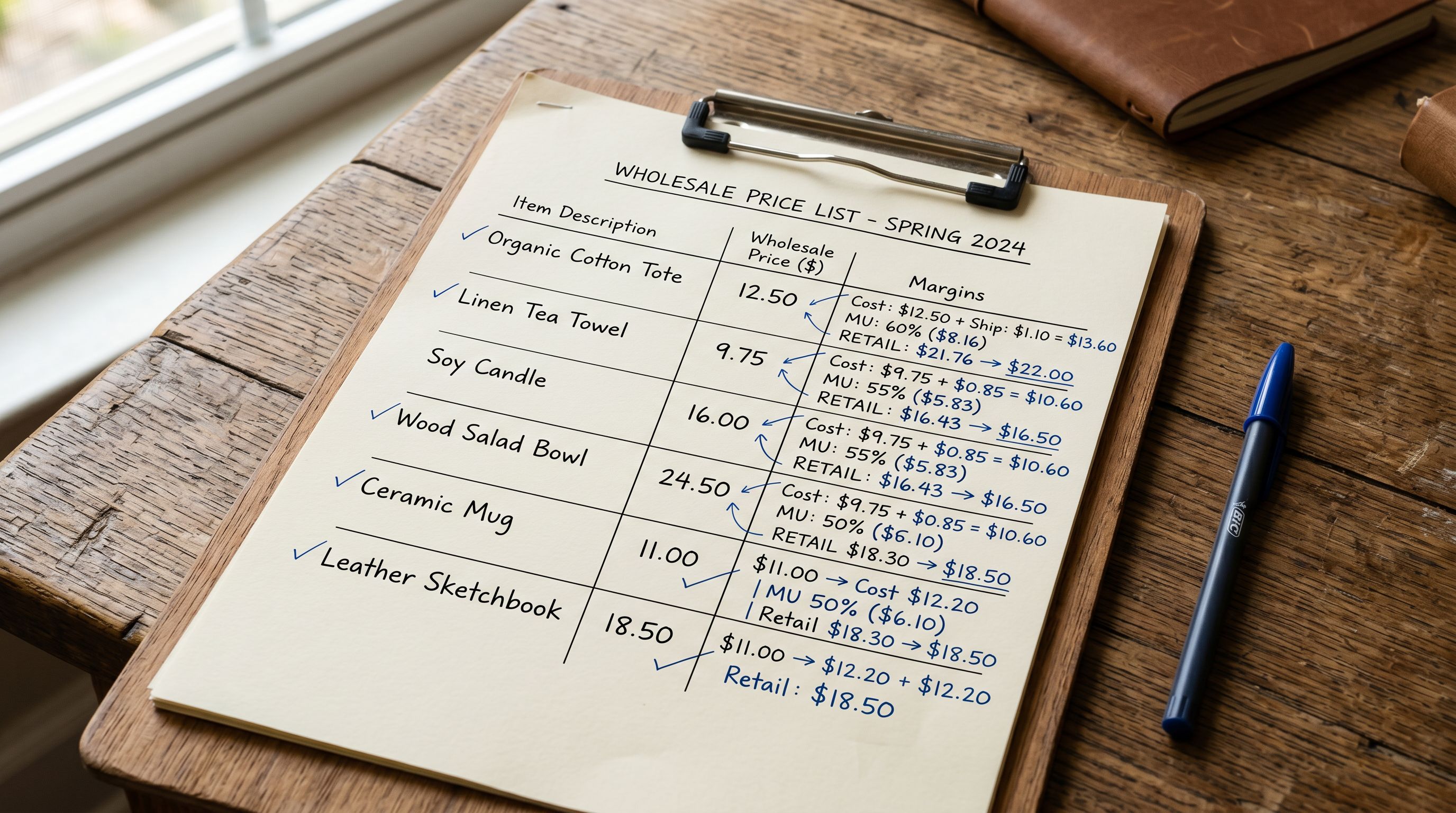
If you are importing new products from a supplier and want to set compare-at prices automatically, Importier's markup workflow removes the need to calculate prices in a spreadsheet.
The workflow works like this:
- Import your supplier file, which contains cost prices
- In the import wizard, set a markup percentage
- Importier calculates the retail price from cost plus the markup
- Optionally, set the cost price as compare-at (so the "was" price reflects what the product cost before your margin was applied)
For dropshipping merchants using the price markup approach, this is the standard flow. The supplier sends a cost file. You set a 60% markup. Importier sets the retail price and compares-at price in the same step, no spreadsheet required.
For merchants who import at supplier retail prices and want to offer a promotional reduction, the flow is different: the supplier retail price becomes compare-at, and you manually set a lower retail price in the Review table or via a price column in your import file.
The compare-at price is most effective when it reflects an actual previous price, not a manufactured reference. Shopify shows it, Google reads it, and buyers notice when it does not ring true.
After the Sale: Clearing Compare-At Prices in Bulk
How to Reset Compare-At Prices After a Sale
When the sale ends, the compare-at price needs to come back to blank. A product with a permanent strikethrough price loses its sale signal: every product looks like it is on sale, which means nothing is.
The reset workflow is a targeted import, the mirror image of the sale setup:
- Prepare a CSV with SKU and a blank compare-at price column (the column exists but the values are empty)
- Import through Importier with only SKU and Compare-at Price mapped
- Set the retail price column back to the original full price (or map only compare-at and leave retail price unmapped if you have already manually updated the retail prices in Shopify admin)
Importier writes a blank value to the compare-at field, which Shopify interprets as "no compare-at price": the strikethrough disappears and the product returns to full-price display.
If you used Import History during the sale setup, the session is logged with a timestamp, a product count, and a downloadable CSV snapshot of what the prices were before the import. This snapshot is your reference for what the full prices were before the sale, which you need to populate the retail price column in the reset import.
For merchants who run seasonal sales on a fixed schedule, Importier's Scheduled Imports (Scale and Enterprise plans) can automate both the sale activation and the reset. You configure two schedules: one that runs on the sale start date with sale prices and compare-at values, and one that runs on the end date with original prices and blank compare-at. Both use price-only column mapping, so product content stays untouched across both runs.
Variant-Level Compare-At Prices
Because compare-at is a variant-level field, a clothing product with sizes S, M, L, XL can have a different compare-at price for each size if the original retail prices were different per size. Your import CSV needs one row per variant (using variant-level SKUs) to set variant-specific compare-at values.
If every variant of a product had the same original price, one row per product is sufficient only if Shopify merges the value across variants, which it does not. You still need one row per variant in the CSV. For products where all variants had the same price, the compare-at value in each row will be identical.
This is worth checking in the Review table before confirming. Products with multiple variants show each variant and the compare-at value that will be set per variant. If you see blank compare-at values for some variants, the variant's SKU was not matched in your import file.
Using Importier's Product Export to Build the Sale CSV
If you do not have a spreadsheet with your products' original prices, Importier's Product Export builds it for you.
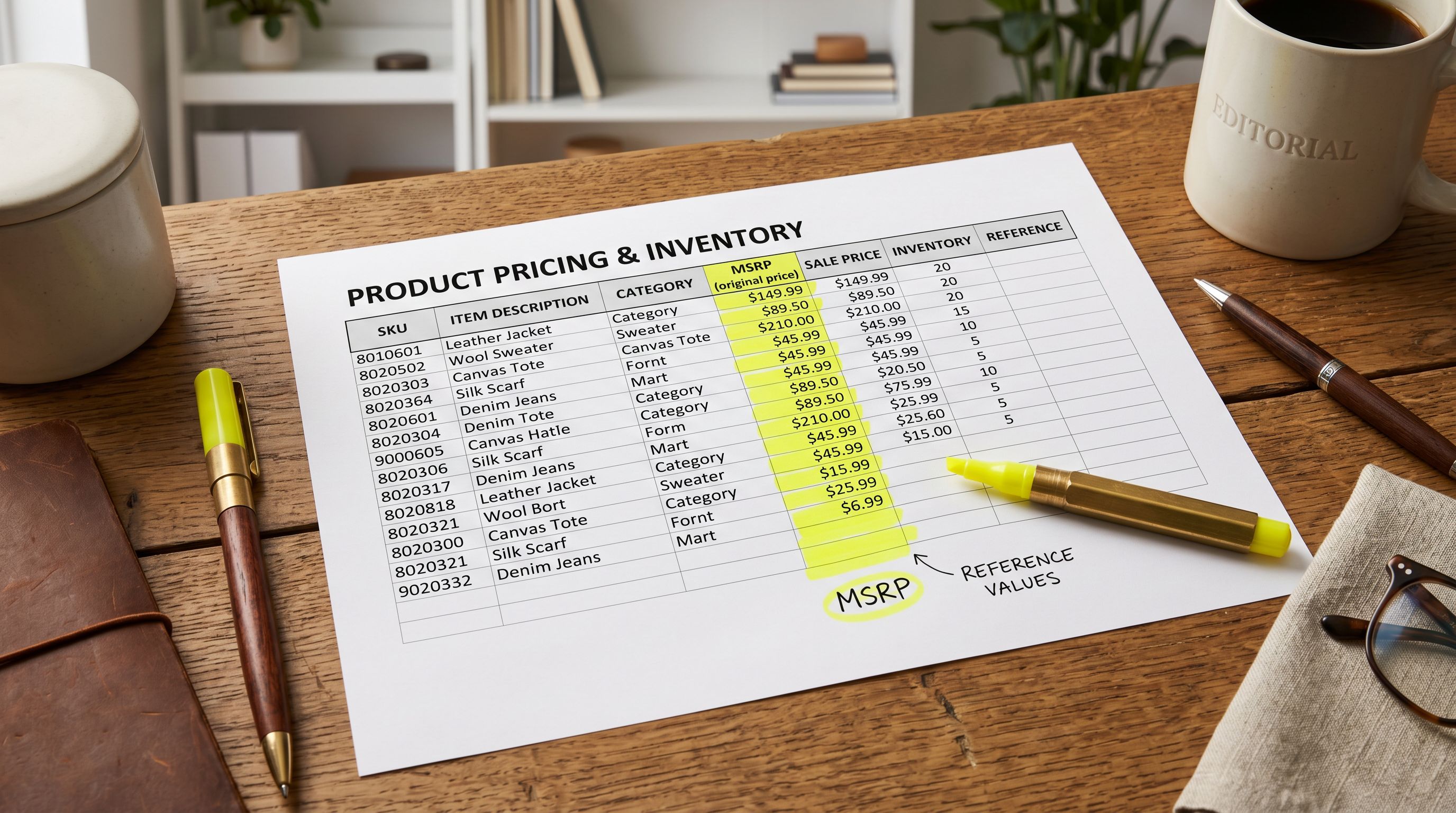
The Pricing export preset generates a CSV with every product's SKU, variant title, current retail price, current compare-at price, and cost. For a sale prep workflow:
- Run the Pricing export to get the current prices
- In the exported CSV, the current retail price becomes your compare-at value (the "was" price for the sale)
- Enter your sale prices in a new retail price column
- Import the file with both columns mapped
This keeps your reference prices accurate. You are using Shopify's actual stored prices as the compare-at values, not a guess or an imported supplier price.
Google Shopping and Compare-At Price Accuracy
Shopify automatically includes compare-at price in your Google Merchant Centre feed as the sale_price_effective_date and sale_price fields. Google reads both the retail price and the compare-at price and uses them to display sale badge annotations in Shopping results.
Google's price accuracy requirements are specific: the compare-at price must be a price the product was recently sold at, or the product will be disapproved for price inaccuracy. A compare-at of $299.99 on a product that was never sold above $49.99 will eventually trigger a disapproval.
The Importier workflow does not make this policy problem worse or better. It is a data accuracy question. What it does is make the setup and teardown fast enough that you can run genuine, accurately priced sales more frequently, rather than avoiding the feature because the setup is too slow for a three-day promotion.
- Open each product in Shopify admin and update price fields individually
- 30 seconds to 2 minutes per product, 500 products takes several hours
- No history of what the original prices were
- Resetting after the sale requires the same manual process in reverse
- Variants on multi-option products are often missed
- Prepare a CSV with SKU, retail price, and compare-at price: import in one session
- 300-500 products updated in minutes, not hours
- Import History records the session with a pre-change price snapshot
- Reset import uses the same workflow with blank compare-at values
- Review table shows per-variant values before confirming, catching missed rows
Five Takeaways on Shopify Compare-At Price
- Compare-at price is Shopify's "was" price field. When it is higher than the retail price, Shopify displays it as a strikethrough and marks the product as on sale. When it is blank, the product appears at full price.
- To add compare-at prices to existing products in bulk, prepare a CSV with SKU, retail price, and compare-at price. In Importier, map only those three columns. Unmapped columns are not written, so descriptions, images, and attributes are untouched.
- The automatic markup workflow applies to new product imports: set a markup percentage and Importier calculates retail and compare-at prices from the cost price, with no spreadsheet calculation required.
- To reset compare-at prices after a sale, import a CSV with blank compare-at values and the original full retail prices, using the same price-only column mapping. The Pricing export preset from Importier's Product Export gives you the reference prices to work from.
- Google Shopping reads compare-at price and uses it for sale badge annotations. The compare-at value must reflect an actual previous selling price. An inflated reference price triggers Google's price accuracy policy and can result in product disapproval.
Set up your first import in under five minutes.
Importier brings products into Shopify with AI descriptions, category metafields, and data enrichment on every run.