Shopify Supplier Price Update: Skip the Full Reimport
On this page
Shopify Supplier Price Update: Skip the Full Reimport
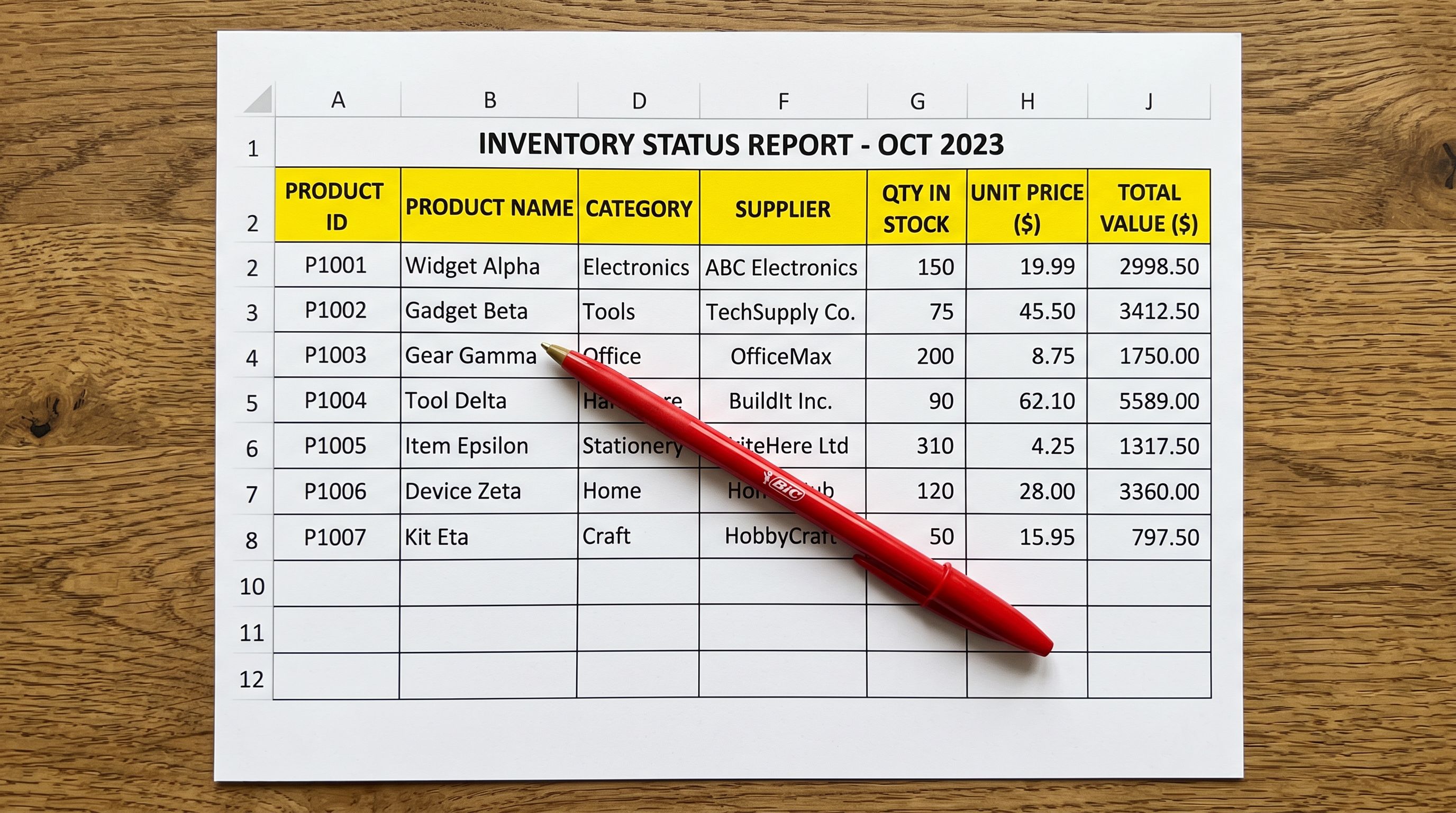
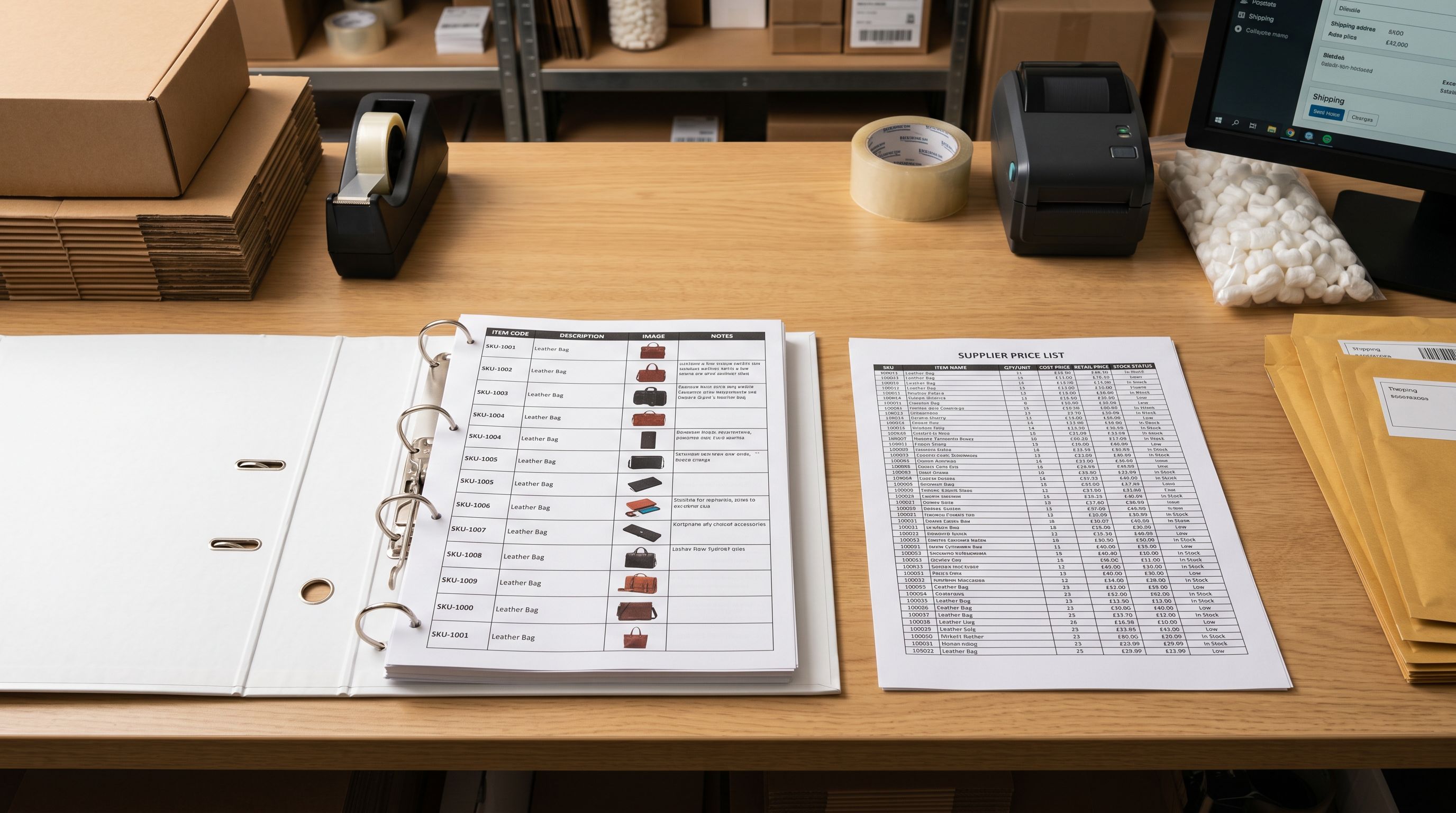
Your supplier sends a price update every month. The file has 600 rows, the same SKUs as last time, but with updated costs and retail prices. The question is how to get those prices into Shopify without overwriting the AI-generated descriptions you spent time approving, without losing the category attributes you filled, and without touching the product images that are already in the right order.
The answer is not to run a full reimport. A full reimport pushes every column from the supplier file back into Shopify, which means the supplier's thin one-line description replaces your approved copy, and any data you enriched gets reset. The correct workflow is a column-targeted partial update: import the price file, map only the price-related columns, and leave every other field untouched.
This article covers how to run that workflow in Importier, the three price update scenarios most merchants encounter, and how to verify what changed before confirming.
Why Full Reimports Break Your Enriched Data
Most merchants who run a full reimport for a price update discover the problem after the fact. The supplier's CSV still has the same thin descriptions from six months ago. When that file is imported with all columns mapped, those descriptions overwrite the AI-generated copy that was already live on the product pages.
The same applies to product type fields, weight data, and barcode fields that were filled in by data enrichment. A supplier who does not update their product data between shipments sends the same incomplete fields every time. Reimporting that file resets your enrichment back to the supplier's baseline.
Import History in Importier shows exactly what happened: every product that was updated and what the values were before. If you catch the overwrite early, Import Undo reverts the entire batch in one step. If you catch it after you have done another session of enrichment, the rollback is messier.
The correct habit is to treat price updates as a distinct operation from product imports. They share the same CSV input but produce different outcomes in Shopify.

The Three Price Update Scenarios
Supplier price updates typically fall into one of three scenarios. The mapping decisions are slightly different for each.
Scenario 1: Price Only
Your supplier raises prices across the board. The file has SKU and new retail price. You need to update the Shopify price field on every affected product without touching anything else.
Column mapping for this scenario:
- SKU → Variant SKU (used to match the existing Shopify product)
- Price → Variant Price
- All other columns: unmapped
The SKU is the identifier that Importier uses to find the right product in Shopify. Without it, there is no way to match the rows in the supplier file to the products already in your store.
Scenario 2: Price and Cost
Your supplier updates both the cost (what you pay) and the retail price (what the customer pays). You track margins and need the cost field updated in Shopify so your margin reporting stays accurate.
Column mapping:
- SKU → Variant SKU
- Cost → Cost per item
- Price → Variant Price
- All other columns: unmapped
Shopify stores cost per item as a separate field from the retail price. It does not appear on the storefront but appears in product reports and profit margin calculations. If your reporting relies on cost data, this is the field to keep updated.
Scenario 3: Price and Compare-At
Your supplier is running a promotional period. They send the original price as compare-at and the promotional price as the current retail price. The storefront will display the compare-at price as a strikethrough alongside the promotional price.
Column mapping:
- SKU → Variant SKU
- Price → Variant Price
- Compare-at Price → Variant Compare At Price
- All other columns: unmapped
Setting compare-at correctly matters for Google Shopping. A product with an inflated compare-at and a promotional retail price may trigger Google's price accuracy policy if the compare-at price was never the real previous price. Use the supplier's previous price list as compare-at, not an invented reference price.
- 01Receive the supplier price fileDownload the price update CSV or Excel file from your supplier. It typically has columns for SKU, cost price, retail price, and possibly a compare-at price.
- 02Open the Import Wizard in ImportierNavigate to Import and drag the supplier price file into the upload area. The 14-step wizard begins.
- 03Map only the price columnsIn the column mapping step, map SKU to Variant SKU, Price to Variant Price, and Cost or Compare-At only if your scenario requires it. Leave every other column in the file unmapped: Importier will not update unmapped fields.
- 04Review the changes in the Review tableThe Review table shows the matched products with their current Shopify price and the new incoming price side by side. Review a sample to confirm the mapping is correct and prices look right before confirming.
- 05Confirm and push to ShopifyConfirmed changes push only the mapped columns to Shopify. Descriptions, images, barcodes, category attributes, and all other fields remain exactly as they are.
- 06Check Import HistoryAfter the push, Import History records the session with a count of products updated. Download the CSV snapshot to confirm which products were touched and what their prices were before the update.
Leaving a column unmapped is a deliberate instruction to Importier not to touch that field. It is not an omission. It is the mechanism that protects your enriched data.
How Column Mapping Protects Existing Data
The column mapping step is where price updates and full imports diverge. In a full import, every column in the supplier file is mapped to a Shopify field. In a price update, only the columns you map get written. Everything else in Shopify stays as it is.
This is the key distinction. When you map only SKU and Price, Importier reads the supplier file, finds the matching Shopify product by SKU, updates the price, and leaves the rest of the product record untouched. It is not a partial import. It is a targeted write to specific fields.
The column mapper shows every column in your supplier file as a row, each with a dropdown for the target Shopify field. For a price update, most dropdowns are left at "Do not import". The SKU column is set to Variant SKU for matching. The Price column is set to Variant Price for writing.
Handling Price Variations and Edge Cases
What Happens When the SKU Does Not Match
Importier matches supplier rows to Shopify products by SKU. If a row in the supplier file has a SKU that does not exist in your Shopify store, Importier flags it in the Review table as unmatched.
Unmatched rows are not processed. They do not create new products. They do not update the wrong product. They sit in a separate "unmatched" section of the Review table for your inspection.
Common causes of SKU mismatches in price updates:
- The supplier changed their SKU format between the original import and the price update
- The product was archived or deleted in Shopify but still appears in the supplier's system
- The supplier included new products in the price file that you have not imported yet
For new products in the price file (genuine additions to the supplier catalogue), you handle them separately as a product import, not as part of the price update. Mixing new product imports with price updates in the same session works but requires careful review: the new products need full column mapping while the existing ones need price-only mapping.
Variant-Level Price Updates
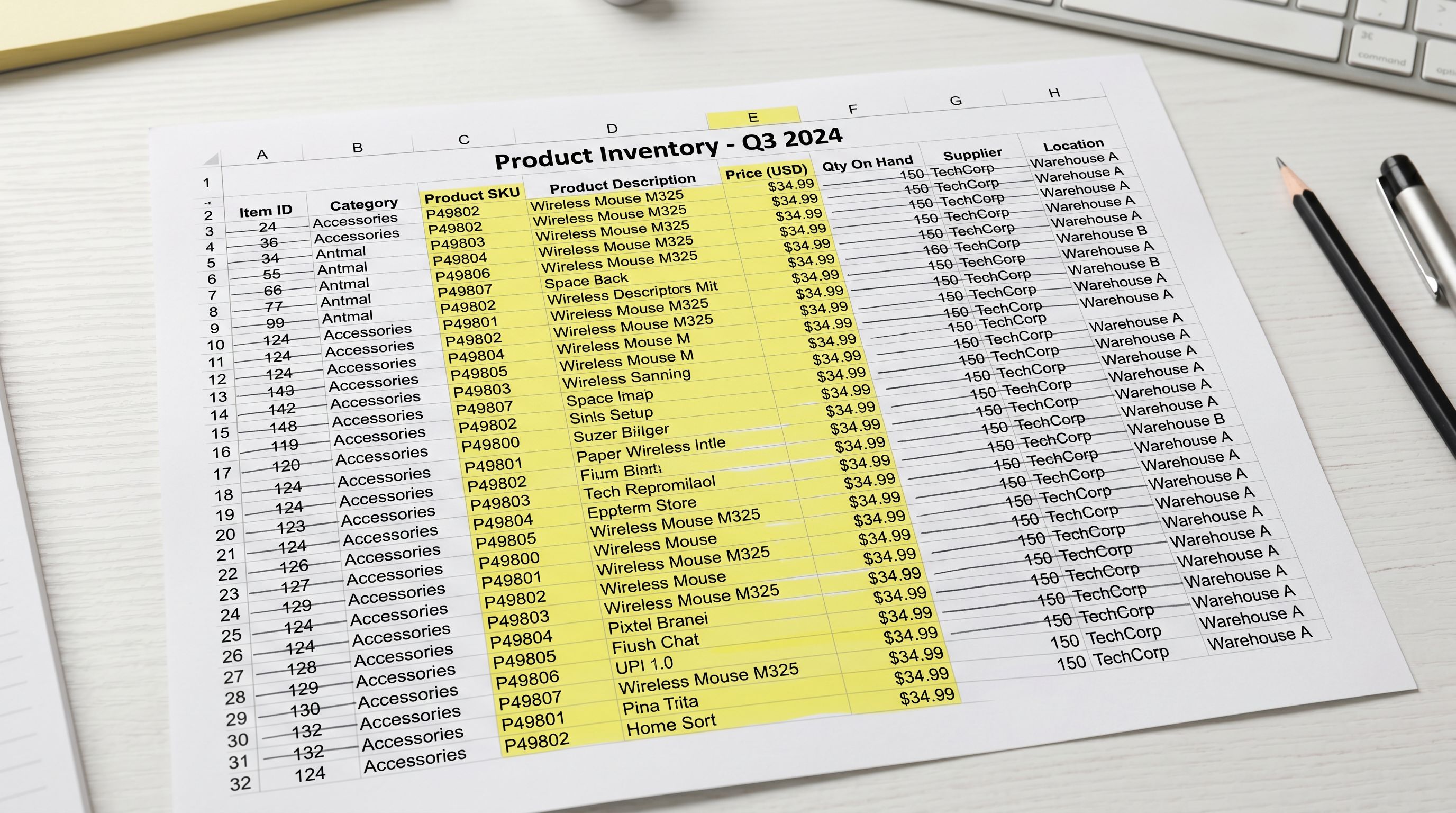
For products with multiple variants (sizes, colours, materials), each variant has its own SKU and its own price. Supplier price files that include variant-specific pricing need the SKU column to contain the variant-level SKU, not the parent product SKU.
A clothing supplier who raises prices differently for different sizes (small items at $29.99, large at $31.99) sends a file with one row per variant. Each row has the variant's SKU and the new price. Importier matches each row to its specific variant and updates only that variant's price.
If your supplier sends a file with one row per product and a single price for all variants, that price gets applied to every variant of that product. This is appropriate for products where all variants share the same price (the same notebook in different colours all priced at $14.99) but not for products with size-based or complexity-based pricing differences.
Review the variant pricing in the Review table before confirming. Products with multiple variants show the variant list, and you can see the price that will be set per variant.

Tracking Margin Impact with Cost Updates
If you map the cost column from the supplier file to Shopify's cost per item field, you can track margin impact directly in Shopify's product reports after each price update.
This matters when a supplier raises their cost but you hold your retail price steady. The margin on those products shrinks. Without updating the cost field, your Shopify reports show the old margin until you manually correct it or run a cost update session.
The workflow for tracking margin correctly:
- Map both cost and retail price in each supplier price update session
- After the update, check Import History for the session summary
- Cross-reference with your Shopify reports to see margin changes per product
For merchants running multiple supplier feeds, each supplier's price update is a separate session. Import History separates them by file and date, so you can trace which supplier's update changed which products.

Scheduling Regular Price Updates
If your supplier sends price files on a fixed schedule (weekly, monthly, or every time a product category reprices), scheduled imports remove the manual step entirely.
Scheduled imports in Importier (available on Scale and Enterprise plans) let you point Importier at a recurring file source and set the update frequency. When the file changes, Importier processes it automatically on the scheduled interval.
For price updates specifically, the same column-mapping logic applies to scheduled imports. You configure the price-only mapping once in the schedule setup, and every subsequent run uses that mapping. The supplier's other columns never get written.
This is particularly useful for dropshipping merchants with high supplier price volatility. A fashion dropshipper whose supplier reprices seasonally can set up a monthly scheduled price update that runs on the first of each month, updates prices from the latest supplier file, and leaves all product content untouched.
- Every column from the supplier file overwrites Shopify fields
- AI-generated descriptions replaced by thin supplier copy
- Enriched data (weight, barcodes, category attributes) reset to supplier baseline
- Import Undo required to recover (if caught in time)
- Descriptions need to be regenerated after every price update
- Only the price column (and cost or compare-at if needed) is written to Shopify
- All other fields remain exactly as they are in Shopify
- Enriched data, descriptions, images, and category attributes untouched
- Import History records the session for audit and rollback
- Price updates can be scheduled to run automatically

Verifying the Update Before and After
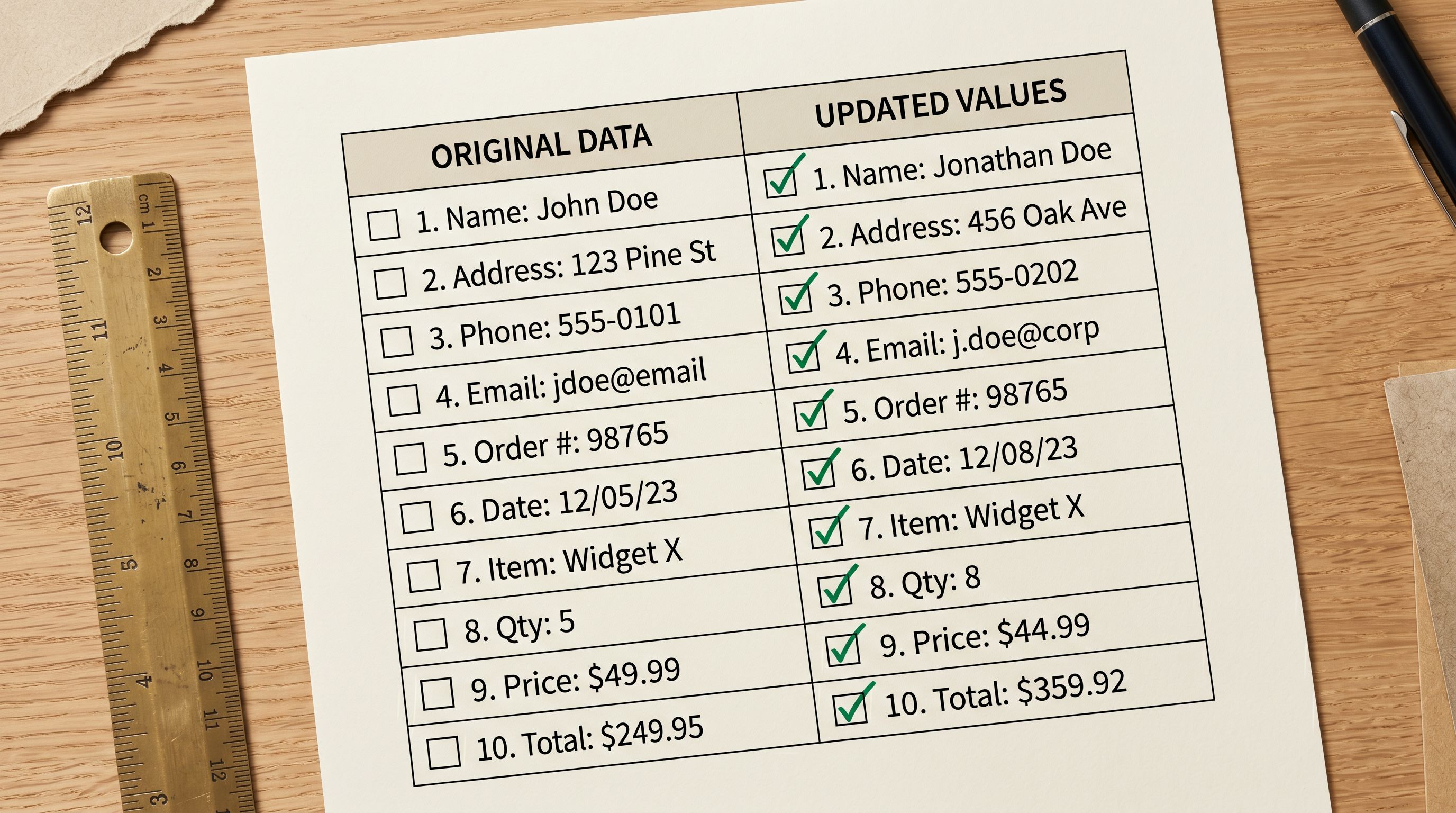
The Review table in Importier's import wizard shows the current Shopify price alongside the incoming price from the supplier file before anything is confirmed. This side-by-side comparison is where you catch mapping errors before they reach your live products.
Signs that the mapping is wrong:
- The incoming price and current price are the same across all rows (the price column was mapped to the wrong field)
- The incoming price shows in the wrong currency (the supplier file contains cost in one currency and retail in another): check which column was mapped
- A large number of unmatched rows (the SKU column has a different format than Shopify expects)
After confirming and pushing, Import History shows the session with a count of products updated, a timestamp, and a downloadable CSV snapshot. The snapshot records the state of every updated field before the change was applied. If anything looks wrong after the fact, Import Undo reverts the entire session.
The combination of the pre-confirmation Review table and the post-confirmation Import Undo creates a checkpoint at both ends of the price update process. Between them, a price update session carries very low risk.
Five Takeaways on Shopify Supplier Price Updates
- A supplier price update is not a product reimport. Mapping only the price and SKU columns updates prices in Shopify without touching descriptions, images, barcodes, or category attributes.
- The three price update scenarios are: price only, price plus cost (for margin tracking), and price plus compare-at (for promotional pricing). Each has a different column mapping configuration.
- Importier matches supplier rows to Shopify products by SKU. Unmatched rows are flagged in the Review table and never processed silently. New products in a price file are handled as a separate import, not as part of the price update.
- For variant products, the supplier file needs variant-level SKUs (one row per variant) for per-variant price updates. A single row per product applies the same price to all variants.
- Scheduled imports can automate recurring price updates entirely. Configure the price-only column mapping once, point it at the supplier's file source, and set the frequency. Every subsequent run updates prices on schedule without manual steps.
Set up your first import in under five minutes.
Importier brings products into Shopify with AI descriptions, category metafields, and data enrichment on every run.