How to Test a Shopify Import on a Small Batch First

On this page
The case for a shopify test import on a small batch before running the full catalogue comes down to one scenario. A fashion accessories merchant has a supplier catalogue of 1,800 products ready to import. The CSV has been cleaned, column mappings look correct, and the AI description settings have been configured. The merchant runs the full import. Three hours later all 1,800 products are live in Shopify. Then comes the review: variant grouping has combined blue handbags with navy ones as colour variants of the same product, descriptions for the leather goods are in Standard style when Sensory Rich was intended, and 200 products in the "Scarves" collection imported with the wrong product type. Fixing 1,800 products is now a multi-day project.
A shopify test import on a representative sample before running the full catalogue is the one step that prevents this scenario. Ten to twenty products, chosen to represent the major product types in the batch, run through the full import wizard with every setting active. Review the output before committing the full run. Fix settings. Re-run the sample. When the output looks right for 20 products, the full 1,800 will match.
What Goes Wrong in a Full Import Without Testing
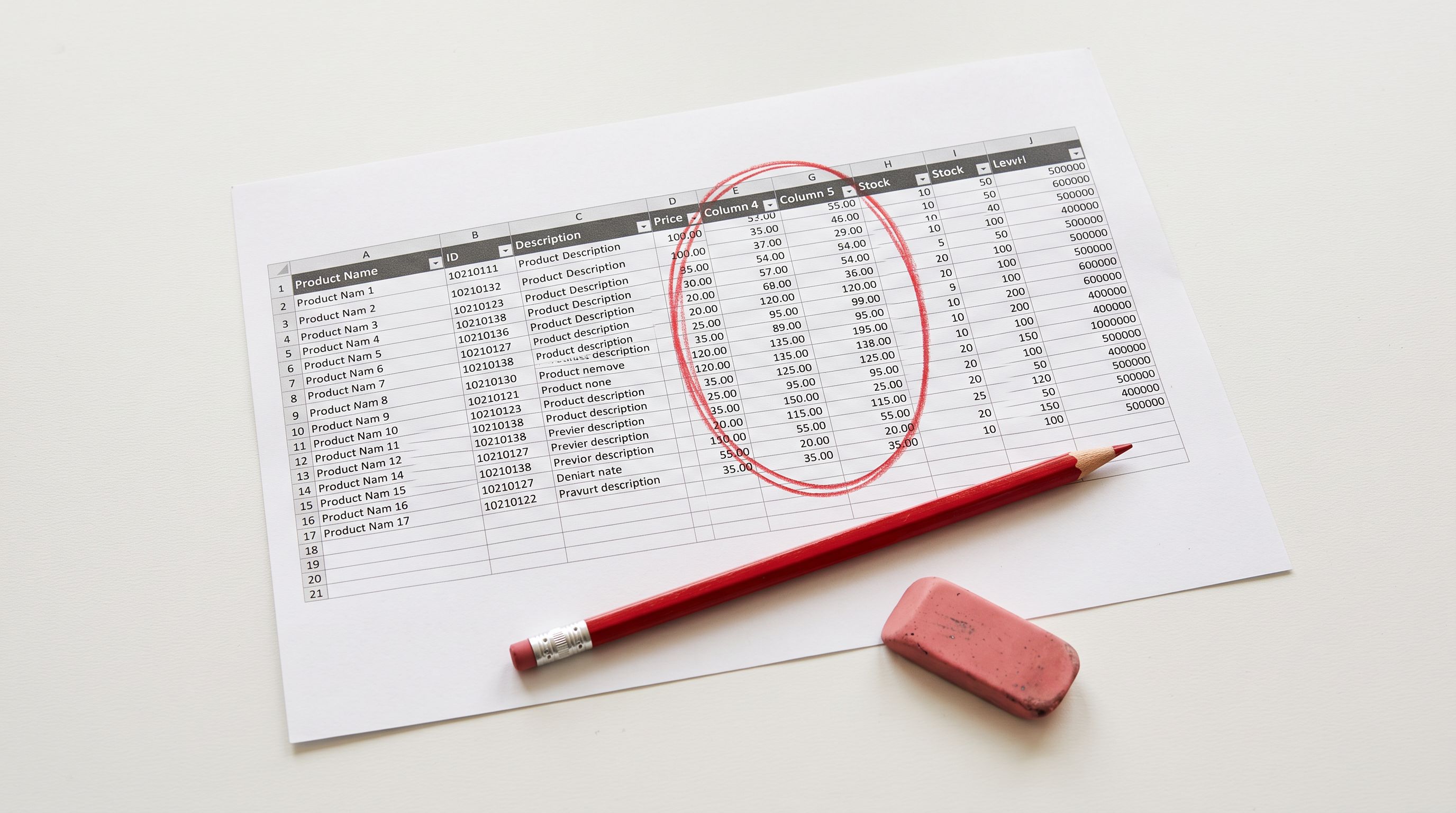
The errors that surface after a large import tend to fall into three categories.
Mapping errors. Column mapping in an import file looks correct until you notice that "Colour" was mapped to the variant option but "Color" (the supplier's spelling) was not, leaving all American-spelled colour variants as separate products rather than variants. At 1,800 products, identifying and correcting the mapping requires re-importing the entire batch. Shopify's CSV product import guide notes that column name mismatches are a leading cause of import data being placed in the wrong field.
Variant detection mismatches. Importier's variant detection uses 150+ patterns to group products into Shopify variant sets. A pattern that works correctly for "Small / Medium / Large" size notations may not recognise "S, M, L" in the same catalogue if the column formatting differs. In a 1,800-product import, 200 incorrectly grouped products are not visible until someone reviews the results.
AI output that does not match the brand. The Technical Gadget description style produces output that suits electronics and hardware. Applied to jewellery or homewares, it reads like a spec sheet for the wrong product category. A test import of three to four products from each category immediately reveals whether the chosen style fits the product.
Choosing the Right Test Sample
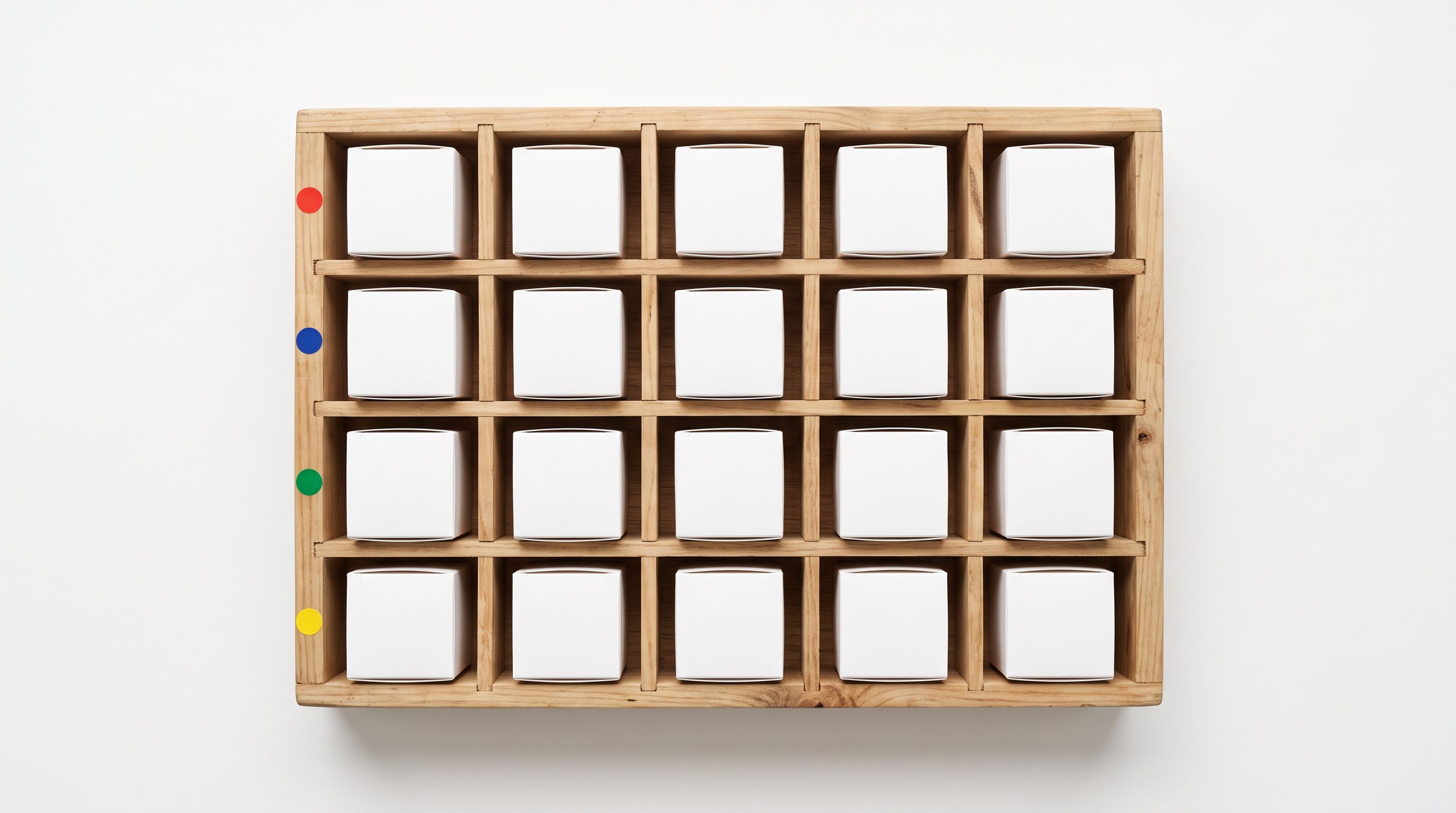
A test import produces useful signal only when the sample represents the actual diversity in the full catalogue. A sample of 10 identical products from one category tells you nothing about how variant detection handles the other seven categories.
Selecting the right test sample:
One product per variant pattern in the catalogue. If the catalogue has products with Size variants, Colour variants, and Size + Colour combined variants, the test should include at least one product from each variant type. Variant detection works differently on each pattern, and a setting that handles Size correctly may fail on combined Size + Colour.
One product per AI content profile. If different product types need different description styles (Standard for consumables, Sensory Rich for premium goods, Technical Gadget for electronics), include at least one product from each style group in the test. AI settings are applied globally per import batch, so a style mismatch discovered at test time can be addressed with per-import settings or by splitting the catalogue into separate batches.
Edge cases from the catalogue. Products with unusual titles, very long descriptions, missing fields, or non-English source content are disproportionately likely to cause import errors. Include two to three edge-case products in every test run.
Products you can visually review. Choose products you know well enough to judge whether the AI output is correct. A test description for an unfamiliar product is harder to evaluate than one for a product you can assess from memory.
The test import is not a quality check on the data. It is a quality check on the import settings. The sample tells you whether the wizard is configured correctly for the full catalogue, not whether each individual product is correct.
Running the Test Import in Importier
- 01Step 1Prepare a filtered version of the import file with 10-20 representative products. In a CSV or Excel file, this means copying the header row and the selected test rows to a new file. The test file must have the same column structure as the full catalogue so that the mapping settings transfer exactly.
- 02Step 2Run the import wizard on the test file using the same settings you intend for the full import. Configure column mapping, AI description style, persona, brand voice settings, variant detection preferences, and category metafields settings exactly as you would for the full batch. Do not skip steps to save time.
- 03Step 3Push the test products to Shopify and review the output in Shopify admin. Check variant grouping, description quality and style, product type assignment, metafield population, and any collection auto-assignments. Review every field, not just the ones you think might be wrong.
- 04Step 4If the output is correct, run the full import file through the wizard using the same settings. The column mapping profile can be saved in Importier and reused so the full-batch mapping matches the test exactly.
- 05Step 5If the output has errors, use Import Undo to reverse the test import cleanly before making any changes to settings. Importier's Import Undo removes the batch from Shopify and restores the pre-import state, leaving no partial data. Adjust the settings and run the test again.

Using Import History to Track Test Runs
Every import in Importier creates an entry in Import History, recording the file name, import date, product count, and status. For a test-before-full workflow, Import History serves as the audit trail: which test run was run when, what settings were active, and whether it was followed by an undo.
The 20-snapshot retention means you can refer back to earlier test configurations if a setting change made results worse rather than better. If a second test run with revised variant detection settings produces worse groupings than the first, the Import History shows both runs side by side.
Each Import History entry has an Undo button that triggers Import Undo. For test imports, this is the cleanup mechanism: run the test, review, undo, adjust, repeat until the settings are correct. When a test import is undone, the 20-product batch disappears from Shopify as if it were never imported. No orphaned products, no partial collections, no manually deleted test items.
When to Split the Full Import Instead of Testing
For some catalogues, a single test run is not sufficient because the catalogue contains product types that are too different to be handled by one set of import settings.
A multi-category catalogue where three product types need different AI styles (Sensory Rich for textiles, Technical Gadget for electronics, and Ingredient Spotlight for skincare) cannot be imported in a single batch with one AI style setting. The correct approach is to split the catalogue into three separate import batches, each configured for its product type, and to test each batch independently.
The shopify test import workflow for a split catalogue:
- Run a test import for batch one (textiles, Sensory Rich). Review, adjust, run the full batch, record the Import History entry.
- Run a test import for batch two (electronics, Technical Gadget). Review, adjust, run the full batch.
- Run a test import for batch three (skincare, Ingredient Spotlight). Review, adjust, run the full batch.
According to Shopify's documentation on product organisation, product type is a standard field used for Smart Collections, reports, and Google Merchant Centre taxonomy mapping. Incorrect product type on a large import can affect collection membership and feed categorisation. A test import is the most reliable way to verify product type assignment before it propagates to the full catalogue.
- Mapping errors discovered after 1,800 products are live
- Variant grouping failures visible only at scale
- AI style mismatch across 200+ products
- Multi-day cleanup or full undo and re-import
- No reference point for what the correct output looks like
- Mapping errors caught on 20 products in five minutes
- Variant grouping verified per pattern type before full run
- AI style confirmed correct for each product category
- Import Undo cleans up test batch in one click
- Saved mapping profile transfers validated settings to full batch
Shopify Test Import: Key Takeaways
A shopify test import on a representative sample is the step that separates a clean import from a multi-hour cleanup.
- Select 10-20 products that represent the full catalogue's diversity: one product per variant pattern, one per AI content profile, and a few edge cases from the supplier file.
- Run the test using identical settings to the intended full import. Mapping profiles, AI style, persona, and variant detection must match exactly.
- Use Import Undo to clean up the test batch cleanly after reviewing. Importier removes the test products from Shopify, leaving no partial data in the catalogue.
- Import History records every test run with the file name, date, and product count. Use it to track which configuration was validated and when.
- Split catalogues with divergent product types into separate batches, each with its own test run. One import setting set does not fit a catalogue that spans clothing, electronics, and skincare.
- Save the column mapping profile after a successful test. Reusing the saved profile on the full batch eliminates re-mapping errors between the test and the full run.
Import your next catalogue at importier.app. Run a 10-product test first using Importier's 14-step wizard, review the output, and commit to the full batch only when the settings are validated.
Set up your first import in under five minutes.
Importier brings products into Shopify with AI descriptions, category metafields, and data enrichment on every run.