Why Shopify Products Aren't in Google Shopping (and How to Fix It)
On this page
Why Shopify Products Aren't in Google Shopping (and How to Fix It)
When Shopify products are not appearing in Google Shopping, most merchants look first at Google Merchant Centre: checking feed status, reviewing disapproval messages, adjusting feed settings. That is where the error messages appear. It is rarely where the problem originates.
The root cause of most Google Shopping disapprovals and missing impressions is product data quality in Shopify. Google Shopping reads your product data through the Merchant Centre feed; what goes into the feed comes from your Shopify product fields. When the product data in Shopify is incomplete, incorrectly formatted, or inconsistent with what Google's feed specification requires, the products are disapproved or excluded before they ever reach a buyer's search results.
The consequential insight is this: fixing product data in Shopify propagates to every shopping feed automatically. A product that is approved in Google Shopping after a data fix is simultaneously corrected for Microsoft Shopping, Meta Commerce, and any other channel that reads the same Shopify product data.
Cause 1: Missing GTINs
GTINs (EANs, UPCs, and ISBNs) are the most commonly cited root cause of Google Shopping disapprovals for products that compete with other sellers offering the same item. Google uses GTINs to match your listing to its product database. Without a GTIN, Google cannot confirm the product's identity, cannot cross-reference specifications and images from its database, and cannot confidently place the listing against equivalent competitive offers.
For products sold by multiple retailers (branded goods where you are one of several sellers), a missing GTIN is typically a hard disapproval. For products where you are the only seller (own-brand or private label), Google's policy permits submitting without a GTIN using the identifier_exists: no attribute, but the listing will generally receive fewer impressions than verified GTIN products.
In Shopify, the GTIN field is the Barcode field on each product variant. Products imported from supplier files that do not include a barcode column arrive in Shopify with blank Barcode fields. These products produce a "Missing GTIN" warning in Merchant Centre that, after 30 days, escalates to a disapproval affecting the product's eligibility for Shopping placements.
Importier's barcode lookup identifies available GTINs from public product databases for products whose titles, brands, and categories match registered records. For a catalogue with systematic GTIN gaps (all products from a specific supplier), the barcode lookup runs across the affected product range and populates the Barcode field via a reimport. The fix propagates to Google's feed on the next crawl cycle.
For the complete GTIN audit and enrichment workflow, the Shopify barcode guide covers how to identify missing GTINs across the catalogue, how the barcode lookup works, and how to handle products whose GTINs are not in public databases.

Cause 2: Wrong Product Categories
Google Shopping uses a taxonomy called the Google Product Category (GPC) to classify products for shopping surfaces. When products are assigned to the wrong category, or to no category, they miss placements in category-specific shopping surfaces and experience lower impression share for category-filtered queries.
The GPC taxonomy aligns closely with Shopify's Standard Product Taxonomy. Products correctly categorised in Shopify's taxonomy have a well-mapped starting point for the GPC assignment. Products without Shopify taxonomy assignments, or with vague product types ("Clothing" instead of "Women's Outerwear > Jackets"), receive a generic GPC assignment that misses the more specific category nodes where buyer intent is highest.
The specific GPC path matters because Google Shopping organises its surfaces by category. A buyer browsing "Women's Down Jackets" in Google Shopping sees products assigned to the GPC node for women's down jackets, not products assigned to the top-level "Apparel" node. Specificity in category assignment directly affects placement in category-browsing surfaces.
Importier's 22 Industry Packs assign products to the correct Shopify taxonomy node with category-specific attributes populated (colour, material, size range, gender). For a catalogue where product types are generic or missing, applying the relevant Industry Pack during a selective reimport updates the taxonomy assignment across all affected products in one operation.
For the category metafield assignment workflow, the Shopify category metafields guide covers how Importier's taxonomy mapping works, how Industry Pack attributes populate the required GPC attribute fields, and how the assignment flows through to Google's feed.
Cause 3: Title Formatting
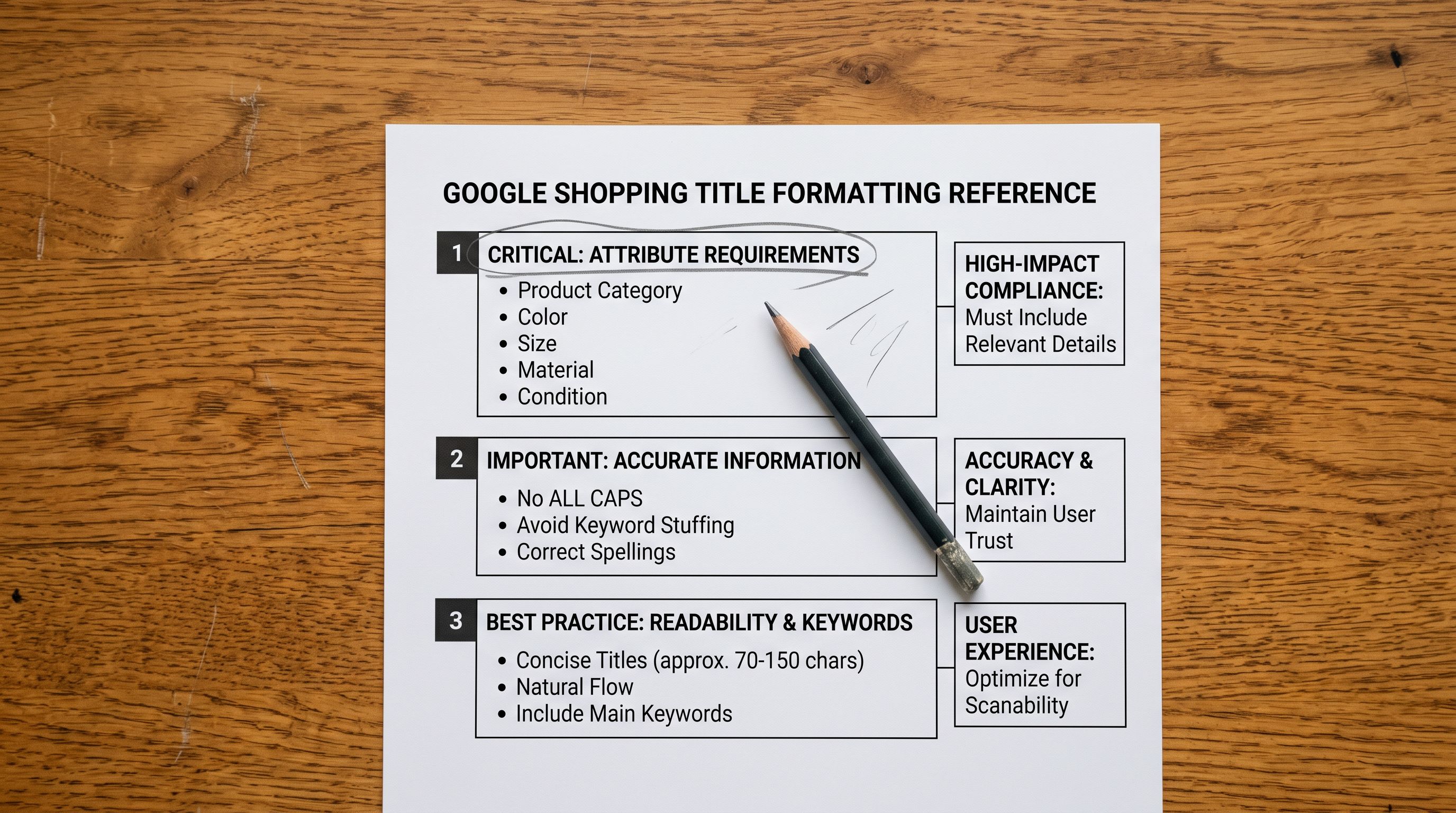
Google Shopping titles have specific formatting requirements that differ from the titles that work well for SEO on the product page itself. Disapprovals and impression losses related to title formatting are common for merchants who have not optimised titles specifically for the Google Merchant Centre context.
Three title formatting issues account for most GMC title-related disapprovals.
Truncation: Google Shopping displays product titles up to 150 characters in the feed. Titles beyond this limit are truncated. If the most important attribute (the one that most differentiates the product and matches buyer queries) appears after the 150-character mark, the truncated title fails to match the queries it should. The fix is to front-load the key attributes: brand, product type, and the primary differentiating attribute should appear in the first 70 characters.
All-caps formatting: Google's feed policy prohibits promotional language in all caps ("SALE", "FREE SHIPPING", "ACT NOW"). Titles containing all-caps text receive a formatting disapproval. This most commonly affects merchants who have copy-pasted promotional text from banners or marketing materials into the product title field.
Missing attributes: for product categories where Google expects specific attributes in the title (size and colour for clothing, material for home goods, age group for children's products), titles that omit those attributes perform below the category average even without a hard disapproval. The title is read alongside the product attributes, but attribute-rich titles explicitly confirm the information buyers filter by.
Importier's Title Optimizer generates GMC-formatted titles with the key attributes front-loaded and formatted to the 150-character limit. For a catalogue where titles were written for on-page SEO rather than feed optimisation, running the Title Optimizer across the affected product range produces feed-ready titles without a manual edit pass.
- 01Export the disapproved or low-impression products from Google Merchant Centre as a list of product IDs. These are the products whose data needs correction in Shopify first.
- 02For each disapproval category, identify the root causeopen one product in Merchant Centre and read the disapproval reason. 'Missing GTIN' means the Barcode field in Shopify is blank. 'Invalid value: google product category' means the product type or taxonomy is wrong. 'Title too long' or 'promotional language in title' means a title formatting fix is needed.
- 03In Importier, open the affected products in Store Scanner. Store Scanner surfaces the same data quality issues that Merchant Centre flags, mapped to the specific Shopify fields that need correction.
- 04Run the targeted fix for each disapproval category. Barcode gapsuse barcode lookup to identify and populate missing GTINs. Category issues: apply the correct Industry Pack to assign taxonomy and attributes. Title issues: run Title Optimizer with the GMC preset to reformat affected titles. Weight gaps: use Importier's data enrichment to add missing weight values.
- 05After the fix pass, trigger a manual resync of the Google Shopping feed in Shopify. The corrected product data will be submitted to Merchant Centre on the next crawl. Disapprovals that were caused by data issues will be cleared; Google typically re-evaluates affected products within 3-7 days.
Cause 4: Thin or Duplicate Descriptions
Google's feed quality guidelines flag product descriptions that are too short (under 150 characters), substantially duplicate descriptions across multiple products in the same category, or descriptions that contain promotional text rather than factual product information ("LIMITED OFFER", "Buy 2 Get 1 Free").
Thin descriptions are common in catalogues where products were imported from supplier files with minimal description data. A 30-word supplier description that names the product type and two specifications clears the threshold for Shopify's own validation but falls below Google's quality signals for shopping content. Products with thin descriptions receive fewer Shopping impressions than products with substantive descriptions covering the product's features, use cases, and specifications.
Duplicate descriptions across related products are common when a description template was applied to a category without variation. A set of 20 T-shirt products with the same 200-word description (differentiated only by colour swaps) signals low-quality content to Google and reduces the shopping eligibility of the entire group.
Store Scanner identifies products with descriptions below the minimum character threshold, products whose description is identical to another product in the same category, and products whose descriptions contain promotional language that violates feed policy. Each flag type has a targeted fix via Importier's AI description regeneration: thin descriptions are regenerated with the product's full attribute set as input, duplicate descriptions are regenerated with a per-product variation pass, and promotional-language descriptions are regenerated with a policy-compliant style.
- Thin descriptions (under 150 chars) trigger quality flag
- Duplicate descriptions across a category signal low-quality content
- Promotional language in descriptions violates feed policy
- Low-quality description signals reduce Shopping impression share
- Products compete on fewer queries due to thin content signal
- Substantive descriptions (300+ chars) clear quality threshold
- Per-product AI generation ensures each description is unique
- Policy-compliant description content passes feed validation
- Quality description signals improve Shopping impression share
- Product covers more query surface with specific feature language
Cause 5: Missing Product Weight
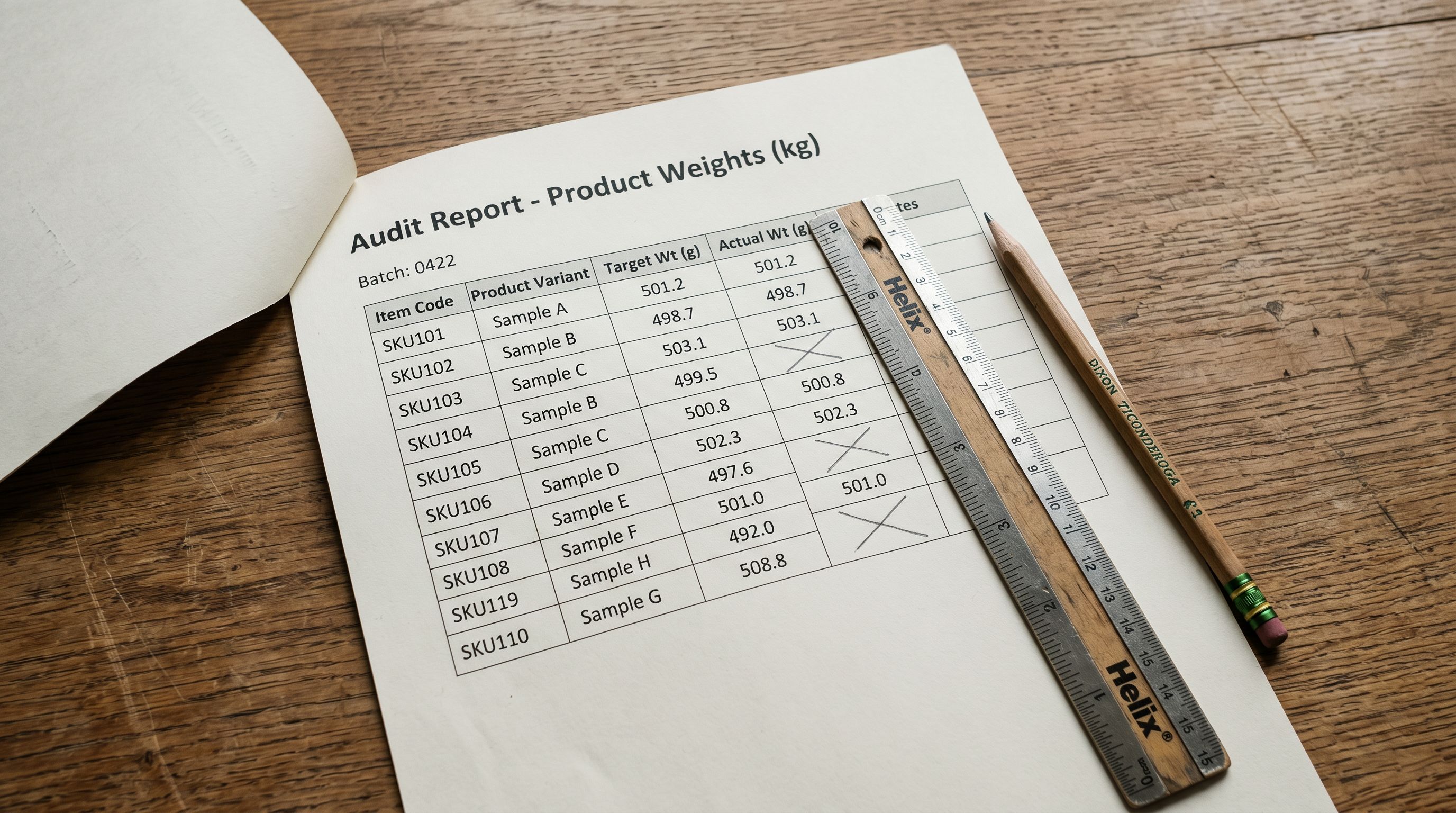
Product weight is a required field for products sold with shipping through Google Shopping. Google uses weight to calculate shipping cost estimates displayed in shopping ads. Products with blank weight fields cannot show accurate shipping cost information and are deprioritised in Shopping placements for buyers who filter by shipping price or estimated delivery date.
In Shopify, the weight field is per-variant (not per-product). Products imported from supplier files that do not include a weight column arrive in Shopify with zero-gram or blank weight values. These products produce a "missing required attribute" warning in Merchant Centre for shipping-price-dependent placements.
Importier's data enrichment populates missing weight values for products where the weight can be inferred from the product's title, category, and description. For products where the weight is not inferable (products whose supplier descriptions contain no weight information and whose product type does not have a typical weight range), the correct source is the supplier or manufacturer's product specification sheet.
Google Shopping disapprovals accumulate quietly while impression share declines. The products are still live in Shopify; only the Shopping visibility changes. Running a data audit before checking Merchant Centre settings catches the root cause faster than working through the UI.
Merchant Centre vs Shopify Data
Why Merchant Centre Settings Are Rarely the Problem
Merchants who diagnose Google Shopping disapprovals by adjusting Merchant Centre settings (re-linking the account, recreating the feed, changing the feed schedule) often see no improvement because the settings are not the problem. The feed is working correctly; it is feeding Google incomplete or incorrectly formatted product data.
Merchant Centre settings that do matter (and are worth checking after the data fixes are in place):
Feed language and target country: the language and currency in the feed must match the Shopify store's primary language and the country where Shopping ads will run. A mismatch here produces "unsupported language" or "currency mismatch" disapprovals that are settings-based, not data-based.
Shipping settings: Merchant Centre requires either (a) a shipping template configured in Merchant Centre or (b) shipping cost and weight data in the product feed. If shipping templates are not configured, products with blank weight fields cannot show shipping estimates and are deprioritised.
Tax settings: for US merchants, Merchant Centre requires tax settings configured for the states where the merchant collects sales tax. Missing tax configuration produces placements without accurate tax display, which can affect buyer confidence.
These are the settings worth verifying. Beyond them, if products are disapproved or have low impressions after the settings check, the problem is almost certainly product data; the data lives in Shopify.
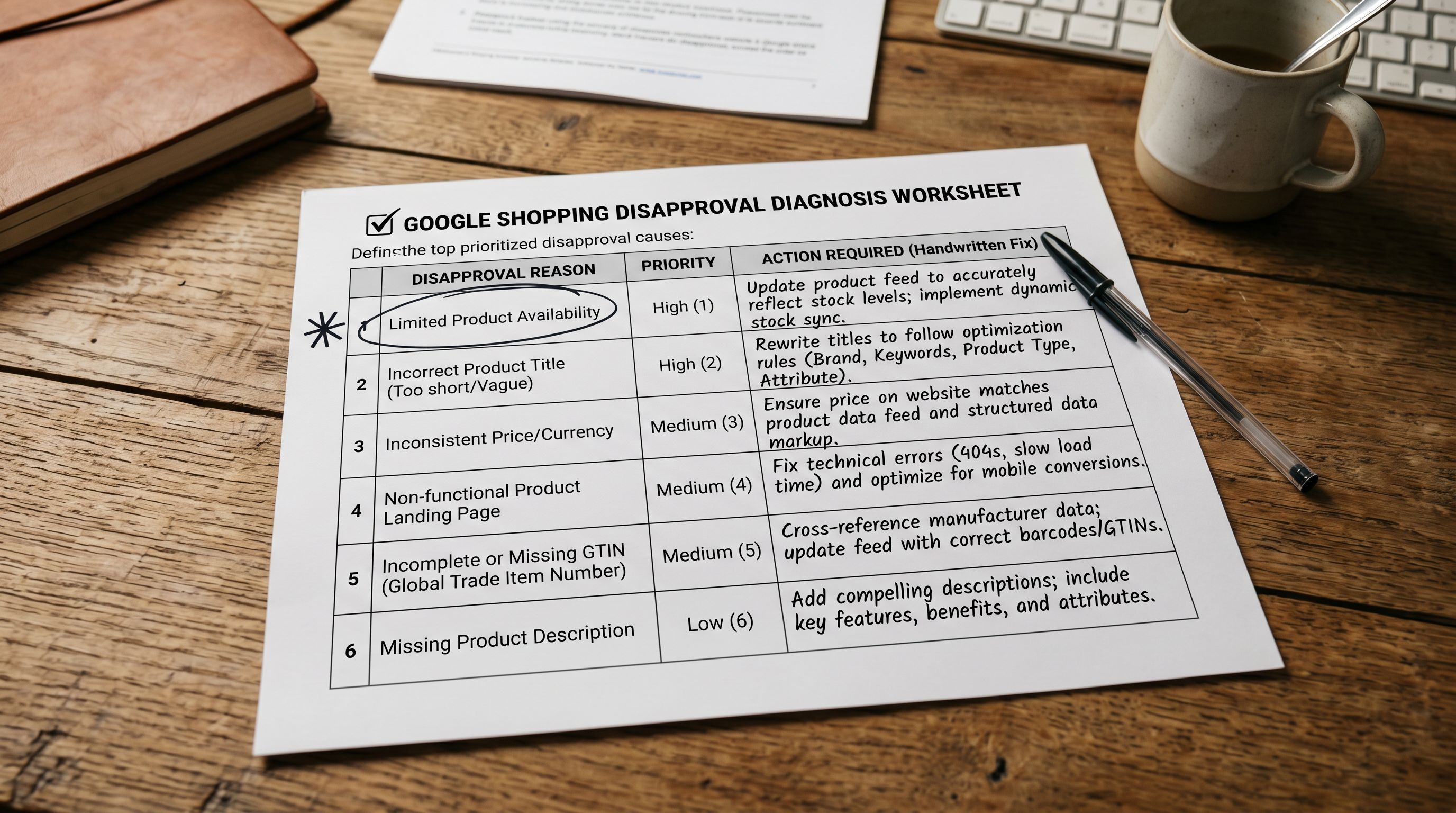
For the full Merchant Centre disapproval diagnosis workflow, the Google Merchant Centre disapproval guide covers each disapproval category with the specific Merchant Centre message, the root cause, and the fix workflow.
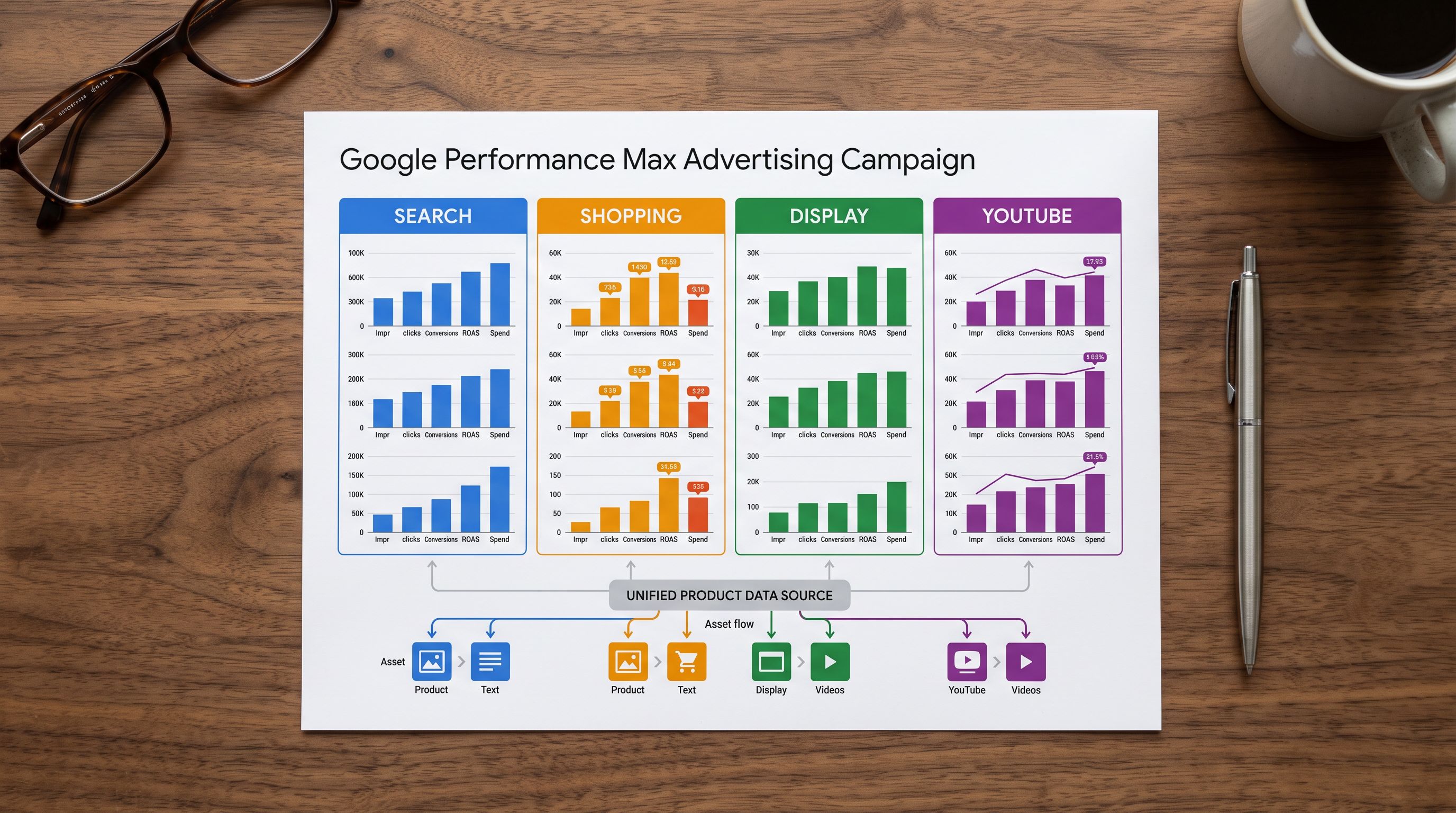
For context on how the corrected data flows from Shopify through to Shopping campaign performance, the Google Shopping campaigns guide covers how Shopping campaign structure interacts with product data quality and why data fixes have direct impact on campaign ROI.

The Fix Sequence

When multiple disapproval categories exist simultaneously, addressing them in the right order saves time. Some fixes interact: adding a GTIN to a product may clear a disapproval that was masking a secondary title formatting issue.
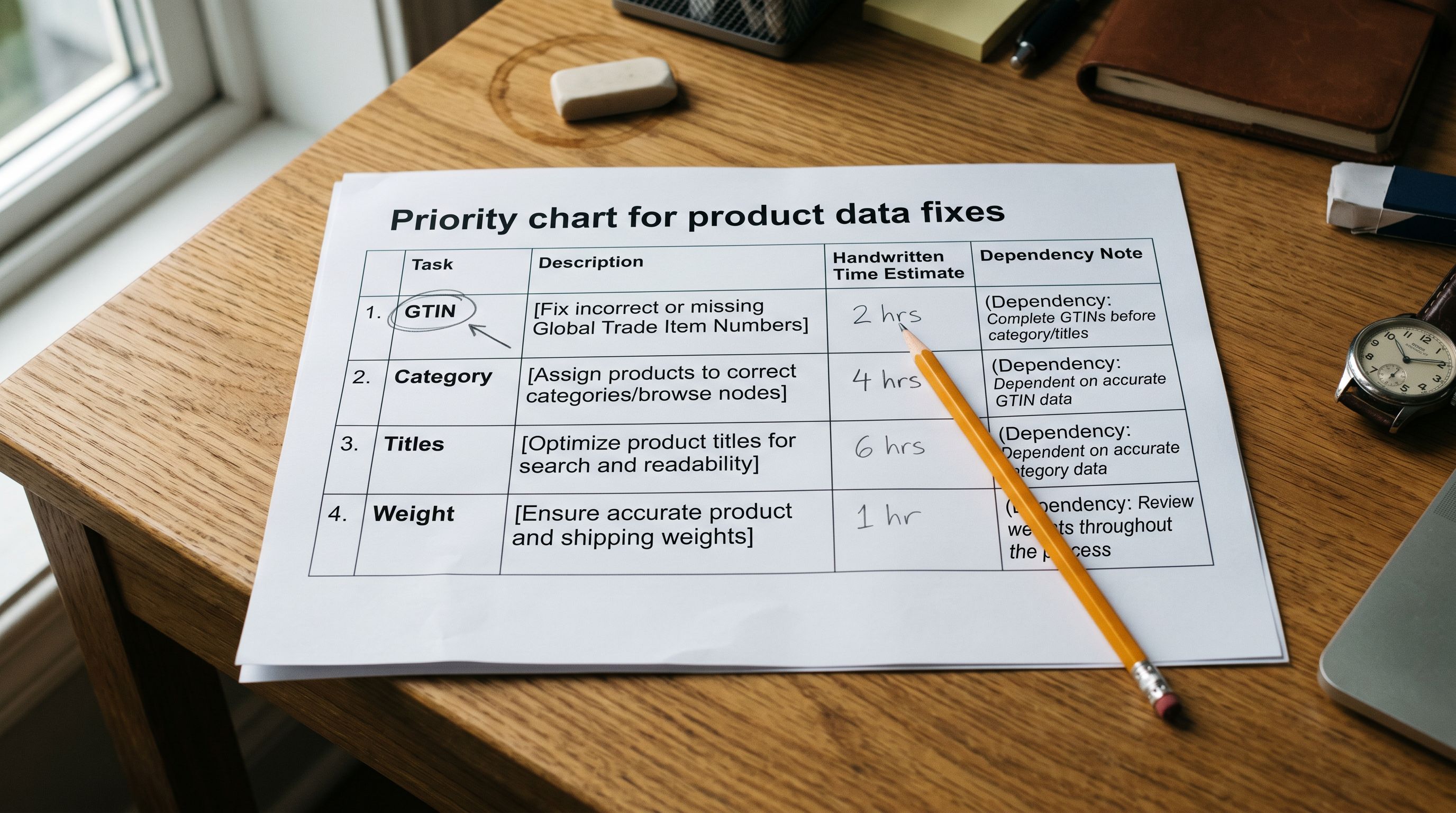
Fix GTINs first. GTIN disapprovals affect the most products and have the longest resolution time (Google re-evaluates after 3-7 days). Starting GTIN enrichment first means those products are moving through Google's re-evaluation queue while the other fixes are being addressed.
Fix category taxonomy second. Incorrect category assignments affect impression share without producing hard disapprovals: the product appears in the feed but in the wrong category, missing the placements where buyer intent is highest.
Fix titles and descriptions third. Title and description fixes are fast to apply across a batch but require a manual review pass to confirm the output before pushing.
Fix weight and other required attributes last. Weight values are specific to each variant; the fix requires either enrichment (where the weight is inferable) or manual entry (where it is not). Handling this last focuses the manual effort after the higher-volume fixes are complete.
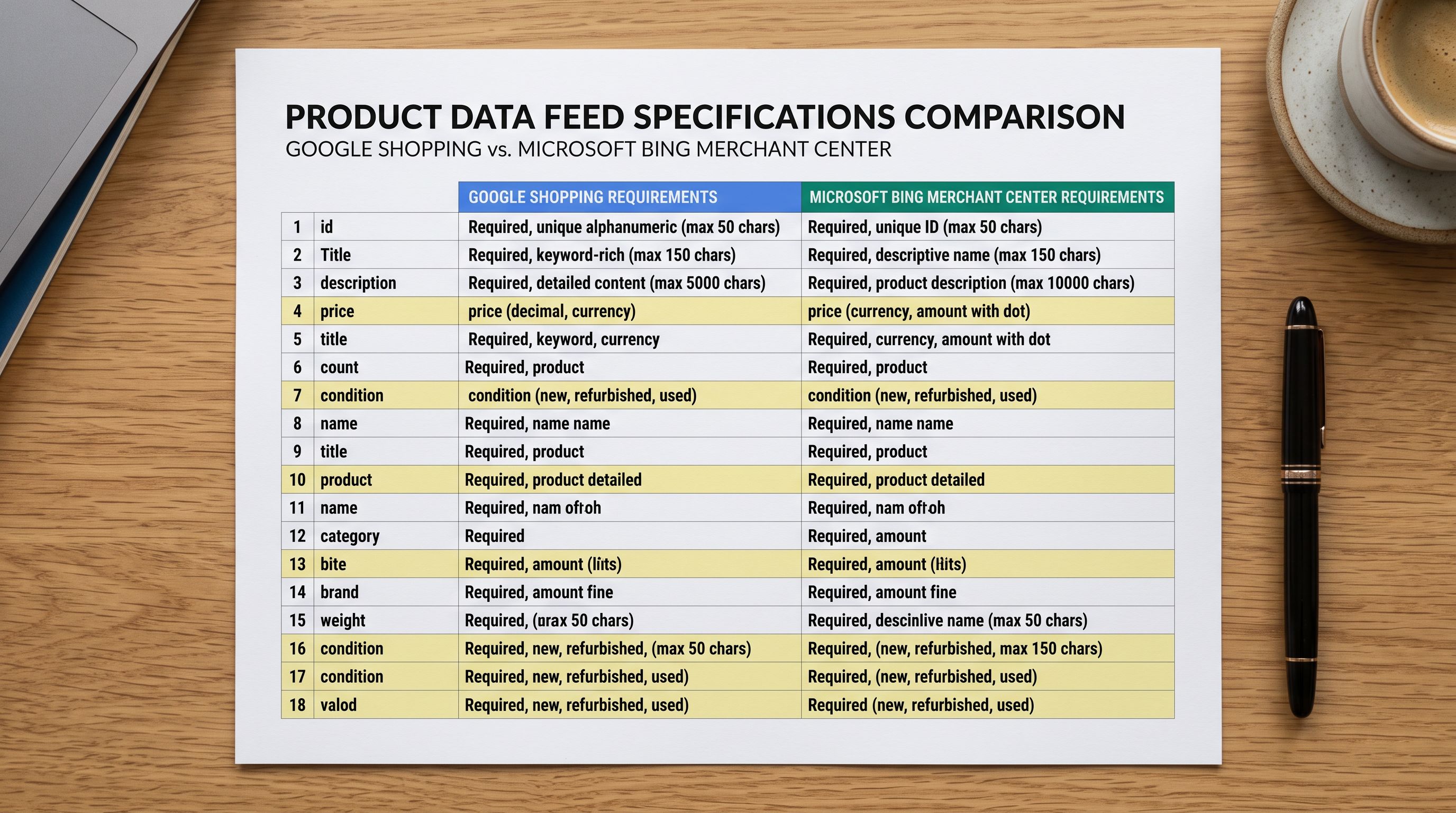
Google's product data specification covers the exact field requirements, accepted values, and formatting rules for every attribute in the Google Shopping feed, the authoritative reference for any field where the Merchant Centre message is unclear about the required format. Google's Shopping disapproval help documents the specific disapproval reason codes and what each means, useful for mapping a Merchant Centre message to the correct fix workflow.
For the full data quality audit that catches these issues before they reach Merchant Centre, the Shopify product data quality guide covers the complete field checklist and how to use Store Scanner to audit a live catalogue.
Fix the Source, Not the Symptom
Google Merchant Centre shows where the problem manifests. Shopify is where the problem exists. Every disapproval that has a data cause requires a Shopify fix; the Merchant Centre message is the notification that a Shopify product field is incorrect or missing.
The advantage of fixing product data in Shopify rather than in Merchant Centre is that the fix is permanent and universal. A GTIN added to a Shopify product is in every feed that reads that product. A category assignment corrected in Shopify is correct for Google Shopping, Microsoft Shopping, Meta Commerce, and any AI shopping surface that reads the same data. One fix, everywhere.
Try Importier free at importier.app
Set up your first import in under five minutes.
Importier brings products into Shopify with AI descriptions, category metafields, and data enrichment on every run.