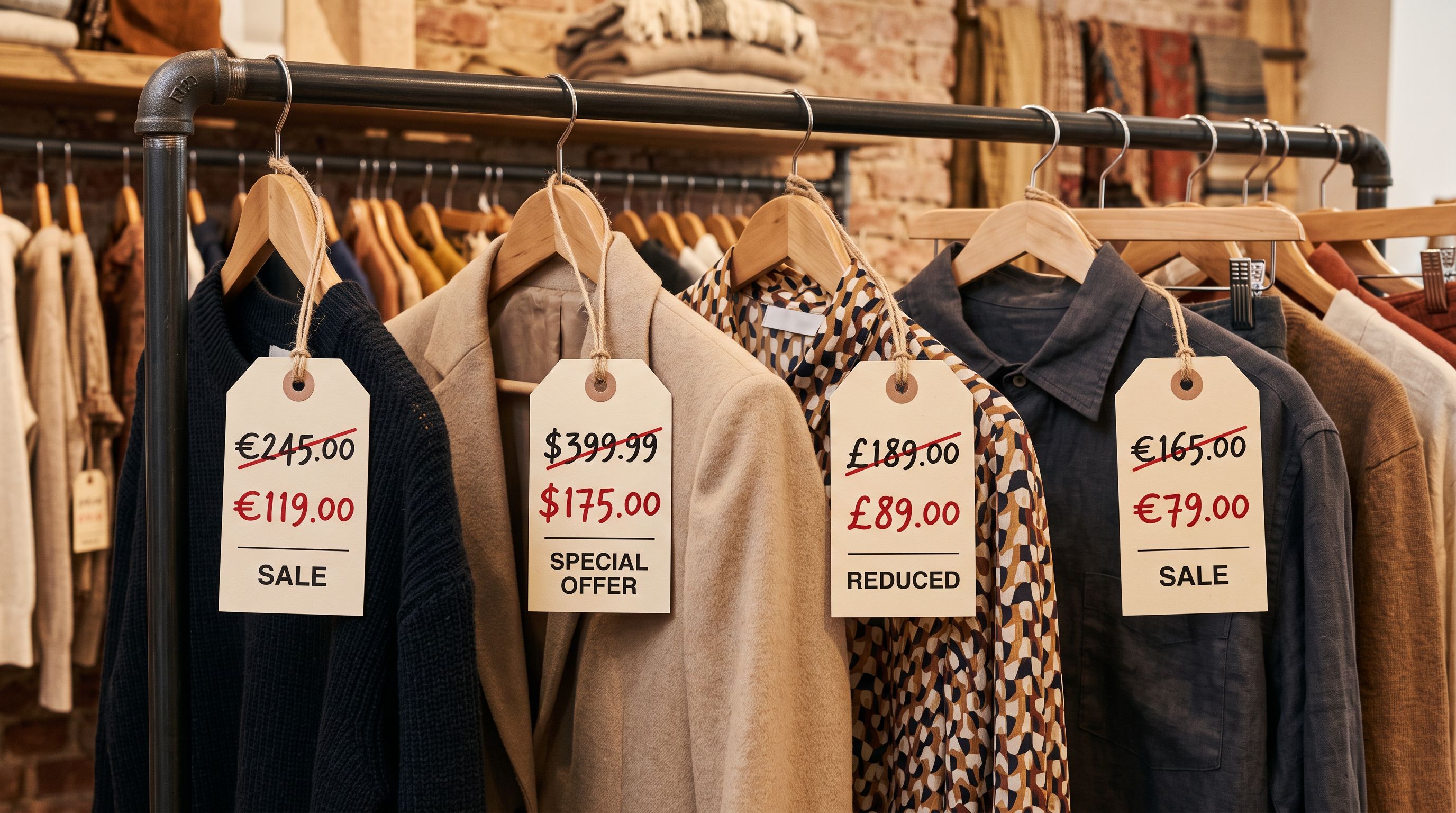
Shopify Products Imported at Zero Price: Causes and Fixes
On this page
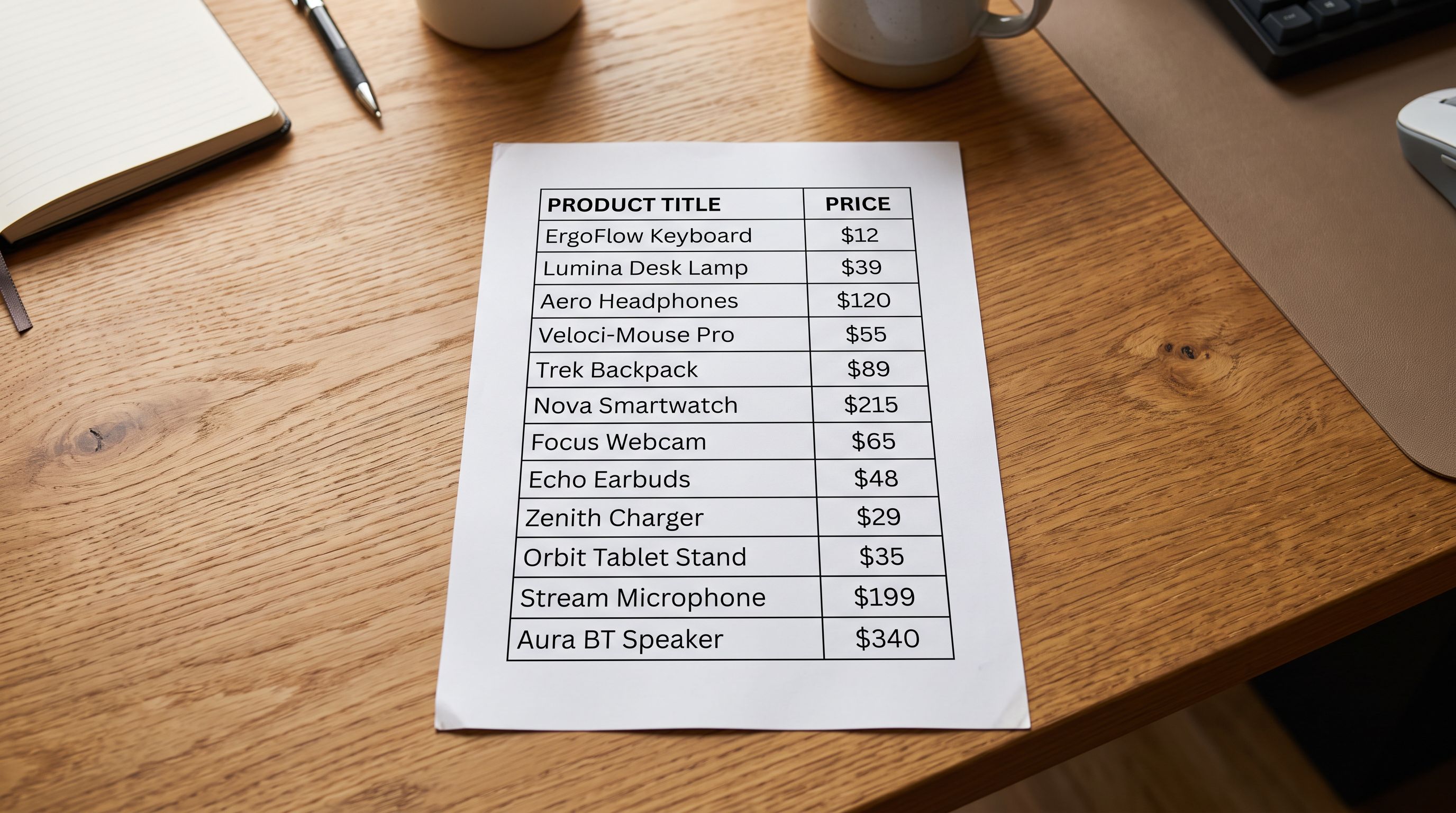
A textile wholesale merchant imports 300 products from a supplier CSV. The file contains every product they sell: title, images, category, and a column labelled "RRP" with prices ranging from $12.00 to $340.00. Every product arrives in Shopify at $0.00, a Shopify products imported zero price problem with no error message and no warning.
The import completes with no errors and no warnings. Every product appears live in the Shopify storefront with correct images and titles.
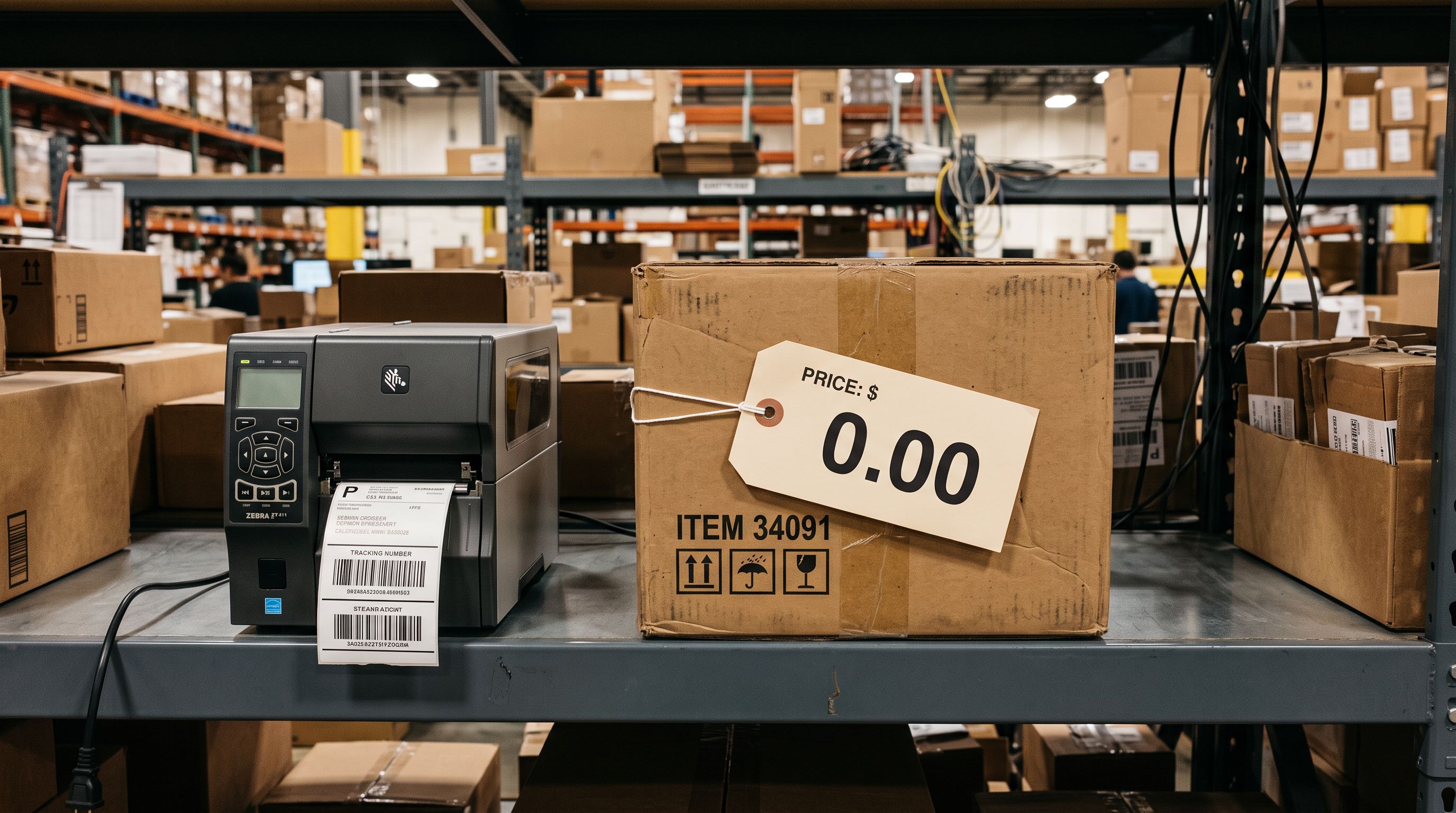
Forty-eight hours later, the merchant opens their payment dashboard and finds 23 completed orders. Total revenue: $0.00. A total of $8,400 in goods has shipped to customers who paid nothing at checkout. Shopify processed every order without flagging a problem.
This is a Shopify products imported zero price issue: the supplier's file used the column name "RRP" and Shopify's native importer requires the exact column name "Variant Price". Shopify read the column, could not match it to any known field, and set every product price to $0.00. Zero is a valid Shopify price, so checkout proceeded normally on every order.
Why Shopify requires an exact column name for price
Shopify's native CSV importer works by matching column headers to a fixed list of expected field names. The price field it expects is "Variant Price". This exact string, case-insensitive, is required.
Suppliers do not know Shopify's column naming conventions. They label their price columns in terms that make sense in their own systems: RRP (Recommended Retail Price), MSRP (Manufacturer's Suggested Retail Price), Wholesale Price, List Price, Unit Price, Cost Price, Sale Price, Trade Price, Retail.
When a supplier column does not match Shopify's expected name, Shopify does not produce an error. It does not prompt the merchant to map the column. It moves past it and uses the default value for price, which is zero.
The merchant sees products with correct titles and images. The price field appears populated in admin: it shows "$0.00" rather than blank, and nothing in the import log suggests anything went wrong.
What supplier column names get ignored
The following column names are commonly used by suppliers and ignored by Shopify's native importer when the merchant has not manually renamed them:
- RRP, R.R.P., Recommended Retail Price
- MSRP, M.S.R.P., Manufacturer Price
- Wholesale Price, Wholesale, WHS
- List Price, List
- Unit Price, Unit Cost, Cost Price
- Sale Price, Promo Price, Clearance Price
- Trade Price, Trade, Ex-Trade
- Price (AUD), Price (USD), Price (GBP)
- Retail, Retail Price, Retail AUD
Currency suffixes and parentheses are common in international supplier files. A column named "Price (AUD)" does not match "Variant Price" and is ignored even though the intent is identical.
A supplier column named "RRP" contains every price the merchant needs. Shopify ignores the column, imports every product at $0, and accepts checkout at that price. The import log shows no errors.
Shopify's own documentation on product CSV import requirements specifies the exact column names expected. Suppliers are not required to follow this format, and most do not.
How to find products imported at zero price
The fastest check is the Shopify Products admin view. Sort the product list by price in ascending order. Products with a $0 price float to the top.
For a catalogue with variants, the sort shows the lowest variant price. A product with five variants all priced at $0 sorts above everything else. A product with four variants at $0 and one variant at $25 (perhaps manually set after the import) sorts above standard-priced products but below the fully zero-priced group.
- 01In Shopify admin, go to Products
- 02Sort by Price (low to high); $0 products appear at the top
- 03Click any $0 product to confirm the issue is price, not a draft status
- 04For a full catalogue audit, export all products via Products > Export
- 05Open the exported CSV and filter the Variant Price column for 0 or blank values
The export method is more reliable for large catalogues. A Variant Price of 0 in the exported CSV confirms the import did not set a price. A blank Variant Price column in the export confirms the same: Shopify exports zero and blank price identically as "0" in the Variant Price column.
Fixing existing products
The fastest fix for a recent import is Importier's Import Undo if the import was run through Importier. Import Undo reverts every product in the batch to its pre-import state in one step. The same column naming mismatch pattern affects other fields too — the guide to fixing blank SKUs after import covers the same root cause applied to the Variant SKU column.
For products imported outside Importier or beyond the Import Undo window, the fix is a partial CSV re-import:
- Export the full product catalogue from Shopify (Products > Export, all products, CSV format).
- Open the exported CSV and locate the Variant Price column.
- Manually enter the correct prices, or copy prices from the supplier's file using the supplier's own column name as a reference in a parallel spreadsheet column.
- Delete all columns from the export except Handle, Title, Option1 Name, Option1 Value, Option2 Name, Option2 Value, and Variant Price.
- Re-import the trimmed CSV. Shopify matches products by Handle and updates only the price field. All other product data (descriptions, images, metafields, inventory) stays unchanged.
For a catalogue with hundreds of zero-priced products, the manual matching step (copying prices from the supplier file to the export CSV) is the time-intensive part. A 300-product supplier file with a "Wholesale Price" column requires 300 manual lookups and copy-paste operations.
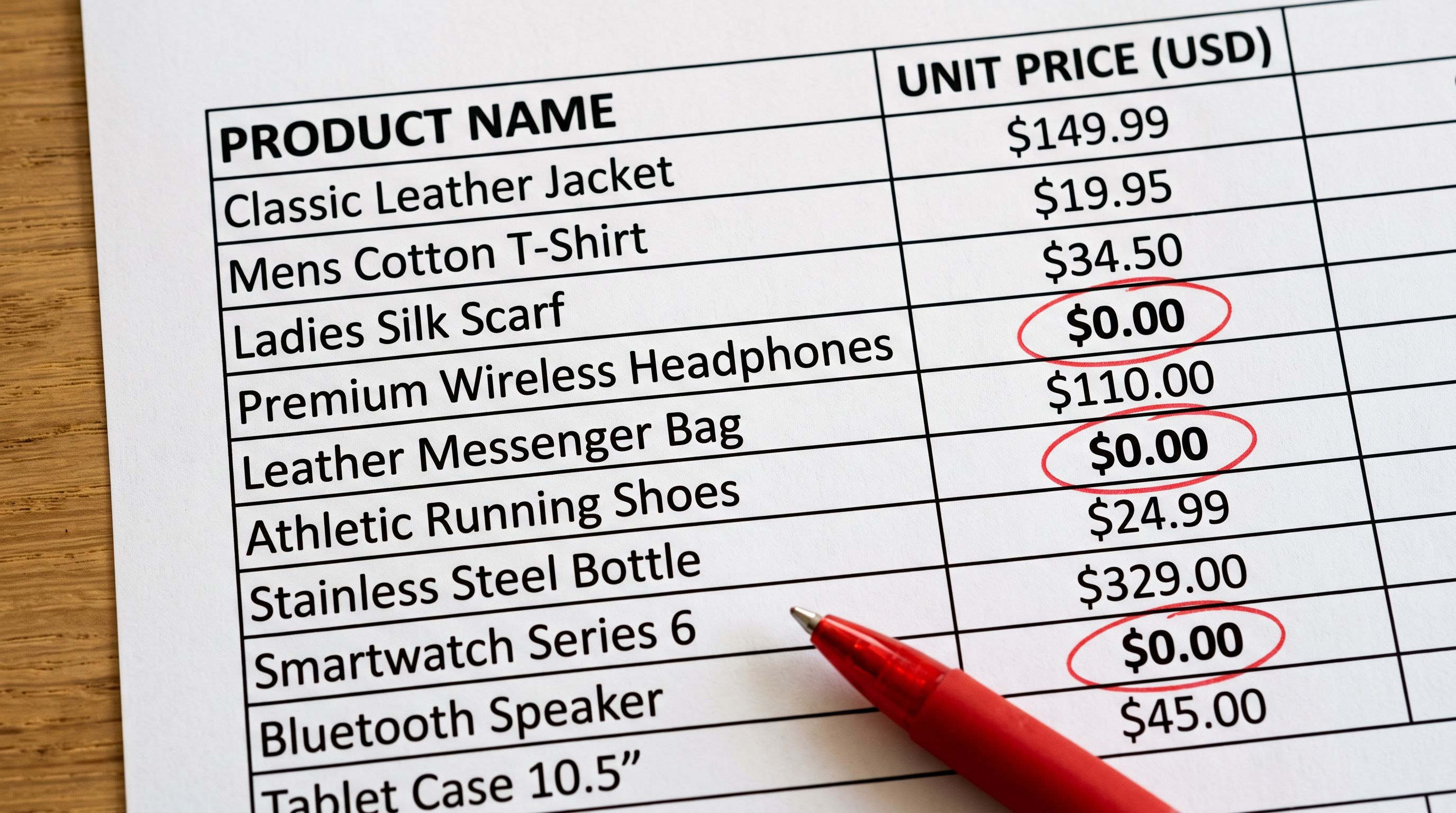
According to Shopify's inventory and pricing documentation, price is a required field for a product to be purchasable. When it is set to zero, the product is purchasable at a price of zero. There is no automatic protection against $0 checkout in the standard Shopify plan configuration.
Preventing zero-price imports
How Importier prevents price mapping failures
When importing through Importier's 14-step wizard, the column mapping step displays every column in the supplier file alongside a list of Shopify fields. The merchant maps "RRP" to Variant Price, or "Wholesale Price" to Variant Price, before any product is created in Shopify.
The wizard auto-maps columns based on common naming patterns. A column named "RRP", "Retail Price", or "List Price" is flagged as a likely price candidate and pre-mapped to Variant Price. The merchant confirms or adjusts the mapping before proceeding.
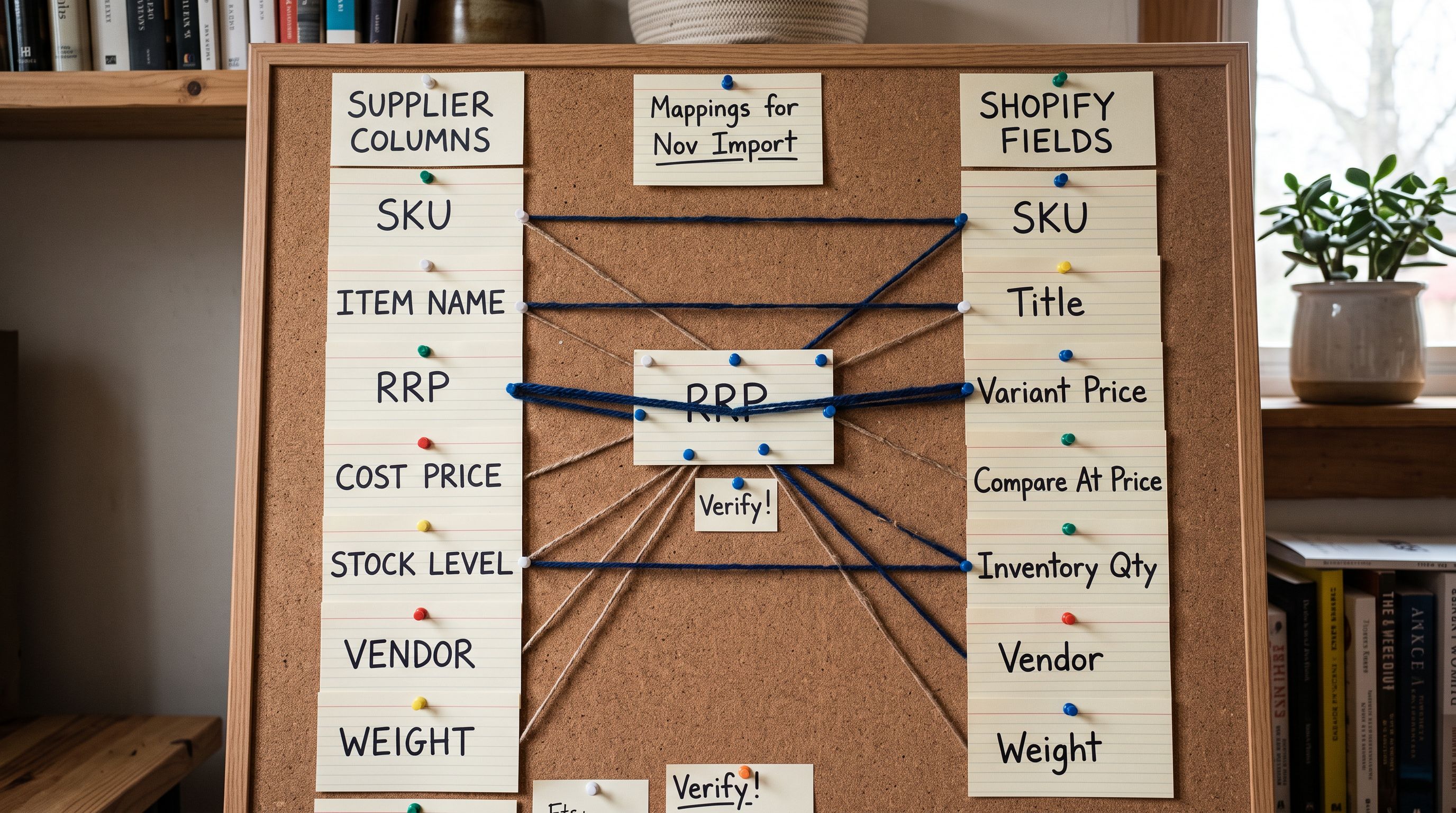
The Review step shows every product with its mapped price before the import runs. A merchant who sees a column of $0 values in the Review table can go back, correct the mapping, and re-run the mapping step. No products have been created in Shopify at that point.
- Requires exact column name 'Variant Price'
- Supplier's 'RRP' column is silently ignored
- Products import at $0.00 with no error or warning
- Zero-price products are available for checkout immediately
- Error discovered when $0 orders arrive
- Column mapping step shows all supplier columns
- Common price column names auto-mapped to Variant Price
- Merchant confirms mapping before any product is created
- Review table shows every product price before Shopify push
- Import Undo available if an error is found after import
The import profile system saves the column mapping for recurring imports. A merchant who imports from the same supplier monthly maps "RRP" to Variant Price once. Every subsequent import from that supplier applies the same mapping automatically.
Price markup during import
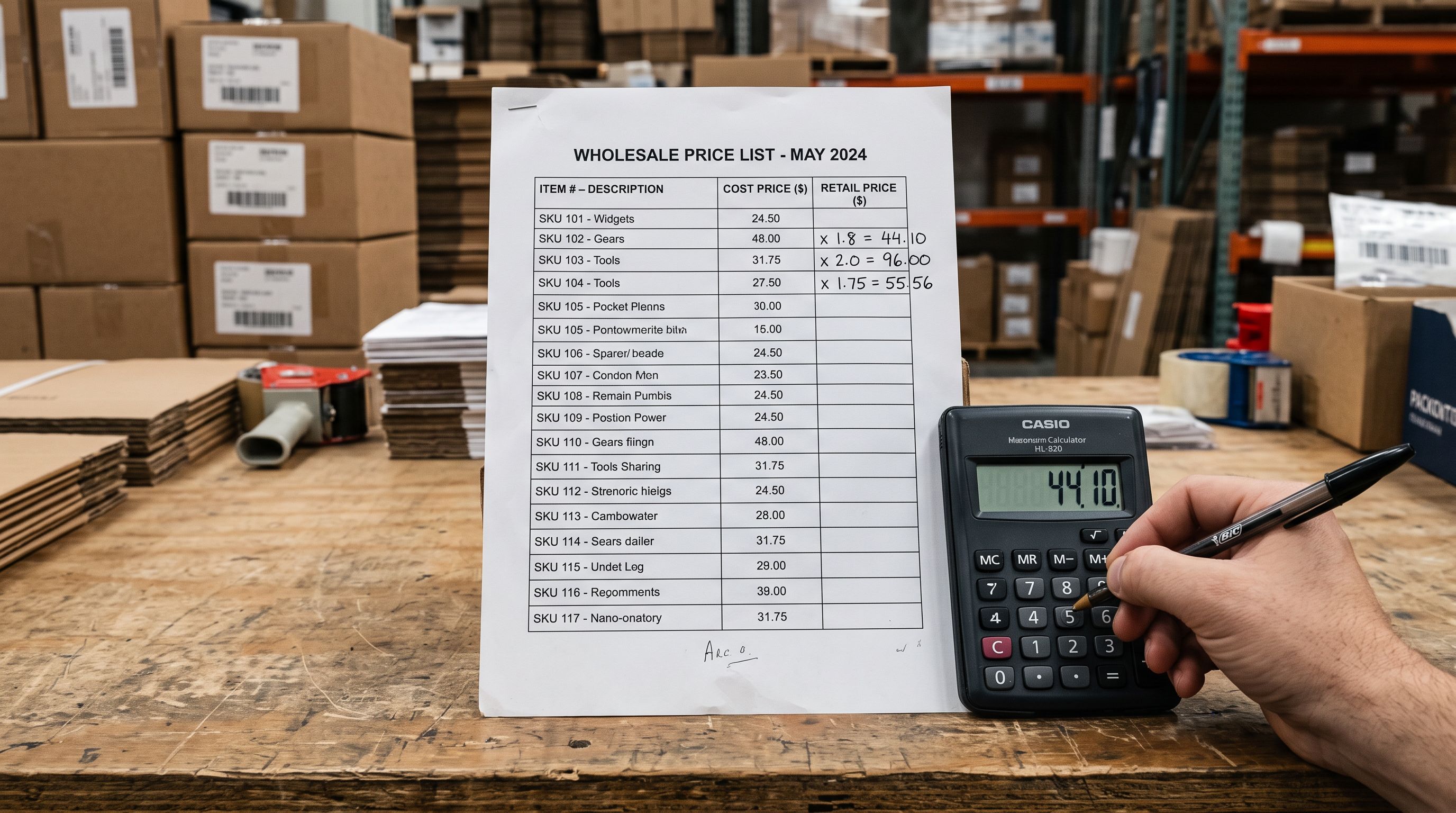
Supplier files often contain cost prices rather than retail prices. A "Wholesale Price" column with values of $8.00, $12.00, and $24.00 represents what the merchant pays the supplier, not what they charge customers.
Importier's price markup option in the Review step applies a percentage multiplier to the mapped price before creating Shopify products. A merchant importing at cost price sets a 2.5× markup and the products reach Shopify with retail prices already calculated. The compare-at price field can be set at the same time if the merchant wants to show an original price alongside a sale price.
This avoids a second common source of zero-price imports: the merchant maps "Cost Price" to Variant Price (correct field, wrong column), resulting in products priced at wholesale rather than retail. The markup step makes the distinction explicit at import time rather than after products are live.
Key takeaways
- Shopify requires the exact column name "Variant Price". Any other column name (RRP, MSRP, Wholesale Price, List Price, Unit Price) is ignored and the price defaults to zero.
- Zero is a valid Shopify price. Free products are a legitimate use case. Shopify accepts $0 without error, and Shopify does not block customers from checking out at $0.
- The error is silent. The import completes successfully. The product appears live with correct images and titles. The price field shows "$0.00" rather than blank, which looks populated on first inspection.
- Fixing existing zero-priced products requires a partial CSV re-import with Handle and Variant Price columns only. The mapping step in a second import pass corrects the prices without touching any other product data.
- Preventing price mapping failures at import time means verifying the column mapping before any product reaches Shopify. The Review step is the last point where a mapping error can be caught without products going live.
Map your price column correctly on the first import at importier.app.
Set up your first import in under five minutes.
Importier brings products into Shopify with AI descriptions, category metafields, and data enrichment on every run.