Shopify SKU Missing After Import: Fix Fulfilment Routing
On this page
A kitchenware retailer connects their Shopify store to a third-party logistics provider two months after a bulk product import. The 3PL system attempts to sync their product catalogue for order routing. It finds 380 products with no SKU.
Their warehouse management system routes orders by SKU. Every inbound order from Shopify arrives at the 3PL with a variant ID but no SKU. The system cannot automatically match it to a warehouse bin location.
Each order enters a manual review queue. At 50 orders a day, that is 50 manual interventions per day until the SKUs are fixed.
A Shopify SKU missing after import is almost never caused by missing data in the supplier file. In this case, the supplier CSV had SKU data. The import completed without errors.
But the supplier's column was called "Item Code", not "Variant SKU". Shopify's native CSV importer requires the exact column heading "Variant SKU". The item codes stayed in the supplier file and every imported product arrived in Shopify with a blank SKU field.
What the SKU field does in Shopify and what breaks when it is blank
SKU stands for Stock Keeping Unit. It is a merchant-defined identifier for each variant of a product. In Shopify, the SKU field lives at the variant level, not the product level. A shirt with three sizes has three variants, and each can have its own SKU.
Shopify does not require SKUs. Products sell fine without them. The problem is that every system downstream from Shopify that handles physical fulfilment, inventory reconciliation, and reordering relies on SKUs as the common identifier between Shopify and the outside world.
When SKU is blank for a variant, Shopify still sends the variant ID in order data via its API. But WMS and 3PL platforms such as ShipStation, ShipBob, and Linnworks are configured to match by SKU, not variant ID.
Variant IDs are internal Shopify identifiers that change if a product is deleted and recreated. SKUs are stable merchant-assigned codes that persist across re-imports and are known to suppliers, warehouses, and accounting systems.
A 3PL that receives an order with no SKU falls back to matching by product title. This works for single-variant products. It fails for any product with multiple variants: a shirt sold in five colours and four sizes has 20 variants, all with the same product title. Without a SKU to differentiate them, the 3PL cannot determine which specific variant was ordered.

The same failure applies to:
- Returns processing: most returns workflows require a SKU to attribute a returned item to the correct inventory location. A blank SKU forces manual lookup on every return.
- Reorder automation: purchasing systems trigger reorder recommendations when a SKU's stock falls below a threshold. No SKU means no threshold monitoring and no automated reorder trigger.
- Accounting reconciliation: bookkeeping software that syncs with Shopify uses SKU as the product identifier for cost-of-goods calculations. Blank SKUs produce unmatched line items in every financial export.
Why SKUs go missing during CSV import
Shopify's native CSV importer uses exact column header matching. The importer recognises "Variant SKU" and maps that column to the SKU field. It does not recognise any other column name, regardless of how closely it matches.
Supplier product files use their own naming conventions. Common supplier SKU column names include: Item Code, Article Number, Part Number, Model Number, Reference Code, Product Code, UPC, and Internal Reference. None of these trigger Shopify's SKU mapping. When a merchant imports a supplier CSV with any of these column names, the SKU data is either ignored or placed in the wrong field.
The supplier's "Item Code" column contains the SKU data. Shopify expects a column called "Variant SKU." Without an exact header match, the data stays in the supplier file and every imported product arrives with a blank SKU.
Column naming mismatches affect other fields in the same way. The shopify-product-weight-missing-after-import guide covers how the weight field goes blank when a supplier's "Weight (kg)" column isn't mapped to Shopify's expected format, causing carrier-calculated shipping to quote the same flat rate on every order regardless of actual weight.
A second cause: suppliers who send product data as multiple separate sheets (one for product details, one for pricing, one for inventory) often put SKUs on the inventory sheet but not the main product sheet. Merchants who import only the product sheet skip the SKU data entirely.
A third cause: Shopify's native importer groups variants by title. If the supplier uses separate rows per variant with a "Size" column and a "Colour" column, Shopify may not create the correct variant structure. Merchants sometimes re-export from Shopify to fix variant grouping, then re-import, losing the SKUs that were in the original file during that re-import step.
Finding products with blank SKUs in Shopify
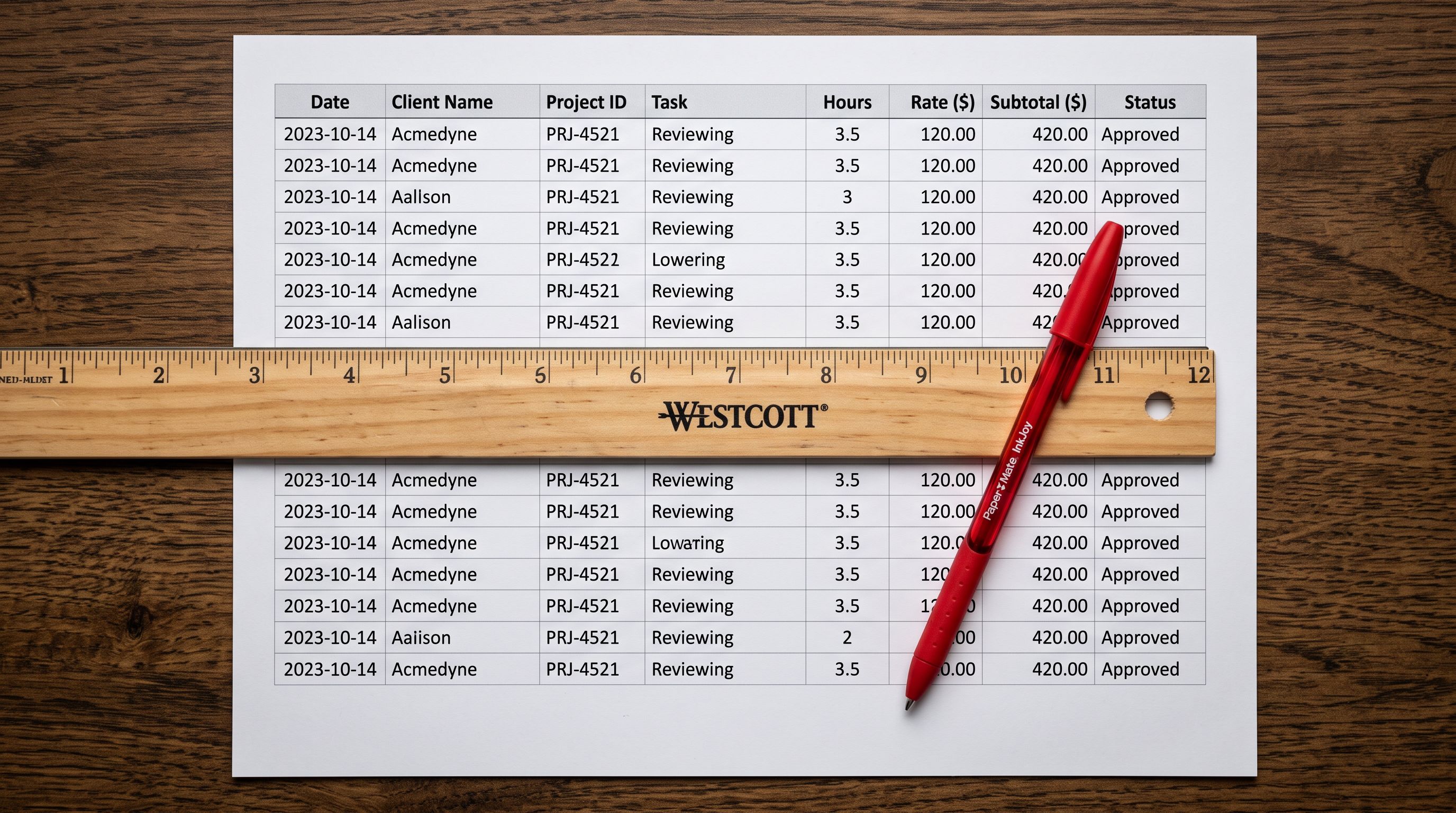
The fastest way to audit SKU completeness across a large product catalogue is an export.
- 01In Shopify admin, go to Products and click Export
- 02Choose 'All products' and export as CSV
- 03Open the exported CSV and filter the 'Variant SKU' column for blank values
- 04Count how many rows have blank SKUs (each row is one variant)
- 05Note the product Handle for each affected variant so you have a list to fix
For a quick visual check without exporting, Shopify admin's product list does not show SKU directly. Go to a specific product and view each variant to see the SKU field. For catalogues with more than 50 products, the export method is faster.
Shopify also provides a filtered view at Products > Inventory. This view shows all variants, and the SKU column can be sorted or filtered to surface blank values. For a small catalogue, this is the quickest diagnostic path.
Fixing blank SKUs on existing products
Method 1: Edit manually in Shopify admin
For catalogues with fewer than 20 affected products, manual editing is the fastest path. Go to the product, edit each variant, and type the SKU from the supplier data. Shopify saves instantly.
For larger catalogues, manual editing at the variant level becomes time-consuming. Shopify's variant editor shows multiple variants on one screen, but there is no bulk SKU entry field in the admin UI.
Method 2: CSV re-import with SKU column only
Shopify's CSV importer supports partial updates. A CSV that includes only "Handle" and "Variant SKU" columns will update just the SKU field on matching products without touching any other data.
The process:
- Export your current products from Shopify (Products > Export).
- Open the exported CSV and delete all columns except Handle, Title, Option1 Name, Option1 Value, Option2 Name, Option2 Value, Variant SKU.
- Fill in the SKU values from your supplier data, matching each row by Handle and the option values.
- Import the updated CSV back into Shopify.
This approach updates SKUs without affecting descriptions, images, prices, or any other field. The key is keeping the Handle column intact: Shopify matches rows to existing products by Handle.

Method 3: Export, fill, re-import via Importier
Importier's Inventory export preset downloads a focused CSV of your product data including Handle and variant-level fields. Use it to identify and fix blank SKUs:
- Open Importier and go to Export.
- Select the Inventory preset.
- Add your SKU values from the supplier data to the Variant SKU column.
- Re-import the filled CSV with only the Handle and Variant SKU columns mapped in the column mapping step.
The column mapping step in Importier lets you confirm exactly which columns are being imported and which are being excluded. Mapping only Handle and Variant SKU ensures the re-import touches nothing else.
Preventing blank SKUs at import time
Mapping supplier SKU columns at import time
The most reliable way to prevent blank SKUs is to catch the column name mismatch before the import runs.
When importing a supplier CSV through Importier's import wizard, the column mapping step shows every column in the supplier file alongside a dropdown for the Shopify field it maps to. The merchant can see "Item Code" in the supplier column list and map it to "Variant SKU" in the Shopify field column. This mapping happens before any products are created in Shopify.
According to Shopify's CSV import documentation, the native Shopify importer requires exact column headers and cannot remap non-standard supplier column names. This is the gap that causes the SKU blank issue in the first place. Column mapping that lets merchants define which supplier column maps to which Shopify field solves it at the point of import.
- Requires exact header 'Variant SKU' to map SKU data
- Supplier column 'Item Code' or 'Article Number' is ignored
- SKU data stays in supplier file
- Products import with blank SKU field
- Problem discovered weeks later when 3PL connects
- Shows every supplier column in a mapping interface
- Merchant maps 'Item Code' to 'Variant SKU' before import runs
- SKU data flows to the correct field
- All imported products have populated SKUs
- 3PL connects without manual intervention
For merchants who import from the same supplier regularly, the column mapping is saved in an import profile. The next import from that supplier applies the same SKU mapping automatically, without reviewing the column list again. The shopify-import-profiles guide covers how profiles work for recurring supplier data.

Shopify's inventory tracking documentation distinguishes between the inventory quantity (how many units are in stock) and the SKU (the identifier used to track which product that quantity belongs to). Both must be set correctly for fulfilment systems to function. An import that sets quantity but not SKU gives the warehouse a stock count it cannot act on.
Key takeaways
-
Blank SKUs disconnect Shopify from every downstream fulfilment system. Warehouse management systems, 3PL platforms, accounting software, and reorder automation all rely on SKU as the identifier. A product without a SKU is invisible to these systems even when it is visible and selling on the Shopify storefront.
-
The cause is almost always a column naming mismatch. Shopify's native CSV importer requires the exact heading "Variant SKU". Supplier files use "Item Code", "Article Number", "Part Number", and similar names. Without an explicit mapping step, the data never reaches the SKU field.
-
Fixing existing blank SKUs requires a partial re-import. Export your products, add SKU values to the Variant SKU column, and re-import with only Handle and Variant SKU mapped. This updates SKUs without affecting any other product data.
-
Preventing blank SKUs means catching the column name mismatch before the import runs. A column mapping interface that shows all supplier columns and lets the merchant define each mapping is the point of control. Once mapped correctly, every product in the import arrives with its SKU populated.
-
Save the mapping to avoid repeating the check. If your supplier always calls their SKU column "Item Code", save a profile that maps "Item Code" to "Variant SKU." The next import from that supplier applies the mapping automatically.
Import your supplier catalogue with SKUs populated from the first run at importier.app.
Set up your first import in under five minutes.
Importier brings products into Shopify with AI descriptions, category metafields, and data enrichment on every run.