Shopify Compare At Price Not Showing on Storefront
On this page
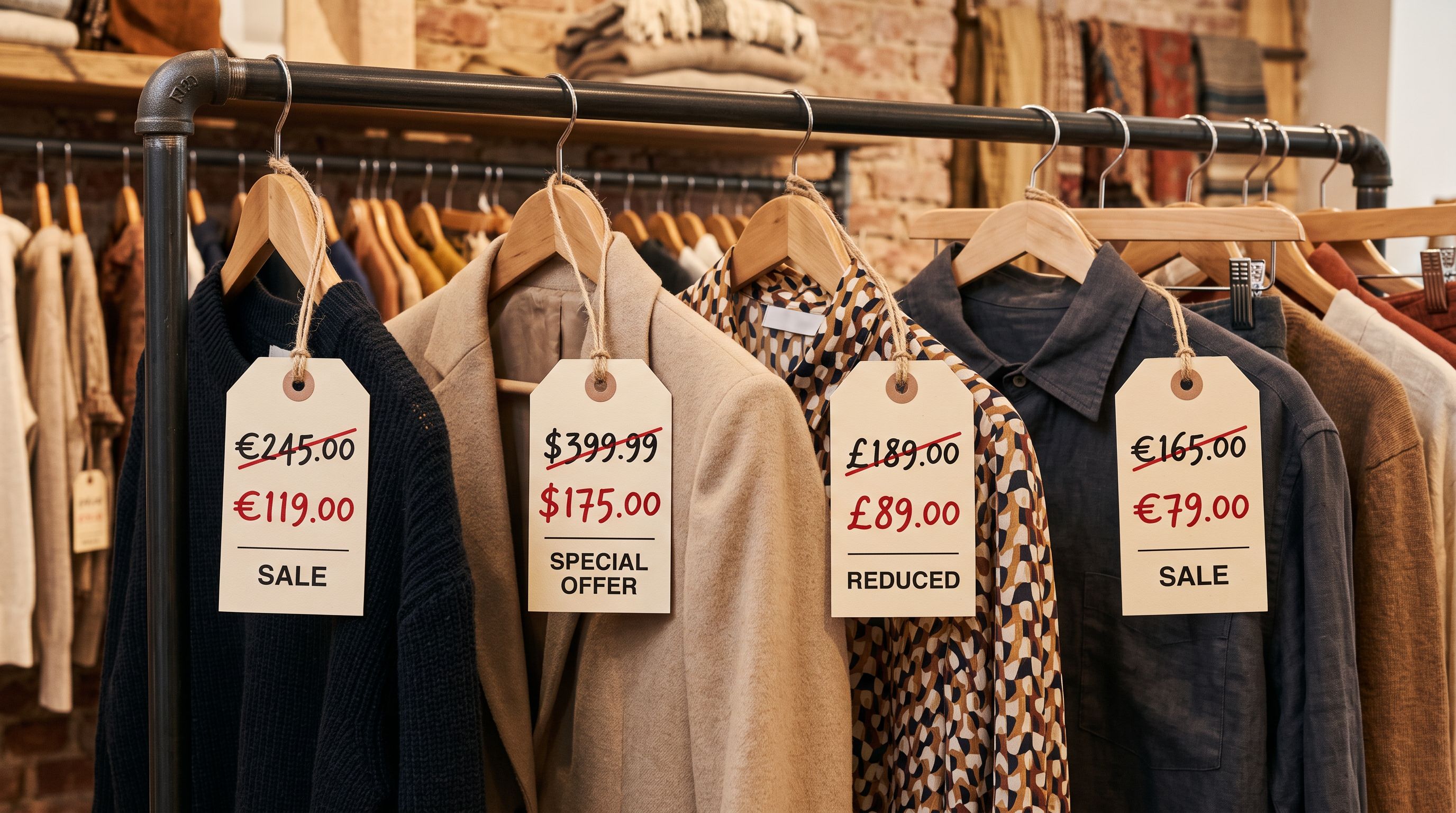
A fashion retailer prepares for a 30% off sale across 150 products. They update their supplier CSV with a compare-at price column, import it through Shopify, check five products in admin; the compare-at price shows correctly next to the sale price. They send the sale email, run the social posts, and launch the campaign. Customers start clicking through and messaging: "Where's the sale? Everything is full price." The merchant checks the storefront and finds every product shows only the sale price, with no strikethrough, no sale badge, nothing to indicate a discount.
The compare-at price is set in admin. The sale price is lower. The Shopify compare-at price not showing is one of the most confusing post-import problems a merchant can face: no sale badge, no warning, no error anywhere in admin. This silent-ignore behaviour affects more merchants than the Shopify Community threads suggest.
How Shopify's Compare At Price Works
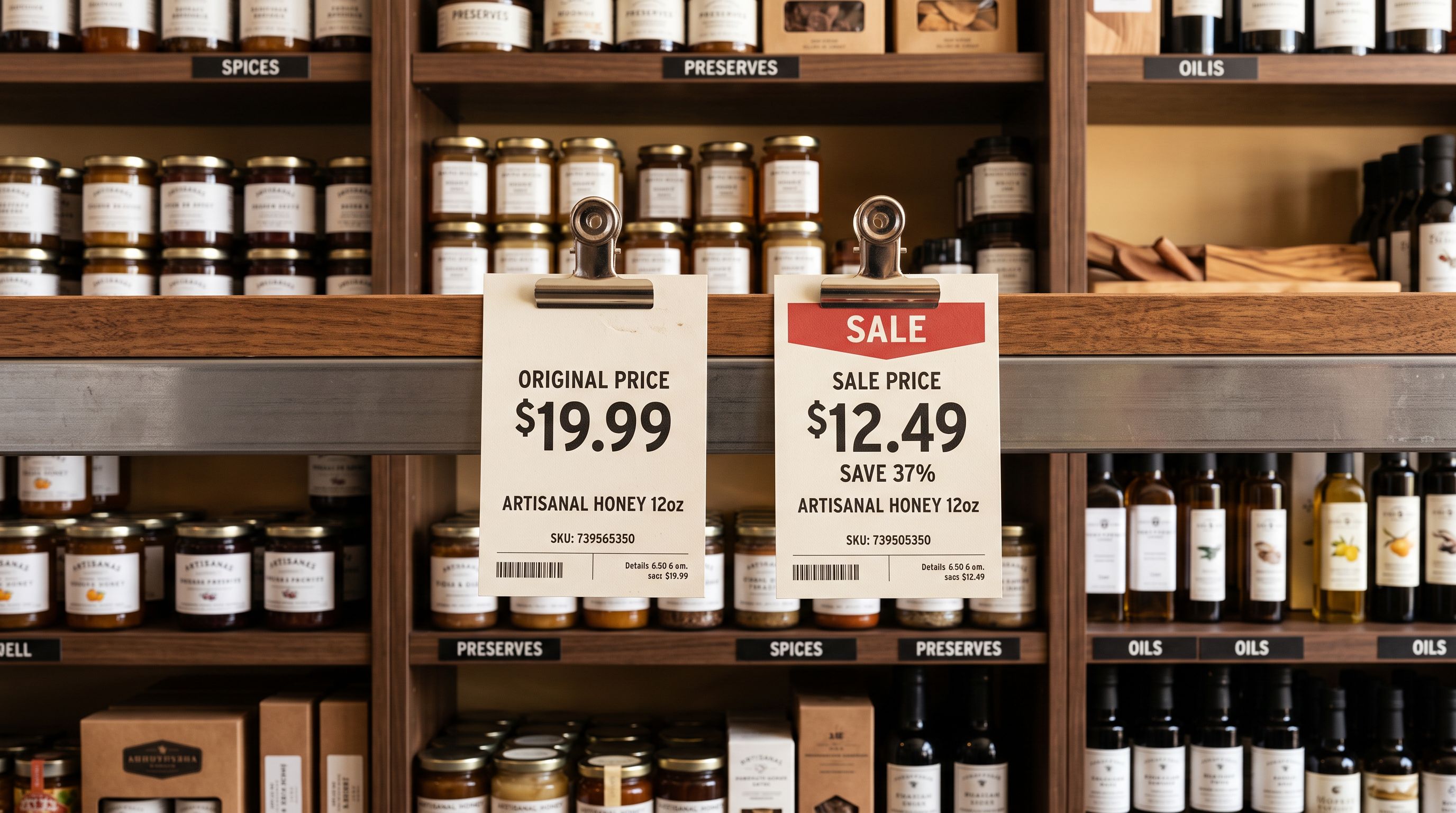
Shopify displays a sale badge and strikethrough pricing on product pages when two conditions are true simultaneously: the product has a compare-at price set, and the compare-at price is strictly higher than the regular price.
If either condition is false, Shopify displays no badge and no strikethrough. It does not display an error. It does not flag the product in admin. The compare-at price field shows the value that was imported, but the storefront renders as if no compare-at price exists.
The strictly-higher requirement is the key constraint. Shopify does not show a sale badge for a product where compare-at equals price. The logic is: if compare-at equals price, there is no discount, so no badge. If compare-at is lower than price, Shopify treats the data as invalid and shows no badge. Neither condition produces any message to the merchant.
Four Ways This Happens During Import
Understanding how the compare-at price ends up wrong during import helps prevent it from happening in the first place.
Compare-at equals price: The most common cause. A supplier CSV lists products with a "RRP" (recommended retail price) or "Was" column. The merchant sets the import price to the discounted price and maps the RRP column to compare-at. When the supplier rounds prices to the same figure (e.g., both RRP and sale price are $49.99 after rounding), Shopify ignores the compare-at.
Compare-at lower than price: The less obvious cause. A merchant maps a "cost price" column to compare-at instead of the intended "RRP" column. The cost price is always lower than the retail price. Every product in the import gets a compare-at lower than its price, and every product loses its sale badge. The import completes without error.
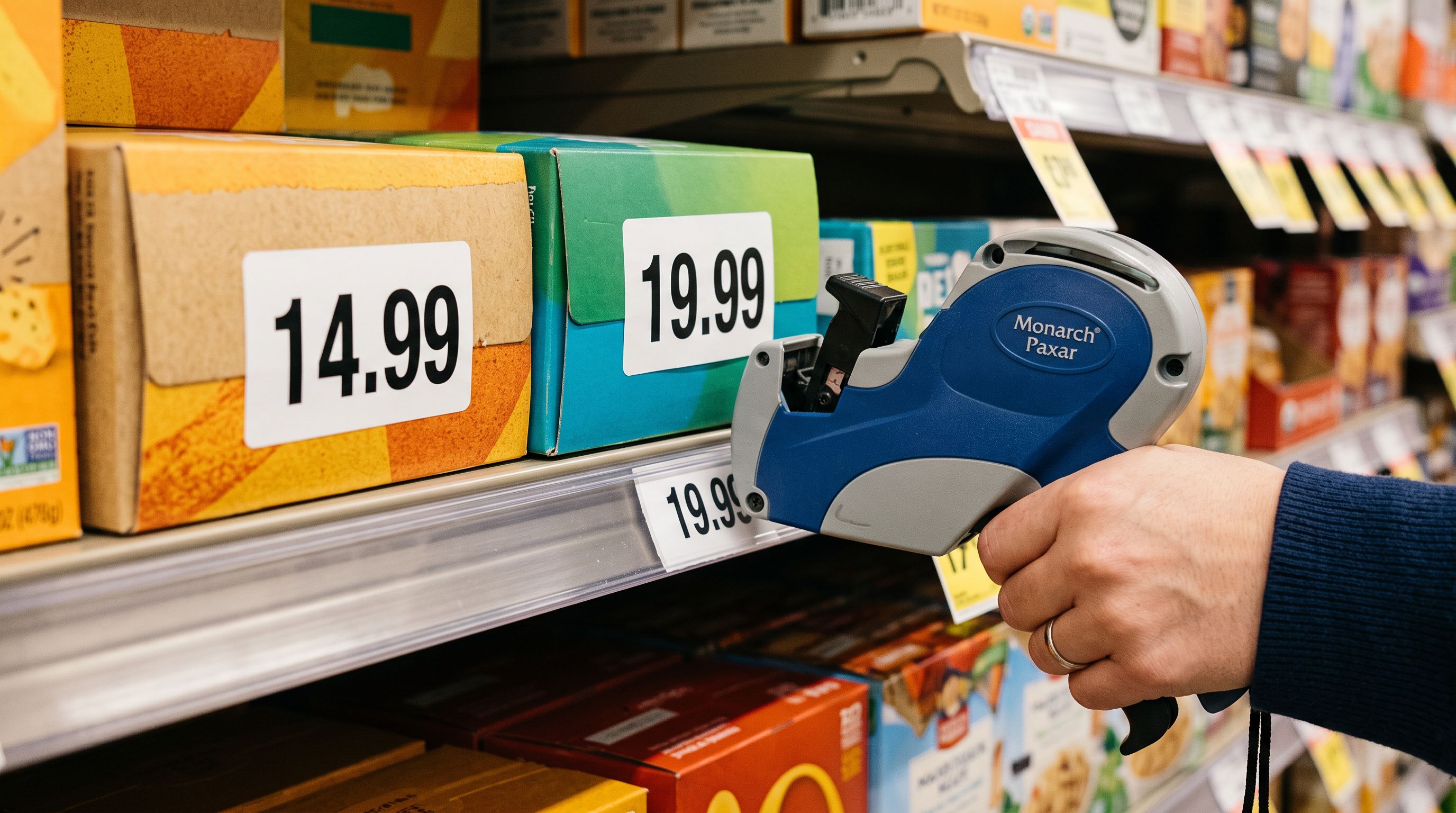
Compare-at zero: Many supplier CSVs have empty cells in the compare-at column for products that are not on sale. When Shopify reads an empty string as a numeric value, it treats it as zero. A zero compare-at price is lower than any positive regular price, so Shopify ignores it. Products that were not intended to be on sale are fine, but products where the merchant filled in a compare-at by accident and then deleted it can end up with a zero value that is silently discarded.
Columns swapped in the field mapper: When mapping a non-standard supplier CSV, the price and compare-at columns can be reversed. The product imports at the RRP with a compare-at at the sale price. The regular price is now higher than the compare-at. No badge shows. The product is also priced incorrectly.
- 01Open any imported product in Shopify admin. Look at the Pricing section. The Compare at price field shows the value that was imported. This confirms the value reached Shopify correctly.
- 02Open the same product on the storefront. If no sale badge or strikethrough appears, compare the two prices shown in admin. If compare-at is equal to or lower than price, that is the cause.
- 03To verify at scale, use Importier's SEO Audit export preset. The export includes all pricing fields including compare-at. Open the CSV and filter for rows where the compare-at column equals or is lower than the price column. Those are the affected products.
Why the Error Is Silent
Shopify's product import system validates that required fields are present and that types are correct (a text field receiving a number, for example). It does not validate business logic like "compare-at must be higher than price." That rule is enforced at the storefront rendering layer, not the data layer.
This means a product can have a perfectly valid compare-at price in the database that Shopify chooses not to display because it does not meet the display condition. From the merchant's perspective, the data was imported correctly: they can see it in admin, but nothing is wrong from Shopify's perspective either. The storefront is following the rule: no badge when compare-at does not exceed price.
According to Shopify's product pricing documentation, the compare-at price appears with a strikethrough above the regular price when a product is on sale. The sale badge appears when the compare-at price is greater than the price. The documentation does not explicitly state that an equal or lower compare-at is silently ignored, which is why many merchants discover this through campaign launches rather than documentation.
- Compare-at equals price: no sale badge, no error, no warning. Merchant discovers during campaign launch.
- Columns swapped: products import at the wrong regular price. Compare-at is also wrong. No flag in the import log.
- Batch preview shows both price and compare-at columns side-by-side before import runs. Rows where compare-at is equal to or lower than price are visible.
- Column mapping shows field assignments clearly. Swapping price and compare-at is visible before any product touches Shopify.
Fixing compare-at pricing at import time
How Importier's Batch Preview Catches This
Importier's import wizard shows a preview of all products before any data is sent to Shopify. At the review step, the price and compare-at price columns appear side-by-side for every product in the batch. A row where both values are identical, or where the compare-at is lower, is visible before import runs.

This is a structural advantage over importing via Shopify's native CSV tool. In Shopify's native import, the merchant uploads the file, reviews summary counts, and confirms. There is no row-level preview of numeric field relationships. The first indication that compare-at prices are wrong is the live storefront.
For a 150-product sale campaign, catching the compare-at error in Importier's preview takes under a minute. Catching it after a launched campaign means a CSV correction, a re-import, and potentially a customer service situation over confused pricing.
The compare-at price error is always caught at the same moment: either before import during preview, or after launch during the campaign. One of those moments is recoverable.
Fixing Existing Products with Wrong Compare-At Prices
For products already imported with the compare-at problem, the correction depends on the scale.
For fewer than 20 products, Shopify admin bulk actions can update pricing. Select the affected products, use the Edit prices bulk action, and set the correct compare-at price for each.
For larger batches, Importier's shopify-compare-at-price-bulk guide covers how to run a price-only update import that sets the correct compare-at prices without touching descriptions, images, or other product fields. Map only the handle and compare-at columns in the field mapper, leaving all other fields unmapped, so the update touches only the pricing fields.
The shopify-import-clears-compare-at-price guide covers the related scenario where a supplier price update import clears existing compare-at prices that were set correctly. The cause and fix are different, but both result in the same storefront symptom: no sale badge on products that should show one.
Setting Up the Column Mapping for Compare-At Price Correctly
Supplier CSVs use many names for what is functionally the "regular price before sale":
- "RRP" (Recommended Retail Price)
- "Was Price"
- "MSRP" (Manufacturer's Suggested Retail Price)
- "List Price"
- "Original Price"
- "Strike Price"
- "Full Price"
Each of these should map to Shopify's compare-at price field, not the regular price field. The regular price field should receive the actual selling price: "Sale Price", "Discounted Price", "Our Price", or simply "Price".
Under the ACCC's guidance on pricing and promotions, a compare-at price must represent a genuine former price, not an inflated reference price. This is a legal compliance consideration for Australian merchants: setting an artificially high compare-at price that does not reflect what the product was actually sold at may constitute misleading conduct.
Key Takeaways
-
Shopify does not show a sale badge if compare-at equals or is lower than the regular price. No error message accompanies this. The badge simply does not appear.
-
This happens silently during import. The compare-at value is stored in Shopify's database but not displayed. Checking the admin product page shows the correct value; only the storefront reveals the problem.
-
Four common import causes: compare-at equals price (rounding), compare-at lower than price (cost price mapped incorrectly), compare-at zero (empty cells), and price/compare-at columns swapped in the field mapper.
-
Importier's batch preview shows row-level pricing before import. Equal or lower compare-at prices are visible before any product reaches Shopify.
-
To fix existing products at scale: run a price-only re-import via Importier, mapping only handle and compare-at. Leave all other fields unmapped to avoid touching descriptions, images, or inventory.
-
Supplier CSV column names vary. Map "RRP", "Was Price", "MSRP", "List Price", and similar columns to compare-at, not to the regular price field.
Fix your compare-at pricing before your next sale campaign at importier.app.
Set up your first import in under five minutes.
Importier brings products into Shopify with AI descriptions, category metafields, and data enrichment on every run.