Shopify Pre-Order Import: Set Up Zero-Stock Products

On this page
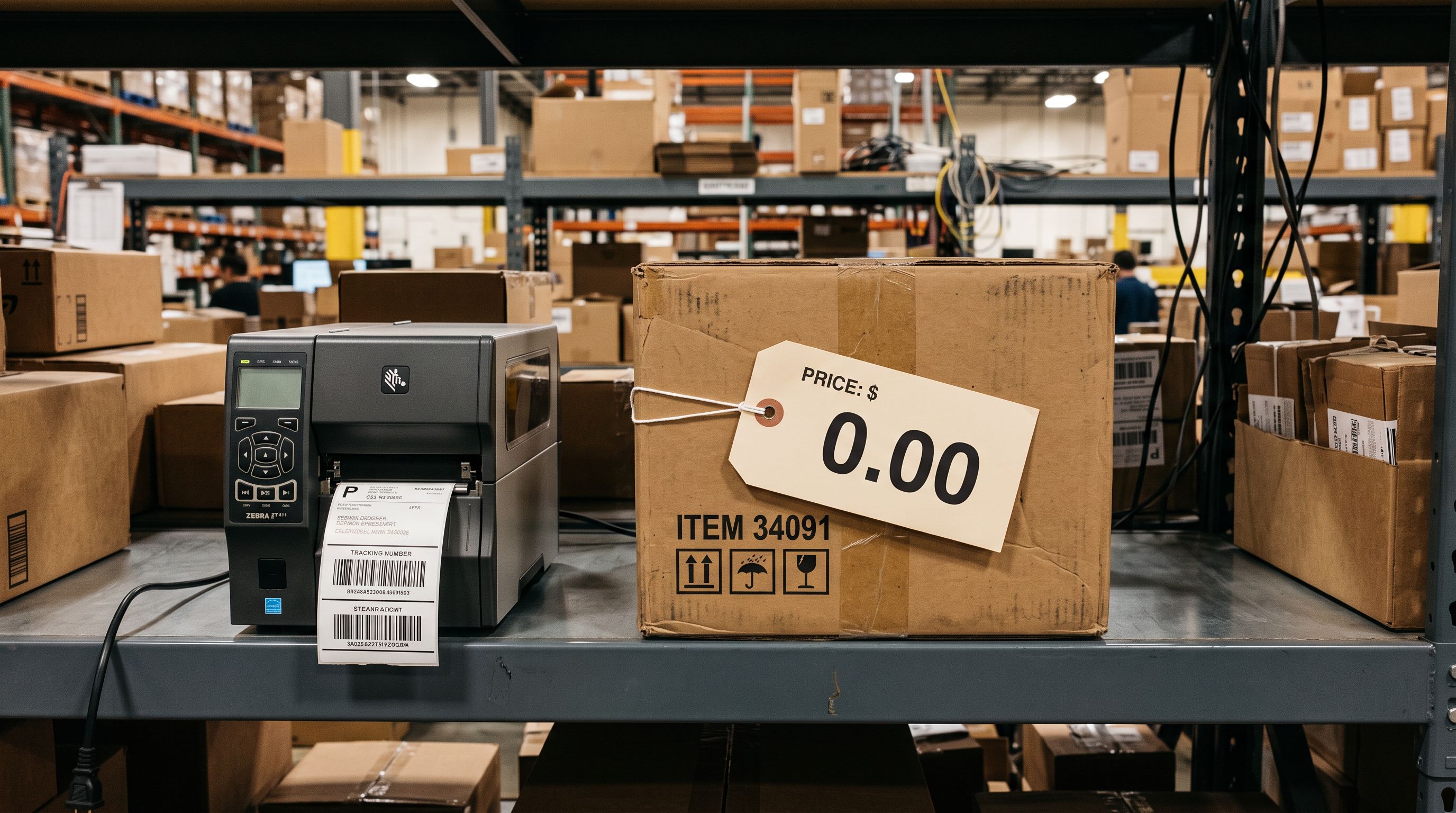
A sneaker retailer lands a limited-edition collaboration: 180 colourways from a supplier, arriving in three weeks. The retailer needs every product live on the storefront by tomorrow via a Shopify pre-order zero stock import. Customers expect to browse, add to cart, and see an estimated delivery date. But every product has zero inventory. The stock is on a container ship, confirmed, scheduled to dock in 21 days.
Getting those 180 products onto the Shopify storefront as purchasable pre-orders is more than a standard import. Shopify must be told, for every variant of every product, that it should keep selling even when inventory is zero. That is the inventory policy setting. And in a 180-product file with an average of three variants each, that is 540 individual variant rows that need the correct policy set before customers can check out.
What Zero-Stock Products Are
Zero-stock products are products intentionally listed with zero inventory that remain available for purchase. They are not the same as out-of-stock products.
Shopify has two inventory policies per variant:
- Deny: the default. When inventory reaches zero, the product shows as out of stock and the add-to-cart button is disabled.
- Continue: the product remains purchasable regardless of inventory level. Customers can buy with zero on hand, orders are held, and fulfilment happens when stock arrives.
The distinction matters because deny-policy products with zero inventory actively block sales. Continue-policy products with zero inventory are fully purchasable and appear as available on the Online Store, in the Google Shopping feed, and in any sales channel where the product is published.
The inventory policy is set at the variant level, not the product level. A product with three variants requires all three set to continue. Two set and one missed means one variant shows as out of stock during the entire pre-order window.
Why Shopify's Native Import Struggles With Pre-Order Zero Stock
Supplier spreadsheets do not include a Variant Inventory Policy column. Suppliers provide product data: title, SKUs, barcodes, prices, variant options. They do not know or care about Shopify's inventory policy field. The merchant receives a file with none of that column populated.
Shopify's native CSV import uses the Variant Inventory Policy column to set this value. The accepted values are deny (the default) and continue. For pre-order products, every variant row needs continue in that column.
For a 180-product catalogue with three variants each, the native import approach requires one of:
- Adding the
Variant Inventory Policycolumn manually to the supplier file and fillingcontinueinto 540 rows before importing, which is error-prone under time pressure - Importing the file first, then using Shopify admin bulk actions to update the policy on all 540 variants as a second pass
- Writing a spreadsheet formula to auto-fill the column, which requires the merchant to know which rows are variant rows and which are parent product rows in Shopify's export format
Each option adds steps between receiving the supplier file and the pre-order going live. The most common failure is a partially correct import: some variants set, some missed, discovered when a customer messages to say a size or colourway is showing as out of stock.
Running a Shopify Pre-Order Zero Stock Import in Importier
Importier's 14-step import wizard includes a dedicated inventory settings step. At that step, the merchant selects the inventory policy for the entire batch.
Selecting "continue selling when out of stock" applies that policy to every variant in the import. A 180-product, 540-variant catalogue is configured with one selection. No column to add to the supplier file. No formula to write. No post-import editing pass through Shopify admin.
The policy is applied at the point Importier pushes each product to Shopify. Every variant receives the correct setting in the same operation that creates the product. There is no window where variants exist in Shopify with a default deny policy waiting to be corrected.
According to Shopify's inventory management documentation, the continue selling policy persists until explicitly changed. It is not reset by subsequent imports that update descriptions, prices, or other fields, as long as those imports do not touch the inventory policy field. Setting it at import time means it stays in place for the duration of the pre-order window without requiring re-confirmation.
For catalogues where some products are pre-order and others are in-stock, the separation is handled by running two imports: one for the pre-order batch with continue policy, one for in-stock products with deny policy. The wizard's inventory setting applies to the batch, so keeping the two groups in separate import files is the cleanest approach.

Mapping the Estimated Arrival Date at Import Time
Pre-order products without an arrival date leave customers with no purchase confidence. A product page that says "add to cart" with zero inventory and no delivery estimate creates uncertainty that reduces conversion.
Shopify does not have a native estimated arrival date field. Merchants who want to display an arrival date on the product page store it as a product metafield, which Online Store 2.0 themes can display without custom code.
Importier's field mapper assigns supplier file columns to destination fields in Shopify, including custom metafield keys. If the supplier spreadsheet includes an "ETA" or "Expected Arrival" column with dates in YYYY-MM-DD format, that column can be mapped to a custom metafield during the import wizard. Every product receives its arrival date as a metafield in the same import run that creates the product.
The metafield key format is namespace.key, for example product.estimated_arrival. Once the products are in Shopify, the theme editor's product template section can add a metafield block that displays the value from that key. The result is a product page that shows both the "add to cart" button and the estimated delivery date, without a second editing pass after import.
Setting the inventory policy and the arrival date in the same import run means the pre-order page is complete the moment the import finishes.
After the import
How Google Shopping Handles New Pre-Order Products
When 180 new products appear in Shopify simultaneously, Shopify's Google channel submits them to Google Merchant Centre as part of the next feed sync. Google processes new product submissions over 24 to 72 hours.
Pre-order products are live on the storefront immediately after import. They are not visible in Google Shopping for the first one to three days. This is not a data problem and not an exclusion: it is Google's review and indexing pipeline for new items.
According to Google's guidance on product review timelines, new product data is typically reviewed within three business days. Pre-order products with continue-selling policy active, correct barcodes, descriptions meeting Google's minimum length, and channel publication set to Online Store are eligible for Shopping submission. The lag is processing time.
Merchants who check Google Shopping the morning after a large pre-order import and see zero products listed sometimes interpret this as an import failure or a feed exclusion. It is neither. The article on products missing from the Google Shopping feed covers the difference between a processing lag and a genuine exclusion in detail.
The practical implication for pre-order launches: email marketing, direct social posts, and organic storefront traffic can drive pre-order sales from the moment the import finishes. Google Shopping traffic follows 24 to 72 hours later. Coordinate campaign timing so the high-cost Shopping budget does not need to be live on day one.

The Channel Publication Step
A pre-order product with continue-selling inventory policy but incorrect channel publication will not appear where customers shop. Channel publication and inventory policy are separate settings with independent effects.
A product must be published to the Online Store channel to appear on the storefront. It must be active (not draft) to appear in the Google Shopping feed. Draft products are excluded from Shopping feed submission regardless of inventory policy.
Importier's import wizard includes a channel publication step where the merchant confirms the destination channels and product status for the entire batch. Selecting Active status and Online Store publication at that step ensures the 180 pre-order products are immediately visible on the storefront and submitted to Google's feed sync.
For pre-order catalogues that include both products available immediately and products launching on a future date, the POS-only import article covers how channel assignment at import time controls which channels receive which products. The same logic applies to staggered pre-order launches: products whose launch date has not arrived can be imported as POS-only or draft until the launch date, then bulk-updated to Online Store without a re-import.
- 01Prepare the supplier fileconfirm it includes product title, SKUs, barcodes, prices, variant options, and an ETA column with dates formatted as YYYY-MM-DD. Remove any rows for products that are not part of this pre-order batch.
- 02Open Importier and start a new import. At the field mapper step, map the ETA column to a custom metafield key such as product.estimated_arrival. Map all standard fields as usual.
- 03At the inventory settings step, select 'continue selling when out of stock'. This applies to every variant in the batch. Confirm the channel publication step shows Active status and Online Store.
- 04Review the batch preview. Check five to ten products to verify that inventory policy shows as continue and the ETA metafield is populated with the correct date.
- 05Run the import. Products appear in Shopify with zero inventory and continue-selling policy active. Verify one product in admin and on the storefront before launching marketing.

Transitioning From Pre-Order to In-Stock
When the shipment arrives, the merchant updates inventory quantities. Whether that is a manual count entry, a purchase order receive in Shopify, or a stock-level update import, the quantities become positive and the products move from pre-order to in-stock operation.
No inventory policy change is needed at the transition. The continue-selling policy applies regardless of inventory level: zero inventory means pre-order; positive inventory means normal selling from stock. The policy stays correct through the full product lifecycle without intervention.
The one scenario that requires a policy change after fulfilment is a limited-run product that should not oversell once it sells through. If the sneaker collaboration has a fixed production run of 200 pairs per colourway and must not accept orders beyond that, the policy should be switched to deny when inventory approaches zero. This can be done via a product update import in Importier that maps only the inventory policy column, touching no other product data.
For catalogues managed by scheduled imports for ongoing supplier price updates, the scheduled run can include an inventory policy column to confirm the correct setting at each refresh. A supplier price update that does not include the policy column will not reset it, but an explicit column in the scheduled file provides a confirmation audit trail.

- Add Variant Inventory Policy column to supplier file. Fill 'continue' for every variant row: 180 products at 3 variants each requires 540 cells. Import. Run second pass to check all variants.
- Arrival date requires manual entry per product after import or a separate metafield bulk tool.
- Upload supplier file as-is. Map ETA column to metafield at the field mapper step. Select 'continue selling when out of stock' at the inventory settings step: one selection covers all 540 variants.
- Arrival date metafield is populated during the import run for every product simultaneously.
Key Takeaways
-
Inventory policy is set per variant, not per product. A 180-product catalogue with three variants each has 540 policy settings. One missed variant leaves one option showing as out of stock during the pre-order window.
-
Shopify's native CSV import requires the
Variant Inventory Policycolumn pre-filled withcontinuefor every variant row. Supplier files do not include this column. -
Importier's inventory settings step sets the policy for the entire batch. One selection applies "continue selling when out of stock" to all 540 variants. No column editing, no post-import correction pass.
-
Map the estimated arrival date at import time. Supplier files with an ETA or expected arrival column can be mapped to a custom metafield during the import wizard, populating every product's arrival date in the same run.
-
Google Shopping takes 24-72 hours to process new products. Pre-order items are live on the storefront immediately but will not appear in Google Shopping listings for one to three days. This is a processing lag, not a data problem or exclusion.
-
No policy change is needed when stock arrives. Continue-selling policy works correctly for in-stock products. Switch to deny only if the product should not oversell after the run sells through.
Set up your next pre-order drop with inventory policy, arrival date, and channel publication configured in a single import run at importier.app.
Set up your first import in under five minutes.
Importier brings products into Shopify with AI descriptions, category metafields, and data enrichment on every run.