Shopify Product Weight Wrong Unit After Import: Fix Shipping

On this page
A pet food merchant in Brisbane imports 150 products from a US supplier. The supplier's CSV lists weights in ounces: 3 oz, 6 oz, 12 oz, 24 oz, 48 oz. The import completes without a single error.
The products appear in Shopify with weights shown. Three weeks later the merchant's Australia Post invoices arrive showing charges 15 to 40 times higher than the rates quoted to customers at checkout.
The problem is not missing weight data. The weight values are present and the field is populated. This is a Shopify product weight wrong unit import issue: the supplier's values are in ounces, and the import mapped those numbers to Shopify's weight field without converting them.
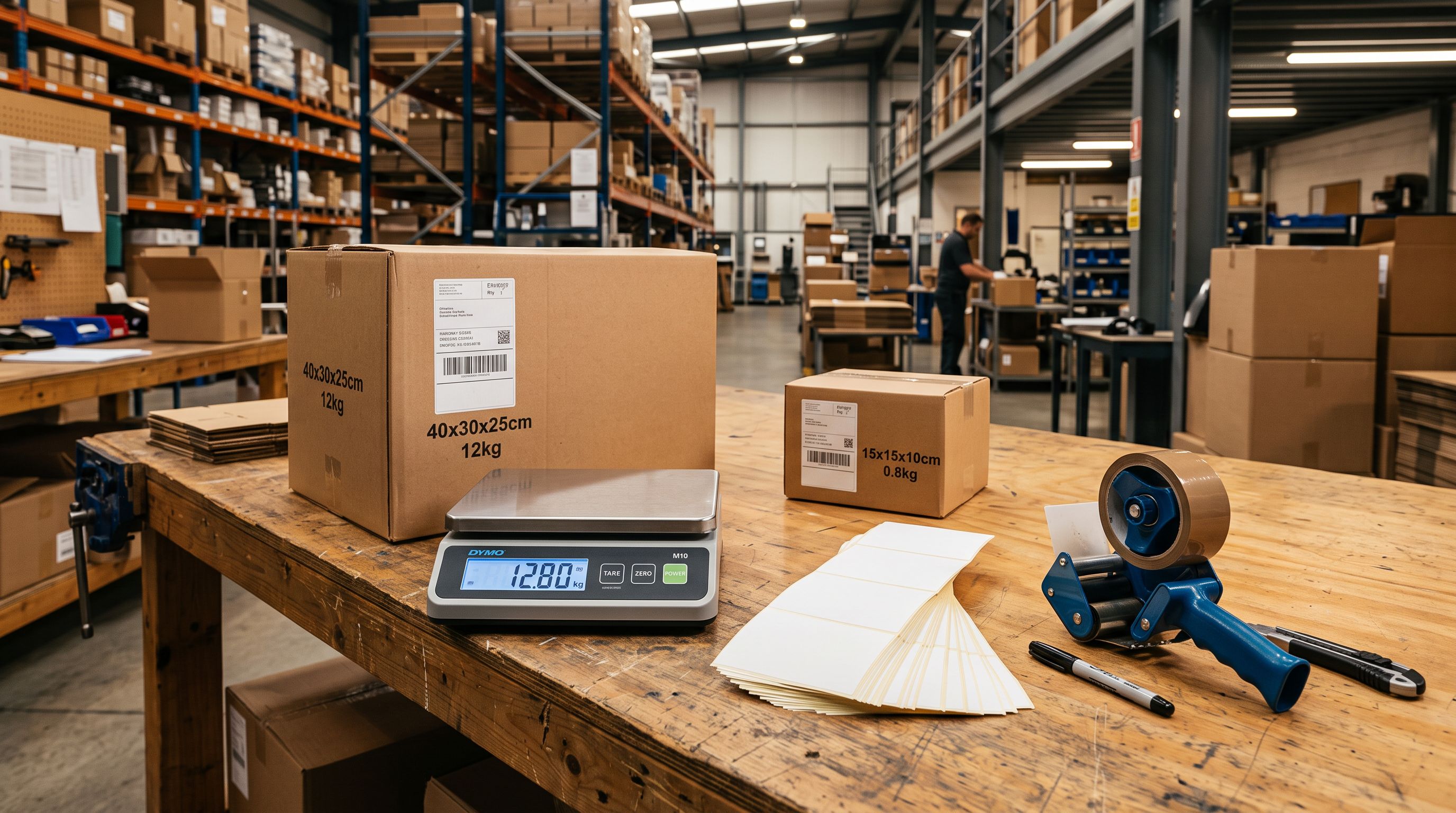
A 48 oz package (1.36 kg) is stored in Shopify as 48 grams (0.048 kg). Australia Post quotes a letter rate at checkout. The actual shipment weighs 1.36 kg. The merchant absorbs the difference on every order.
How Shopify stores weight internally
Shopify stores all product weight as a single integer in grams, regardless of what the merchant's store display unit is set to. A product the merchant sees as "2.5 kg" in admin is stored as 2,500 grams in Shopify's database.
The display unit in Shopify admin (grams, kilograms, pounds, ounces) controls how the weight appears on screen. It does not change the stored value. Two stores configured with different display units but the same underlying gram value will produce identical shipping rates.
When a supplier CSV is imported, Shopify expects the weight to be provided in grams if using the native Variant Grams column. If the supplier uses a different unit, the number must be converted before it reaches Shopify. Without conversion, the raw number from the supplier's file becomes the grams value in Shopify, regardless of what unit the supplier intended.
How weight unit mismatches happen during import
The most common cause is a supplier who operates in a different measurement system from the merchant. US suppliers typically use pounds (lb) and ounces (oz). European suppliers often use kilograms.
Suppliers who sell industrial or bulk products may use tonnes. In each case the supplier writes numbers that make sense in their own system, and the import carries those numbers across without translation.
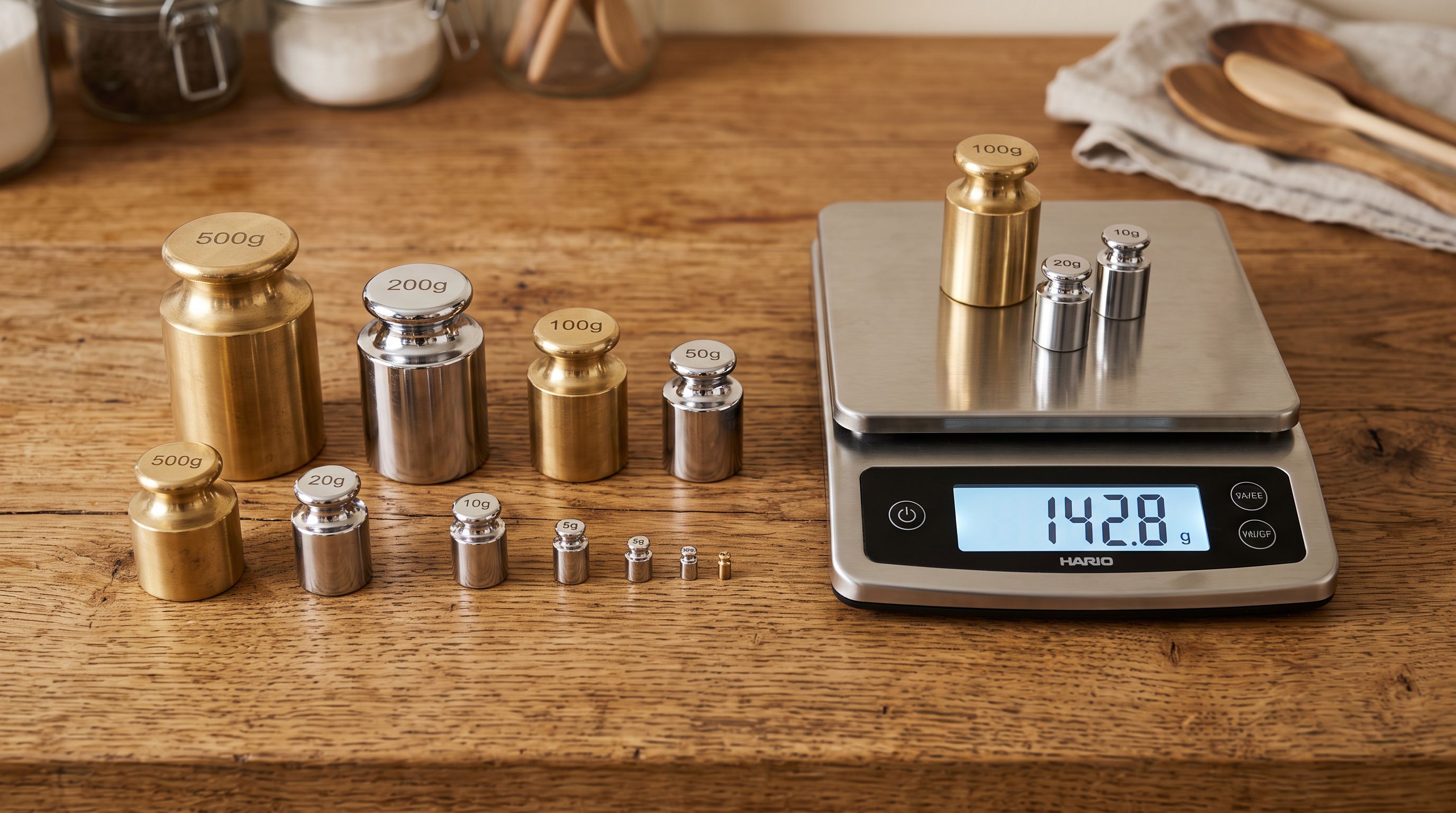
When a merchant maps a supplier's "Weight (lbs)" column to Shopify's weight field and does not convert the values, a product listed as "2.5" in that column arrives in Shopify with a weight of 2.5 grams. At checkout, Australia Post or the carrier API sees a 2.5 gram product and returns the minimum flat rate.
Every product, regardless of actual weight, quotes the same minimum rate at checkout. The catalogue looks fine in admin. The error only surfaces when carrier invoices arrive with actual weight charges that far exceed what customers paid.
A supplier's "2.5 lb" value becomes 2.5 grams in Shopify without unit conversion. The carrier sees a parcel lighter than a sheet of paper and quotes accordingly. Every order ships at the minimum flat rate. The merchant covers the actual shipping cost.
The same problem works in reverse. A supplier who uses kilograms and has a product weighing 0.5 kg might write "0.5" in their weight column. If the merchant maps it without conversion, the product is stored as 0.5 grams in Shopify, not 500 grams. The carrier quotes a letter rate instead of a parcel rate.
A third cause is a supplier file that includes a separate unit column alongside the weight value. A file might have "Weight" = 500 and "Unit" = "g", and the import reads 500 as grams, which is correct.
But if the supplier changes their unit column to "kg" without the merchant noticing, that same "500" now represents 500 kg instead of 500 grams. The import still completes without error because 500 is a valid weight value in any context.
Finding products with wrong weight values
The fastest diagnostic is an export. Shopify's Products admin does not display weight in the product list, so a direct visual check across a large catalogue is not practical.
- 01In Shopify admin, go to Products and click Export
- 02Choose 'All products' and export as CSV
- 03Open the exported CSV and find the 'Variant Grams' column
- 04Sort the column and look for implausible valuesa clothing item at 50,000 grams or a food product at 2 grams
- 05For US supplier catalogues, check whether the weight values match the pound or ounce equivalent of what the products should weigh
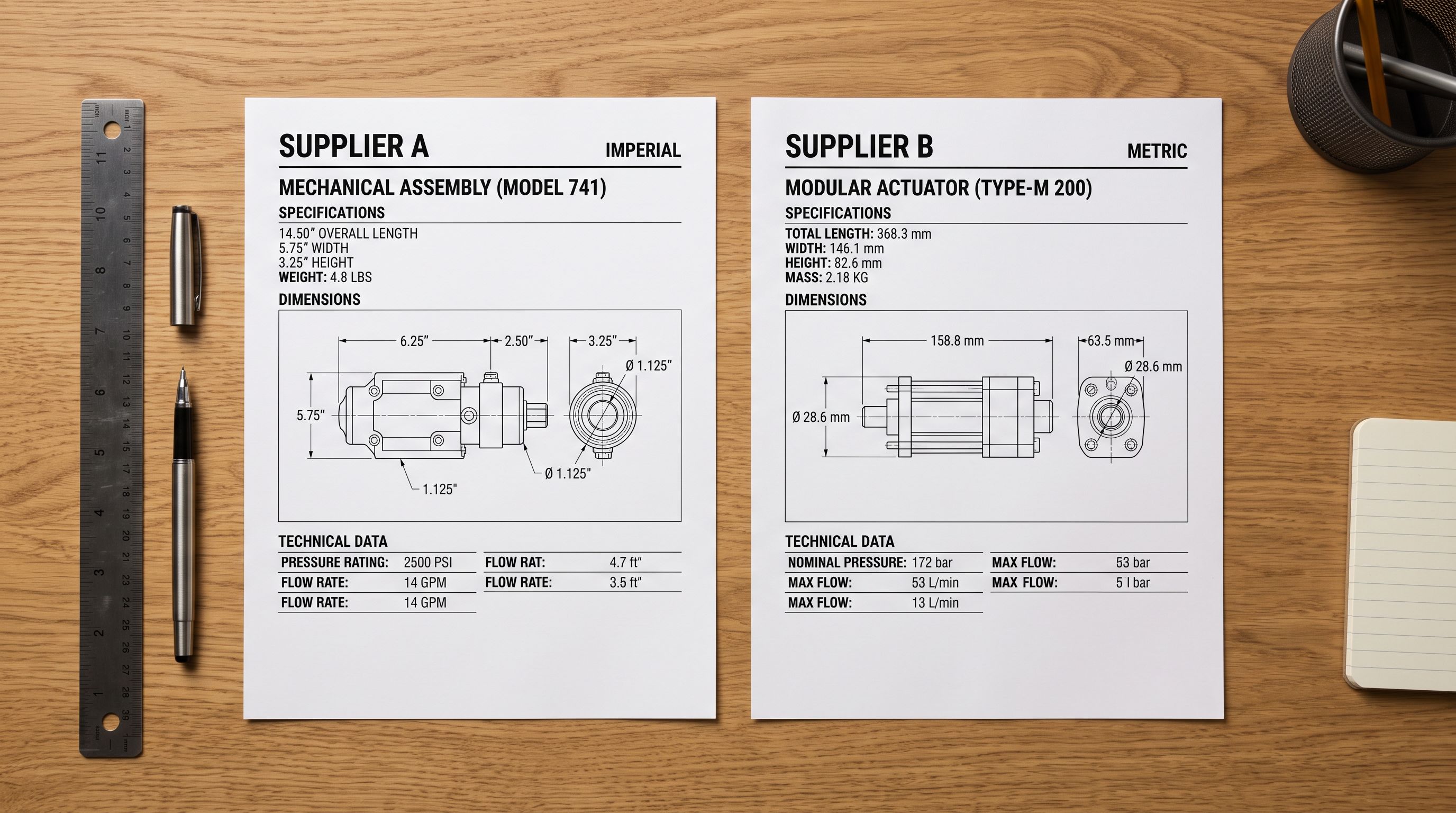
For a quick sanity check, pick five representative products and compare the gram values in the export against what you know the products actually weigh. A 500g bag of dog food should show approximately 500 in the Variant Grams column.
If it shows 17 (the ounce equivalent) or 1.1 (the pound equivalent), there is a unit mismatch. Those values are too low to be grams and too high to be kilograms, which makes them easy to spot once you know what to look for.
The shopify-product-weight-missing-after-import guide covers how to find products where weight is zero rather than wrong. Both problems appear in the Variant Grams column: zeros indicate missing data, implausibly small or large values indicate unit mismatch.
Fixing existing products with wrong weight values
Once you know which products have the wrong unit, the fix is a partial CSV re-import that updates the weight column without touching any other product data.
The process:
- Export your current products from Shopify (Products > Export).
- Open the exported CSV and locate the Variant Grams column. This column always contains the weight in grams, regardless of the store's display unit setting.
- For each affected product row, calculate the correct gram value: multiply pounds by 453.59, multiply ounces by 28.35, multiply kilograms by 1000, leave grams unchanged.
- Update the Variant Grams column with the corrected values.
- Delete all columns from the CSV except Handle, Title, Option1 Name, Option1 Value, Option2 Name, Option2 Value, and Variant Grams.
- Re-import the trimmed CSV into Shopify. The weight updates without touching descriptions, prices, images, or any other product data.
For a catalogue with more than 50 affected products, doing the unit conversion manually is time-consuming and error-prone. The conversion factors are not round numbers, and a single mistake on a column-wide formula produces a new set of wrong values. Importier's Inventory export preset downloads weight data alongside product handles and option values, which gives you the right starting point for a conversion and re-import pass.
Preventing weight unit errors at import time
How Importier handles weight unit conversion
When importing a supplier CSV through Importier, the import wizard includes an explicit weight unit step. At this step, the merchant selects the unit the supplier's weight column is in: grams, kilograms, pounds, or ounces. Importier converts all weight values in the selected column to grams before creating the Shopify products.

A US supplier file with "2.5" in the weight column and "lb" selected as the unit produces Shopify products with 1,134 grams. A product at "48 oz" with "oz" selected becomes 1,361 grams.
The carrier API receives the correct gram value and returns an accurate rate at checkout. This conversion runs in the same pass as variant detection and AI description generation. The products arrive in Shopify with the right weight from the first import. There is no separate correction step to run after.
- Reads weight values as literal grams
- Supplier's lb or oz values become gram values in Shopify
- A 2.5 lb product weighs 2.5 grams in Shopify
- Carrier quotes minimum flat rate at checkout
- Error discovered on shipping invoices weeks later
- Merchant selects the unit the supplier column uses
- All values converted to grams before products are created
- A 2.5 lb product correctly weighs 1,134 grams in Shopify
- Carrier quotes an accurate rate at checkout
- No manual conversion spreadsheet needed
According to Shopify's product import documentation, the Variant Grams column must contain the weight in grams regardless of the store's display unit setting. Suppliers are not aware of this requirement and file their weight data in whatever unit their own systems use.
The unit conversion step in Importier bridges that gap at import time rather than after products are already in the store. In practice, most unit errors are not discovered until shipping invoices arrive. The fix should happen before the first order ships, not after.
Saving the unit setting for recurring imports
Most merchants import from the same supplier repeatedly. If a supplier always sends weights in ounces, the unit conversion setting can be saved in an import profile. Every subsequent import from that supplier applies the same conversion automatically, without the merchant reviewing the unit step each time.
The shopify-import-profiles guide covers how profiles work across the full import configuration. For recurring supplier relationships, the profile saves column mapping, AI settings, description style, and the weight unit selection as a single configuration that runs on each new file from that supplier.
Shopify's inventory management documentation notes that accurate weight data is required for carrier-calculated shipping rates. A shipping integration that quotes rates based on weight needs the internal gram value to be correct.
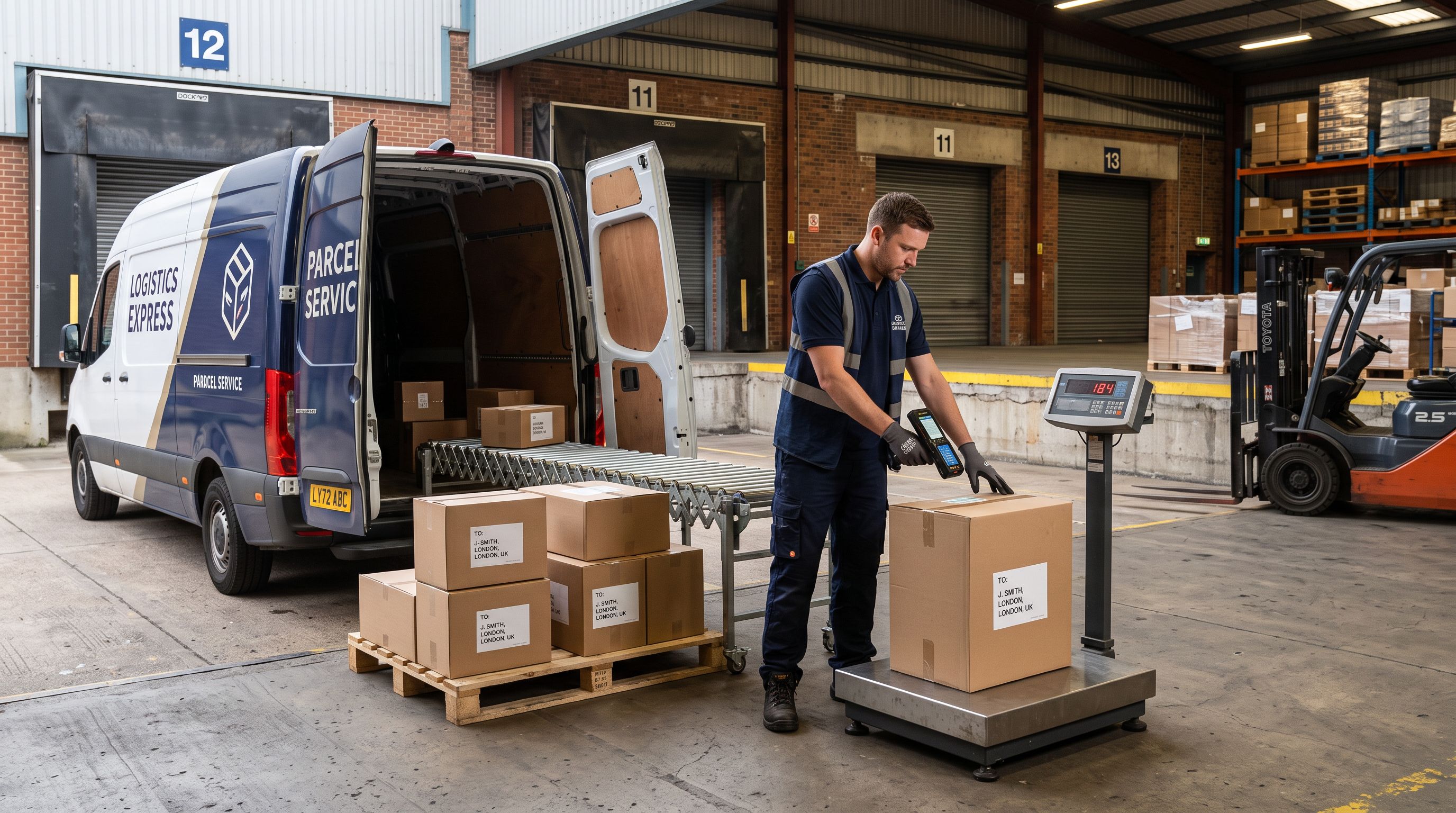
The documentation does not explain how to verify or fix weights after a unit-mismatch import. That gap is what most merchants discover the hard way, through shipping invoices rather than through any import warning or admin alert.
Key takeaways
-
Shopify stores all weight as grams internally. The display unit in admin is cosmetic. Carrier APIs calculate rates from the underlying gram value. A product displayed in admin as "2.5 lbs" must be stored as 1,134 grams for carrier rates to be accurate.
-
Unit mismatch is silent at import. Shopify's native CSV importer reads the numeric weight value as grams regardless of what unit the supplier intended. A 2.5 lb value becomes 2.5 grams. No error is reported. The products import successfully with plausible-looking weight values.
-
The consequences appear on shipping invoices, not in admin. A product stored at 2.5 grams quotes the minimum flat rate at checkout. The actual parcel weighs 1.13 kg. The difference between quoted and actual shipping accumulates across every order until the merchant checks their carrier invoices.
-
Fixing existing products requires a partial CSV re-import. Export all products, locate the Variant Grams column, recalculate values in grams, and re-import with only the Handle and Variant Grams columns mapped. All other product data stays unchanged.
-
Preventing unit mismatch means converting at import time. Selecting the supplier's weight unit before the import runs converts every value in that pass. No manual calculation, no post-import correction, no supplier weight in the wrong column.
Import your supplier catalogue with weight values converted to the correct unit at importier.app.
Set up your first import in under five minutes.
Importier brings products into Shopify with AI descriptions, category metafields, and data enrichment on every run.