Shopify Product Tags: Add and Manage Tags in Bulk During Import

On this page
Shopify Product Tags: Add and Manage Tags in Bulk During Import
Most merchants treat Shopify product tags as a filing system: a way to label products so they can find them later. Tags do serve that purpose, but their most consequential function is driving automated collections. A product without the correct tag never appears in an automated collection, regardless of how well its other data is structured. For stores that use Smart Collections to power their navigation and category pages, missing tags at import time translate directly into missing products in browse traffic.
This article covers three methods for adding tags to products during a bulk import, the format rules that determine whether Shopify reads a tag correctly, and the tag structure decisions that make automated collections work reliably from the day your products go live.
Why Tags Matter Before Products Reach Shopify
Shopify's automated collection system evaluates each product against a set of conditions when the product is created or updated. One of the most-used condition types is the tag condition in Shopify's automated collections: "product tag is equal to X." When a product is created with the matching tag, Shopify adds it to the collection immediately. When a product is created without the matching tag, it is absent from the collection until the tag is added manually.
For a merchant importing 500 products across five categories, this means the tag assignment at import time determines whether automated collections are populated immediately or populated over several days of manual tag editing after the fact. A staggered post-import tagging effort means the store is in a partially-configured state during the period when a launch is typically being tested.
The alternative is to decide the tag taxonomy before the import, assign tags during the import, and arrive in Shopify with collections populated and products visible on the correct category pages from the first day.
Method 1: Mapping a Tags Column from a Supplier CSV
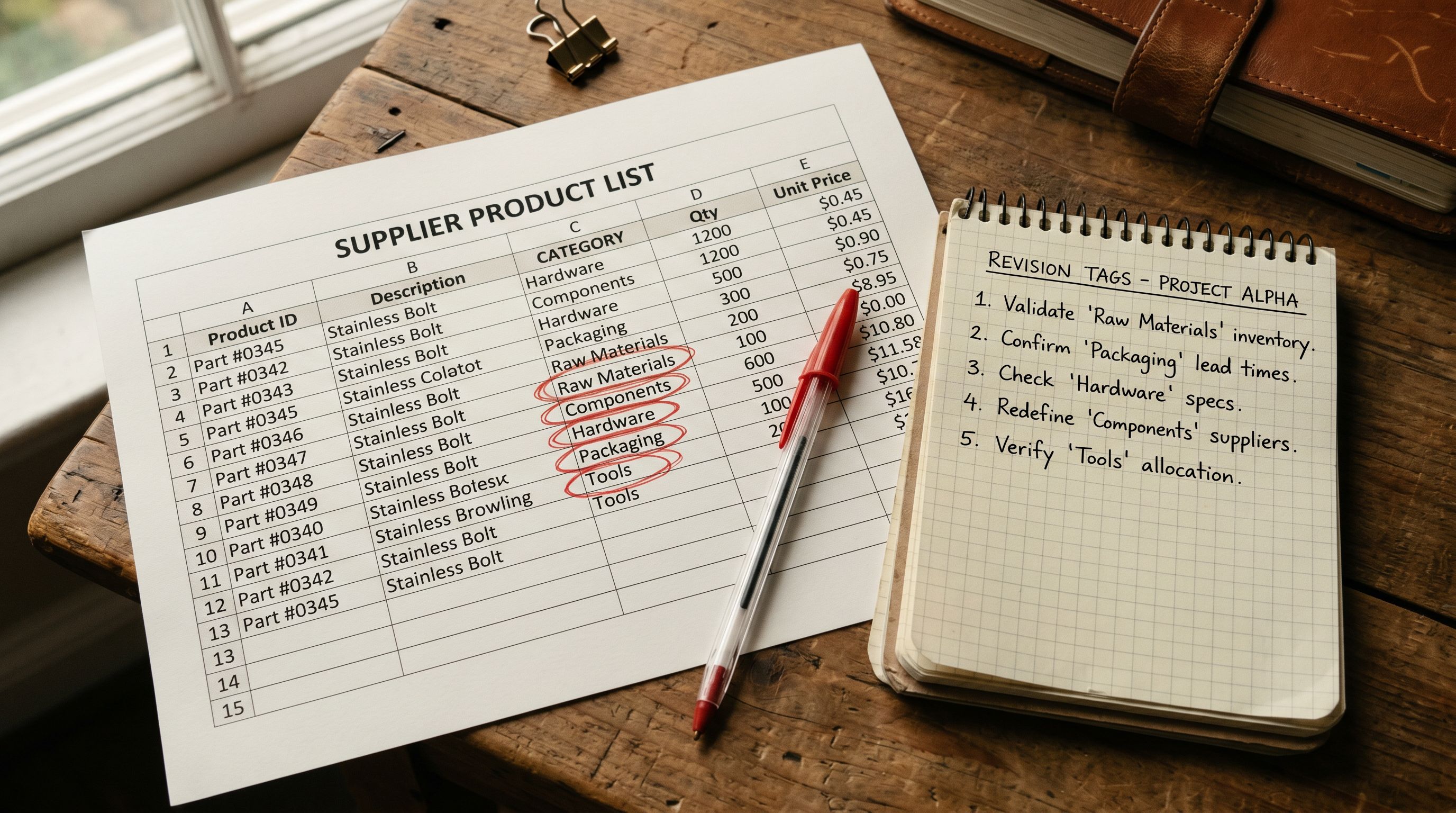
Many supplier product catalogues include a categories or keywords column that functions as a tag source. The column may be named "Category", "Keywords", "Labels", or "Product Type" depending on the supplier. During the import, this column can be mapped to Shopify's Tags field.
In Importier's column mapping step, you match the supplier column to the Tags destination field. If the supplier column contains multiple values separated by commas, Importier reads them as separate tags. A supplier row with "outdoor, waterproof, hiking" in the keywords column becomes three separate tags on the Shopify product: outdoor, waterproof, hiking.
The challenge with supplier-provided tags is vocabulary consistency. Suppliers often use their own internal category names, which may not match the tag names your automated collections are built on. A supplier who uses "outerwear" for a category you've named "jackets" in your collection rules needs a mapping step: either rename the supplier tag during import, or add a secondary tag alongside it.
Importier handles this by letting you add fixed tags alongside the mapped column. You can map the supplier's category column to Tags and simultaneously add a batch-level tag (see Method 3 below) that applies to every product in the import regardless of what the supplier column contains. This gives you supplier vocabulary plus your own collection tags in a single import pass.
For a detailed walkthrough of column mapping for supplier CSVs, see the Shopify CSV import guide.
- 01Before the import, list the tag values your Shopify Smart Collections use as conditions. These are your required tagsevery product that should appear in a given collection needs the matching tag.
- 02In Importier's column mapping step, map the supplier's category or keyword column to the Shopify Tags field. Review the values in that column and compare them to your required tag list.
- 03For tags where the supplier vocabulary differs from your collection tags, add your collection tag as a batch-level default (see Method 3). This ensures every product in the batch carries your collection tag regardless of what the supplier column contains.
- 04Run the import preview to confirm tag values appear correctly on product rows before the import touches Shopify.
Method 2: AI-Suggested Tags from Product Data
For imports where the source file has no usable tag or category column, Importier's AI can suggest tags based on the product title, description, and category data present in the import file.
The AI reads each product's data and generates tags that reflect the product's type, use case, and key attributes. A product titled "Merino Wool Running Socks, Cushioned, Low Cut" might receive suggested tags: running, socks, merino-wool, cushioned, low-cut, sports, activewear. The suggestions are generated from the product data itself, not from a fixed taxonomy, so they reflect the actual vocabulary of the product rather than generic category labels.
The value of AI-suggested tags is that they allow merchants to establish a working tag structure without pre-building a tag taxonomy before the import. The tags emerge from the product data and can be reviewed and refined after the import rather than requiring a decision framework to exist before any products are in the system.
This approach works particularly well for first-time imports where a merchant is establishing their Shopify store from scratch. The suggested tags give a starting point for automated collection rules based on what the products actually are, rather than requiring the merchant to anticipate the full product vocabulary before the import runs.
The Shopify category metafields guide covers the related step of assigning Standard Product Taxonomy attributes, which work alongside tags for deeper product organisation.
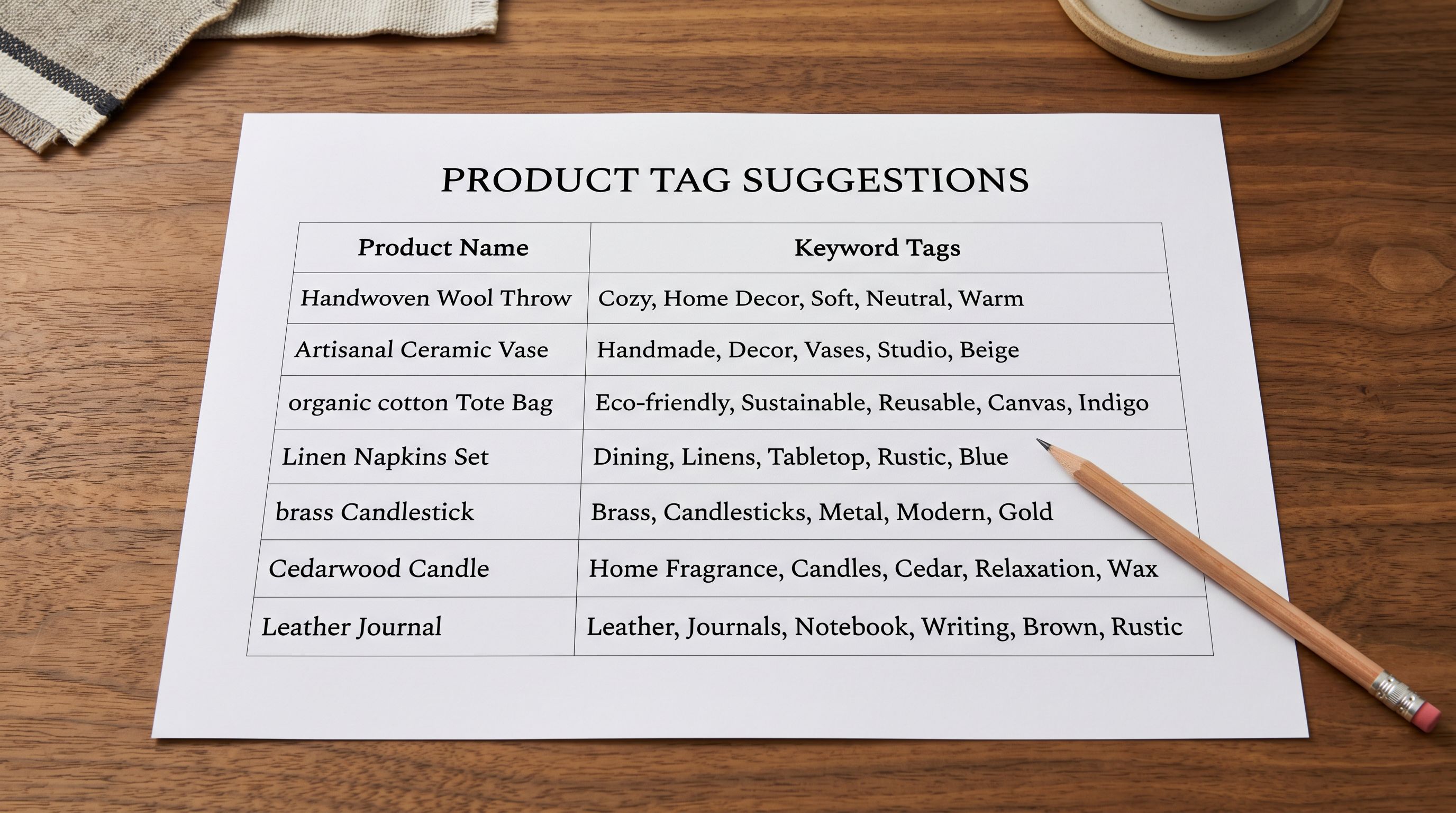
Tags suggested from product data let the taxonomy emerge from what you are actually selling, rather than requiring a predefined category structure before the first product is imported.
Method 3: Batch-Level Default Tags
Batch-level default tags apply the same set of tags to every product in an import session, without requiring a column in the source file.
The use cases for batch defaults are straightforward:
Supplier sourcing tags: a tag like supplier-acme or wholesale-q3 on every product in a batch from a specific supplier makes it possible to filter, export, or bulk-edit those products later without needing a separate field to track the source.
Campaign or seasonal tags: an import run for a seasonal range can apply a tag like summer-2026 or bfcm-clearance to every product in the batch, making automated collection management for campaigns possible without manual tagging after the fact.
Collection membership tags: if a collection condition is "product tag is equal to new-arrivals", adding new-arrivals as a batch default tags every product in the import as a new arrival. When the import completes, the collection is already populated.
Batch defaults combine with column-mapped and AI-suggested tags. A product can carry a supplier-mapped category tag, an AI-suggested attribute tag, and a batch-level sourcing tag simultaneously. All three appear in the Tags field on the Shopify product record.
Tag Format Rules
How Shopify Reads Product Tags
Tag format determines whether Shopify's collection matching functions correctly. Several format rules matter at import time.
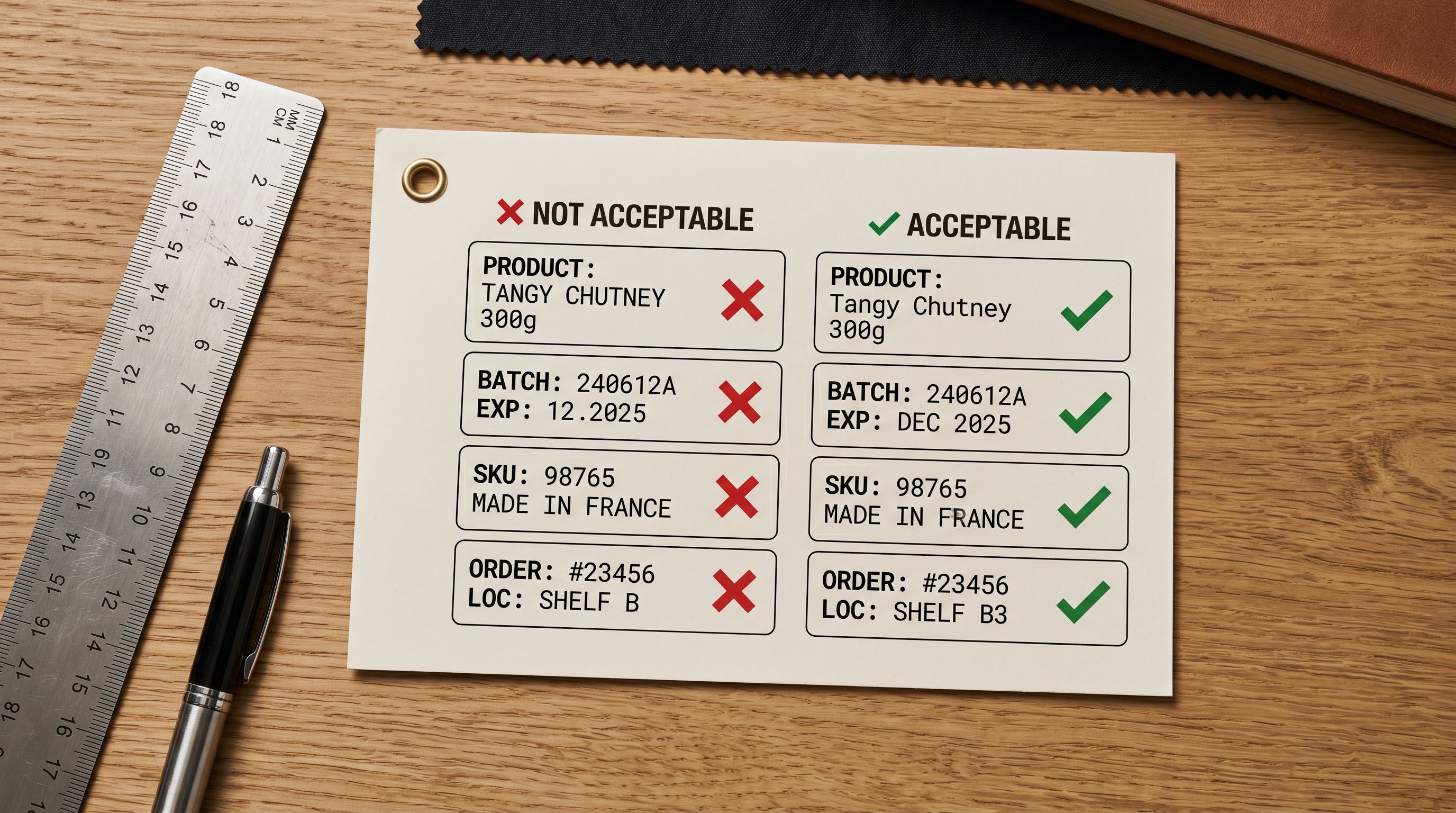
Spaces in tags: Shopify allows spaces in tags. "Running Shoes" is a valid tag. However, if a Smart Collection condition is set to "product tag is equal to running-shoes" (with a hyphen), a tag of "Running Shoes" (with a space) does not match. The collection condition and the tag must use the same format. Decide on hyphenated or spaced format before the import and apply it consistently.
Case sensitivity: Shopify's product tag documentation confirms that tag matching for collection conditions is case-insensitive. A collection filtering for "outdoor" will match a product tagged "Outdoor", "OUTDOOR", or "outdoor". This means inconsistent capitalisation from a supplier column does not break collection membership, but it can make tag searches in Shopify admin less predictable. Consistent lowercase is the standard practice.
Special characters: Shopify tags support letters, numbers, hyphens, and underscores. Commas are used as separators in CSV import files: a value of "outdoor, hiking, waterproof" in a tags column becomes three separate tags. Other special characters (slashes, brackets, quotes) are stripped or may cause unexpected behaviour and should be removed before import.
Tag length: Shopify allows tags up to 255 characters. In practice, tags longer than a few words are rarely useful for collection conditions and can make tag management in Shopify admin harder to read.
Duplicate tags: if the same tag appears multiple times on a product (from a combination of column mapping, AI suggestions, and batch defaults), Shopify deduplicates automatically. No action needed.
Setting Up Smart Collections Before the Import
The most effective sequence for a tag-driven import is to create the Smart Collection rules in Shopify before the import runs. This way, when each product arrives in Shopify with the correct tag, the collection evaluates it immediately and adds it to the collection membership.
To create a Smart Collection in Shopify admin: go to Products, then Collections, then Create collection. Set the collection type to Automated. Add a condition: "Product tag is equal to [your tag value]". Save the collection.
When the import completes, every product with that tag will appear in the collection. The collection page is functional and browsable as soon as the import finishes.
For stores migrating from another platform, the equivalent collections from the previous platform need to be recreated as Smart Collections in Shopify with the correct tag conditions before the import runs. Products that arrive without the expected tags due to a mapping error will be absent from those collections until the tags are corrected.
Reviewing and Updating Tags After Import
After the import, Shopify admin shows all tags in use under Products in the Tags filter panel. This gives a view of the full tag set across the catalogue.
For bulk updates, Importier's export preset "Full Shopify CSV" includes the Tags column. You can export the catalogue, edit the Tags column in a spreadsheet to add, remove, or rename tags, and reimport via Importier to apply the changes at scale. This export-edit-reimport pattern is faster than Shopify's bulk editor for tag changes across more than a few dozen products.
The Shopify CSV import guide covers the full export-and-reimport workflow in detail.

Try Importier free at importier.app
Set up your first import in under five minutes.
Importier brings products into Shopify with AI descriptions, category metafields, and data enrichment on every run.