Shopify Product Import: 8 Mistakes That Cost You Hours
On this page
Shopify Product Import for Beginners: 8 Mistakes That Cost You Hours
A successful shopify product import should take an afternoon. For many merchants running their first import, it takes two or three days, not because the process is complicated, but because a handful of avoidable mistakes send them back to the start.
This guide covers the eight most common errors. Each one has a clear cause, a predictable outcome, and a prevention step you can take before clicking confirm.
The first five happen during the import itself: a wrong column configuration, a variant structure problem, a status setting, an image URL format, and a description quality issue. The last three come from skipping preparation steps before the import runs. All eight are preventable.
Most first-import hours are not spent on the actual import. They are spent fixing the results of skipping three steps that take fifteen minutes to do correctly.
The most common shopify product import mistakes
Mistake 1: Wrong Handle format
Shopify uses the Handle column to determine whether an import creates a new product or updates an existing one. Handles must be unique, URL-safe strings in lowercase with hyphens. If your supplier CSV does not have a Handle column, or if the values include spaces, special characters, or capital letters, Shopify generates Handles automatically, and the auto-generated values often conflict with products already in your store.
The result is duplicate products: the import creates new products where you expected updates, and your original listings remain unchanged. Finding and merging them manually across a large catalogue takes hours.
The fix: before importing, check your CSV for a Handle column. If there is none, add one using a consistent pattern. SKU codes work well, as they are already unique identifiers. Importier's 14-step import wizard includes an auto-mapper that identifies likely Handle source columns and flags conflicts in the import preview before any product reaches Shopify.
Mistake 2: Variants imported as separate products
Supplier CSVs typically list each variant on its own row: a T-shirt in four colours across four rows, a supplement in three sizes across three rows. Shopify's native importer expects the Handle column to link these rows into one product. Without it, each row becomes its own product.
A catalogue of 200 products with an average of four variants each becomes 800 products, all named slightly differently. Merging them back by hand is one of the more tedious tasks in Shopify.
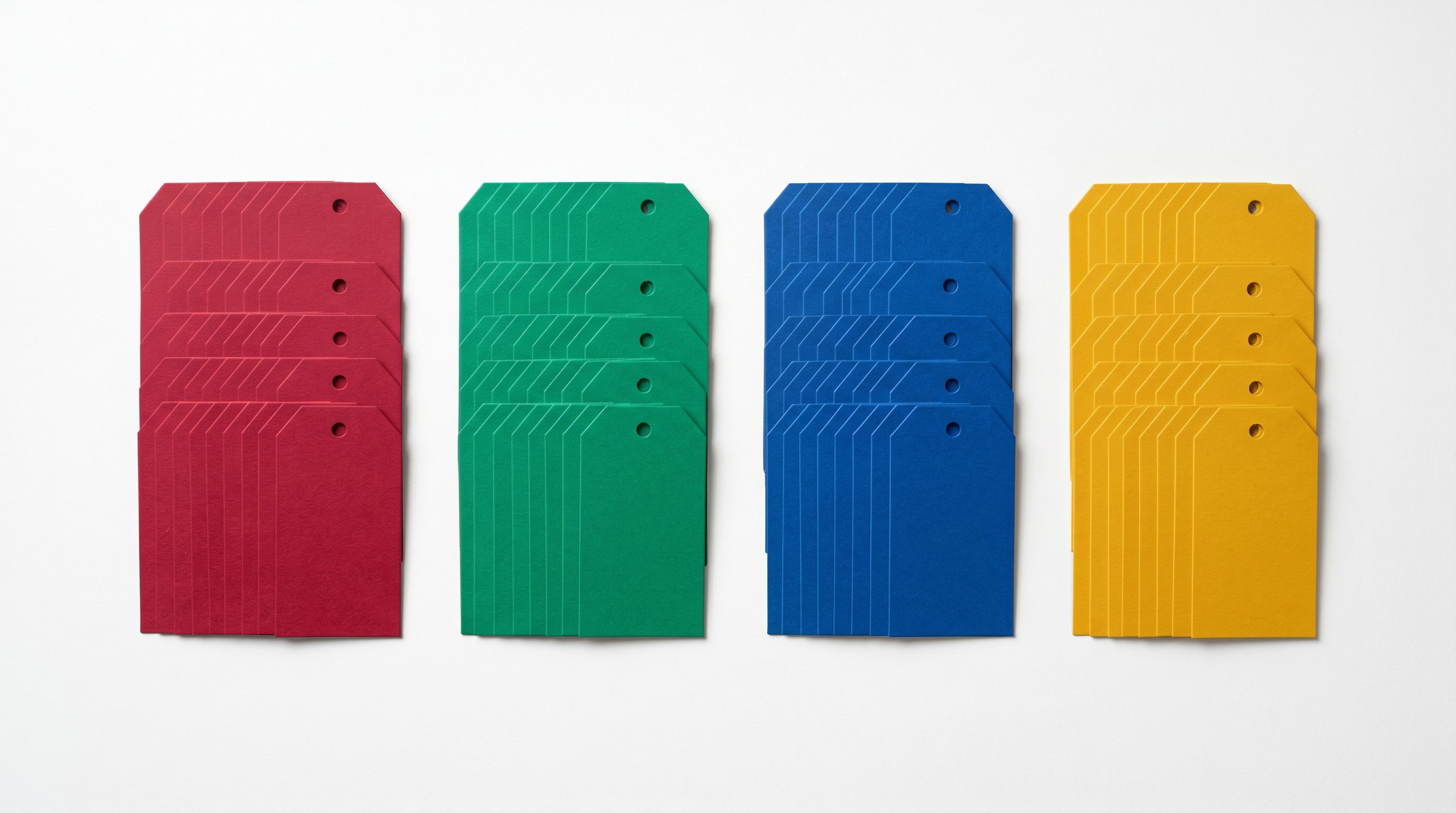
Importier's Smart Variant Detection reads 150+ patterns across 15+ industries to automatically identify and group variant rows by size, colour, weight, flavour, storage, and more, regardless of how your supplier named the columns. The preview step shows you the detected groups before confirming, so you can catch anything the detection missed.
Mistake 3: Blank Published column
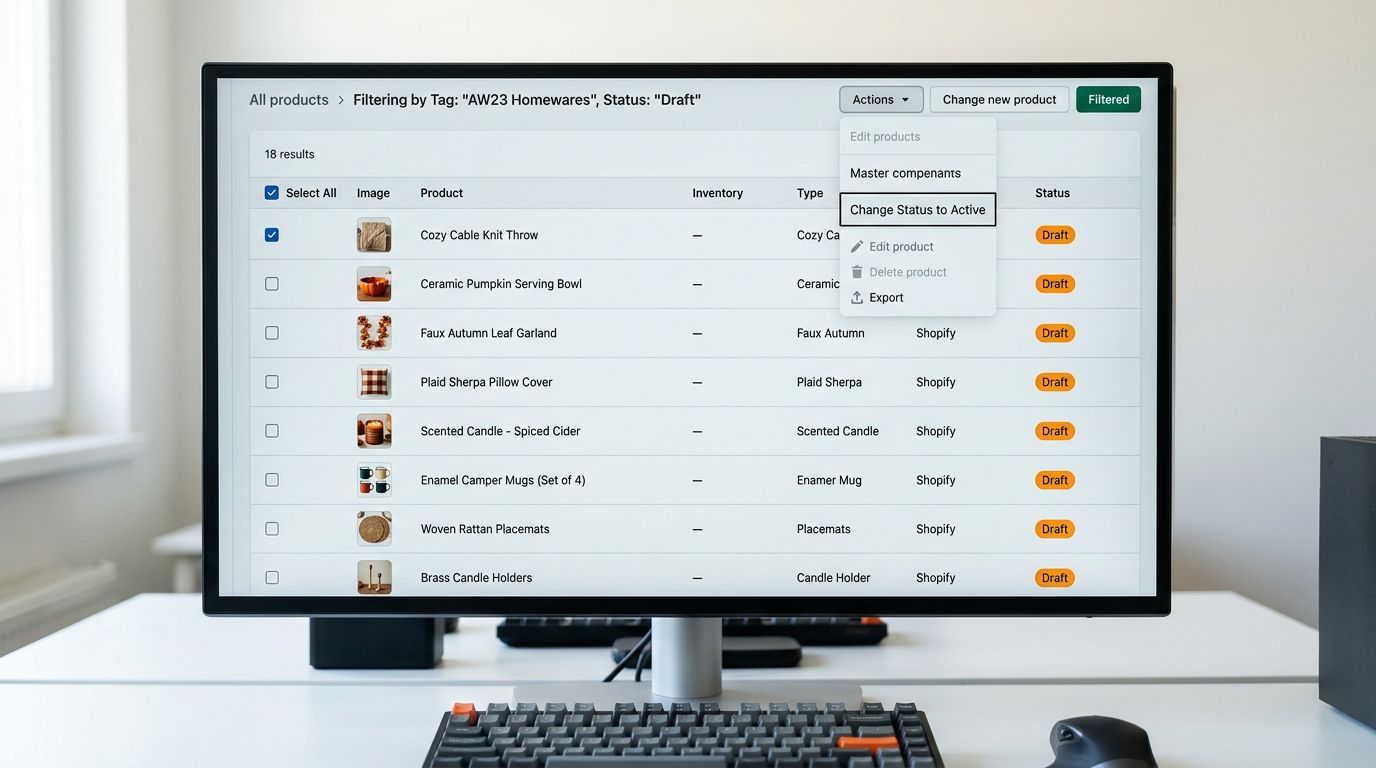
Shopify's CSV format includes a Published column that controls whether a product is active or a draft. If the column is missing from your import file or the value is FALSE, every product arrives as a draft, invisible to customers and not indexed by search engines.
Many merchants do not notice until days later, when no sales appear for products they know were imported. Some assume it is a search ranking issue and spend time on SEO when the actual problem is that every product is hidden.
Bulk-publishing from the Shopify admin is straightforward but costs time. For large catalogues the fix requires filtering by draft status, selecting all, and publishing in batches, a 10-minute task that should not exist.
Importier's wizard has a dedicated product status configuration step. You choose active, draft, or active-with-delay before the import runs. You will not discover draft products after the fact.
Mistake 4: Broken image URLs
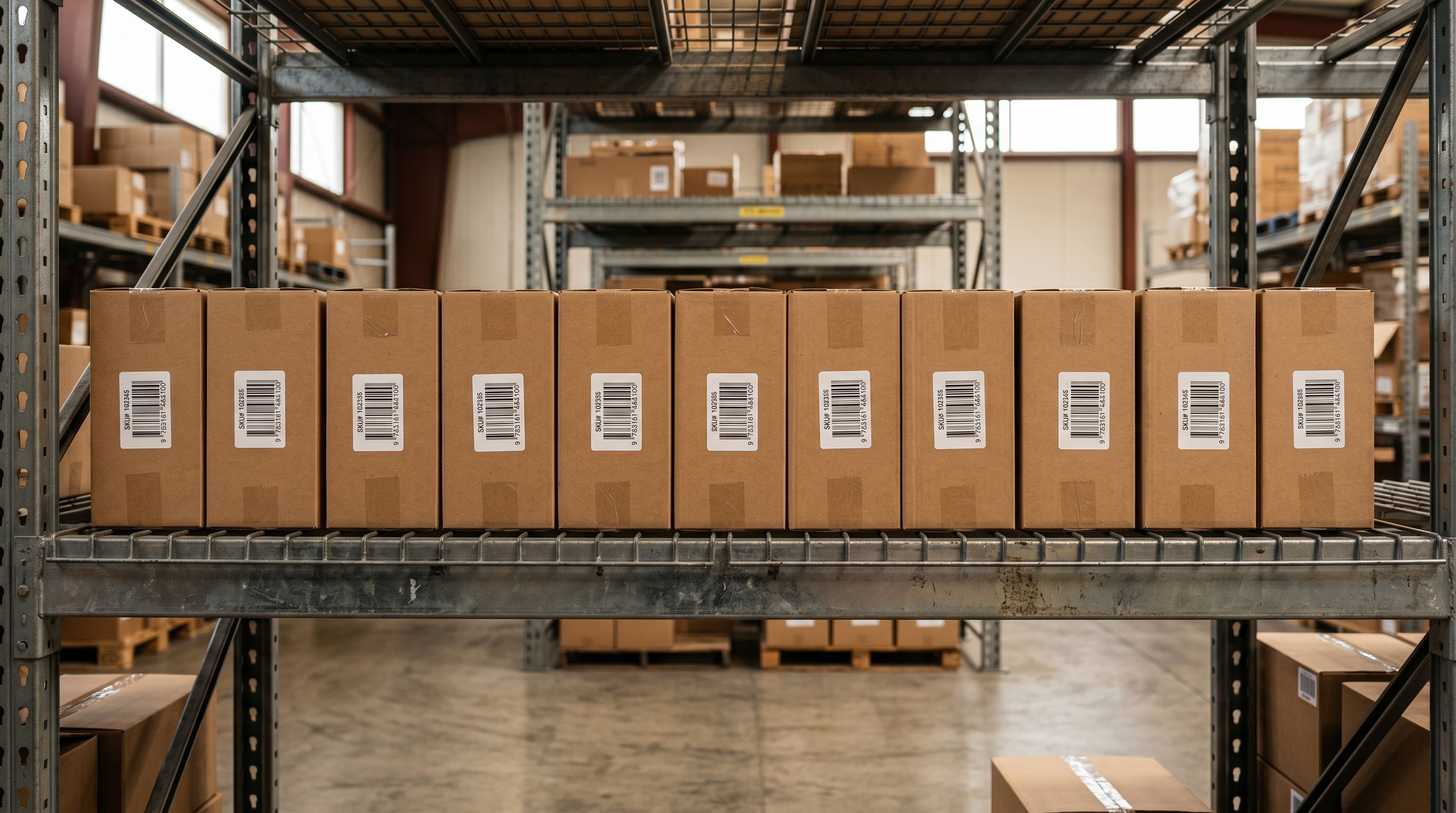
Shopify's CSV import accepts image URLs, but only direct-download URLs. Google Drive sharing links, relative file paths, and expiring CDN URLs all fail silently. The product imports without its images, and you do not see the problem until you view the product page.
For a 200-product import where each product has five images, that is 1,000 images to download, re-host, and paste manually if the URLs are wrong.
Importier supports direct image import from Google Drive shared folders and Dropbox shared folders, which avoids the URL problem entirely. The wizard downloads and re-hosts every image at import time, and images from marketplace URLs (Amazon, eBay, AliExpress) are retrieved and stored in your Shopify media library rather than pointing back to the supplier's server.
Mistake 5: Supplier descriptions left unchanged
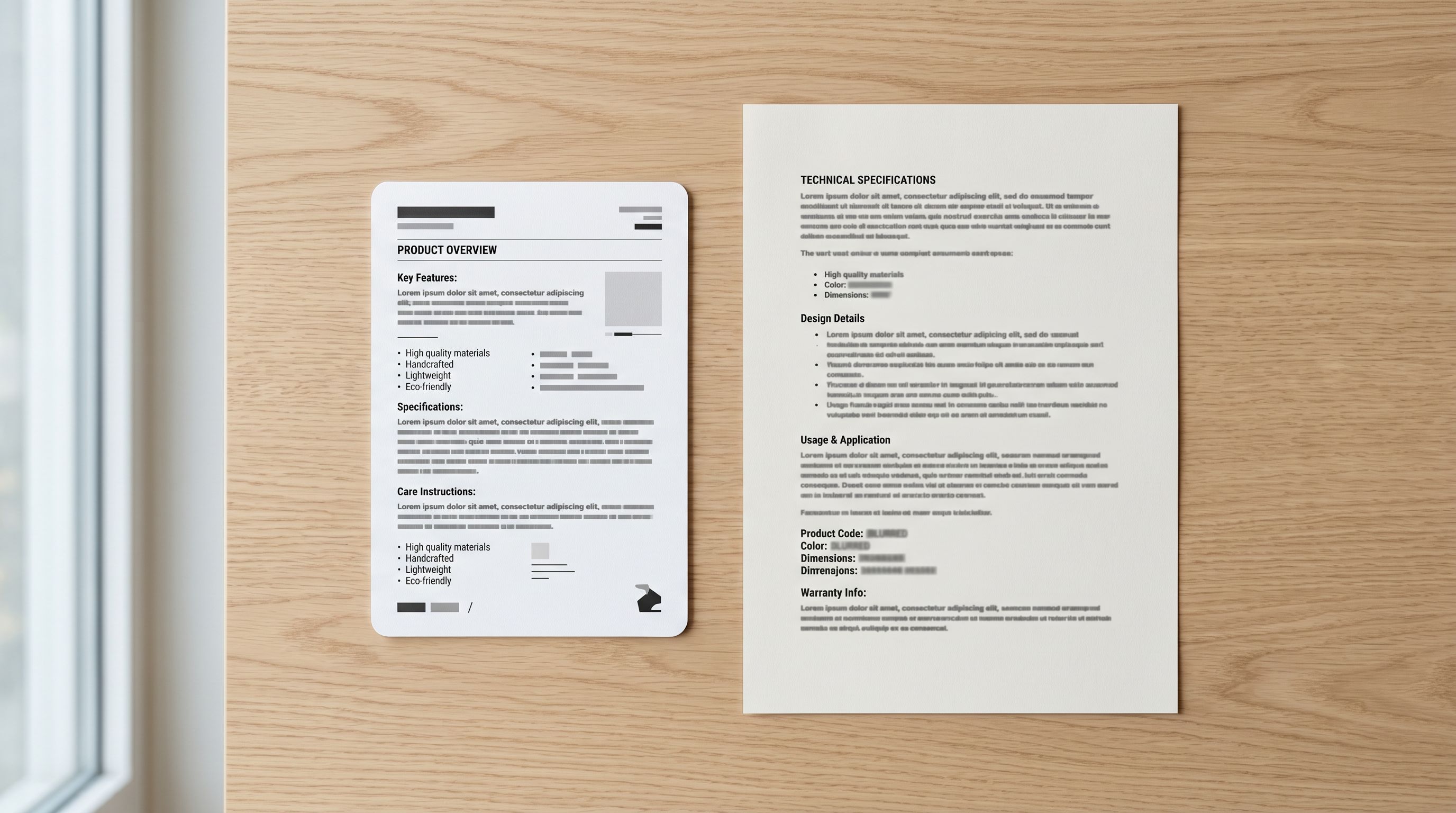
Supplier descriptions are written for catalogues, not for Shopify product pages. They are often terse, missing, or copied across dozens of retailers, meaning your store publishes identical text to hundreds of other stores.
Google treats identical product descriptions as low-quality content. Shopify's own product listing guidance recommends unique descriptions that are specific to your store and audience. Merchants who import supplier copy and leave it unchanged often see their product pages rank poorly or not at all for buyer-intent searches.
The fix is to generate new descriptions during the import, not as a post-import project. Importier's AI description generator produces unique, on-brand descriptions for every product in the batch during the import run itself. The descriptions are never copied from the supplier. They are generated from the product data using the style and persona you configure. More on configuration below.
Mistakes from skipping setup
Mistake 6: Missing HS codes
HS (Harmonised System) codes are required for international shipping. Without them, customs clearance slows or stops, duty rates are estimated (often incorrectly), and Google Merchant Centre rejects products from Shopping feeds with a missing attribute warning.
Most supplier CSVs do not include HS codes. It is easy to assume they can be filled in later. That assumption holds until you have 500 products and no systematic way to look up the right code for each one. In practice, HS codes rarely get filled in, and the consequences (delayed shipments, incorrect duty calculations, GMC disapprovals) surface weeks after the import when the merchant has moved on to other priorities.
Importier's data enrichment step fills HS codes, country of origin, and weight automatically during the import, using the product title and type to identify the most likely customs classification. You can also add a context hint for unusual or niche products. The full data enrichment workflow is covered in the Shopify product data enrichment guide.
Mistake 7: No pre-import settings configuration
This is the mistake most guides do not mention, and it has the largest impact on the output quality.
Importier's Settings panel is where you configure everything the AI uses to write descriptions: the model, the persona (156 options across 43 industries), the tone, the description style, Brand Voice keywords, words to exclude, and whether to generate SEO titles and meta descriptions in the same batch.
If you skip settings and run a batch with the defaults, you get generic descriptions that work but do not reflect your brand, your customers, or your product category. A homewares retailer and an electronics distributor will get similar-looking output unless the settings distinguish them.
Mistake 8: No test import on a small batch first
A first import of 500 products that goes wrong means reviewing or reverting 500 products. A first import of 20 products that goes wrong means reviewing or reverting 20 products. The latter is recoverable in minutes.
A test import with a representative subset of your catalogue reveals column mapping issues, variant grouping edge cases, image URL failures, and description quality before any of those problems scale to the full batch. It also shows you exactly what the preview and review steps look like, so the full import runs with fewer surprises.
- 01Run a test importselect 20-30 products that represent your catalogue's variety (simple products, multi-variant products, products with images, products without)
- 02Review the outputcheck variant grouping in the preview step, image attachment, AI description quality and tone
- 03Adjust settingsif descriptions are too generic, update persona or Brand Voice and regenerate
- 04Confirm or undouse Import Undo to revert the test batch if anything needs changing
- 05Run the full importnow with confidence that the column mapping, variant detection, and AI settings are correct

Importier's Import Undo removes all products from a specific import batch in one step, leaving your existing catalogue untouched. There is no penalty for running a test import and starting over. It is the expected workflow for a first import.
Preparation versus cleanup
- Duplicate products from Handle conflicts
- 800 separate products instead of 200 grouped
- All products arrive as drafts
- Broken image references on every product page
- Generic descriptions identical to supplier's other retailers
- Handle column mapped and conflict-free
- Variant groups detected automatically
- Products live immediately
- Images downloaded and hosted in your media library
- Unique AI descriptions in your brand's voice
The cleanup version of a 200-product import (fixing duplicates, merging variants, publishing drafts, re-adding images, rewriting descriptions) takes two or three working days. The prepared version, with a 20-product test import first, typically runs in under two hours including review.
For a more detailed walkthrough of a first import from a supplier CSV file, the Shopify CSV import guide covers every step from file preparation through to live products in your store. For variant grouping specifically, the Shopify import product variants guide explains the Handle system and how Smart Variant Detection works with different supplier file formats.
Key takeaways
- Handle format is how Shopify creates vs updates: a missing or incorrect Handle column is the most common cause of duplicate products on import
- Variant rows must share the same Handle to be grouped; Smart Variant Detection handles this automatically without restructuring your supplier CSV
- Always check the Published column in your import file; products arriving as drafts are invisible and not indexed
- Configure your Settings panel before running AI descriptions: persona, tone, and Brand Voice are what make the output specific to your store
- Run a 20-product test import first; use Import Undo to revert if anything needs adjusting before scaling to the full catalogue
For the step-by-step walkthrough of a first import from a supplier CSV, see the Shopify CSV import guide. For variant grouping in depth, see how to import product variants in Shopify.
Set up your first import in under five minutes.
Importier brings products into Shopify with AI descriptions, category metafields, and data enrichment on every run.