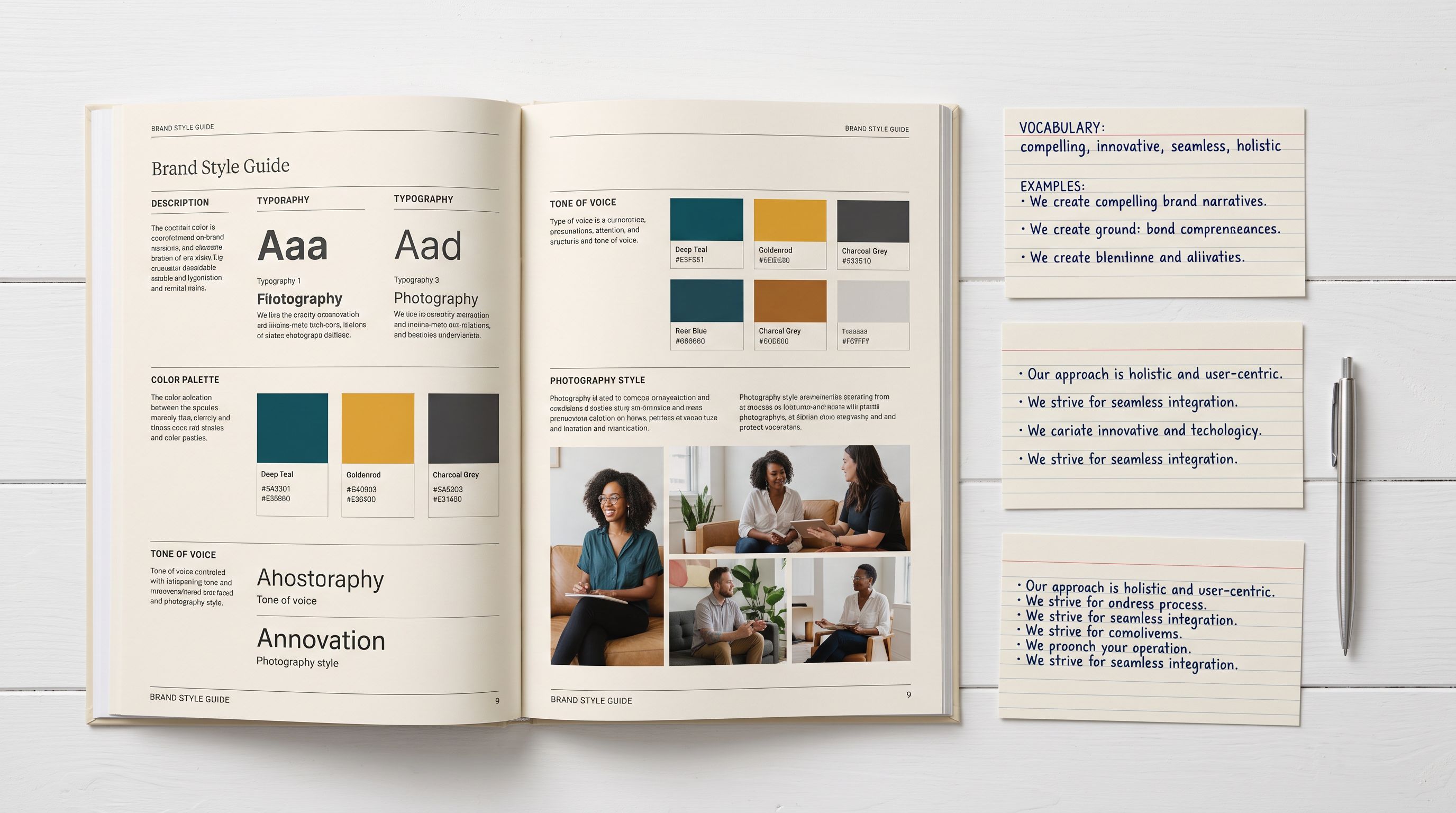
Shopify Product Content Style Guide: Import Standards
On this page
A stationery brand preparing to import 400 products found their titles in three different formats. Some read "A6 Kraft Notebook 48 Pages" (size, material, type, specification). Others read just "Kraft Notebook" with no size or spec.
A third group read "PREMIUM KRAFT JOURNAL SPECIAL EDITION" in all-caps with promotional language. None of them were technically wrong. But together they made the catalogue unpredictable for search, inconsistent for customers, and impossible to filter programmatically.
The problem was not that the merchant lacked a preference. They knew what a good title looked like. Without a Shopify product content style guide, that preference had never been written down or given to the import process.
The title format existed in one person's head, applied inconsistently. The import tool had no way to enforce it.
The Three Content Fields a Style Guide Must Cover
A product content style guide for Shopify needs to define standards for three fields: titles, descriptions, and tags. Each has different rules and different enforcement mechanisms in Importier.
Product titles are the most visible field and the most commonly inconsistent. A title standard specifies the format (which attributes appear, in what order, with what separators), the character limit (Shopify storefront titles have no enforced limit, but Google Merchant Centre's product data specification truncates titles at 150 characters), and the case convention (title case, sentence case, or all lowercase). The stationery brand settled on: [Size] [Material] [Type] [Key Spec] with no promotional language, sentence case, under 70 characters for storefront.
Product descriptions require a structural standard, not a word-for-word template, but a section order and minimum coverage. The stationery brand's description standard: an opening sentence naming the product and its primary use case, two to four sentences covering the key physical attributes (dimensions, paper weight, binding type), one sentence for the ideal customer or use scenario. Approximately 80-120 words per product.
Tags require a taxonomy standard: a defined list of allowed values per dimension, with no synonyms permitted. The stationery brand defined four tag dimensions: material (kraft, recycled, cotton, leather), type (notebook, journal, planner, sketchbook), size (a4, a5, a6, pocket), and series (classic, premium, eco (applied only to products that belong to a named series)). Every product receives exactly one tag per applicable dimension.
From Document to Enforcement
Setting Up Brand Voice for Description Standards
Importier's Brand Voice feature translates a written description standard into a reusable configuration the AI applies to every product in the import. It has four inputs: a voice description, keywords to include, words to avoid, and example phrases.
For the stationery brand, the Brand Voice configuration looked like this:
Voice description: "Professional and informative. Write for a stationery enthusiast who values quality materials and practical utility. Describe physical attributes specifically: exact dimensions, paper weight in gsm, binding type. Avoid vague claims like 'perfect for' or 'great for'. State what the product is and what it does."
Keywords to include: paper weight, gsm, binding, dimensions, pages, ruled/blank/dotted
Words to avoid: premium, perfect, amazing, beautiful, essential, must-have, life-changing
Example phrases: "80gsm acid-free paper", "lay-flat PUR binding", "192 pages of 5mm dot grid"
With Brand Voice configured, every AI-generated description in that import automatically follows those rules. The 156 expert personas and 7 description styles still apply. The stationery brand chose the Standard style with the Stationery and Arts & Crafts persona, but Brand Voice acts as an overriding set of constraints that keeps every description within the standard regardless of which model generates it.

This matters most for large imports. Without Brand Voice, 400 AI-generated descriptions will naturally vary in tone, vocabulary, and coverage. Some will lead with use case; others will lead with material.
Some will include gsm; others will not. Brand Voice locks the common variables so variation is limited to the content that should vary: the actual attributes of each product.
Enforcing Title Standards with Title Optimizer
The Title Optimizer in Importier handles title standards through a different mechanism than Brand Voice. Rather than guiding AI generation, it transforms existing titles into a format that meets the standard.
For the stationery brand's import, the approach was:
- Import the raw supplier titles as-is into the import preview.
- Run Title Optimizer with the GMC preset (150-character limit, sentence case transformation, removes all-caps promotional language).
- Review the generated titles against the
[Size] [Material] [Type] [Key Spec]format. - For products where the source title did not contain the size or material, add those attributes to the product's data before running the optimiser.
The Title Optimizer's case transformation handled the "PREMIUM KRAFT JOURNAL SPECIAL EDITION" problem automatically: the all-caps format and the promotional modifier were stripped, leaving "Kraft Journal Limited Edition" as the starting point for the correct format.
- 01Write the title format in plain languagewhich attributes, what order, what case convention, what character limit. For GMC compatibility, stay under 150 characters.
- 02Configure Brand Voice in Importier with a voice description, inclusion keywords, exclusion words, and one or two example sentences that follow your description standard.
- 03In the import wizard, run Title Optimizer on your product titles before previewing the final catalogue. Use the GMC preset if the catalogue will feed into Google Shopping.
- 04Review the generated titles against your format standard. Add any missing attributes (size, material, key spec) to source data rows that lack them.
- 05Set batch-level default tags for dimensions that apply to the whole import batch. For example, all products in a supplier CSV may share the same material tag.
- 06For product-specific tag dimensions (size, type), include a tag column in the import file or map an existing column to the Tags field.
Applying Tag Taxonomy Through Batch Defaults and Column Mapping
Tags are where the gap between intent and execution is widest. A merchant who knows their tag taxonomy still ends up with inconsistent tags because the source data never matches the standard: supplier CSVs use their own category names, not the merchant's taxonomy.
Importier handles tag enforcement at two levels during import.
Batch-level defaults apply the same tag to every product in an import. For the stationery brand, all 400 products in a single supplier import were from the same materials family (kraft paper products). The material:kraft tag was applied as a batch default; it did not need to come from the CSV, it was set once at the import level and applied to every row.
Column mapping handles per-product tag dimensions. The supplier CSV had a "Category" column with values like "Notebook", "Journal", "Planner", "Sketch Pad". Mapping that column to the Shopify Tags field, with a find-and-replace step to convert "Sketch Pad" to "type:sketchbook", applied the correct type tag to each product based on the source data.

The result: every product received a material:kraft tag (from the batch default), a type:notebook or equivalent tag (from the mapped category column), and a size:a6 or equivalent tag (from a size column in the CSV, mapped to Tags). Three consistent tag dimensions, applied without manual editing.
The key discipline is locking canonical values before the first import runs. Once "type:notebook" is in production on 200 products, adding a "type:notebooks" variant from a later import creates a split that is expensive to clean up.
Shopify allows up to 250 tags per product (per Shopify's documentation on using tags) but does not enforce a controlled vocabulary, so the taxonomy standard must be maintained entirely by the merchant. The taxonomy needs to be final before the import, not negotiated after.
Applying the Style Guide to Existing Products via Store Scanner
Merchants who already have products in Shopify, imported before the style guide was established or brought in through a different tool, can apply the same standard to the existing catalogue using Importier's Store Scanner.
The Store Scanner filters products by collection, SKU pattern, or barcode pattern, then generates new descriptions using the same Brand Voice configuration used in imports. For the stationery brand, the workflow was: set up Brand Voice once, run the import wizard for new stock, then run Store Scanner in Replace mode on existing products that did not meet the description standard.
This matters because a style guide is only effective if it applies to the full catalogue, not just new arrivals. A customer browsing stationery who sees one product description in the new standard and another in the old format will notice the inconsistency. The Store Scanner closes that gap without requiring a re-import of all existing products.

A content style guide that only applies to new imports is a temporary standard. The Store Scanner is what turns it into a catalogue-wide standard.
What to Document Before the Import Runs
The style guide document itself does not need to be long. For the stationery brand, it was two pages covering:
Title section: format template with examples of correct and incorrect titles. At least three examples of common supplier title formats and what the correct transformation is for each.
Description section: section order, word count range, one paragraph of Brand Voice guidance (essentially the voice description field, expanded), and two full example descriptions that meet the standard.
Tag section: one row per tag dimension: dimension name, allowed values (exhaustive list), one rule about what to do when the source data value does not match any allowed tag value (the stationery brand's rule: flag the row for manual review rather than guess).

This document serves two purposes. First, it feeds directly into Importier's Brand Voice configuration; the voice description field IS the description section of the document, compressed. Second, it creates a reference that can be handed to suppliers: "Please format product titles as [Size] [Material] [Type] [Key Spec]. Here are examples of what we accept."
Suppliers who match the format reduce the correction work at import time. Even partial adoption (suppliers who stop using all-caps and promotional language) reduces the number of titles the Title Optimizer needs to transform.
- Title format varies by supplier CSV column conventions
- Descriptions vary in length, tone, and which attributes they cover
- Tags reflect supplier category names, not the merchant taxonomy
- Each import batch requires manual title and description cleanup
- Style guide exists only as institutional knowledge in one person's head
- Title Optimizer transforms supplier titles to the defined format in one step
- Brand Voice constrains AI descriptions to the correct structure and vocabulary
- Batch defaults and column mapping apply the correct tag taxonomy per dimension
- Import cleanup limited to edge cases and missing attributes
- Style guide is encoded in Importier settings and reproducible across all future imports

Key takeaways:
- A product content style guide needs to cover three fields: titles (format template, case convention, character limit), descriptions (section order, word count, vocabulary rules), and tags (taxonomy dimensions with locked canonical values per dimension).
- Importier's Brand Voice translates a written description standard into a reusable configuration applied to every AI-generated description in an import. Set it once; it carries across imports and Store Scanner runs.
- The Title Optimizer's case transformations and character limit presets enforce title standards automatically. The GMC preset removes all-caps and promotional language and enforces the 150-character limit.
- Tag taxonomy enforcement works at two levels: batch defaults for attributes shared across the whole import, and column mapping for per-product tag dimensions from supplier data.
- A style guide only reaches full effect when applied to existing products too. Run Store Scanner in Replace mode on existing products to bring the full catalogue to the same standard.
- Write the taxonomy's canonical values before the first import runs. Fixing a split tag taxonomy after products are live is significantly more work than preventing it.
For the Brand Voice feature setup in detail, the Brand Voice setup guide covers the four configuration fields and how they carry through the import wizard and Store Scanner. For enforcing title standards specifically for Google Shopping, the Google Merchant Centre title formatting guide covers the GMC preset and compliance checker.
Try Importier free at importier.app.
Set up your first import in under five minutes.
Importier brings products into Shopify with AI descriptions, category metafields, and data enrichment on every run.