Shopify Missing GTIN: Fill Product Barcodes at Import
On this page
A consumer electronics accessories merchant imports 200 products from an OEM supplier in Shenzhen. The supplier's CSV includes Title, Brand, Model Number, SKU, Price, and Weight: everything needed to get products into Shopify. Three weeks after importing, Google Merchant Centre Diagnostics shows one warning repeated across every product listing: "Missing: gtin [gtin]." The products are live on the storefront and appear in the Google Shopping feed, but without a GTIN, Google cannot match them against its product knowledge graph. Impression volume in Shopping is significantly reduced.
The barcode data exists. For USB-C cables, wall chargers, screen protectors, and USB hubs from major component manufacturers, the EAN and UPC codes are registered in the GS1 product database. The supplier simply did not include them in the export file.
What the "Missing: gtin [gtin]" Warning Actually Means
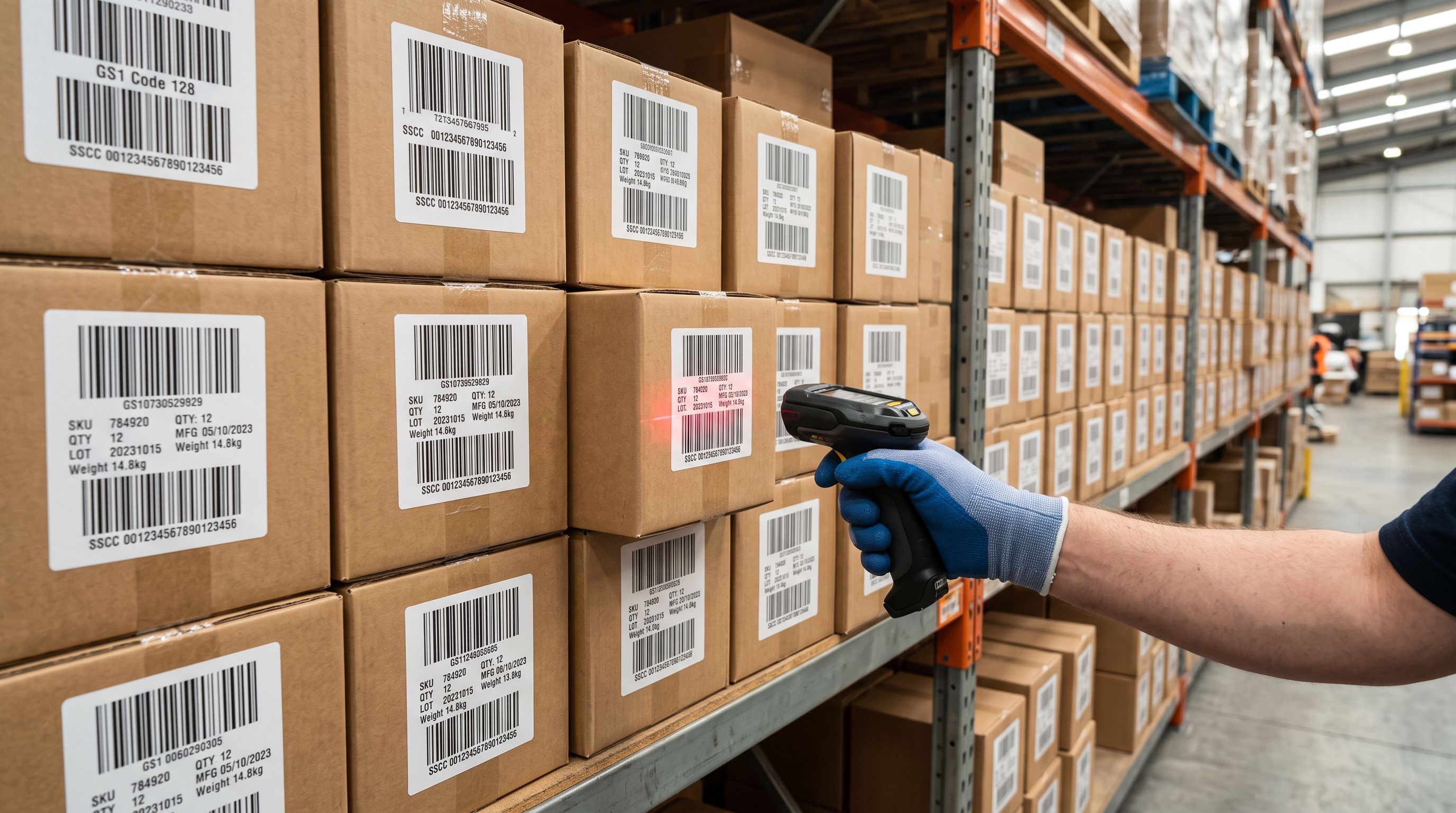
A GTIN (Global Trade Item Number) is the family of barcode identifiers that includes EAN-13, UPC-A, UPC-E, and other formats standardised by GS1. When a Shopify product has no barcode value, the Google Shopping feed submits the listing without a GTIN.
According to Google's product data specification for GTIN, products in categories where GTINs are expected (electronics, accessories, sporting goods, personal care, and many other manufactured goods categories) should include a valid GTIN when one exists. An absent GTIN is not an automatic disapproval in most categories, but it prevents Google from matching the listing to its own product catalogue data.
Without catalogue matching, the product misses impression sharing with other merchants selling the same item, and it receives lower priority in Shopping results for competitive queries. The distinction matters for the accessories merchant: these are products with GS1-registered identifiers, sold globally by multiple merchants. Google expects to see a GTIN and, when it does not find one, it flags the listing rather than assuming the product has no barcode.
Why Supplier Files Often Skip the Barcode Column
Suppliers export product data in whatever format their internal systems produce. Most supplier systems track products by their own internal SKU or model number, not by GTIN. The GTIN is relevant to the retailer for sales channels; it is often irrelevant to the supplier's internal operations.
Some suppliers maintain product catalogues on their own websites and know their EAN codes, but omit them from CSV exports simply because no retailer has asked for them in that format. Others generate their export from a warehouse management or ERP system where the barcode field exists but is excluded from the merchant-facing export template.
The result is a common pattern: a well-organised supplier file with complete data for everything the supplier considers important (price, stock, model number, weight) and a missing column for the one value that most affects Google Shopping eligibility.

How Importier's AI Barcode Enrichment Works
Importier includes a barcode lookup as part of its AI enrichment step. When barcode enrichment is enabled during an import, Importier's AI takes each product's title, brand, and model number and searches for the registered GTIN.
For the electronics accessories merchant importing 200 products: the supplier file has a Brand column ("Anker", "Baseus", "UGREEN") and a Model column ("A2347", "BS-U022BJ", "UG-60400"). These two values, combined with the product title, are sufficient for the AI to locate the EAN-13 or UPC-A code registered for each product. Importier then populates Shopify's Barcode field automatically before the products are pushed to the store.
From the merchant's side: enable barcode enrichment in the import settings, run the import, and the Barcode field is filled. No manual lookup, no browser tabs searching GS1's public registry, no follow-up emails to the supplier.
- 01In Importier, upload your supplier file and proceed through the field mapper. Map Title, Brand (to Vendor), Model No. (to a custom field or the SKU), and any other columns in your file. You do not need a barcode column to proceed.
- 02In the enrichment settings step, enable the barcode lookup option. This tells Importier's AI to search for a registered GTIN for each product using the title, brand, and model information mapped from your file.
- 03Configure any other enrichment options you need. Importier's AI can also fill missing weight, product type, and category at the same step. Run the import.
- 04After the import completes, open Shopify admin and check a sample of products. Each product where a GTIN was found will show a value in the Barcode field. Products where no registered GTIN could be located will have a blank barcode field.
- 05Wait for the next Google channel feed sync and check Merchant Centre Diagnostics. Products with populated Barcode fields will no longer show the 'Missinggtin [gtin]' warning for those listings.

What Enrichment Can and Cannot Find
Not every product will get a GTIN through enrichment. Understanding the boundaries helps set expectations before running the import.
Products enrichment can reliably find GTINs for: major branded accessories and electronics from manufacturers with GS1 registrations: Anker, Belkin, Logitech, Sony, Samsung, UGREEN, Baseus, and similar brands that register their products globally. Consumer goods in competitive categories where multiple retailers list the same item. Products with a model number specific enough that only one GTIN matches in the registry.
Products where enrichment may not find a GTIN: private-label accessories with no manufacturer registration, OEM products sold under a house brand with no public barcode registration, and regional products registered only in specific national databases. For these products, the barcode field remains blank after enrichment.
The article on Shopify MPN and Google Merchant Centre identifiers covers how to use the MPN metafield as an alternative identifier for products that genuinely have no GS1 registration. This is the pattern for tools, hardware, and manufacturer-branded goods that use model numbers rather than GTINs. If the product genuinely has no manufacturer identifier at all, Google's guidance allows setting identifier_exists: false to acknowledge the absence rather than leaving the field ambiguously blank.
Running Barcode Enrichment on Products Already in Shopify
For products imported before barcode enrichment was configured, or for a catalogue built over years without barcode data, a targeted update import adds the GTIN values without touching any other product data.
The update import requires a spreadsheet with the product Handle (for identification) and, optionally, the Brand and Model Number columns to help enrichment narrow its search. Export the current product list from Shopify using Importier's Full Shopify CSV export preset to get all handles in one file. If your original supplier file had Brand and Model columns, merge those into the export by matching on SKU or product title.
In the field mapper, map Handle to Handle, Brand to Vendor if not already set, and enable barcode enrichment. Leave every other field unmapped. The update import fills only the barcode field; existing titles, descriptions, images, pricing, and metafields remain unchanged.
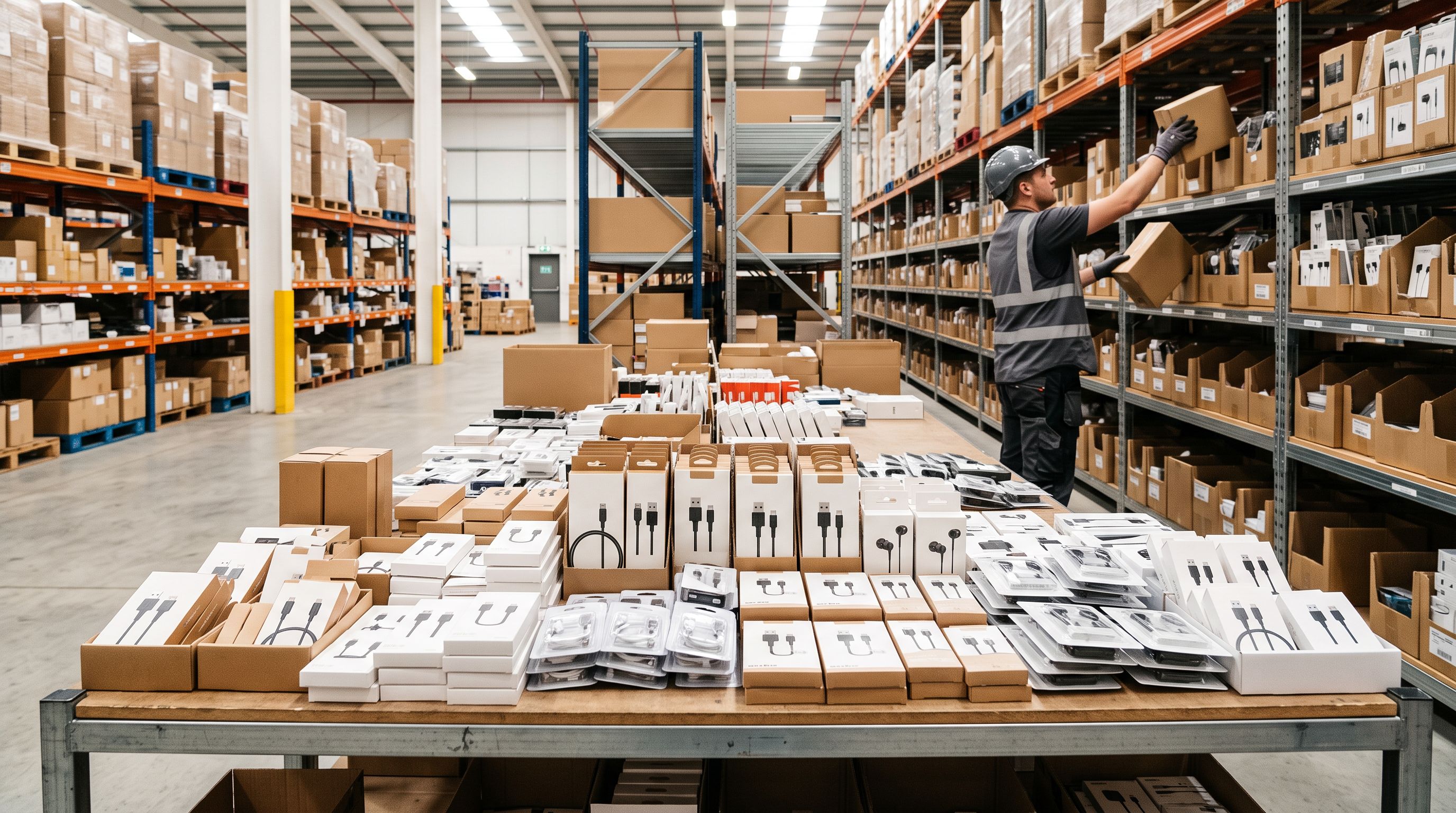
The GTIN was registered by the manufacturer before your first order. Enrichment finds it in seconds. Manual lookup at that scale takes days.
According to GS1's documentation on GTINs, the correct identifier for a product is the one assigned by the brand owner, not a value assigned by a retailer or distributor. Importier's barcode enrichment looks up this original brand-owner GTIN, the same value that appears on product packaging and that Google expects to see in Shopping feeds.
The Impact on Google Shopping After Enrichment
Once the Barcode field is populated and the Google channel syncs, Google's feed processor evaluates each product against its GTIN database. Products where the GTIN matches a registered product receive catalogue linkage: Google now knows which specific product this listing is, can cross-reference demand signals from other merchants selling the same item, and applies appropriate shopping query matching.
For the accessories merchant: of 200 imported products, enrichment fills GTINs for 184. Those 184 listings clear the "Missing: gtin [gtin]" warning on the next sync. The remaining 16 (private-label cable variants with no GS1 registration) stay blank. For those 16, the merchant sets identifier_exists: false through a targeted update import, which tells Google the products have no GTIN rather than leaving the field ambiguously empty.
The article on products missing from the Google Shopping feed covers the full range of feed eligibility issues. Missing GTINs sit in the "missing recommended attribute" category for most product types, which reduces impression volume rather than causing outright disapproval. For electronics categories specifically, the threshold for escalating a GTIN warning into a disapproval can be lower, so clearing these warnings is worth prioritising.

Managing mixed catalogues
Handling Catalogues with Both Registered and Unregistered Products
Most catalogues are not uniform. A single supplier file might include branded electronics accessories (with registered GTINs, findable through enrichment), house-brand accessories (private-label, no registration), and direct-manufacturer products (registered in the manufacturer's home country but not broadly indexed).
Importier's enrichment handles this naturally: it searches for each product individually and fills the barcode when a match is found. Products where no match exists are left blank. No manual sorting of the supplier file is required to handle the mix.
What the merchant needs to handle separately:
- Products left blank after enrichment should be evaluated: do they need MPN mapping, or
identifier_exists: false? - Products where enrichment found a GTIN that looks inconsistent with the model number should be verified manually against the manufacturer's product page before pushing.
- Products where the supplier later provides the correct barcode can be updated with a single-row update import that maps Handle and Barcode, overwriting the enriched value.
- Open a browser for each product. Search GS1's public registry or the manufacturer's site by model number. Copy the EAN or UPC. Enter it into Shopify admin, one product at a time. For 200 products: 8-12 hours of manual data entry.
- Products added next month follow the same process with no time savings.
- Enable barcode enrichment in import settings. Run the import. Importier's AI looks up each GTIN using title, brand, and model. Barcode fields populate automatically before products push to Shopify. 200 products: under 10 minutes total.
- Products added next month use the same enrichment setting. No additional effort required.
The article on adding barcodes to Shopify products in bulk covers the workflow for when your supplier file includes a barcode column that just needs to be mapped to Shopify's Barcode field. For catalogues where the barcode data is not in the supplier file at all, barcode enrichment fills that gap without requiring any changes to how you receive data from the supplier.
Key Takeaways
-
"Missing: gtin [gtin]" in Google Merchant Centre Diagnostics means the product's Barcode field in Shopify is empty, and Google expected a GTIN for that product category. The warning reduces impression volume in Shopping but does not cause outright disapproval in most categories.
-
The GTIN often exists, the supplier file just does not include it. Internationally traded manufactured goods from brands with GS1 registrations have searchable GTINs. The gap is between what the supplier exported and what is already in the GS1 product database.
-
Importier's barcode enrichment fills the gap at import time. Enable the barcode lookup option during an import, and Importier's AI searches for the registered GTIN for each product using its title, brand, and model number. For most branded accessories and electronics, the GTIN is found and populated automatically.
-
Enrichment leaves blanks for products with no registered GTIN. Private-label goods, custom-manufactured accessories, and unregistered products will not get a barcode through enrichment. Use the MPN metafield for these (see Shopify MPN and Google Merchant Centre identifiers) or set
identifier_exists: falseto acknowledge that no GTIN exists. -
Update imports add barcodes to products already in Shopify. Map Handle and enable barcode enrichment. All other product data stays unchanged.
Fill your Shopify Barcode field at import time and give Google Shopping the product identifiers it needs at importier.app.
Set up your first import in under five minutes.
Importier brings products into Shopify with AI descriptions, category metafields, and data enrichment on every run.