Shopify Marketplace Import Price Markup: How to Set Margins
On this page
A candle dropshipper imports 60 products from a supplier website. The supplier charges $4.50 per pillar candle. The merchant manually calculates a 45% markup, rounds to $6.99, and enters the sell price in Shopify admin for each product. Six weeks later the supplier raises their price to $5.20. The merchant recalculates every product individually. On 60 products, that is roughly 40 minutes of arithmetic and data entry, repeated every time the supplier reprices.
Importier's shopify marketplace import price markup step applies a percentage margin at import time. Every product in the import batch receives the sell price calculated from the source price and the markup percentage, with no manual calculation required. The source price is set as the compare-at price automatically, creating the "was/now" pricing display that Shopify uses for sale indicators.
What a Marketplace Import Gives You Without a Markup Step
When Importier imports products from a marketplace URL (a supplier's website, an AliExpress listing, an Amazon product page, or an eBay store), it extracts the price the product is listed for at the source. That extracted price is the cost price from the merchant's perspective, not the sell price.
Without a markup step, the imported price becomes the Shopify selling price directly. A product listed at $4.50 on a supplier site arrives in Shopify at $4.50. The merchant sells it for $4.50. There is no margin built in.
Importier's marketplace import review step sits between extraction and push-to-Shopify. At this step, before any product is written to the store, merchants configure the pricing they want to apply to the batch:
Percentage markup: each product's selling price equals the extracted price multiplied by (1 + markup%). A 40% markup on a $4.50 source price sets the Shopify price to $6.30.
Fixed price override: each product receives a specific price regardless of the source price. Useful for product categories where the merchant maintains consistent sell prices across different cost tiers from different suppliers.
The markup applies to every product in the import batch simultaneously. A 40% markup on 60 products does not require 60 individual calculations.

How the Compare-At Price Works for Shopify Marketplace Imports
Shopify's compare-at price is the price that shows as a crossed-out "was" amount next to the selling price. Shopify's compare-at price documentation explains that it is stored as a separate field per variant (compare_at_price) and is completely independent of the price field. When compare_at_price is higher than price, Shopify's theme displays the sale indicator automatically, with no discount code, no sale event, no manual toggle.
For marketplace imports, Importier sets:
price= source price × (1 + markup%)compare_at_price= source price
A product sourced at $8.99 with a 40% markup sells for $12.59. The compare-at price is $8.99. Shopify displays "$12.59" with "$8.99" crossed out, showing a saving of $3.60, or roughly 29% off.
This is the same compare-at mechanism described in detail in the Shopify compare-at price bulk import guide. The difference with marketplace imports is that Importier derives the compare-at from the extracted source price rather than requiring a manually specified value in a CSV column. The source price is already known from the extraction; applying a markup makes it the compare-at automatically.
The compare-at price reflects the actual supplier cost. Setting it is not a pricing trick: it is the honest price the supplier lists the product for, displayed as the "before" in a "before and after" pricing pair.
The Google Shopping Dimension: Sale Price Signals on Marketplace Imports
Shopify's Google Shopping integration passes both price and compare_at_price to Google Merchant Centre. When a product has a compare-at price that is higher than the selling price, Merchant Centre includes a sale_price field in the product feed alongside the regular price. This is separate from running a Shopify discount campaign or scheduling a promotional sale.
Google's product listing algorithm treats listings with a valid sale_price field as eligible for a "Sale" badge in Shopping results. The badge appears in the product card under the product image and title. Google Merchant Centre's documentation on price feeds covers the sale_price and sale_price_effective_date attributes that control this badge.
For marketplace importers, this creates a concrete practical advantage: a dropshipper who imports at $8.99 and applies a 40% markup to $12.59, with the source price as compare-at, has products that appear in Google Shopping with a Sale badge from the day they are imported, without running any promotional campaign. The badge increases Shopping visibility and CTR without additional advertising setup.
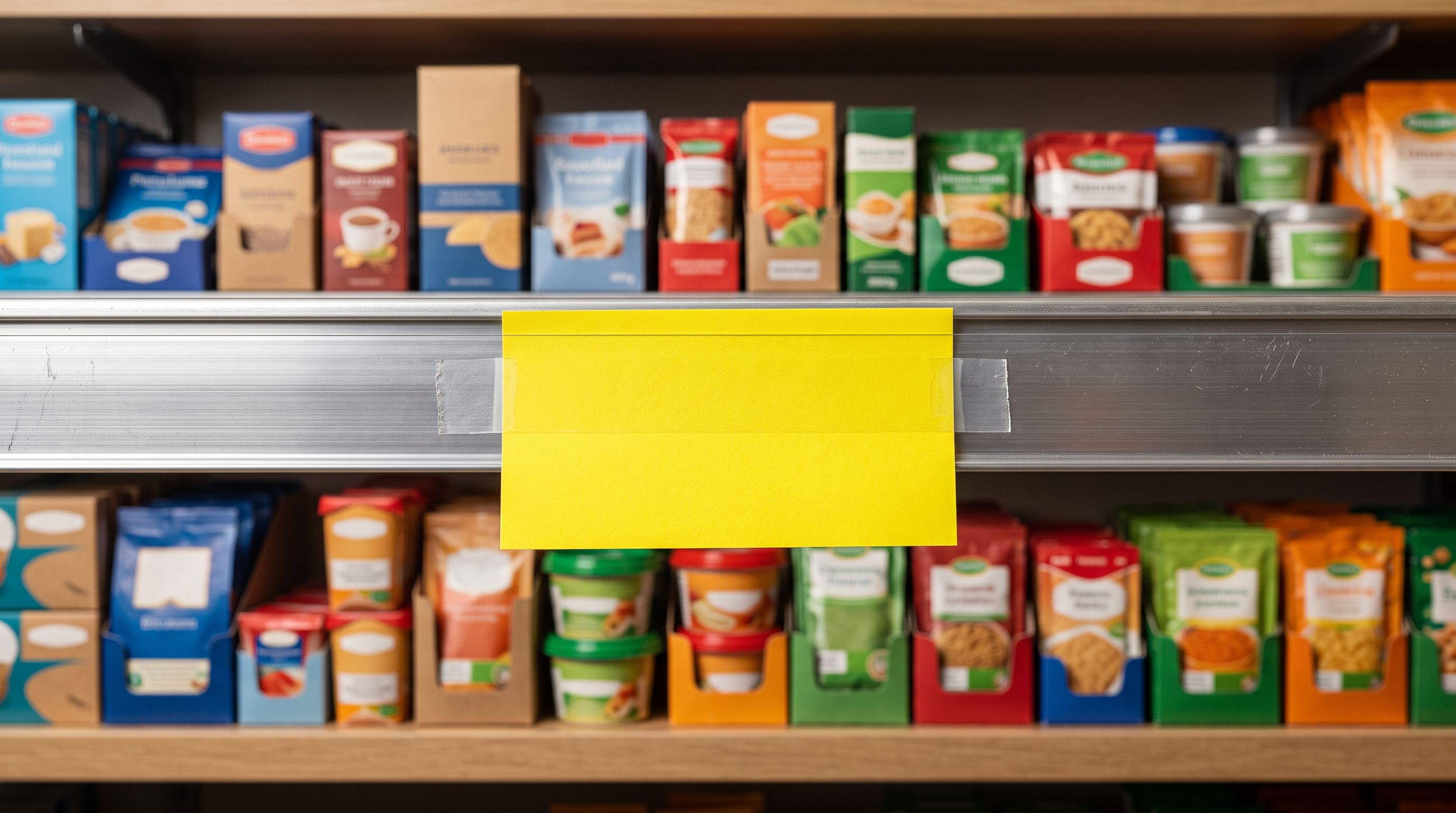
The mechanism: the compare-at price set at import time persists on the product until the merchant changes it. It is not a time-limited sale price. Products remain Sale-badge-eligible in Google Shopping as long as the compare-at stays above the sell price.
Calculating the Right Markup Percentage for Shopify Marketplace Imports
The markup percentage in Importier's review step should account for the merchant's full cost structure, not just the supplier's listed price. The source price from the supplier site or marketplace page is the wholesale cost; shipping, payment processing, platform fees, and the target margin are the remaining inputs.
A simplified cost model for marketplace imports:
True cost = source price + shipping per unit + Shopify/payment processing fee + any import duty
If the source price is $4.50 and true cost after shipping and fees is $6.50, a markup percentage calculated on the $4.50 source price alone will underestimate the actual margin. A 40% markup on $4.50 gives a sell price of $6.30, which is below the $6.50 true cost. The product would be sold at a loss.
The correct approach: calculate what sell price is needed to achieve the target margin above true cost, then derive the markup percentage on the source price that produces that sell price.
Example: true cost is $6.50, target margin is 30% above true cost ($1.95 margin), required sell price is $8.45. Markup percentage on source price = ($8.45 − $4.50) / $4.50 = 87.8%, rounded to 88%.
Once this calculation is done for a product category from a specific supplier, the markup percentage is entered once in the Importier import template. Every future import from that supplier, using the same template, applies the same margin logic automatically.
- 01Step 1Before importing, calculate the landed cost per product: supplier price plus shipping, payment processing, and any import duty. This is the cost floor. A markup percentage set on the supplier price alone will not account for these costs.
- 02Step 2Decide on a target margin percentage above landed cost for this product category. Express this as a markup percentage on the source supplier price. This is the value that goes in the Importier price markup field.
- 03Step 3In Importier's marketplace import review step, enter the calculated markup percentage. The screen shows the source price, the calculated sell price, and the compare-at price for every product in the batch before anything is committed.
- 04Step 4Review the calculated prices. Any product where the sell price looks thin against your landed cost is visible at this stage. Adjust the markup percentage if needed before the import pushes to Shopify.
- 05Step 5Confirm the import. Importier sets price and compare-at on every imported product. Shopify's Google Shopping integration picks up both fields on the next feed sync; Sale badges activate automatically for products with compare-at above sell price.
- 06Step 6When the supplier updates their price list, re-import using the same template with the updated source file. The same markup percentage applies to the new prices automatically, and compare-at updates to reflect the new source price.

Re-Importing When Supplier Prices Change
The practical advantage of setting price markup at import time is that the logic persists in the import template. When a supplier changes their prices (raising wholesale costs for a seasonal range, or reducing prices after a bulk purchase negotiation), re-importing with the same template applies the same markup percentage to the new source prices.
The re-import updates both price and compare_at_price on existing Shopify products. A product that previously cost $4.50 and sold for $6.30 (40% markup) will correctly update to $7.28 (40% markup on the new $5.20 cost) after re-import. The compare-at updates to $5.20, maintaining the pricing relationship accurately.
This is what manual repricing replaces: instead of recalculating 60 products when a supplier raises their price by $0.70, the merchant re-runs the import with the updated supplier URL set or file and the same template.
For AliExpress to Shopify imports, supplier price changes are frequent, especially around platform sales events when suppliers temporarily lower their prices and then restore them. A template-based import with a fixed markup percentage keeps the Shopify store's margins consistent regardless of supplier price movement.
What to Know About the Enterprise Feature Scope
The Marketplace Import feature (URL scraping, per-variant extraction, price markup step, and bulk import) is available on Importier's Enterprise plan. Growth and Scale plan merchants can import products from CSV and Excel files with price columns, and set compare-at prices via those columns, but the marketplace URL import with automatic markup is Enterprise-only.
For Enterprise merchants importing from multiple supplier sources at different margin requirements, the import template stores the markup percentage per supplier. A merchant importing candles from Supplier A (40% markup) and bath products from Supplier B (55% markup) maintains separate templates, each applying the correct margin to that supplier's product catalogue.
The pricing logic in the template also covers the compare-at price setting. There is no separate configuration required to activate compare-at on import: it follows automatically from the markup percentage being greater than zero.
- Supplier price imports as sell price; merchant must adjust each product manually in admin
- No compare-at price; Shopify theme shows no sale indicator for imported products
- Google Shopping feed has no sale_price field; products ineligible for Sale badge on import
- Supplier price updates require manual recalculation of every affected product
- Margin inconsistencies across product categories from suppliers at different cost tiers
- Percentage markup applied to every product in the batch at import; sell price calculated automatically
- Source price set as compare-at automatically; Shopify sale indicator activates on import day
- Google Shopping feed includes sale_price from compare-at; Sale badge eligible immediately after import
- Re-import with the same template applies the same markup percentage to updated supplier prices
- Import template stores the margin percentage per supplier; consistent pricing across all future imports
Pricing logic belongs in the import template, not the product page
Key Takeaways
The Shopify marketplace import price markup in Importier collapses two manual steps (applying a margin and setting a compare-at price) into a single configuration that applies to the entire import batch before anything reaches the Shopify store.
- The markup percentage is applied before push-to-Shopify. The review step shows the calculated sell prices and compare-at prices for every product in the batch. If the margin looks wrong on any product, the markup can be adjusted before the import commits.
- Compare-at price is set to the source price automatically. This creates the "was/now" display in Shopify themes and the
sale_pricefield in the Google Shopping feed, without a separate discounting step. - The Sale badge in Google Shopping is triggered by a valid compare-at price. Marketplace-imported products with a compare-at price above the sell price are eligible for the Sale badge in Shopping results from the first day after import, without running a promotional campaign.
- Markup percentage should be calculated on landed cost, not supplier price alone. The source price excludes shipping, payment processing, and duty costs. A markup on supplier price alone may produce sell prices below the true cost floor.
- Re-importing with the same template applies the same margin to updated prices. Supplier price changes do not require manual recalculation; they require a re-import with the updated supplier file and the same template.
- Importier shows calculated prices before committing the import. The review step is the checkpoint: every product's calculated sell price and compare-at are visible before the import pushes to Shopify.
Import from any marketplace with automatic margin and compare-at pricing at importier.app.
Set up your first import in under five minutes.
Importier brings products into Shopify with AI descriptions, category metafields, and data enrichment on every run.