Shopify Import: Update Prices Without Overwriting Inventory

On this page
A homewares merchant runs a seasonal price update. Their supplier sends a CSV with 280 SKUs, each with an updated retail price. The merchant runs the file through the import wizard. The import completes in four minutes. Thirty seconds later, their warehouse manager calls: every product in the system now shows zero available stock.
The supplier's CSV had an Inventory Quantity column. It contained the supplier's own stock counts. The import wizard mapped it automatically because the column header matched. Two hundred and eighty products now show stock counts from the supplier's warehouse instead of the merchant's own.
This is the Shopify import inventory overwrite problem. It happens when a supplier file contains fields beyond the intended update target, and the import maps them without restriction. It is not an import error. The import completed exactly as configured. The problem is that the configuration captured more than intended.
Why Shopify update imports overwrite inventory by default
Shopify's import system, and most import tools built on top of it, apply a replacement model to every mapped field. When a row matches an existing product (by Handle, SKU, or barcode depending on the tool) and a field is mapped, the import writes the file's value to that field regardless of what was there before.
There is no merge or comparison logic. The import does not check whether the new value is better than the existing value. It does not flag when a field that holds meaningful data is about to be overwritten with a supplier's value. It writes the file's content to the mapped field, every time.
For price updates, this model is what you want for the price and compare-at price fields. You want the new price to replace the old one. For inventory quantity, you usually do not. A merchant managing real stock levels has counts that reflect actual warehouse inventory, incoming transfers, committed orders, and buffer thresholds. A supplier's inventory column reflects their warehouse, not yours.
The three fields supplier CSVs most commonly overwrite by accident
Supplier files are built for the supplier's system, not yours. They contain every field their system exports, whether or not you need it. The three fields that cause the most damage when mapped unintentionally are:
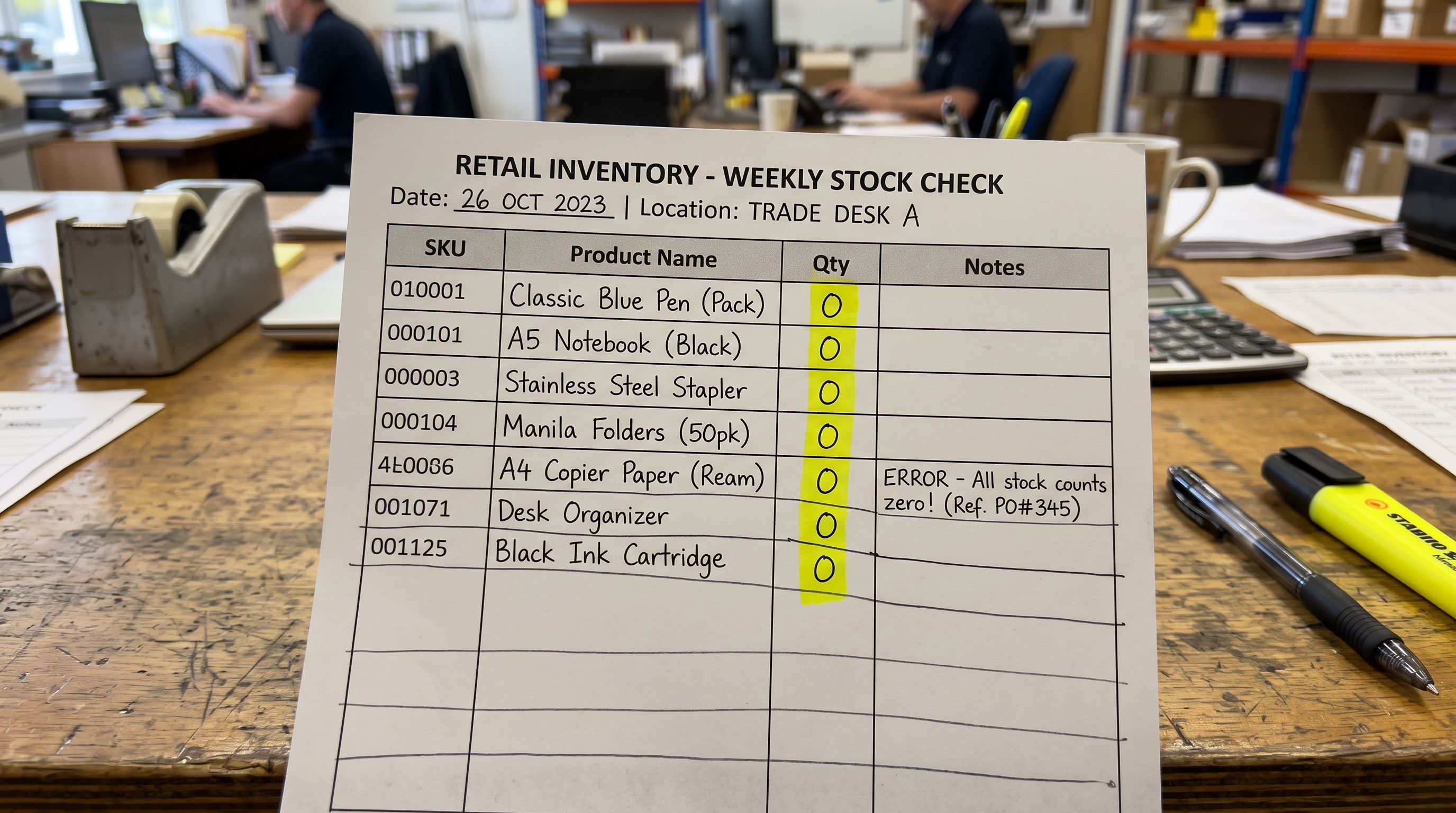
Inventory quantity. Supplier price update files routinely include a Quantity column showing the supplier's current stock. If mapped, it replaces your actual stock level with the supplier's. For products the supplier is currently out of, this sets your stock to zero, removing them from active inventory visibility and from sales channels.
Product descriptions. Supplier files often include a Description column with generic, shared product copy. If mapped, it overwrites custom AI-generated or manually written descriptions. The Shopify import overwrites descriptions article covers this case in detail. The inventory case works the same way. The mechanism is identical, the field being destroyed is different.
Images. Some supplier export formats include an Image Src column with links to their hosted images. If mapped, it replaces any custom product photography with supplier stock images. For merchants who have invested in original product photos, a single accidental import can replace the entire image library.
All three happen for the same reason: the import wizard recognises the column header and maps it. The merchant's intent was to update prices. The file contained additional columns. The additional columns mapped and wrote.
How Importier's column mapping prevents the overwrite
Importier's 14-step import wizard includes a column mapping screen where every column in the source file is shown alongside the Shopify field it will update. For each column, the merchant can either confirm the mapping or set the column to "Do not import".
A column set to "Do not import" is present in the file but its values are not written to Shopify. The column exists, is read by the wizard, and is discarded at the write step. No values from that column reach any Shopify product.
For a price update import, the correct mapping for a supplier file that also contains inventory and description data is:
- Price → Variant Price (mapped)
- Compare At Price → Variant Compare At Price (mapped, if running a sale)
- SKU or Barcode → Variant SKU or Barcode (mapped, required for the match key)
- Inventory Quantity → Do not import
- Description → Do not import
- Image Src → Do not import
The result is an import that updates exactly the fields you intend. Every other field in the Shopify product record is unchanged.

The column mapping screen is the only place in the import flow where a merchant explicitly controls which fields get written. It is also the step most often skipped or left on auto-map defaults.
Step-by-step: running a safe price update import
- 01Step 1Review the supplier file before importing. Open the CSV in a spreadsheet and note every column header. Identify which columns contain data you want to update (price, compare-at price) and which contain data you want to preserve (description, quantity, images). This takes two minutes and prevents the need to reconstruct data after an overwrite.
- 02Step 2In the import wizard, proceed to the column mapping screen. Importier auto-maps columns based on header names. Review the mapping for every column, not just the ones you intend to update. Look specifically for Quantity, Description, Body HTML, Image Src, and Vendor columns.
- 03Step 3Set any column you do not intend to update to 'Do not import'. A column set to Do not import is discarded at the write step. Its values are never sent to Shopify. Confirm that Price, Compare At Price, and the match key column (SKU or barcode) remain mapped.
- 04Step 4Review the preview table. Importier shows a line-by-line preview of the changes that will be applied before anything is written to Shopify. Check the proposed price values for a sample of products. Confirm the quantity column does not appear in the preview. If it does, return to mapping and check that it is set to Do not import.
- 05Step 5Confirm the import. Once the preview shows only the intended changes, confirm the batch. The import writes the mapped fields only. After the import completes, spot-check three or four products in Shopify admin to confirm their inventory levels and descriptions are unchanged.
Saving a named mapping profile for recurring imports
Supplier price update files arrive on a schedule: weekly, monthly, quarterly. Running the mapping review manually each time introduces the risk that a column is re-mapped by accident when the file format changes slightly between updates.
Importier lets merchants save a named mapping profile after configuring the mapping screen. The profile stores which column maps to which Shopify field and which columns are set to "Do not import". On the next import of a file with the same column headers, loading the saved profile applies the same mapping automatically.

For a merchant receiving weekly supplier price updates, a named profile named "Supplier Weekly Price File" saves the column exclusions and removes the risk of a manual mapping error on the forty-third weekly import.
- Inventory Quantity column auto-maps, overwrites real stock levels with supplier numbers
- Description column auto-maps, overwrites SEO copy with supplier boilerplate
- Image Src column auto-maps, replaces custom photography with supplier stock images
- Every import carries the risk of accidental overwrites on unchanged columns
- Recovering from an overwrite requires knowing the correct value for every affected field per product
- Inventory Quantity set to Do not import, real stock levels remain untouched
- Description set to Do not import, AI-generated or manually written copy is preserved
- Image Src set to Do not import, original product photography stays in place
- Named mapping profile saves the exclusions for recurring file formats
- Import preview shows only the intended fields, making it visible before anything writes to Shopify
Using the Pricing export preset to build a clean update file
One reliable approach to supplier price updates is to not import the supplier's original file at all. Instead, export your current product catalogue using Importier's Pricing export preset, which produces a CSV containing your Shopify product handles (or SKUs, depending on configuration), current prices, and compare-at prices. Update the price columns in this file with the supplier's new prices, and import the result.
The advantage of this approach is that the update file contains only the fields that will be written: handles or match keys, current prices, new prices. There is no Inventory Quantity column. There is no Description column. The accidental mapping problem cannot occur because the columns that would cause it are not in the file.
Shopify's product import and export documentation covers the fields that its native CSV format supports. For merchants managing price updates at scale, building the update file from a known-good export template, not from the supplier's own export, removes the source of the problem.
For catalogues managed via Importier, the Import History panel records every import as a batch with date, time, file name, and product count. After a price update import, Import History shows the exact scope of what changed. If a column was incorrectly mapped and inventory was overwritten, the Import History batch represents the boundary of affected products. The batch size tells you exactly how many inventory values need to be corrected.

Map only what you intend to change
How Shopify handles inventory quantities during an import
Shopify's inventory system tracks two figures per product variant per location: the quantity on hand and the quantity available. Available is on-hand minus committed (quantities reserved by open orders and transfers). Shopify's getting started with inventory documentation explains how these figures interact.
When a CSV import sets the Inventory Quantity field for a product, it replaces the on-hand quantity at the default location. It does not touch committed inventory or incoming transfers. For merchants operating across multiple locations, an import that sets Inventory Quantity updates only the default location. Other locations retain their previous counts.
This means a partial overwrite is possible: a multi-location merchant who imports a supplier file with a single Inventory Quantity column may appear to have their inventory intact across secondary locations while their primary location is now showing the supplier's count. The stock total across all locations will be wrong, but the problem is not immediately visible in a product-level view if secondary locations are not the default.
The safest practice for multi-location merchants receiving supplier price files is to set Inventory Quantity to "Do not import" without exception. Price updates do not require inventory data. Any inventory column in a price file is incidental export data from the supplier's system, not something a Shopify merchant should ever write to their own catalogue.
Key takeaways
Shopify update imports overwrite every mapped field on every matched product. The import does not compare old and new values. If a column is mapped, its value from the file replaces whatever is currently in Shopify.
- Inventory quantity is the field most likely to be overwritten without intent. Supplier price files commonly include a Quantity column reflecting the supplier's stock. If auto-mapped, it replaces the merchant's real stock levels. For a multi-location merchant, this may partially zero out the default location while leaving secondary locations intact.
- Set every non-target column to "Do not import" on the mapping screen. For a price update import, map only the match key (SKU or barcode) and the price fields. Set inventory, description, images, and vendor to "Do not import". The preview step confirms that only the intended fields appear in the change set.
- Named mapping profiles prevent recurring mistakes. Save the column mapping after configuring it correctly for a supplier file format. The saved profile applies the same mapping on subsequent imports, removing the risk of a column being re-mapped when the file format changes slightly.
- Build the update file from an Importier export, not from the supplier's file. The Pricing export preset produces a CSV with only the fields needed for a price update. A file that does not contain an Inventory Quantity column cannot overwrite inventory.
- Import History records the scope of every batch. After a price update import, Import History shows exactly which products were in the batch. If an incorrect mapping was applied, the batch count defines the boundary of affected products.
- Shopify multi-location inventory adds complexity. A single Quantity column in a supplier file updates the default location only. Multi-location merchants running price imports have additional reason to exclude inventory columns: a partial update across locations produces incorrect totals even when secondary locations appear untouched.
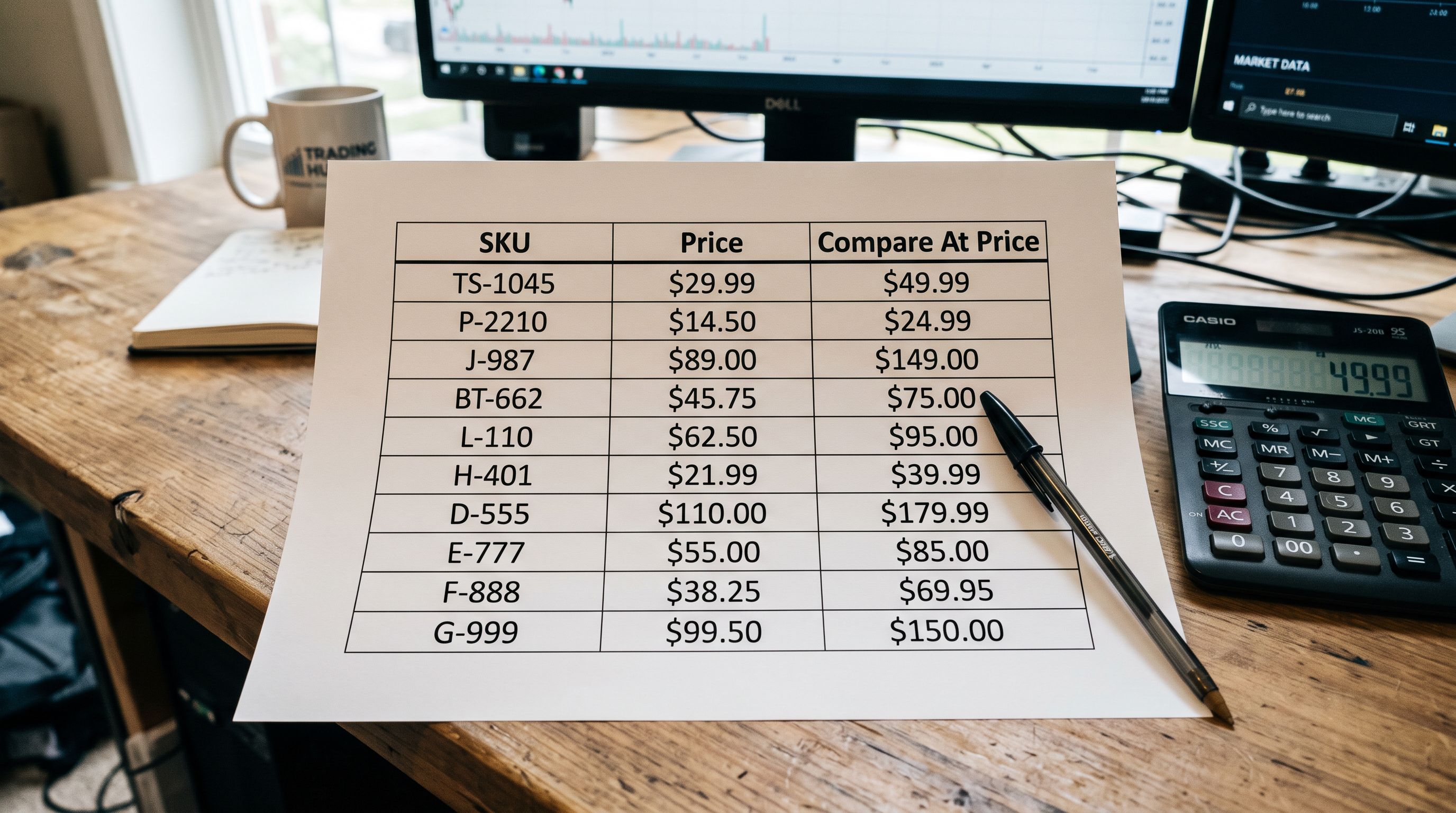
Update product prices without touching inventory at importier.app.
Set up your first import in under five minutes.
Importier brings products into Shopify with AI descriptions, category metafields, and data enrichment on every run.