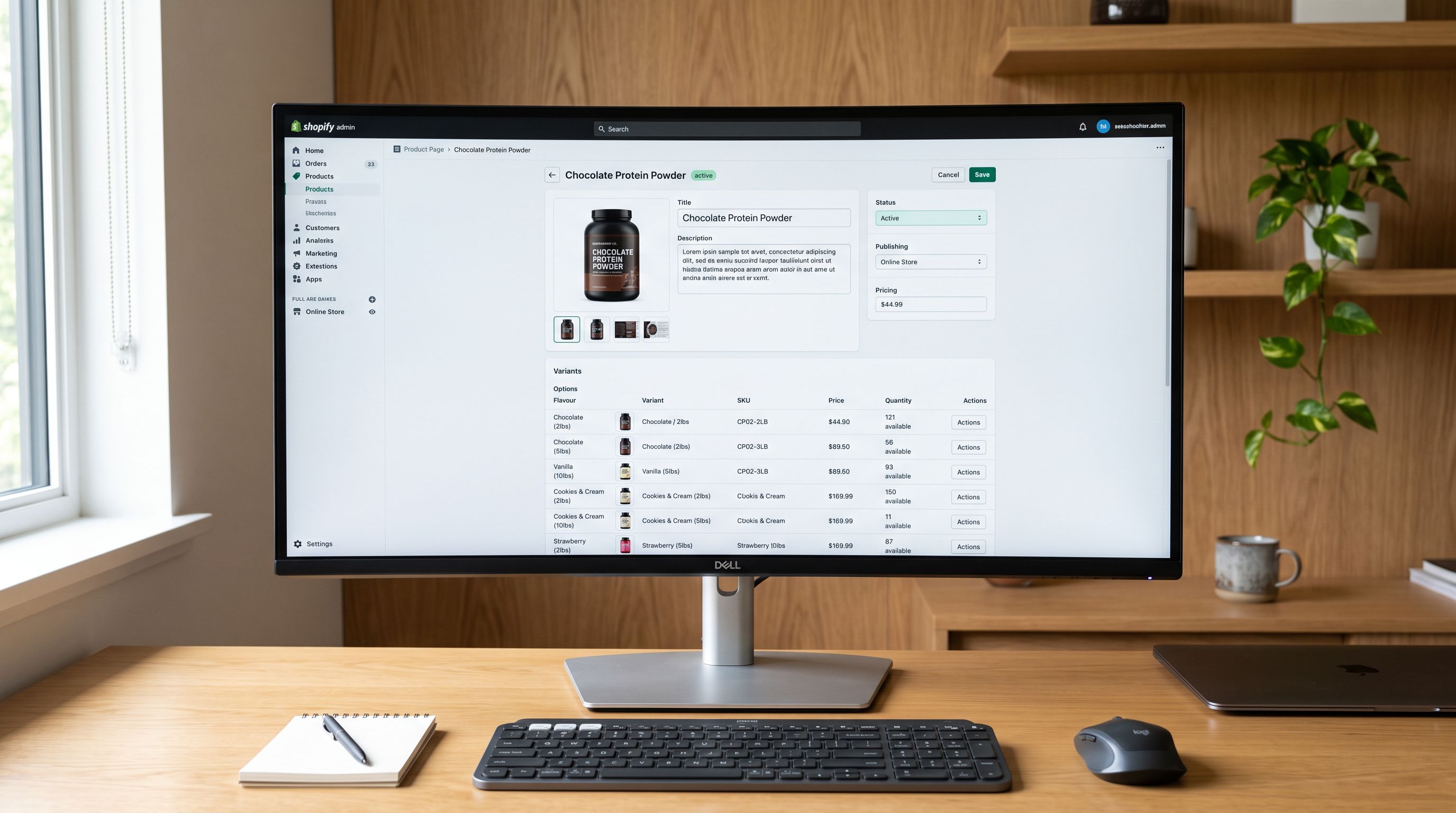
Shopify Post-Holiday Inventory Reconciliation: Sync Physical Counts After Peak

On this page
After BFCM closes, most merchants have two versions of their inventory: what Shopify says they have, and what the warehouse actually contains. These numbers should match. After a high-velocity sale event, they often do not.
The gap exists for several reasons. During peak, orders arrive faster than fulfilment systems process them. Oversell protection may have been disabled to avoid missing sales on popular variants. Manual stock adjustments get made under pressure and not logged. Returns from the previous week's orders begin arriving before the sale period ends. The warehouse team does a physical count on the Tuesday after Cyber Monday and finds the Shopify numbers are off: sometimes by a few units per SKU, sometimes by more.
A post-holiday inventory reconciliation import resets Shopify to match the physical count. It is a different operation from the mid-sale restock import, which updates specific variants with known incoming quantities. A reconciliation import sets every variant to the confirmed physical count; it is a full reset, not a targeted update.
Why Inventory Drifts During Peak
Understanding why the numbers diverge helps you build a more accurate reconciliation file.
Oversell race conditions: during peak traffic, multiple customers may add the last unit to their cart simultaneously. Shopify processes these sequentially, but the window between "added to cart" and "order confirmed" can allow both orders to complete on a single unit. The result is one physical unit against two confirmed orders.
Manual adjustments under pressure: warehouse staff adjusting counts in Shopify Admin during the sale sometimes enter the wrong number, adjust the wrong location, or adjust the wrong variant. These errors accumulate over a 72-hour sale window.
Returns not yet processed: BFCM returns begin arriving before the warehouse has time to process them back into available stock. The physical count includes returned units on the receiving dock; Shopify's count does not (until the return is processed in the order management system).
Location routing errors: merchants with multiple fulfilment locations sometimes ship from the wrong location, reducing physical stock at one location without a corresponding Shopify adjustment. The mismatch exists at the location level, not at the total inventory level, but it matters for order routing.
Receiving delays: supplier stock ordered in advance of BFCM may arrive at the warehouse during the sale, increasing physical stock before the receiving import runs. The warehouse has the units; Shopify does not know about them yet.
None of these individually represent a system failure. All of them together, across a large catalogue, produce a reconciliation gap that needs correcting before the Christmas trade period opens.
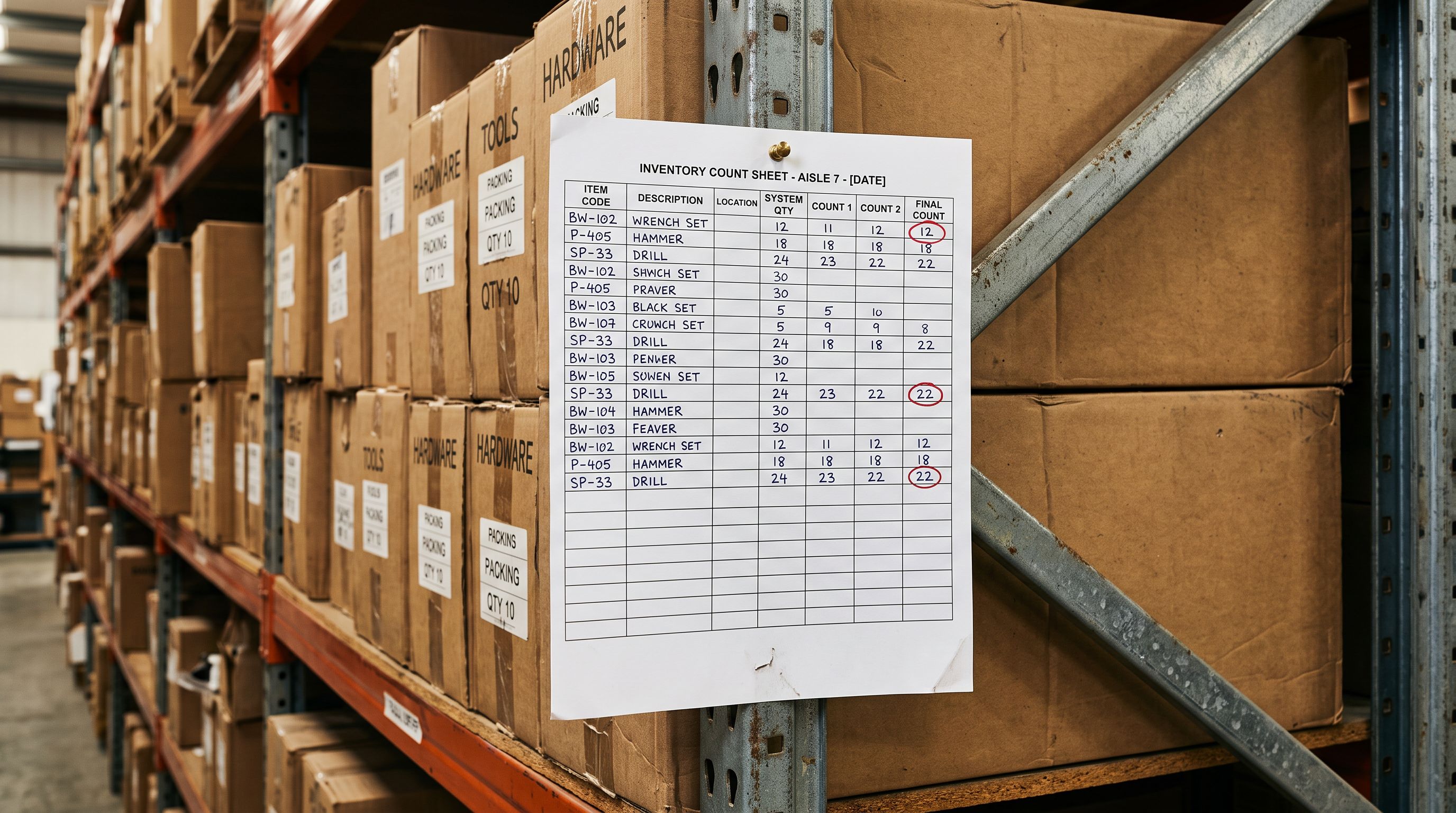
The Cycle Count Methodology
A cycle count is a physical inventory count conducted on a subset of products at a time, rather than a full warehouse count all at once. For post-BFCM reconciliation, the approach is:
-
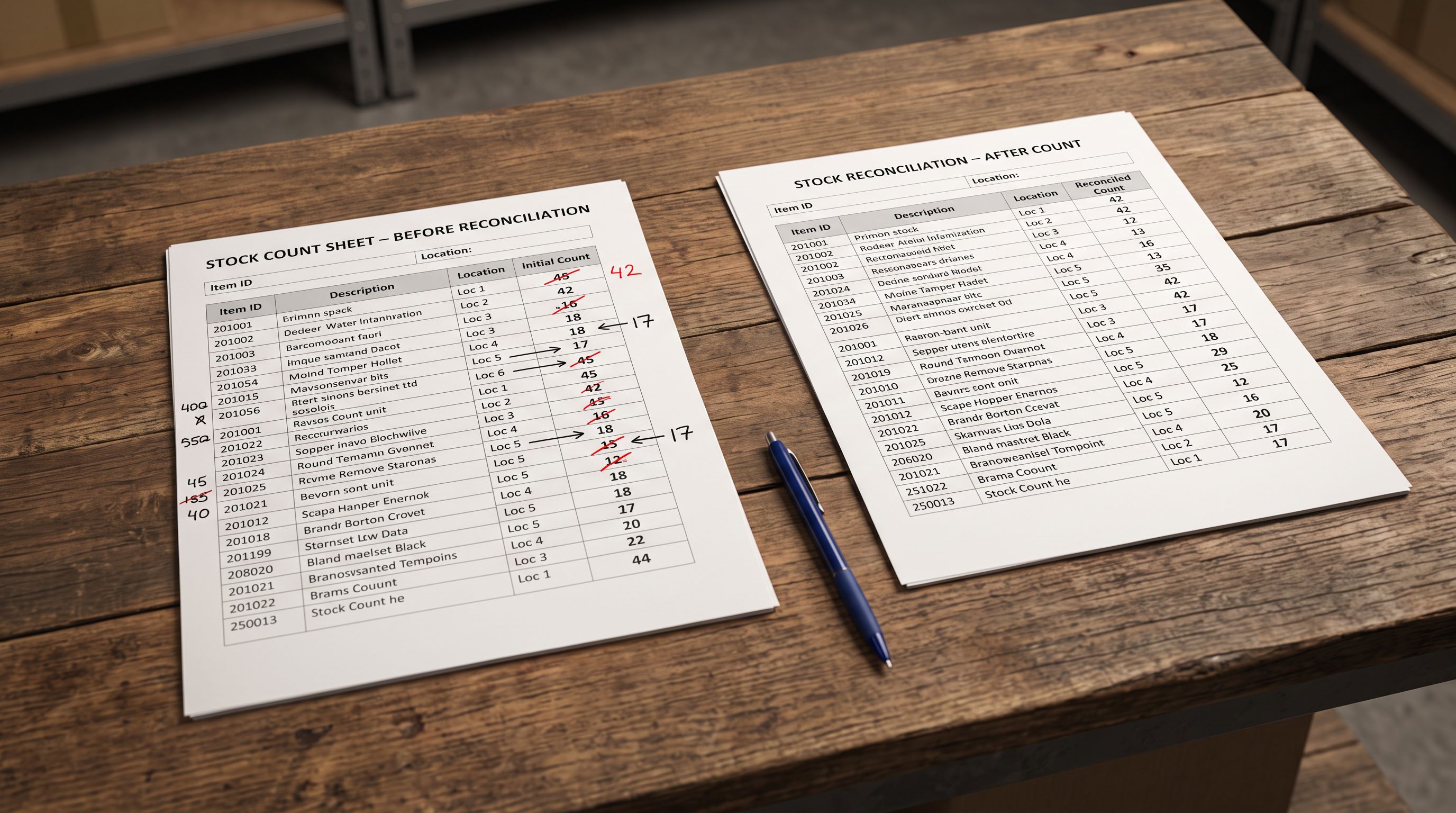
Count first, compare second, import third. The order matters. Do not adjust Shopify before the physical count is complete; partial adjustments create a moving target. Count the warehouse, produce the variance report, then import.
-
Prioritise high-velocity variants. The variants that sold fastest during BFCM are the most likely to have drifted. Count those first. Low-velocity variants that did not sell at all during BFCM are unlikely to have drifted and can be verified later.
-
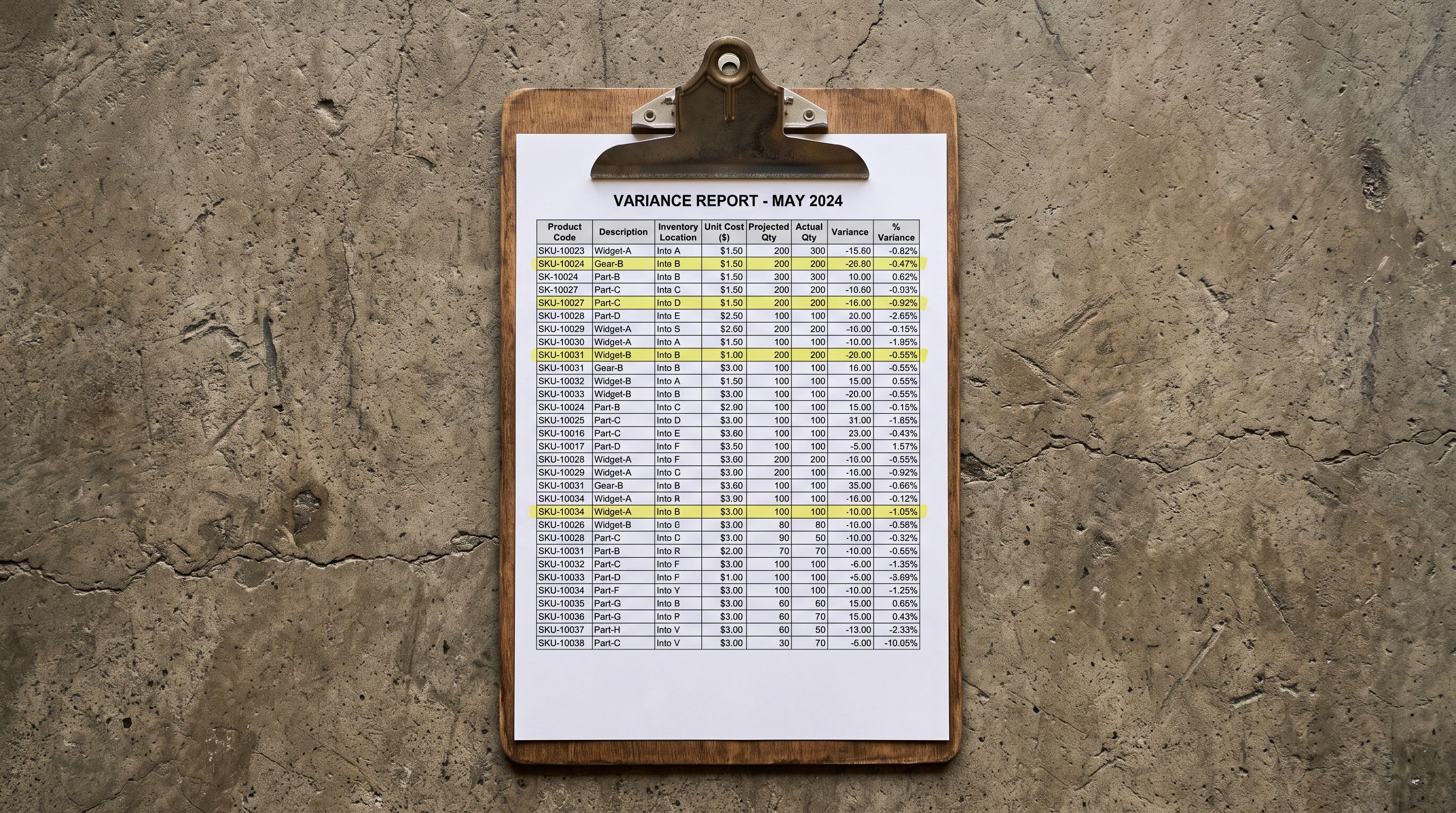
Investigate large variances before importing. A variance of 1-3 units per SKU is expected. A variance of 15 units on a variant that showed 20 in Shopify suggests something other than normal drift (an unprocessed receiving shipment, a large return batch, or a data entry error). Investigate before accepting the physical count as correct.
-
Treat the reconciliation file as a snapshot. Once the count is confirmed and the import runs, the resulting Shopify inventory numbers are the baseline for the Christmas period. Any further adjustment is a separate operation.
Building the Reconciliation Import File
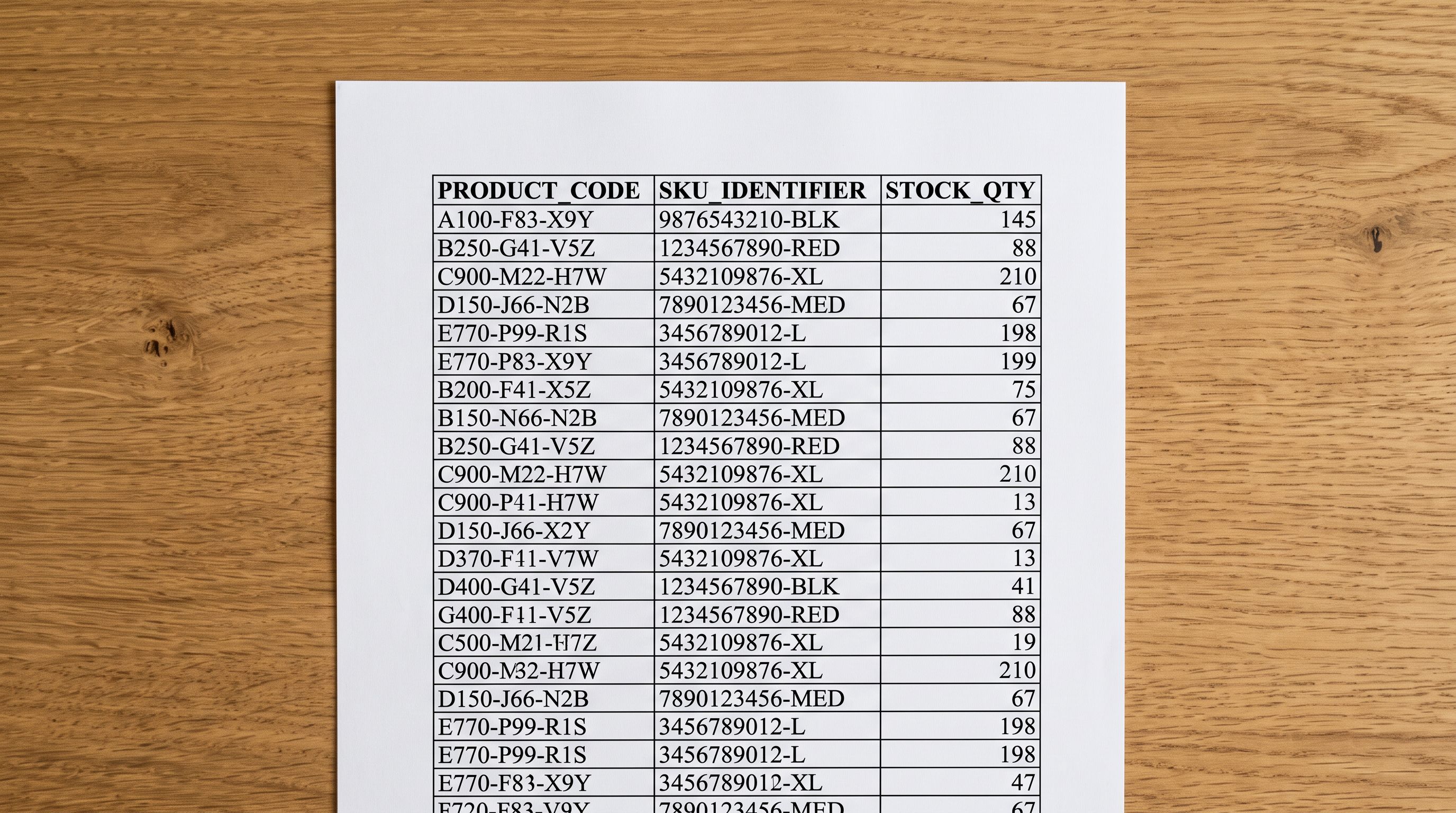
The reconciliation file structure is similar to the restock import but includes every variant in scope, not just the restocked ones.
| Handle | Variant SKU | Variant Inventory Qty |
|---|---|---|
| merino-crew-neck-sweater-navy | MCN-NVY-S | 7 |
| merino-crew-neck-sweater-navy | MCN-NVY-M | 3 |
| merino-crew-neck-sweater-navy | MCN-NVY-L | 11 |
| leather-tote-bag-tan | LTB-TAN-ONE | 9 |
Variant Inventory Qty is the absolute physical count: what the warehouse counted. Not the Shopify number. Not the difference. The count.
The fastest way to build this file: export the BFCM import file (which already has Handle and Variant SKU columns for every BFCM product), replace the Variant Inventory Qty column with the warehouse count data, and strip all other columns. If you are reconciling the full catalogue rather than just BFCM products, start from a Shopify product export (Admin → Products → Export) to get the complete Handle and Variant SKU list.
Do NOT include in the reconciliation file:
- Variant Price or Compare At Price (you cleared these in the BFCM Compare-At recovery import already)
- Description body (triggers AI regeneration on products that do not need it)
- Tags or status (do not alter collection membership during a count operation)
The reconciliation file is scoped to one operation: set inventory to the confirmed physical count.
The Reconciliation Import
Running the Reconciliation Import
- 01Finalise the warehouse countconfirm the physical count is complete for all variants in scope. Do not run a partial reconciliation; a half-imported file leaves some variants at the old Shopify count and some at the new physical count, which is harder to interpret than either starting state.
- 02Build the reconciliation fileHandle, Variant SKU, Variant Inventory Qty. Use absolute counts from the warehouse, not the Shopify numbers.
- 03Upload to Importierselect Update existing products only mode. This prevents new product creation from any Handle typos in the reconciliation file.
- 04Map columnsmap Handle to Product Handle, Variant SKU to Variant SKU, Variant Inventory Qty to Variant Inventory Qty. Map nothing else.
- 05Previewreview the preview table. For each variant, the count should match your warehouse sheet. If the preview shows an unexpected value (a count that does not match your sheet), check the row in the import file for a data entry error.
- 06Pushexecute the import. For 200-500 variant rows, the update completes within 1-2 minutes.
- 07Verify sample variantsopen three to five product pages in Shopify Admin and confirm the inventory counts match the warehouse count sheet. This is your spot-check before treating the reconciliation as complete.
Multi-Location Reconciliation
If your store uses multiple fulfilment locations, the reconciliation file needs a Variant Inventory Location column for each location-specific count.
| Handle | Variant SKU | Variant Inventory Qty | Variant Inventory Location |
|---|---|---|---|
| merino-crew-neck-sweater-navy | MCN-NVY-M | 3 | Sydney Warehouse |
| merino-crew-neck-sweater-navy | MCN-NVY-M | 8 | Melbourne 3PL |
Each variant appears once per location. The import sets the count for that variant at that location. Other locations are not touched by rows that do not reference them.
For merchants with BFCM routing errors (stock shipped from the wrong location), the multi-location reconciliation pass corrects the per-location imbalance. The total inventory across locations may be correct; the per-location counts are what need adjusting.
Shopify's inventory adjustment documentation covers how adjustments apply at the location level and how to view the adjustment history for audit purposes.
- Each variant adjusted one at a time in Shopify Admin; a 300-SKU catalogue takes hours
- Manual adjustments have no structured audit trail; hard to trace what changed and when
- Corrections made under time pressure (Christmas trade starts December 2) increase error risk
- Multi-location inventory requires navigating between location tabs for each adjustment
- No systematic way to verify the full count has been applied; partial corrections are hard to identify
- All variants reconciled in a single import pass in minutes
- Import log shows exact timestamp and all updated rows as an audit trail
- Reconciliation file prepared from warehouse count sheet; systematic and reviewable before importing
- Multi-location handled via Variant Inventory Location column in the same file
- Full count verification: preview table shows every variant before push; spot-check confirms completion
Count first, compare second, import third. Running a reconciliation import before the physical count is finished produces a snapshot of an incomplete count, not a correction.
What to Do After the Reconciliation
A completed reconciliation import establishes a clean inventory baseline for the Christmas period. Three follow-up actions:
Set low-stock thresholds: if your store uses Shopify's low-stock notifications or a third-party reorder tool, the reconciliation is the right moment to review threshold settings. The post-BFCM stock levels may require adjusting reorder points before Christmas.
Process outstanding returns: returns from BFCM orders that arrived after the count date are not in the reconciliation baseline. Process them through your order management system; they will adjust Shopify inventory automatically as they post. Shopify's refund and return processing documentation covers how restocking a refunded item adds units back to inventory at the fulfilment location.
Run a second spot-check on December 2: a brief spot-check on your highest-velocity variants on December 2 confirms that the reconciliation baseline held through the first days of post-BFCM returns and standard sales. Any major discrepancy at this point is a signal that returns processing is not posting to Shopify correctly.
For the broader workflow of setting up initial inventory for new products, the Shopify inventory import guide covers multi-location column format, location naming requirements, and how to structure inventory for products arriving from multiple suppliers.
A reconciliation import of 300-500 variants with a full physical count behind it takes roughly 20 minutes of import preparation and two minutes of import execution. The alternative is manually adjusting each variant in Shopify Admin; it takes the same warehouse count input and 3-4 hours of repetitive admin work, with no audit trail and a higher error rate. The count is the labour-intensive part. The import is not.
Try Importier free at importier.app.
Set up your first import in under five minutes.
Importier brings products into Shopify with AI descriptions, category metafields, and data enrichment on every run.
Free for your first 10 products. No credit card needed.