How to Handle Out-of-Stock Products in a Shopify Import

On this page
How to Handle Out-of-Stock Products in a Shopify Import
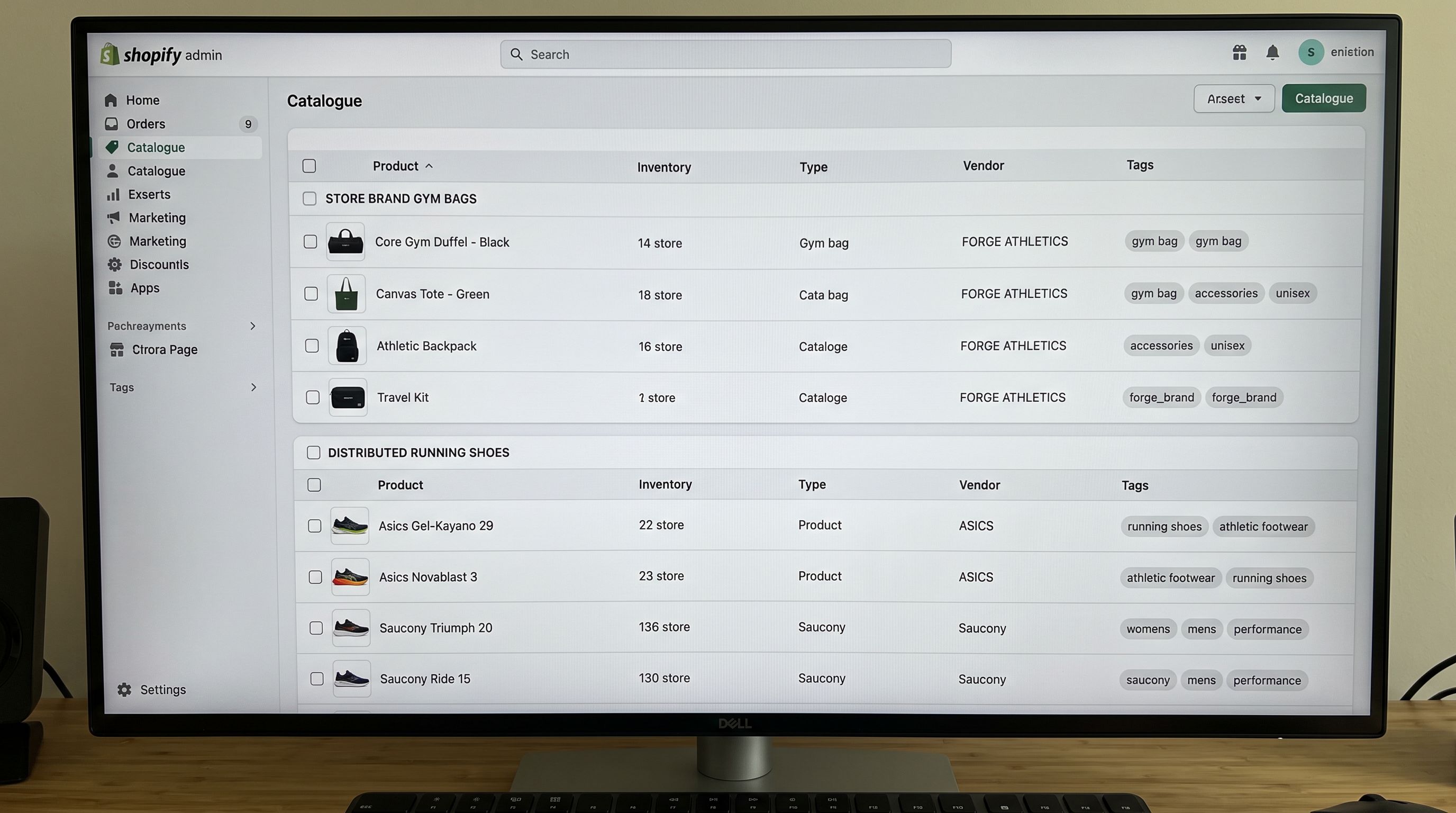
Supplier catalogues rarely contain only active, available products. A file from a clothing supplier might include styles that are discontinued for the season, lines that are on back-order for six weeks, and core items that are temporarily out of stock but returning. All of them are in the same CSV with the same column structure.
Importing the entire file without handling these products correctly creates problems. Customers land on product pages for items they cannot buy. Your Google Merchant feed gets populated with products that will fail availability checks. Your admin fills up with active listings for products you cannot ship.
The right approach is to handle unavailable products before they reach your live catalogue. Importier gives you three distinct options, and the correct one depends on what you plan to do with each product.
The Three Scenarios for Unavailable Products at Import
Before importing, identify which category each unavailable product falls into:
Temporarily out of stock: the product exists, will return, and you want it visible in your catalogue with an out-of-stock notice. Customers can find it, see the price and description, and know to check back.
Pre-order or back-order: the product is coming. You want it live, with the ability to take orders before stock arrives. The "Continue selling when out of stock" toggle is relevant here.
Discontinued or excluded: the product has no future in your store. You do not want it imported at all; it would create admin clutter and risk appearing in search results or feeds incorrectly.
Each scenario maps to a different import configuration.

Scenario 1: Import as Draft (Visible in Admin, Not Live to Customers)
Draft status means the product exists in your Shopify admin but is not published to any sales channel. Customers browsing your store, your Google Shopping feed, and your Facebook catalogue cannot see it. You can review, enrich, and publish individual products manually when they are ready.
This is the right choice for:
- Pre-order products that are not yet ready to sell, where you want to prepare the listing in advance
- Products you are unsure about: you want to import the data, review the descriptions, set pricing, and decide before going live
- Seasonal returns that need updated images or descriptions before reactivation
In Importier's import wizard, the product status step lets you set all products in the batch to Draft, or map a column from your supplier file to the Published field. If your supplier file has a "Status" column with values like "active", "discontinued", and "pre-order", you map that column to the Published/Draft Shopify field and configure which values map to Draft.
A furniture merchant importing a 400-product catalogue used this to keep 80 back-order items as Drafts while publishing the remaining 320 active products in the same import run. The back-order items appeared in admin with full product data (titles, descriptions, images, pricing) and were published one by one as stock arrived at the warehouse.

Scenario 2: Import as Active with Zero Quantity and Continue Selling Disabled
This approach publishes the product to your storefront but shows it as out of stock. The product page is live (customers can find it via search, it appears in collections, and the URL is active for SEO purposes), but the buy button is replaced with an out-of-stock notice and customers cannot add it to cart.
Use this when:
- The product exists in your permanent catalogue and will be restocked
- You want to maintain the product's SEO ranking and collection position while it is unavailable
- You want customers to see the product, price, and description so they know it exists and can check back
In Importier's import wizard, map the quantity column from your supplier file to Shopify's inventory quantity field. For out-of-stock products in the file, this value will be 0 or blank. Set the inventory policy to "Deny" (the Shopify setting that blocks purchases when quantity is 0 or below). The product publishes, the inventory level is 0, and Shopify shows the out-of-stock badge.
If your supplier file does not have a quantity column, set a batch-level default quantity of 0 for rows where a specific flag column (like "In Stock: N") indicates unavailability. The column filter in the mapping profile handles this.
Publishing at zero quantity keeps the product's URL, collection position, and search ranking intact. Customers know the product exists and can return when stock arrives.

Scenario 3: Skip from the Import Entirely
Some products in a supplier file should not enter your store at all. Discontinued products with no return date, lines you have decided not to carry, or items with missing data that would produce incomplete listings; these are better excluded from the import rather than cleaned up afterwards.
Importier's column filter lets you exclude rows from an import based on a column value. If your supplier file has an "Availability" column with values like "In Stock", "Out of Stock", and "Discontinued", you can configure the import to process only rows where Availability equals "In Stock". Rows with other values are skipped silently: they do not appear in Shopify, they are not counted in the import log, and they generate no errors.
This is also useful for:
- Size or colour variants that are permanently discontinued within an otherwise active product range
- Products that your supplier carries but you have decided not to stock
- Products with missing images or descriptions where incomplete data would create a poor listing
The filter runs before the import processes rows, so skipped rows consume no credits.
- Discontinued products imported as active listings
- Must manually delete or archive post-import
- Risk of discontinued products appearing in Google Shopping feed and AI Shopping results
- Admin fills with products that cannot be shipped
- Import Undo required if wrong products go live
- Column filter excludes discontinued rows before import runs
- Zero post-import cleanup for excluded products
- Feed and AI Shopping only see active, purchasable products
- Admin contains only products you intend to carry
- No credits consumed for excluded rows
What to Do If the Wrong Status Applied Across a Batch

Using Import Undo for Batch Status Corrections
If the wrong status choice was applied across an import batch (for instance, all 400 products came in as Active when 80 should have been Drafts), Importier's Import Undo lets you reverse the entire import.
Import Undo removes all products that were created by a specific import run. It does not affect products that were already in your catalogue before the import. After undoing, you reconfigure the import (fix the status mapping or column filter) and re-run. The corrected batch replaces the incorrect one.
Undo is available for each import run in Import History for 60 days from the import date. The log entry shows the import timestamp, file name, and product count so you can identify the specific run to reverse.
The Shopify import undo guide covers how Import Undo works, which scenarios it handles cleanly, and what to verify before reversing a large batch.
- 01Before importing, review your supplier file for an availability or status column. Identify which values indicate active products, which indicate out-of-stock items you want to carry, and which indicate discontinued products to exclude.
- 02In Importier's import wizard, set the column filter to skip rows where the availability column indicates discontinued or excluded products. These rows will not be imported.
- 03For remaining out-of-stock products, decideDraft (not published, admin-only, for review before going live) or Active with zero quantity (published, shows out-of-stock notice, maintains SEO and collection position).
- 04Map the appropriate columnsfor Draft vs Active, map your status column to the Shopify Published field and configure value mappings. For inventory quantity, map your stock quantity column to Shopify's inventory quantity and set the inventory policy to Deny for products with zero stock.
- 05After the import, verify in Shopify admin that the status and inventory are correct on a sample of productsone active product, one out-of-stock product, one draft. Check that no discontinued products appear in your active listings.
Handling Pre-Order Products
Pre-order products are a specific case within Scenario 2. They are published, have zero (or negative) inventory, and have "Continue selling when out of stock" enabled in Shopify. Customers can add them to cart and purchase, but the fulfilment is deferred until stock arrives.
In Importier's import wizard, enable the "Continue selling when out of stock" (oversell) toggle for pre-order products. This sets Shopify's inventory policy to "Allow" rather than "Deny", which means purchases proceed regardless of stock level.
Because pre-order and out-of-stock products look identical in a supplier file (both have zero quantity), the distinction must come from a column. If your supplier marks pre-order items explicitly (a column like "Availability: Pre-order"), use that column to split products into two groups within the same import: zero quantity + Deny for standard out-of-stock, zero quantity + Allow for pre-order.
Without an explicit pre-order column, you may need to handle pre-order products in a separate import pass using a filtered file, or update the inventory policy manually after import for the pre-order subset.
The Shopify CSV import guide covers how to structure supplier files and mapping profiles for imports that contain multiple product statuses in the same batch.
Why the Status Decision Matters for Feeds and AI Shopping
Getting the status right at import has consequences beyond your storefront. Google Shopping disapproves products where inventory is zero but the in-stock signal is sent. AI Shopping agents (Google Shopping's AI mode, AI Overview product cards) use availability signals to decide whether to recommend a product to buyers.
A product that is Active in Shopify with zero inventory and a Deny policy sends the correct signal: Shopify sets availability: out of stock in your feed. A product that is Active with zero inventory but an Allow policy sends availability: in stock, which is correct for pre-order but incorrect for items that genuinely cannot be purchased.
Draft products are not included in feeds at all. They do not consume feed slots, and they do not generate availability disapprovals.
The Shopify products not showing after import guide covers the full set of reasons imported products may not appear in your storefront or feeds; status issues are one of five common causes addressed there.
Shopify's inventory policy documentation covers how the inventory policy setting interacts with purchase behaviour and feed signals. Google Merchant Centre's availability attribute guidance documents the four valid availability values and how Shopify maps its inventory state to them.
Try Importier free at importier.app
Set up your first import in under five minutes.
Importier brings products into Shopify with AI descriptions, category metafields, and data enrichment on every run.